 Bypass iCloud Activation Lock and Android FRP without password.

 100% Security Verified | No Subscription Required | No Malware

 :
: 
 ChatGPT
 Perplexity
 Gemini
 Claude
 Grok
Grok
When you reset a Snapdragon phone, Factory Reset Protection demands your old Google account details. Many users search for a Qualcomm FRP tool to bypass this lock. This tool can work on supported hardware, but carries hidden risks.
This guide explains what a Qualcomm FRP tool really is, if it's safe, and how to use it. You will also learn about the safest route to unlock Android with Dr.Fone - Screen Unlock (Android).
In this article
Part 1. What Is the Qualcomm FRP Tool?
A Qualcomm FRP tool is a third-party software that clears the Google verification lock on Snapdragon phones. The tool communicates directly with the chipset below the main operating system. To bypass FRP, it uses Qualcomm Emergency Download Mode. In that mode, the phone appears to a computer as Qualcomm HS-USB QDLoader 9008, but storage access still requires authorized, device-matched programmers and permissions.
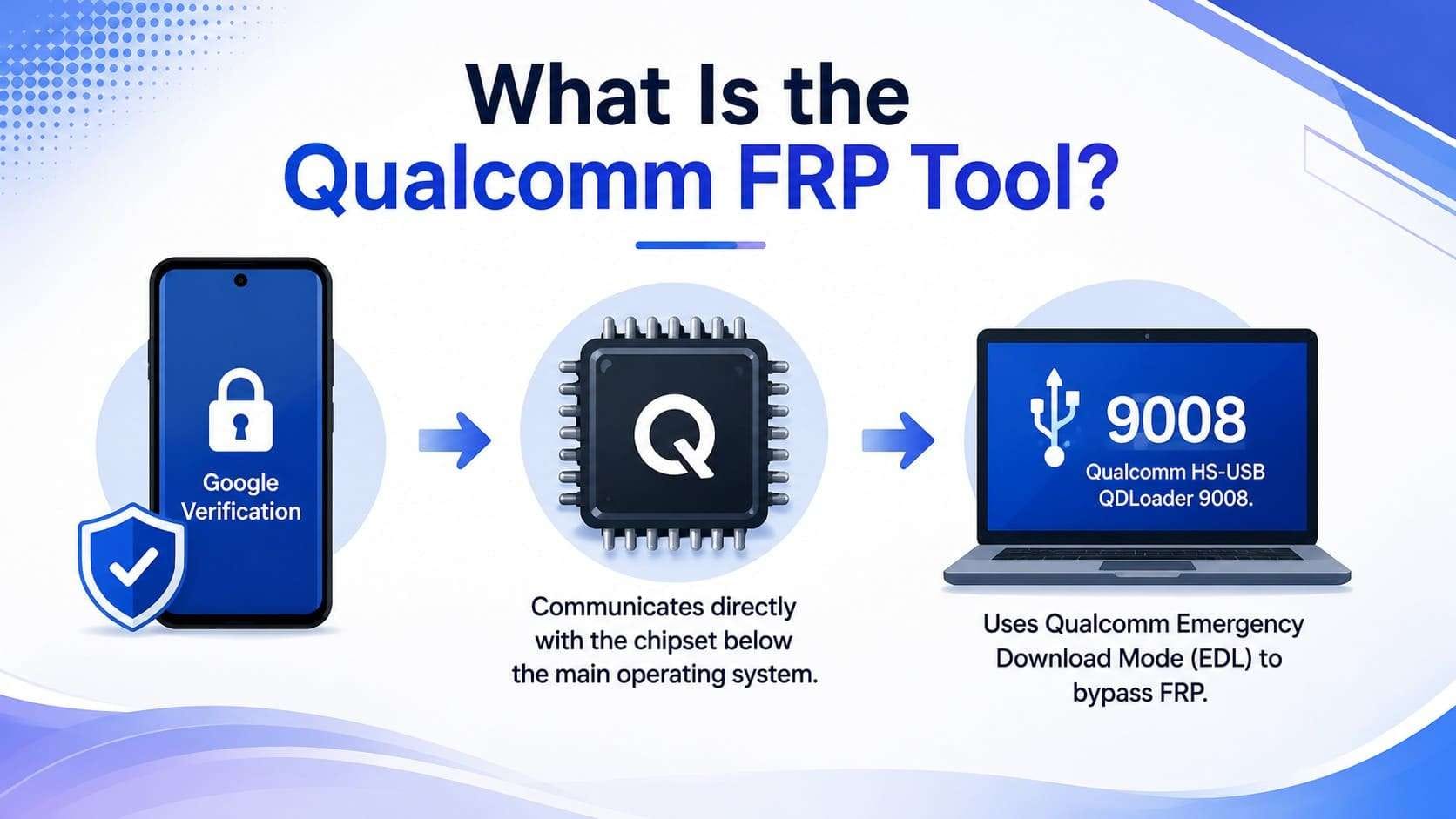
Furthermore, there is no single official app behind the name. This software includes a mixed range of tools, from official repair programs to dangerous repackaged junk. All aim at the same target: Qualcomm FRP removal on devices whose legitimate owners can no longer authenticate.
Qualcomm FRP Tool vs Qualcomm Unlock Tool
People often confuse these terms, but they serve different tasks. An FRP tool removes the Google account lock after a reset. Conversely, an unlock tool covers a broader range of tasks, like Screen Lock, SIM Lock, etc. Every FRP tool acts as a type of unlock tool, but most unlock tools cannot clear an FRP lock.
Qualcomm FRP Tool vs. QFIL and QPST
QFIL and QPST are Qualcomm's own utilities, and neither is an FRP tool. To know how these differ from the Qualcomm FRP tool, review the mentioned table in detail:
| Feature | Qualcomm FRP Tool | QFIL | QPST |
|---|---|---|---|
| Primary Purpose | Remove FRP on supported Qualcomm devices. | Flash firmware and recover Qualcomm phones. | Qualcomm diagnostic and servicing toolkit. |
| Official Qualcomm Software | No (usually third-party) | Yes | Yes |
| Uses EDL (9008) Mode | Yes (most tools) | Yes | Yes |
| Can Flash Firmware | Some tools. | Yes | Yes (through included utilities) |
| Can Remove FRP | Yes | No | No |
| Intended Users | Phone repair technicians and advanced users. | Developers and service technicians. | Service centers and device engineers. |
| Risk Level | High if used incorrectly. | Moderate | Moderate |
| Typical Use Cases | FRP removal, account lock bypass (where supported). | Unbrick devices, firmware installation. | Diagnostics, calibration, device servicing. |
Key Features of Qualcomm FRP Tools
Feature sets vary between Qualcomm FRP tools, but the credible ones share a common core:
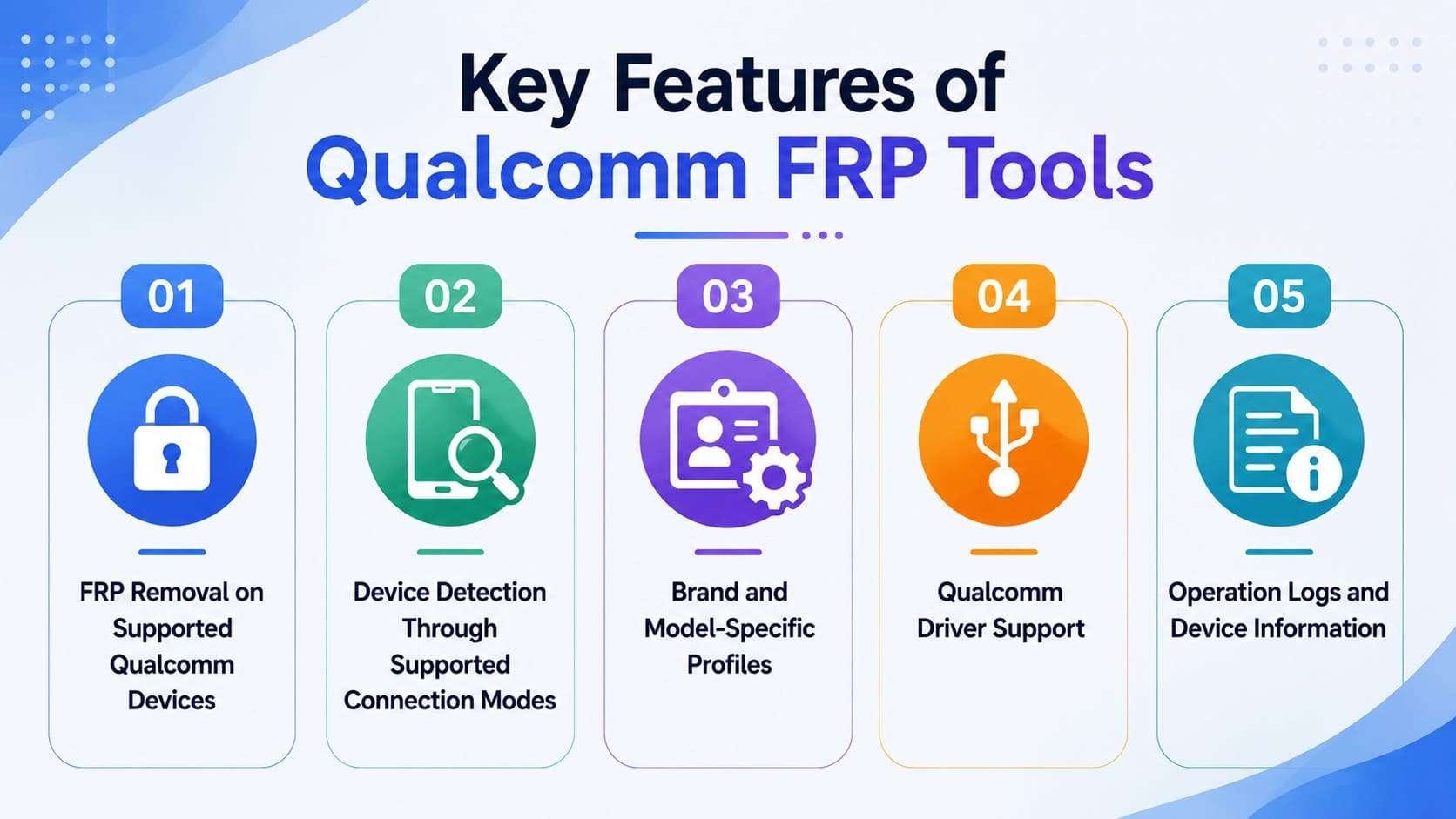
- FRP Removal on Supported Qualcomm Devices: The primary function attempts to remove the Google account lock. It works only on the specific models and security patches the tool was built and tested against.
- Device Detection Through Supported Connection Modes: The tool recognizes a phone once it enters EDL 9008, and sometimes ADB or Fastboot. It then reads back the model and firmware details it needs.
- Brand and Model-Specific Profiles: Snapdragon implementations differ by manufacturer, so many tools ship separate profiles per brand. A single configuration rarely works across different phone models.
- Qualcomm Driver Support: Most bundle or require the Qualcomm USB drivers that let Windows detect the Qualcomm HS-USB QDLoader 9008 port. Without these drivers, the connection cannot be established properly.
- Operation Logs and Device Information: Service-grade tools log each step and display the chipset, available device information, and partition details. That helps identify where the process stopped if an operation fails.
When Should You Use a Qualcomm FRP Tool?
The honest answer is rare, and the given points further clarify the usage of a Qualcomm Samsung FRP tool:
- Only on a Device You Own or Are Authorized to Repair: Note that the FRP exists to make stolen phones worthless. Removing it without ownership defeats an anti-theft feature and can break the law, so proof of purchase is the line between repair and theft.
- After Official Google Account Recovery Fails: Recovering the synced account clears the lock cleanly with nothing to install, so it's always the first move. A tool only enters the conversation once that door is shut.
- After Confirming Exact Device Compatibility: The right tool for a Galaxy on one Snapdragon chip can brick a Xiaomi on another. Matching your precise model and patch level to the tool's tested list comes before anything gets connected.
Part 2. Devices and Chipsets Supported by Qualcomm FRP Tools
If you have decided to use the Snapdragon or Samsung Qualcomm FRP tool, go through its device and chipset support given below:
| Brand | Qualcomm Chipset Series | Required Connection Mode | Compatibility Notes |
|---|---|---|---|
| Samsung Snapdragon | Snapdragon 8-series, 7-series | EDL 9008, often via test point | Exynos models require different servicing methods. |
| Xiaomi, Redmi, POCO | Snapdragon 4 to 8-series | EDL 9008, may require authorized access | Locked firehose loaders and Mi security may restrict access. |
| OPPO, OnePlus, Realme | Snapdragon 6 to 8-series | EDL 9008 with signed loader | Manufacturer security may block generic third-party tools. |
| Vivo and iQOO | Snapdragon 4 to 8-series | EDL 9008, test point may be required | Strong security protections exist on many recent models. |
| Motorola and Lenovo | Snapdragon 4 to 7-series | EDL 9008 or Fastboot | Compatibility varies by device model and firmware. |
| ASUS, ZTE, Nubia | Snapdragon 7 to 8-series | EDL 9008 with matched loader | Tool support varies because fewer models are commonly supported. |
How to Check Your Device Model and Qualcomm Chipset
Before you use the Qualcomm FRP tool, confirm your chipset first, or you will brick your phone. Dial *#*#4636#*#* on your Android phone for the testing menu, or open Settings, tap “About phone,” and read the model number. A free app like Device Info HW or CPU-Z shows the exact Snapdragon chip. Match that against the tool's supported list rather than guessing from the marketing name.
Why Compatibility Depends on More Than the Chipset
Two phones can share a Snapdragon chip and still need different handling. The firehose programmer, the signed file that carries out the flashing, is tied to the platform, memory layout, and signing policy, not just the processor. A loader that works on one device gets rejected on another with the same chip but a different memory layout. Patch level matters too, since manufacturers close these routes with updates.
Part 3. Risks of Using a Qualcomm FRP Tool
To be on the safe side, go through the mentioned risks of the Qualcomm FRP tool given in this section:
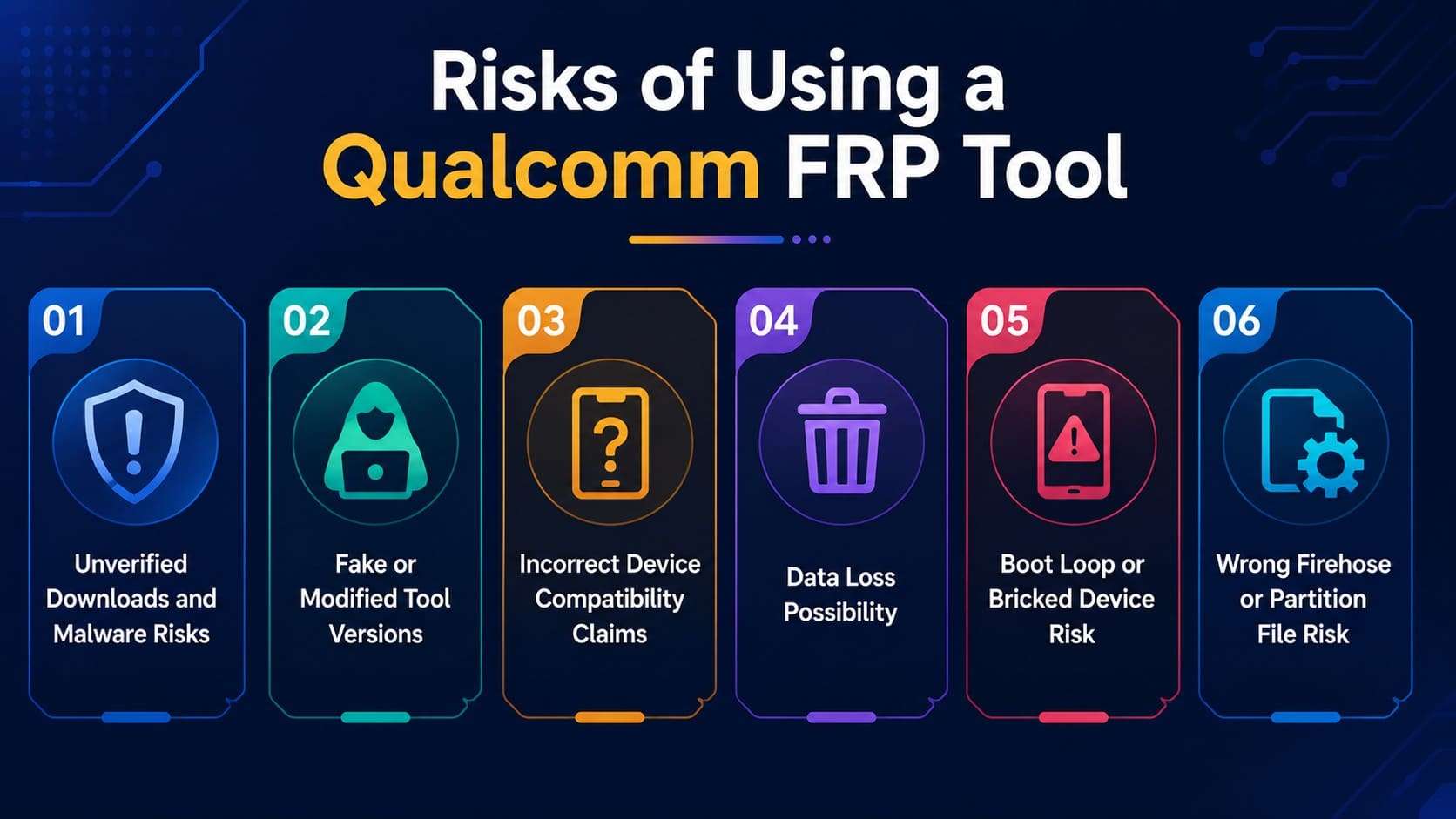
- Unverified Downloads and Malware Risks: Most of these tools are distributed through file-sharing sites or forum mirrors without official verification or digital signatures. Running an unknown executable with low-level device access can expose a computer to malware or credential theft.
- Fake or Modified Tool Versions: Scammers clone popular tool names to spread adware or malware. The download claiming to be the latest build is often a repackaged copy from an account with nothing to lose.
- Incorrect Device Compatibility Claims: Listings routinely promise support for models the tool was never tested on. A confident compatibility badge is marketing, not a guarantee your phone survives.
- Data Loss Possibility: Some FRP procedures may wipe partitions or user data, so photos and files that were never backed up could be lost. There is not always a warning before data is erased.
- Boot Loop or Bricked Device Risk: A flash interrupted by a bad cable or dropped connection can leave the phone stuck rebooting or dead at a black screen. Fixing a bricked phone demands official tools and real expertise.
- Wrong Firehose or Partition File Risk: Flashing a loader meant for another model can damage partitions or make the device unusable. A matching chipset alone doesn't make a file safe.
Part 4. How to Download and Use a Qualcomm FRP Tool Safely
Let’s say you own the device and can afford the risks mentioned in the above section. This section explains how you can use a Qualcomm FRP tool when all the official recovery methods have failed.
Where to Download a Qualcomm FRP Tool
Avoid generic downloads because untrusted sources carry major security risks. Since there is only one official link, you can download this tool from MediaFire.
Requirements Before Using a Qualcomm FRP Tool
- A Windows PC, since most of these tools are Windows-only.
- The correct Qualcomm USB drivers installed and confirmed working.
- Your exact model number, firmware, and Snapdragon chipset written down.
- A full backup if the phone is reachable at all, because the process may wipe it.
- A reliable USB cable and a charged battery to avoid mid-flash failure.
Guide to Use the Qualcomm FRP Tool
The exact clicks differ by tool, but here's how you can use the Qualcomm FRP tool from MediaFire:
-
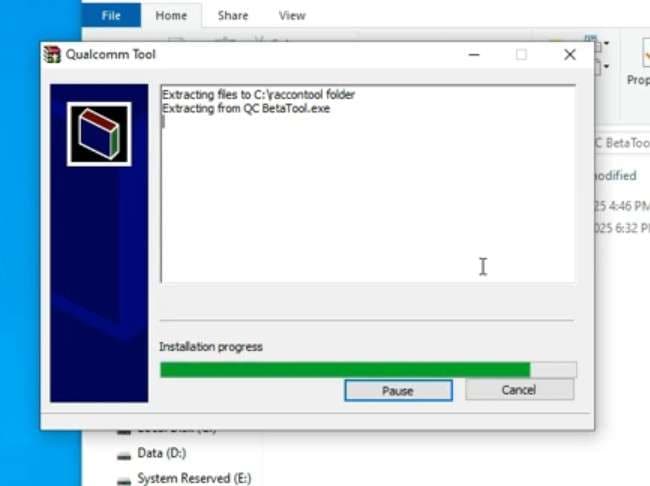
Step 1 Extract the file > Add passcode > Install the tool.
-
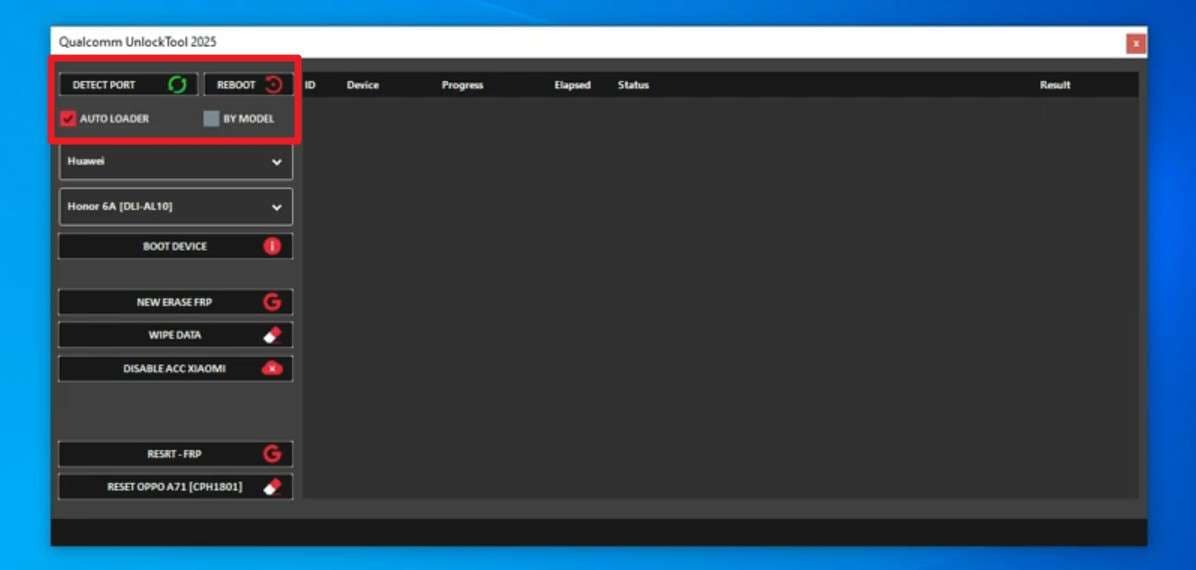
Step 2 Power the phone off and enter EDL mode > Check the “Detect Port” status. Pick the “Auto Loader” mode for automatic phone model detection, or tap “By Mode.”
-
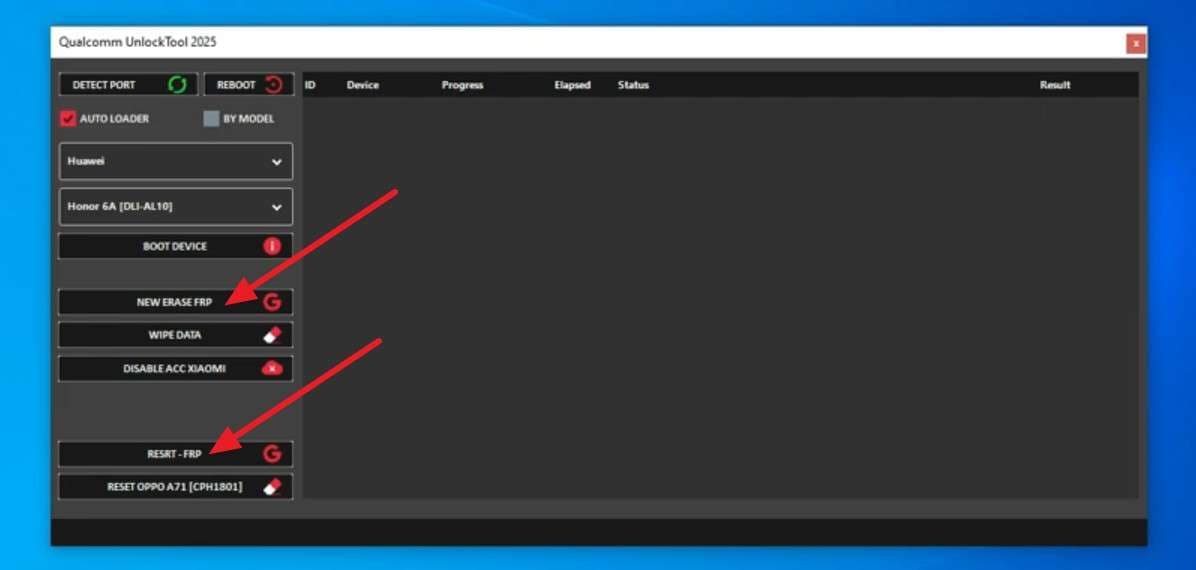
Step 3 After that, choose the “Reset FRP” option or pick the “New Erase FRP” option based on your model.
Common Qualcomm FRP Tool Errors
These are the failures you'll actually meet when you use the Qualcomm FRP tool:
| Error Message | Common Cause | Recommended Check |
|---|---|---|
| Device Not Detected | USB driver, cable, or connection issue. | Reinstall Qualcomm USB drivers, try another USB cable or port, and confirm the phone is connected properly. |
| Qualcomm HS-USB QDLoader 9008 Not Showing | The device did not enter EDL Mode, or the wrong driver was loaded. | Re-enter EDL Mode and verify Windows detects Qualcomm HS-USB QDLoader 9008 in Device Manager. |
| Sahara Communication Failed | The firehose loader failed during the initial handshake. | Use the correct programmer file for the exact device model and firmware. |
| Firehose Programmer Error | Incompatible or unauthorized Firehose loader. | Match the loader to the exact device model and firmware version. |
| OEM Authentication Failed | The manufacturer requires authorized service authentication. | Use an officially authorized repair tool or service account if required. |
| Unsupported Model or Security Patch | The tool does not support the device or current Android security patch. | Check the tool's compatibility list and update to a supported tool version if available. |
| FRP Lock Returns After Restart | The previous Google account was not fully removed, or the bypass was temporary. | Complete the proper account removal process before performing another factory reset. |
Pros and Cons of Qualcomm FRP Tools
In addition to the errors, here are some advantages and disadvantages of Snapdragon/Samsung Qualcomm FRP tools:
| Pros | Cons |
|---|---|
| Can remove FRP on supported devices when Google account recovery is not possible. | Serious risk of bricking or permanent data loss if used incorrectly. |
| Works at the chipset level, below normal operating system restrictions. | Downloads are frequently unsigned or obtained from untrusted sources. |
| Useful for experienced repair technicians working on supported Qualcomm devices. | Compatibility claims are often inaccurate or exaggerated. |
| May support certain Qualcomm devices that other FRP tools do not. | Some test-point procedures can physically damage the phone if performed incorrectly. |
Part 5. Safer Ways to Regain Access to an FRP-Locked Android Phone
When the Qualcomm FRP tool fails, or the method feels risky, here are some safe options you can consider:
Solution 1. Recover the Previously Synced Google Account
FRP is asking for one thing: the account last signed in before the reset. Google's account recovery can restore access with your phone number, a backup email, or identity checks. Here is how you can do this process once you access the Google account recovery page:
-
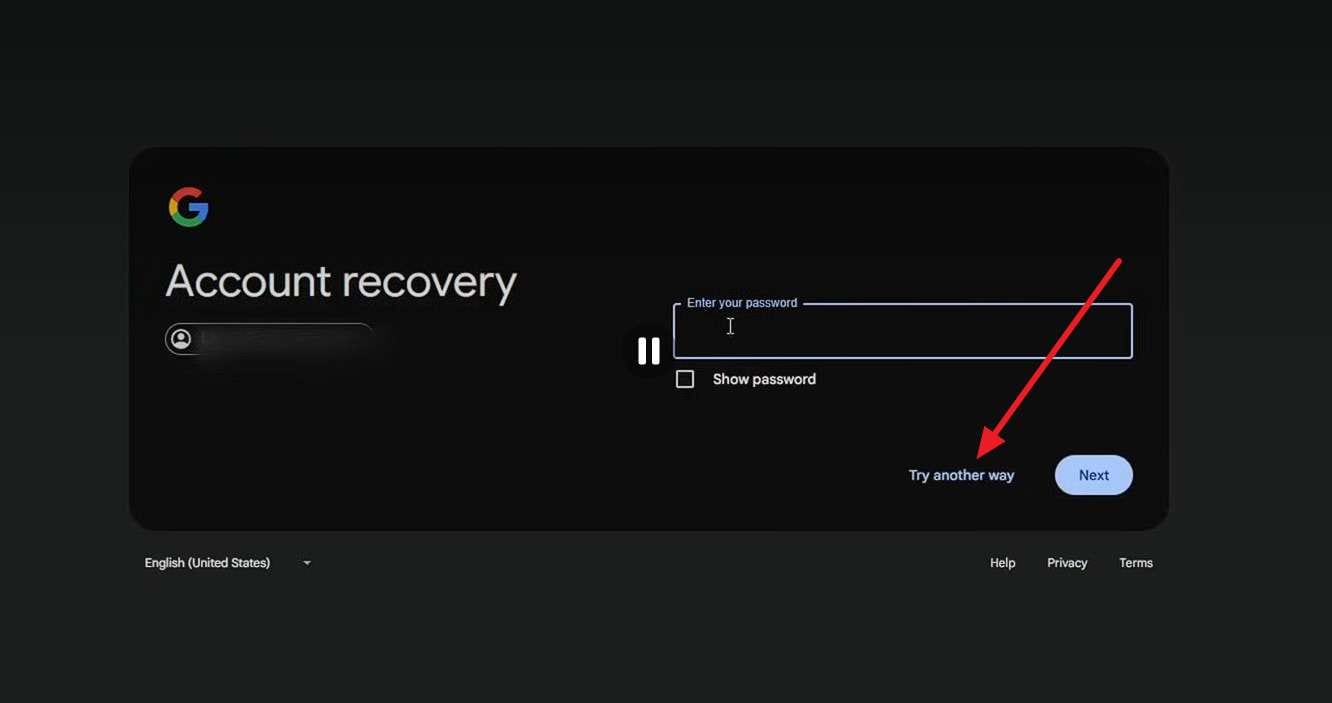
Step 1 Enter your email address or phone number and click “Next.” Enter the last password you remember, or click “Try Another Way” if you can't recall it, then follow the remaining recovery options.
-
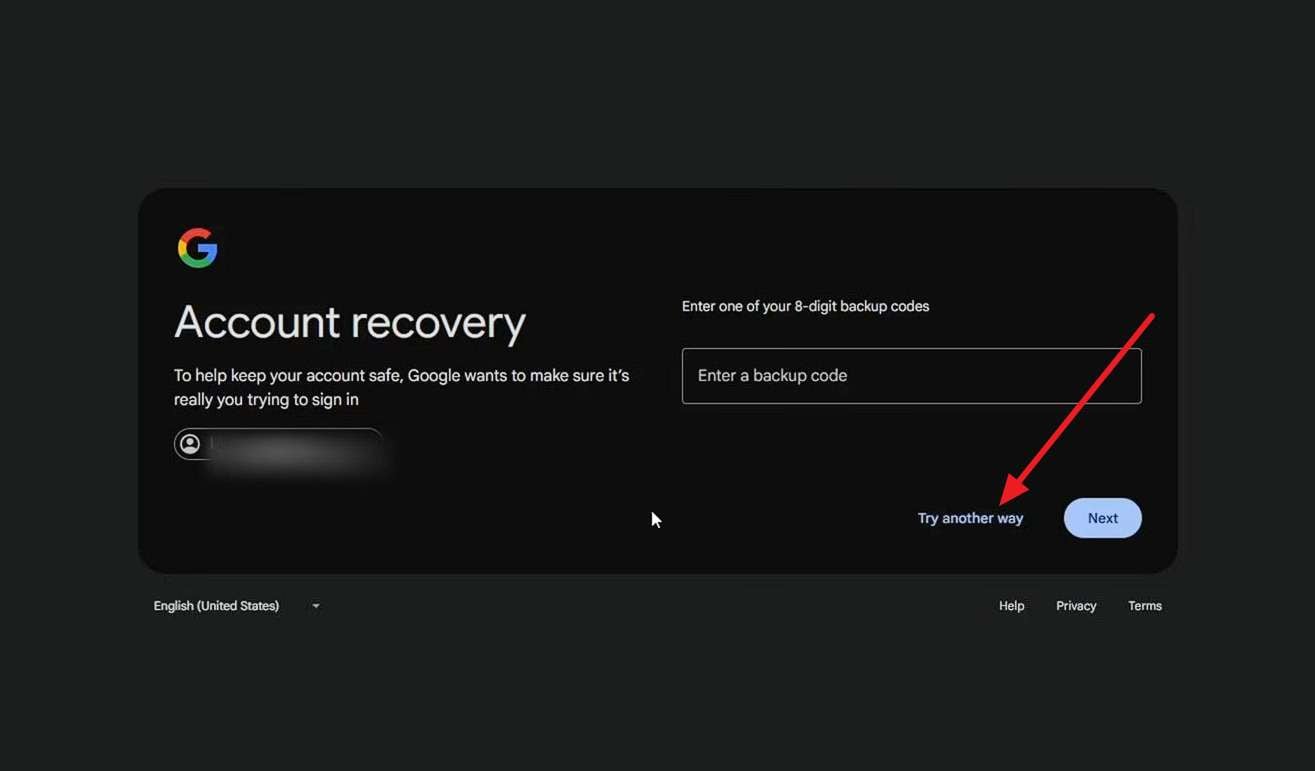
Step 2 Enter your phone number and click “Next.” If you don't have access to that phone number, select “Try Another Way,” choose Backup codes, and enter one of your saved backup codes.
Solution 2. Use Dr.Fone – Screen Unlock (Android): One-Click FRP Bypass Tool
When the account genuinely can't be recovered, and you don’t want to use an FRP Qualcomm tool, try Dr.Fone - Screen Unlock (Android). This tool can remove FRP from 18 famous Android brands and is AI-powered, unlike other tools. It can also bypass FRP on Samsung phones and tablets, with the option to use its online FRP bypass tool.
Being the pioneer to support Samsung Android 16 FRP unlock, it is also compatible with Samsung Galaxy S26 Series and all Samsung Snapdragon devices. Dr.Fone supports major US models and chipsets, along with separate and detailed guides for each brand. It skips the test points and file extraction process and requires codes to ensure the FRP bypass is legitimate and consensual.
 Unlock Android phone in seconds.
- Remove PIN, pattern, password, fingerprint.
- Bypass Google FRP lock easily.
- Works on all Android brands & models.
- No tech skills required – user-friendly.

Guide to Remove Samsung FRP with AI Using Dr.Fone
When Qualcomm FRP tool usage feels risky, follow the mentioned guide to remove the FRP lock with AI algorithms in the safest manner:
-
Step 1 Open the FRP Removal Tool
Access the Screen Unlock tool for Android from the “Toolbox” tab, choose “Remove Google FRP Lock” while the device is connected.

-
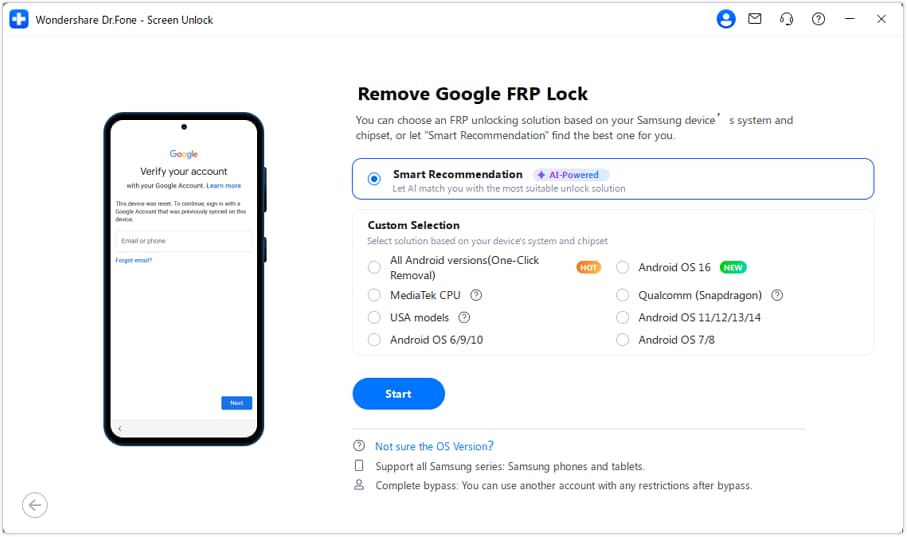
Step 2 Choose Your Samsung and Android Version
Pick your phone brand like Samsung and tap “Start” to let Dr.Fone match the right FRP unlock method via “Smart Recommendation (AI-Powered).” You can also use the “All Android versions (One-Click Removal)” option and press “Start” to follow the instructions.
-
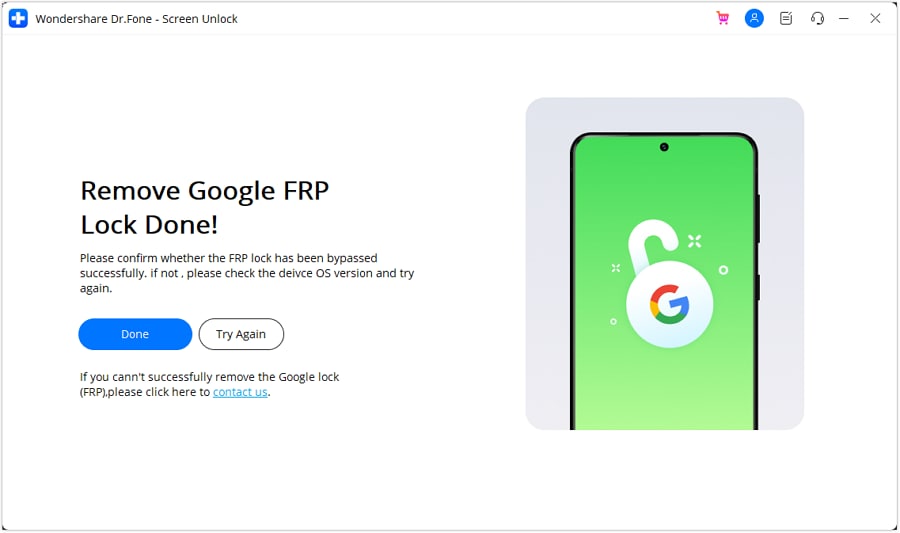
Step 3 Follow the On-Screen Steps to Finish
Enable USB debugging when prompted, click the “Authorized” button, and wait until the tool removes the FRP lock. Press “Done” to conclude the FRP removal process.




Solution 3. Contact the Manufacturer or an Authorized Service Center
Samsung, Xiaomi, and the rest can clear FRP once you prove ownership, usually with a receipt or the original box. It takes some time and may cost a fee, but the phone comes back clean, warranty intact, and with no risk of a botched flash.
Solution 4. Contact the Previous Owner of a Used Phone
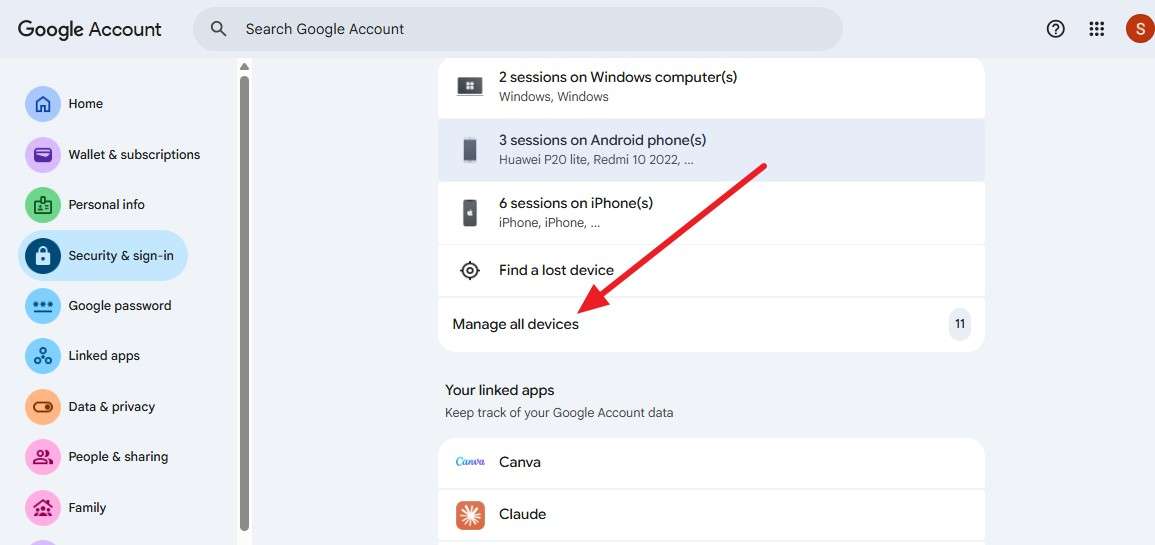
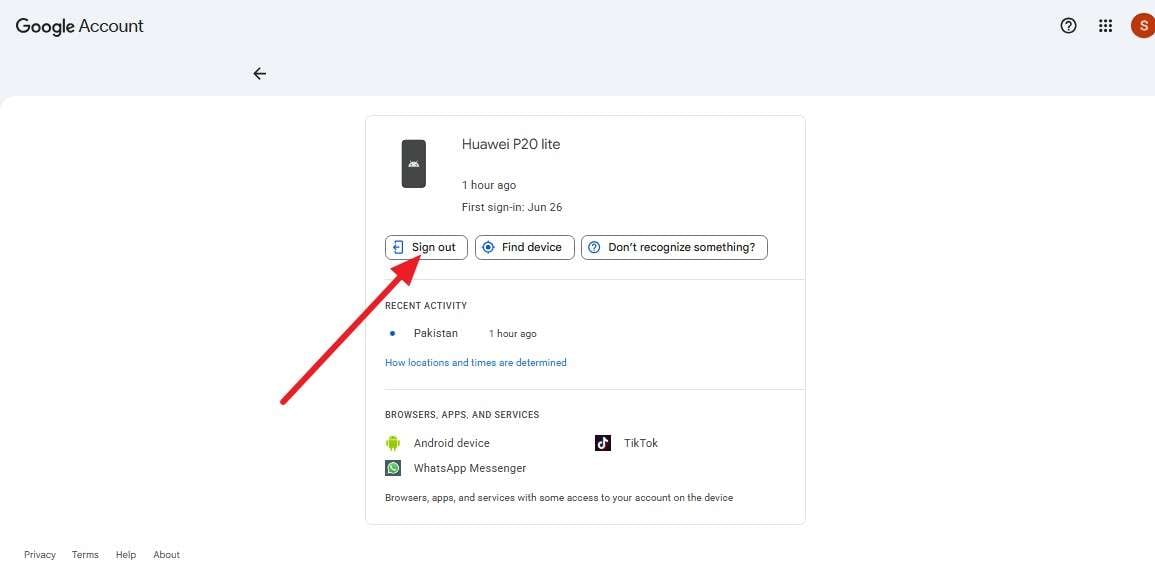
If you bought the phone secondhand, the fastest fix is for the seller to remove their account remotely. They can simply do so from the Google Account Device Activity using the following instructions:
-
Step 1 Scroll down to the Google Account Device page and tap on “Manage All Devices.”
-
Step 2 Select the locked device from the list and tap “Sign Out” to continue.
Conclusion
A Qualcomm FRP tool is real software solving a real problem, but it works below the safety net. Recover the Google account first, since it usually works and costs nothing. Always verify that the method supports your exact device model, Android version, and security patch before proceeding. If it can't be recovered, a guided tool like Dr.Fone - Screen Unlock (Android) clears the lock without betting the device.
FAQ
-
1. Is the Qualcomm FRP tool safe to download?
No, most are unsigned files on unaccountable mirrors, and fake versions carrying malware are common. -
2. Is the Qualcomm FRP tool an official Qualcomm product?
No, Qualcomm makes QFIL and QPST for firmware and service work, not FRP removal. The tools sold as Qualcomm FRP tools are third-party utilities that borrow Qualcomm's EDL mode. -
3. Does the Qualcomm FRP tool work on Samsung Snapdragon devices?
Often, but only when the exact model, firmware, and patch level match the tool's tested list. Samsung's Exynos variants use a different route entirely, so a Snapdragon-only tool won't touch them. -
4. Does it work on Android 14, Android 15, or Android 16?
Sometimes, though, each release and security patch tends to close older bypass routes. A tool proven on Android 13 may fail on Android 15, which is why matching the current patch level matters as much as the chipset.
 Add Wondershare Dr.Fone as a preferred source on Google



