Bypass iCloud Activation Lock and Android FRP without password.

 100% Security Verified | No Subscription Required | No Malware

 :
: 
 ChatGPT
 Perplexity
 Gemini
 Claude
 Grok
Grok
This video is unavailable is one of the most common error messages on YouTube, according to Google's YouTube playback documentation. A similar message appears on Amazon Prime Video for entirely different reasons. This guide covers what the message actually means, 12 fixes for the "This video is unavailable" YouTube error, and 5 for Prime Video. It also introduces Dr.Fone Basic, a practical tool to manage files on a phone.
In this article
Part 1. What Does "This Video Is Unavailable" Mean?
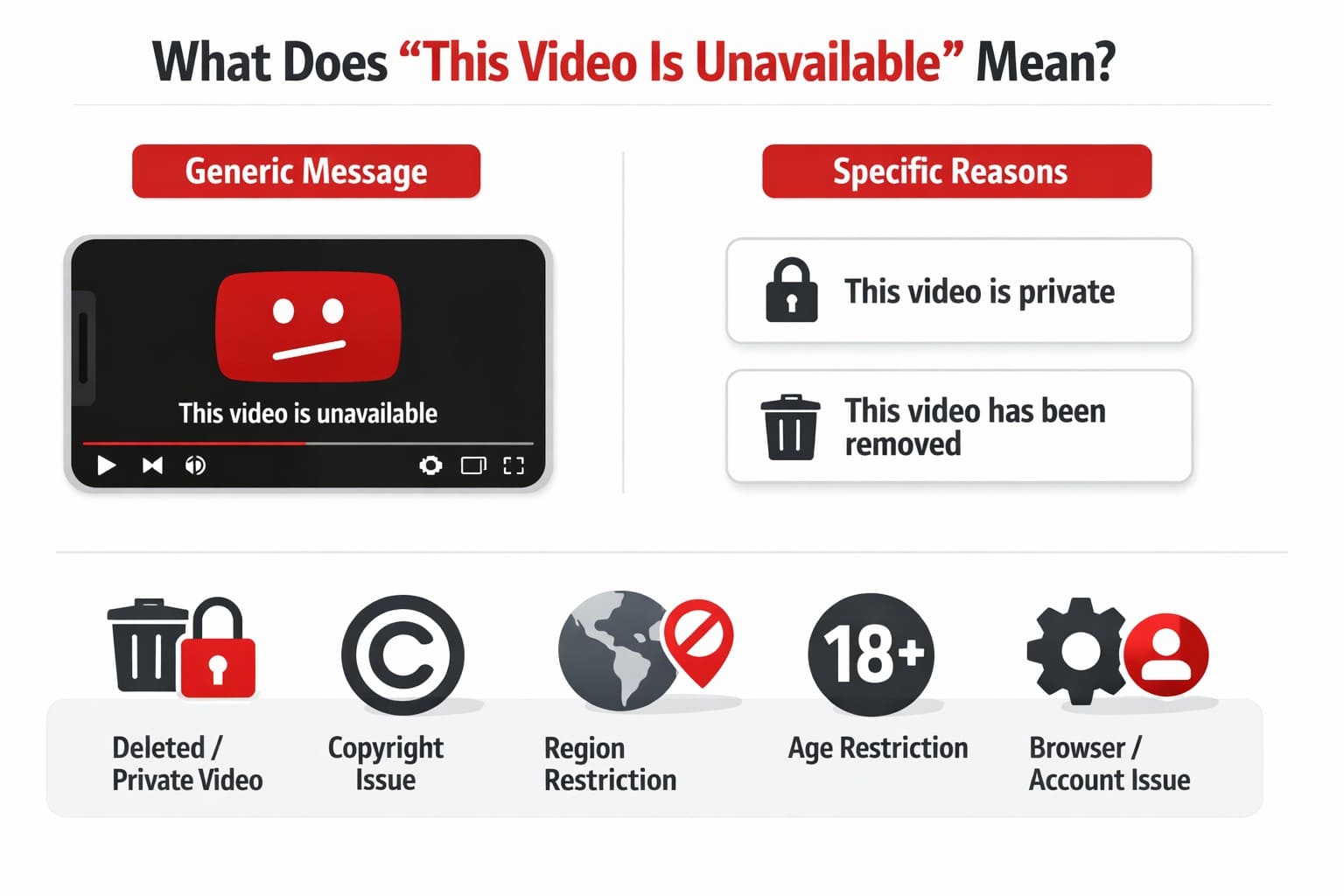
“This video is unavailable” is a generic message YouTube shows when it can't serve a video and doesn't specify exactly why. This differs from YouTube's more specific messages, such as “This video is private” or “This video has been removed,” which state the cause directly.
Common causes include the uploader deleting or privating the video, a copyright takedown, or the video is not available in this region due to licensing. Age-restricted content shown to a signed-out viewer, or a client-side browser or account issue, can also trigger it.
Is One Video Unavailable or Are All Videos Affected?
This distinction narrows down the cause faster than any other single check. If only one video shows the error, the problem almost certainly sits with that specific video, whether it's private, deleted, region-locked, or age-restricted. If every video shows the same error, the cause is more likely your browser, account, network, or device rather than the content itself.
Part 2. How to Fix "This Video Is Unavailable" on YouTube
To fix the "This video is unavailable" issue, work through these fixes in order.
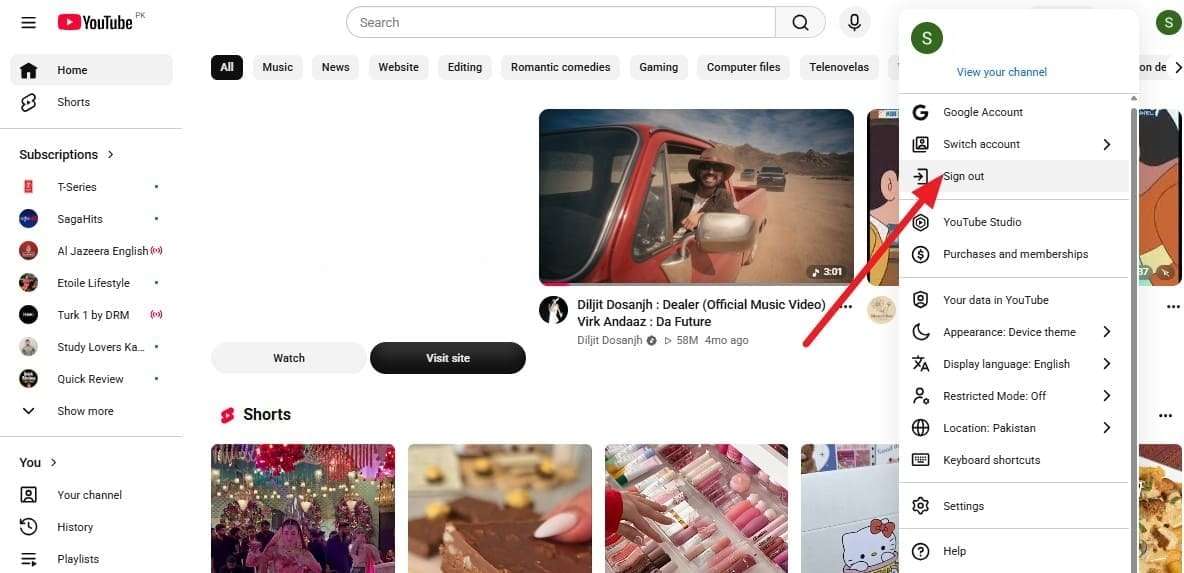
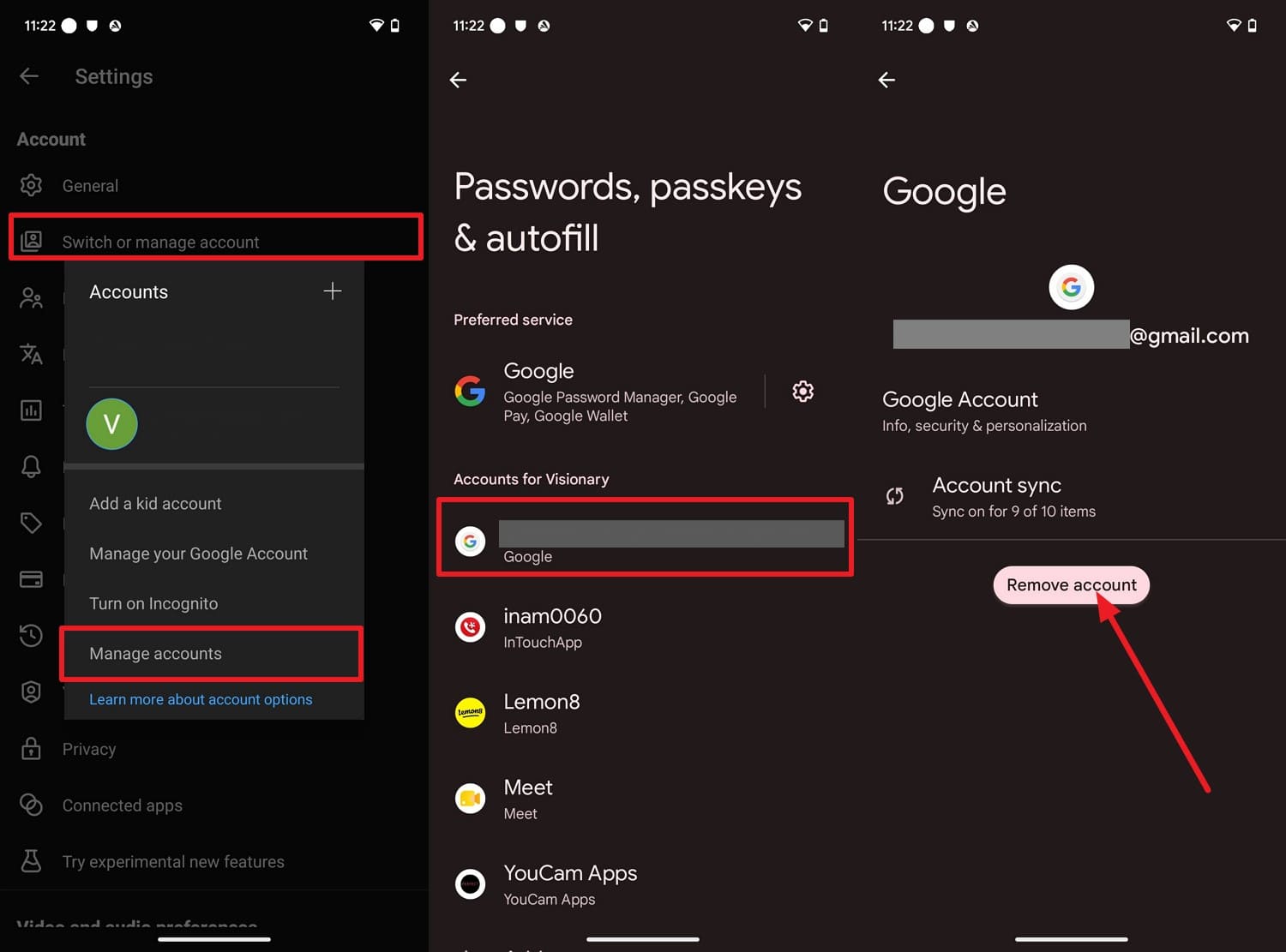
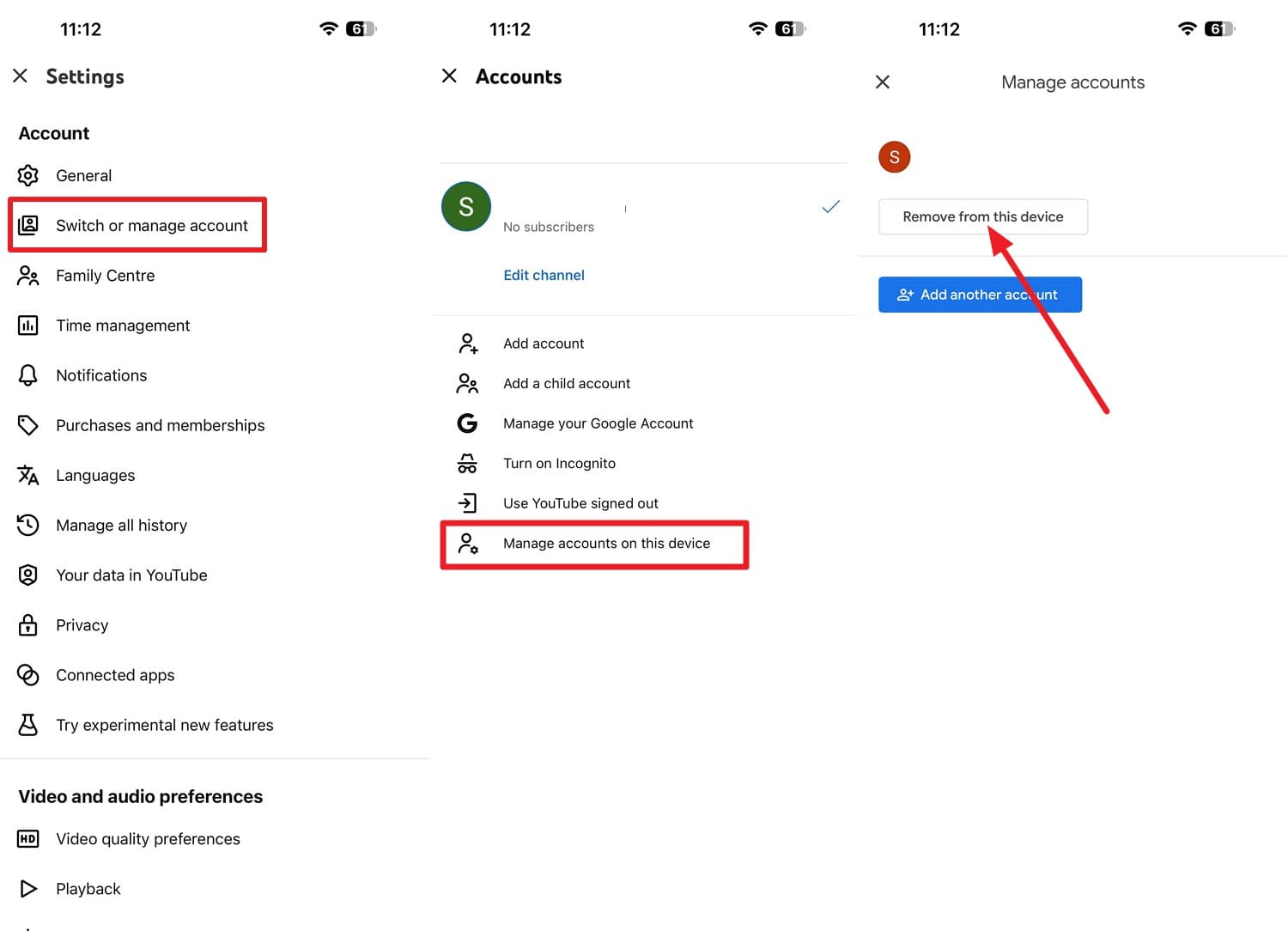
Fix 1. Sign Out and Sign Back Into YouTube
Google's account help confirms certain features require an active, verified sign-in to work. So, sign out and back into YouTube to clear any glitches tied to the account login, as guided:
For Browser
For Android
For iPhone & iPad
For Smart TVs
-
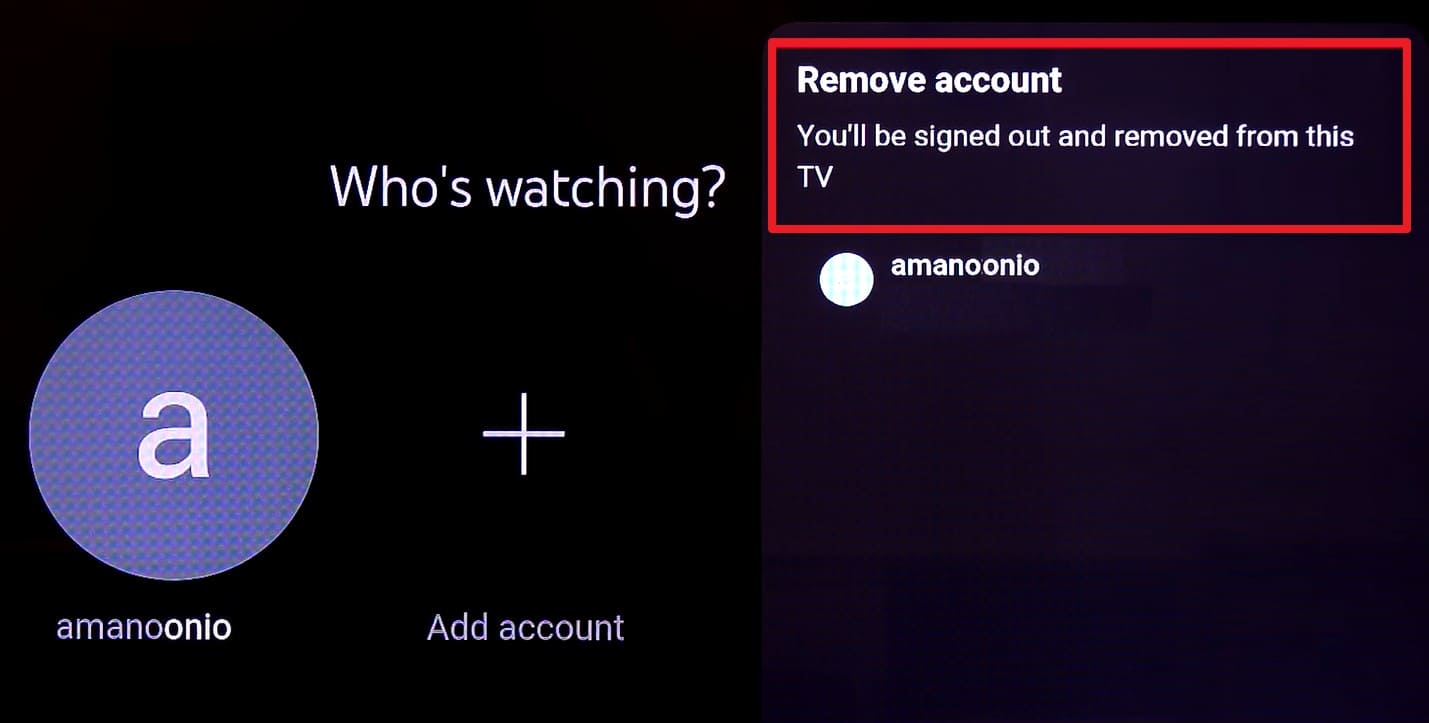
Step 1 Press the “Left” button on the remote to open the menu, then use the “Up” button to select the account. Choose account > Press "Down" to tap on the "Profile" icon > Select “Remove Account.”
-
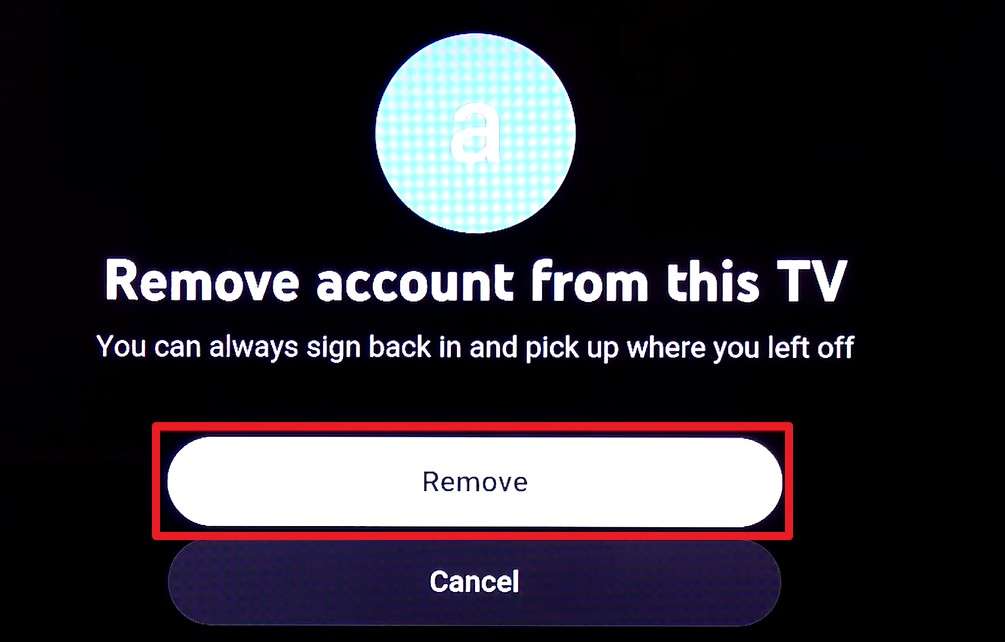
Step 2 Use the “Center” button on the remote and select the “Remove” option to confirm.
Fix 2. Open YouTube in Incognito or Private Mode
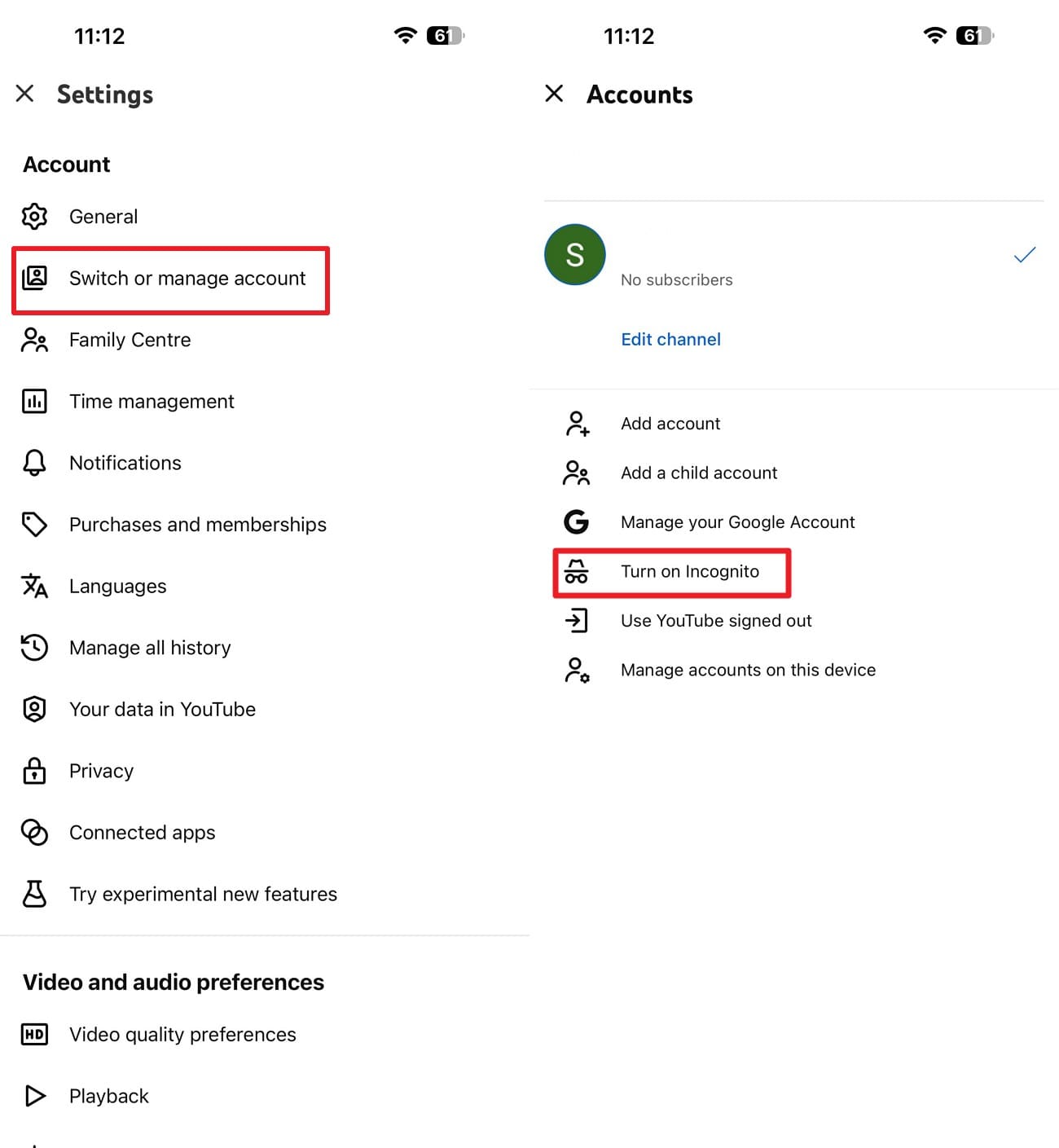
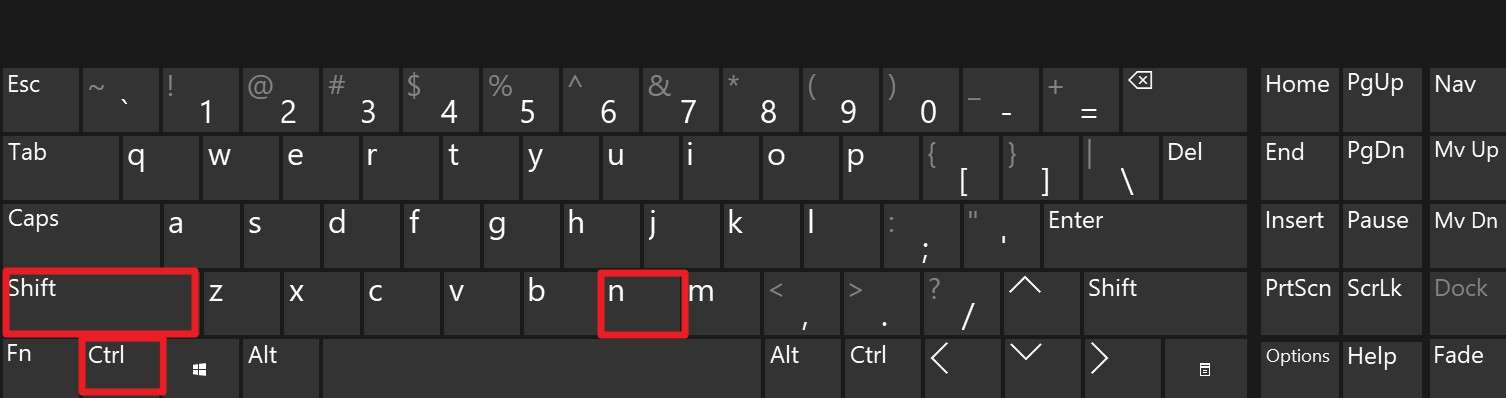
As another solution for the "this video is unavailable on YouTube" issue, it's the fastest single diagnostic step before changing any permanent settings.
For Mobile (iOS & Android)
For Browser

Fix 3. Try Another Browser, Network, or Device
It rules out whether the problem stems from your specific setup rather than YouTube itself. When nothing resolves the YouTube video is not available in this region issue, open the video in a different browser you have installed or device.
Fix 4. Turn Off YouTube Restricted Mode
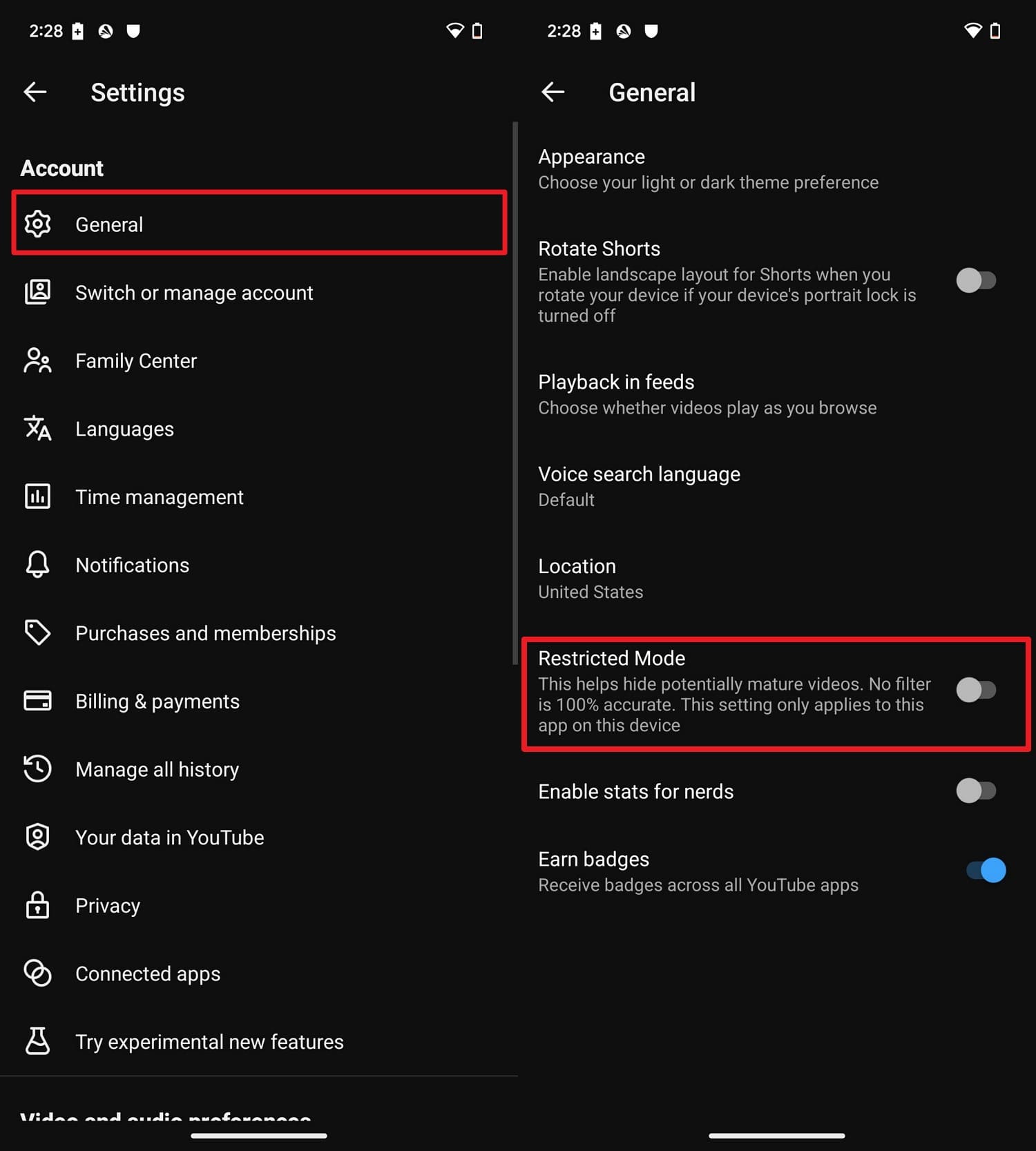
According to Google's Restricted Mode documentation, the setting filters out content flagged as potentially mature, which can make an otherwise normal video appear unavailable. Since it does not require downloads or technical steps, here are the instructions:
For Mobile (iOS & Android)
For Browser
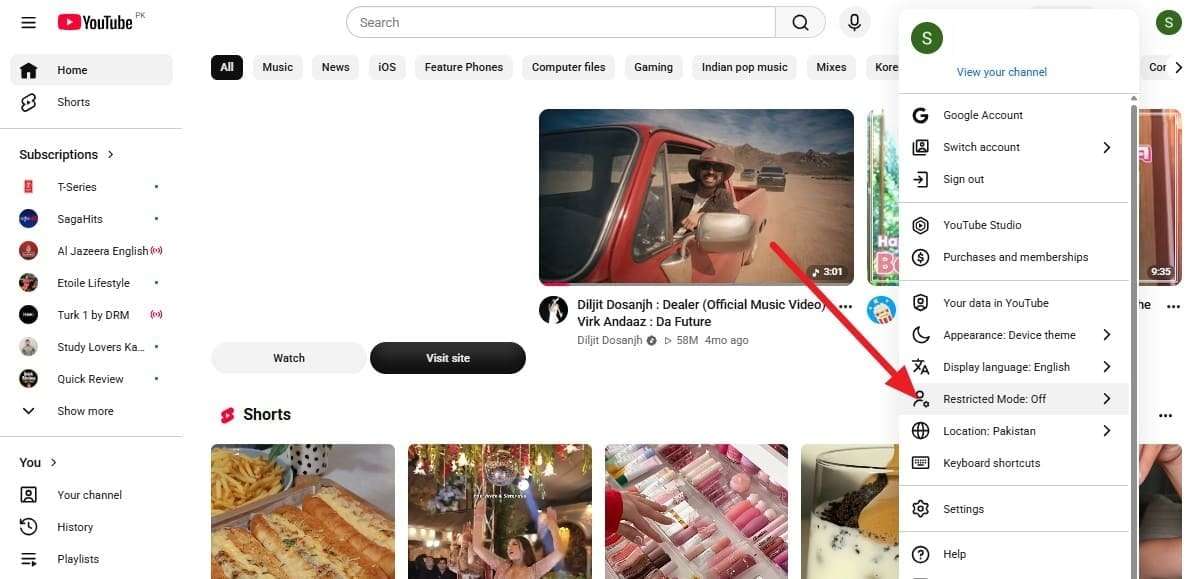
-
Step 1 Press the “Profile” icon and select the “Restricted Mode” option.
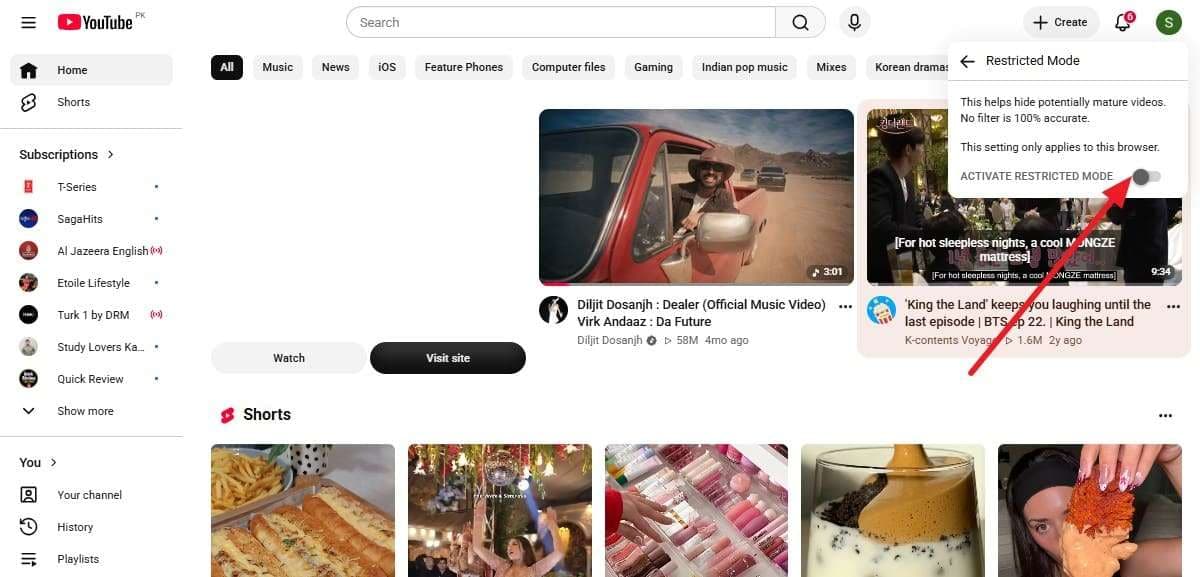
-
Step 2 When the pop-up menu appears, disable the "Activate Restricted Mode" option.
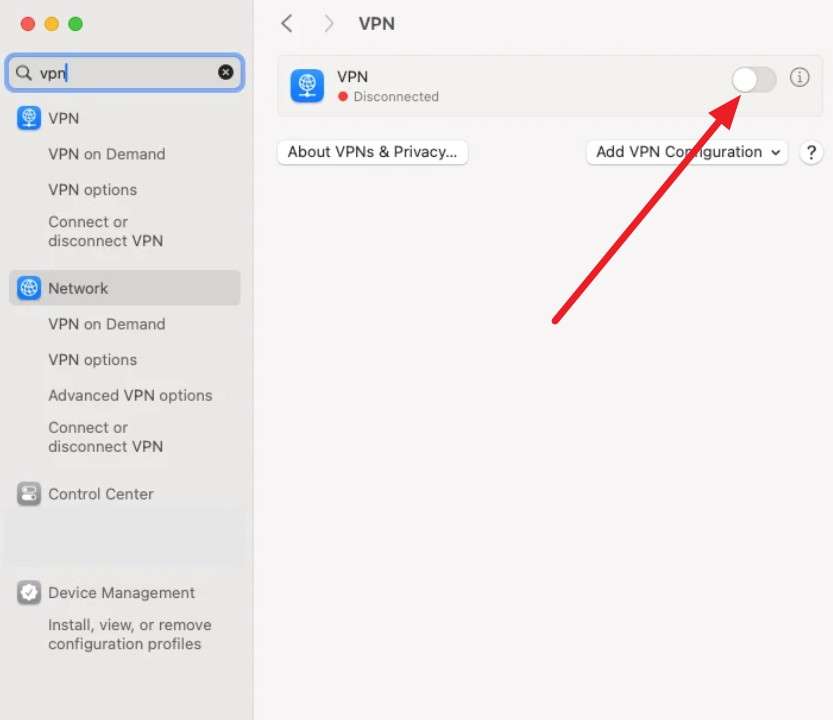
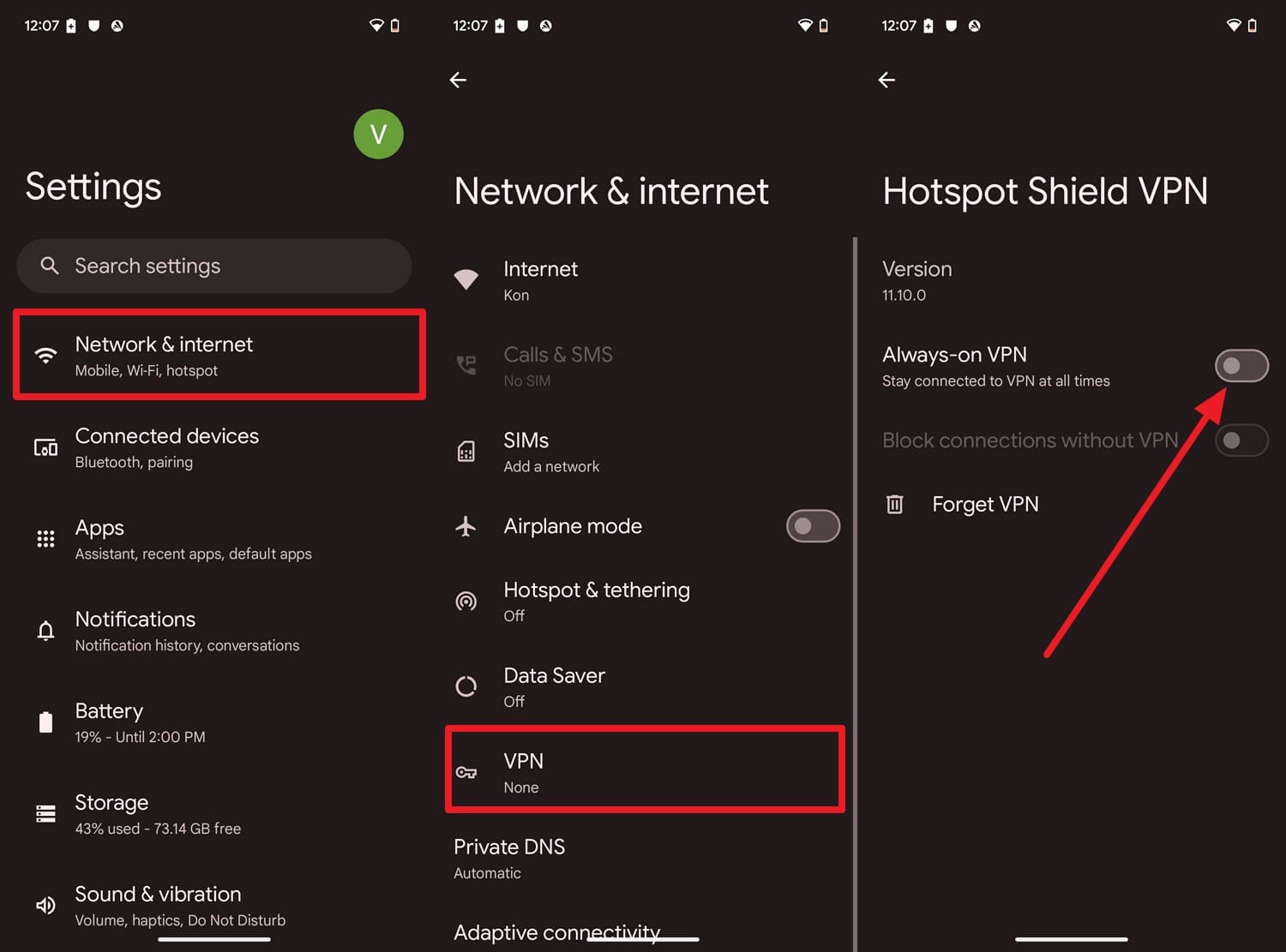
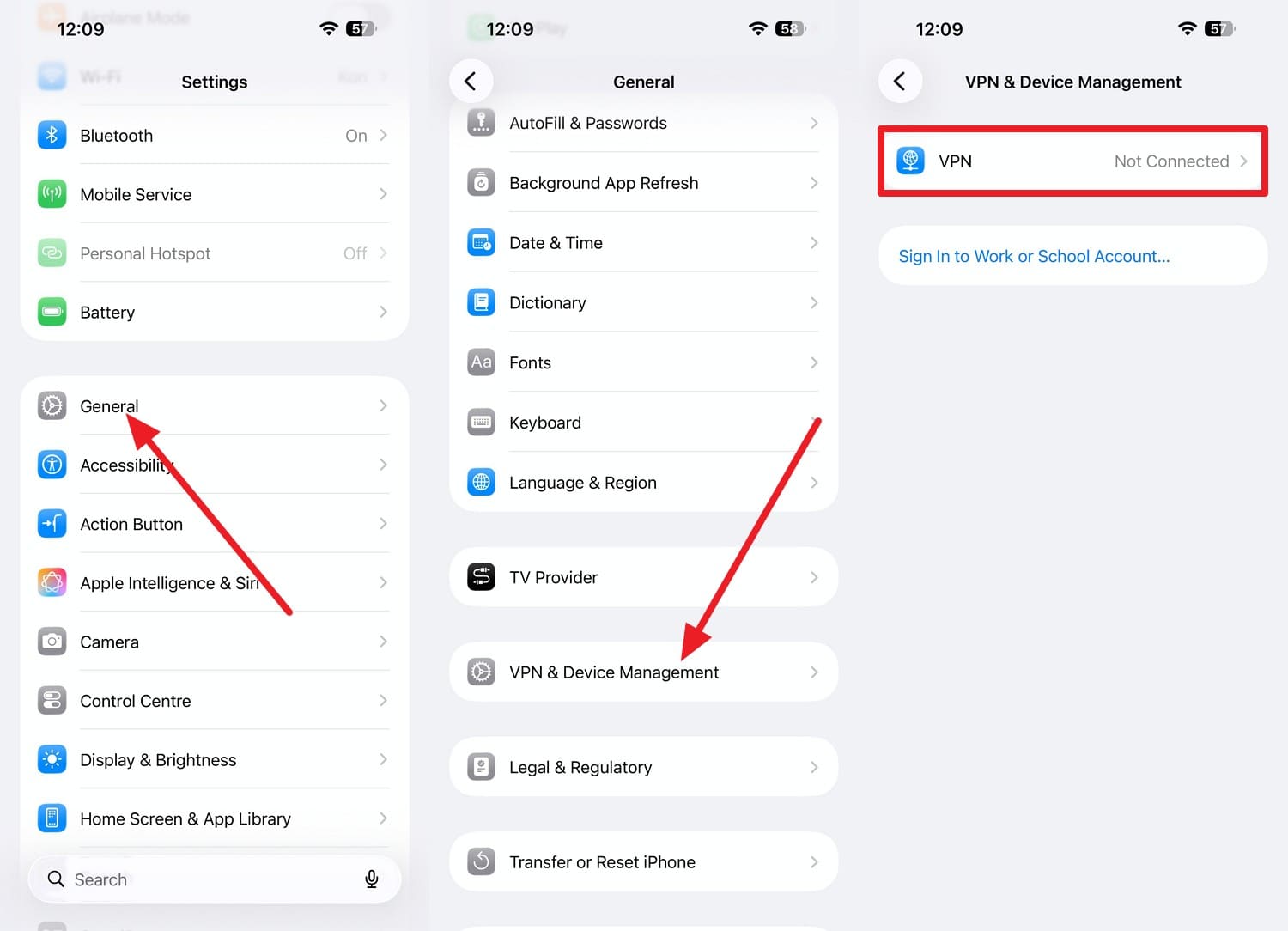
Fix 5. Turn Off the VPN or Proxy Connection
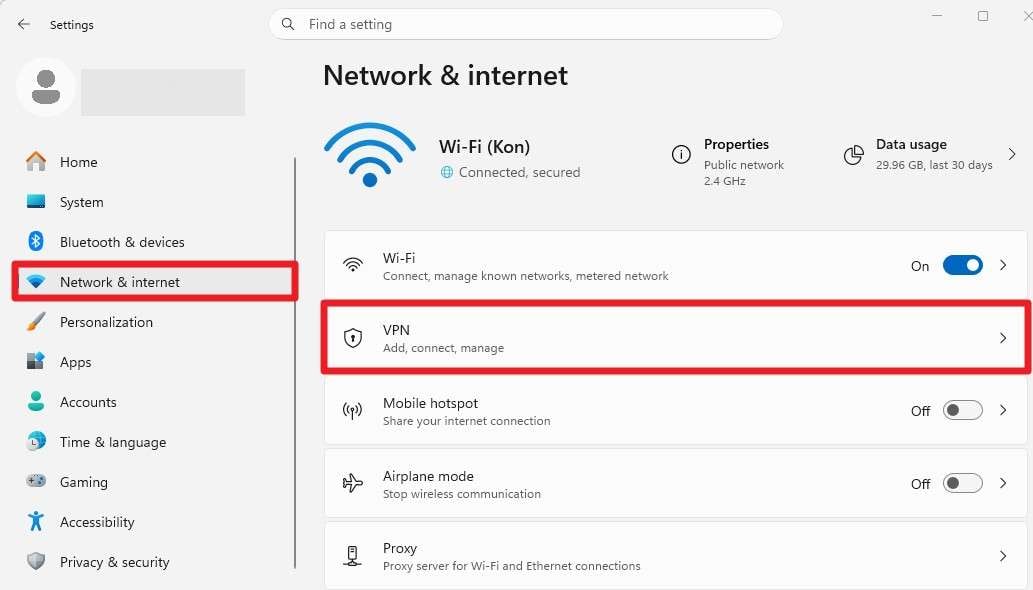
To resolve the “this video is unavailable on this device” issue, note that a VPN can mask your real location. As this also improves video loading speed and connection stability, follow the mentioned steps:
For Windows
For macOS
For Android
For iOS (iPhone/iPad)
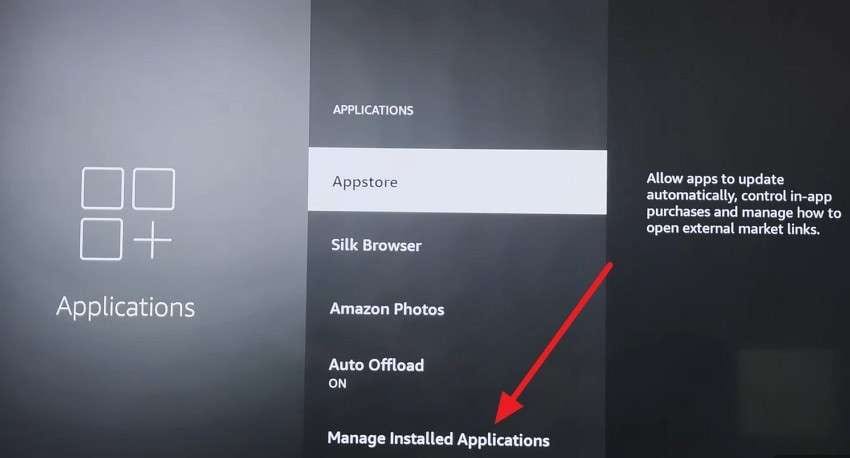
On a Smart TV like Fire TV
-
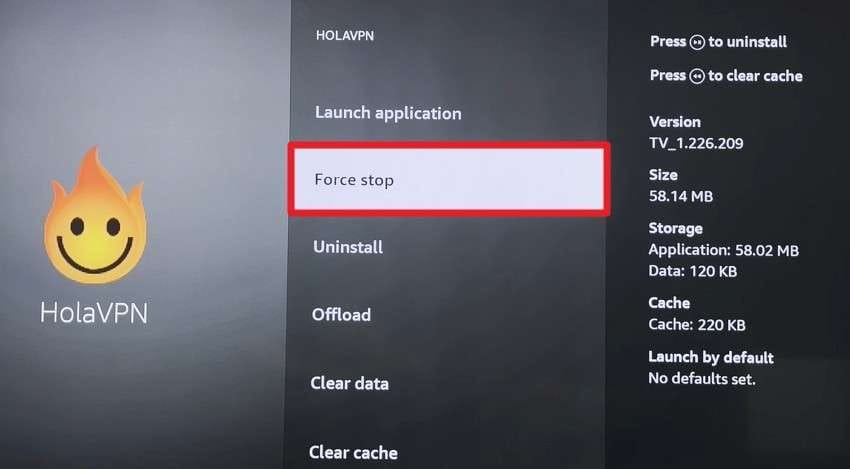
Step 1 Choose “Settings > Applications > Manage Installed Applications” on Fire TV.
-
Step 2 Choose the VPN app from the list and confirm “Force Stop.”
Fix 6. Check Whether the Video Is Available in Your Region
Some videos are licensed for specific countries only, which produces messages like this video is not available in your country no matter your settings. It's a free, simple check that helps you decide the right next step, so search for the video's title to see if other uploads exist.
Fix 7. Disable Browser Extensions and Ad Blockers
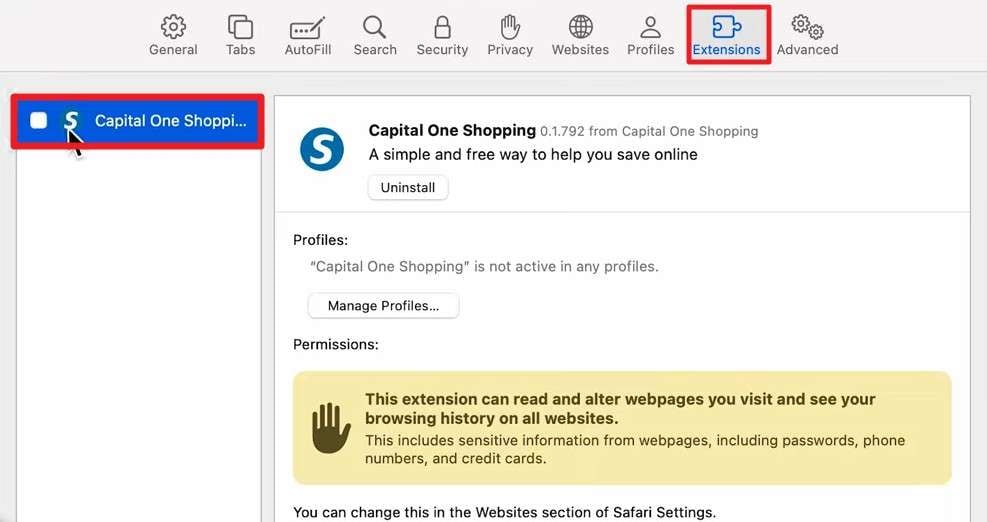
Extensions that block or rewrite page scripts are one of the most frequently reported causes of this exact error, according to YouTube Help. Even extensions unrelated to ads can interfere; disable them via the mentioned steps:
For Google Chrome
-
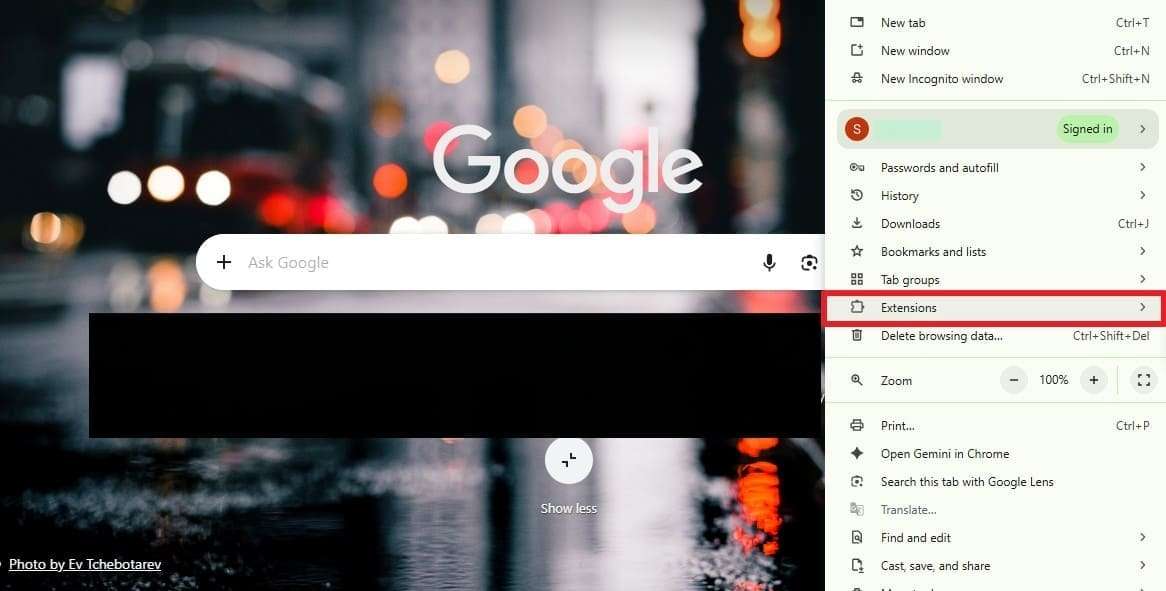
Step 1 Tap the "Three Dots > Extensions > Manage Extensions" options in Chrome.
-
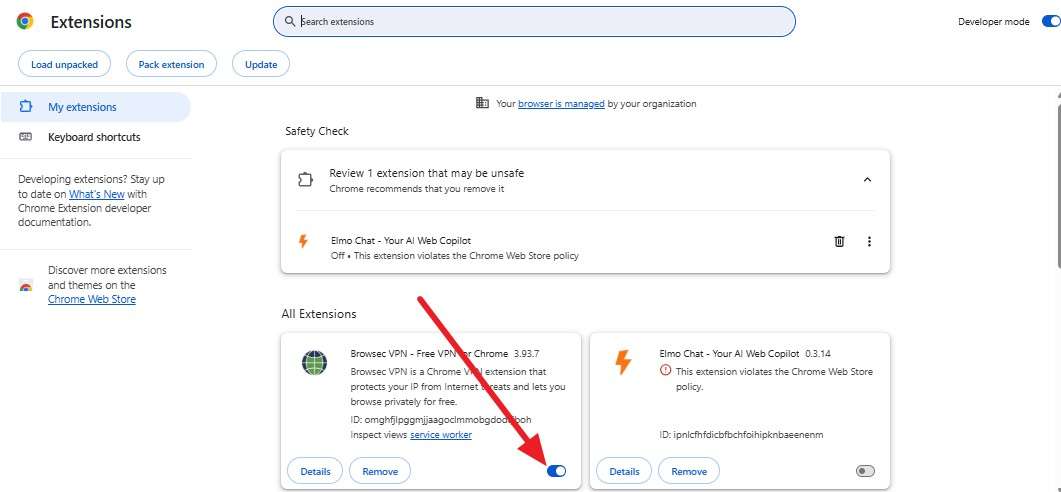
Step 2 In the “My Extensions” section, toggle off the option for the problematic extension.
For Apple Safari (macOS)
For iPhone
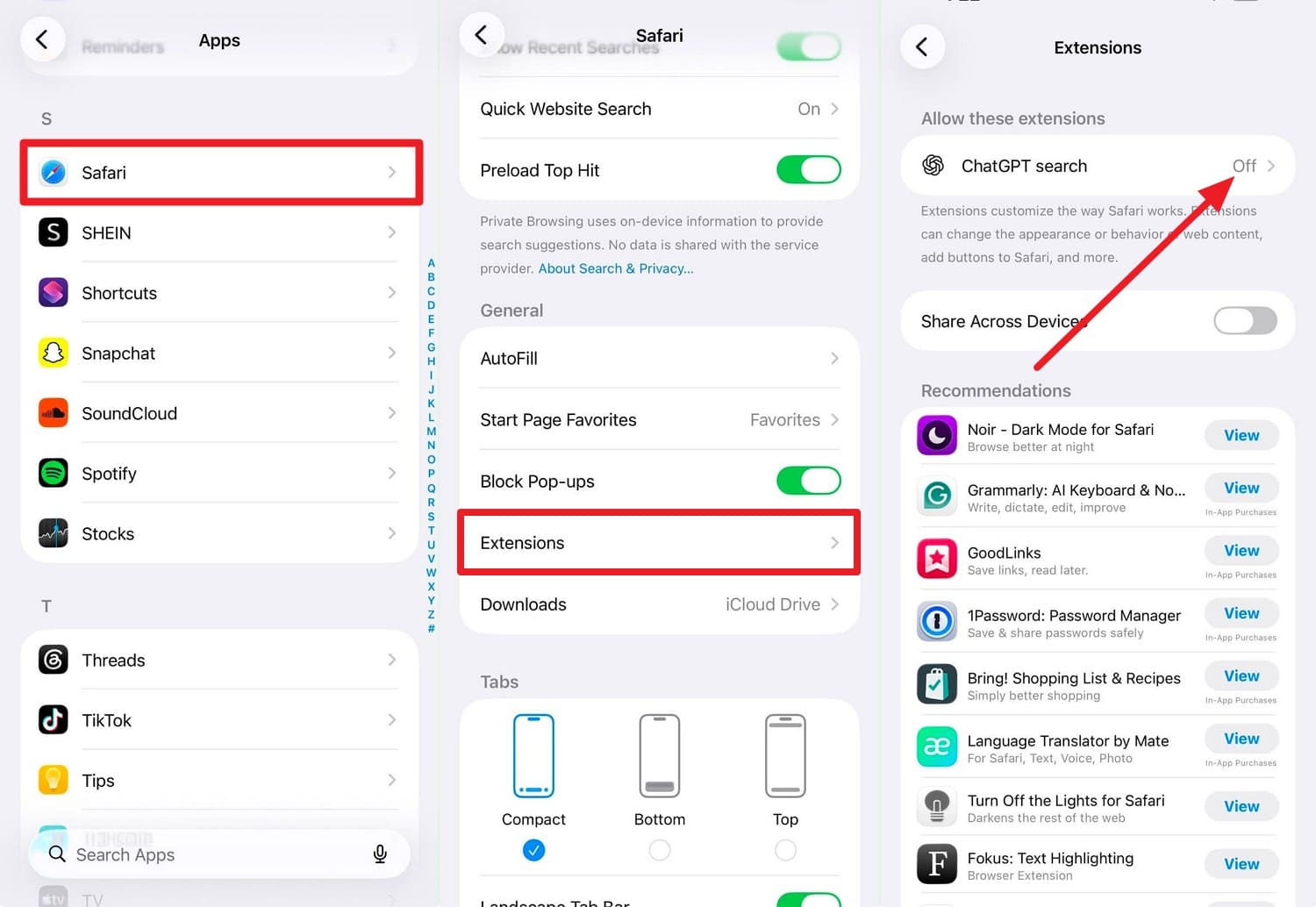
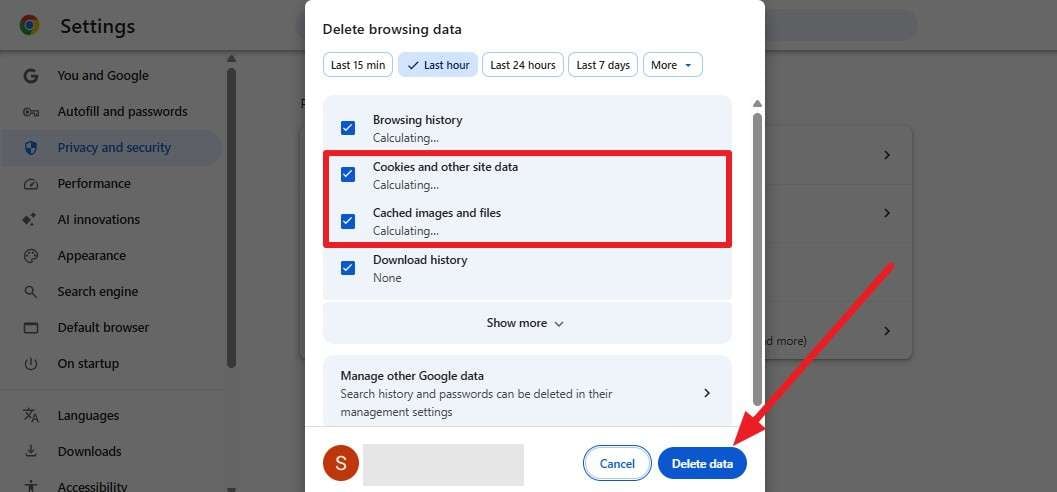
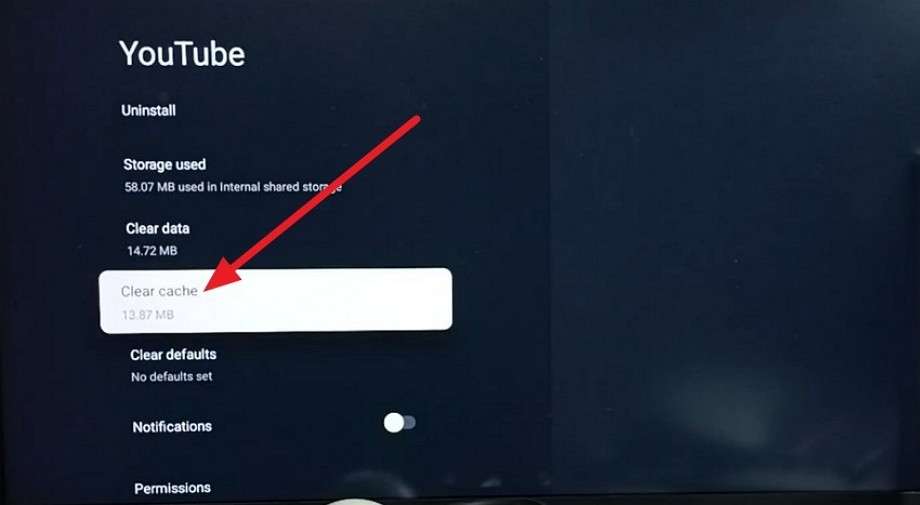
Fix 8. Clear YouTube Cache, Browser Cookies, and App Data
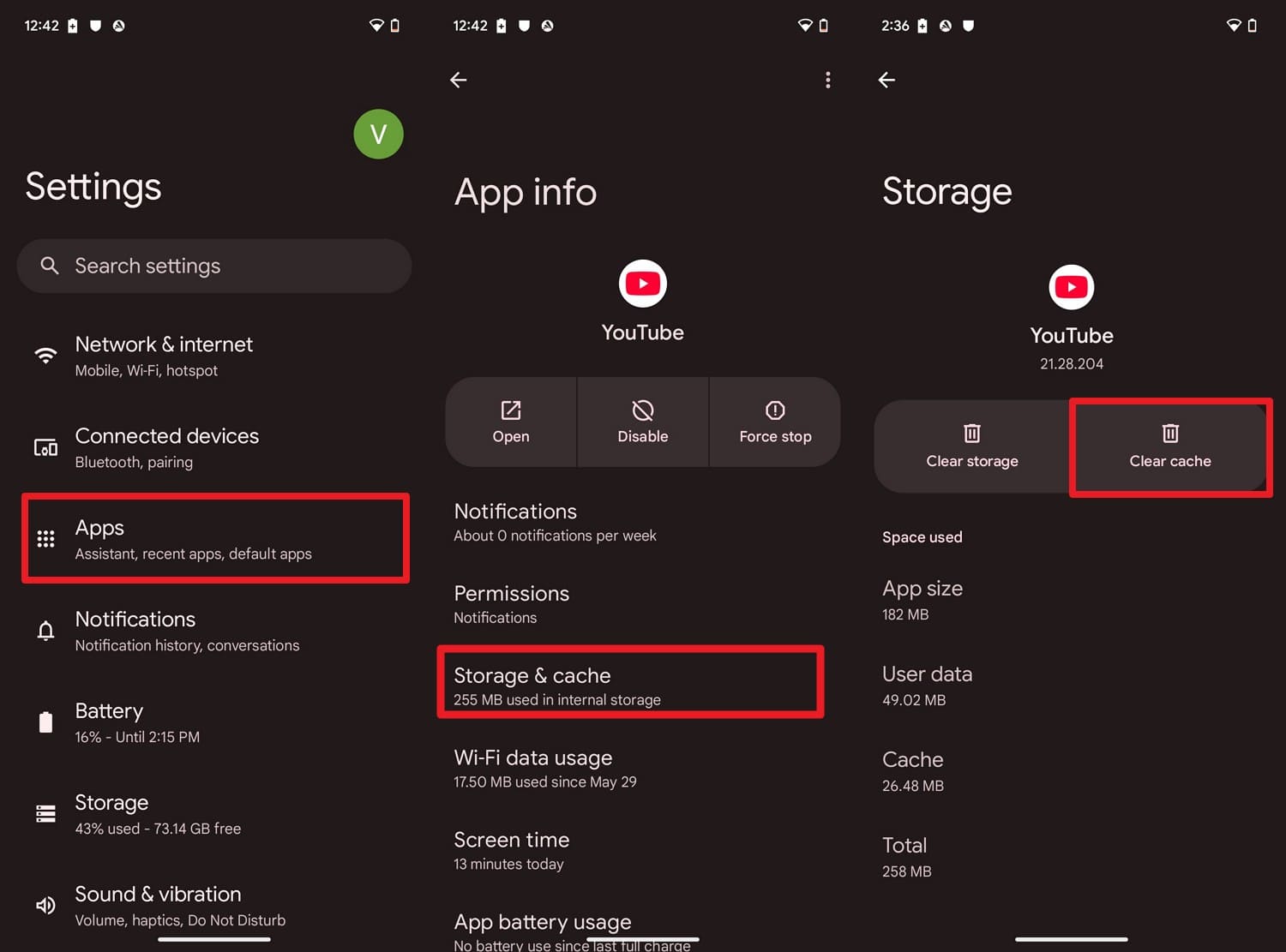
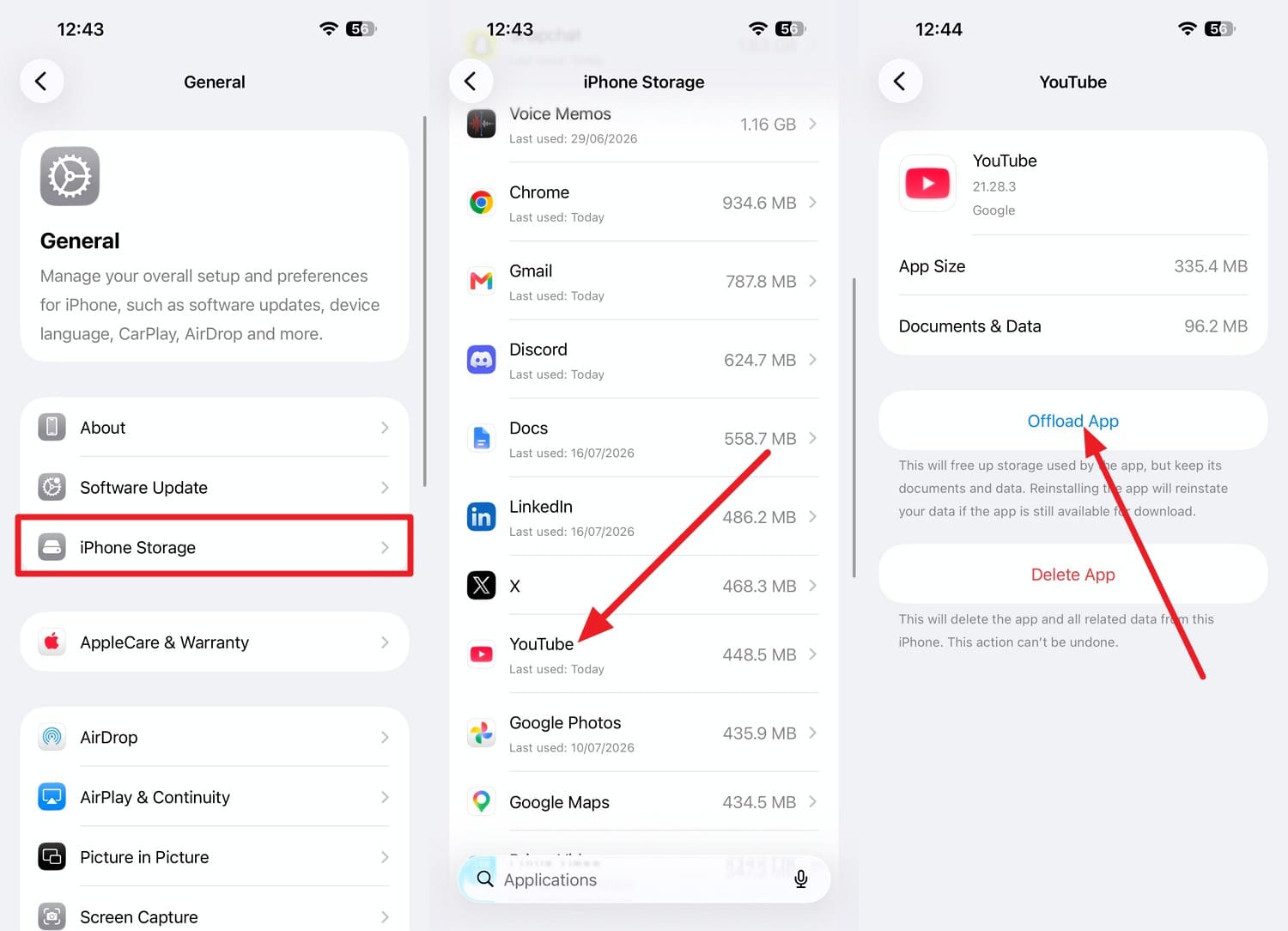
If the "this video is unavailable" issue remains, Google's own guidance recommends clearing cache and cookies specifically, as shown:
For Android
For iOS/iPhone/iPad [Indirect Method]
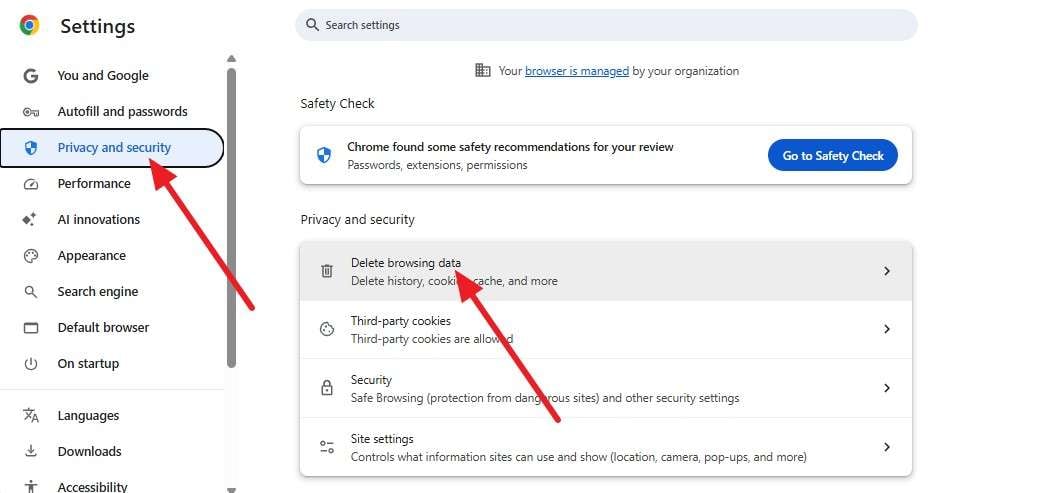
For Browser
-
Step 1 Tap on the “Three Dots” and choose “Settings > Privacy and Security > Delete Browsing Data” on Chrome.
-
Step 2 Select "Cached Images and Files > Cookies and Other Site Data > Delete Data."
On Smart TVs
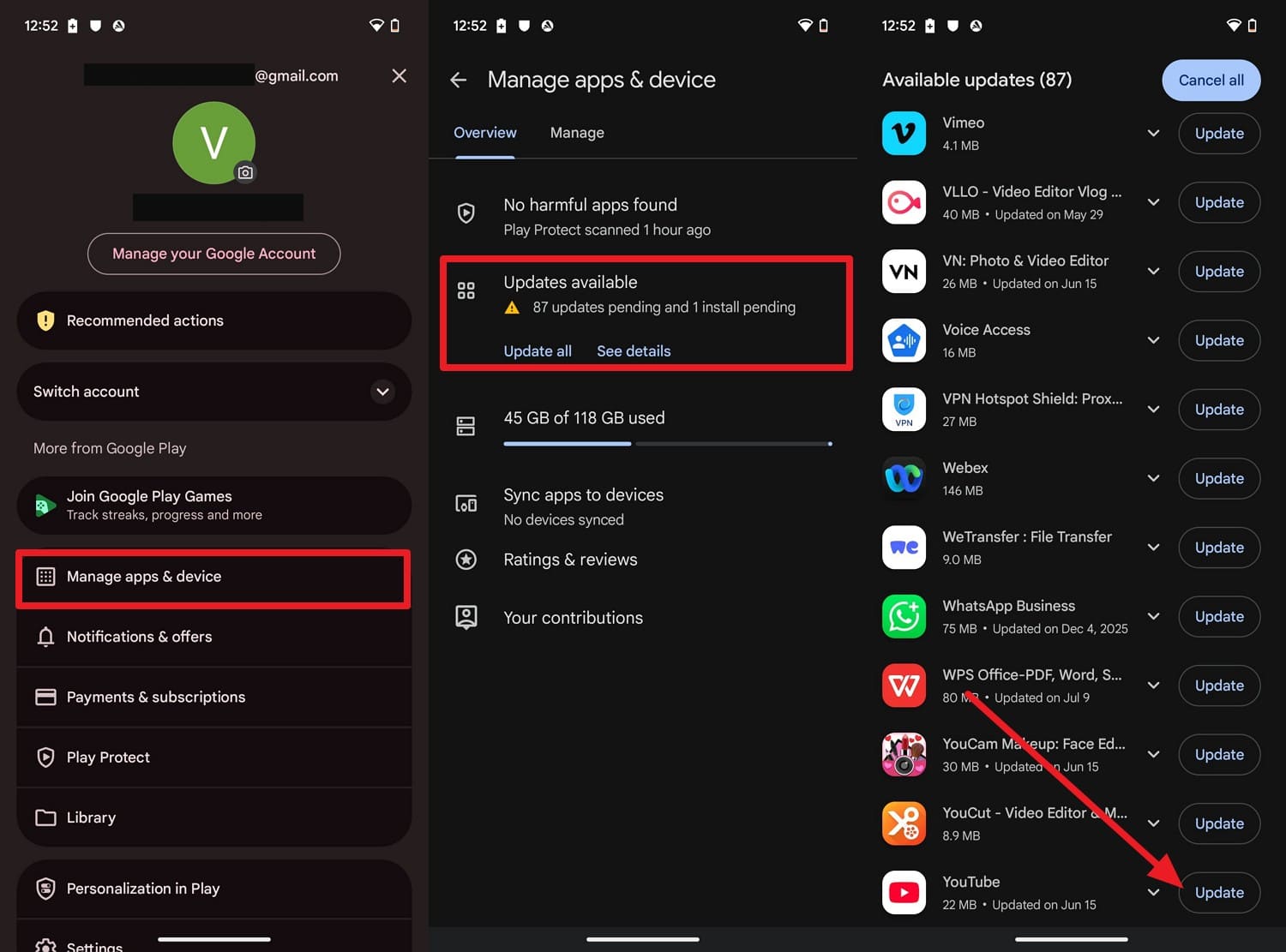
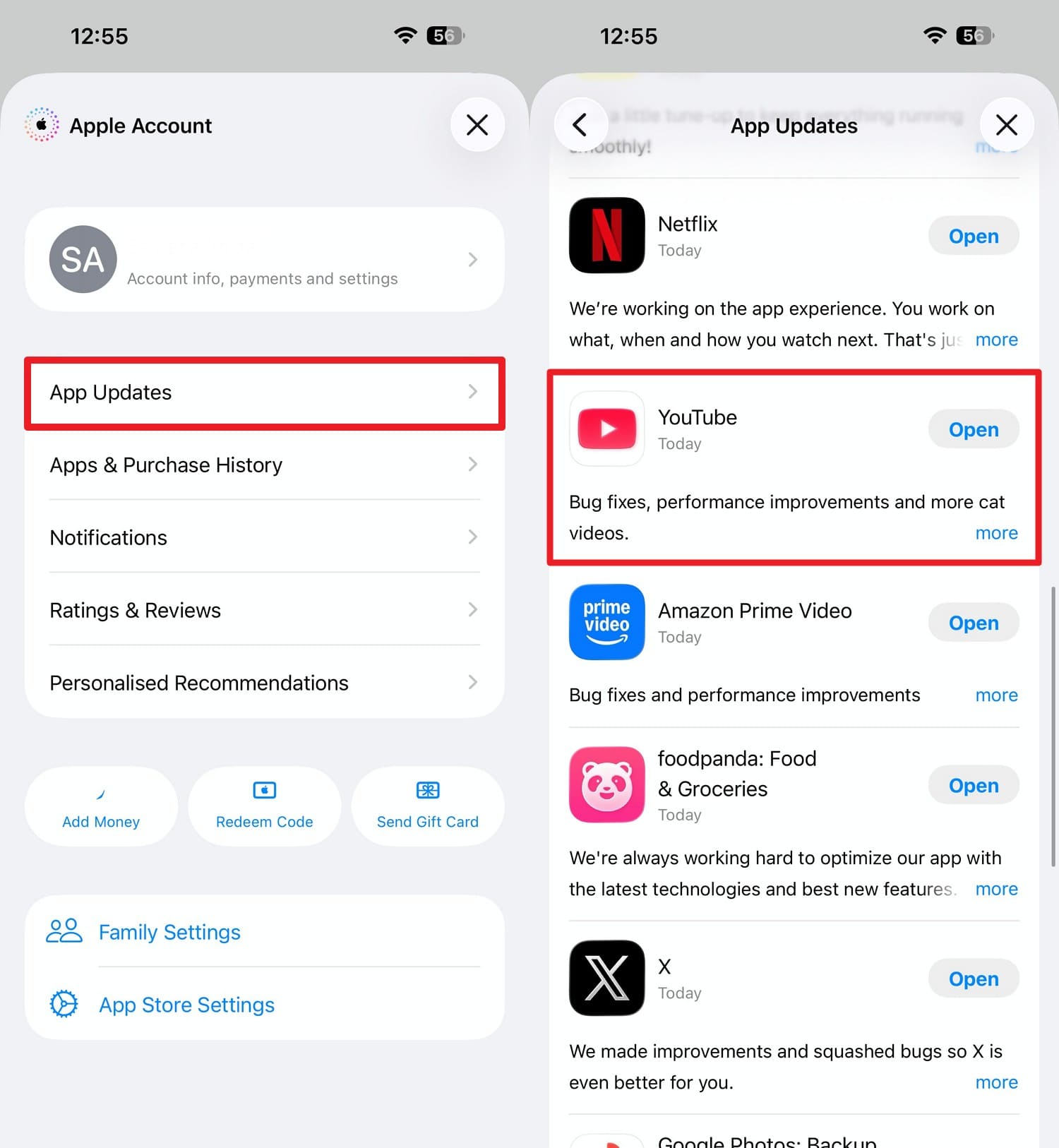
Fix 9. Update the YouTube App or Web Browser
YouTube's update instructions are worth checking directly, since automatic updates sometimes stall silently. Since this also improves overall speed, stability, and security, here is the guide:
On Browsers
-
Step 1 On Chrome, tap “Three Dots > Help > About Chrome” and the browser will check for updates.
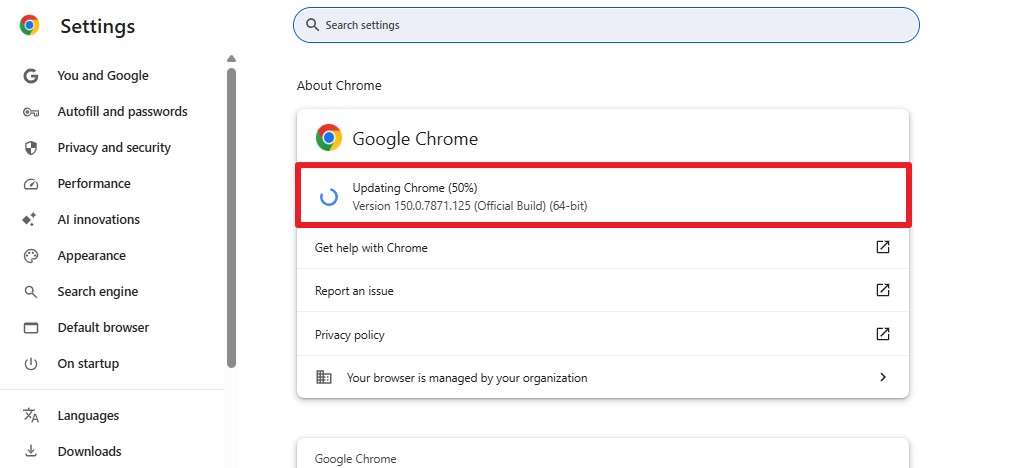
-
Step 2 As this ends, click on the “Relaunch” option to apply updates.
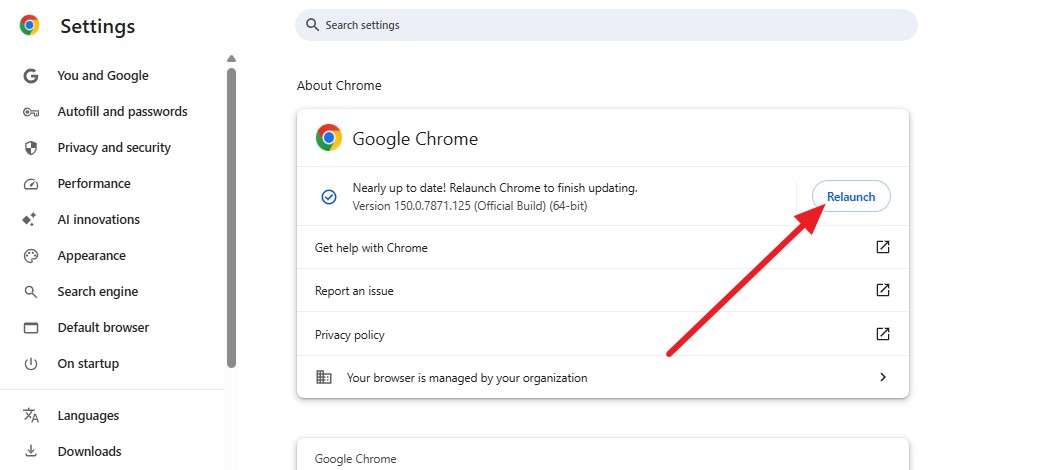
On Android
On iPhone
Fix 10. Verify Your Age and Google Account Information
According to YouTube's age restriction policy, age-restricted videos require a signed-in account and a birthdate meeting the minimum age. Hence, open your Google account settings and check the birthdate listed on your profile.
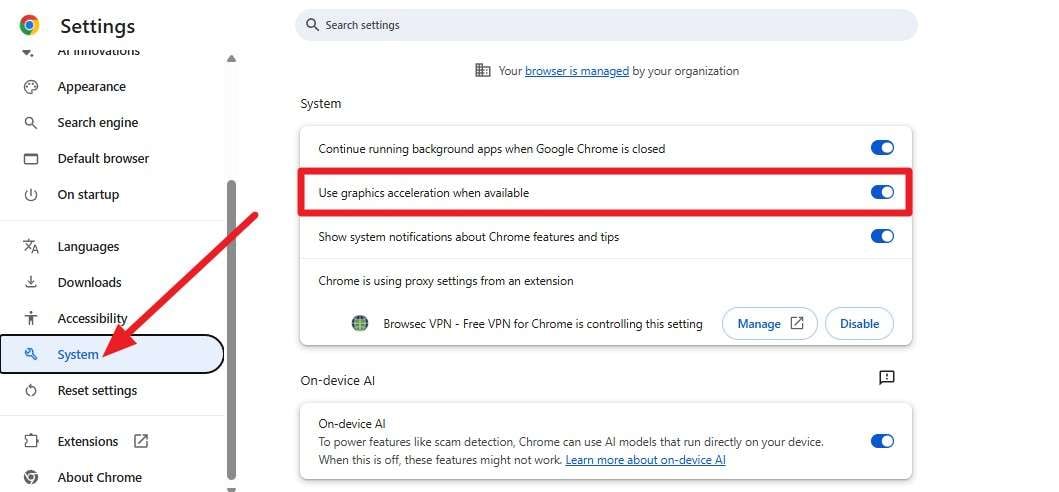
Fix 11. Disable Browser Hardware Acceleration
For the This video is unavailable issue, this fix can remove conflicts between the browser and device graphics hardware, as guided. This is especially common on older computers where graphics drivers haven't been updated in some time.
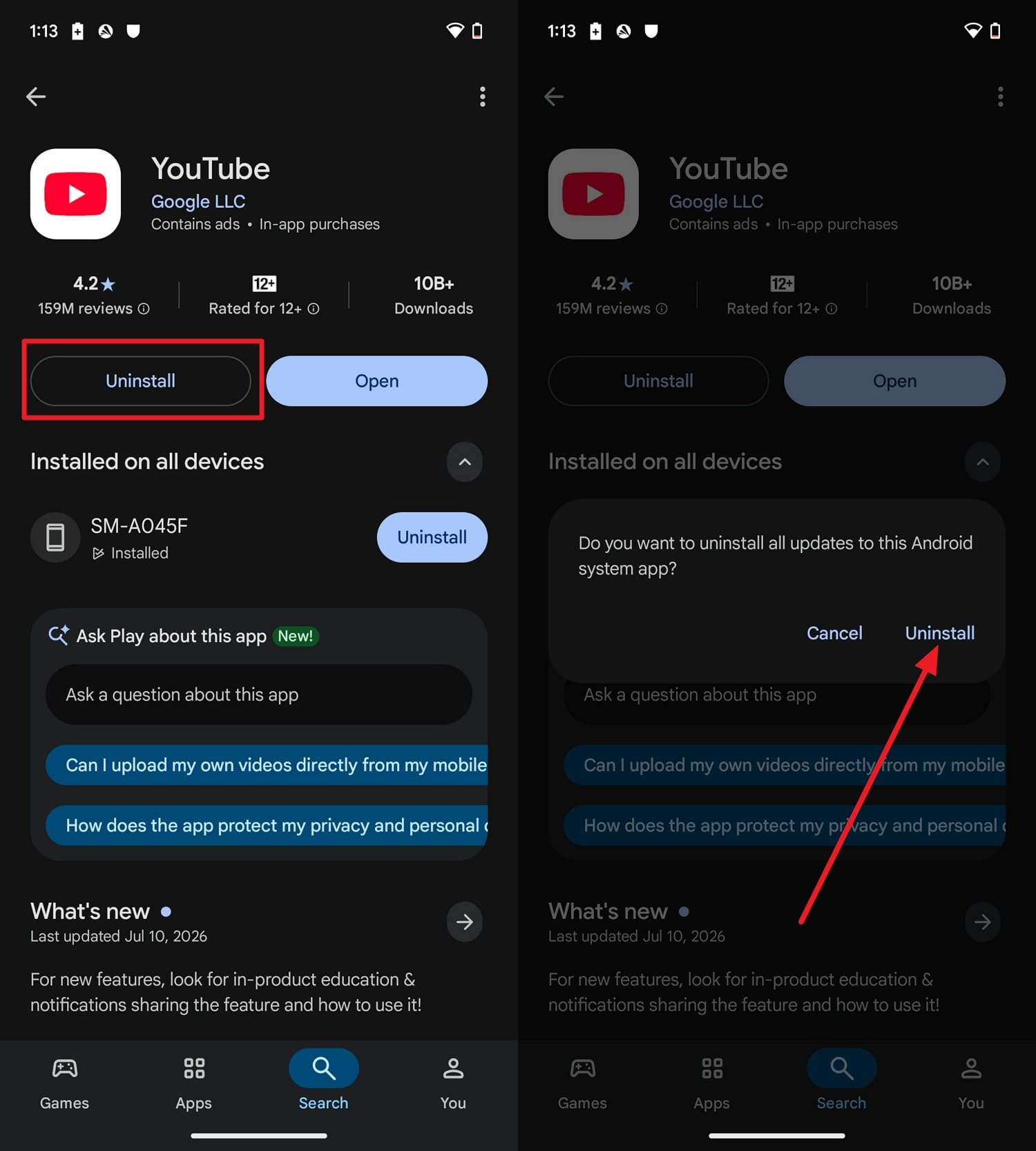
Fix 12. Reinstall the YouTube App
This is worth trying even if the app opens normally, since corruption can affect only specific features, and is guided ahead:
For Android
For iPhone/iPad
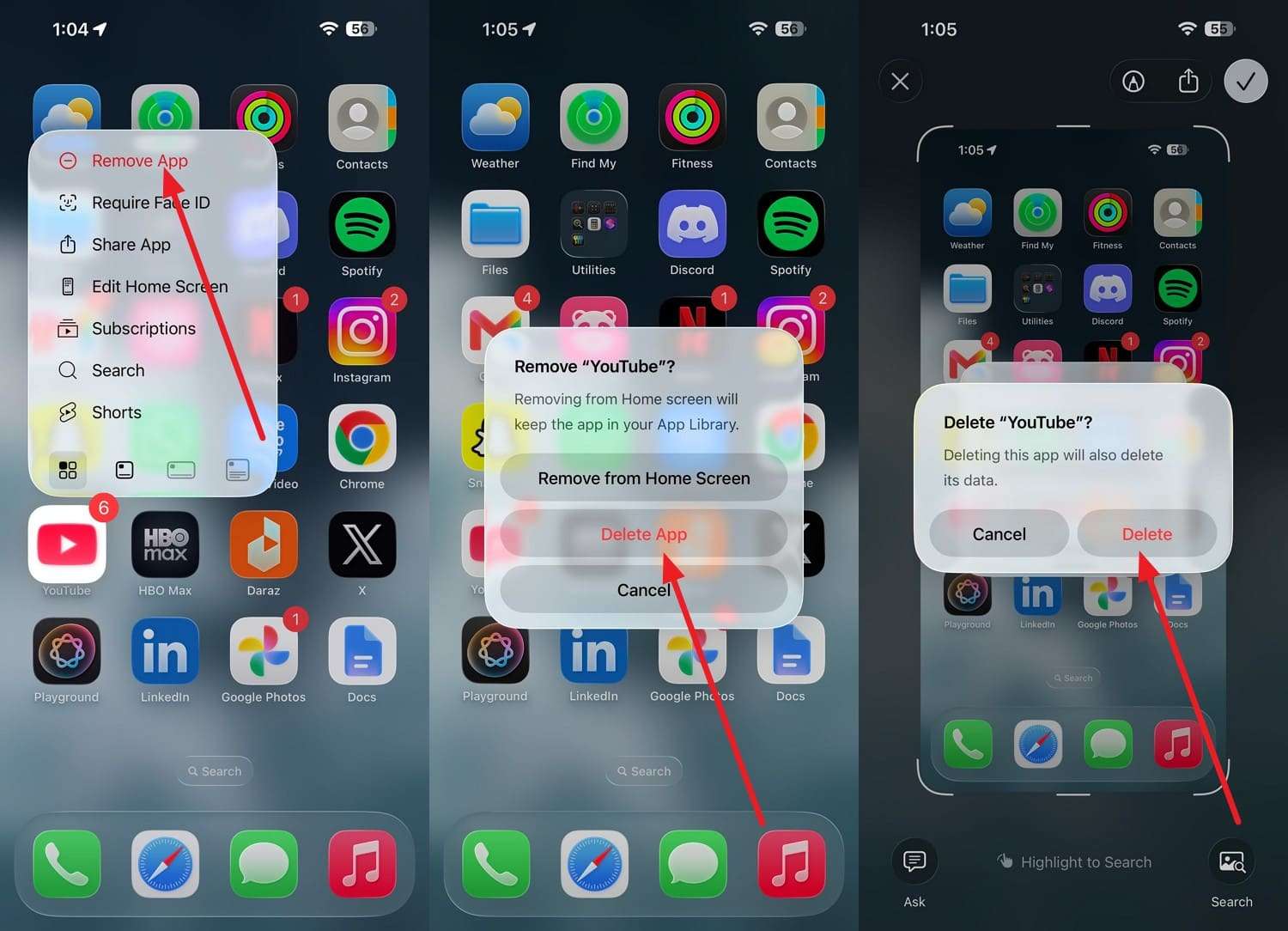
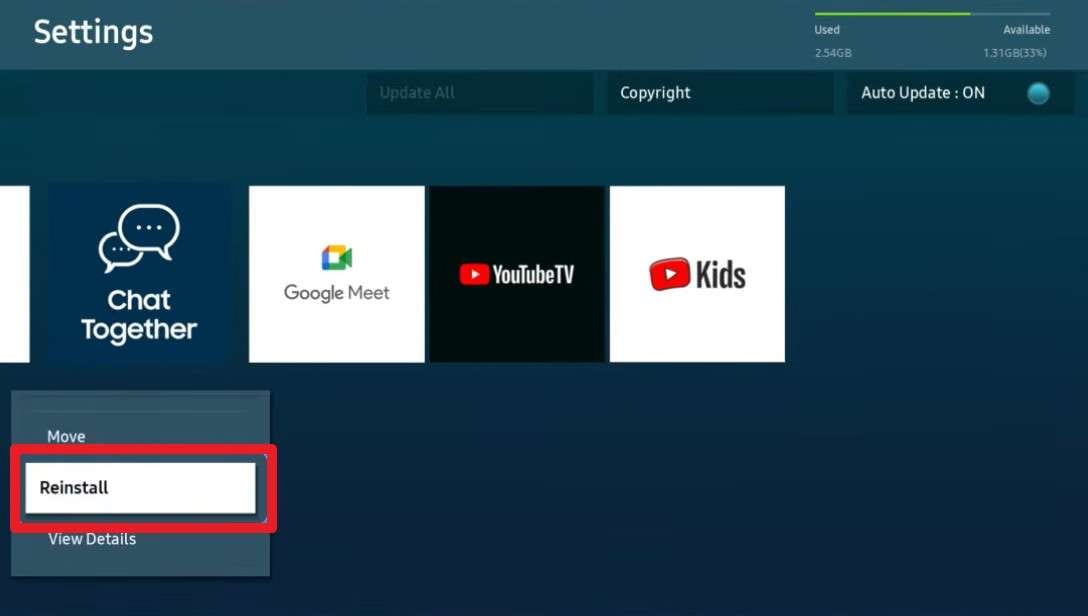
For Smart TV
Pro Tip. Manage Device Data and Media with Dr.Fone Basic
Beyond the fixes above for the "This Video Is Unavailable" issue, Dr.Fone Basic is another useful tool worth knowing. It lets you browse, transfer, back up, and organize your phone's files directly from a computer through a simple interface. Dr.Fone - Phone Manager (iOS) allows you to manage photos, videos, music, contacts, and other data between an iPhone, iPad, and a computer without relying on iTunes or iCloud.
Meanwhile, Wondershare Dr.Fone makes it easy to transfer media between Android devices and iTunes, import contacts from iCloud to Android or a computer, and organize files without complicated steps. Together, these tools provide a flexible solution for everyday phone data management. Nonetheless, both tools are compatible with iOS 27/iPadOS 27, iPhone 17 series, and Android 16.
How to Manage Device Data with Dr.Fone - Phone Manager (iOS)
Once Dr.Fone Basic is installed and your phone is connected, test this tool via the given detailed guide as an iOS user:
-
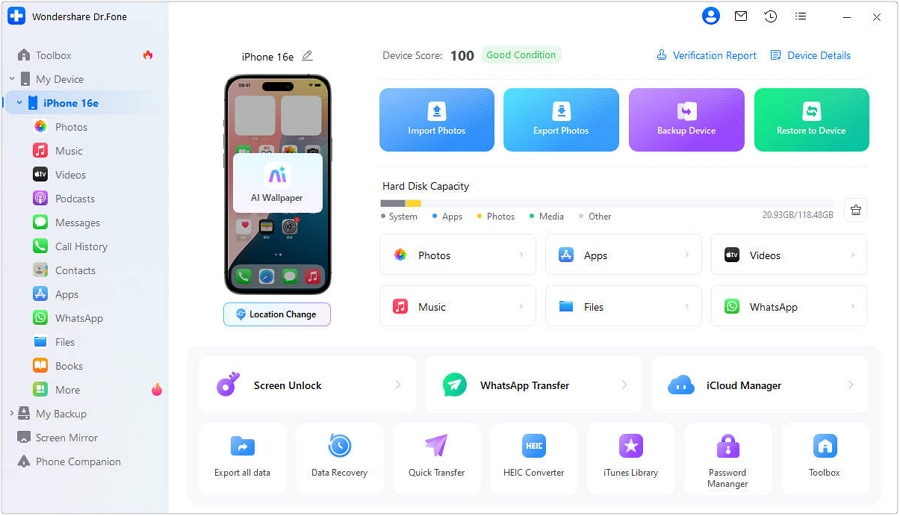
Step 1 Connect Your iPhone with Dr.Fone
Use your official USB cable to connect your iPhone to a Windows PC or MacBook. Afterward, wait for Dr.Fone to load your device details and data.
-
Step 2 Choose the Data Types to Manage
Use the left sidebar to access data categories such as Photos and manage them directly from your computer. You can export files to your computer or another phone, add new content, or remove unwanted data with just a few clicks.




Also Try: Dr.Fone - Screen Unlock (iOS/Android)
 Unlock iPhone/iPad passcode in minutes.
- Remove Face ID, Touch ID, MDM lock, and screen lock.
- Bypass iCloud Activation Lock easily.
- Support all iOS versions and devices.
- Simple steps, no technical skills needed.
You've fixed the "This video is unavailable" error, but what if your phone is locked and you can't even open the YouTube or Prime Video app? Forgetting your passcode, getting your iPhone disabled after too many attempts, or a child locking the screen can completely block access to your videos and apps.
- Unlock Android phone in seconds.
- Remove PIN, pattern, password, fingerprint.
- Bypass Google FRP lock easily.
- Works on all Android brands & models.
- No tech skills required – user-friendly.

Dr.Fone - Screen Unlock (iOS)| Dr.Fone - Screen Unlock (Android) help you bypass iPhone and Android screen locks quickly and safely. It removes 4-digit/6-digit passcodes, Face ID, Touch ID, patterns, and PINs — even when the device is disabled or stuck on the Apple logo. No technical skills required. Just connect your phone to a computer, and the tool handles the rest.
Part 5. How to Fix "This Video Is Currently Unavailable" on Amazon Prime Video
Unlike YouTube, Prime Video's "this video is unavailable" error usually traces back to licensing or account status rather than a technical fault. While Amazon's Prime Video Help covers common account, rental, and regional availability issues, the following solutions also address other factors that can trigger this error.
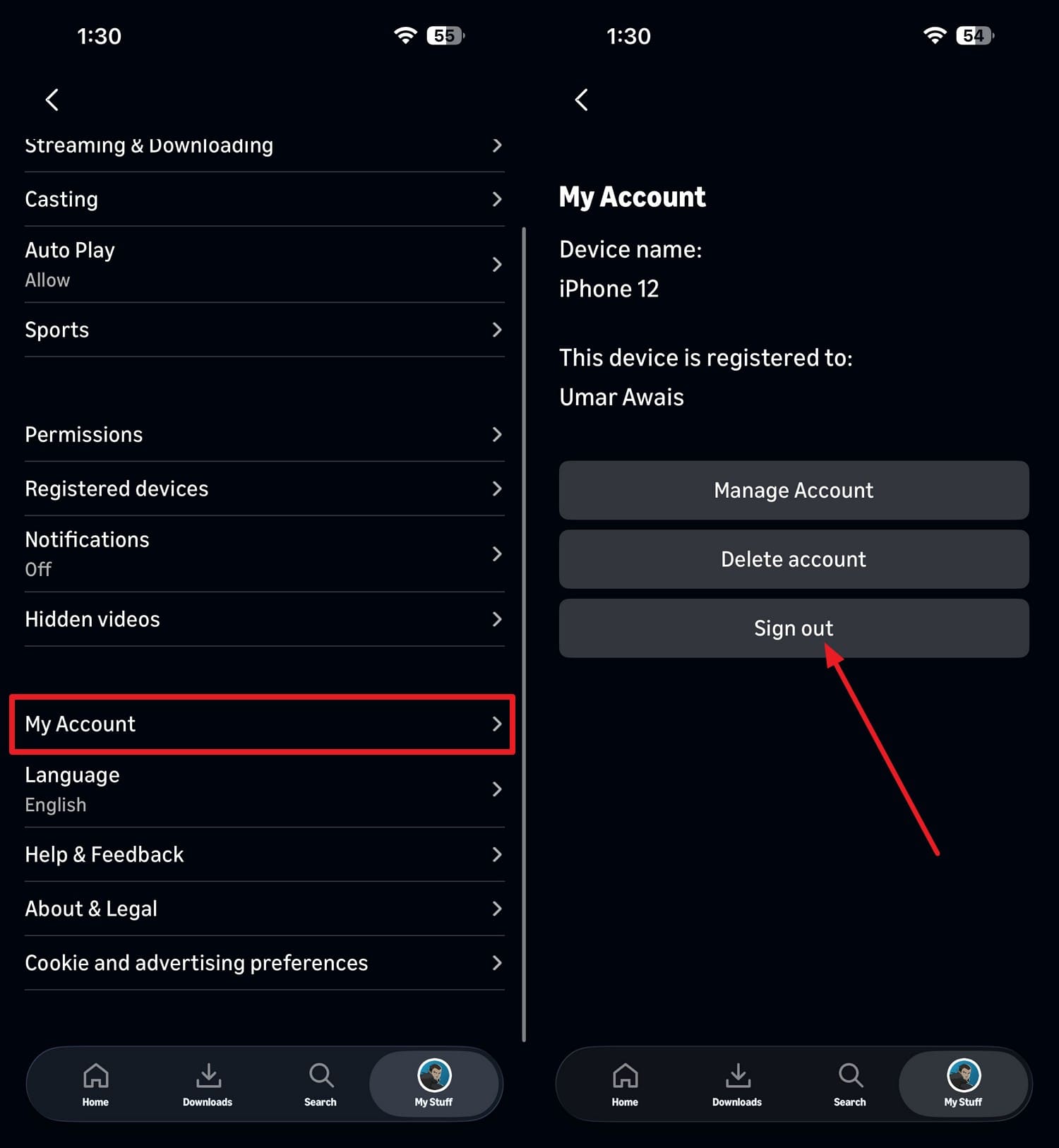
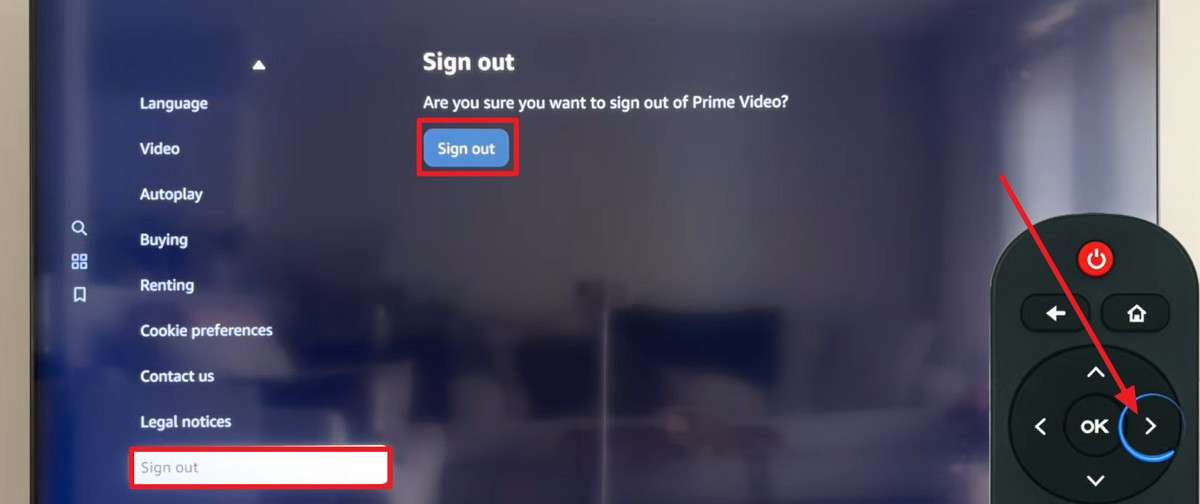
Fix 1. Sign Out and Sign Back Into Prime Video
Signing out clears the session state completely, rather than just refreshing the page, as shown:
On Mobile (iOS & Android)
On Smart TVs or Browser
Fix 2. Update the Prime Video App
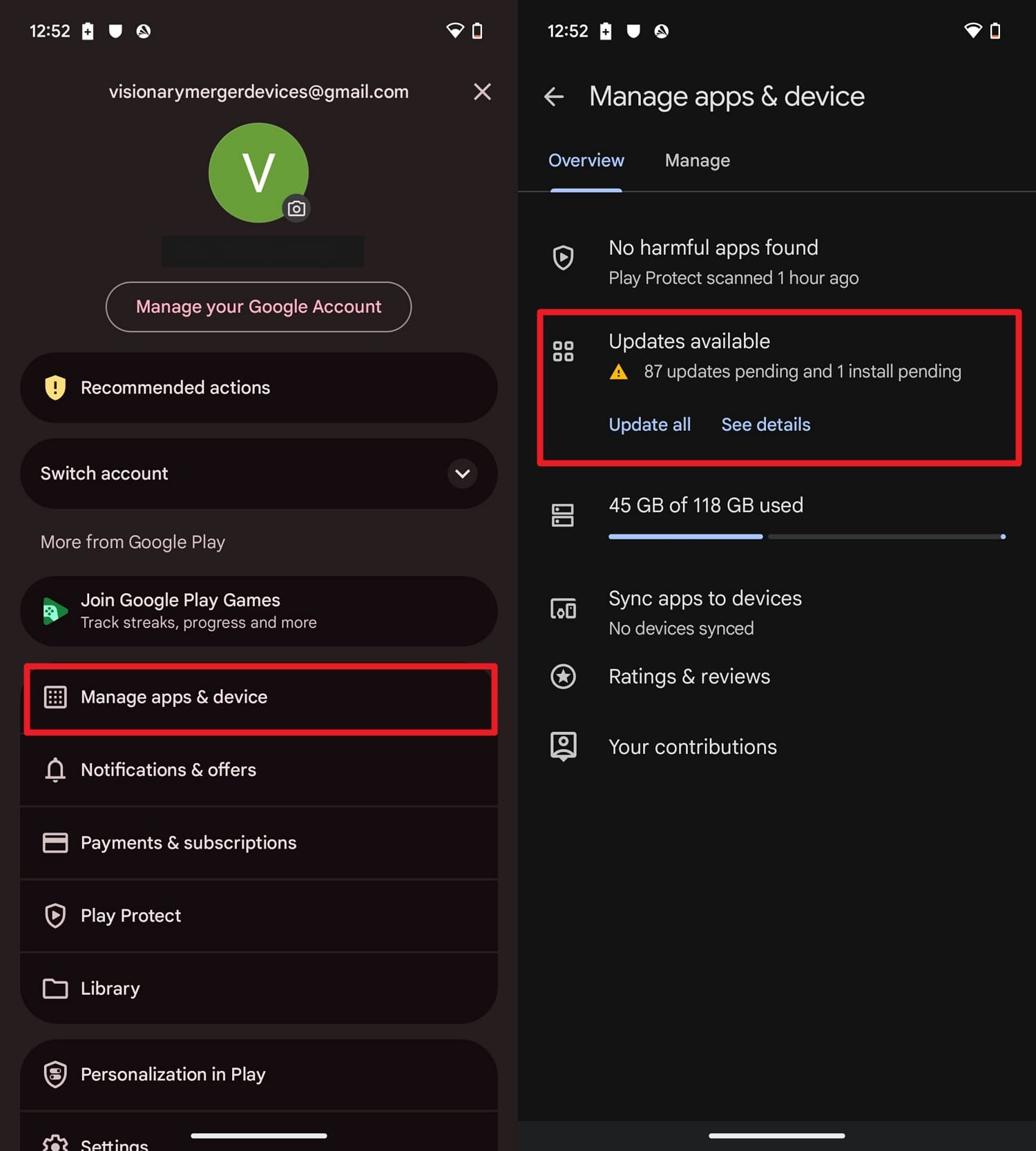
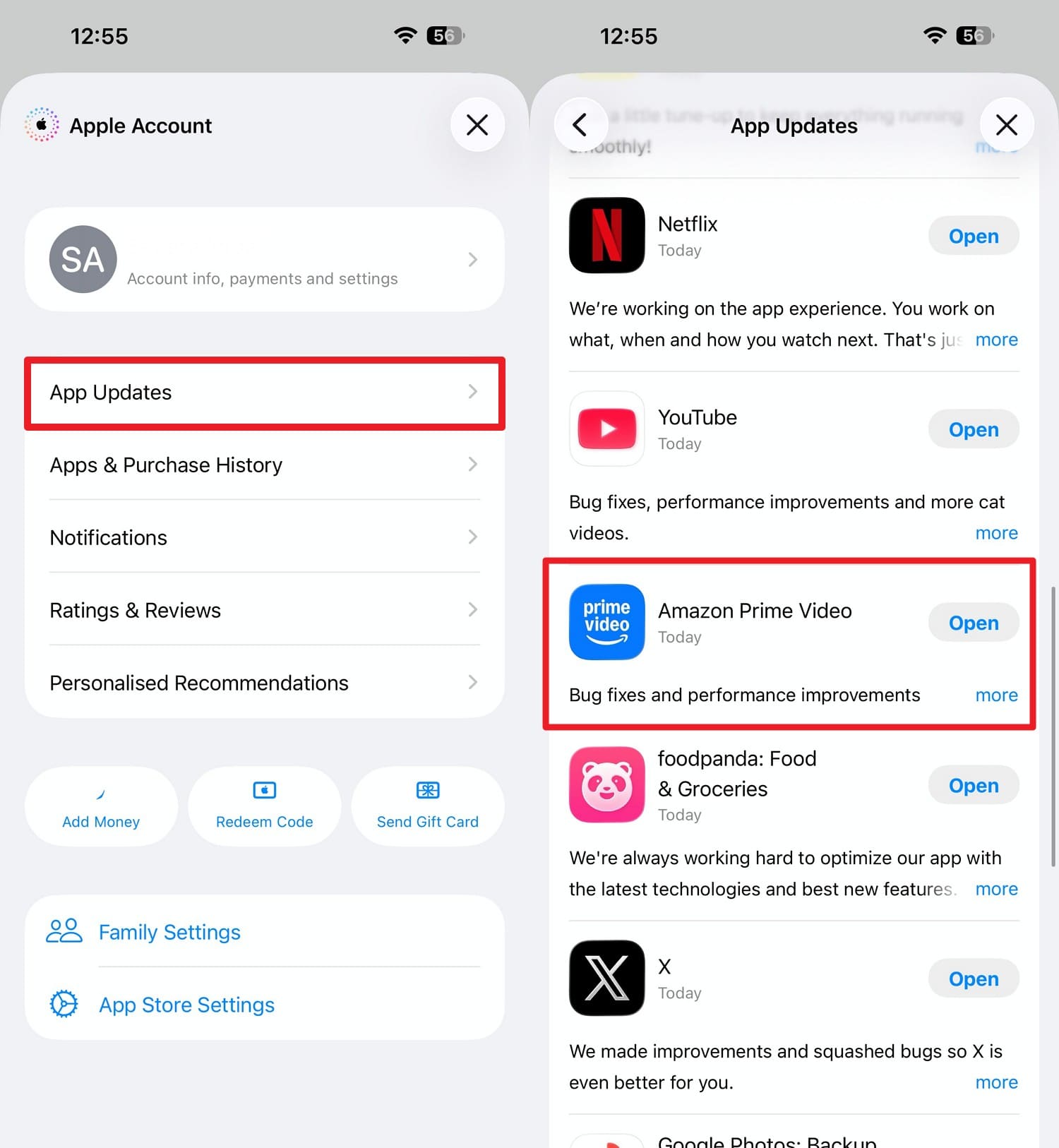
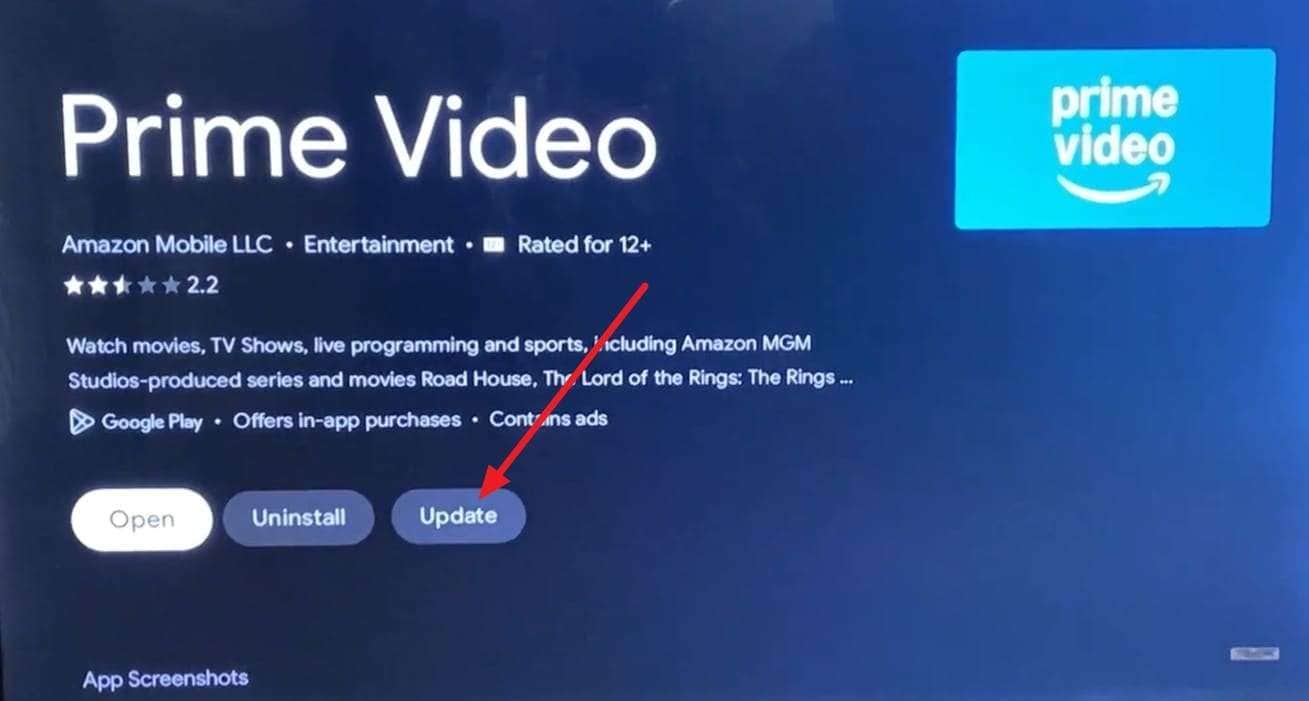
An outdated app may become incompatible with the latest Prime Video playback and content delivery updates. Update the app using these steps to fix the "this video is unavailable on this device" issue:
On Android
On iPhone/iPad
On Smart TVs & Streaming Devices
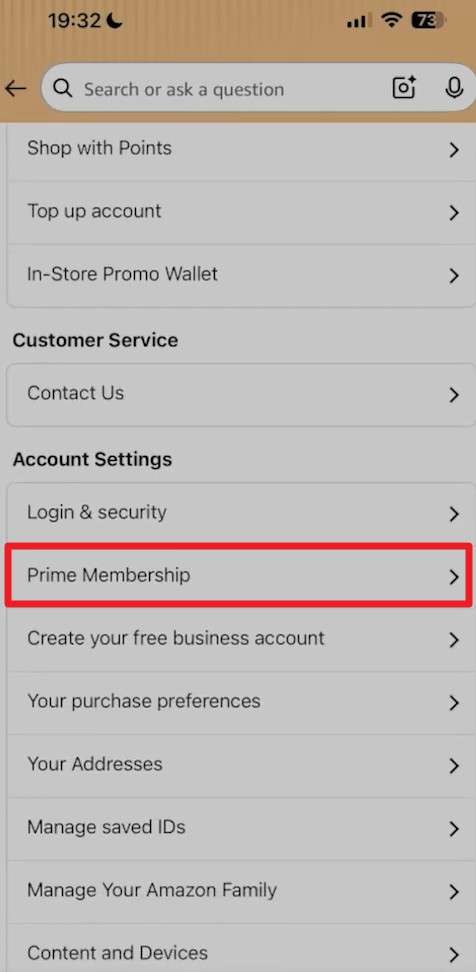
Fix 3. Verify Your Prime Membership or Channel Subscription
Some titles require an add-on channel subscription in addition to a standard Prime membership. This is a common source of confusion, and here is how you can check:
Fix 4. Check the Rental or Purchase Status
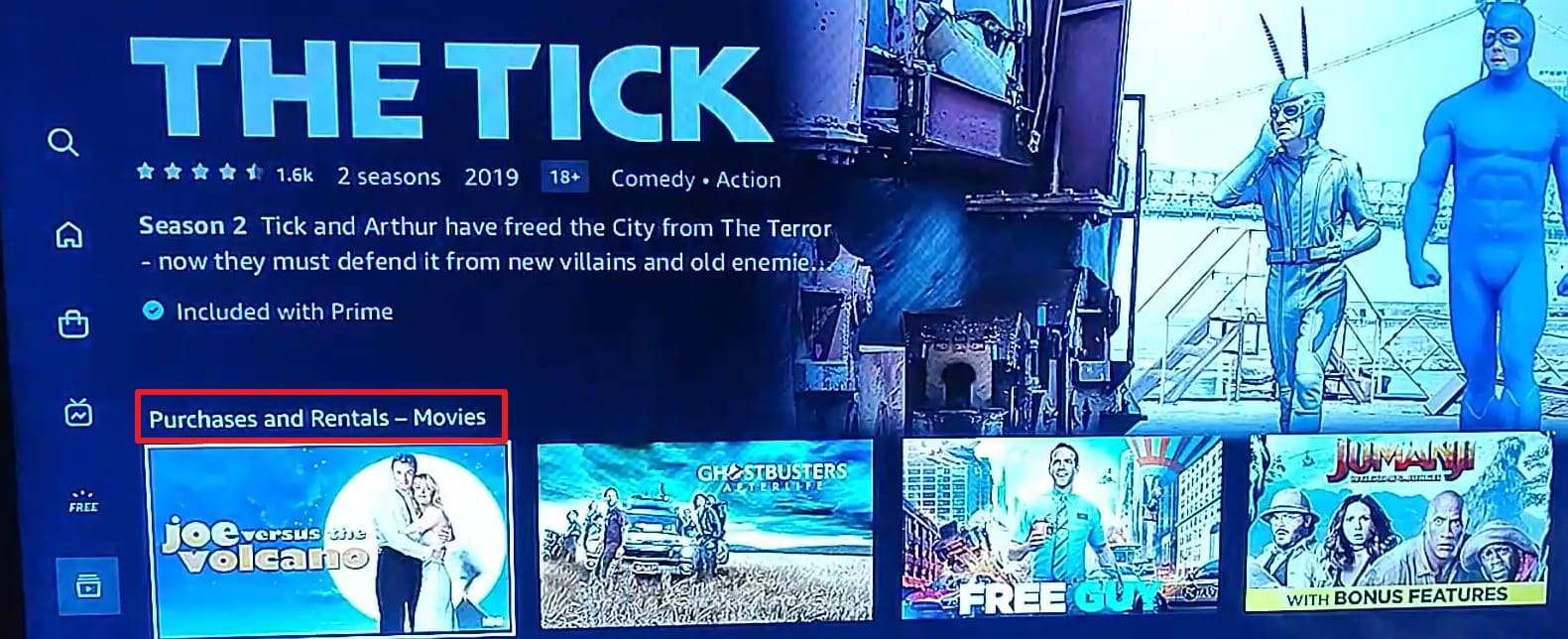
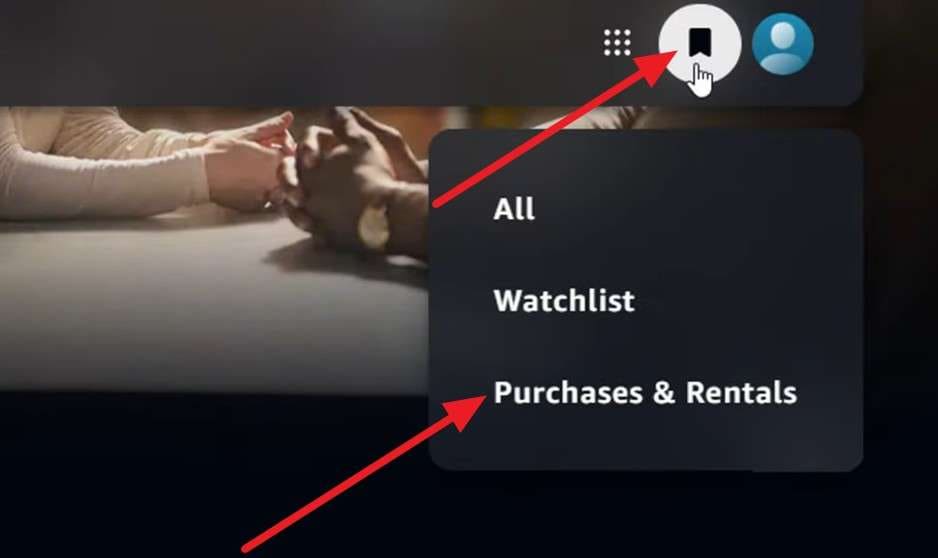
According to Amazon's own rental terms, a rented title stays in your library for 30 days. Once you press play, you have at least 48 hours to finish watching it, and the mentioned steps show how to check:
For Mobile/Smart TV
For Browser
Fix 5. Confirm the Title Is Available in Your Region
Prime Video's catalog varies by country, and a title available in one region can produce this video is currently unavailable in Amazon Prime in another. Check your account's registered country under account settings and confirm you're not using a VPN that changes your apparent location.
Conclusion
“This video is unavailable” is a generic message on both YouTube and Prime Video. Working through the fixes in order, starting with a sign-out and an incognito test, resolves most cases quickly. Amazon Prime Video's version of the error more often traces back to licensing, membership, or regional availability. If you also want to better organize files on your phone, Dr.Fone Basic provides a simple way to manage your data.
FAQ
-
1. Is "This Video Is Unavailable" the same as "This Video Is Private"?
No, YouTube shows “This video is private” as its own specific message when that's the confirmed cause. The generic unavailable message usually means the exact cause wasn't specified, not that it's necessarily private. -
2. Why is a video unavailable on one device but not another?
This points to a device-specific cause, like an outdated app, a different sign-in state, or a regional setting tied to that device's location. -
3. Can I watch a video that's unavailable in my country?
Not through the original upload or listing, since regional restrictions come from licensing agreements rather than a setting you control. A VPN can sometimes bypass this, though it may violate the platform's terms of service.
 Add Wondershare Dr.Fone as a preferred source on Google