Bypass iCloud Activation Lock and Android FRP without password.

 100% Security Verified | No Subscription Required | No Malware

 :
: 
 ChatGPT
 Perplexity
 Gemini
 Claude
 Grok
Grok
You're in the middle of an episode when the screen freezes, or the app just refuses to open at all. HBO Max not working is one of the more common streaming complaints. The good news is that most cases trace back to a short, fixable list of causes, not anything actually broken.
This guide walks through what typically causes it and how to fix it on a phone, TV, Fire TV, Chromecast, and in a browser. It also covers Dr.Fone - Phone Manager, a tool worth knowing about for keeping your phone's storage and files organized.
In this article
- Part 1. What Does "HBO Max Won't Load" Mean?
- Part 2. How to Fix HBO Max Not Working on iPhone or Android
- Part 3. How to Fix HBO Max Not Working on a TV, Amazon Fire TV, or Chromecast
- Part 4. How to Fix HBO Max Not Working in a Browser
- Pro Tip. Free Up Phone Storage Before Reinstalling HBO Max with Dr.Fone Basic
- Bonus Tool: Dr.Fone – Screen Unlock (When You Can't Even Open HBO Max)
- Frequently Asked Questions
Part 1. What Does "HBO Max Won't Load" Mean?
HBO Max won't load describes situations where the Max app or website fails to open, start playback, or continue streaming. Whether you searched for HBO not working, HBO is not working, or another HBO Max issue, the problem can have several different causes.
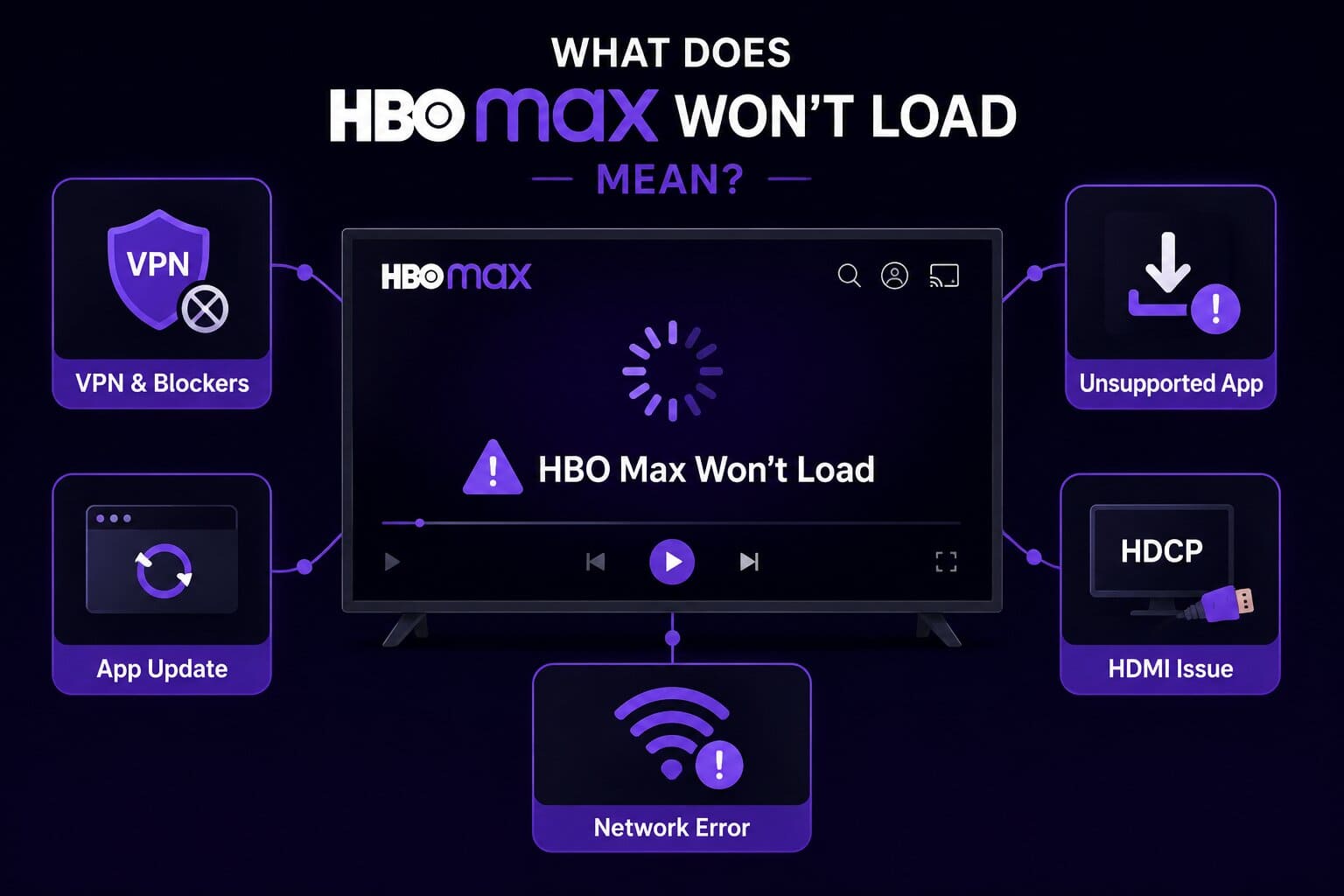
Why is HBO Max Not Working? 5 Possible Causes
The right fix depends on identifying the actual cause first, so go through the 5 main root causes:
- Ad Blockers & VPNs: HBO Max's troubleshooting documentation says that Ad blockers, VPNs, IP masking tools, and screen capture software are the major causes. They can interfere with HBO Max’s playback verification process and block required connections.
- Outdated App or Device: An outdated HBO Max app or device might not fulfill the new streaming requirements. Such issues are common with devices that no longer get updates or fail to load videos, even though the app can still open.
- Unsupported App Installation: If the HBO Max app is installed from unofficial sites, the HBO Max not working issue becomes apparent. This is because those versions lack required security components or updates available through the official app.
- HDMI or HDCP Compatibility: TVs and streaming devices need a compatible HDMI connection and HDCP protection. The older cable, port, or device can fail when handling high-quality streams, resulting in playback errors.
- Network or Server Issues: A weak internet connection, a router problem, or an HBO Max service outage can prevent the account from loading. Most of the time, the issue is caused by the HBO Max servers rather than the user's device.
Part 2. How to Fix HBO Max Not Working on iPhone or Android
Work through these fixes in order if HBO is not working on your Android, iPhone, tablet, or iPad.
-
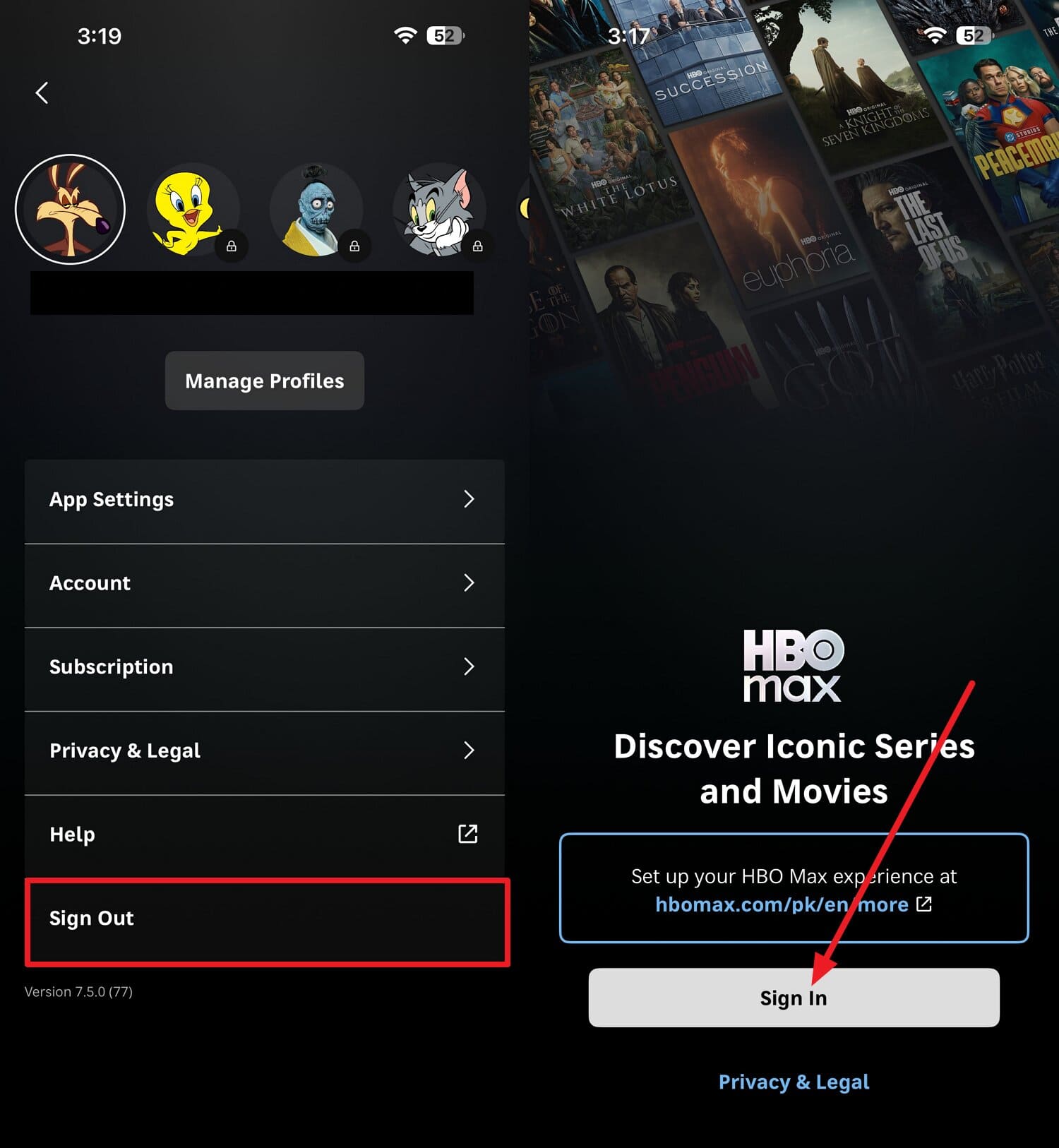
Fix 1 Sign Out and Sign Back Into HBO Max
A stale sign-in session can trigger a "cannot connect to HBO Max" error, even though your subscription is active and billing is current. Sign out and back to help reconnect your account and subscription status with HBO Max servers, as guided:
Instructions. Tap the “Profile” icon, choose the “Sign Out” option, and press “Sign In” after a few minutes.
-
Fix 2 Disable Your VPN or Proxy Connection
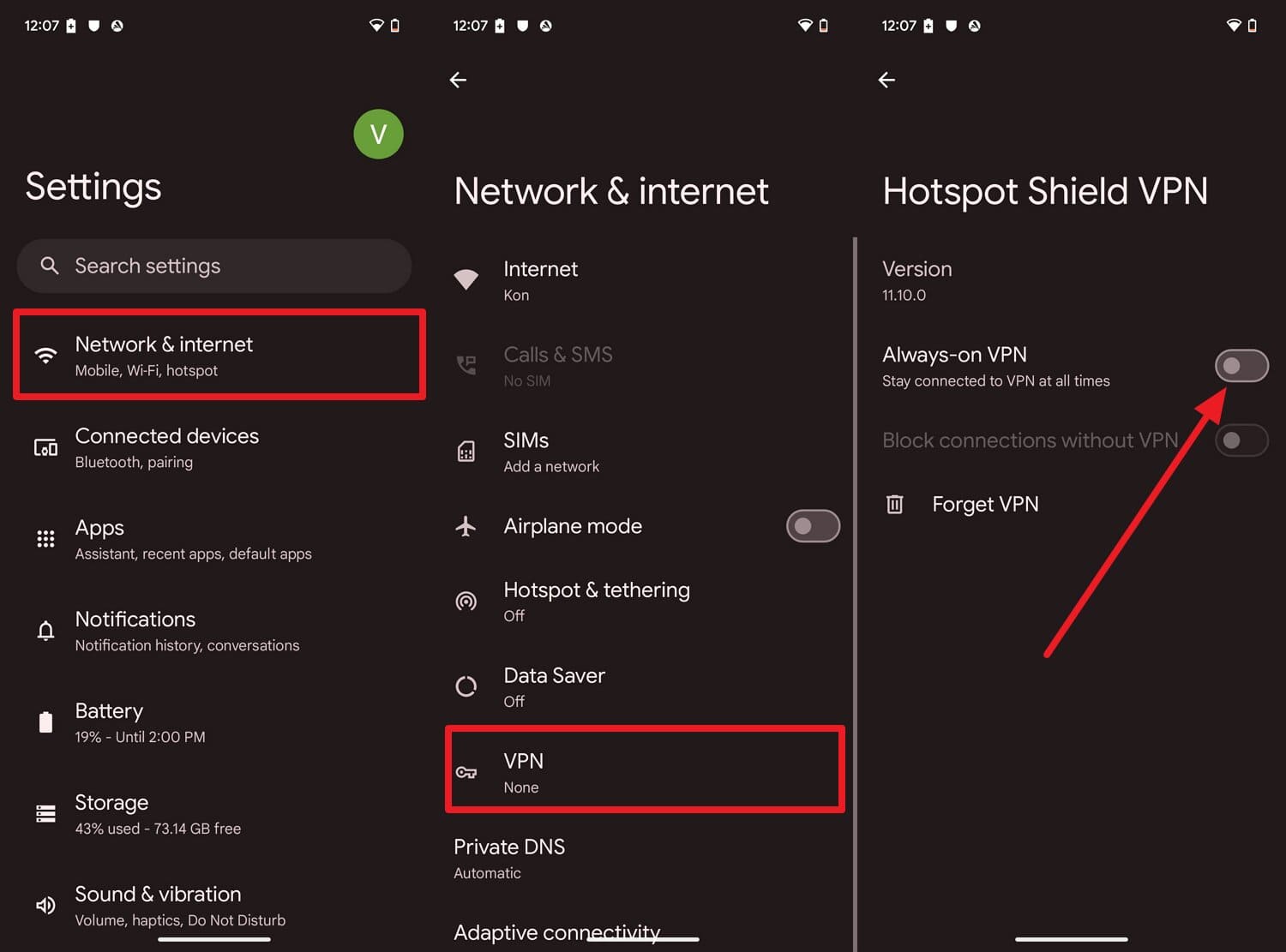
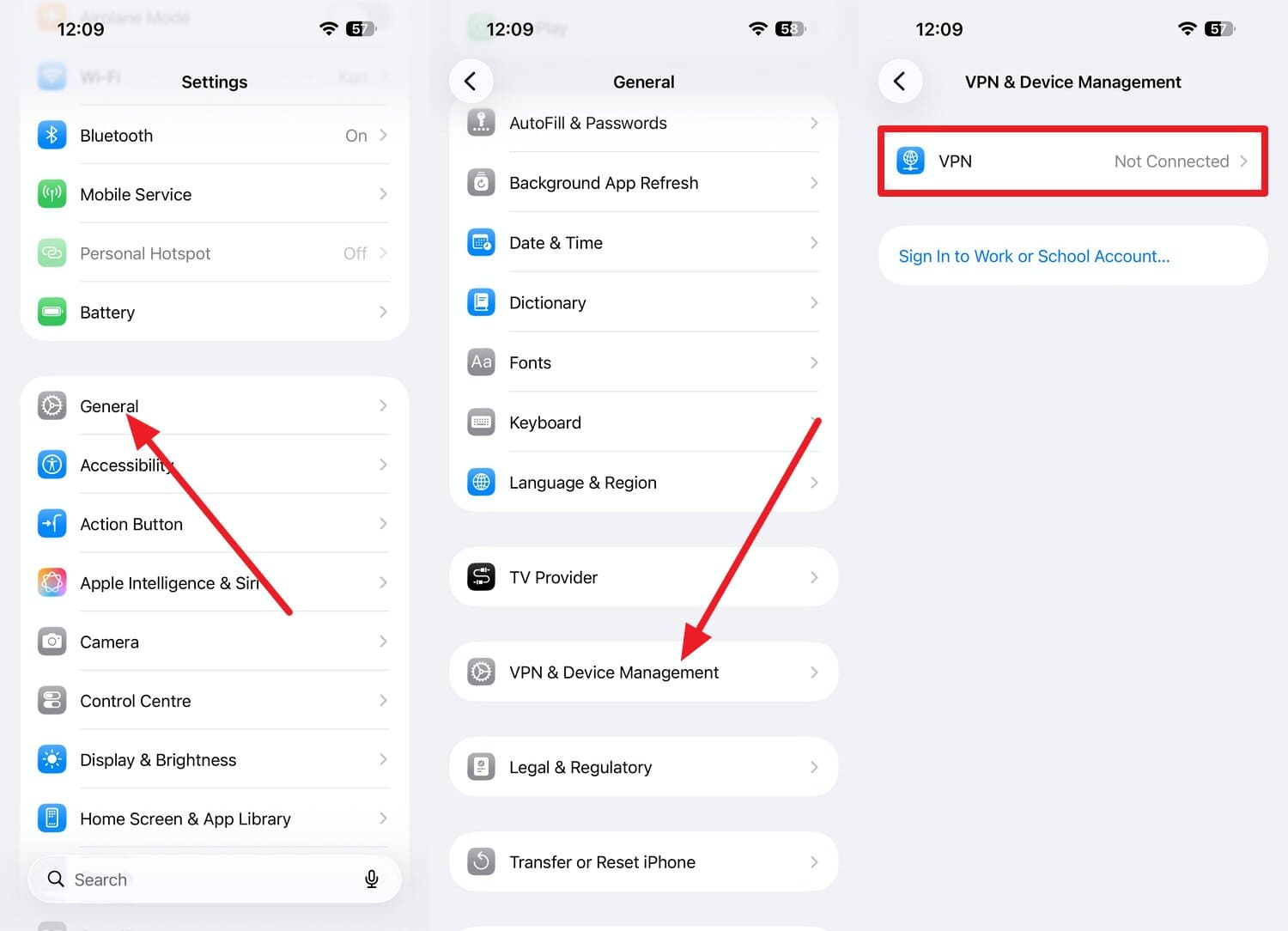
A VPN can mask your real location well enough to interfere with HBO Max's region and account verification. If you disable it using these instructions, it will restore the real location and IP address to fix the HBO Max is not working issue:
On Android
Instructions. In the “Network & Internet” settings, choose the “VPN > VPN Settings” option to toggle off the “Always On VPN” option.
On iPhone
Instructions. As you access “General” settings, choose “VPN & Device Management > VPN” option and set it to “Not Connected.”
-
Fix 3 Update the HBO Max App
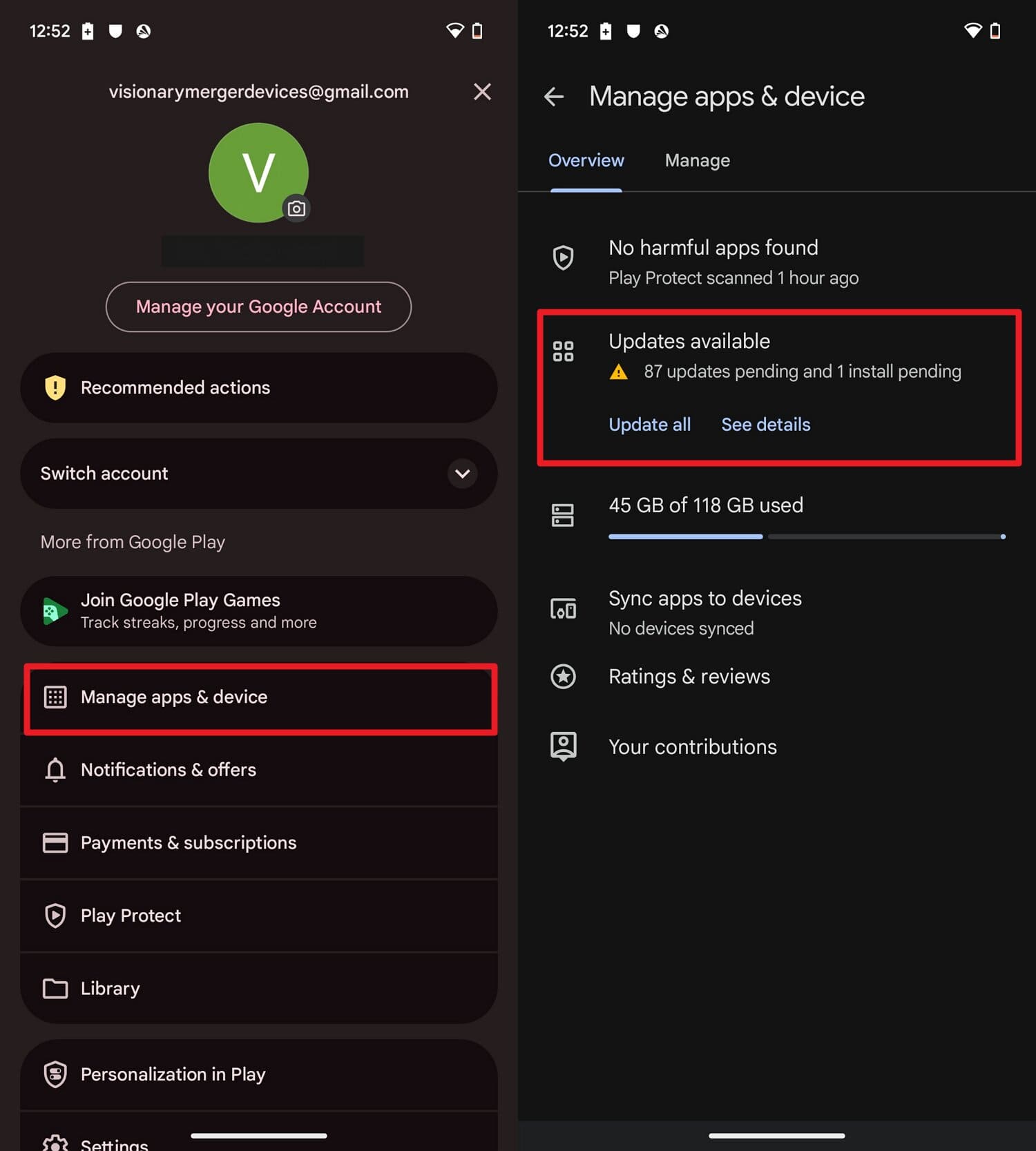
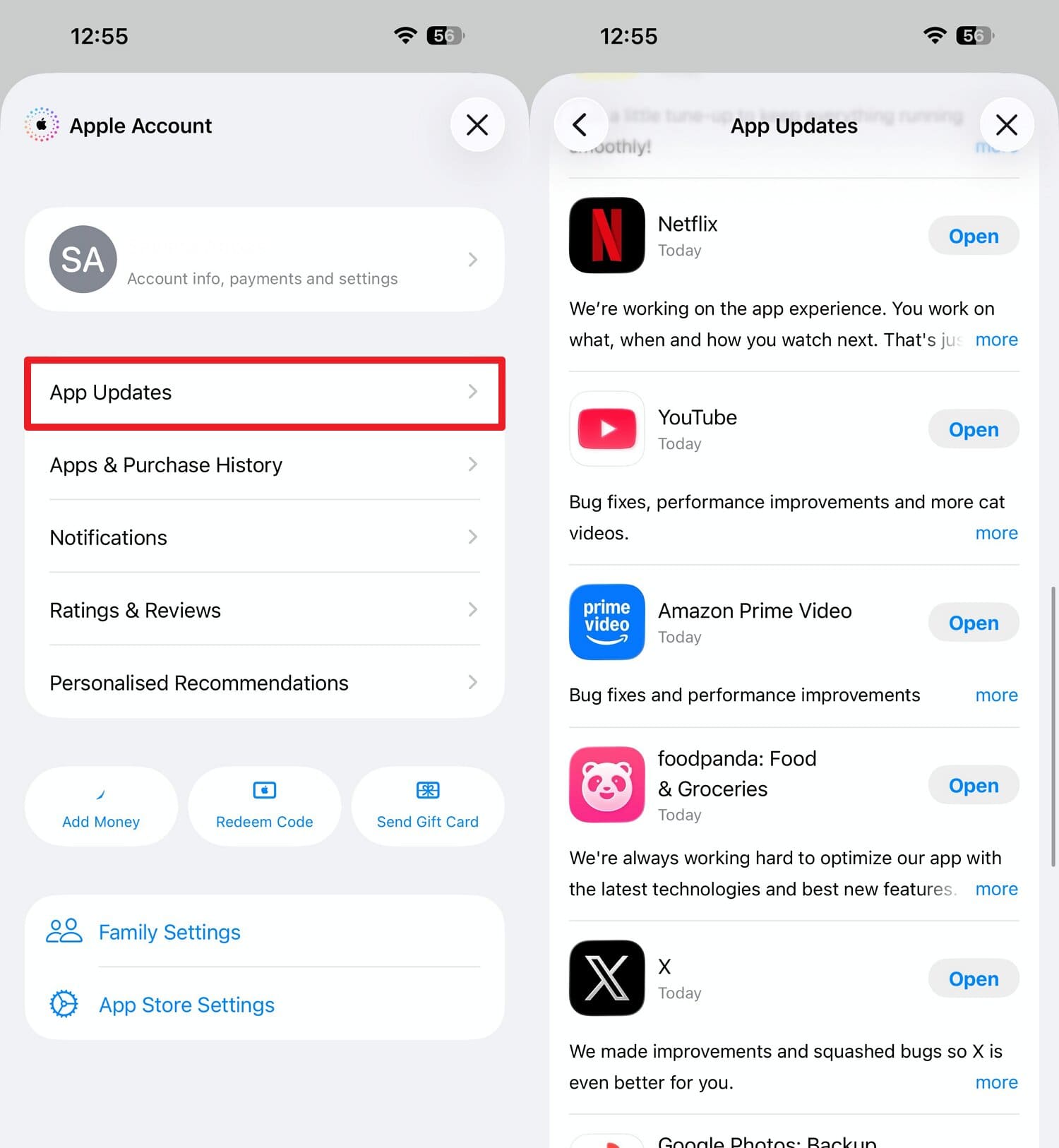
An outdated app is one of the most common causes of playback failures, since older versions gradually lose compatibility with how HBO Max delivers content. When HBO Max isn't working, this fix can resolve bugs and glitches from the outdated version, as shown:
On Android
Instructions. Choose the “Profile” icon on the Play Store and tap “Manage Apps & Device > Updates Available > See Details.” Pick HBO Max from the list and press the “Update” option if available.
On iPhone
Instructions. On the App Store, press “Profile > App Updates > HBO Max > Update,” if it's there.
-
Fix 4 Clear the HBO Max Cache and App Data
Stored cache data can conflict with a recent app update, producing loading failures that a simple restart won't fix on its own. Clearing it forces the app to rebuild that data from scratch instead of reusing files that no longer match the current version, as guided below:
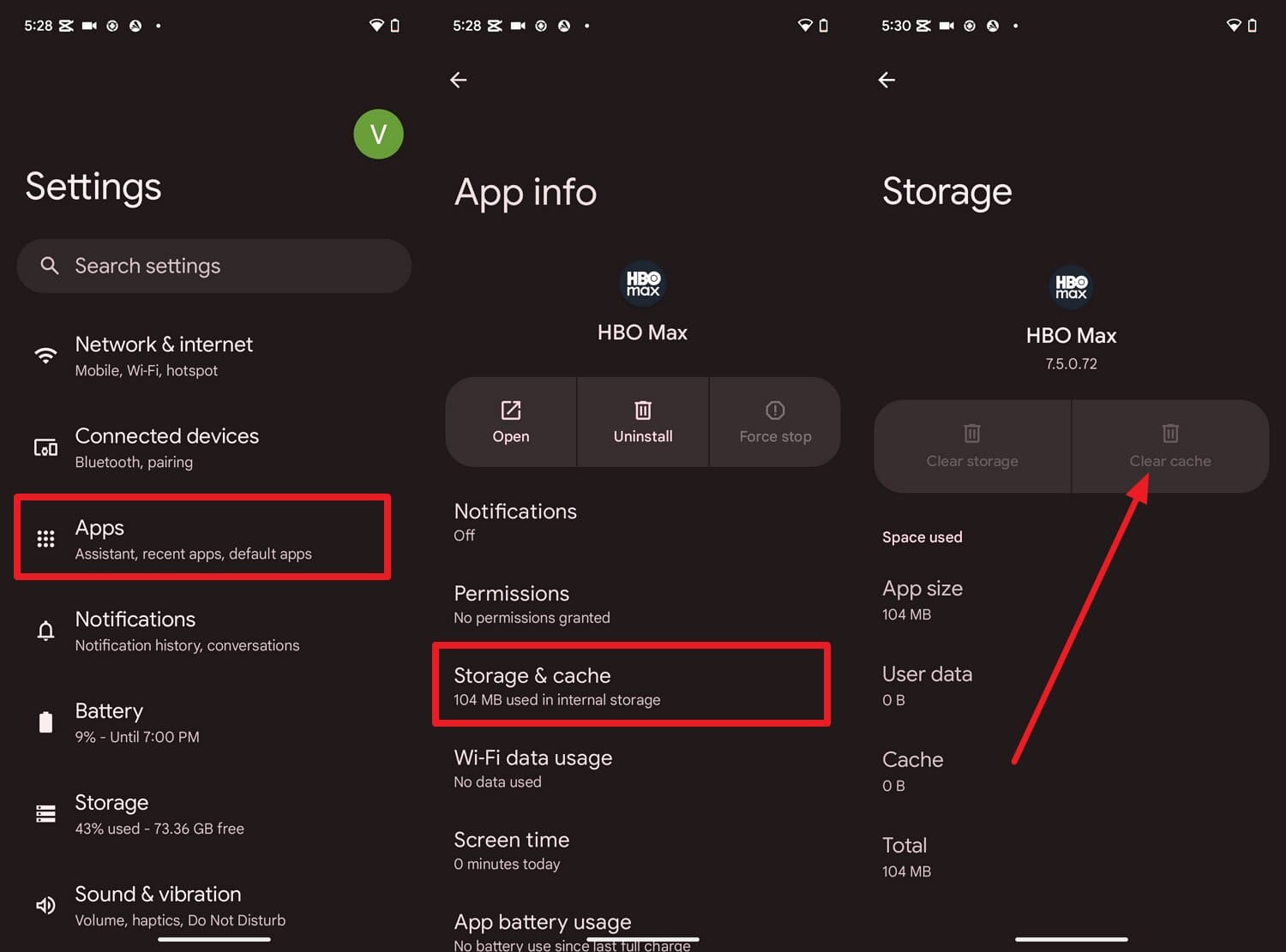
On Android
Instructions. Go to Apps in the Settings and choose “HBO Max > Storage & Cache > Clear Cache.”
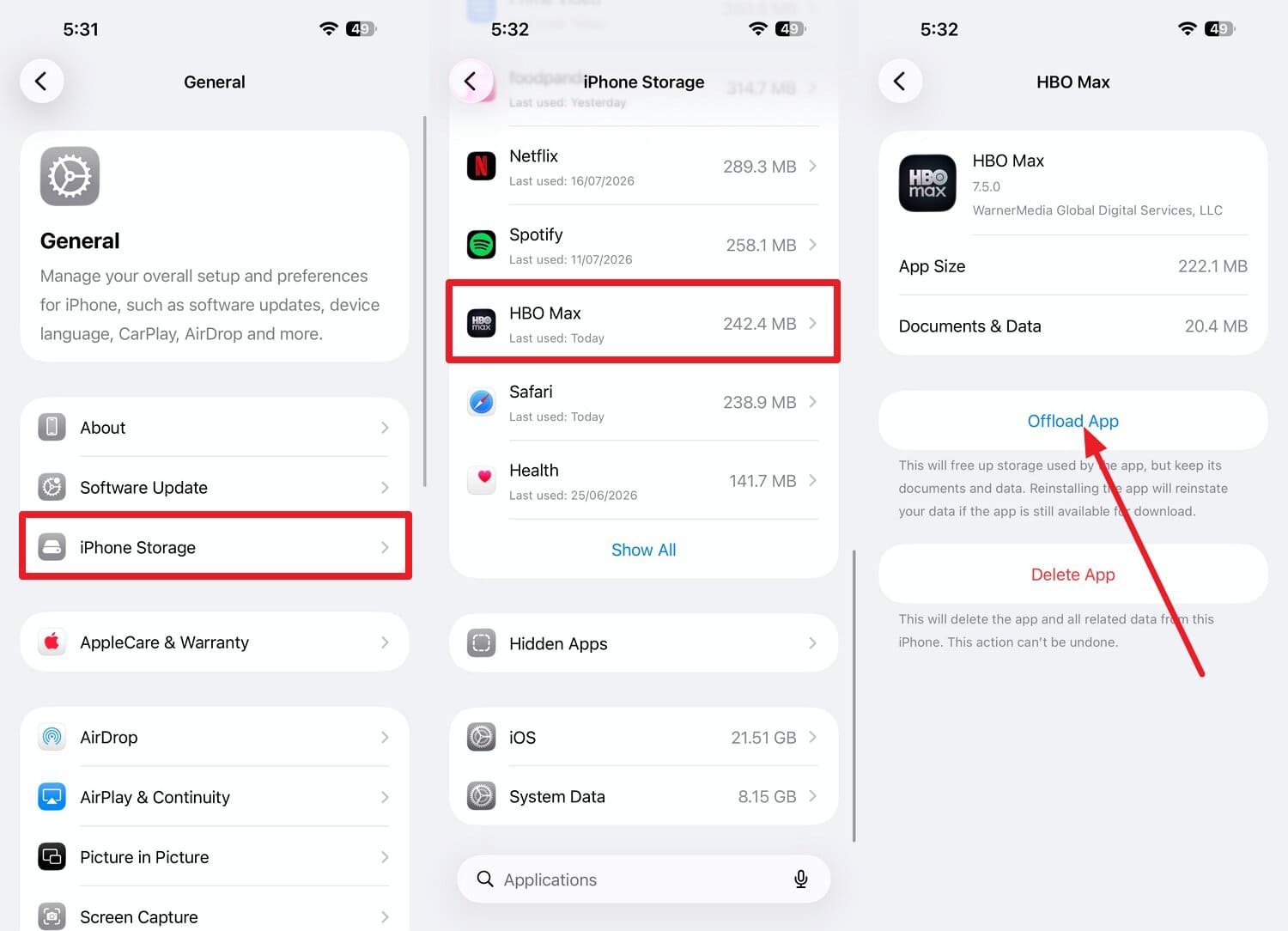
On iPhone
 Note: If you want to clear temporary data without losing your app settings, you can use the "Offload App" option.
Instructions. In the “General > iPhone Storage” settings, locate HBO Max and choose the “Offload App” option to confirm.
-
Fix 5 Uninstall and Reinstall the HBO Max App
A full reinstall clears both outdated files and corrupted data at once, which makes it a reasonable step when smaller fixes haven't worked. According to HBO Max's guidance, this is a standard troubleshooting step when HBO isn't working, and it is provided below:
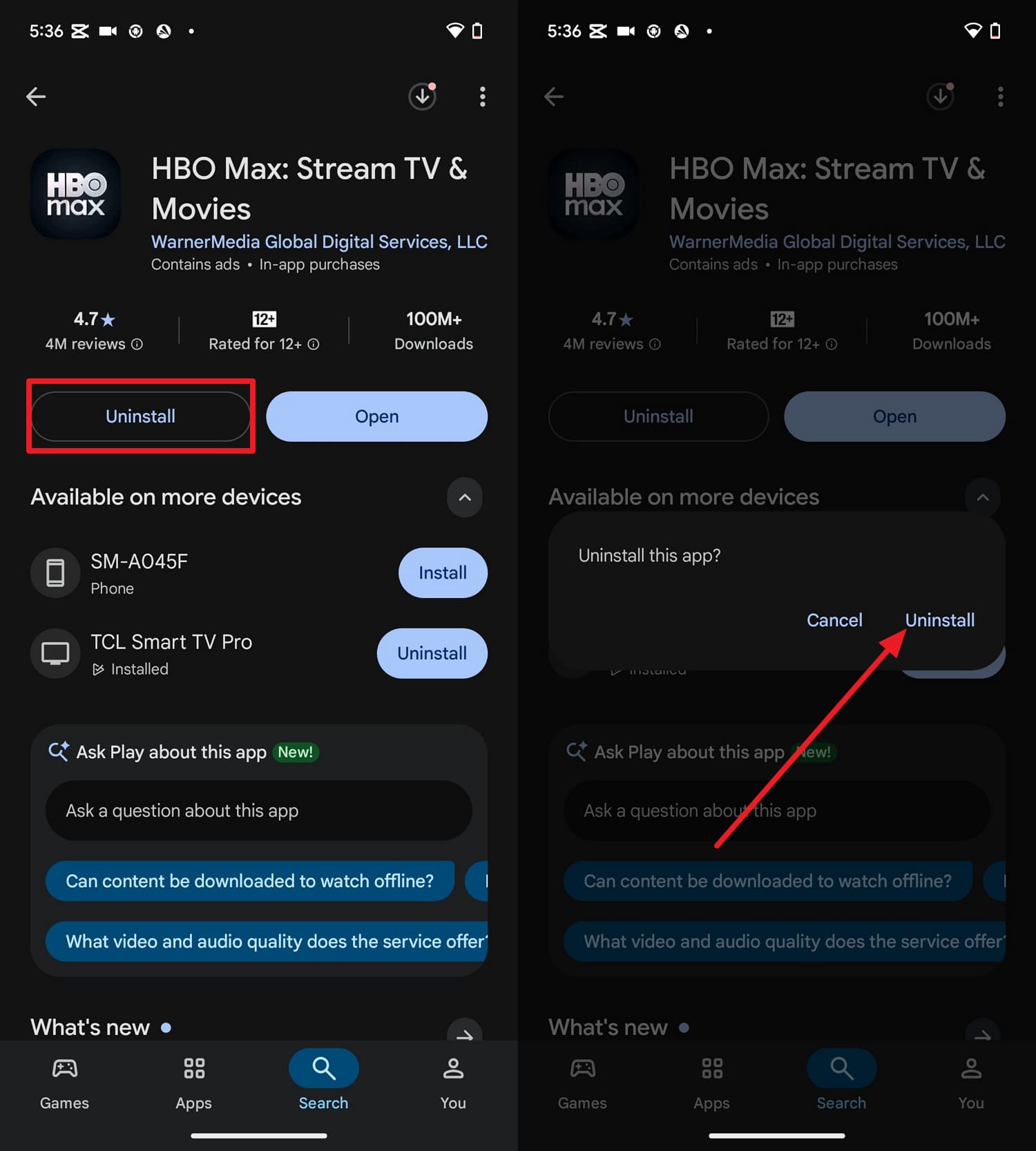
On Android
Instructions. Search HBO Max on the Play Store and choose the "Uninstall > Uninstall" options, and reinstall after some time.
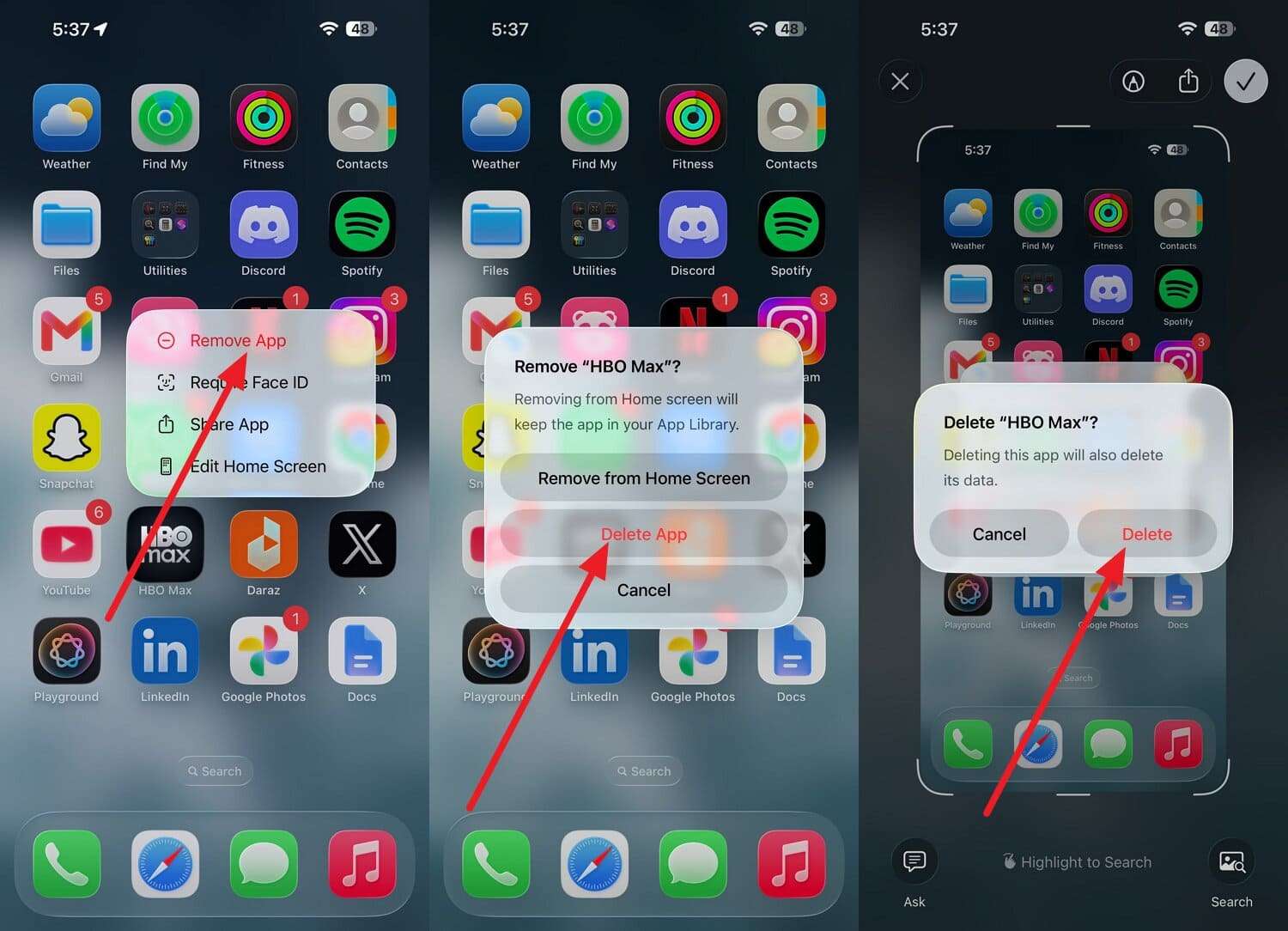
On iPhone
Instructions. Maintain hold on the HBO Max app, then choose “Remove App > Delete App > Delete,” and press the “Cloud” icon in the App Store to reinstall.
Part 3. How to Fix HBO Max Not Working on a TV, Amazon Fire TV, or Chromecast
These fixes cover HBO Max not working on TV, Fire TV, and Chromecast setups specifically.
-
Fix 1 Power-Cycle the TV or Streaming Device
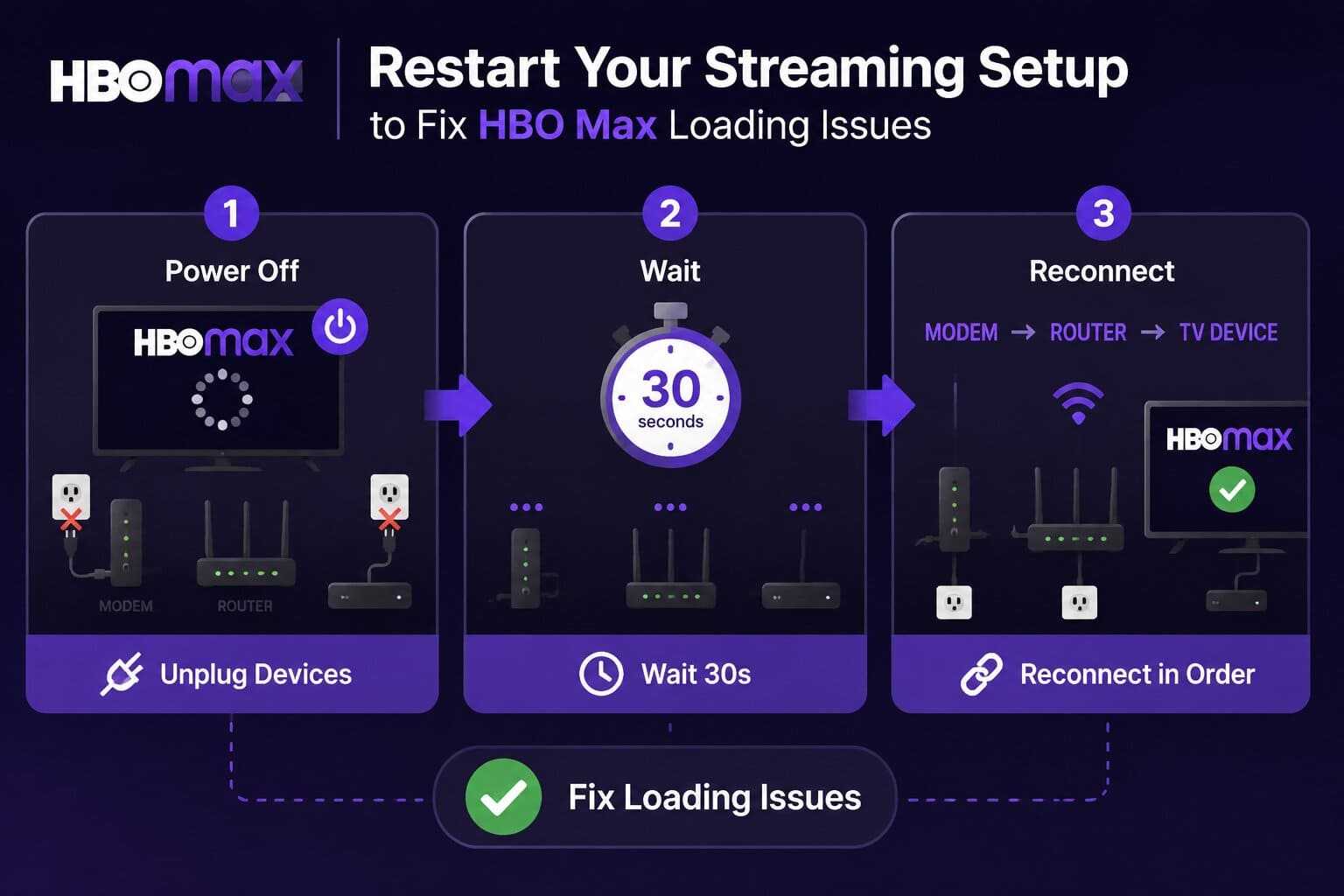
According to HBO Max's official restart sequence, power cycling clears more temporary glitches than simply closing and reopening the app. This is especially effective for TVs and streaming devices, and the steps are given below:
Instructions. Unplug your TV or streaming device from the power source, and your modem and router as well. Wait 30 seconds and reconnect your modem, then your router, then your TV device.
-
Fix 2 Check the HDMI Cable and Input
Loose or non-compliant HDMI connections are a frequent cause of the HBO Max app not working on the TV, especially on older cables. Confirm your HDMI cable is HDMI 2.0 or newer and disconnect and reconnect both ends of the cable.
Note: HBO Max's documentation states that 4K UHD playback specifically requires HDCP 2.2 across every connected component, not just the cable. -
Fix 3 Clear the Cache on Your Smart TV
Cached data on Smart TVs can build up over time and interfere with HBO Max loading correctly, similar to how phone app caches behave. Clear them through the given instructions to remove leftover temporary files and glitches:
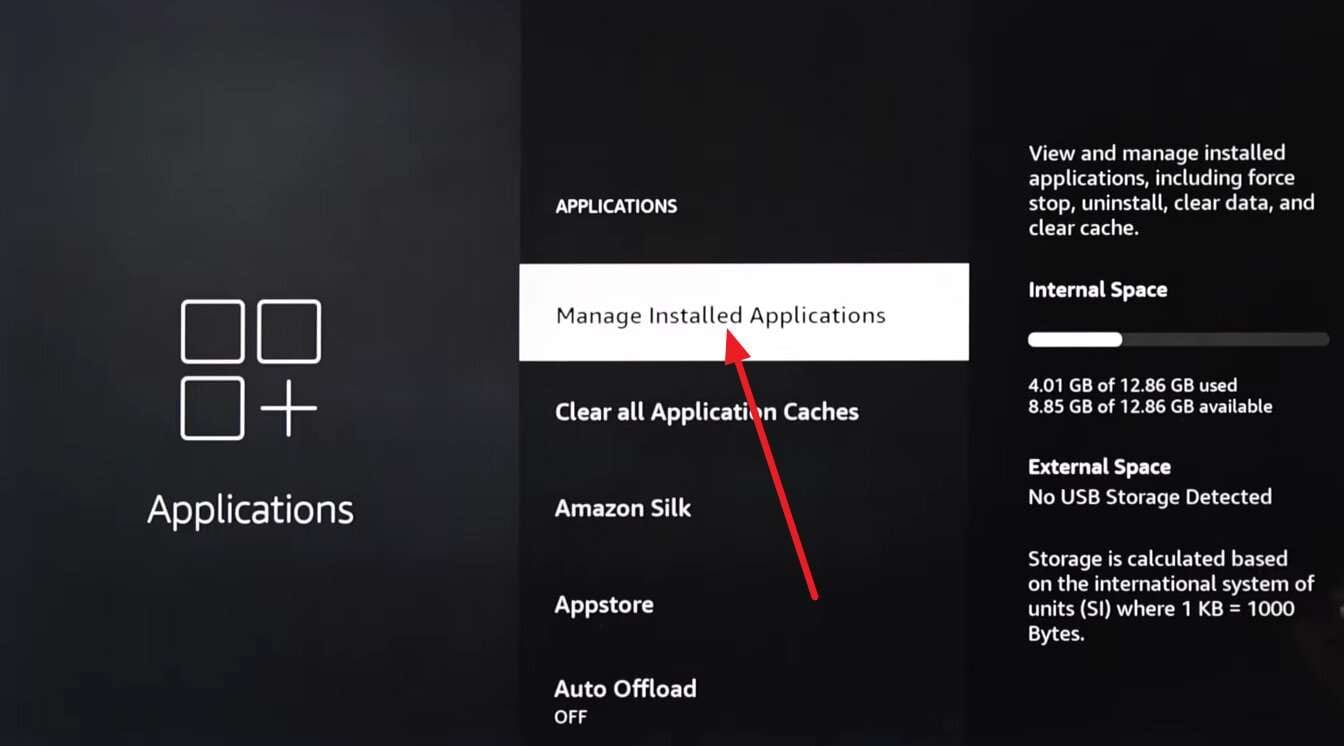
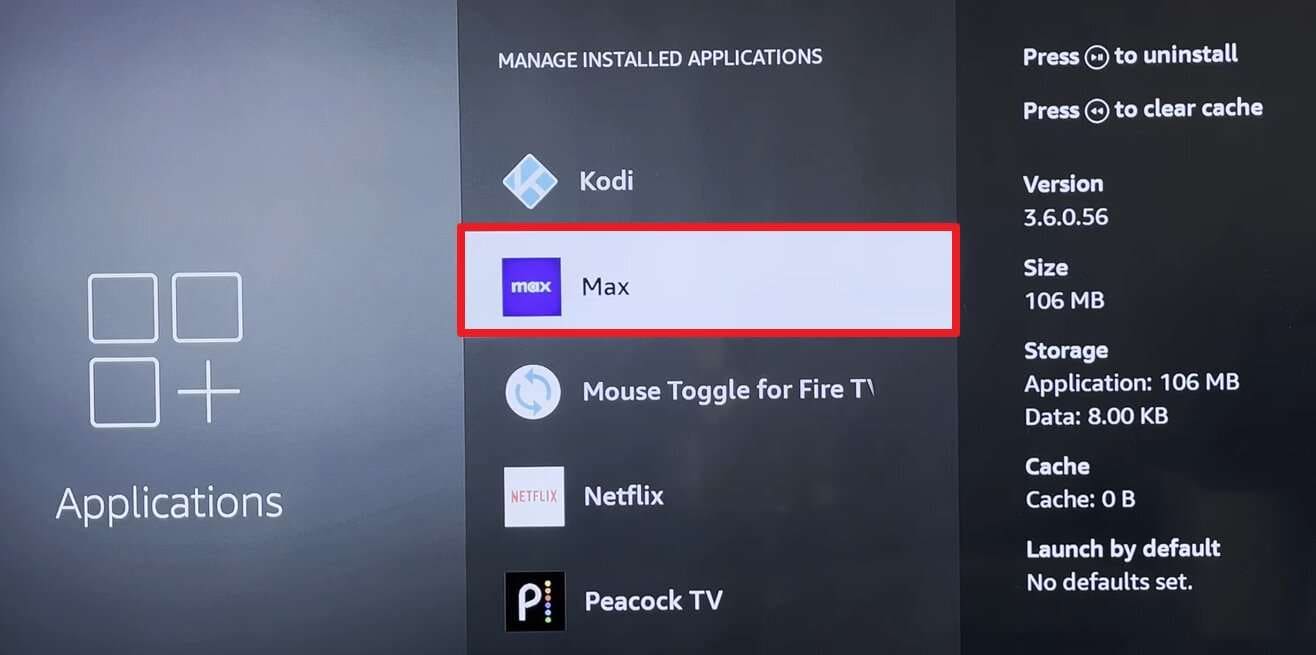
Step 1. Go to “Settings > Applications > Manage Installed Applications” and choose HBO Max from the list.
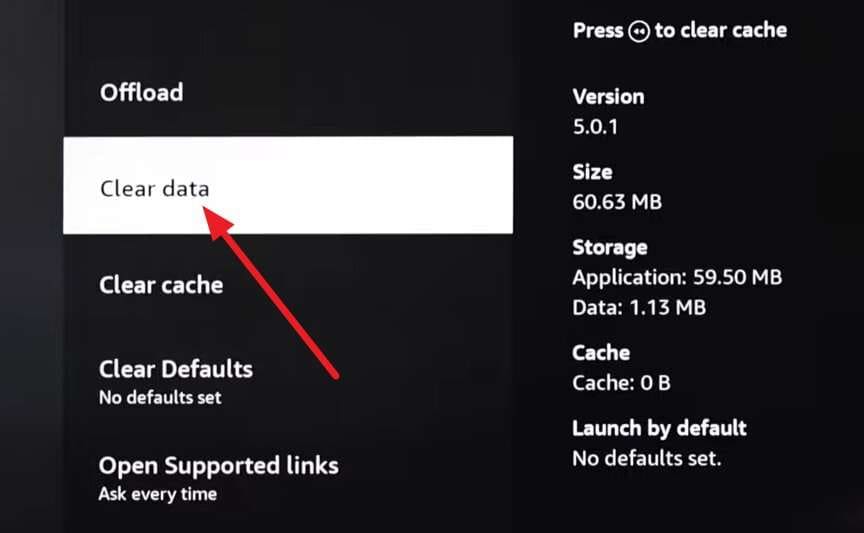
Step 2. From the list, select the “Clear Cache” and “Clear Data” options, then press the “OK” button to confirm.
-
Fix 4 Update HBO Max and the Device Firmware
A device can run an updated HBO Max app on outdated firmware without any obvious warning that the two are out of sync. TV and streaming device firmware updates often include compatibility fixes that resolve persistent HBO Max not working on Firestick problems, as shown:
Update HBO Max
Step 1. In “Applications,” choose “Manage Installed Applications” and choose HBO Max from the list.
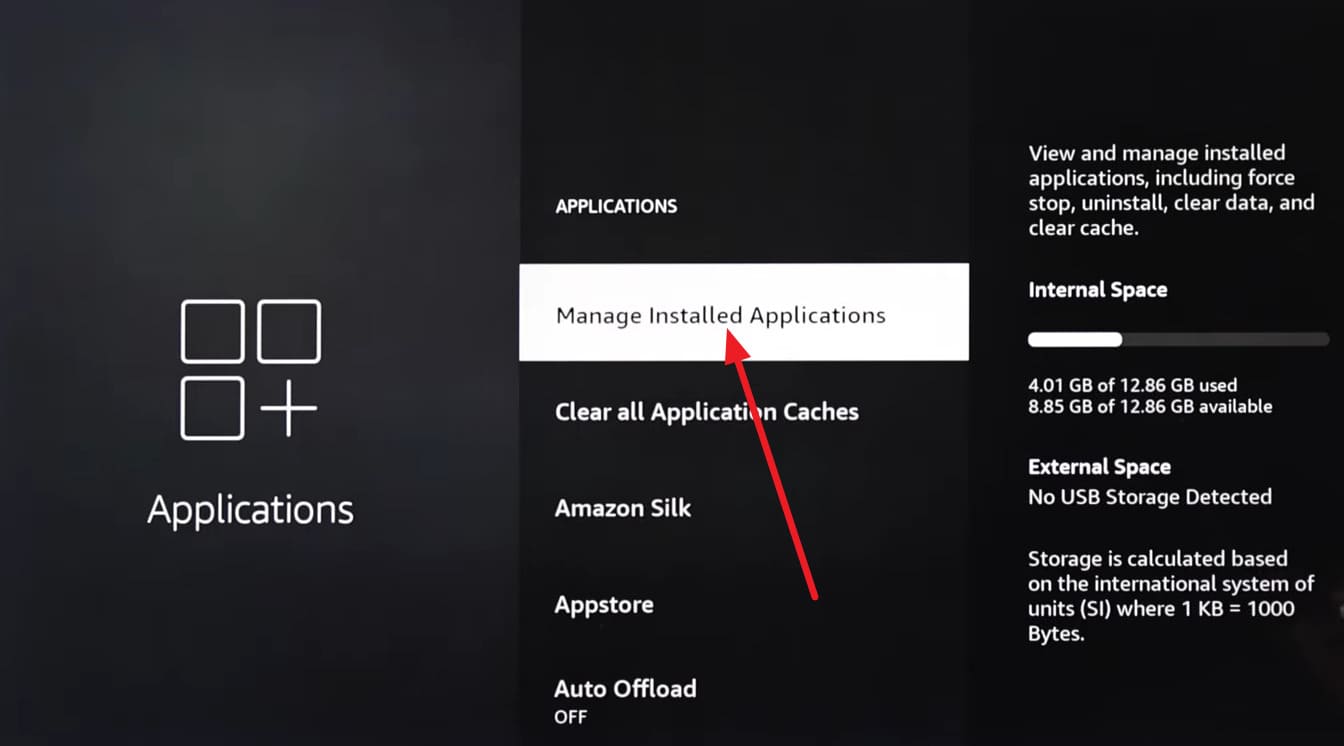
Step 2. If the “Update” option is there in the new window, choose it to continue.
Update Device Firmware
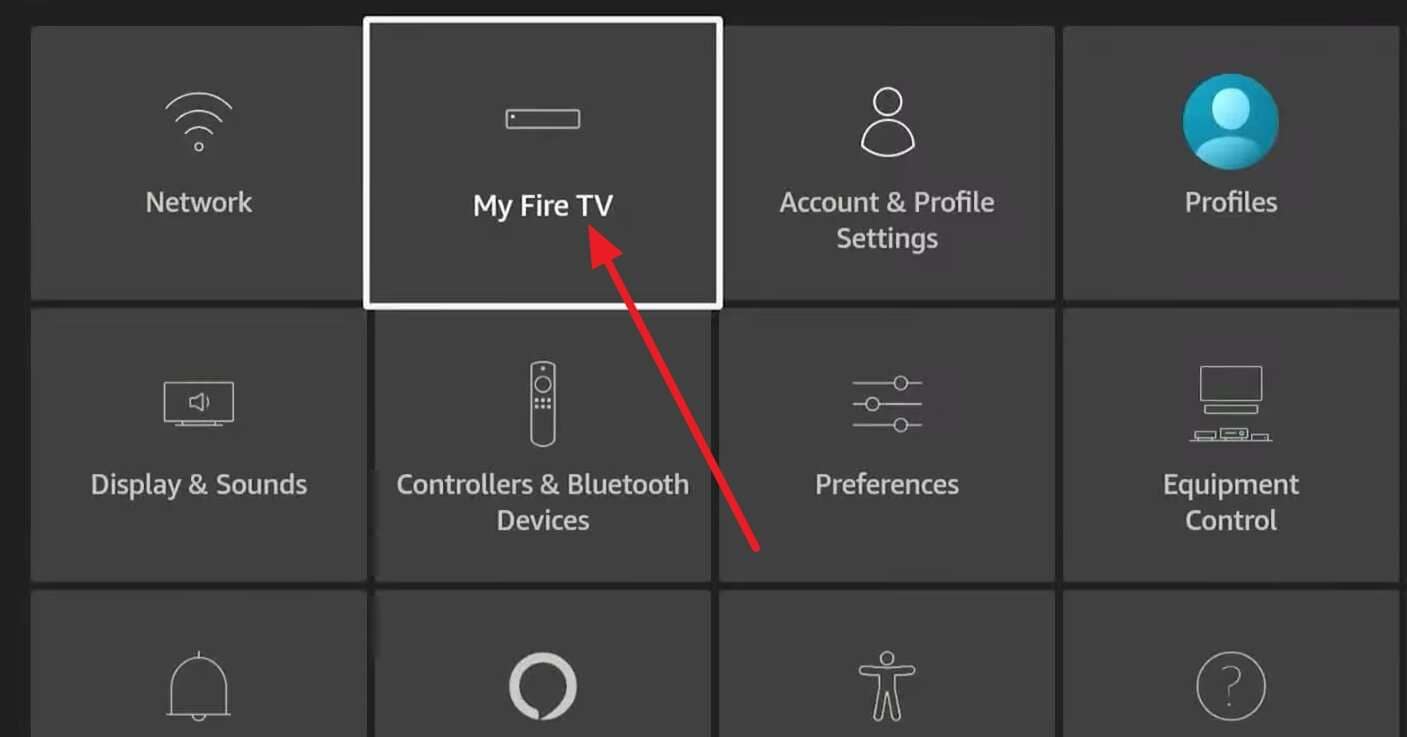
Step 1. Navigate to “Settings” and choose the “My Fire TV” option from the list.
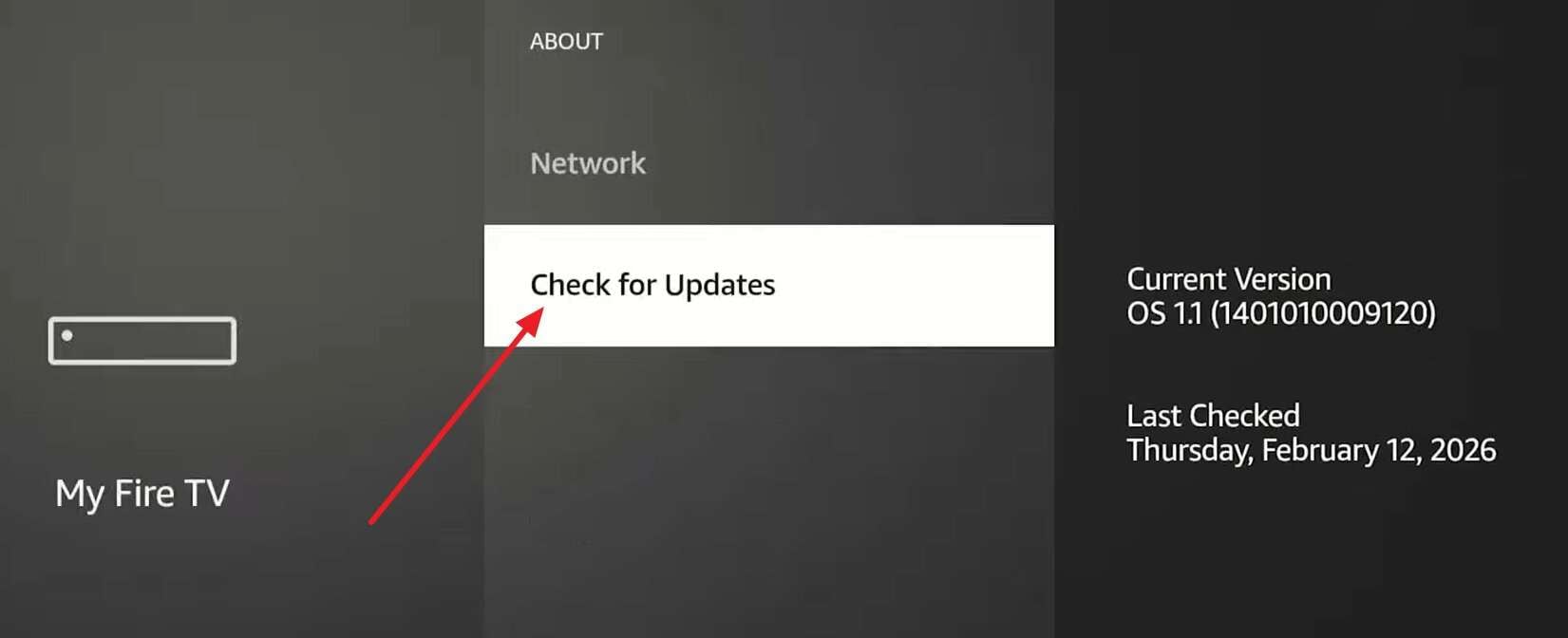
Step 2. Go to “About” and click on “Check for Updates” to download and install the latest firmware.
-
Fix 5 Fix the Chromecast Connection
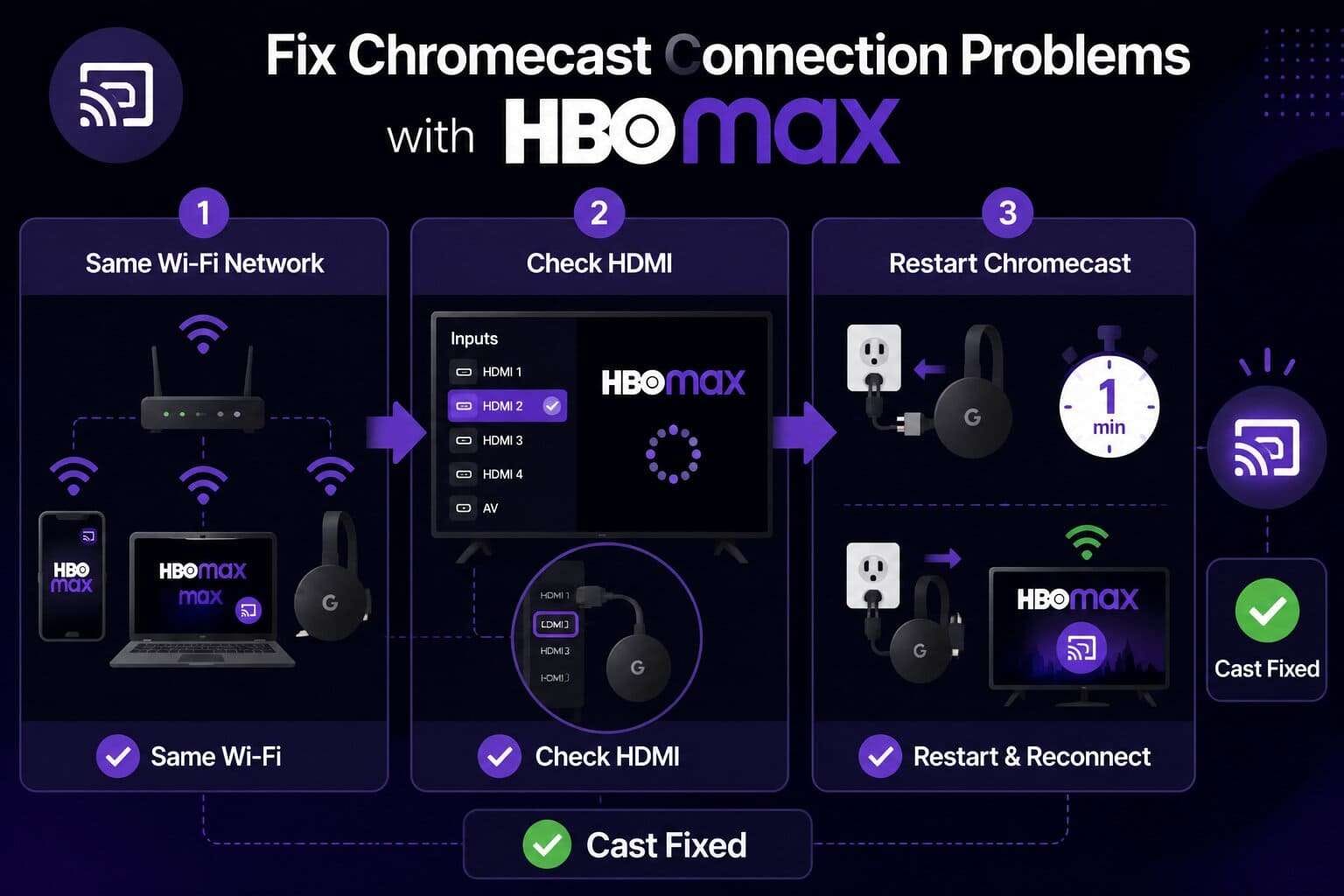
When HBO Max Chromecast not working is the issue, it's usually tied to a network mismatch or an unsupported device generation, not the app itself. According to HBO Max's Chromecast documentation, first-generation Chromecast devices aren't supported. Hence, here is how you can fix the Chromecast connection for smooth HBO Max streaming:
Instructions. Make sure your phone or computer and Chromecast are on the same Wi-Fi, and that your TV's HDMI input matches. If the "Cast" button still isn't showing, unplug the Chromecast for a minute and try a different HDMI port.
Part 4. How to Fix HBO Max Not Working in a Browser
The following 5 fixes apply when HBO isn’t working at HBOMax.com specifically, rather than in the app.
-
Fix 1 Refresh HBOMax.com and Sign In Again
A simple refresh clears many temporary session glitches without needing any bigger changes to your browser. It's worth trying before any other browser fix, since it costs nothing and is guided below:
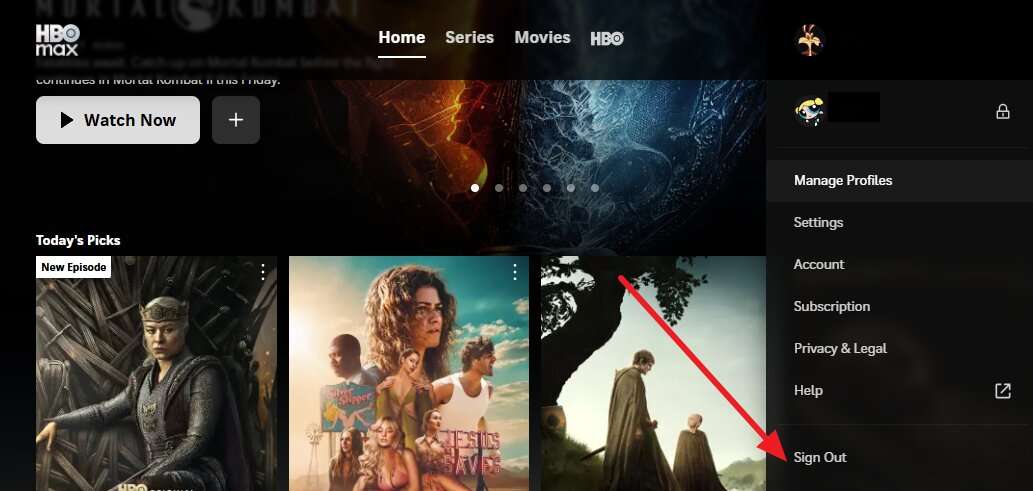
Step 1. Click on the “Profile” icon, choose the “Sign Out” option, and press “F5” to refresh the page.
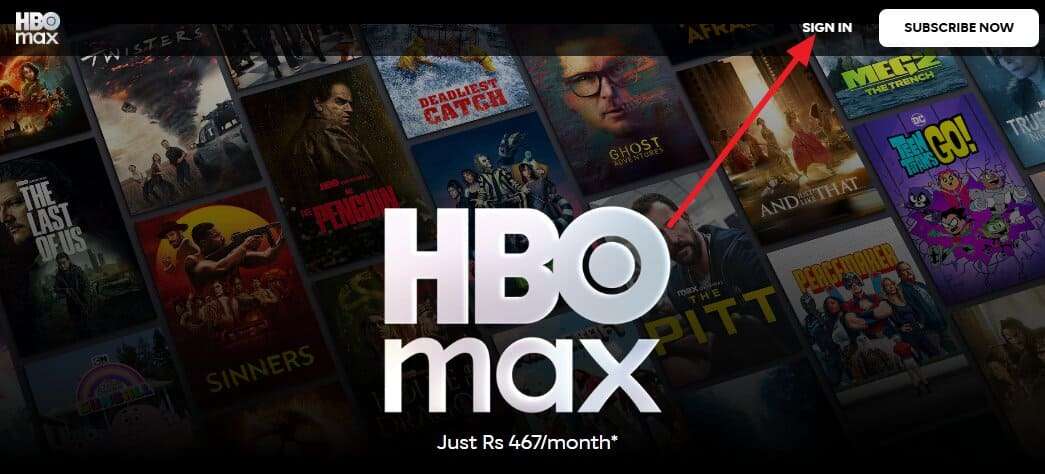
Step 2. After a few seconds, select the “Sign In” option on HBOMax.com and add the email ID and passcode.
-
Fix 2 Open HBO Max in an Incognito or Private Window
A private window loads without extensions or cached data, which quickly reveals whether either one is causing the problem. It's a fast diagnostic step that narrows down the cause for the "cannot connect to HBO Max" error, as discussed:
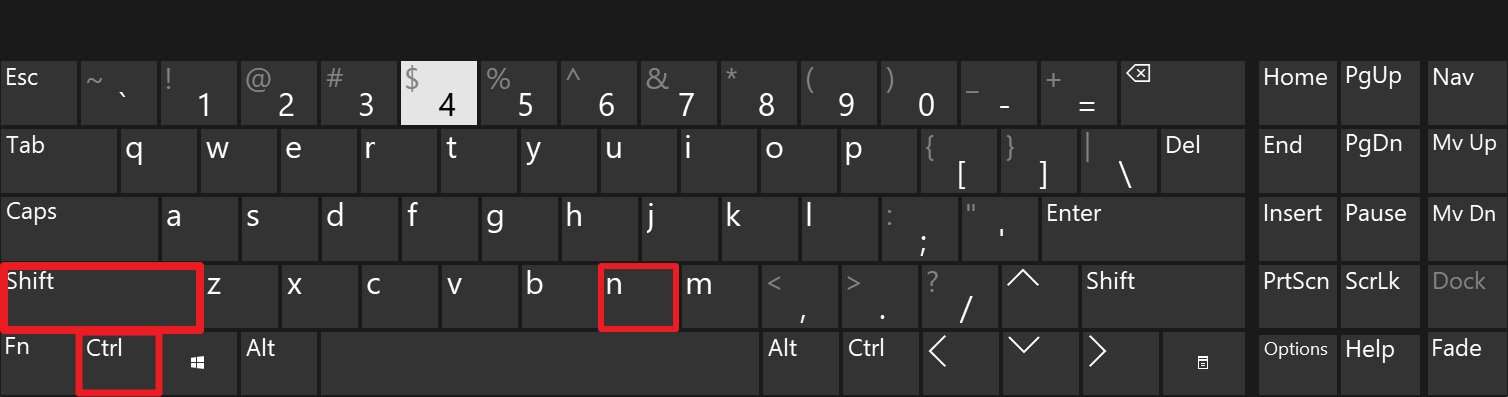
Step 1. Press “Ctrl + Shift + N” on Windows and “Command + Shift + N” on Mac to open Incognito mode.
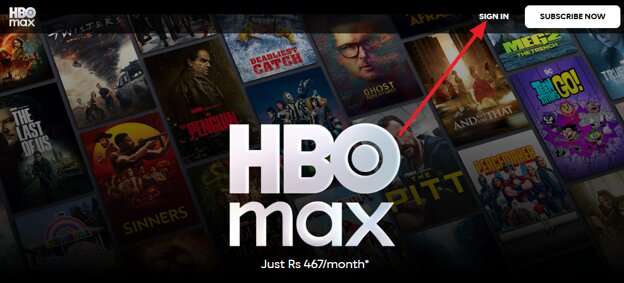
Step 2. Go to HBOMax.com, “Sign in,” and try playing something. If it works, the cause sits in your regular browsing session.
-
Fix 3 Disable Browser Extensions and Ad Blockers
According to HBO Max's browser troubleshooting guidance, ad blockers, IP masking tools, and screen capture software are confirmed causes of playback failures. Hence, disable any extensions because this helps speed up page loading, which you can do by following these steps:
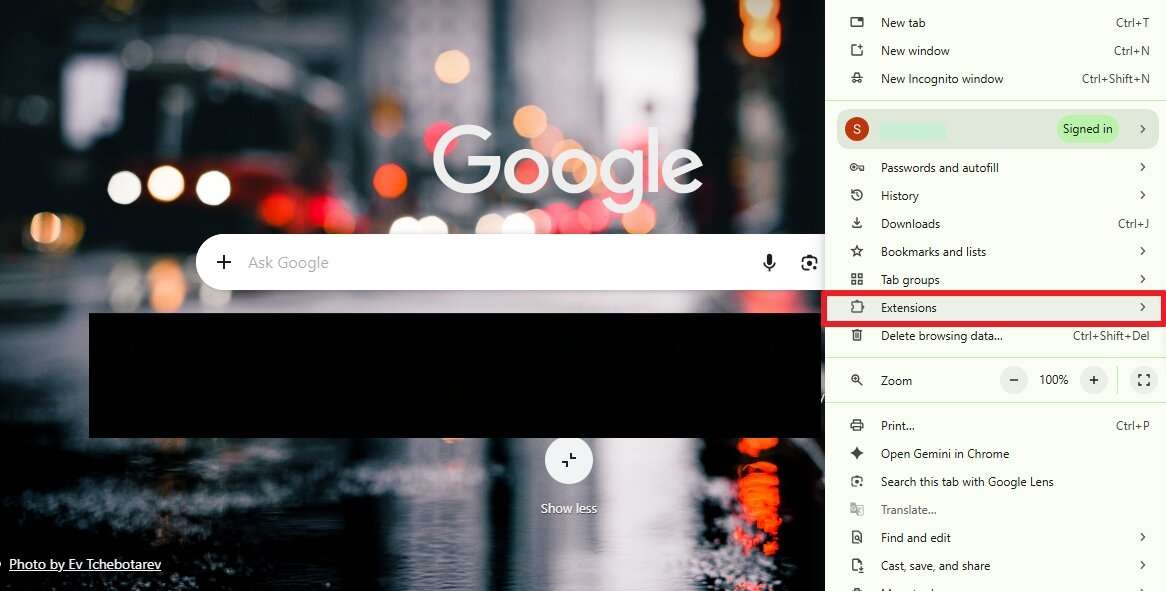
Step 1. On Chrome, press the “Three Dots” to choose the “Extensions > Manage Extensions” option.
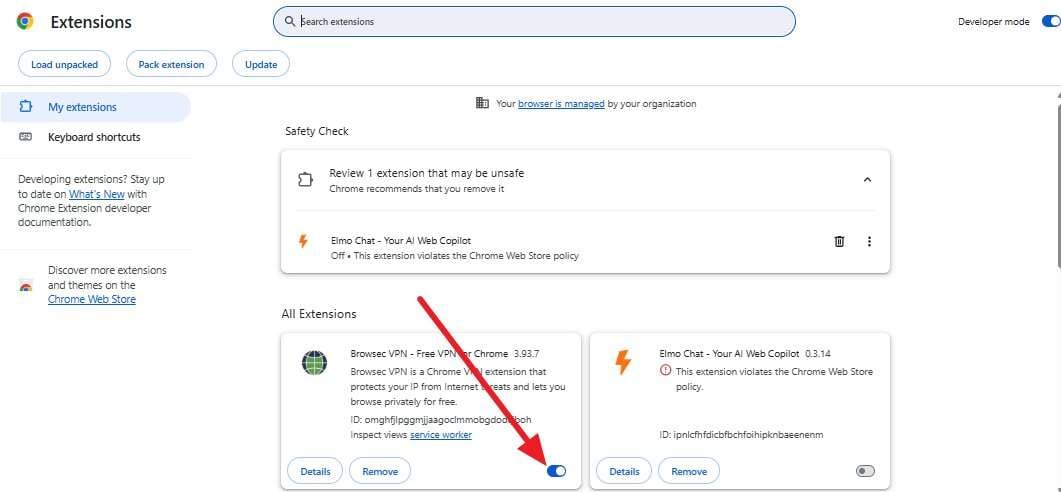
Step 2. Once you are in the “My Extensions” section, locate the problematic extension and toggle it “Off” to resolve the HBO is not working issue.
-
Fix 4 Clear Browser Cache, Cookies, and Site Data
This solution can remove outdated or corrupted files that can cause HBO Max to fail to load properly. It's a quick fix that often speeds up page loading and resolves login or playback errors. You can go through these instructions to perform this quick browser-related fix:
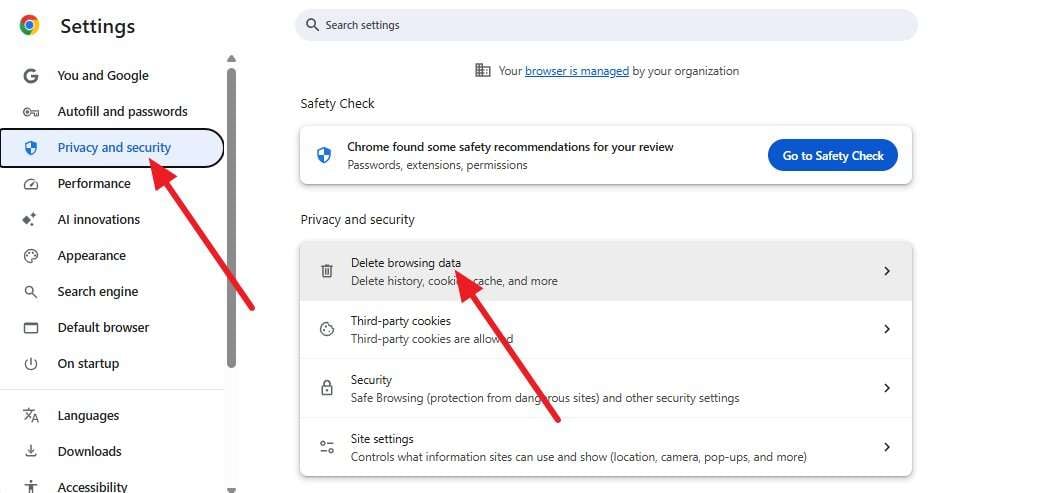
Step 1. Open Chrome and tap the “Three Dots” to choose “Settings > Privacy and Security > Delete Browsing Data.”
Step 2. Choose options like “Cached Images and Files” and “Cookies and Other Site Data” and press the “Delete Data” option.
-
Fix 5 Update or Switch to a Supported Browser
HBO Max officially supports only Chrome, Firefox, Edge, and Safari, so a different or outdated browser can cause playback to fail entirely. A browser stuck on an old version can still open normally while quietly failing the newer checks HBO Max's player requires. If you seek to update Chrome, here are the detailed guidelines:
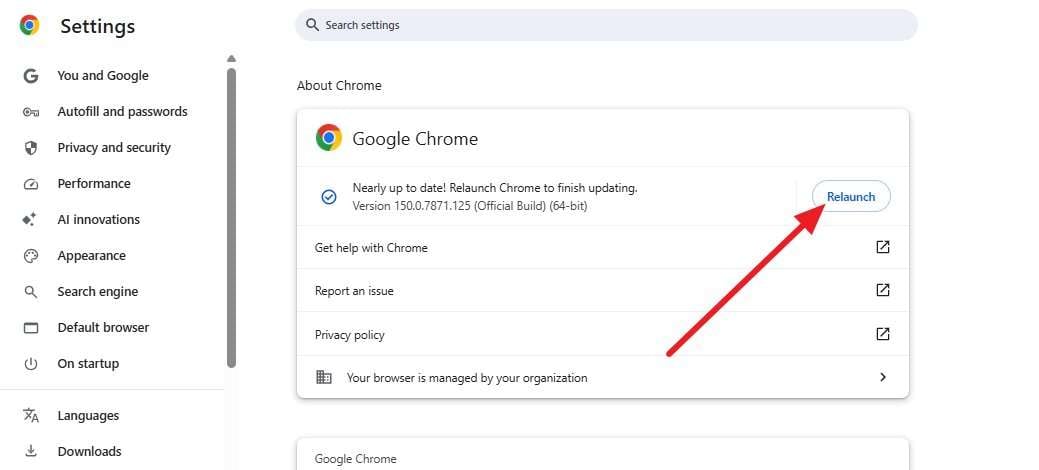
Step 1. Check your browser's version, go to “Three Dots > Help > About Chrome,” and wait until the browser checks for updates.
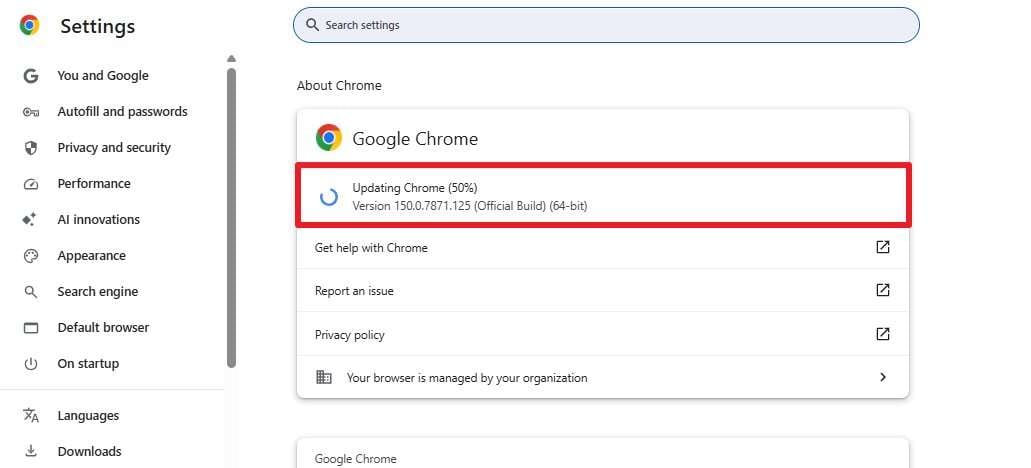
Step 2. As this ends, press the "Relaunch" button and reopen the HBO Max site to see if the issue persists.
Pro Tip. Free Up Phone Storage Before Reinstalling HBO Max with Dr.Fone Basic
While you resolve the HBO Max won't load issue, remember that reinstalling the app requires enough available storage. To free up space safely, you can use Wondershare Dr.Fone to export, import, or delete files on your Android or iPhone directly from a PC with full control. Dr.Fone - Phone Manager (iOS) supports the latest iOS and iPadOS versions and lets you manage photos, videos, contacts, music, and other files between your iPhone and computer.
Likewise, Dr.Fone - Phone Manager (Android) makes it easy to manage contacts, photos, videos, music, and other data between Android devices and a computer. It also supports transferring media files between iTunes and Android devices, helping free up valuable phone storage. Compatible with the latest Android versions, it provides a guided interface that lets you organize and manage your data in just a few taps.
-
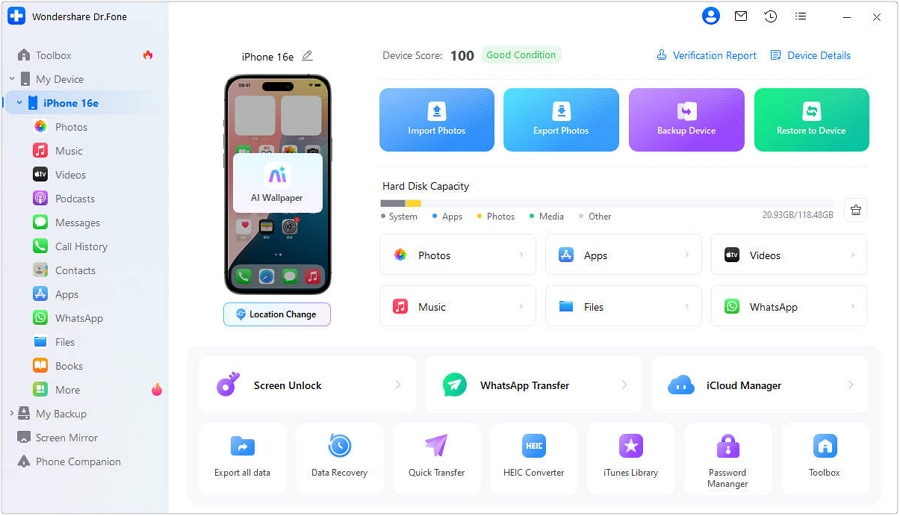
Step 1 Connect Your Android Smartphone
Connect your Android to the computer using a USB cable. Unlock the device and enable File Transfer (MTP) if prompted, so Dr.Fone Basic can recognize it.
-
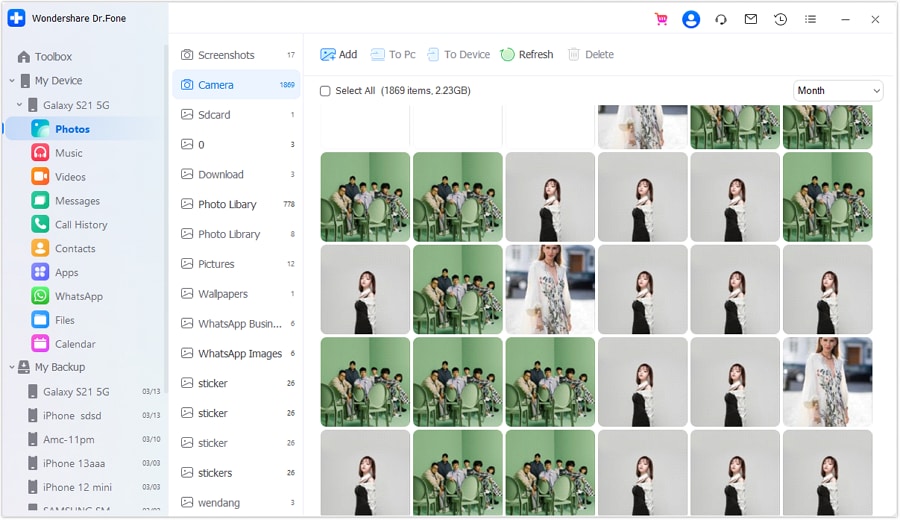
Step 2 Choose the Data You Want to Manage
Choose the data types you want to manage from the left panel, such as “Photos.”
-
Step 3 Use the To PC Option to Export Data
Click “To PC” to export the selected files to your computer. Once the transfer is complete, use the “Delete” option to remove unnecessary files and free up storage space to reinstall HBO Max smoothly.
Bonus Tool: Dr.Fone – Screen Unlock (When You Can't Even Open HBO Max)
If your phone is locked due to a forgotten PIN, pattern, Face ID, or system crash, you won't be able to open the HBO Max app at all — let alone fix playback or login issues. Dr.Fone - Screen Unlock (Android) helps you regain access to your iPhone or Android in minutes, even if the device is disabled, frozen, or stuck in recovery mode.
This tool supports removing 4-digit/6-digit passcodes, patterns, passwords, and biometric locks (Face ID, Touch ID) without requiring technical skills. It’s trusted by over 50 million users and fully compatible with the latest iOS and Android versions, including iOS 17 and Android 14.
 Unlock Android phone in seconds.
- Remove PIN, pattern, password, fingerprint.
- Bypass Google FRP lock easily.
- Works on all Android brands & models.
- No tech skills required – user-friendly.

-
Step 1 Launch Dr.Fone – Screen Unlock
Install and open Dr.Fone on your computer. Select “Screen Unlock” from the main interface.
-
Step 2 Connect Your Locked Device
Use a USB cable to connect your iPhone or Android. The tool will automatically detect the device model and lock type.
-
Step 3 Confirm Device Info & Start Unlock
Follow on-screen instructions to enter download mode (Android) or recovery mode (iPhone). The tool will download the necessary firmware and remove the lock.




Conclusion
Most HBO Max not working issues can be resolved once you identify the underlying cause. Following the fixes for your specific platform, whether it's a phone, TV, or browser, usually restores streaming without needing to contact customer support. If you also need to free up storage before reinstalling the app, Dr.Fone - Phone Manager provides a simple way to organize, transfer, and manage your phone's files.
FAQ
-
1. Why are HBO Max subtitles not working?
If HBO subtitles are not working, the issue you're seeing is usually a setting rather than an account problem. Check the subtitles and audio options within the playback controls, since HBO Max's subtitle documentation notes that availability varies by audio track and title. -
2. How do I know if HBO Max is down for everyone or just me?
Check a third-party outage tracker or HBO Max's official social support accounts for other reports. If no one else is affected, the cause is more likely to be your device, network, or account. -
3. How long do HBO Max outages usually last?
Most server-side outages are resolved within a few hours, though there's no fixed timeline. Trying the provided fixes rules out anything you can actually control yourself. -
4. Does HBO Max work the same way on a Fire Stick as on other Fire TV devices?
Yes, a Fire Stick runs the same Fire TV software as other Amazon streaming devices, so the same fixes apply. Cache clearing and firmware updates work identically across the Fire TV product line.
 Add Wondershare Dr.Fone as a preferred source on Google