 Bypass iCloud Activation Lock and Android FRP without password.

 100% Security Verified | No Subscription Required | No Malware

 :
: 
 ChatGPT
 Perplexity
 Gemini
 Claude
 Grok
Grok
Face unlock is the feature you never think about until it stops working. You lift the phone, the screen stares back, and nothing happens. Then you simply type a PIN you half remember, several times a day. Samsung face recognition not working rarely points to a broken phone.
This guide explains why this issue happens and how to resolve it with 15 simple fixes. If all the methods fail to unlock your Samsung, learn how Dr.Fone - Screen Unlock (Android) can help.
In this article
Part 1. Why is Face Recognition Not Working on Samsung?
Review the given table and learn why face recognition is not working on Samsung to choose the right solution:
| Cause | How to Spot It | Commonly Affected Models or Conditions |
|---|---|---|
| Dirty or Covered Front Camera | Face unlock fails in most lighting conditions. | Any Galaxy model with fingerprints, dust, or lint covering the front camera. |
| Poor or Backlit Environment | Works in balanced light but fails with strong backlight or dim surroundings. | All Galaxy models, especially when light is behind you or the scene is too dark. |
| Mask, Sunglasses, or Accessories | Face unlock fails only while wearing certain accessories. | Masks, some sunglasses, hats, or other items that partially cover facial features. |
| Major Change in Appearance | Recognition becomes less reliable over time. | A shaved beard, new glasses, heavy makeup, or noticeable hairstyle changes. |
| Incorrect Face Position | Unlock works inconsistently depending on distance or angle. | More noticeable on larger Galaxy phones when held too close or at awkward angles. |
| Screen Protector or Case | Issue starts after installing a new accessory. | Screen protectors or cases that partially block or misalign the front camera cutout. |
| Outdated One UI or Software Bug | Face recognition stops working after a software update. | Any Galaxy model affected by a One UI bug or pending software fix. |
| Corrupted Face Data | Face unlock consistently fails despite ideal conditions. | Any Galaxy phone with outdated, incomplete, or corrupted enrolled face data. |
Samsung Face Recognition Limitations
Some reported faults regarding the Samsung face recognition not working are just intended features. Samsung documents these limitations to help users understand how face recognition works and avoid unnecessary troubleshooting. Some of the most common limitations are explained below.
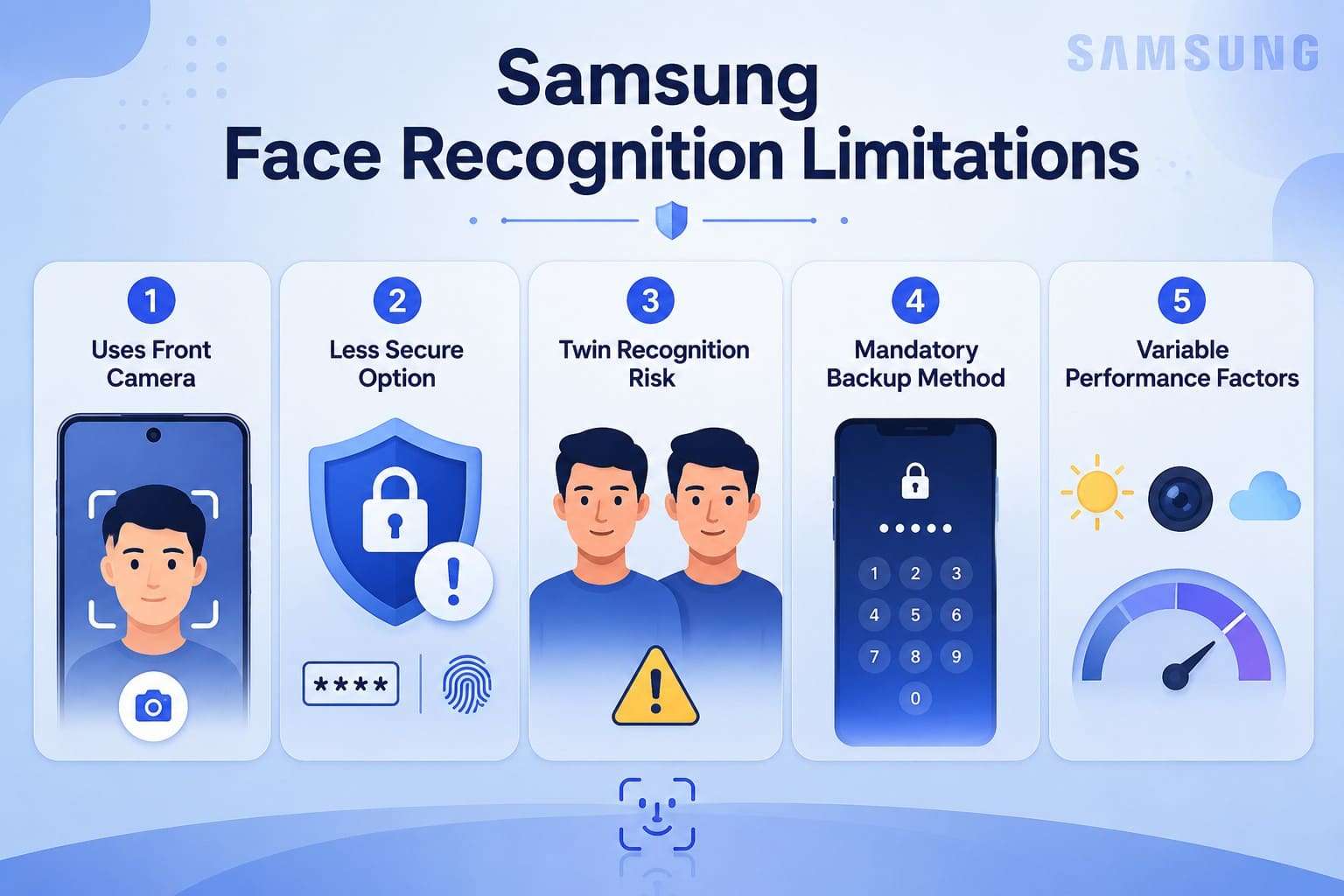
- Uses Front Camera: Galaxy phones read flat images without facial depth mapping to save battery and speed.
- Less Secure Option: Samsung admits face recognition offers convenience rather than maximum protection compared to passwords.
- Twin Recognition Risk: Samsung warns that twins might unlock your device, so use fingerprints instead.
- Mandatory Backup Method: Your phone forces a PIN or pattern after restarts or multiple failed unlock attempts.
- Variable Performance Factors: Lighting, camera hardware, and software updates all change how well face recognition works.
Part 2. How to Fix Samsung Face Recognition Not Working?
For the Samsung Note 20 Ultra face recognition not working issue, try the 15 solutions listed in this section:

-
Fix 1 Clean the Front Camera
Skin oil and pocket lint scatter light across the lens, and the phone reads that as a blurry face. Wipe the camera cutout with a dry microfiber cloth, and avoid anything abrasive or alcohol-based.
-
Fix 2 Check the Screen Protector and Phone Case
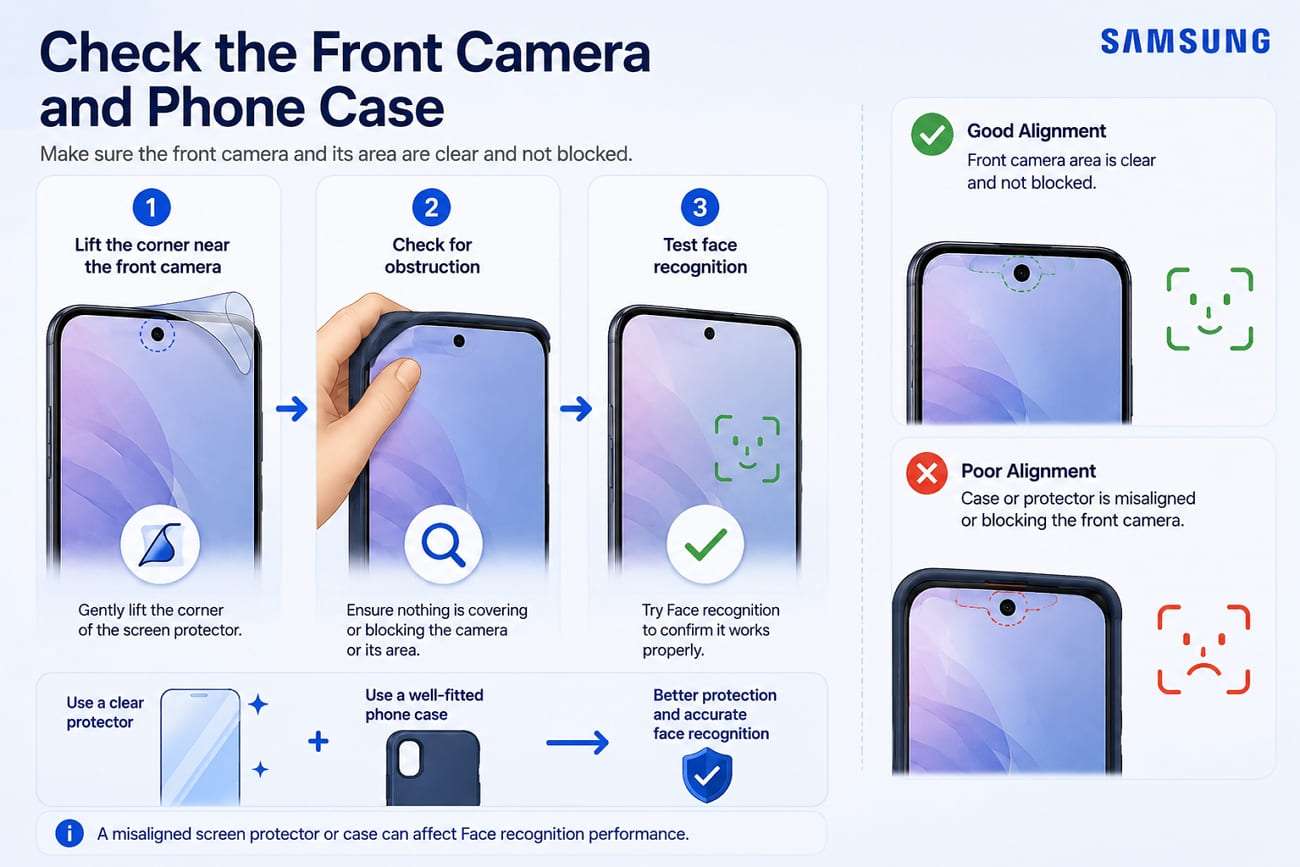
A screen protector over the camera cutout can distort what the camera sees. Peel back the corner nearest the lens and test before deciding whether the protector is causing the problem. A poorly fitted phone case can cause similar problems if it partially blocks or misaligns the front camera cutout. That's why Samsung A52 face recognition not working may sometimes be traced to a recently installed accessory.
-
Fix 3 Improve the Lighting and Avoid Strong Backlight
Bright backlight can turn your face into a shadow, so face the light source directly instead. Samsung's guidance asks for a well-lit space with no direct sunlight washing out the frame. Unlocking outdoors but never at your desk points straight here.
-
Fix 4 Position Your Face Correctly
Hold the phone roughly at arm's length and upright, with your whole face inside the frame. Too close cuts off your face, and an upward angle captures mostly your chin. Face unlock failures in bed stem from bad angles, not a device fault.
-
Fix 5 Remove Masks, Sunglasses, and Other Accessories
Samsung confirms that glasses, hats, masks, makeup, bangs, and beards all interfere with recognition. Take off whatever's new since you enrolled, then unlock to resolve the Samsung face recognition not working issue.
-
Fix 6 Restart Your Samsung Phone
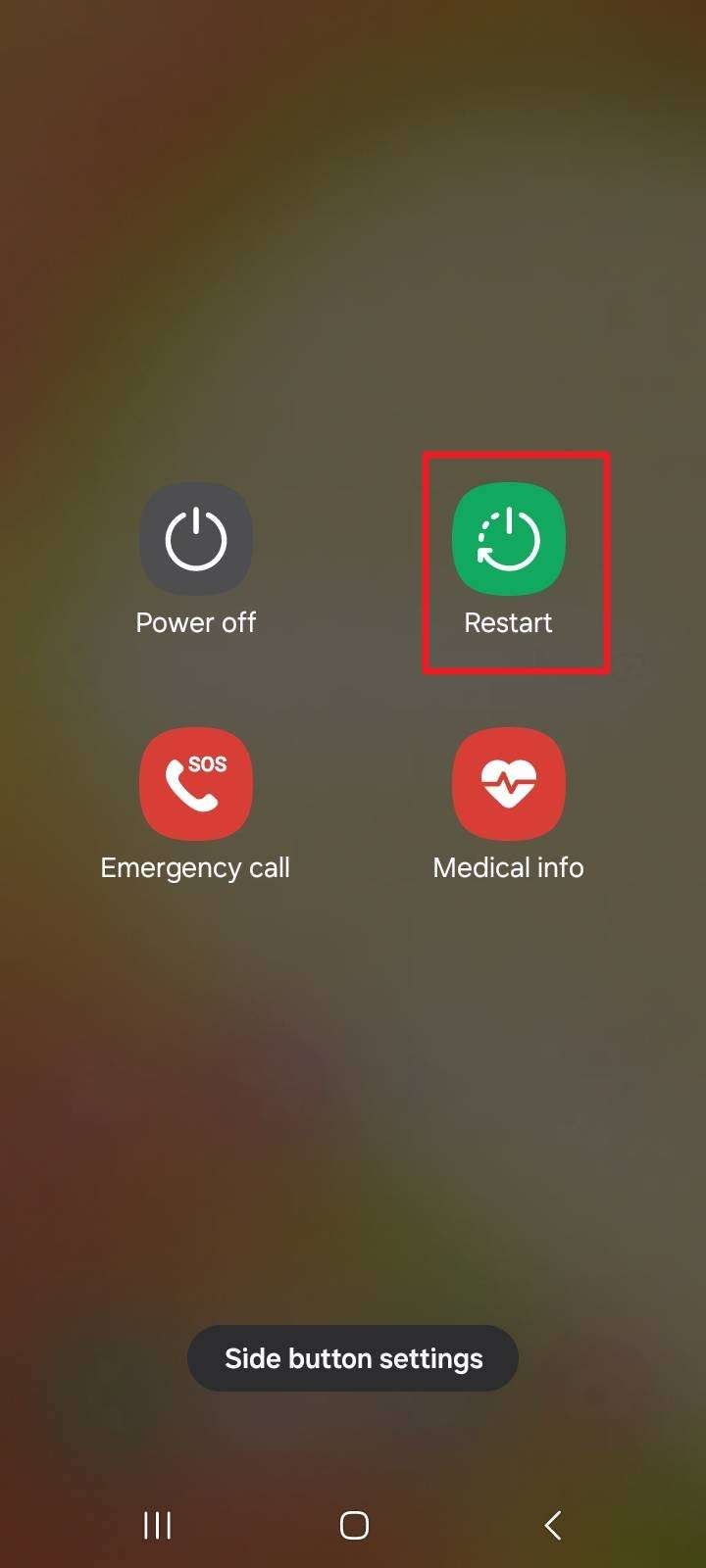
A simple restart clears background memory glitches and closes frozen camera processes that block face scanning. Since this reloads the core software services, here is how you can perform this action:
Instructions. Press the “Power” button and choose the “Restart” option. Wait a few seconds, then hold the “Power” button until the logo appears to see if the face recognition works.
-
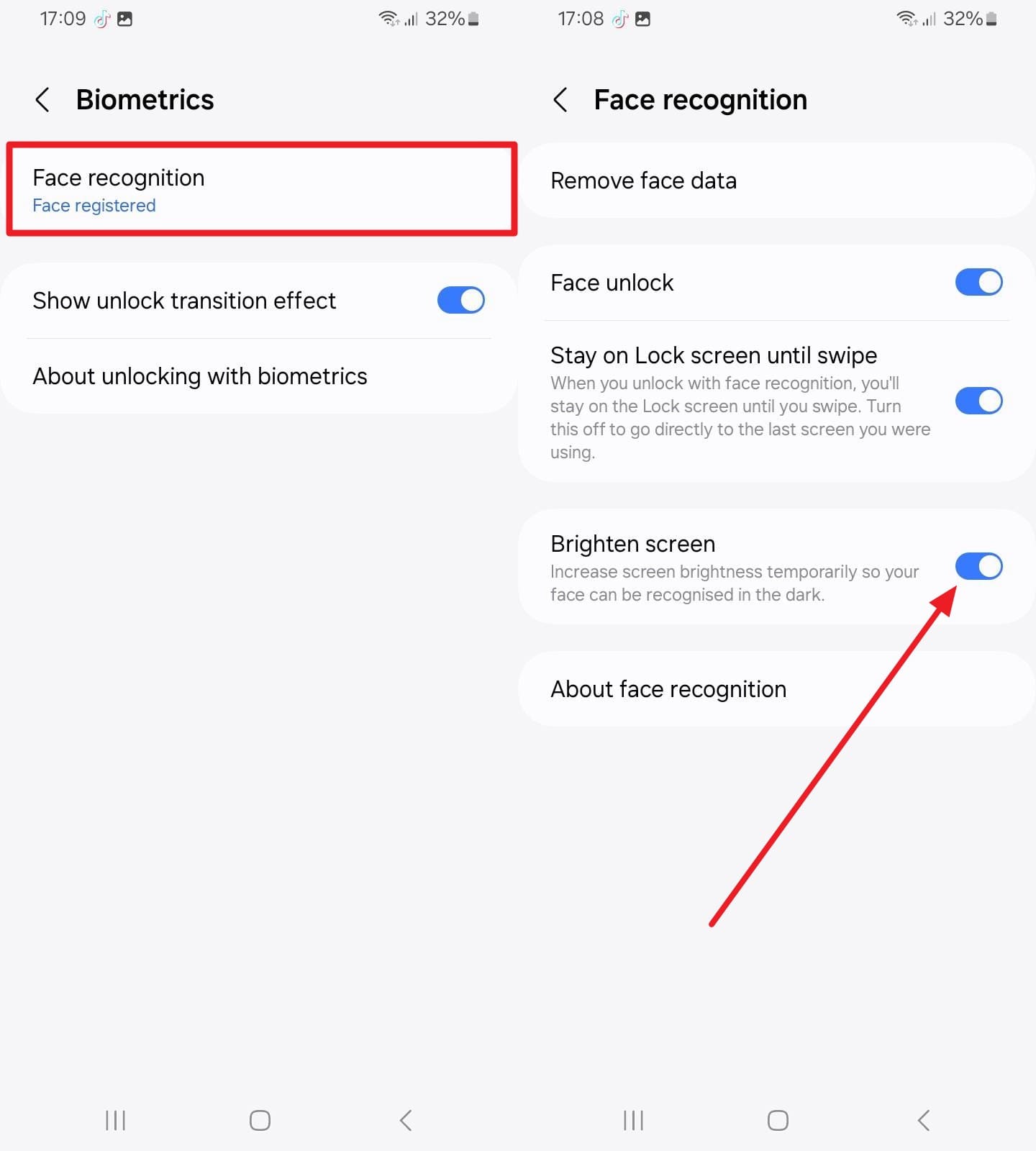
Fix 7 Enable Brighten Screen for Face Recognition
For the S22 face recognition not working, this setting briefly brightens the display. Expect a brief white flash at the lock screen afterward, and follow the mentioned guide:
- Step 1. Go to “Security and Privacy” and pick the “Biometrics” option to continue.
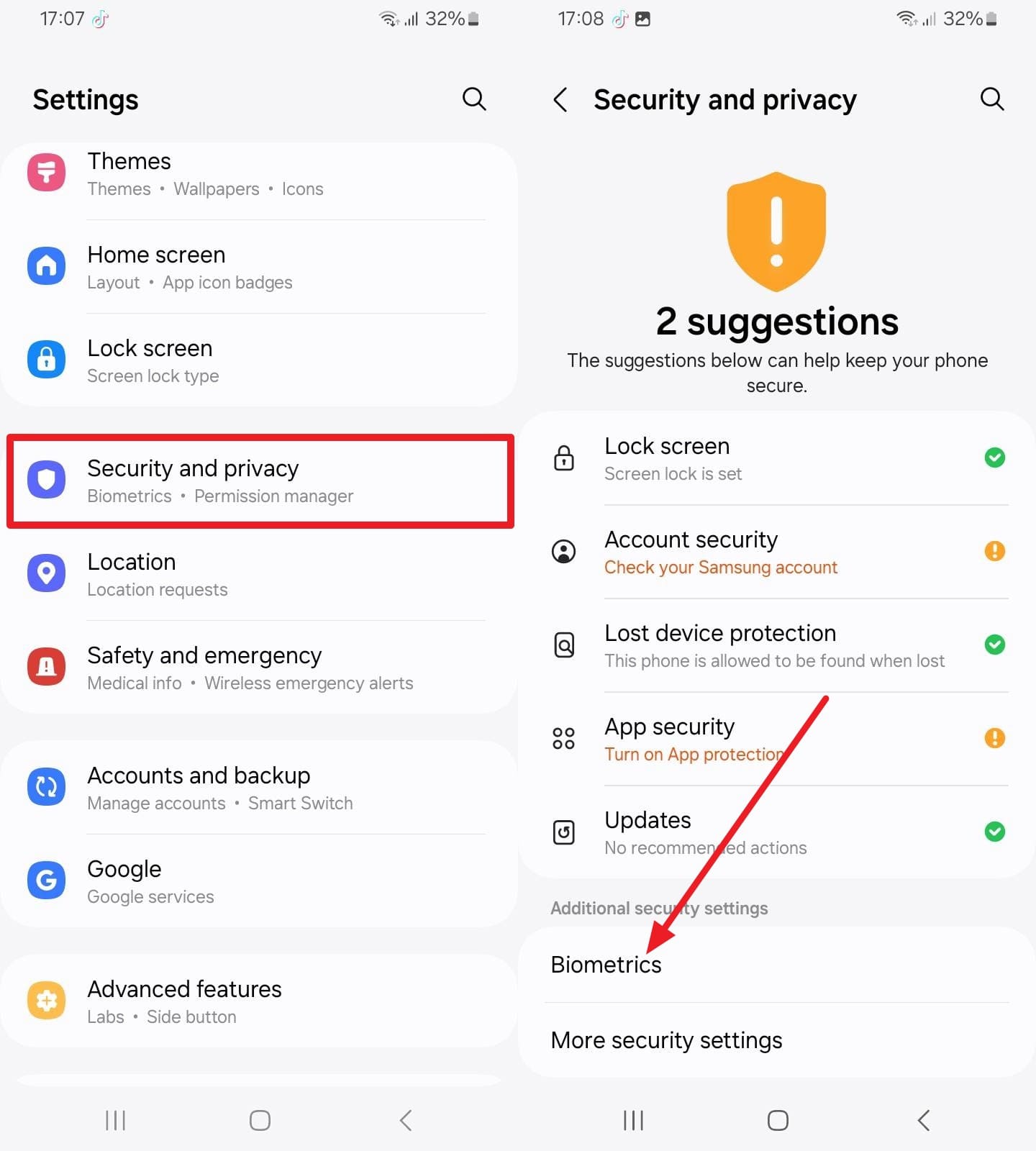
- Step 2. Tap on “Face Recognition,” add the device passcode, and toggle on the “Brighten Screen” option.
-
Fix 8 Turn Face Unlock Off and Back On
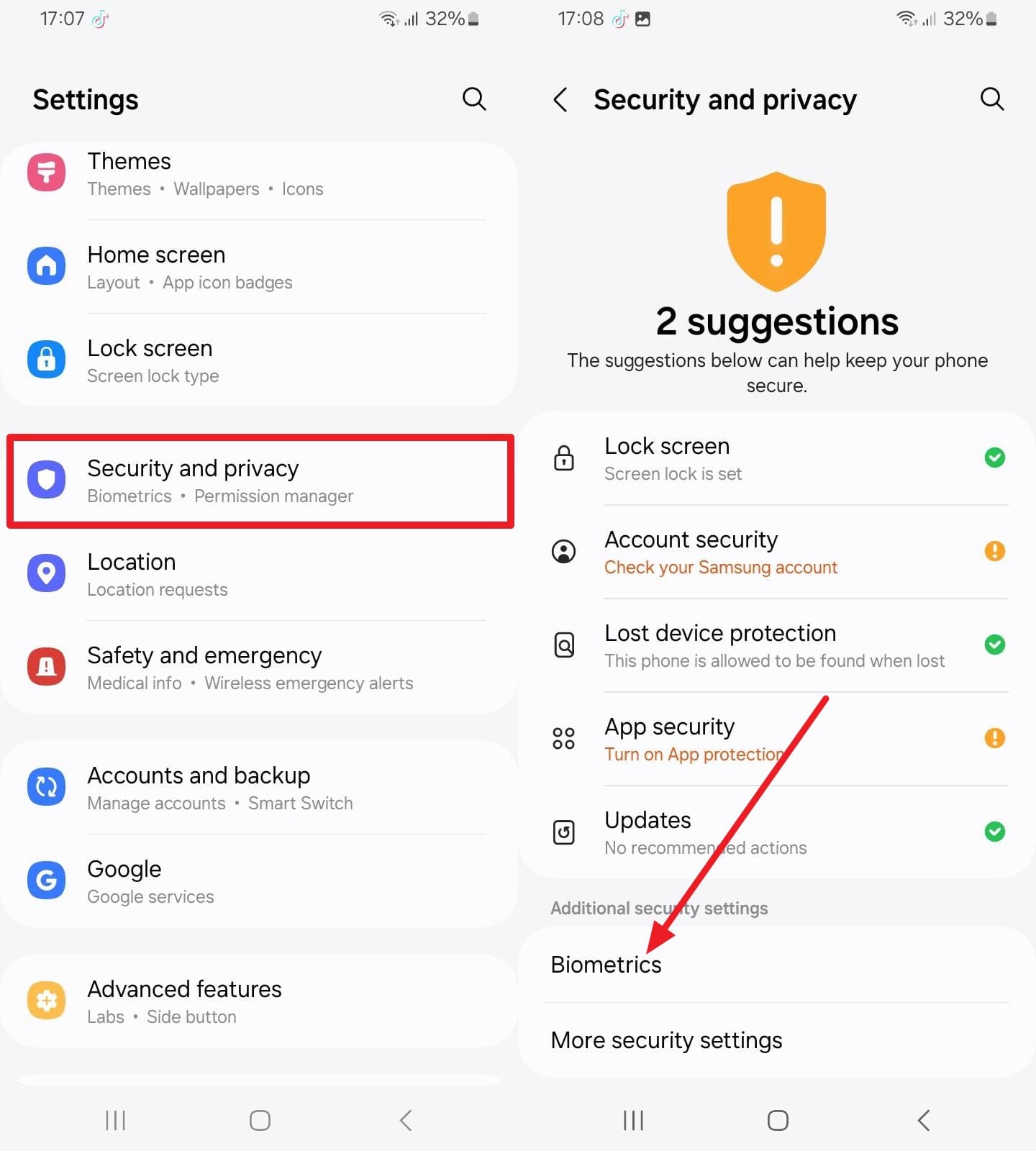
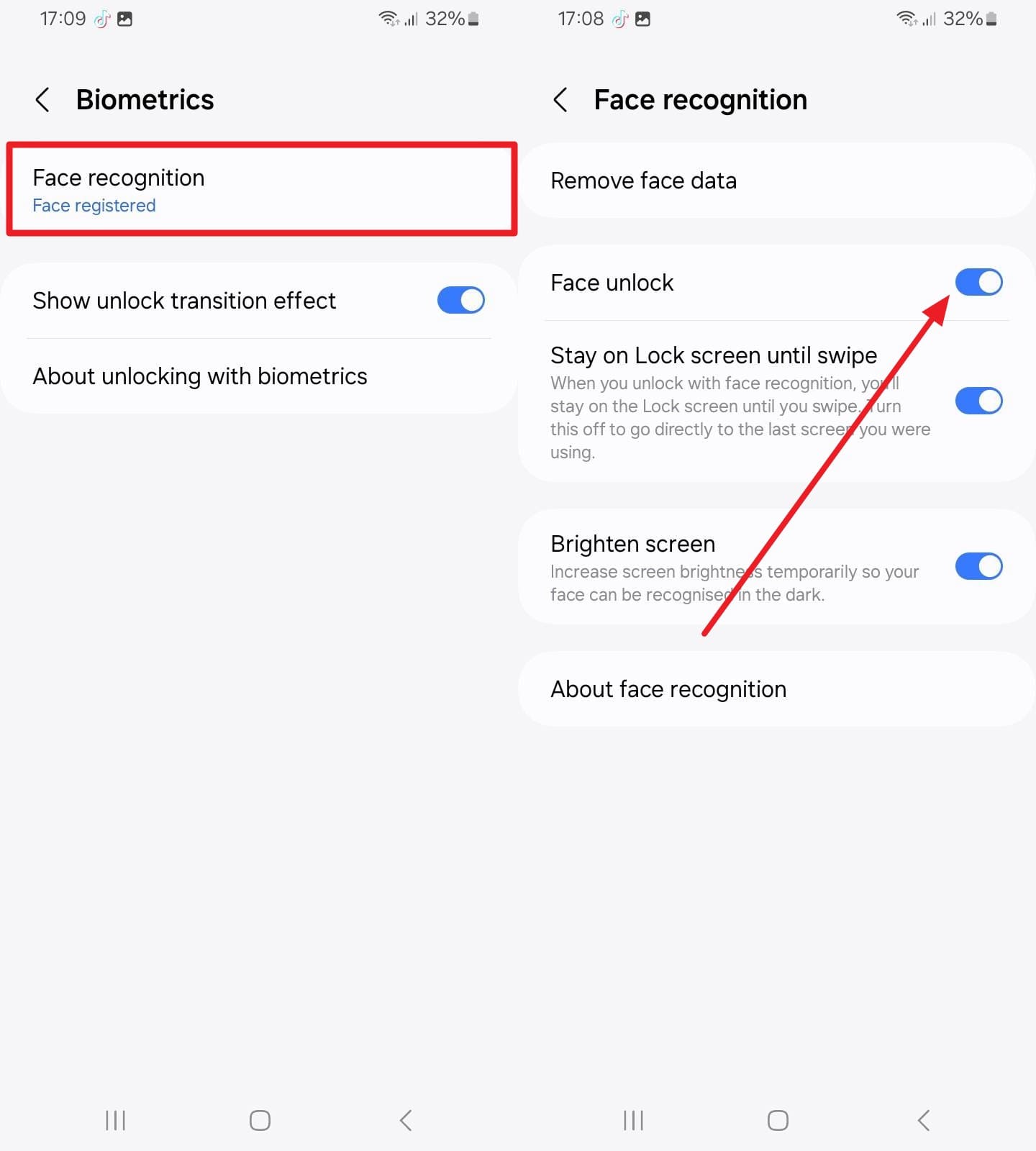
Toggling the feature restarts the biometric service without deleting your enrolled scan. It clears the kind of glitch that survives a reboot, and the steps below offer complete guidance:
Note: Try this before Fix 9, since re-registering means capturing your face all over again.- Step 1. In the “Security and Privacy” settings, choose the “Biometrics” option to continue.
- Step 2. As you choose the “Face Recognition” option, add the passcode, and turn the “Face Unlock” option on and off.
-
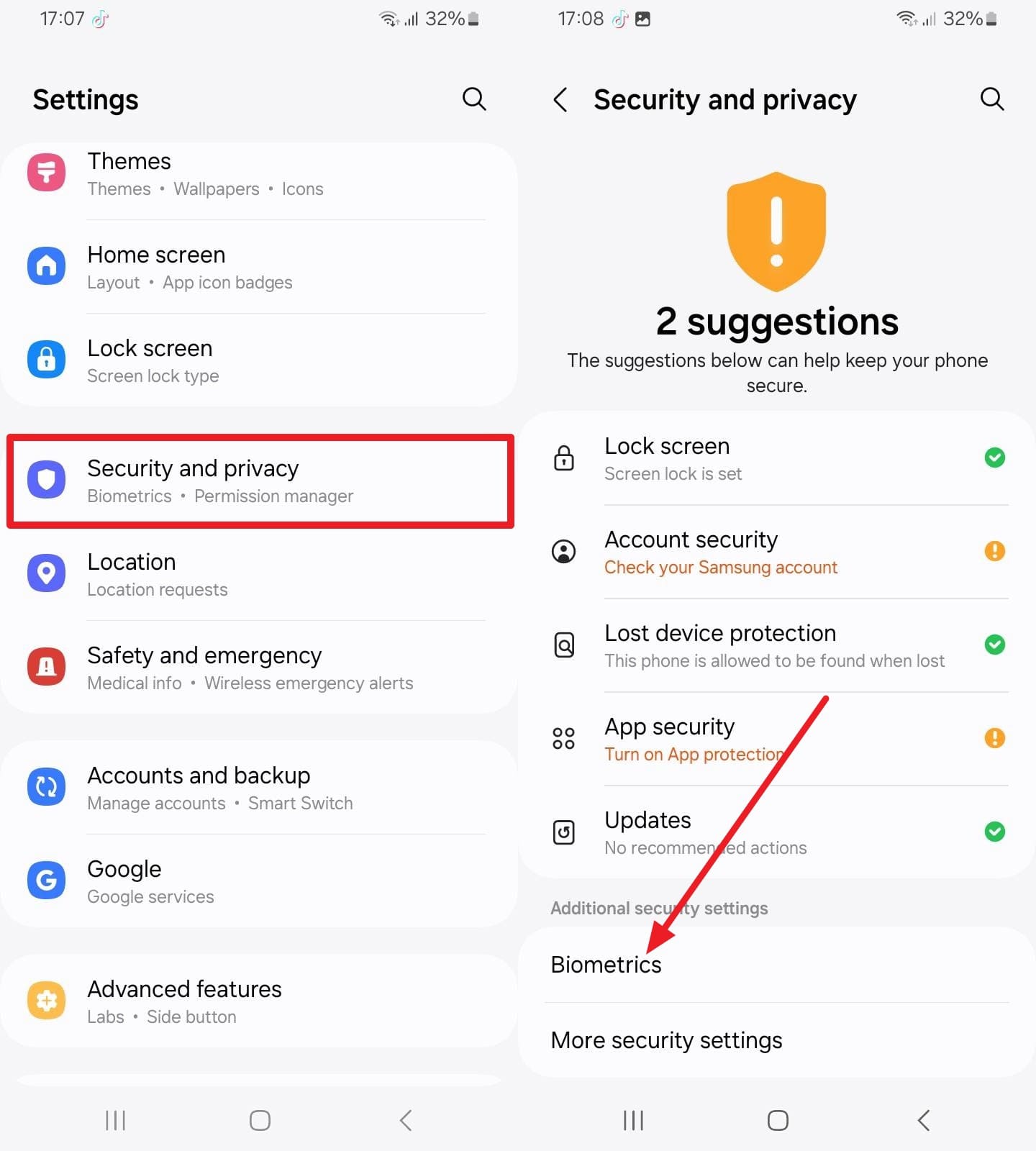
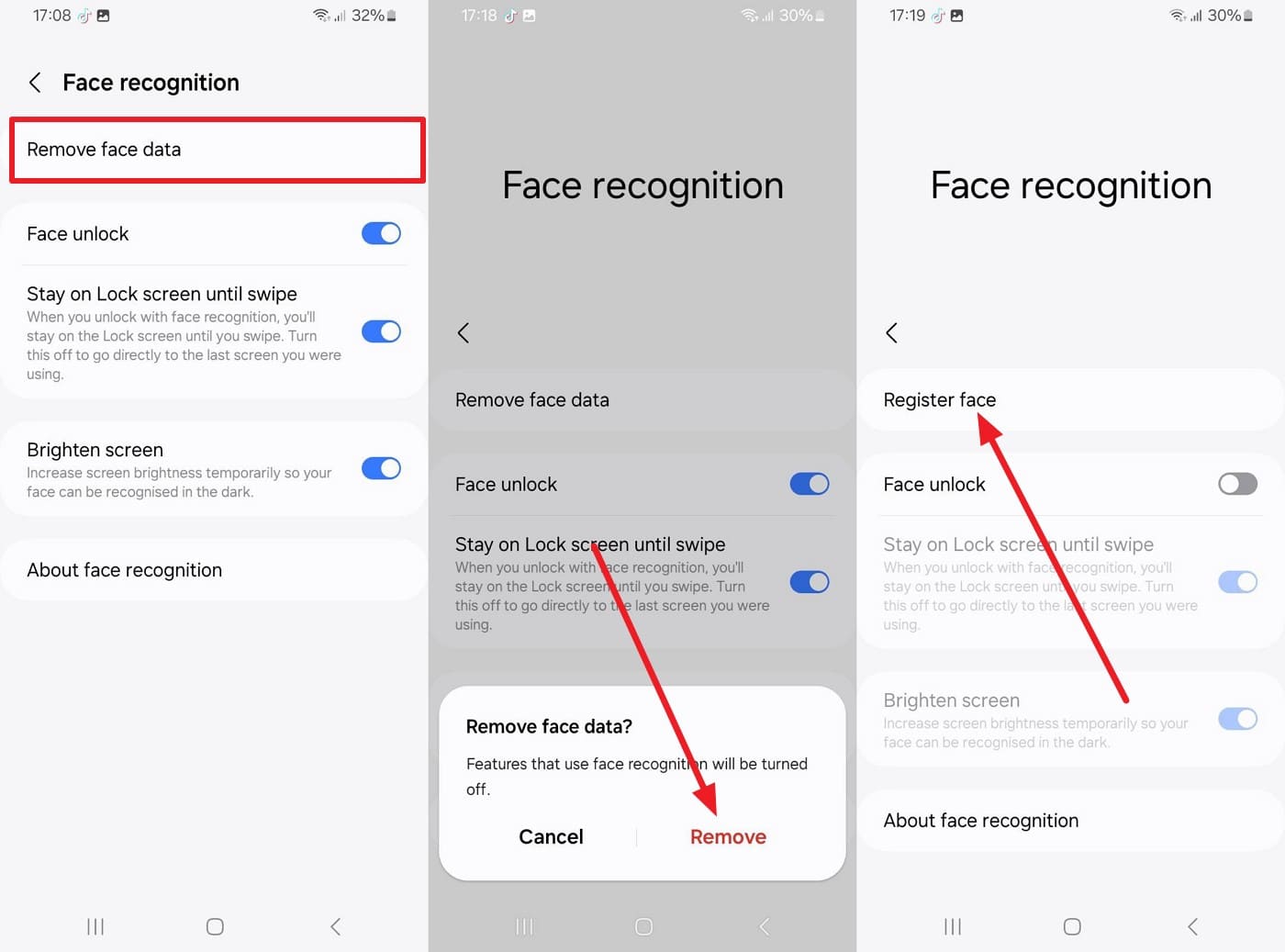
Fix 9 Remove and Re-Register Your Face Data
A scan captured in poor light stays poor forever, since the phone compares every attempt against that flawed reference. Delete it and start again via the mentioned guide if you still face the Samsung face recognition not working issue:
- Step 1. Go to “Security and Privacy” in the settings and tap on the “Biometrics” option to pick “Face Recognition.”
- Step 2. Choose the “Remove Face Data” option and tap the “Remove” option to confirm. Now, choose the “Register Face” and “Continue” options to complete the action.
-
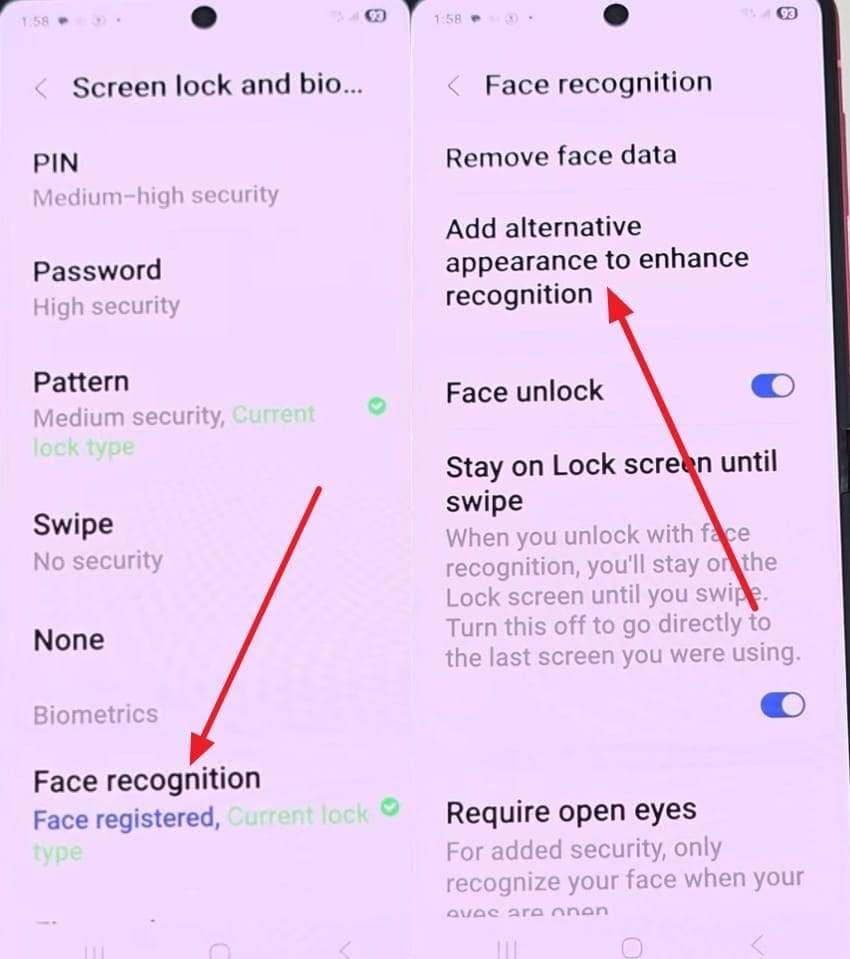
Fix 10 Add an Alternative Appearance
A second appearance gives the phone a proper reference rather than forcing a fuzzy match. To resolve the constant S22 face recognition not working issue, you can follow these steps:
Instructions. From the “Security and Privacy” settings, access “Face Recognition” and pick the “Add Alternative Appearance to Enhance Face Recognition > Register” option.
-
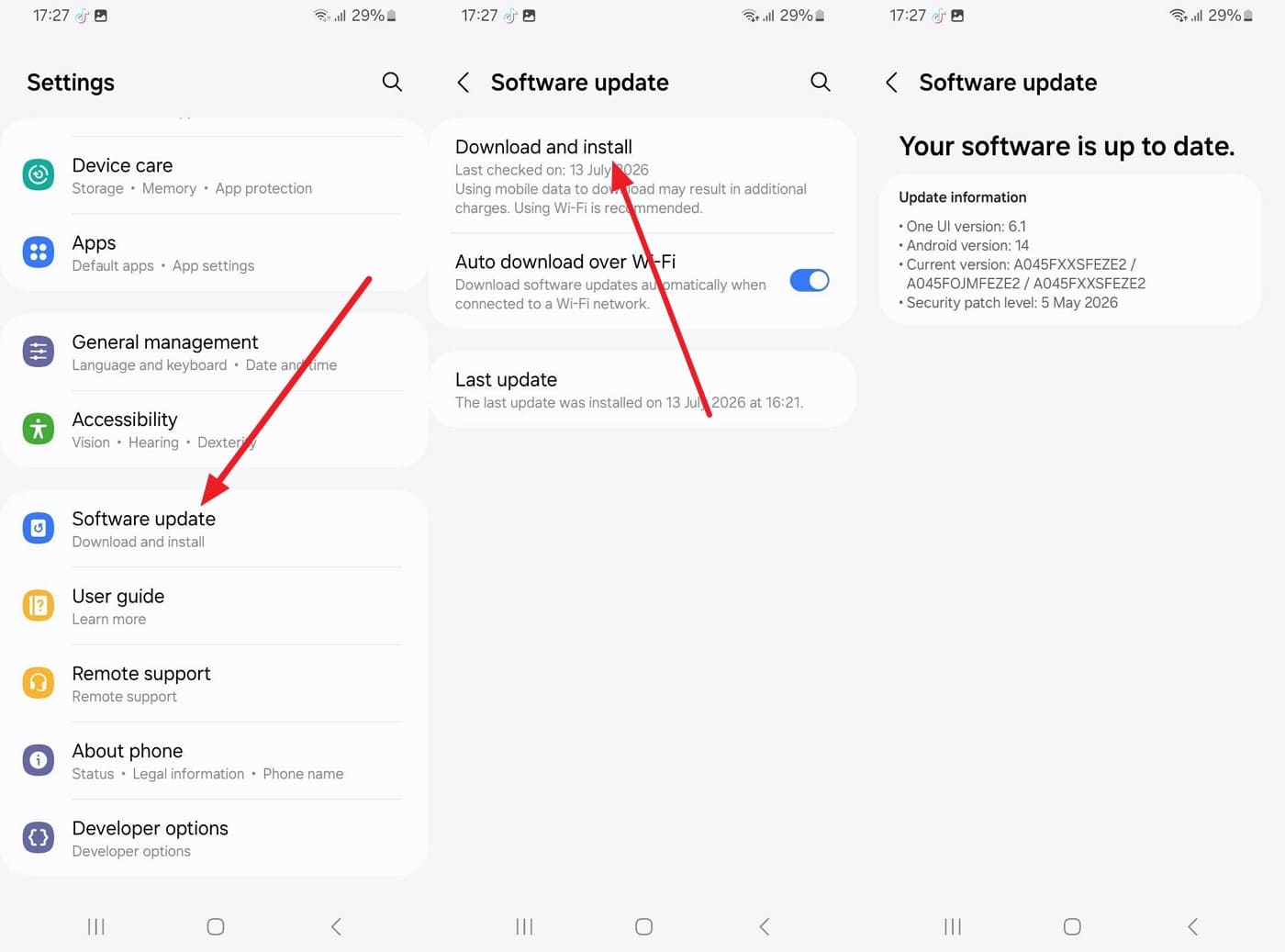
Fix 11 Update Samsung Software to the Latest Version
Biometric bugs get patched quietly inside One UI and monthly security updates. If Samsung A52 face recognition not working issue started the week an update landed, the next release usually carries the correction; here’s how:
Note. Re-register your face afterward too, since major One UI jumps can leave stale biometric data behind.Instructions. Open Settings, scroll to “Software Update,” tap “Download and Install,” and update if it's available.
-
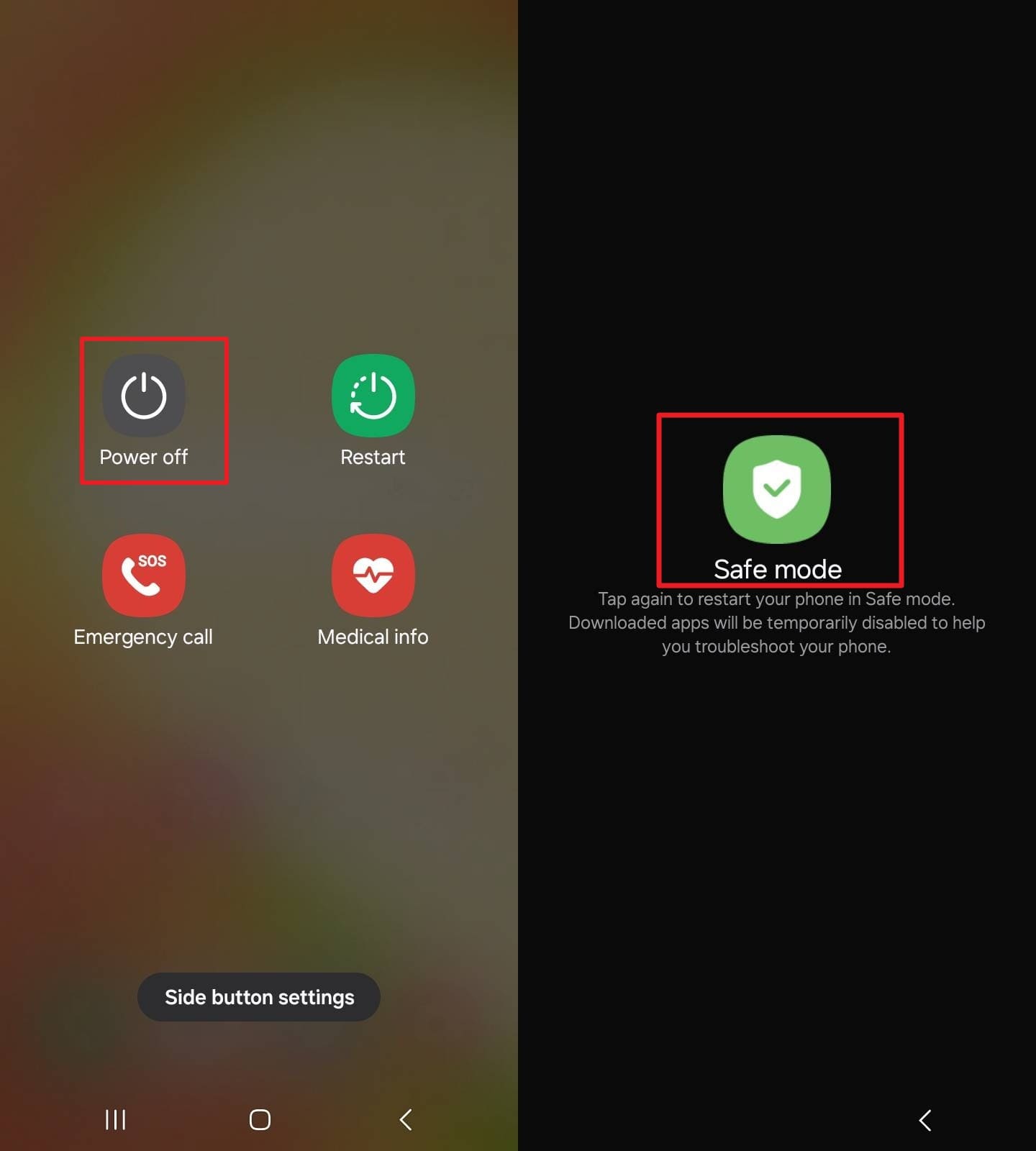
Fix 12 Test Face Recognition in Safe Mode
Safe Mode boots Android with every app disabled, which makes this a test rather than a fix. Face unlock behaving normally in Safe Mode points squarely at something you installed. Nothing changes if it fails there too, and below are the steps for this:
Instructions. Hold the “Power” button, press and hold “Power Off” until “Safe Mode” appears. Tap it, test the lock screen, restart normally, and uninstall recently installed third-party lock screen or security apps.
-
Fix 13 Run Face Recognition Diagnostics in Samsung Members
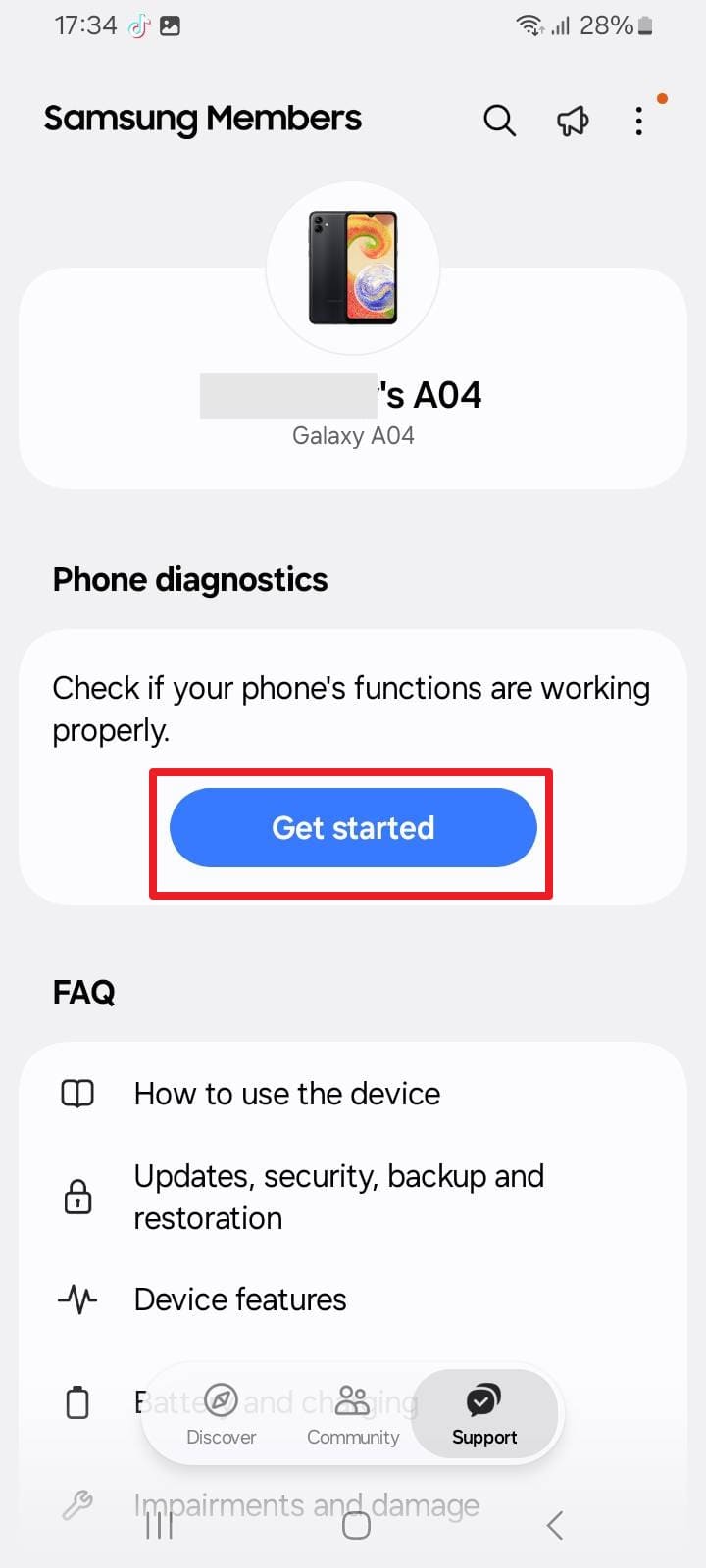
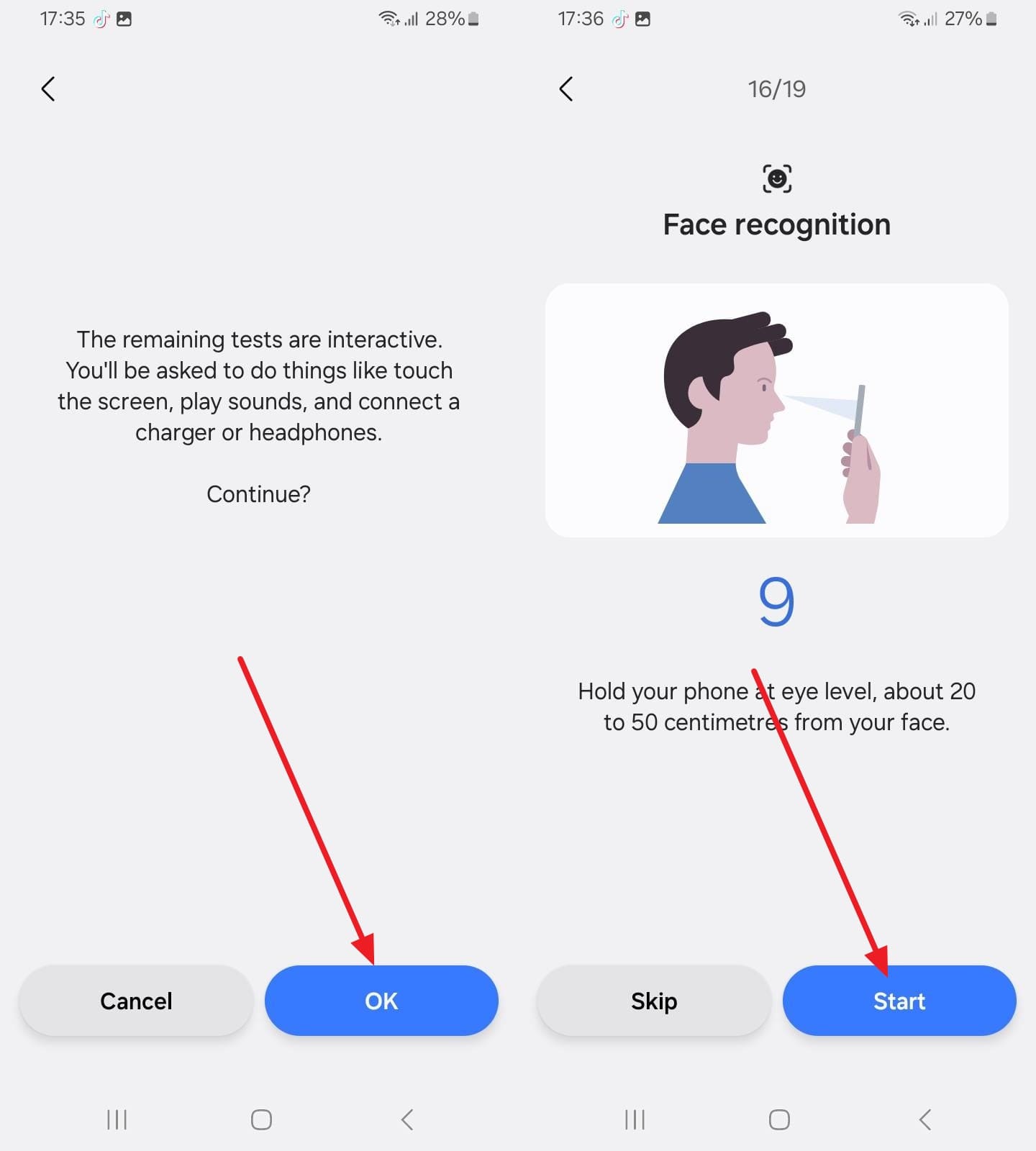
Samsung Members includes a hardware self-test that exercises the front camera directly. It settles the software-versus-hardware question in under a minute and can save a wasted service visit. So, if you wonder how to fix the Samsung face recognition not working issue, follow these steps:
- Step 1. Open Samsung Members, go to “Support,” and tap “Get Started” under “Phone Diagnostics.”
- Step 2. Tap “OK” for the interactive test, and when you get to the “Face Recognition” test, choose “Start” to see if it passes.
-
Fix 14 Reset All Settings
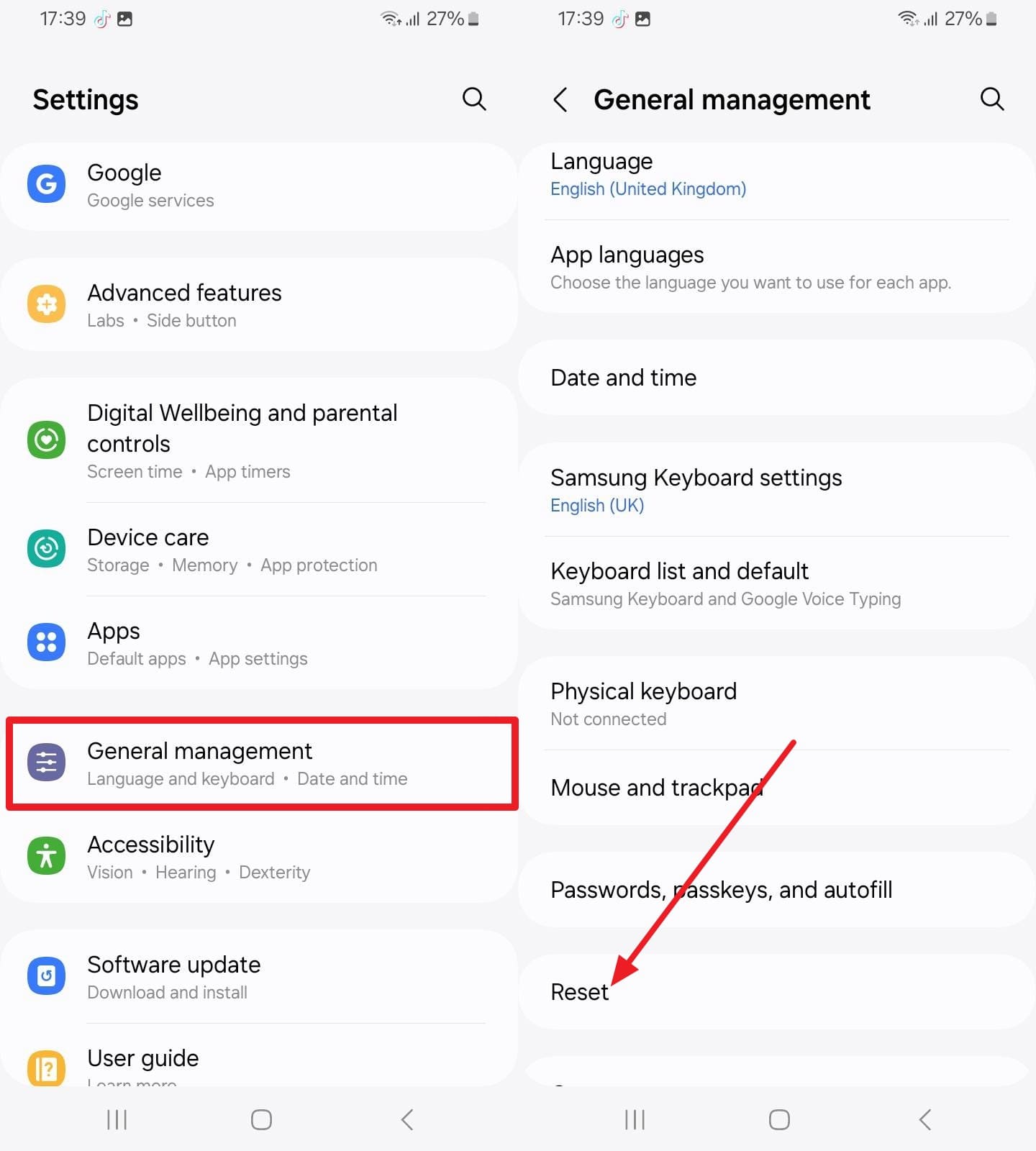
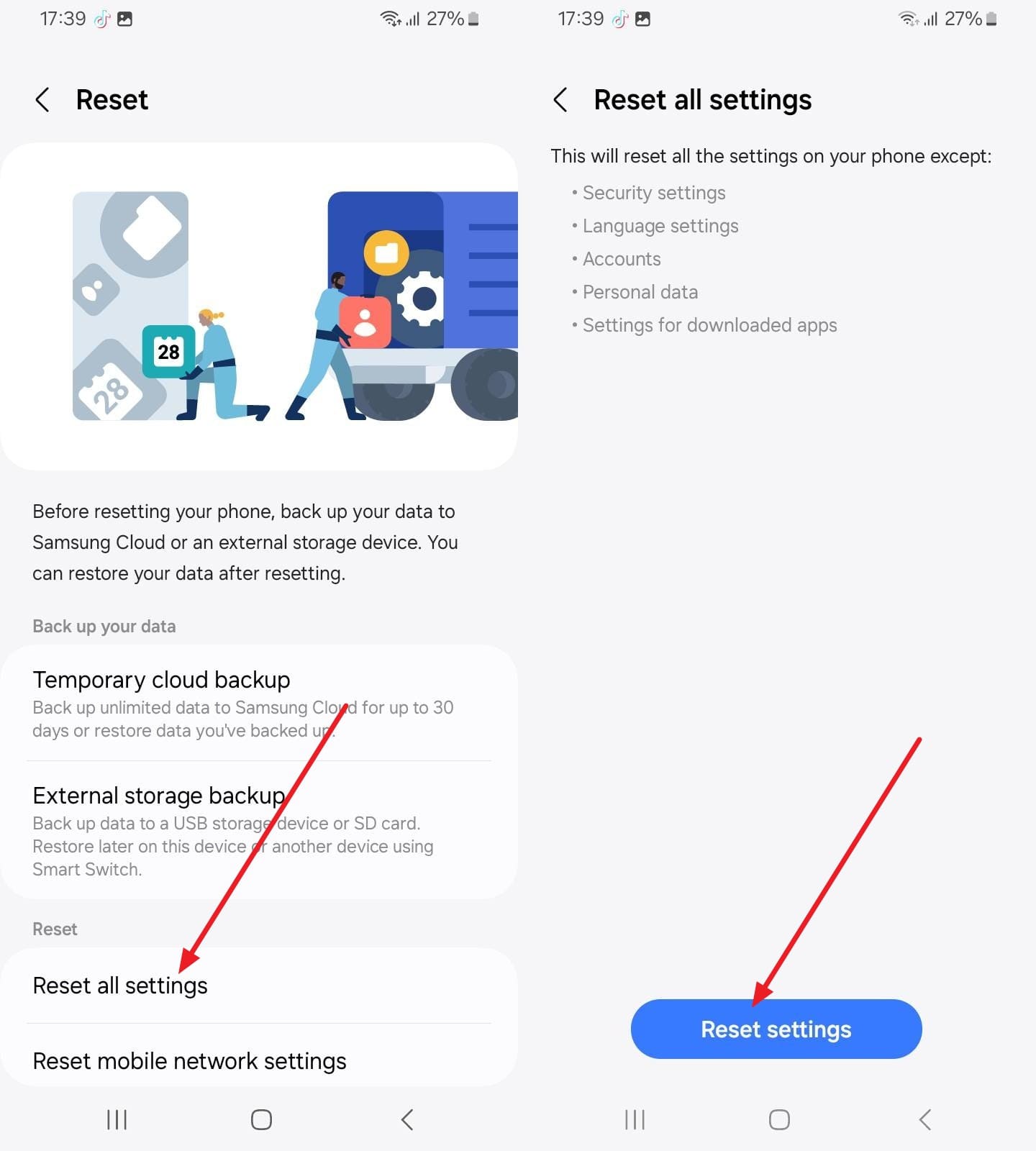
This clears every configuration change on the phone while leaving photos, apps, and messages untouched. Wi-Fi passwords, Bluetooth pairings, and default apps all revert, and here are the steps to resolve the S22 face recognition not working issue:
- Step 1. Go to “General Management” settings and press the “Reset” option at the bottom.
- Step 2. Choose “Reset All Settings” on the new interface and confirm as you tap “Reset Settings.”
-
Fix 15 Contact Samsung Support for a Camera Check
A failed diagnostic, a blurry selfie camera, or none of this working all point to the sensor. Book a check through Samsung Members or an authorized service center, and mention the diagnostic result. Handsets under warranty usually get the front camera module swapped rather than the whole device.
Part 3. How to Unlock a Samsung Phone When Face Recognition or PIN Fails
If the above fixes cannot resolve the Samsung A52 face recognition not working issue, try these 4 options instead:
-
Solution 1 Use Your Backup PIN, Pattern, or Password
Samsung requires a backup PIN or pattern when setting up face unlock. If locked out, enter your code carefully because repeated wrong guesses trigger increasingly long lockout timers.
-
Solution 2 Unlock Samsung with Dr.Fone – Screen Unlock (Android)
If you cannot remember your backup passcode options, Dr.Fone - Screen Unlock (Android) can resolve device-locked issues. This tool can remove multiple lock types from 32 major Android brands with automated steps for most models. On supported Samsung and LG devices, Dr.Fone can remove the lock screen without data loss. Other Android models follow separate unlocking methods, which may erase existing data.
Even with support for 2000 plus Android phone models, it can also be used to bypass FRP on 19 brands. This makes Dr.Fone a versatile and intuitive choice for users who need simple unlock options in 2 to 3 steps. Unlike other tools, you get the “Remove Without” and “With Data Loss” options, where Dr.Fone asks for codes to unlock phones consensually.
 Unlock Android phone in seconds.
- Remove PIN, pattern, password, fingerprint.
- Bypass Google FRP lock easily.
- Works on all Android brands & models.
- No tech skills required – user-friendly.

Guide to Remove a Galaxy Lock Screen Using Dr.Fone
Charge the phone above 20% and follow the mentioned guide to unlock the phone if you cannot resolve the S22 face recognition not working issue.- Step 1. Connect the Galaxy and Open Screen Unlock
Connect the phone to your computer and choose the Screen Unlock tool for “Android” from the “Toolbox” tab, then click “Unlock Android Screen.”

- Step 2. Pick Samsung and Remove Without Data Loss
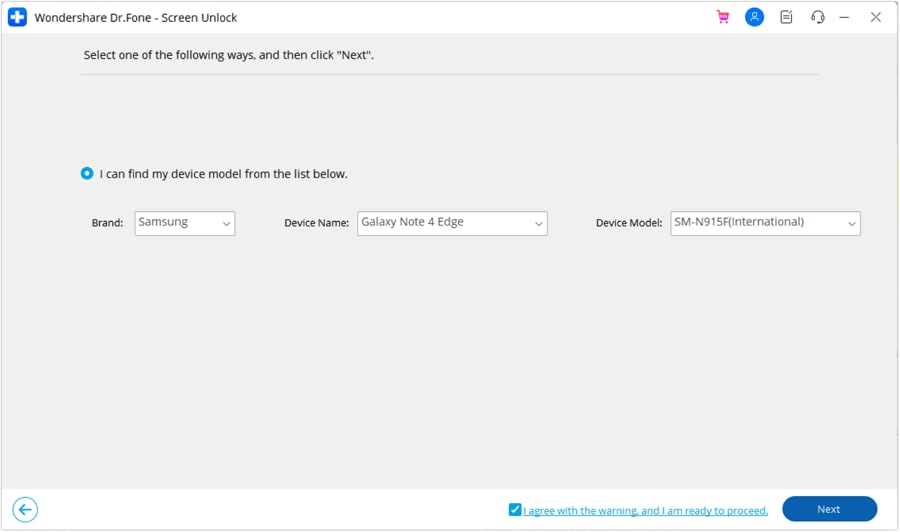
Choose “Samsung” from the list and “Remove Without Data Loss” mode to continue. Select the brand, device name, and model, and press the “Next” button as you agree to the terms.
- Step 3. Type the Confirmation Code and Run It
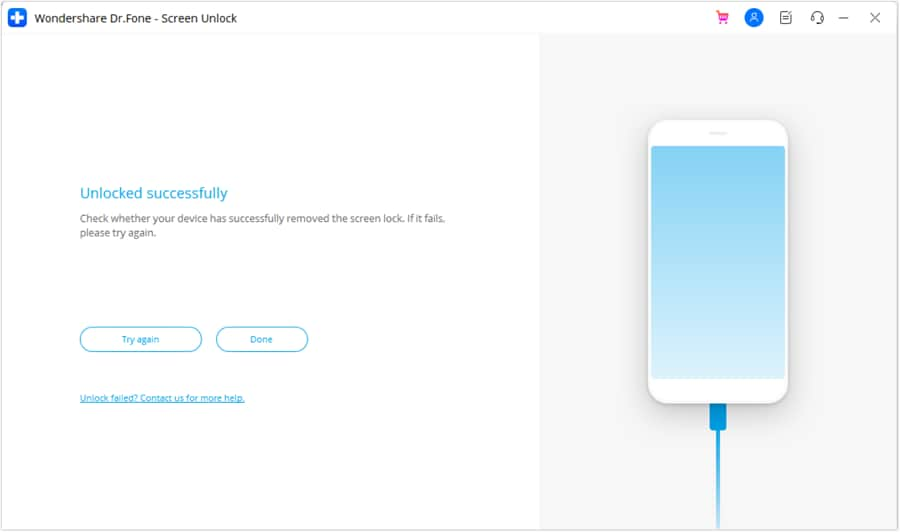
When the pop-up appears, type the “000000” code and choose the “Confirm” button to access the Download Mode. The tool will download the required drivers and the configuration file. Click “Done” when Samsung is unlocked.
 Note: Wondershare notes that data-safe unlocking works on limited Samsung models, while others get fully erased and still require Google verification.
 -


Solution 3 Remotely Erase the Samsung Phone
If you're still stuck on the Samsung A52 face recognition not working issue, remotely unlock from Google Find Hub via the mentioned guide:
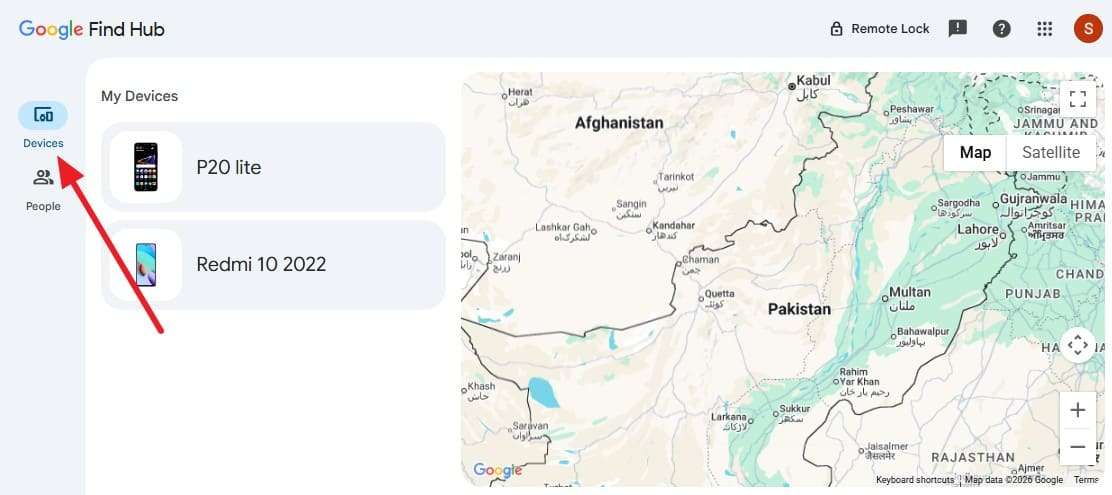
- Step 1. Open Google Find Hub in a browser > Sign in with the account linked to the locked Galaxy > Go to “Devices.”
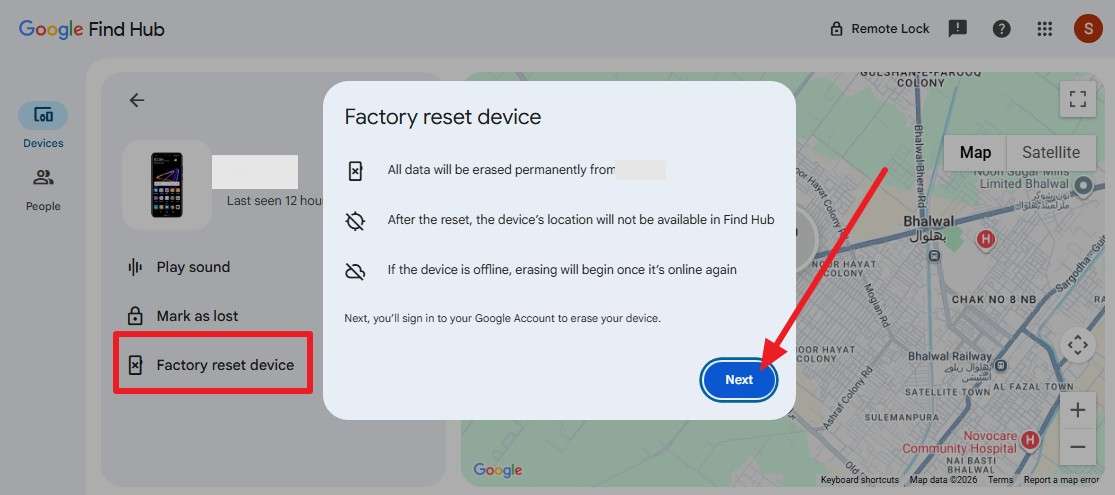
- Step 2. Choose the Samsung device from the list, tap “Factory Reset Device > Next,” and follow the instructions.
 Note: A remote reset triggers Factory Reset Protection. Setup will then ask for a Google account already synced to that phone, so have those credentials ready before you start.
 -
Solution 4 Factory Reset the Samsung Phone in Recovery Mode
Recovery Mode works offline, making it the fallback when the phone can't reach a network at all; here's how it's done:
- Step 1. Power the phone off > Hold “Volume Up” and the “Side” button together. Recent Galaxy models need a USB cable to a computer for the combination to register.
- Step 2. Use the “Volume Down or Up” keys > Select “Wipe Data/Factory Reset” > Choose the “Power” button to select.
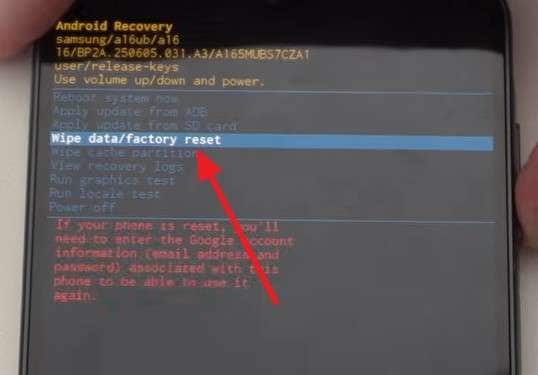
- Step 3. Go to “Factory Data Reset” with the “Volume Down” key, and confirm via the “Power” button.
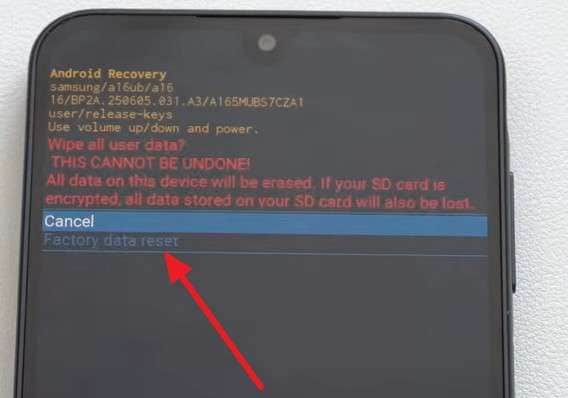


Conclusion
Face unlock on a Galaxy reads a flat camera image, so it fails for ordinary reasons. Most face recognition problems are caused by lighting, appearance changes, software settings, or camera obstructions rather than hardware failure. This guide has explained 15 solutions to resolve the Samsung face recognition not working issue. If you still cannot unlock it, try Dr.Fone - Screen Unlock (Android) before you opt for other reset methods.
Frequently Asked Questions
-
1. Why is my Samsung Note 20 Ultra face recognition not working?
Large phones are often held too close, which crops your face out of the frame. Try holding it at arm's length in good light, then re-register the scan if it still fails. -
2. Why does Samsung S22 face recognition fail after an update?
One UI updates occasionally reset or corrupt stored biometric data. Removing your face data and registering it again resolves most post-update failures. Install any newer pending update first. -
3. Why does Samsung face recognition fail in low light?
The front camera has no infrared assistance, so it needs visible light to see you. Switching on “Brighten Screen” inside Face Recognition settings fixes most night-time complaints on its own. -
4. Does dust on the camera affect face recognition?
Yes, and it's the single most common cause. Dust and skin oil scatter light across the lens, which the phone reads as a blurred face. Some Galaxy models warn that the lens may be dirty, though many just fail silently.
 Add Wondershare Dr.Fone as a preferred source on Google



