Bypass iCloud Activation Lock and Android FRP without password.

 100% Security Verified | No Subscription Required | No Malware

 :
: 
 ChatGPT
 Perplexity
 Gemini
 Claude
 Grok
Grok
A second caller can reach you even when you are already speaking to someone. That is what call waiting on iPhone controls. When the feature is on, your iPhone will show you the incoming caller's name and let you hold, decline, or swap calls. When this option is off, the second call may go to the mailbox. You might want to try this setting during work calls, interviews, family callers, or any other time that you want less interference. However, the selection may differ depending on your iOS version, carrier, or SIM configuration. Some users may also face a missing switch or a call waiting iPhone not working issue.
This article shows how to find the call waiting setting iPhone users need, enable it, turn off call waiting on iPhone, and fix common errors.
In this article
Part 1. What is Call Waiting on iPhone?
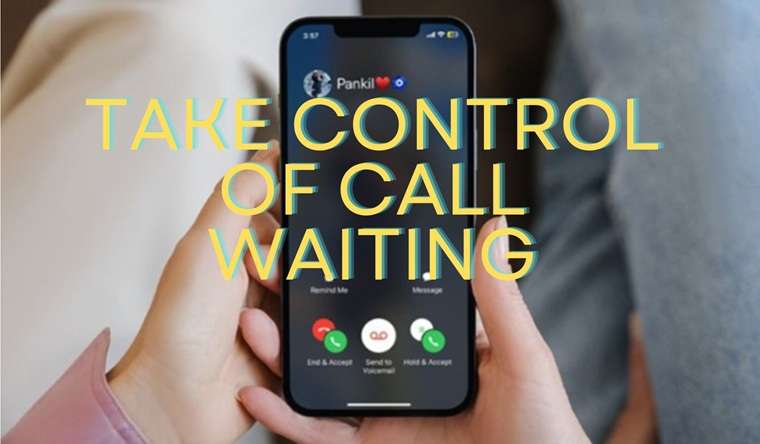
Call waiting on an iPhone is a feature that lets you know when someone is calling while you are already on a call. Your iPhone does not miss the second call but lets you know about it through an alert and then gives you various ways to respond.
Upon getting a new call, there will be a slight vibration or beep and a notification. You can answer the second call, you can reject it, and you can remain on your existing call.
This makes it easier to handle two conversations without ending both calls at once.
When a new call arrives, you may see these options:
1. End & Accept
This option ends your current call and answers the new one. It is useful when the second call is more important or urgent.
2. Decline
Tap Decline to reject the new call. Your current conversation will continue without being stopped.
3. Hold & Accept
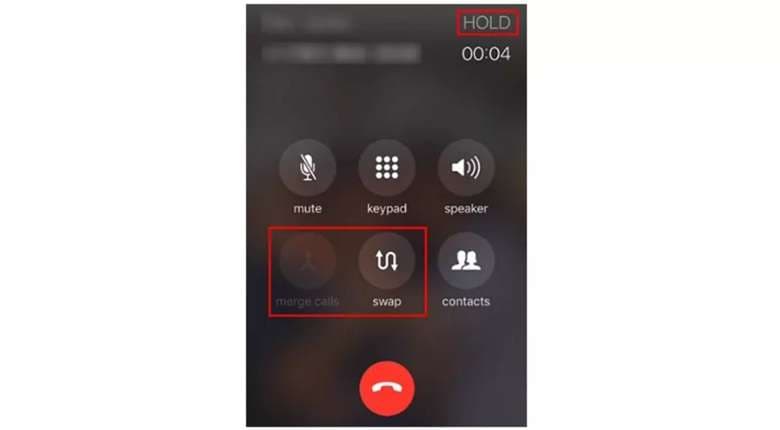
This option puts your first call on hold and answers the second one. After that, you can move between both calls.
Tap Swap to switch from one caller to the other. You may also choose Merge Calls to join both callers in one conference call.
4. Remind Me
The Remind Me option creates a reminder for the missed call. You can finish your current conversation first and contact the caller later.
5. Message
This option sends a quick reply to the second caller. You can tell them that you are busy and will call back soon.
These choices give you more control over incoming calls. However, they only work when call waiting is active. The next section explains how to enable the feature on your iPhone.
Part 2. How to Enable Call Waiting on Your iPhone?
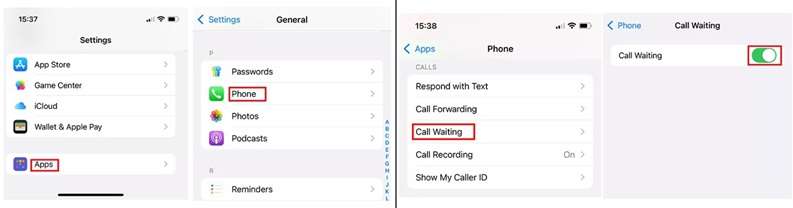
Enabling Call Waiting on your iPhone is a straightforward process. Follow these steps to ensure that you never miss an important call again:
-
Step 1 Access the iPhone Settings. Scroll down and tap on "Apps", then tap on Phone.
-
Step 2 In the Phone settings, look for "Call Waiting" and tap on it.
-
Step 3 Toggle the switch to turn on call waiting. The switch will turn green. Now Call Waiting is successfully enabled on your iPhone.

Part 3. How to Turn Off Call Waiting on iPhone
If second-call alerts disturb your conversation, you can disable the feature from the call waiting setting iPhone menu.
-
Step 1 Open Phone Settings
Go to Settings > Apps > Phone on your iPhone.
-
Step 2 Disable Call Waiting
Tap Call Waiting. Then turn off the switch beside it.
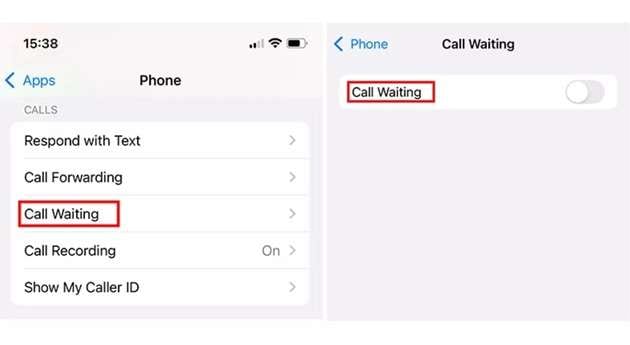
The switch will become gray. Call waiting has now been disabled, confirming this.
When you turn off call waiting on iPhone, new callers stop interrupting active calls. At times, the switch may not load or work as expected. The next section covers useful fixes for the call waiting iPhone not working issue.
Part 4. Call Waiting iPhone Not Working? Try These 6 Fixes
Sometimes, call waiting on iPhone may stop working even when the switch is turned on. A carrier limit, old iOS version, or another call setting may be causing the issue. Try the fixes below one at a time.
Fix 1: Confirm That Your Carrier Supports Call Waiting
Call waiting depends on your mobile network. Contact your carrier or check its services to confirm that the feature is available on your plan.
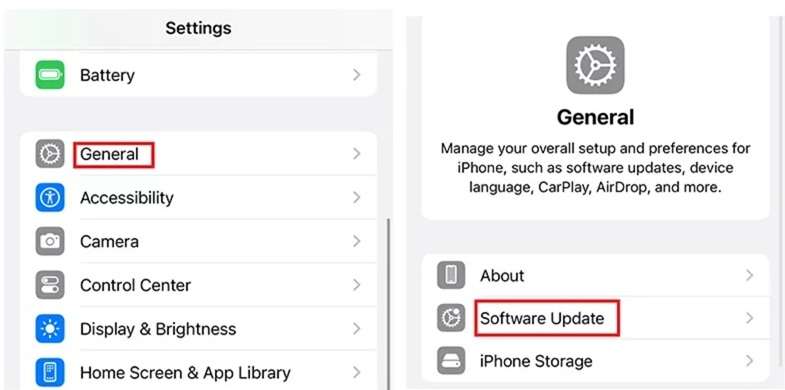
Fix 2: Install the Latest iOS Update
An older iOS version may affect call features. Check whether a new update is ready for your device.
Go to:
Settings > General > Software Update
Download and install the update if one appears.
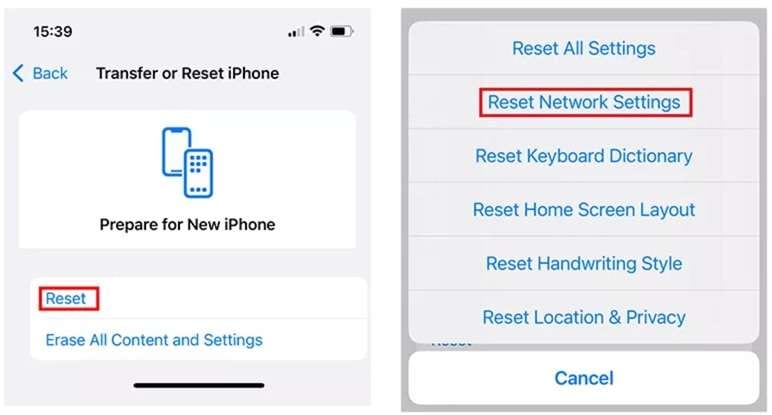
Fix 3: Reset the Network Settings
Resetting the network settings sometimes solves call waiting connection issues.
Open:
Settings > General > Transfer or Reset iPhone > Reset > Reset Network Settings
This operation deletes saved Wi-Fi credentials. You will need to reconnect to the Wi-Fi networks.
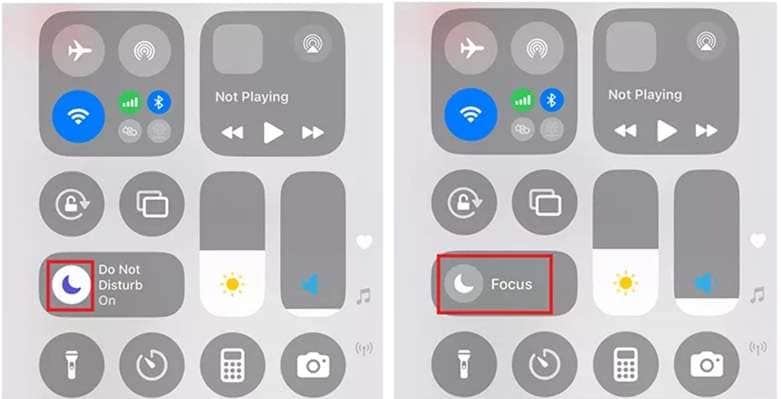
Fix 4: Switch Off Do Not Disturb
With Do Not Disturb, you might not get some call alerts.
Open the Control Center by swiping down from the top right of the screen. To turn Do Not Disturb off, tap the crescent moon icon.
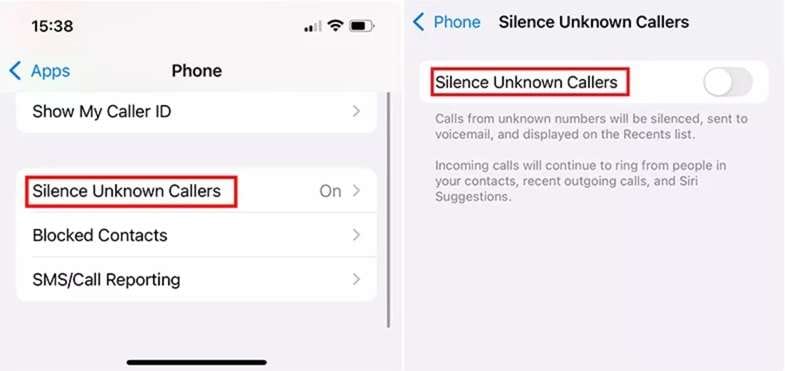
Fix 5: Turn Off Silence Unknown Callers
Silence Unknown Callers sends calls from unknown numbers directly to voicemail. Thus, the second incoming call may be overlooked by you.
Go to:
Settings > Apps > Phone to stop unknown callers.
Turn off the switch and try checking the call waiting feature again.
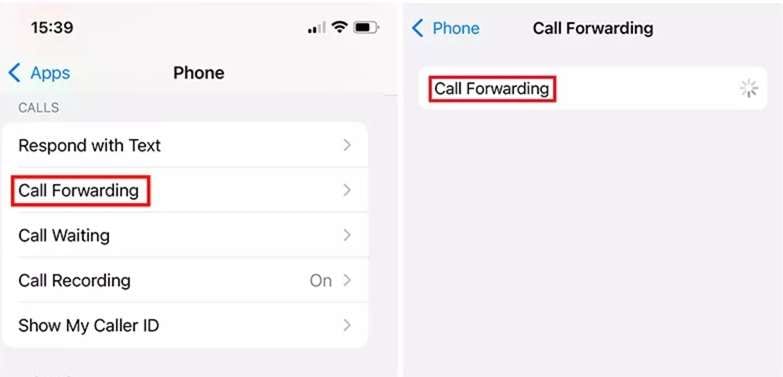
Fix 6: Check the Call Forwarding Setting
Call forwarding may forward incoming calls to another number before call waiting can alert you.
Open:
Settings > Apps > Phone > Forwarding calls
If it is running and not needed, turn it off.
Bonus: Locked Out Before You Can Change It? Try Dr.Fone - Screen Unlock
The solutions above require access to the Settings app. However, you cannot open the call waiting setting iPhone menu if a forgotten screen passcode has locked you out.
In this separate situation, Dr.Fone - Screen Unlock (iOS) provides a guided way to remove supported iPhone and iPad screen locks.
It can handle several common lock types, including:
- Four-digit passcodes
- Six-digit passcodes
- Custom numeric codes
- Alphanumeric codes
- Touch ID locks
- Face ID locks
 Unlock iPhone/iPad passcode in minutes.
- Remove Face ID, Touch ID, MDM lock, and screen lock.
- Bypass iCloud Activation Lock easily.
- Support all iOS versions and devices.
- Simple steps, no technical skills needed.
The wider Screen Unlock toolkit also offers features for Screen Time passcodes, Apple ID access, MDM restrictions, SIM locks, encrypted iTunes backups, and supported Activation Lock cases. Device and iOS compatibility can vary between these features.
How to Unlock an iPhone with Dr.Fone - Screen Unlock
-
Step 1 Open the Screen Unlock Tool
Download and install Wondershare Dr.Fone on your computer. Open the program and select:
Toolbox > Screen Unlock > iOS
Then choose Unlock iOS Screen and click Start. Make sure your iPhone has enough battery before continuing.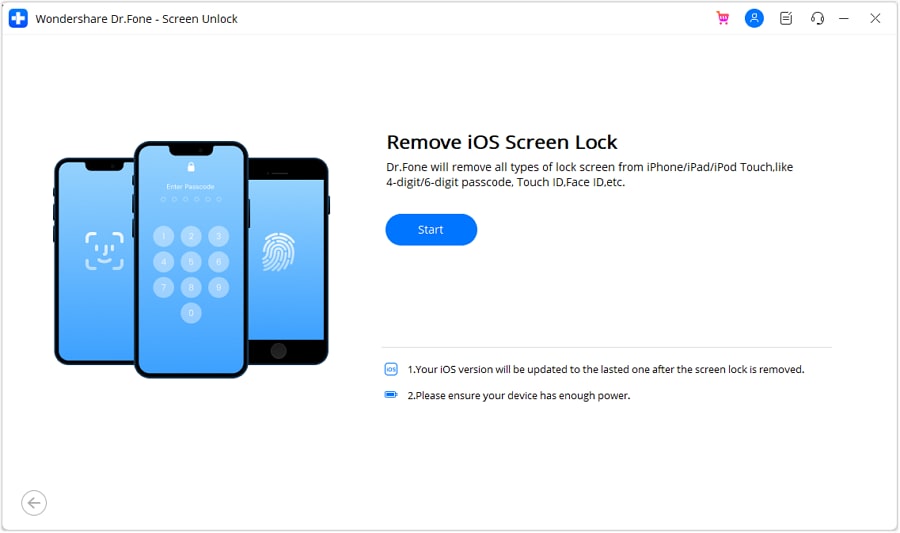
-
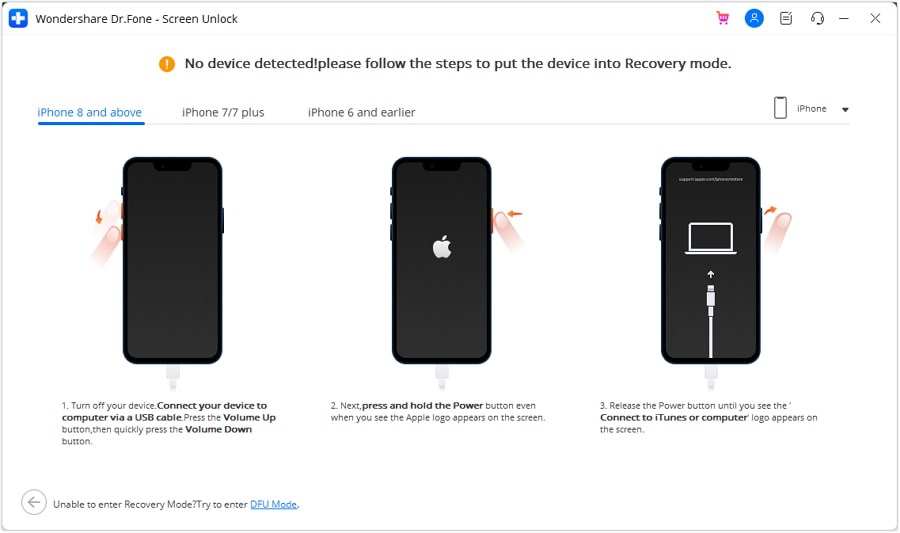
Step 2 Enter Recovery or DFU Mode
Connect your iPhone to the Mac or PC with a USB cable. To put the device in Recovery Mode, follow the instructions shown on the screen.
If Recovery Mode is not responding choose Try DFU Mode and follow through the latest instructions.
-
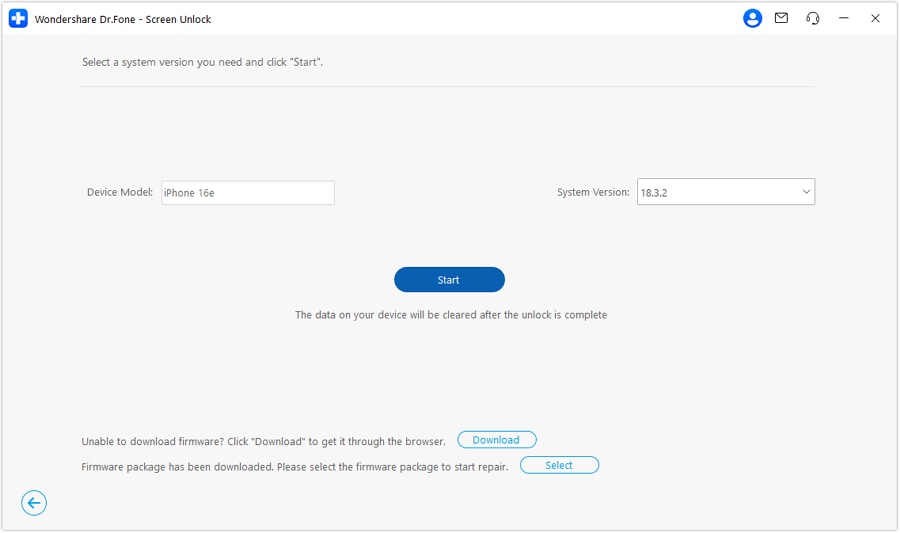
Step 3 Check the Device Information
Dr.Fone will detect your iPhone model. Review the model and iOS version shown on the screen.
Correct any details that do not match your device. Then click Start to continue.
-
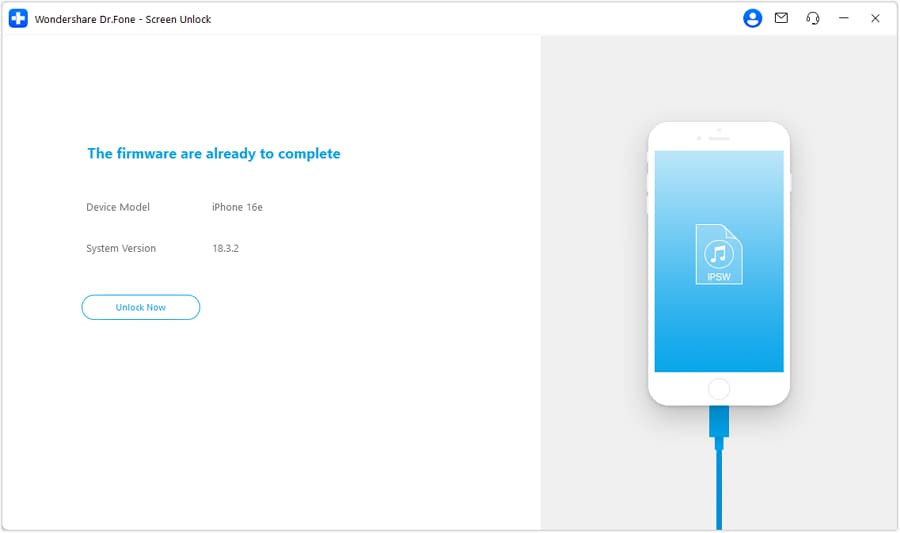
Step 4 Download and Verify the Firmware
Dr.Fone will now download the correct iOS firmware. Be patient until the download finishes!
If the download is slow, you may copy the link and manually download the firmware. Dr.Fone will automatically verify the file once it gets ready. Click Unlock Now.
-
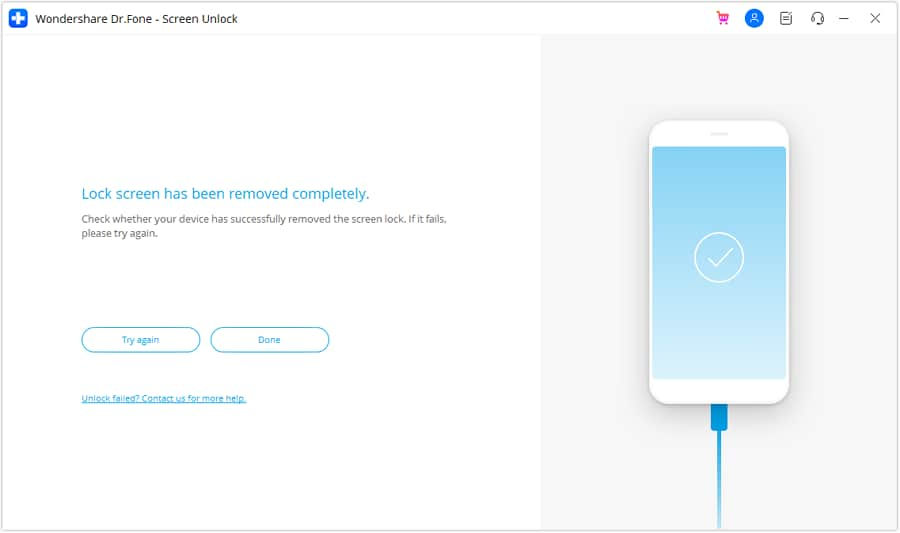
Step 5 Confirm and Complete the Unlock
Type the necessary confirmation code and click Unlock. Do not disconnect the iPhone until Dr.Fone installs firmware and erases screen lock.
Once done, click on Done. Press the Try Again option and repeat the process if the device is locked.
Conclusion
Call waiting gives you control over how your iPhone handles a second caller during an active conversation. You can enable it when you want calls to matter or turn off call waiting on iPhone when you need fewer interruptions. If your Call Waiting isn’t working on your device, do the following: Check Carrier Support, update your iOS, and reset your network settings. Also, check Do Not Disturb, Silence Unknown Callers, and Call Forwarding settings.
These steps can resolve common setup and alert problems. If a forgotten passcode blocks the call waiting setting in the iPhone menu, Dr.Fone - Screen Unlock can help restore access. Since unlocking may erase data, proceed carefully and keep a backup.




FAQ
-
1. Does Call Waiting Work During Wi-Fi Calling?
Certainly. If your mobile carrier enables this option, iPhone call waiting may still function on your Wi-Fi call. -
2. What Is the Difference Between Call Waiting and Call Forwarding?
When you’re on another call, Call Waiting alerts you about a caller. Call Forwarding directs incoming calls to another number if you are unable to pick the call. -
3. Why Is Call Waiting Grayed Out on My iPhone?
A gray or unresponsive switch may mean your iPhone cannot connect with the carrier network. The feature may also be turned off by your carrier. -
4. Can Do Not Disturb Hide Call Waiting Alerts?
Yes. Do Not Disturb may silence the beep or hide the second-call alert. Check the Control Center and turn off any active Focus mode. -
5. How Can I Tell If Call Waiting Is Not Working?
The second caller may go straight to voicemail or hear a busy tone. You may only see a missed-call or voicemail alert after ending your first call.
 Add Wondershare Dr.Fone as a preferred source on Google