Bypass iCloud Activation Lock and Android FRP without password.

 100% Security Verified | No Subscription Required | No Malware

 :
: 
 ChatGPT
 Perplexity
 Gemini
 Claude
 Grok
Grok
You're mid-video when the picture keeps playing, but the sound just isn't there anymore. Sound gone on YouTube is one of the most common playback complaints out there, and it's almost never the video itself that's actually broken.
This guide covers why YouTube sound stopped working, 5 quick checks, and 16 fixes split across two parts. It also explains how to use Dr.Fone Basic to manage your Android and iPhone data using a Windows PC or MacBook.
In this article
- Part 1. Why Does YouTube Sound Suddenly Stop Working? 5 Causes
- Part 2. Quick Checks Before You Troubleshoot YouTube Sound
- Part 3. How to Fix Sound Not Working on YouTube? 10 Fixes
- Bonus Tool: Unlock Your iPhone or Android with Dr.Fone – Screen Unlock
- Part 4. Still No Sound on YouTube App or Web Version?
Part 1. Why Does YouTube Sound Suddenly Stop Working? 5 Causes
YouTube audio not working almost always traces back to one of a handful of causes. Most of them sit on your device rather than YouTube's side, and are explained below:
| Cause | Why It Happens |
|---|---|
| Video or Device Volume is Off | YouTube's mute control is separate from device volume, and media/ringer volume are often controlled separately too. |
| Audio is Routed to Another Device | A connected Bluetooth speaker, headphones, or AirPlay can silently take over playback. |
| Browser or Site Settings are Blocking Sound | Ad blockers, extensions, or changes to site permissions can interfere with YouTube's audio scripts. |
| App or Browser Data is Outdated | Cached data or an outdated version can conflict with recent YouTube updates. |
| System Audio Settings or Driver Issues | Outdated audio drivers (especially on Windows) can affect YouTube, while other apps work fine. |
Part 2. Quick Checks Before You Troubleshoot YouTube Sound
These checks resolve the YouTube sound disappears issue for a lot of people before any deeper troubleshooting is needed.
-
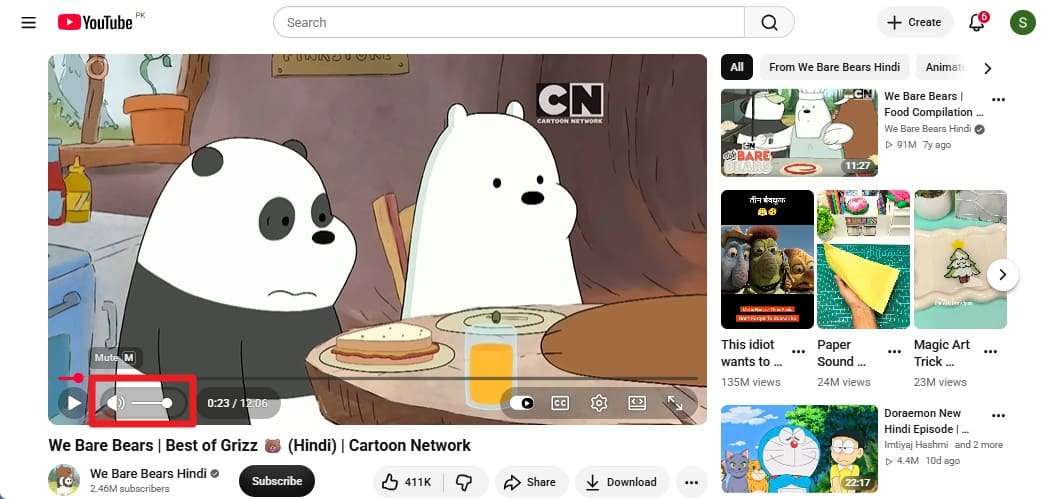
Check 1 Unmute the YouTube Video
The player's mute icon is its own separate control from your device volume, so it's easy to trigger with a stray click or tap. Look for a “Speaker” icon with a line through it in the bottom corner of the video and click it once to unmute.
-
Check 2 Increase the Device and App Volume
According to Google's troubleshooting guidance, the first thing to check is making sure volume is turned on for your browser or device. Media volume and system volume aren't always the same setting, so check both.
-
Check 3 Restart YouTube and Your Device
A simple restart clears more temporary glitches than most people expect, and it's specifically listed in Google's recommended steps for this exact issue.
-
Check 4 Test Audio on Another Website or App
Playing sound from a different app or site tells you immediately whether the problem is specific to YouTube or affects your device as a whole. If no sound plays anywhere, the cause lies with your device, not YouTube.
-
Check 5 Check Whether YouTube is Down
YouTube audio not working issue may not be limited to your device. A broader YouTube outage can affect audio or playback for many users at the same time. Checking YouTube's status or a third-party outage tracker rules this out before you spend time on device-side fixes.
Part 3. How to Fix Sound Not Working on YouTube? 10 Fixes
With those checks done, work through these fixes in order if the sound gone on YouTube issue remains.
-
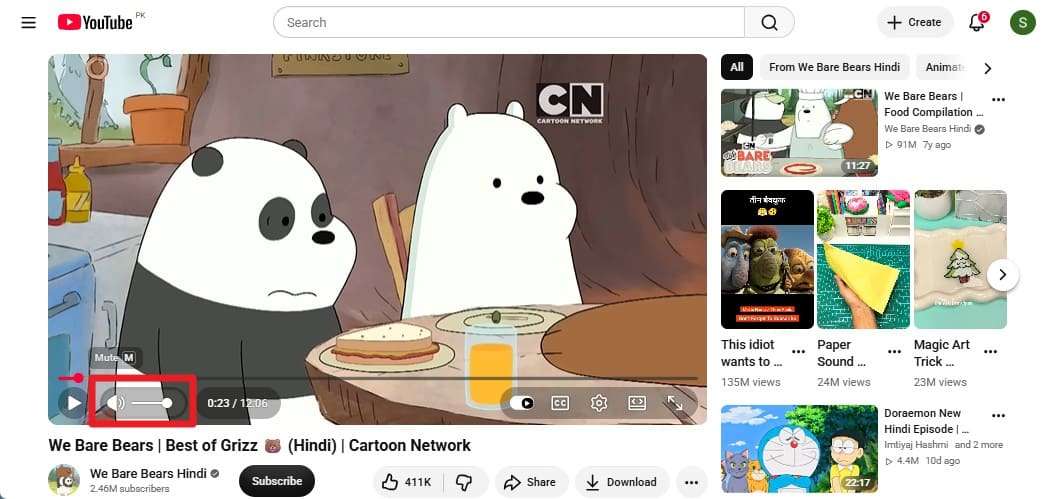
Fix 1 Check the Browser Tab and YouTube Volume
This often solves the problem right away if the tab was muted or the volume was turned down, as shown below:
Instructions. Check your open browser tabs for a speaker or muted speaker icon. If the YouTube tab is muted, right-click the tab and select "Unmute Site." Then, click the “Speaker” icon in the YouTube player and adjust the volume slider if needed.
-
Fix 2 Turn Off Silent Mode on iPhone or Android
YouTube no sound iPhone and Android complaints trace back to the Ring/Silent switch, Action button, or a system-wide silent setting. This simple solution restores sound and helps confirm the real cause once the given steps are followed.
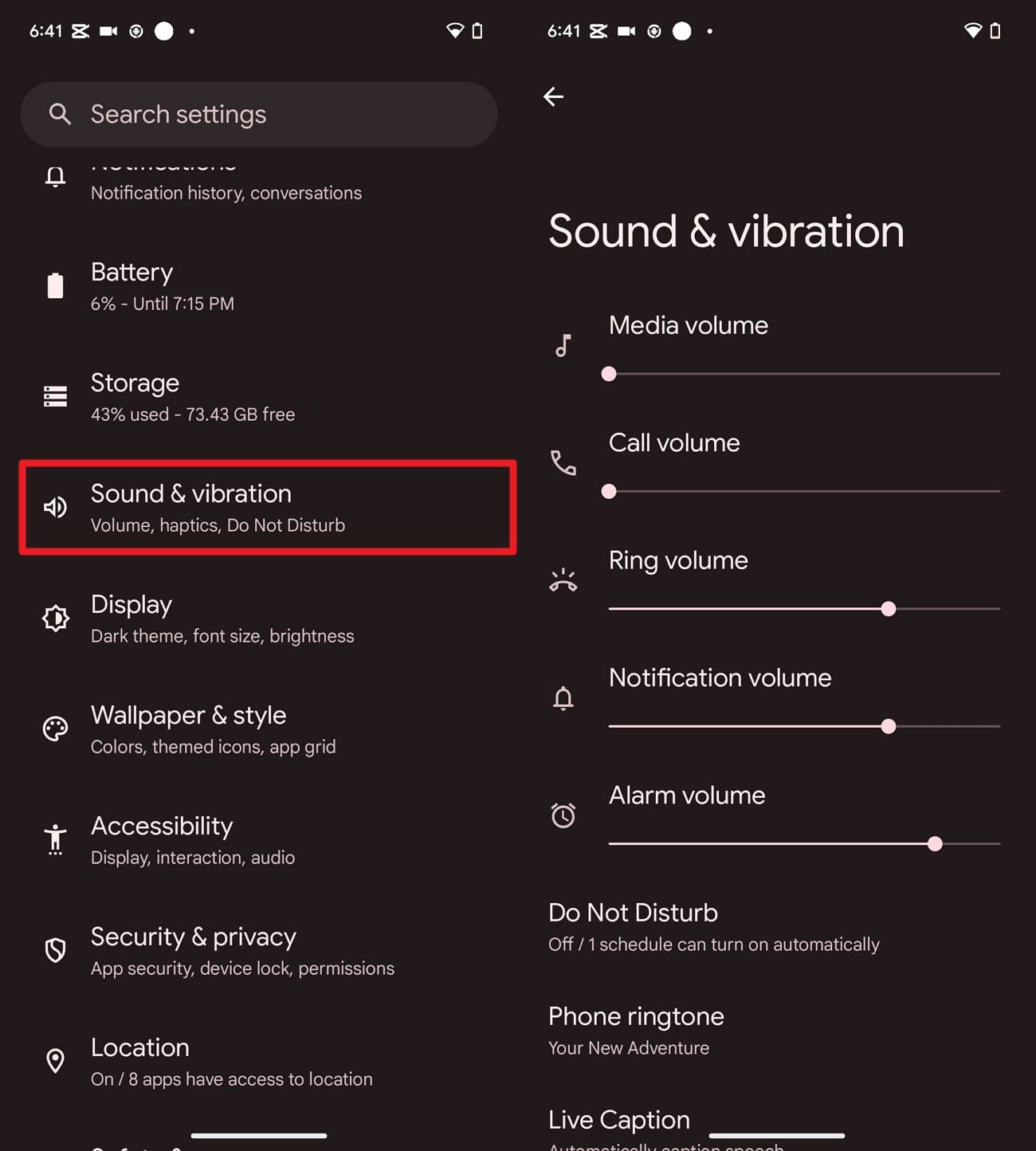
On Android
Instructions. Choose the “Sound & Vibration” settings and ensure all the sliders are set to Sound.
On iPhone
Option 1. Look at the left edge of your iPhone, and flip it towards the front of the screen. If you have an iPhone 15 Pro or later, press and hold the “Action” button to switch from silent to ring mode.
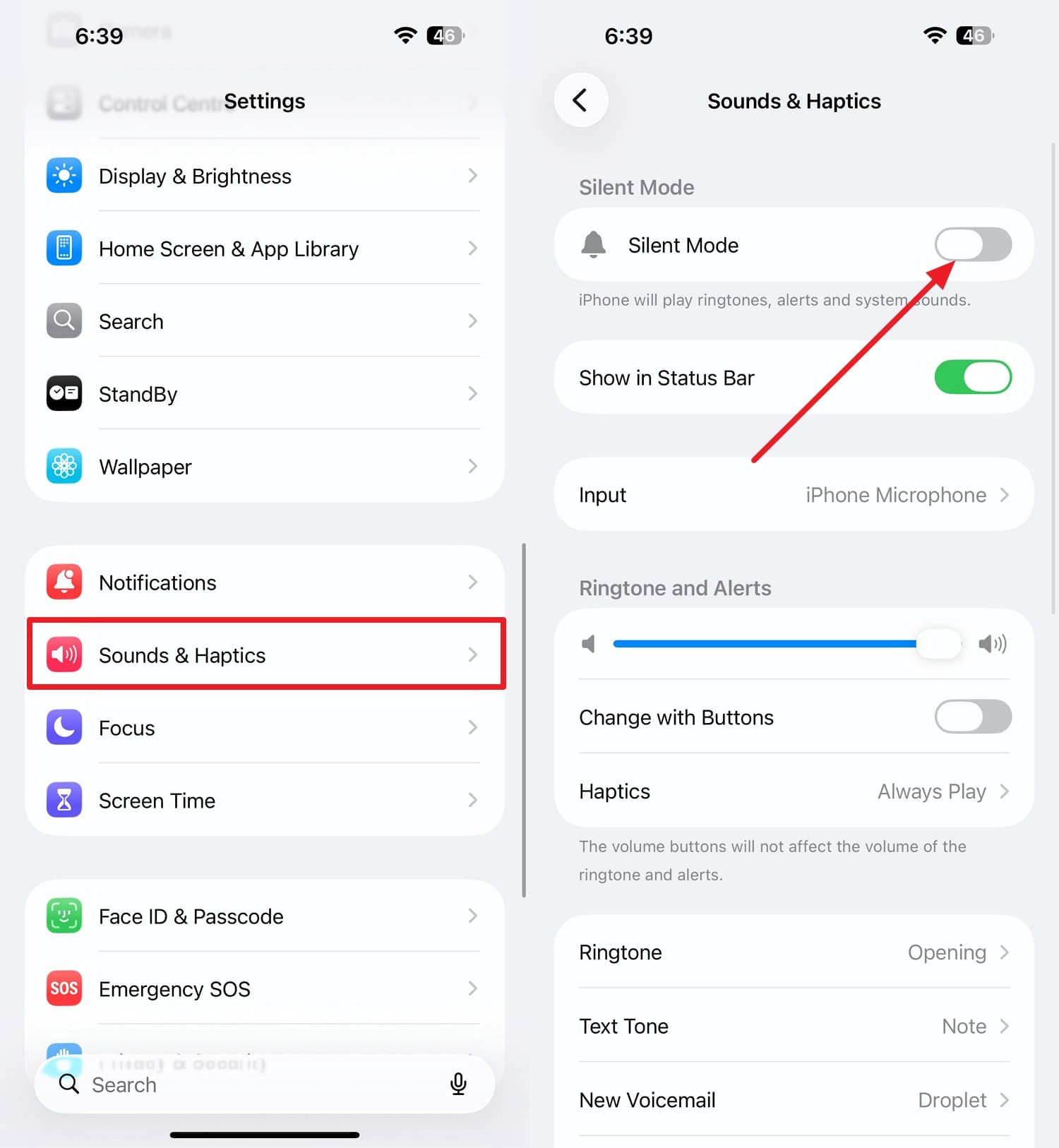
Option 2. In Settings, choose the "Sounds & Haptics" option and toggle off the "Silent Mode" option.
-
Fix 3 Disconnect Bluetooth Headphones and External Speakers
As another solution for the sound from YouTube not working issue, this fix can redirect audio back to your device's built-in speakers, as guided:
On iPhone
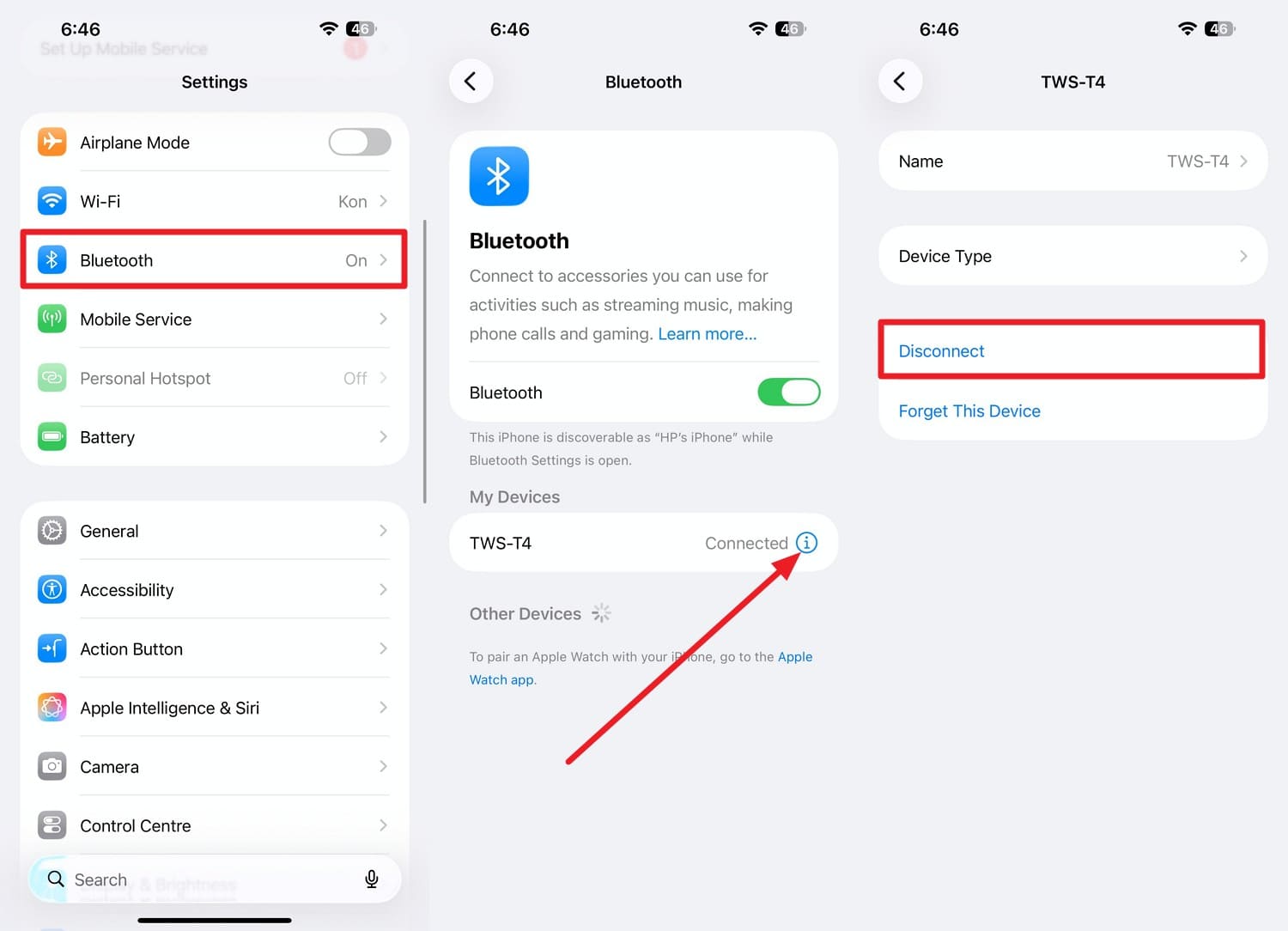
Instructions. Go to “Settings > Bluetooth,” tap the "i" button next to the connected device, then select "Disconnect."
On Android
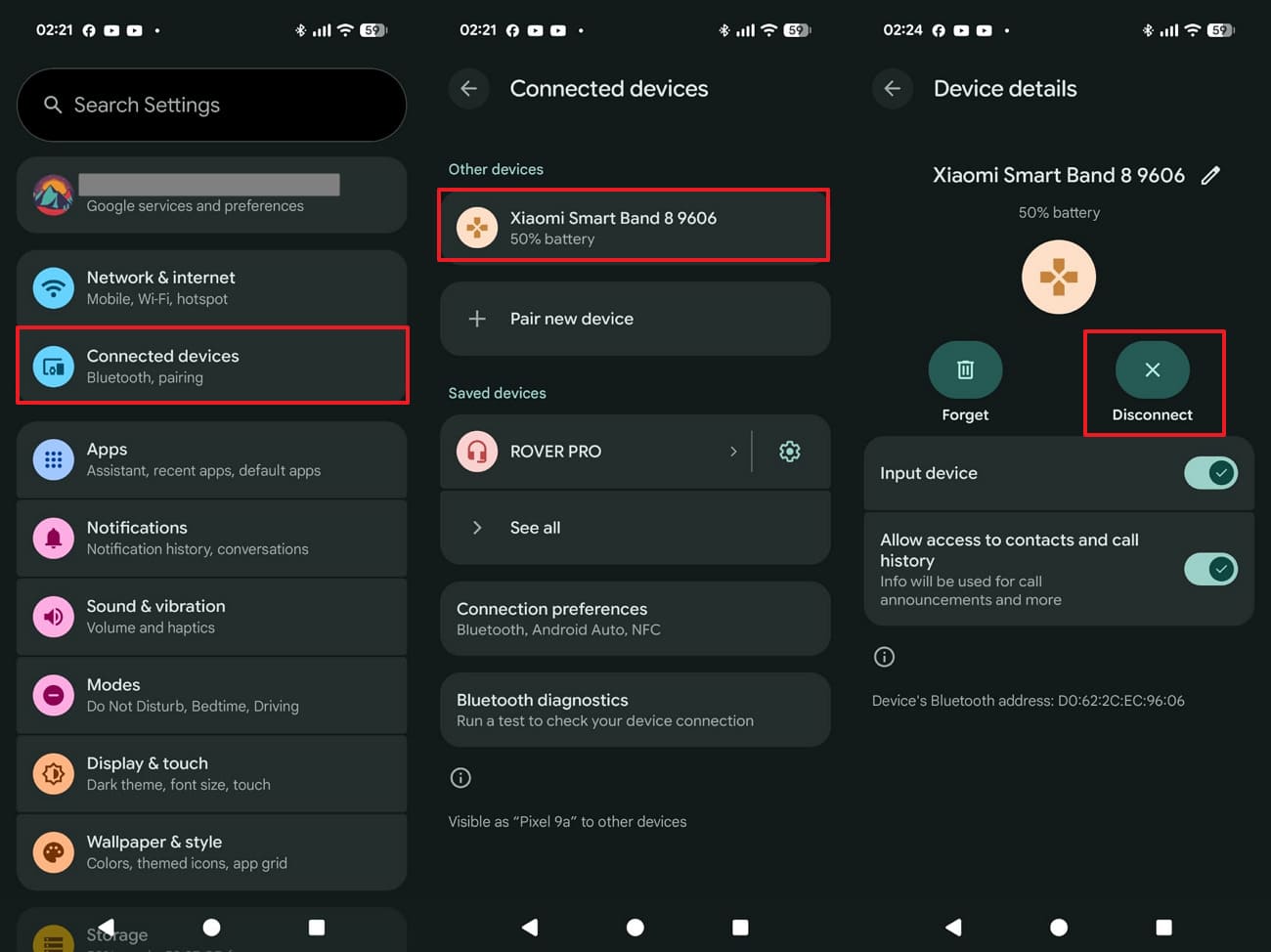
Instructions. Go to “Settings > Connected Devices,” tap the connected Bluetooth device, then select "Disconnect."
On Windows
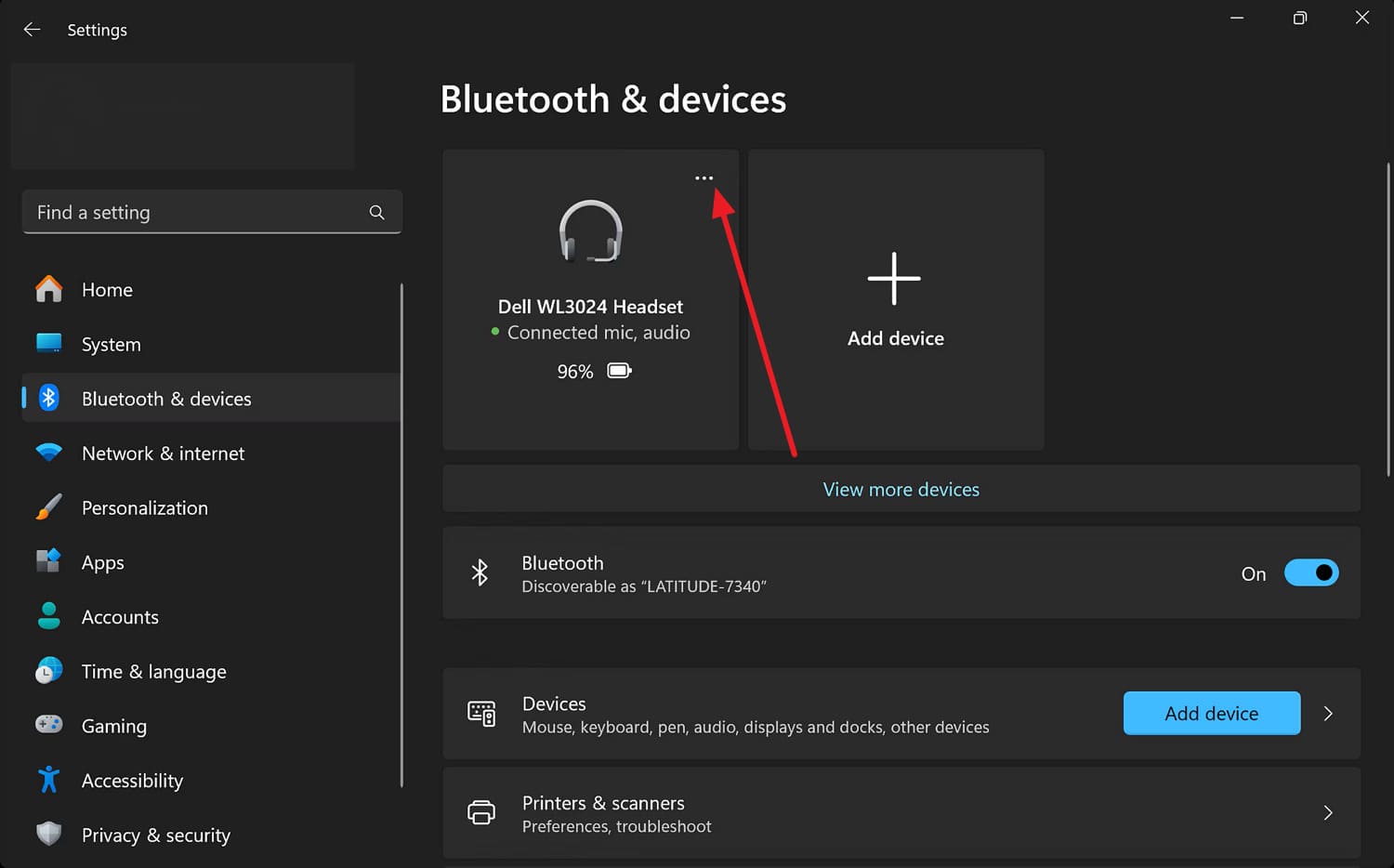
Instructions. Head to “Settings > Bluetooth & Devices” > Tap the “Three Dots” on the connected device to select “Disconnect.”
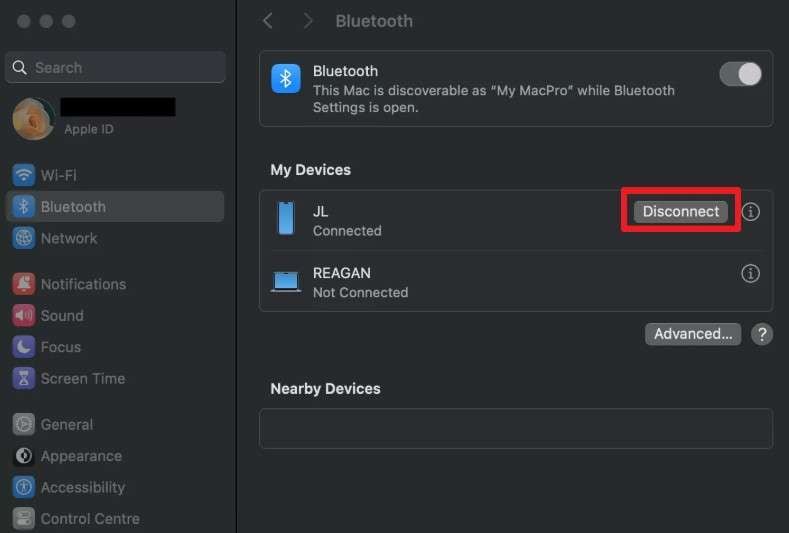
On Mac
Instructions. In “System Settings > Bluetooth,” find the device and choose the “Disconnect” option.
-
Fix 4 Select the Correct Audio Output Device
Computers with multiple audio outputs can default to the wrong one after a reboot or an update. Since this can cause the YouTube sound stopped working issue, select the correct output device via the mentioned steps:
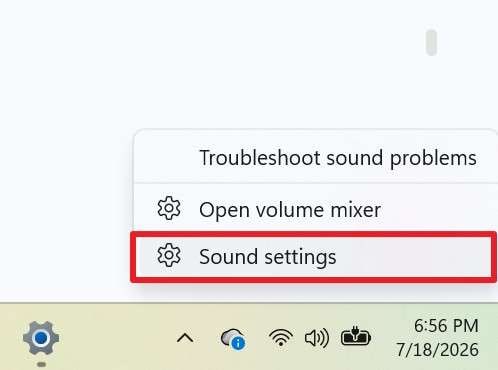
On Windows
Step 1. Press the “Speaker” icon in the taskbar to access “Sound Settings.”
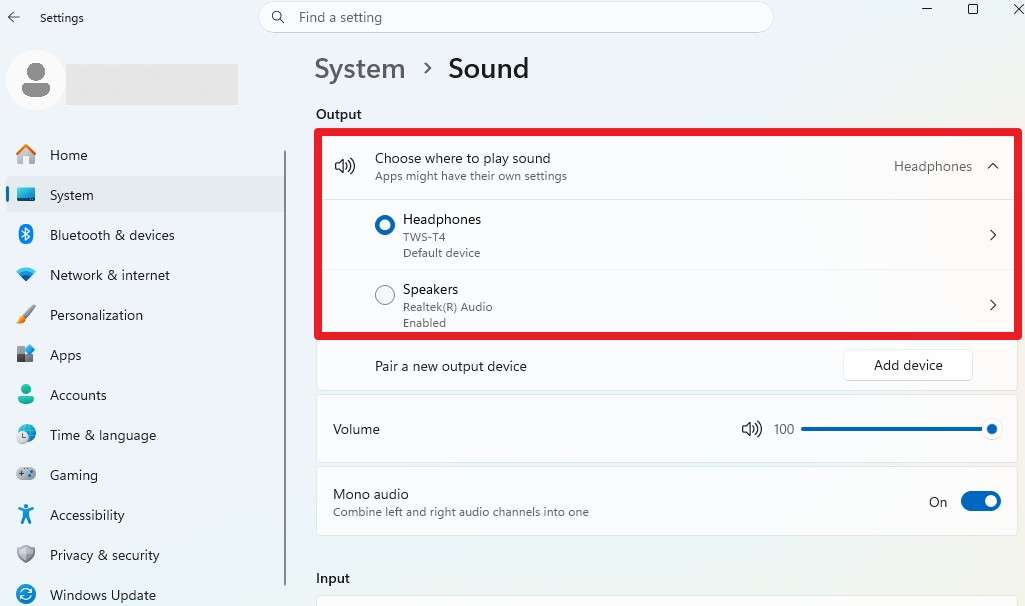
Step 2. Expand the “Choose Where to Play Sound” menu and select one of the options provided.
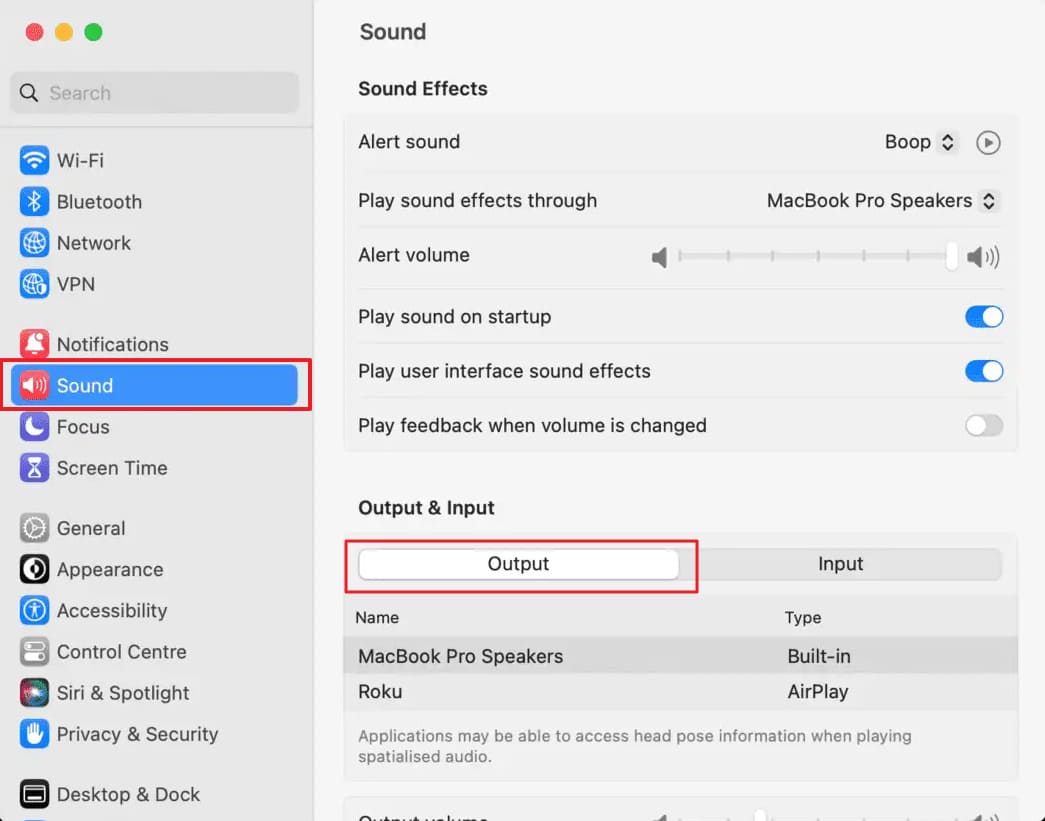
On Mac
Instructions. Go to the “Apple menu > System Settings > Sound” and locate the “Output" tab. Select the correct device from the list, then play a YouTube video to confirm the sound works now.
-
Fix 5 Allow Sound in Browser Site Settings
It's the simplest fix that requires no downloads and restores audio via the given detailed steps:
 Note: This sits separately from the tab mute button covered in Fix 1 for the lost sound on YouTube videos issue.
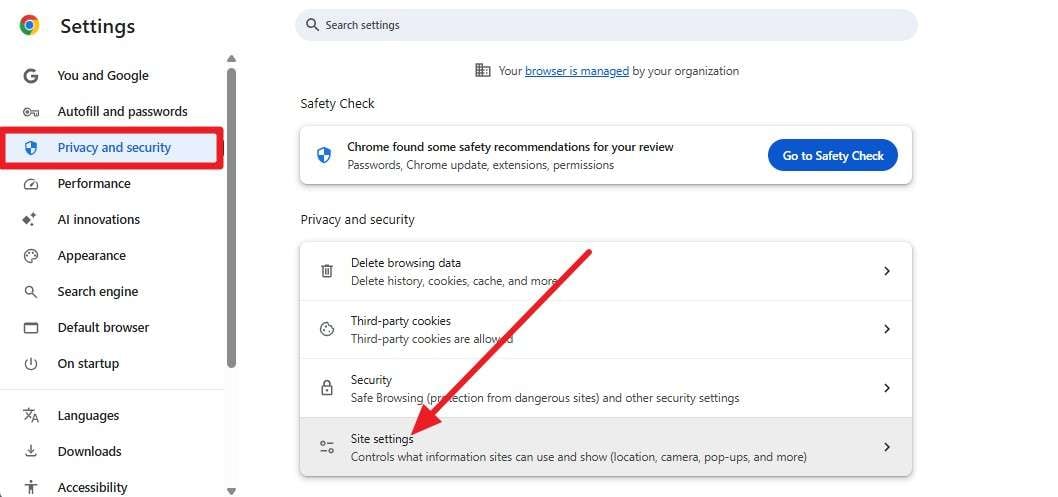
Step 1. Go to Chrome settings and select the “Site Settings” option in the “Privacy & Security” tab.
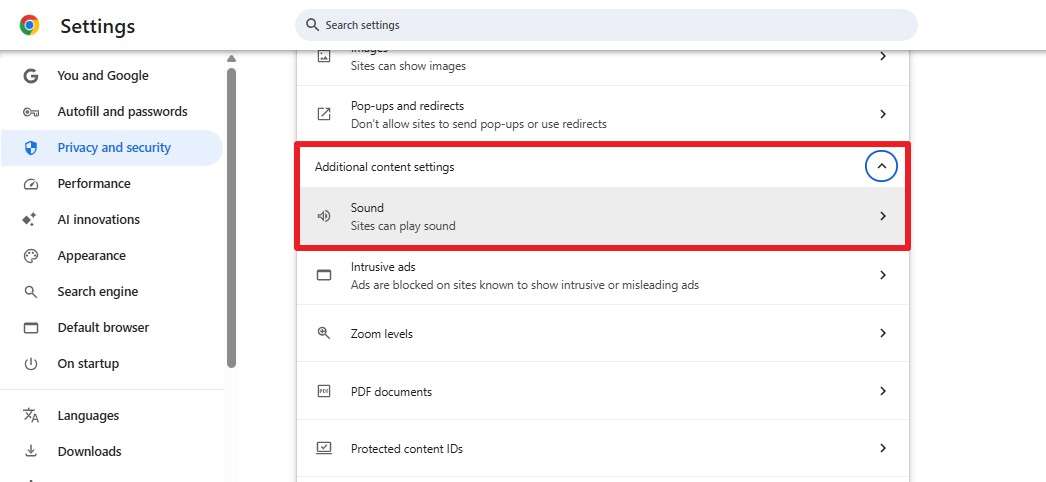
Step 2. Scroll down to the “Additional Content Settings” and choose the “Sound” option from the menu.
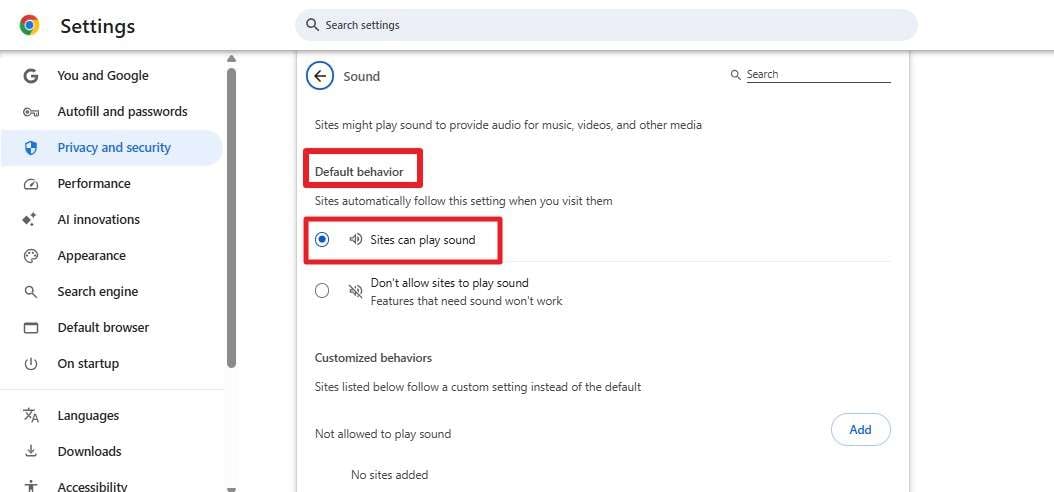
Step 3. Under the “Default Behavior” section, choose the “Sites Can Play Sound” option.
-
Fix 6 Disable Browser Extensions and Ad Blockers
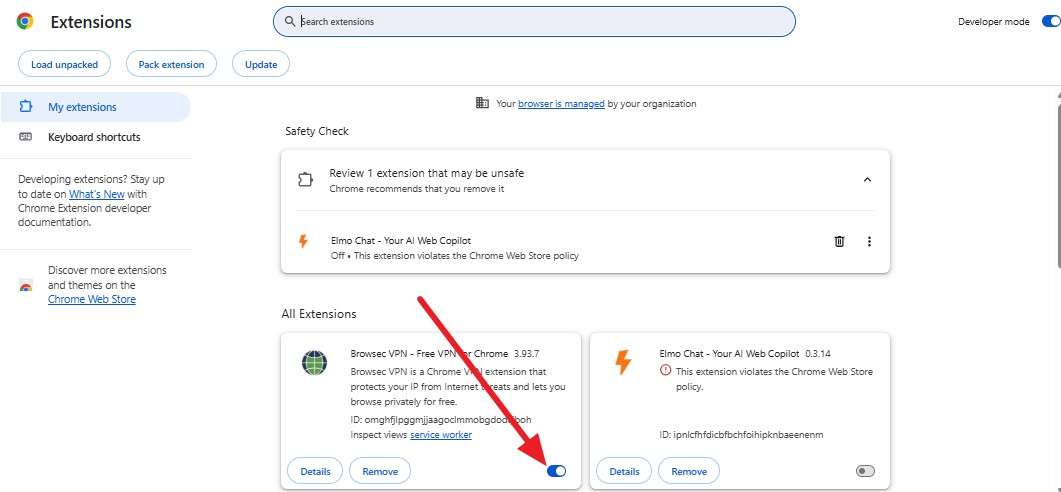
According to YouTube Help, ad blockers specifically are a recognized cause of playback problems, including audio issues. Disable extensions and ad blockers to help speed up page loading, and the steps are given below:
Step 1. Open the browser's extensions management page by pressing the "Three Dots > Extensions > Manage Extensions" options.
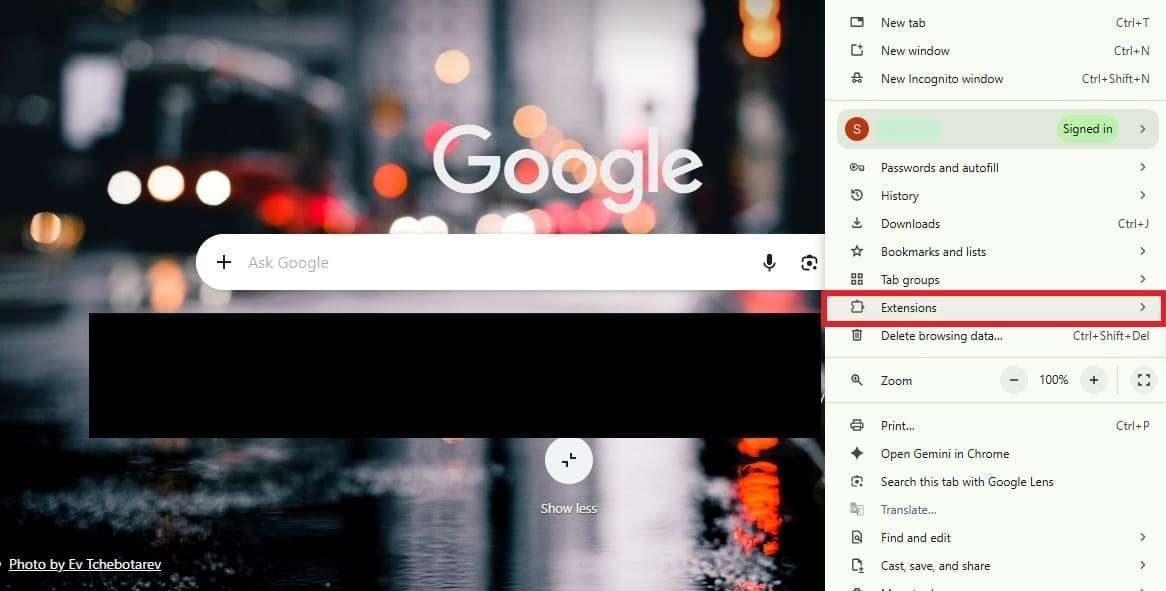
Step 2. Toggle off extensions or ad blockers, then replay the video to see if the YouTube not playing sound issue is resolved.
-
Fix 7 Clear the YouTube App Cache or Browser Data
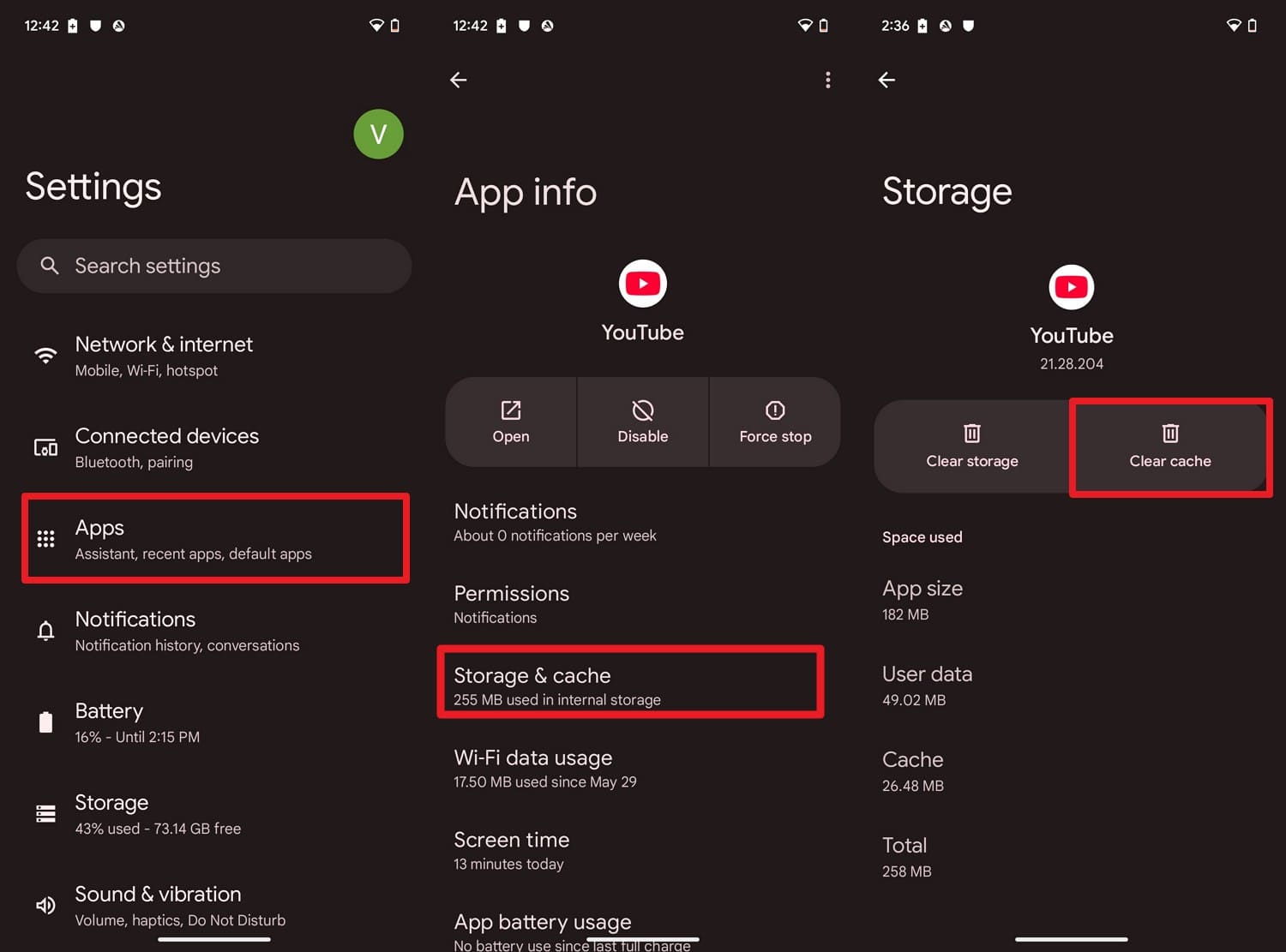
Google's guidance specifically recommends clearing cache and cookies to fix lost sound on YouTube videos, as shown below:
On Android
Instructions. Go to “Apps > YouTube > Storage & Cache > Clear Cache” in the Android settings.
On Windows and Mac
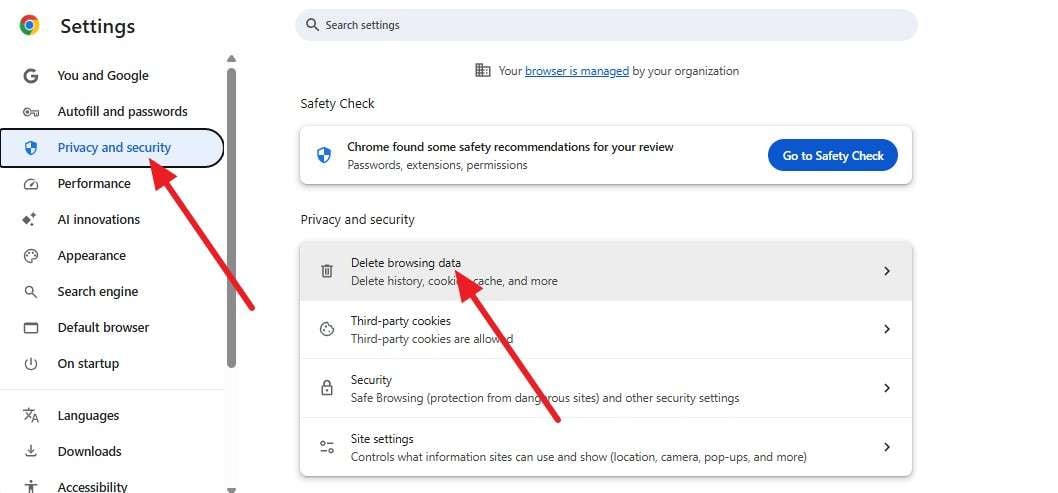
Step 1. Choose the “Three Dots” on Chrome and select “Settings > Privacy and Security > Delete Browsing Data.”
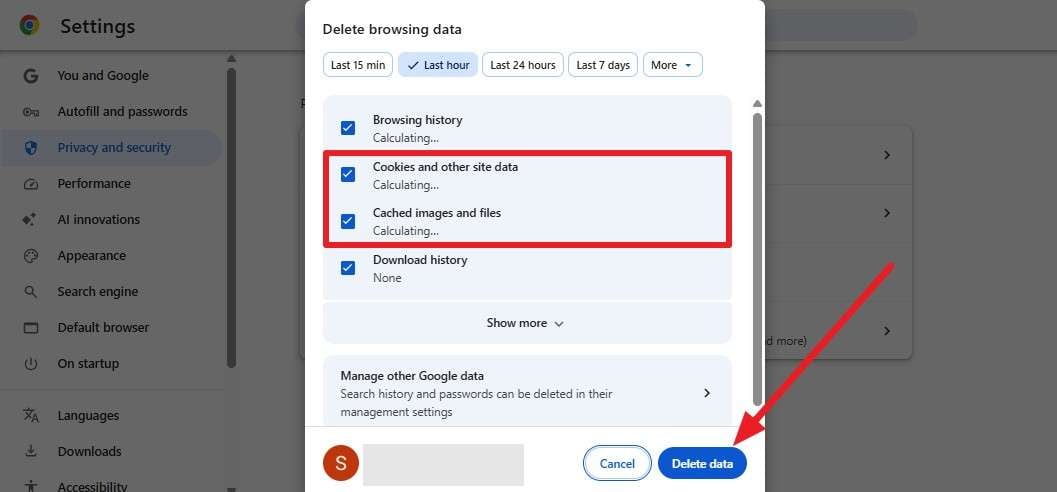
Step 2. Tick the options for “Cached Images and Files > Cookies and Other Site Data,” confirm the time range, and press “Delete Data.”
-
Fix 8 Update the YouTube App or Web Browser
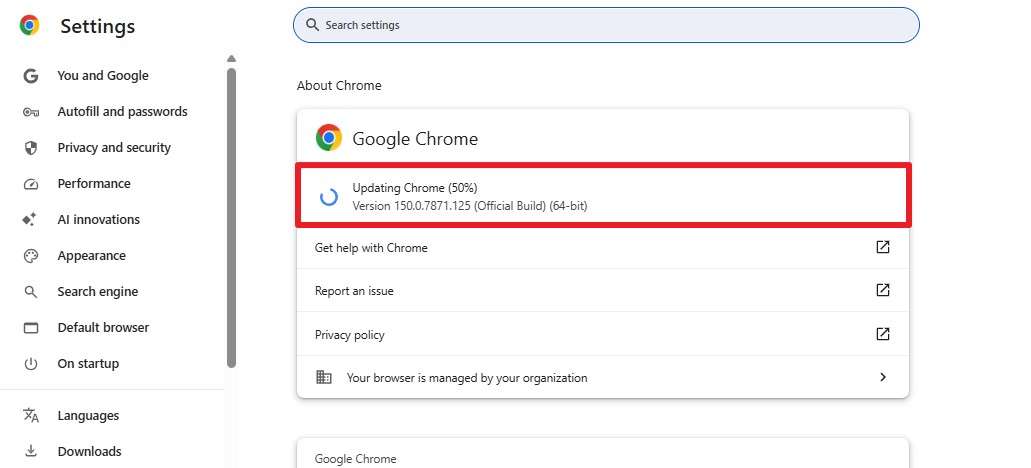
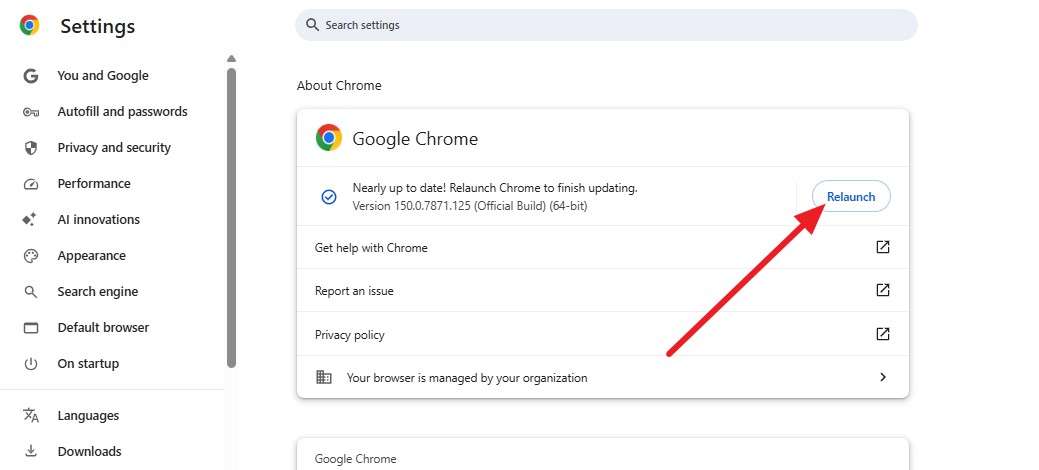
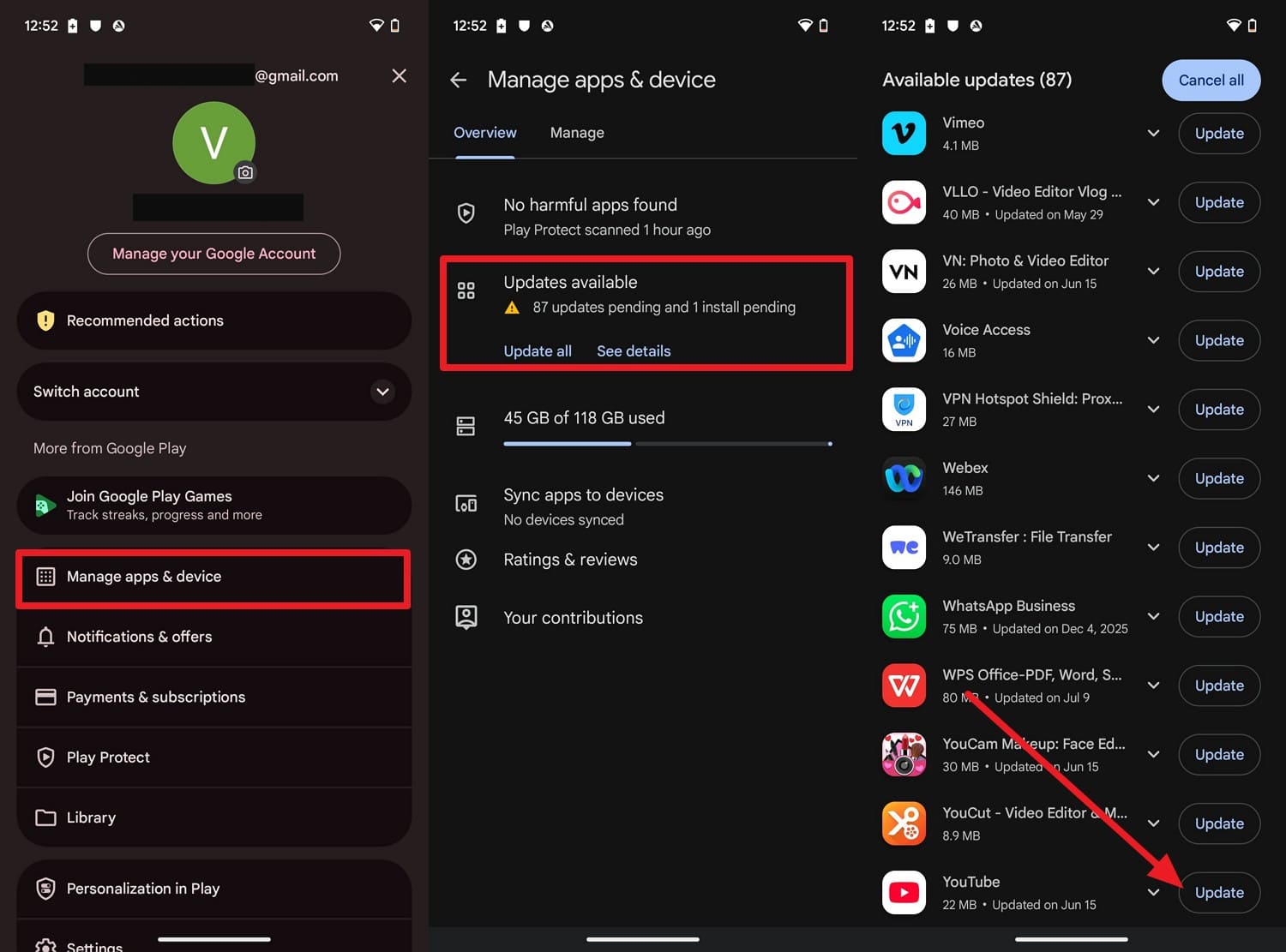
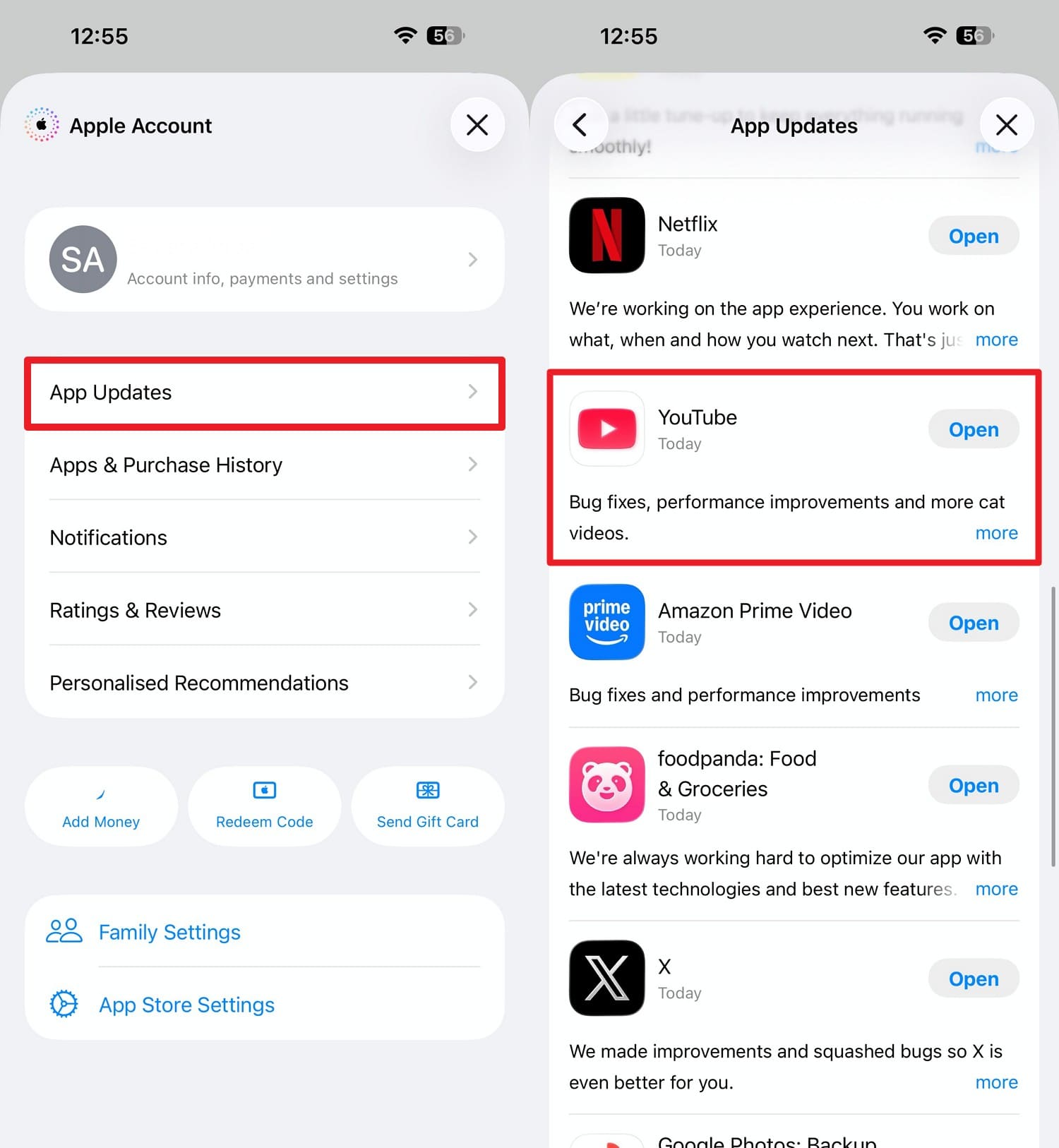
For the sound problem on YouTube issue, update the app and browser because this can fix bugs and glitches from outdated versions. Here is how you can update your YouTube App and browser:
On Browsers
Step 1. Choose “Three Dots > Help > About Chrome” and wait until Chrome updates automatically.
Step 2. Tap the “Relaunch” button to apply the updates and replay the video on YouTube.
On Android
Instructions. On the Play Store, go to “Profile > Manage Apps & Device > Updates Available > See Details > Locate YouTube > Update.”
On iPhone
Instructions. Choose "Profile > App Updates > YouTube > Update,” if available.
-
Fix 9 Reinstall the YouTube App
This fix is worth trying even if the app opens normally, as corruption can affect specific features and cause sound not coming from YouTube. Follow these steps to reinstall the app:
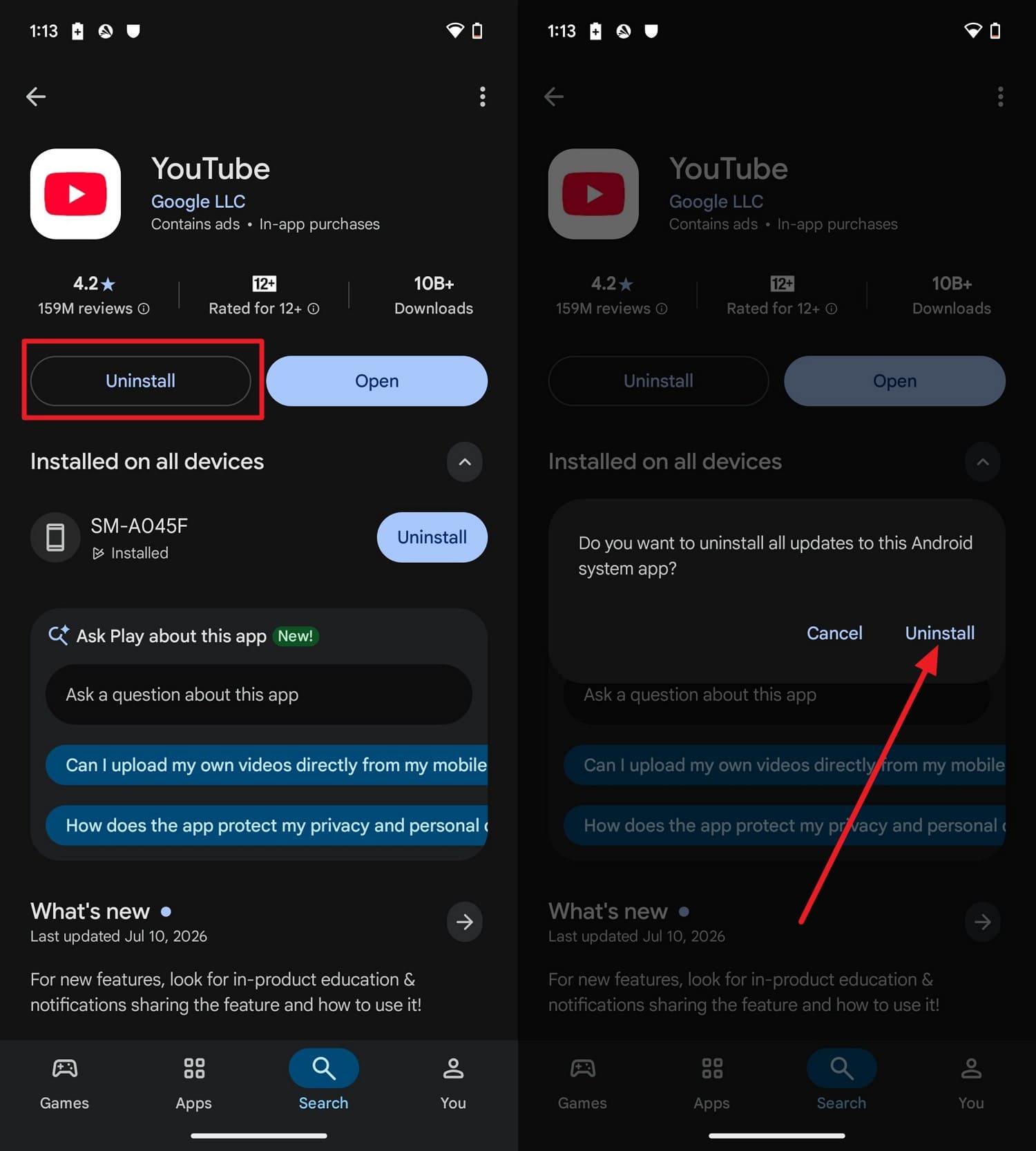
On Android
Instructions. Select the “Uninstall > Uninstall” option as you search for YouTube in the Play Store and reinstall it.
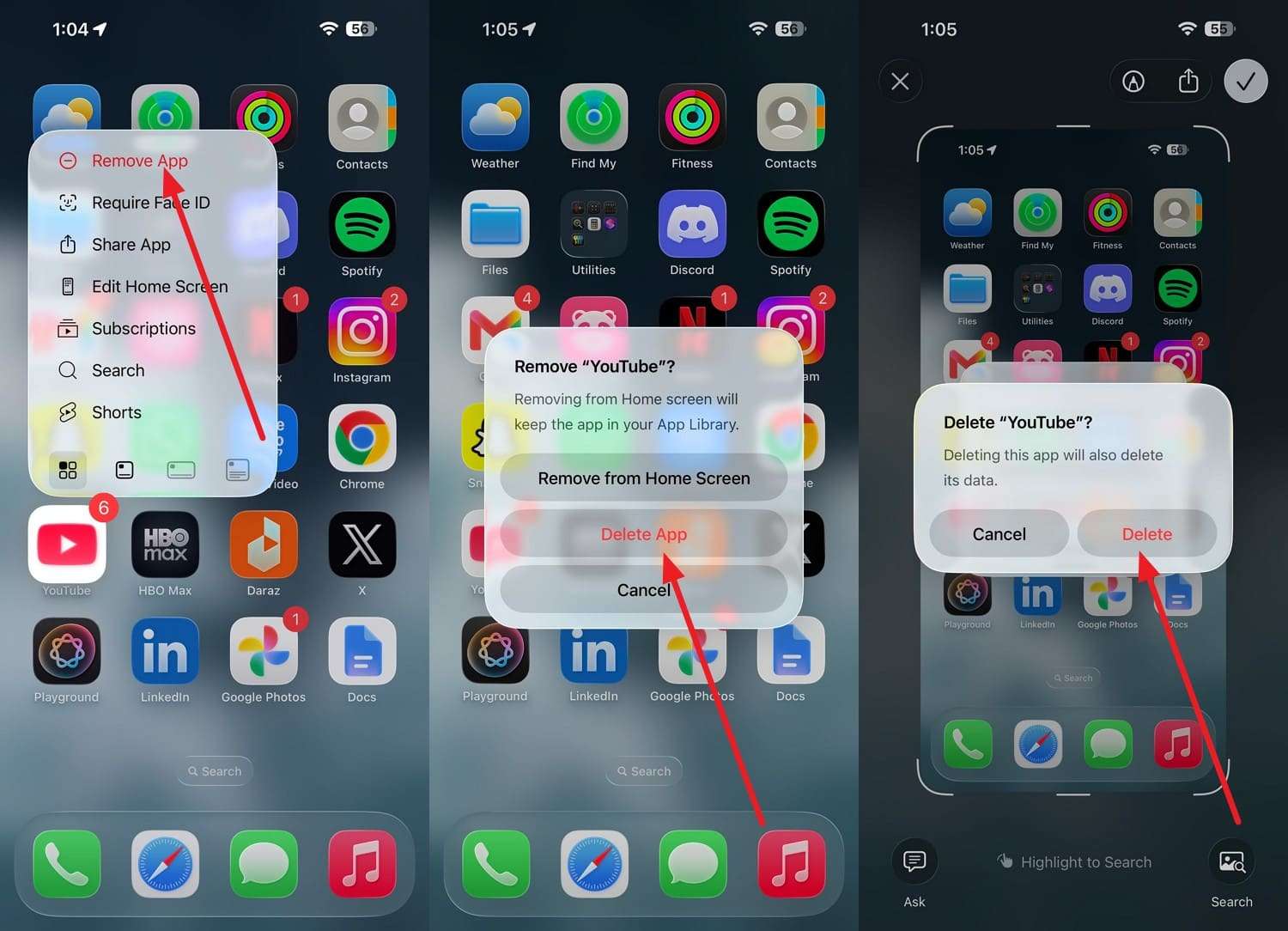
On iPhone
Instructions. Long-press YouTube and select the "Remove App > Delete App > Delete" options. Open the App Store and reinstall the latest version of the YouTube app.
-
Fix 10 Update or Reinstall Audio Drivers on Windows
This solution can fix corrupted or outdated driver files that can cause YouTube sound to stop working, as guided below:
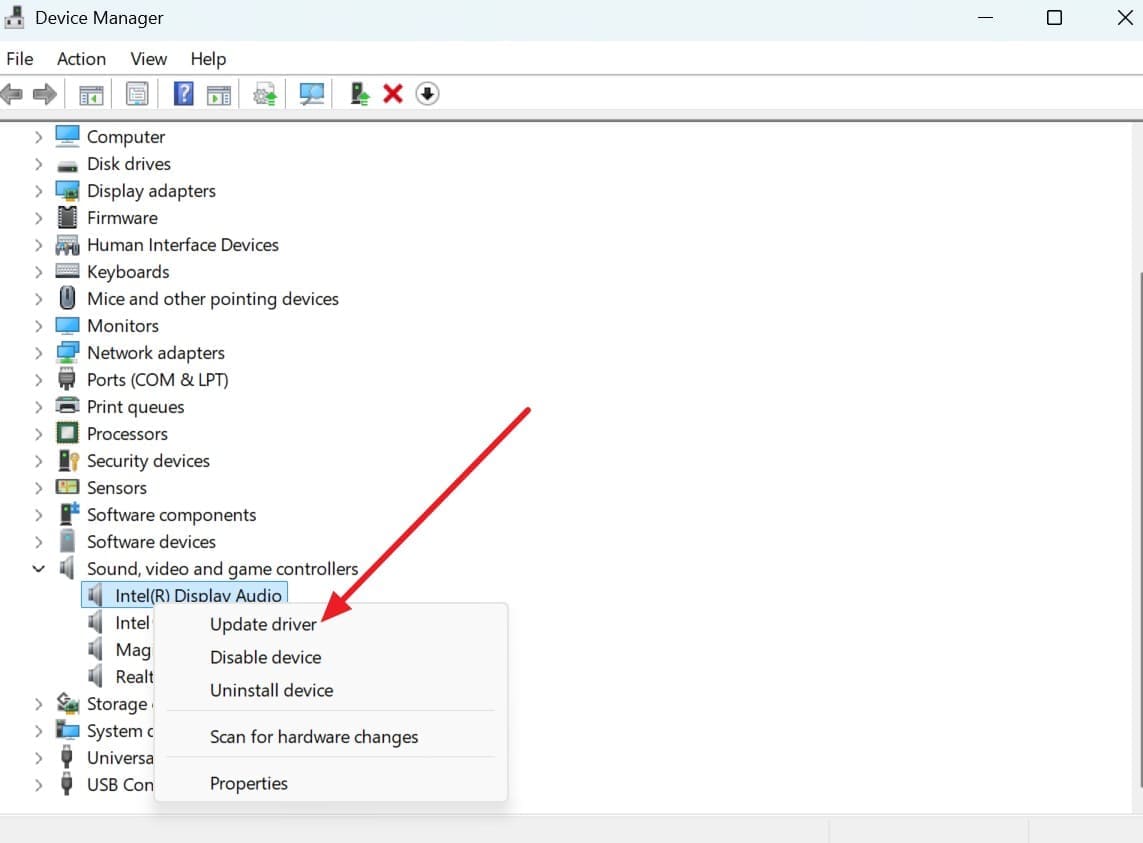
Step 1. In Device Manager, right-click on “Sound, Video and Game Controllers” drivers to choose “Update Drivers.”
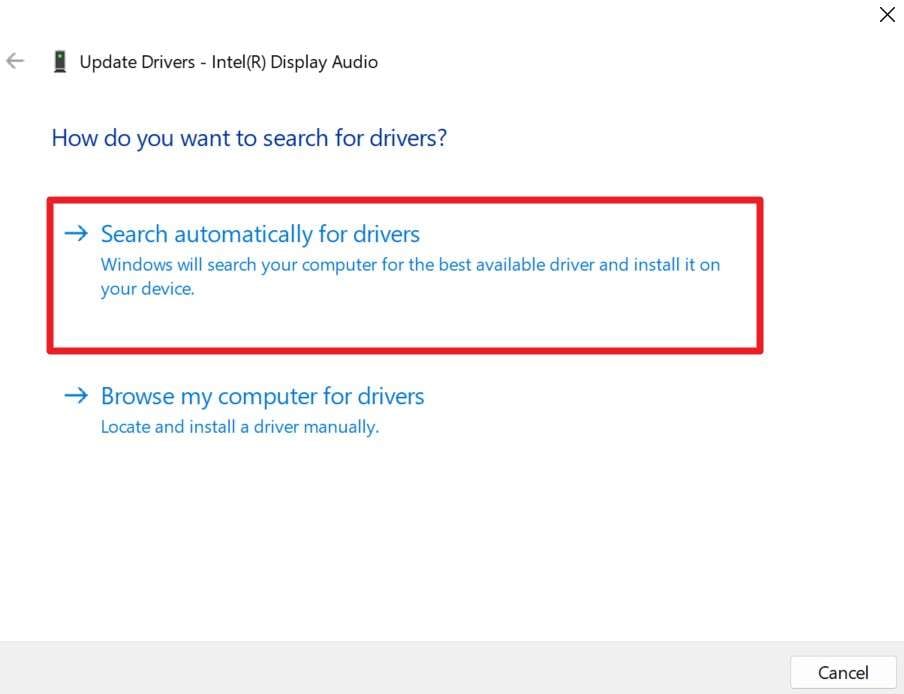
Step 2. Press the “Search Automatically for Drivers” option to confirm the action.
 Note: On a Mac, audio drivers are built into macOS and update automatically when you install the latest macOS updates.
If you still face the issue where my sound on YouTube is not working, reinstalling the YouTube app may be your next troubleshooting step.
Before doing so, it's a good idea to back up important files and clear unnecessary data on your phone. Wondershare Dr.Fone can help you organize, transfer, and manage your data before making changes.
Its Phone Manager tool is available for both Android and iPhone, allowing you to import, export, organize, or delete photos, videos, contacts, music, and other files. This tool also makes it easier to transfer data between your phone and computer, so you can back up important content before reinstalling the app.
 Effortlessly manage data through preview, delete, export, etc.
- Transfer all data between devices.
- Robust backup solutions for reliable data protection.
- Mirror screens to PC for meetings, teaching, and control.

How Dr.Fone Basic Helps Organize Your iPhone Data
If you want to try its iPhone Manager to manage your iPhone data efficiently, here are the detailed instructions:
-
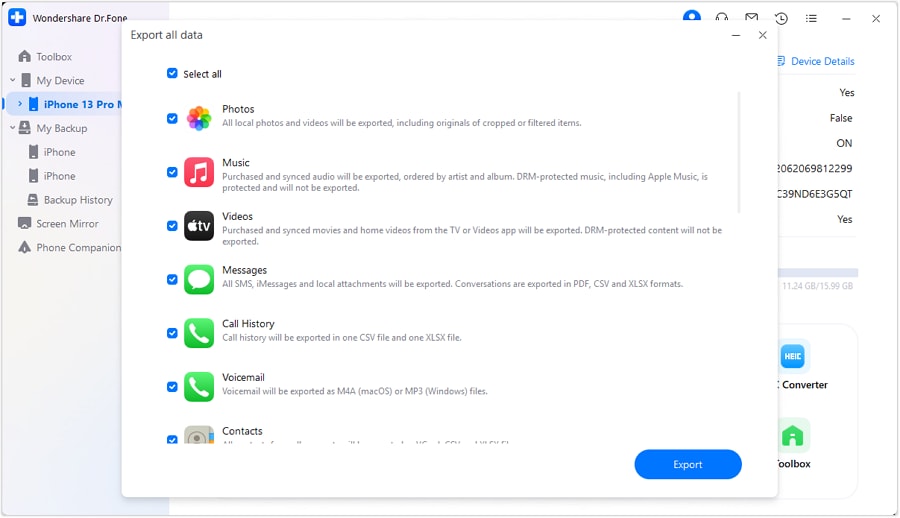
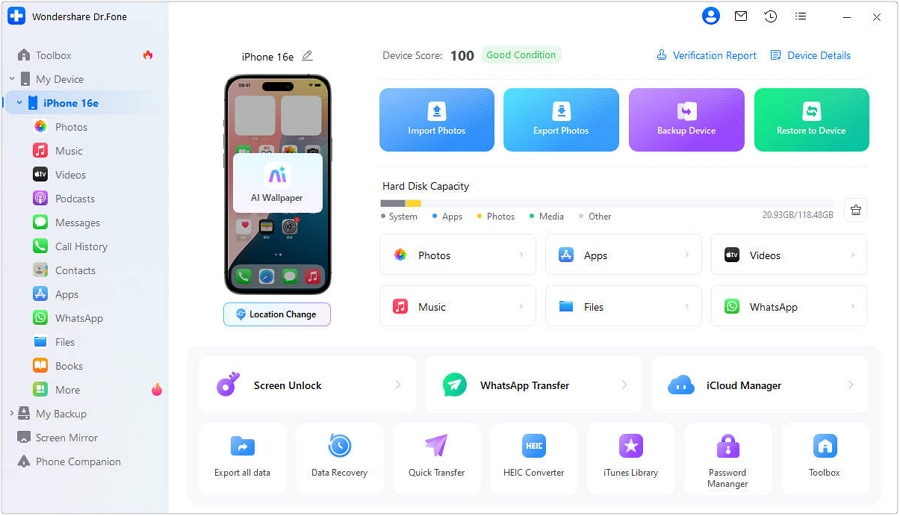
Step 1 Export All Data in Quick Start
Connect your iPhone via a USB connection and go to the “Quick Start” section to select “Export All Data.”
-
Step 2 Choose to Backup Data Types
Pick one of the 16 data types that you want to back up and choose the “Export” button.
-
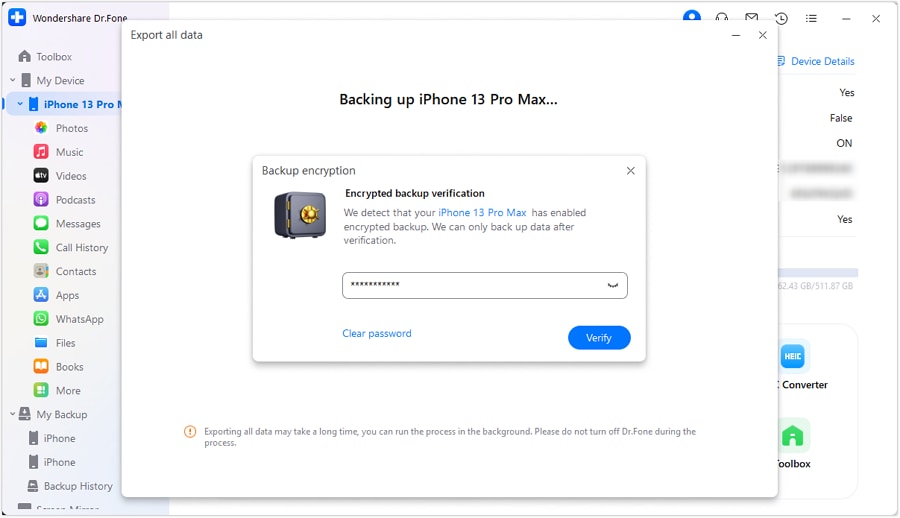
Step 3 Add and Verify the Backup Passcode to Export
Set up an encrypted password for the backup and press “Verify” to secure a copy of your data and remove unwanted data from the device.




Bonus Tool: Unlock Your iPhone or Android with Dr.Fone – Screen Unlock
Sometimes, the reason you can't fix YouTube sound issues on your phone isn't the audio settings — it's because you can't access the device at all. Whether you've forgotten your passcode, Face ID isn't responding, or your screen is frozen after an update, being locked out stops all troubleshooting in its tracks.
Dr.Fone – Screen Unlock helps you regain access to your iPhone or Android device in minutes, without technical skills. Once unlocked, you can adjust volume settings, clear YouTube cache, or reinstall the app — all the fixes in this guide become possible again.
Dr.Fone - Screen Unlock (iOS)
- Unlock iPhone/iPad passcode in minutes.
- Remove Face ID, Touch ID, MDM lock, and screen lock.
- Bypass iCloud Activation Lock easily.
- Support all iOS versions and devices.
- Simple steps, no technical skills needed.
Supports all models from iPhone 5s to iPhone 17 Series and works with iOS 27. It removes 4-digit/6-digit passcodes, Face ID, Touch ID, and screen time restrictions. Standard Mode preserves your data.
Dr.Fone - Screen Unlock (Android)
- Unlock Android phone in seconds.
- Remove PIN, pattern, password, fingerprint.
- Bypass Google FRP lock easily.
- Works on all Android brands & models.
- No tech skills required – user-friendly.

Compatible with Samsung, Xiaomi, OPPO, Google Pixel, and over 15,000 Android models. Removes PIN, pattern, password, and fingerprint locks. Also supports removing Samsung FRP (Factory Reset Protection).
Part 5. Still No Sound on YouTube App or Web Version?
If the fixes above haven't resolved the sound not working on YouTube videos issue, these 6 ways cover less common but genuine causes:
-
Fix 1 Try Incognito or Private Mode
It's a fast diagnostic step to try because it disables extensions and clears active cookies temporarily, and is guided below:
On Mobile (iOS & Android)
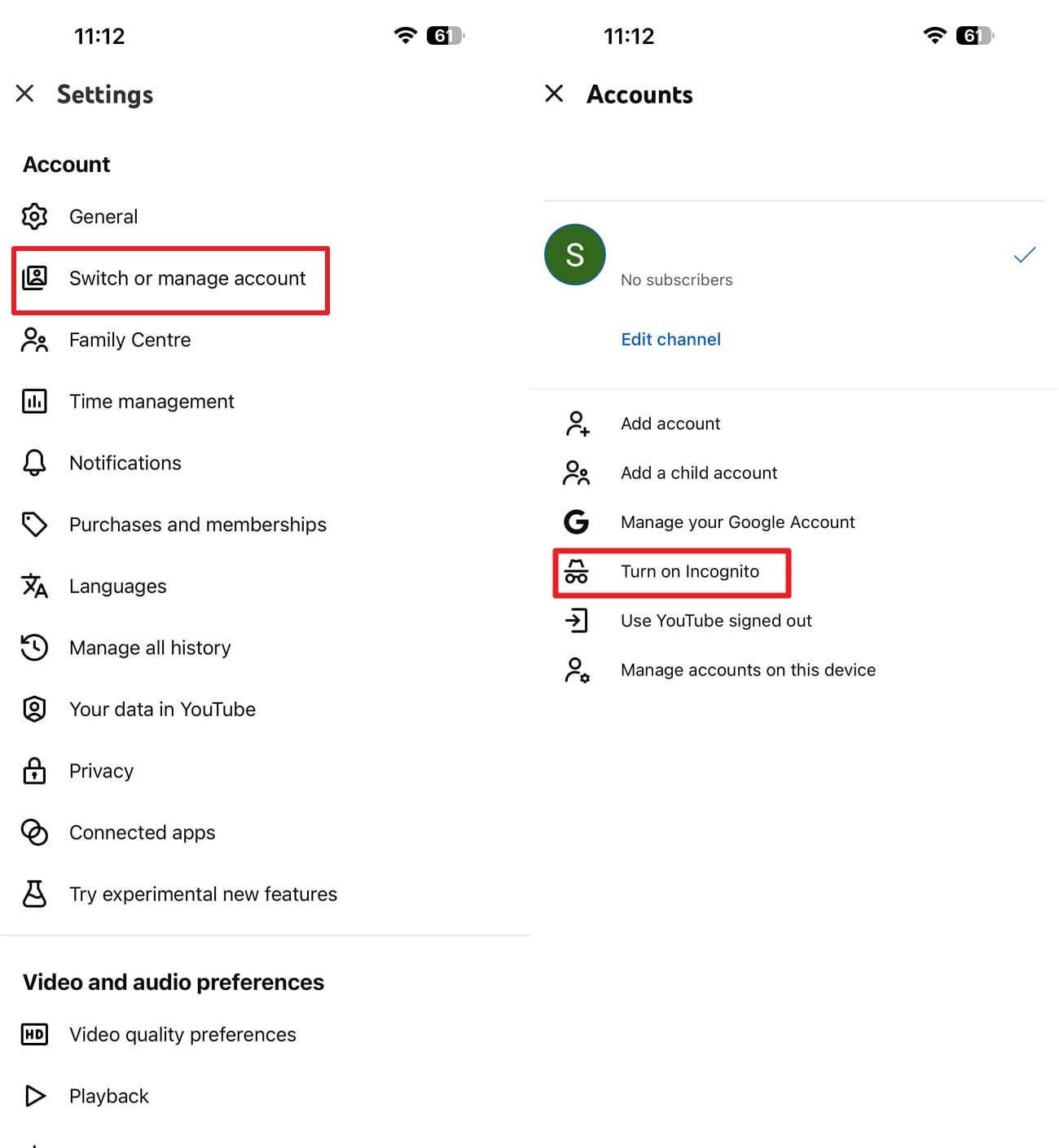
Instructions. In the YouTube app, tap on “Profile > Settings > Switch or Manage Accounts > Turn On Incognito.”
On a Computer (PC/Mac)
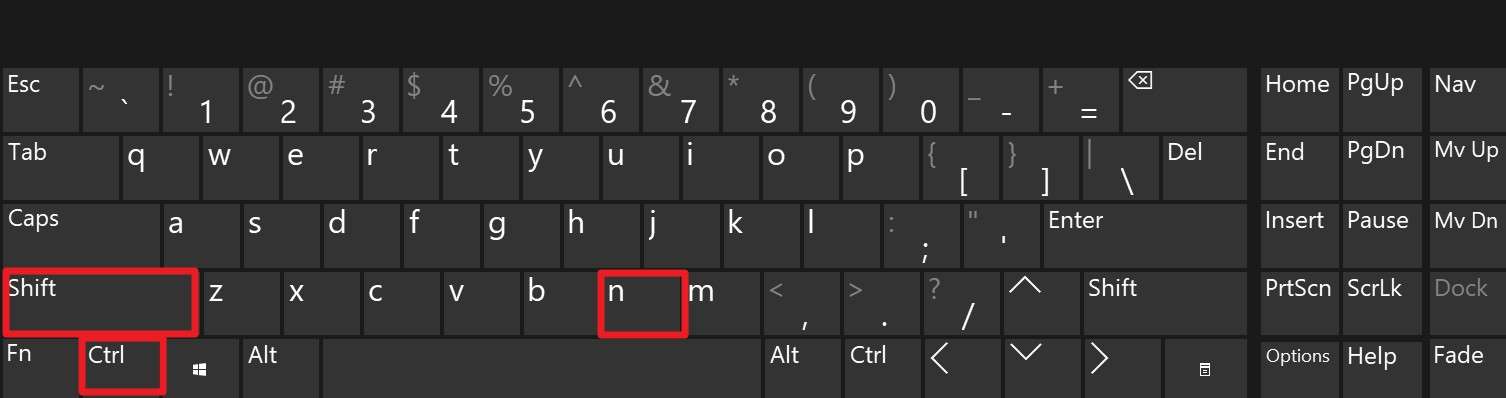
Instructions. To open Incognito mode, press "Ctrl + Shift + N" on Windows and "Cmd + Shift + N” on Mac.
-
Fix 2 Try Another Browser or Device
Testing a different browser or device helps determine whether the problem is tied to a specific setup rather than to YouTube itself.
-
Fix 3 Test Another YouTube Account
An account-specific setting or a stuck session can occasionally affect audio without affecting anything else about your browser or device. This is uncommon, but worth ruling out before assuming the cause is more technical than it is.
-
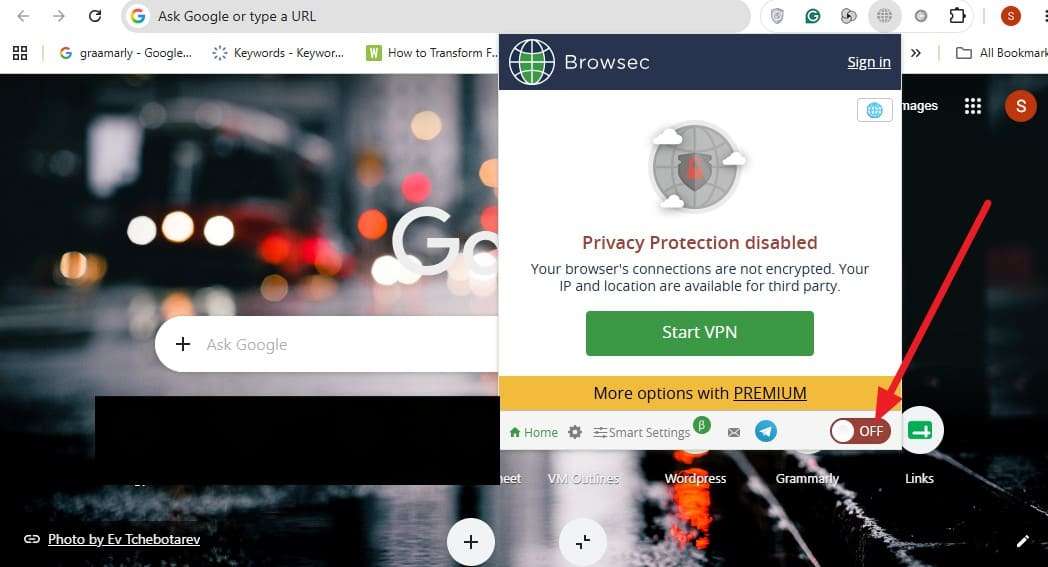
Fix 4 Disable the VPN or Proxy
A VPN can interfere with how audio streams load, particularly on connections that are already slow or unstable. This doesn't always affect video playback the same way, and the steps are mentioned below:
On Android
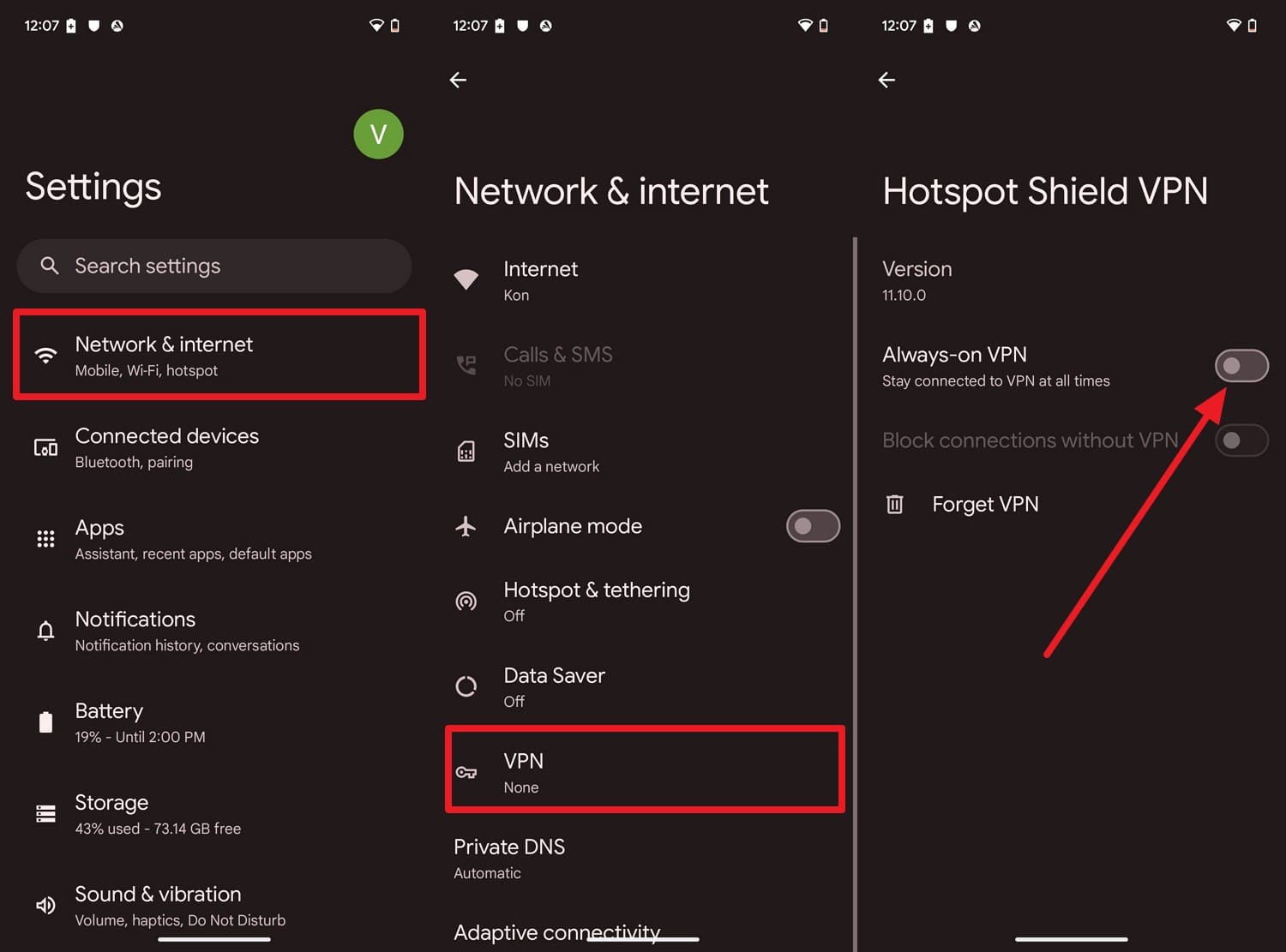
Instructions. In the “Network & Internet” settings, choose “VPN” settings to disable the “Always On VPN” option.
On iPhone
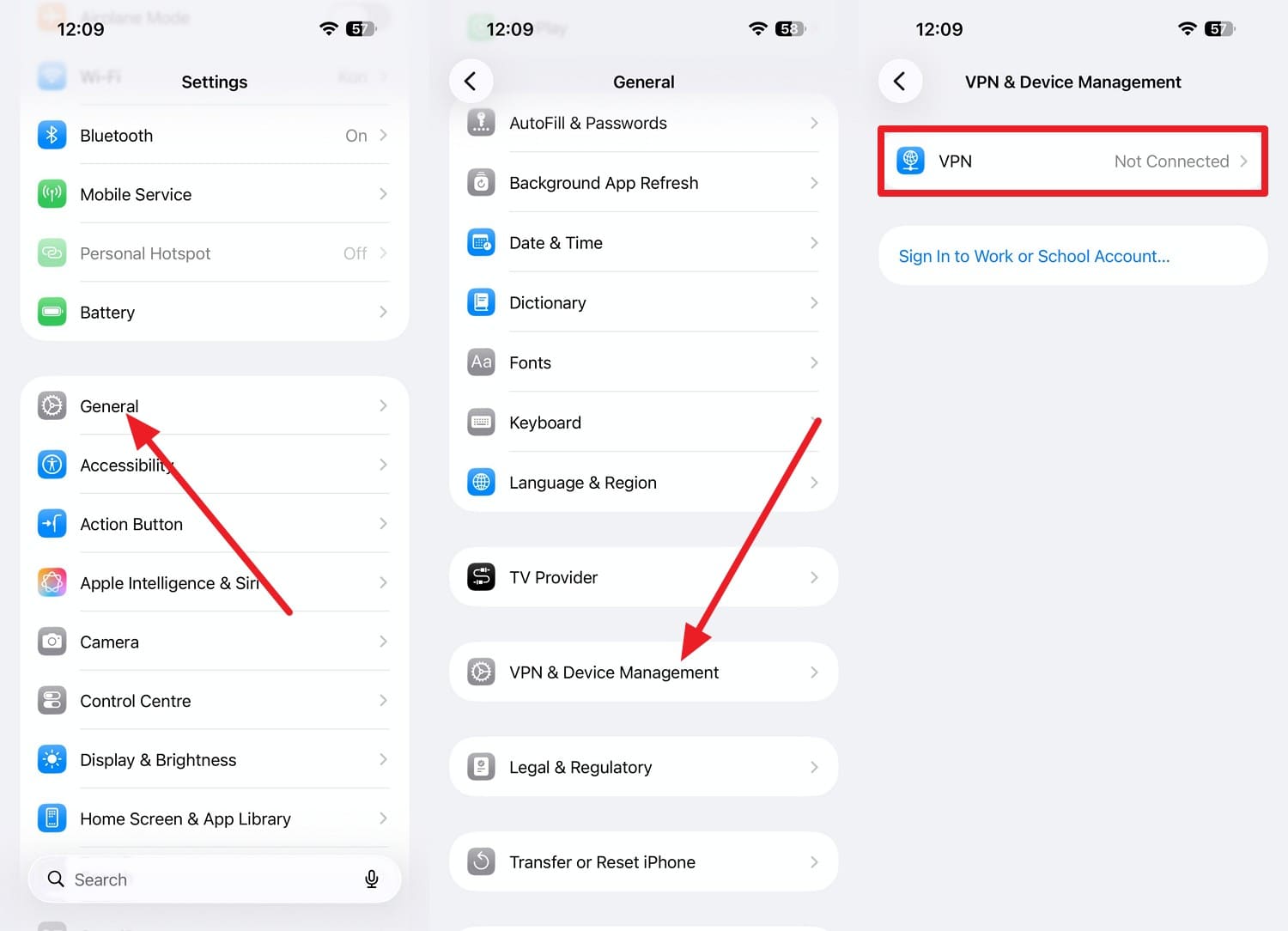
Instructions. Under “General” settings, select “VPN & Device Management > VPN > Not Connected.”
On Browsers (Windows and Mac)
Instructions. Choose the VPN extension icon in the browser and disable it.
-
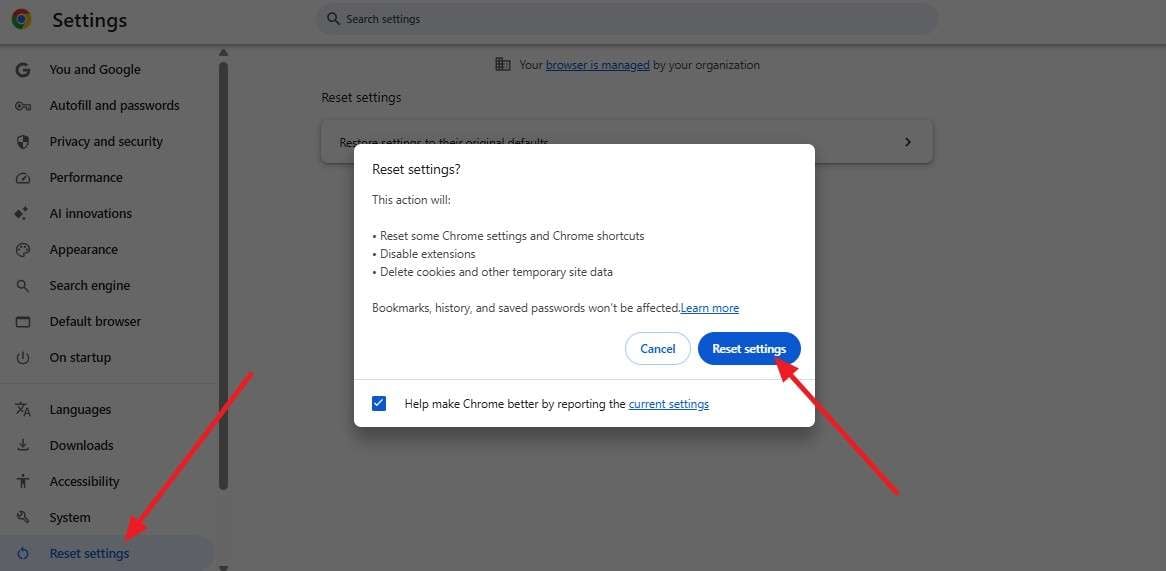
Fix 5 Reset the Browser or App Settings
It's a reasonable step before more drastic options like a full reinstall or a support ticket, and can be done via the listed instructions:
On Web Browsers
Instructions. On Chrome, select “Three Dots > Settings > Reset Settings > Restore Settings to Their Original Defaults > Reset Settings.”
 Note: On Android, Clear Storage removes all app data. On iPhone, try Offload App first to keep app data before reinstalling. You may need to sign in again afterward.
 -
Fix 6 Contact YouTube Support
If the sound is still missing after working through all the fixes above, the issue may be specific to your account or device. Direct support is the fastest path forward at that point, so go to YouTube's Help Center and search for your specific issue.
Conclusion
Sound gone on YouTube almost always comes down to a muted tab, a routed audio device, or a browser setting. Working through the checks and fixes in order resolves most cases. If you decide to reinstall the YouTube app, backing up important data first is a good precaution. Dr.Fone Basic offers a simple way to save and organize your phone data before making changes.
Frequently Asked Questions
-
1. Why does only one YouTube video have no sound?
This usually points to that specific video rather than your device, since a device-wide issue would affect every video the same way. Try a different video first to confirm which one you're actually dealing with. -
2. Is YouTube down or is it just my device?
Check YouTube's official status page or a third-party outage tracker for other reports before assuming the issue is local. If nobody else is affected, the cause is almost certainly your device or browser. -
3. Does silent mode affect sound on iPad too?
Most iPad models don't have a physical Ring/Silent switch, so silent mode is controlled through Control Center instead. The effect on video sound is the same either way, so it's still worth checking. -
4. Why did YouTube sound stop working after an update?
Updates occasionally change default settings or introduce compatibility issues with cached data from the previous version. Clearing cache and cookies after an update resolves this in most cases.
 Add Wondershare Dr.Fone as a preferred source on Google