Bypass iCloud Activation Lock and Android FRP without password.

 100% Security Verified | No Subscription Required | No Malware

 :
: 
 ChatGPT
 Perplexity
 Gemini
 Claude
 Grok
Grok
Error code 233011 on Windows 7 prevents videos from loading in many popular web browsers. The message usually reads, "This video file cannot be played (Error Code 233011)." It usually appears when a browser fails to load an online video, especially one embedded with JW Player.
The error is more common on Windows 7 specifically, since the operating system no longer receives browser updates. This guide covers what triggers the error, along with how to fix error code 233011 on Windows 7 with proven solutions. You will also learn how tools like Dr.Fone may help with a related issue on the phone.
In this article
- Part 1. What is Error Code 233011?
- Part 2. Quick Checks Before Troubleshooting Error Code 233011 Windows 7
- Part 3. How to Fix Error Code 233011 on Windows 7: 10 Solutions
- Part 4. Fix All Your iPhone/Android Issues with Dr.Fone - System Repair
- Part 5. Also Try: Dr.Fone - Screen Unlock (iOS/Android)
- Part 6. Practical Tips to Prevent Error Code 233011
Part 1. What is Error Code 233011?
Error code 233011 is a video playback issue, not a broken media file. It appears when a browser can't establish or maintain a connection with the video's hosting. JW Player, the common source of this error, is an embedded video player used across news sites and streaming services.
If you see the message "This video file cannot be played (Error Code: 232011)," you may actually be dealing with error code 233011 because the two playback errors are often confused. The sections below explain what causes this error and how to fix it.
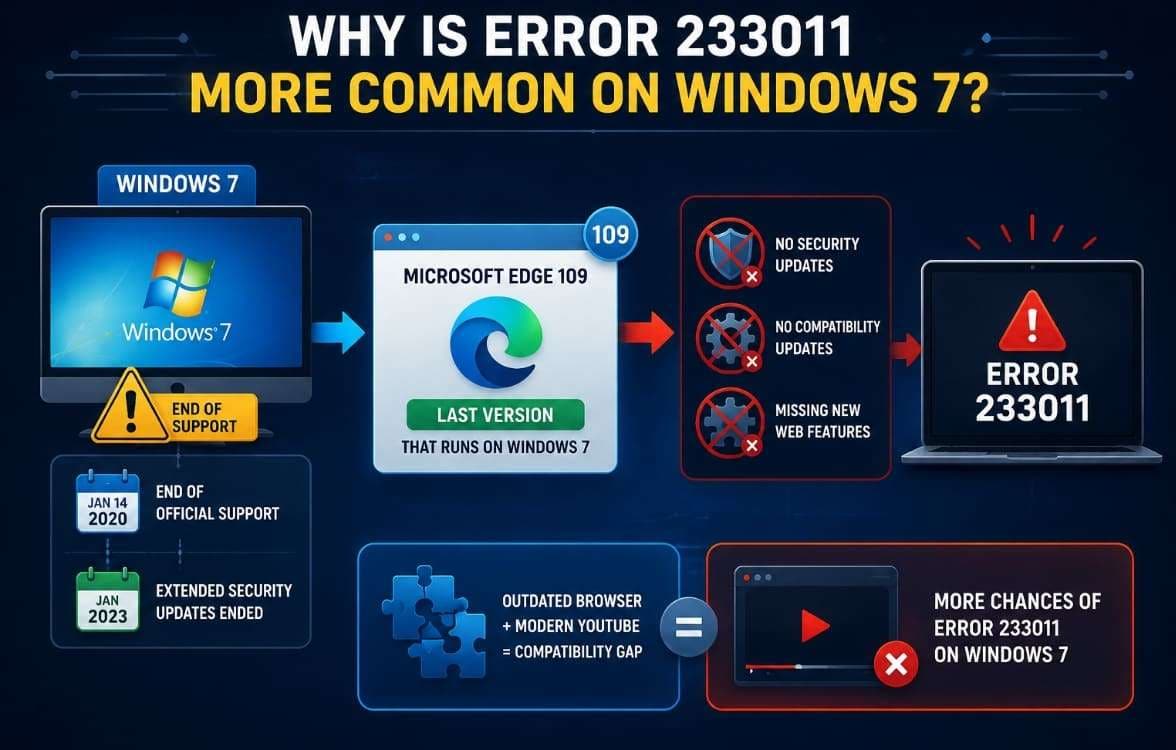
Why is Error 233011 More Common on Windows 7?
Windows 7 reached the end of Microsoft's official support on January 14, 2020, as per Microsoft Learn. Extended Security Updates for business customers lasted 3 additional years until January 2023. The same page states that Edge 109 was the final Edge to run on Windows 7.
Browsers frozen at these versions stop receiving security and compatibility updates. That mismatch is a major reason error 233011 shows up more often on Windows 7.
Common Causes of Error Code 233011
Several other factors can trigger this same error on any system. Yet, below are a few common causes behind this error:
- Corrupted Cache: Stored cache and site data can become outdated over time. That stale data may prevent the video player from establishing a successful connection.
- Ad Blockers: Some browser extensions interfere with scripts that a video player needs to load. Extensions that block third-party scripts cause this exact problem most often.
- VPN or Proxy: A VPN, proxy, or web filter can reroute your entire network traffic. That rerouted traffic can fail the checks a video server performs first.
- Hardware Acceleration: Outdated graphics drivers clash with a browser's entire video decoding. This hardware conflict often triggers playback errors like error code 233011 itself.
- Firewall/Antivirus: Security software can sometimes block the specific server a video needs most. It mistakes normal video traffic for something suspicious or unsafe here.
Part 2. Quick Checks Before Troubleshooting Error Code 233011 Windows 7
These checks help you fix error code 233011 Windows 7 for many users prior to applying deeper solutions:
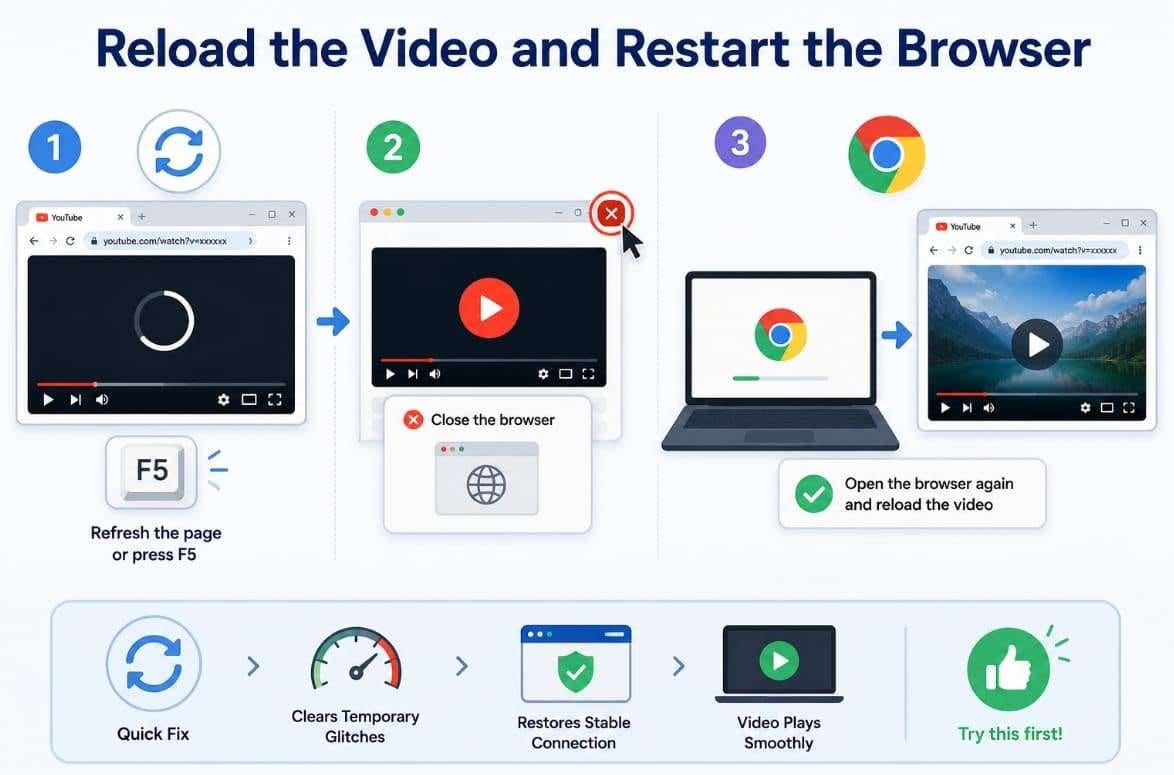
Check 1. Reload the Video and Restart the Browser
A simple reload clears a temporary glitch in the page's connection to the video player. Hence, it is advisable to refresh the video page or press the “F5” key as the first step. If it is repeated, close the browser window completely and restart the browser to load the video again.
Check 2. Restart the Router and Test the Connection
Many times, an unstable network connection may interrupt the steady stream a video player needs. It also triggers the same error as a browser problem would. Plug the router and modem back in after 30 seconds, then wait until the connection is stable.
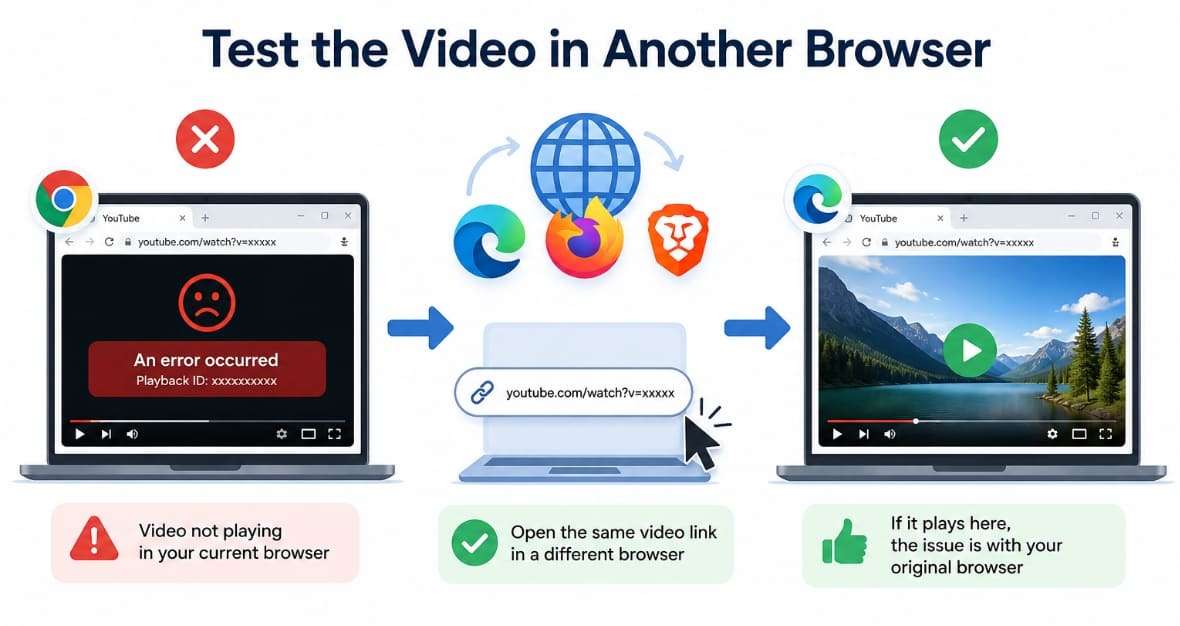
Check 3. Test the Video in Another Browser
Another browser should also be tested to see if the problem is a browser issue or a general issue. To do that, use a separate browser that you installed and open the same video link. If it plays fine there, the issue points to your original browser's settings or extensions.
Check 4. Test Another Video or Device
It is also recommended to test a different video or the same video on another device. Try a different video on the same site first, then the original video on a different device if possible. Yet, note whether the error follows the video or the device.
Part 3. How to Fix Error Code 233011 on Windows 7: 10 Solutions
If the quick checks don’t resolve it, work through these fixes in order, starting with the most common method first:
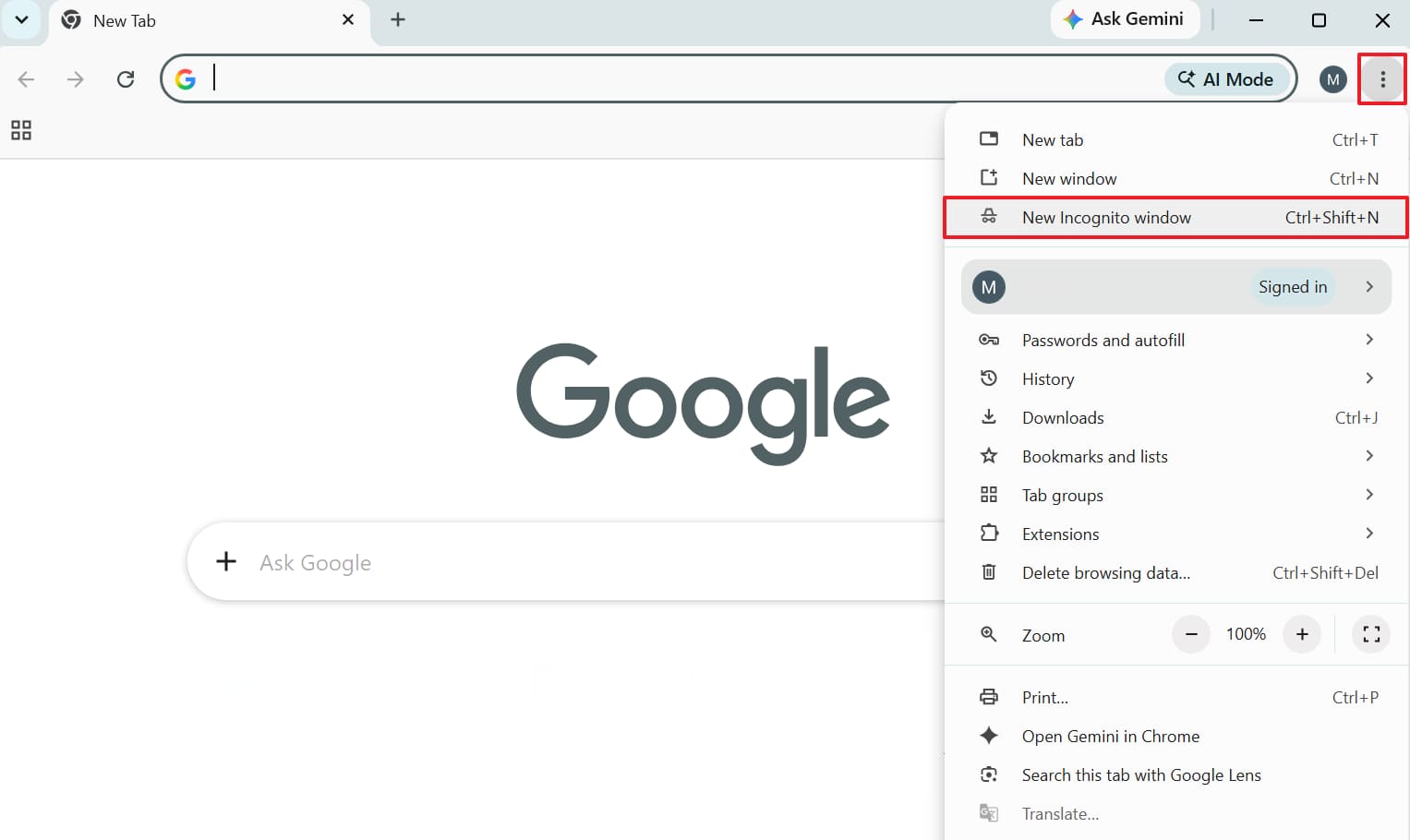
Fix 1. Try Incognito or Private Browsing Mode
A private window loads without extensions or any existing cached data. This reveals whether an extension or cached data causes the error quickly. So, follow these simple steps to resolve “This video file cannot be played (Error Code: 232011):”
Fix 2. Disable Ad Blockers and Browser Extensions
Some ad blockers and extensions interfere with the scripts JW Player and similar players rely on to load a video. Extensions that block third-party requests are the most frequent culprits, even without targeting video players. Thus, go through these steps below to disable extensions and test playback again:
-
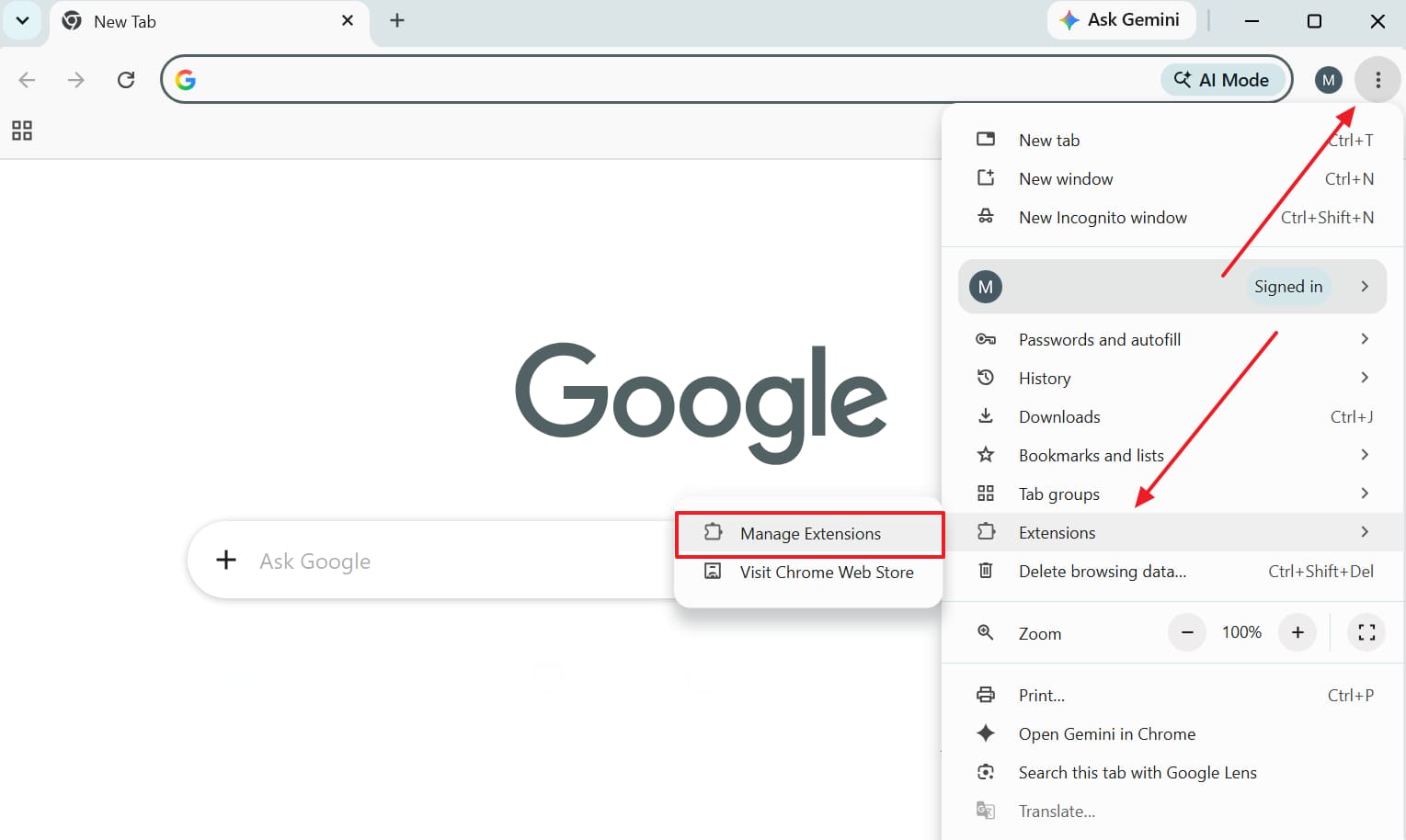
Step 1 As you press the “Three Dots” icon, head to “Extensions” and click “Manage Extensions.”
-
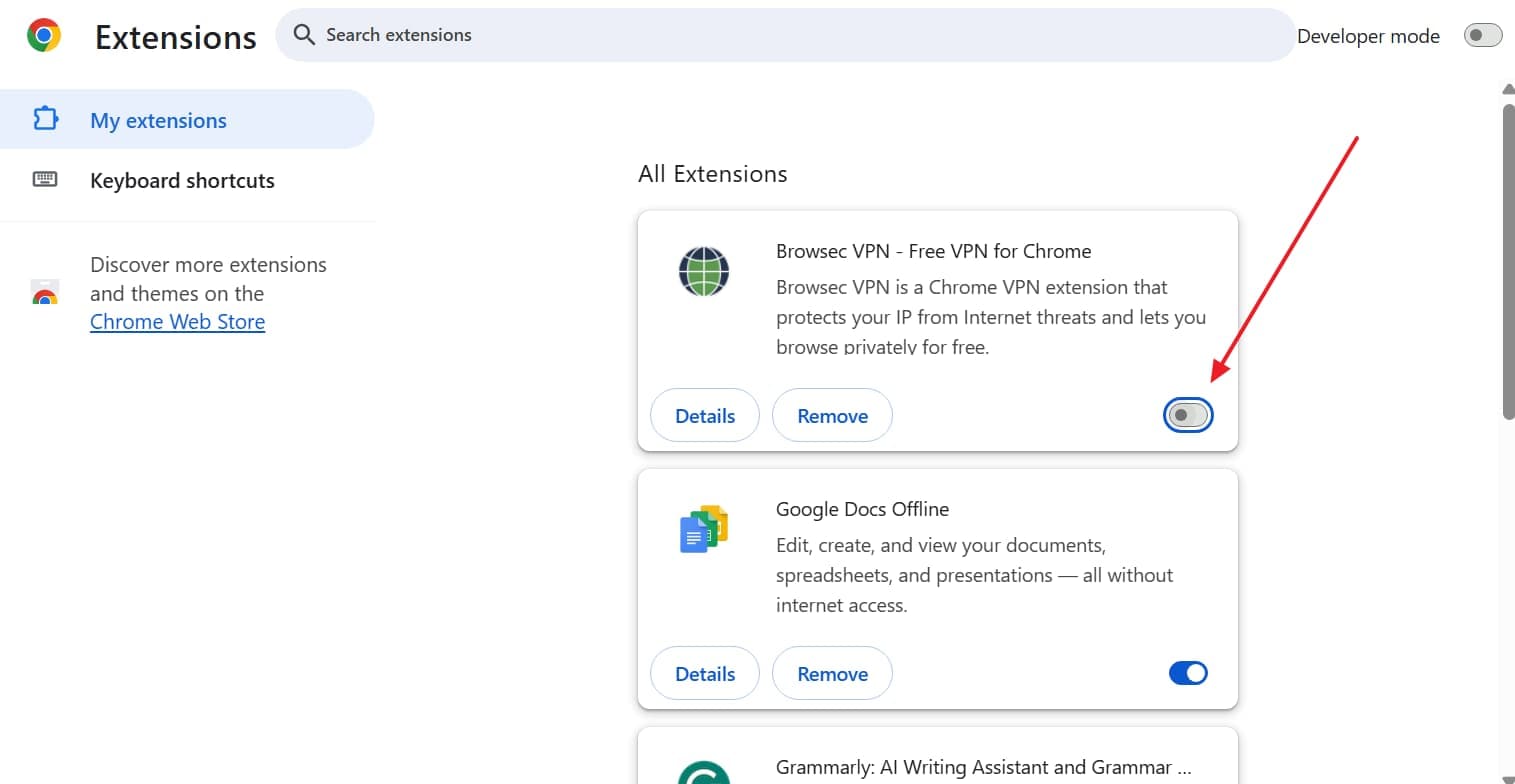
Step 2 Following that, click the “Toggle” to disable your ad blocker and any extensions you don't need. After that, reload the video page and test playback with extensions off.
Fix 3. Clear the Browser Cache, Cookies, and Site Data
Corrupted cache or cookie data tied to a video's licensing token is one of the most reported causes of this error, as per Google Support. Once stale, that data can keep failing even after other fixes are applied. Therefore, you can review the given steps to learn how to fix error code 233011 in Windows 7 in this way:
-
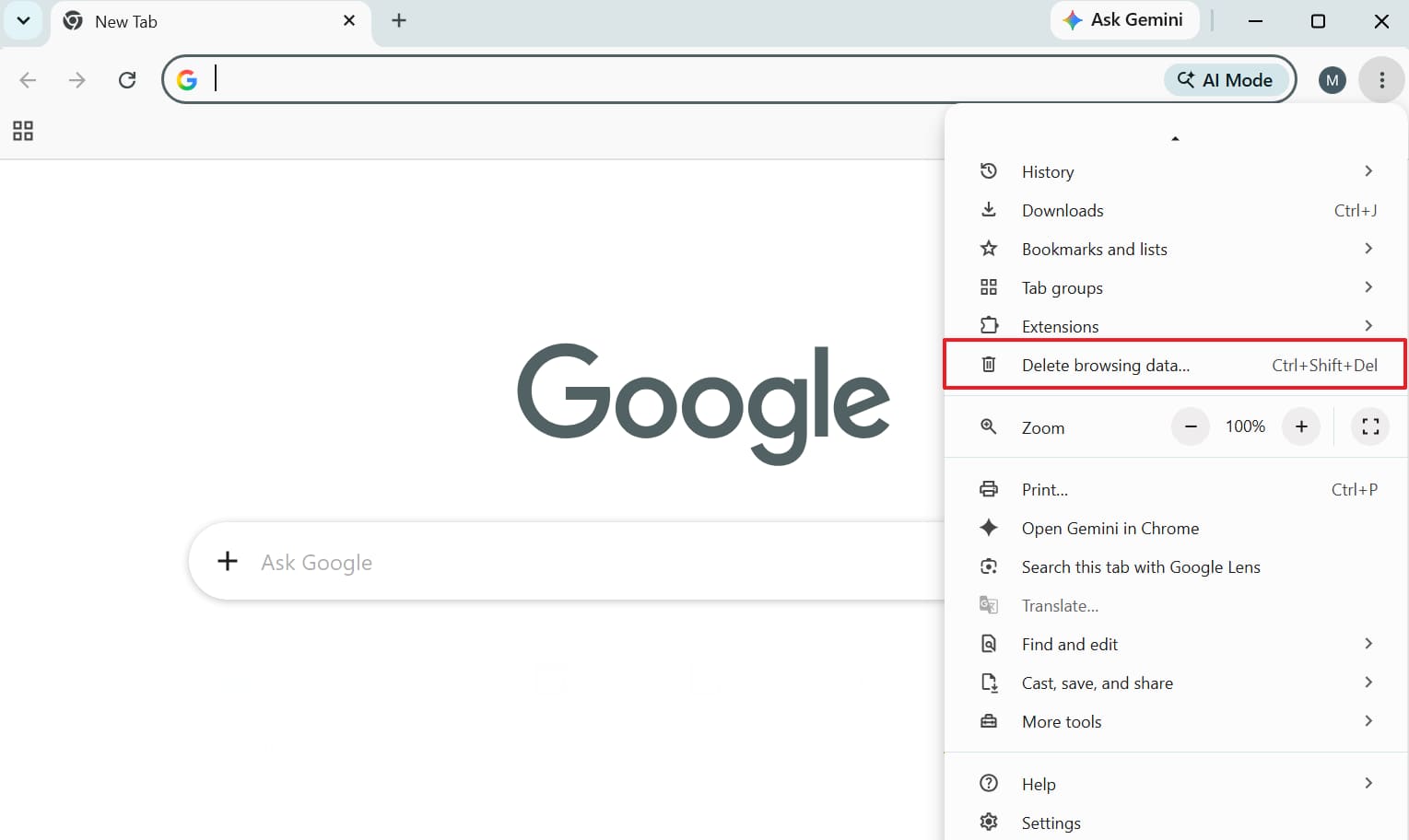
Step 1 You need to select the “Delete Browsing Data” option after clicking “Three Dots.”
-
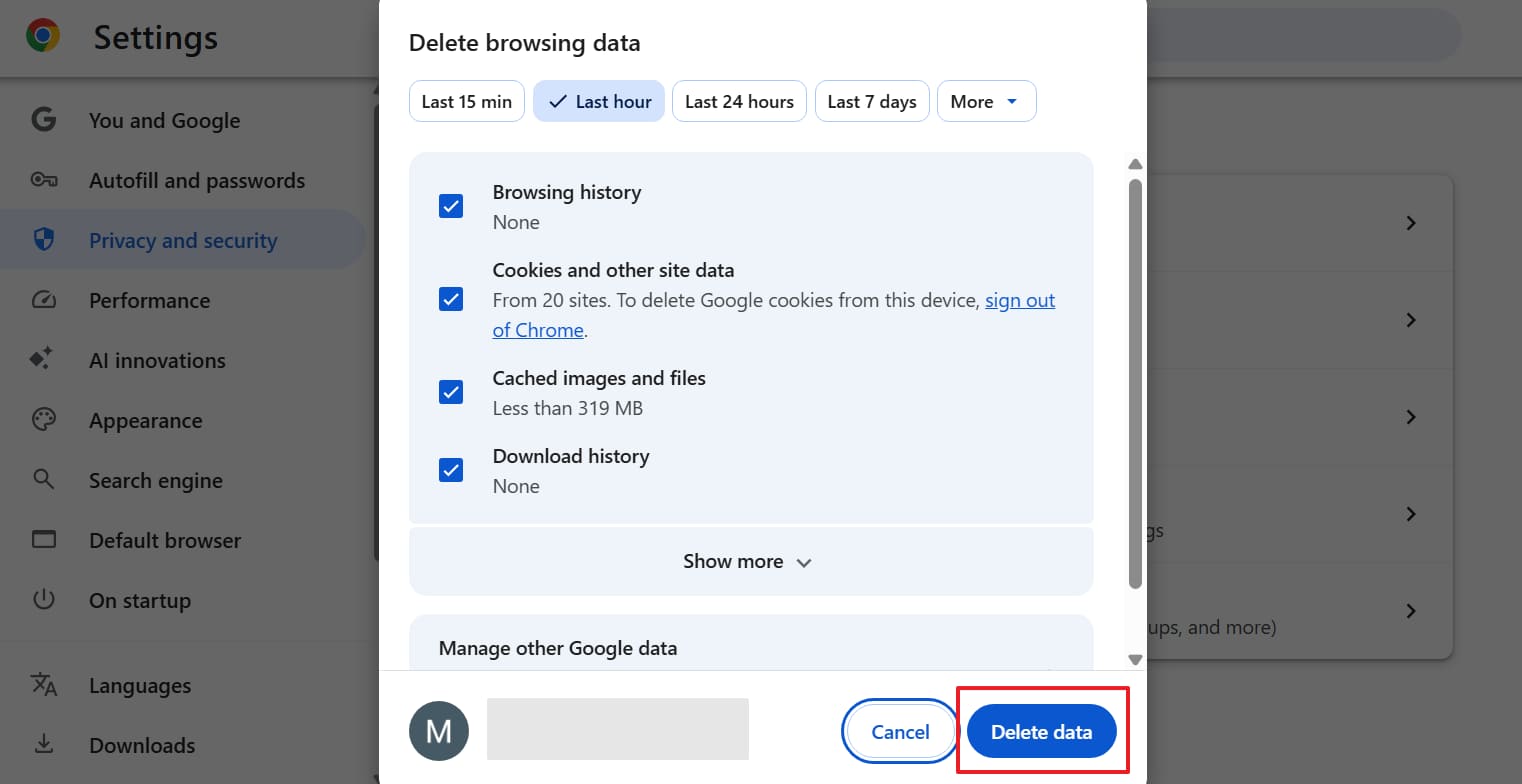
Step 2 Going ahead, select browsing data, including "Cookies and Other Site Data," and press "Delete Data."
Fix 4. Allow Cookies and Cross-Site Media Requests
Many video players rely on third-party cookies to verify a video's license. When you block them, strict privacy settings may also trigger this error. Anyway, review the following steps to fix the error code 233011 in Windows 7 using this method:
-
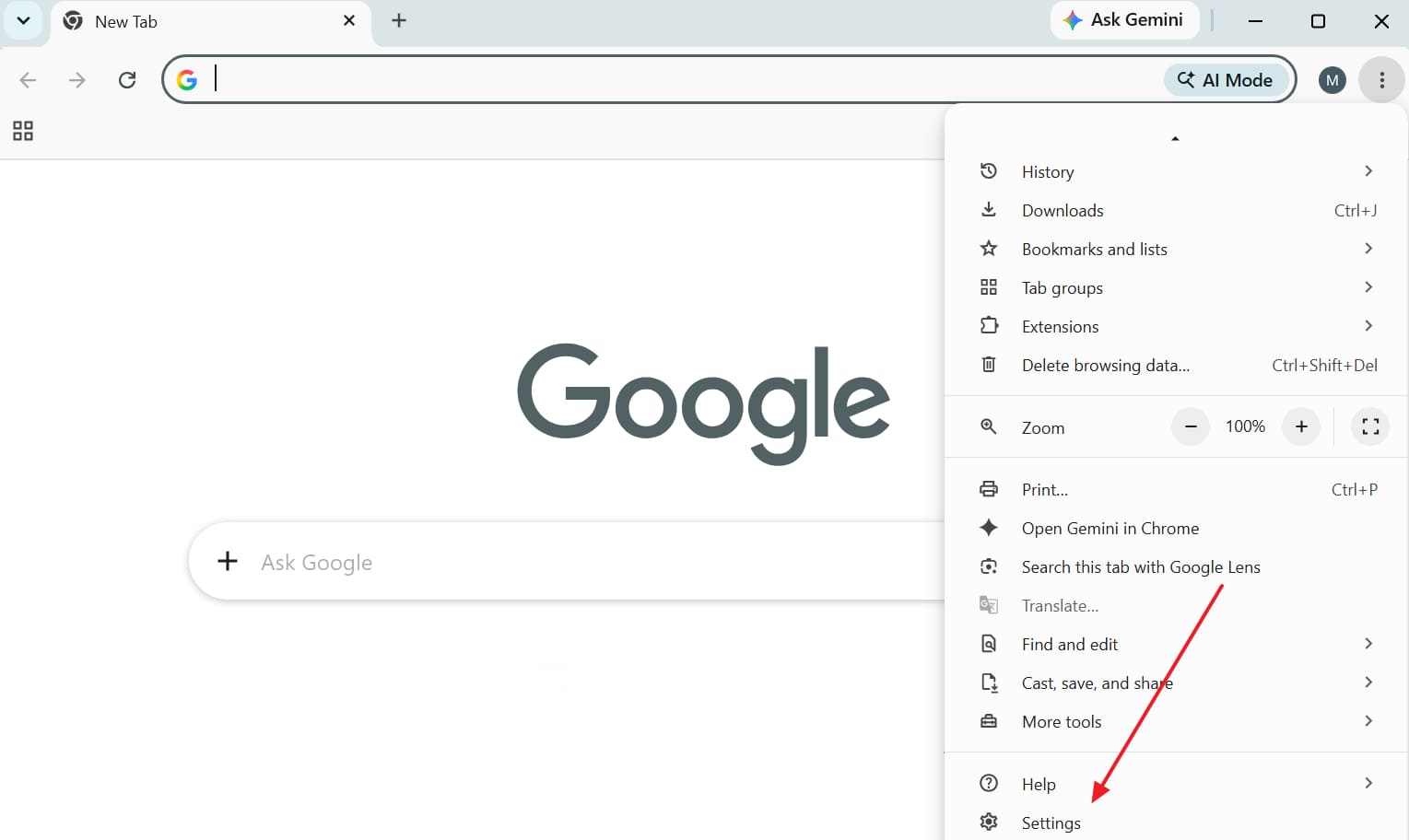
Step 1 Individuals need to open their browser's settings by clicking the "Three Dots" menu.
-
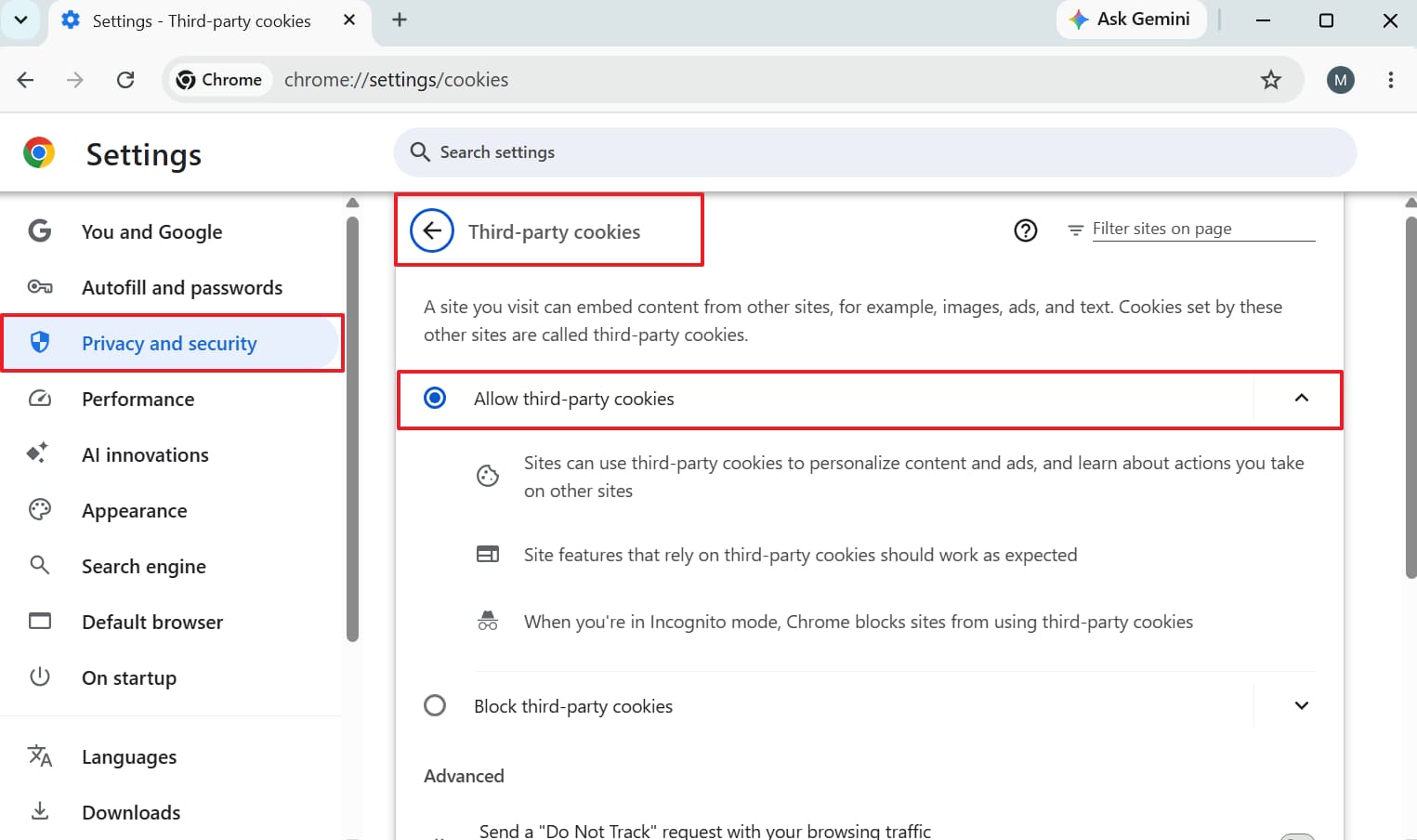
Step 2 Go ahead and access the “Privacy and Security” tab and click on “Third-party Cookies.” Check the “Allow Third-party Cookies” option and reload the page to test the video.
Fix 5. Disable the VPN, Proxy, or Web Filter
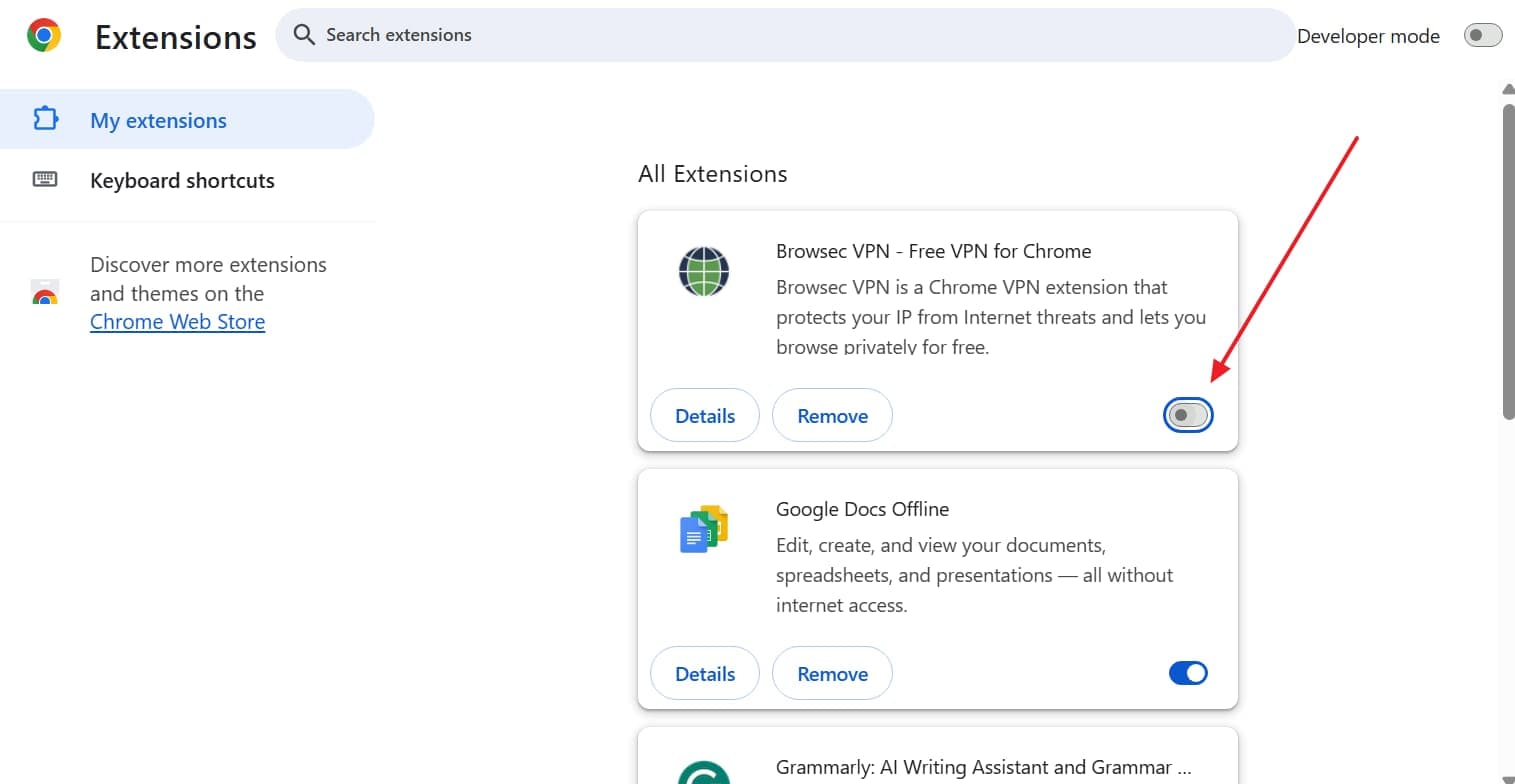
A VPN or proxy can fail the location or network checks a video server performs, even when your connection works fine. The server sees the VPN's IP address instead of your own real one. In such cases, follow the given instructions to disable your VPN and test playback again:

Fix 6. Turn Off Hardware Acceleration
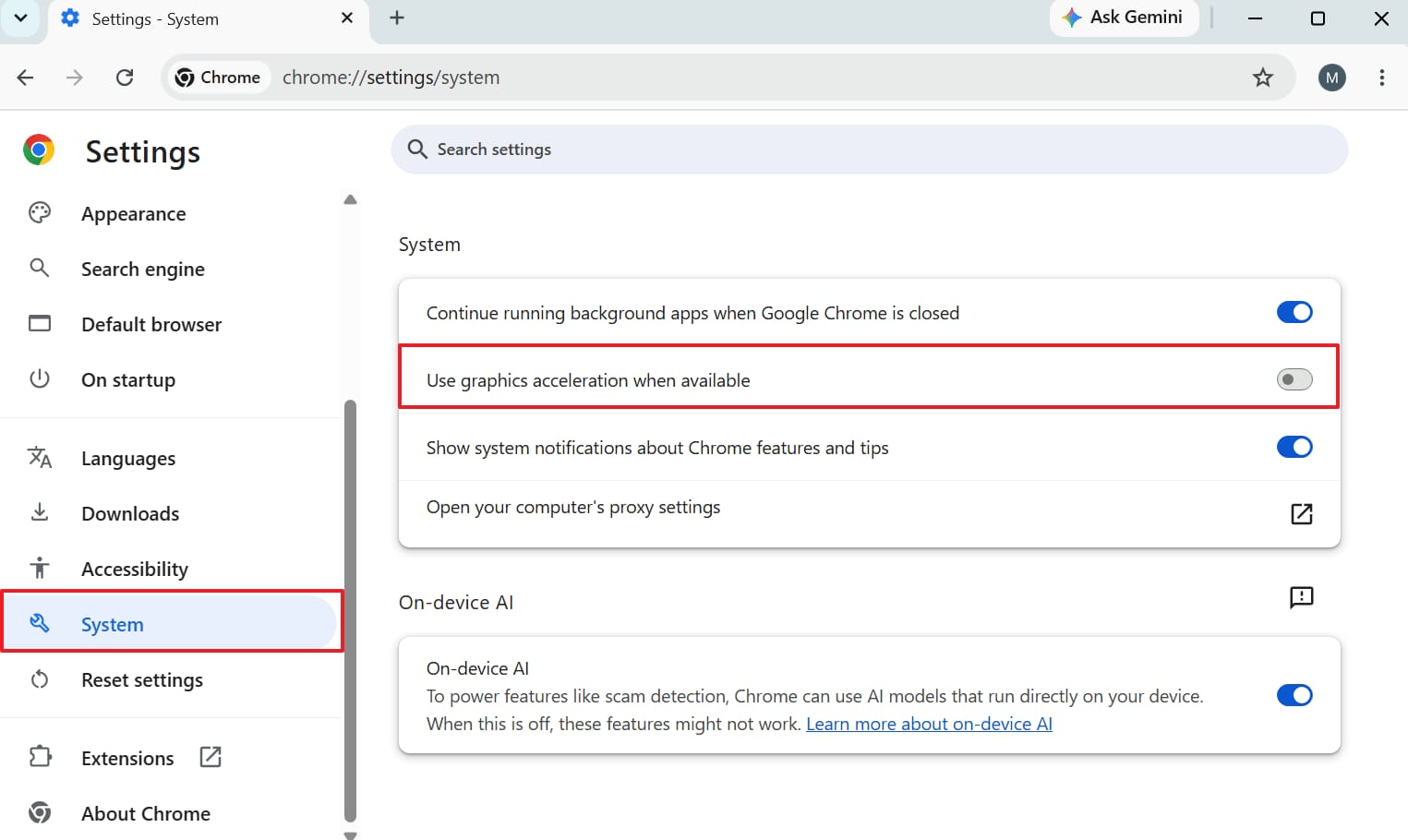
This particular feature speeds up video decoding using your graphics card's processing power. Yet, an outdated driver can turn that speed boost into failure. This happens often on Windows 7, where newer drivers stop being released. So, take guidance from the steps to resolve “This video file cannot be played (Error Code: 232011):”
Fix 7. Check the Firewall and Antivirus Settings
Security software also blocks the specific servers a video needs to stream from, mistaking normal traffic for something suspicious. Strict firewall rules or an antivirus web shield are a common source of this false positive. Users can now follow the given steps to check these specific settings on their system:
-
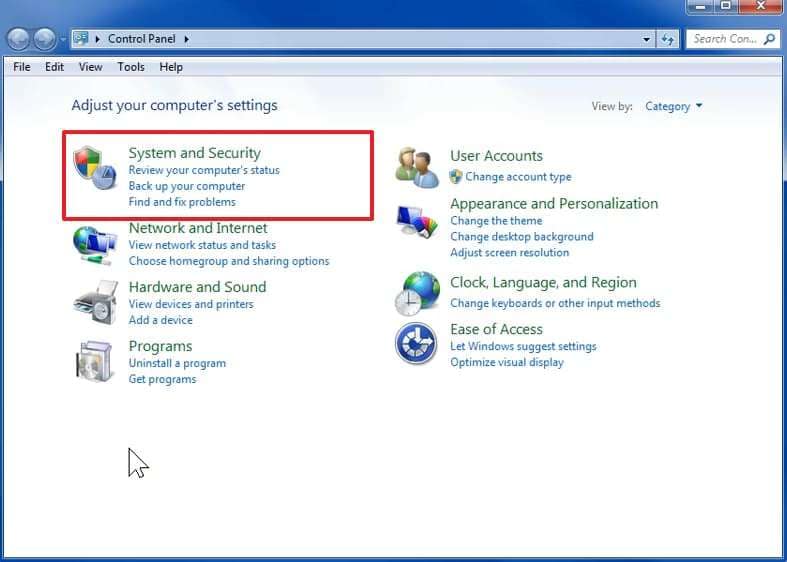
Step 1 Upon running “Control Panel” in Windows 7, head to “System and Security.”
-
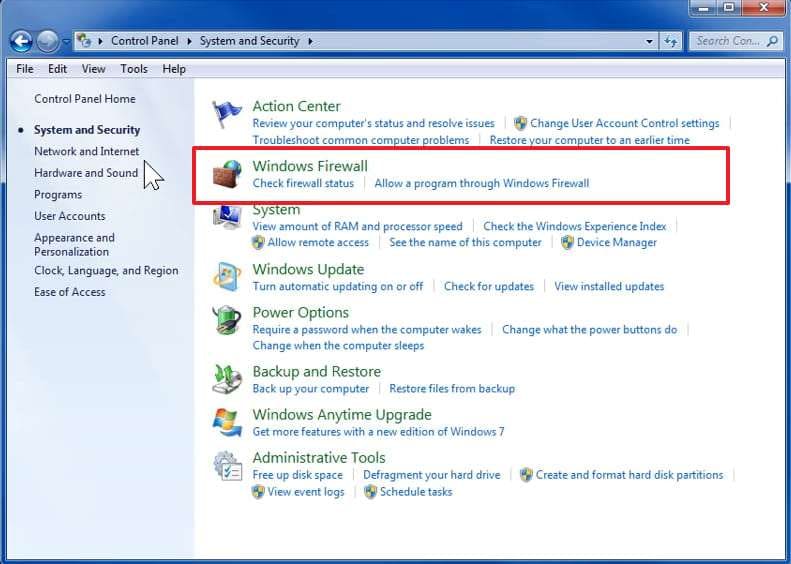
Step 2 Moving forward, go to the “Windows Firewall” section to customize its settings.
-
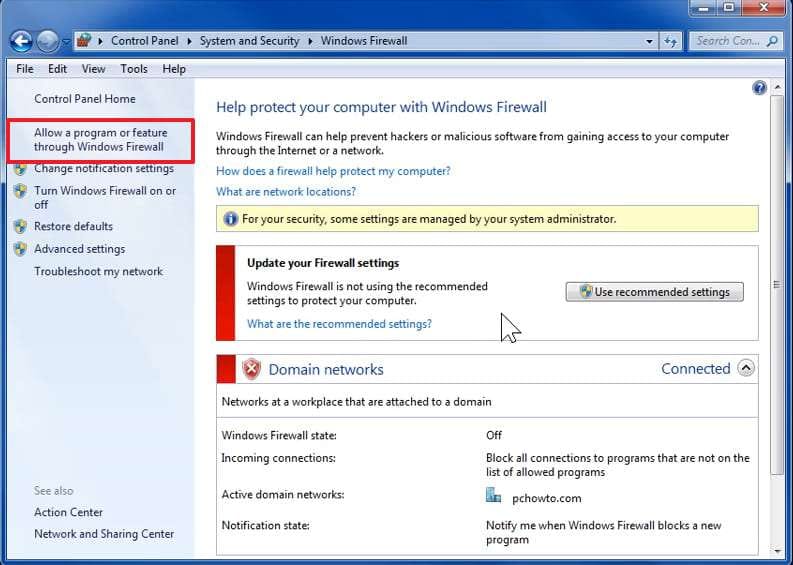
Step 3 Now, you need to click “Allow a Program or Feature Through Windows Firewall” and add your browser as an allowed app.
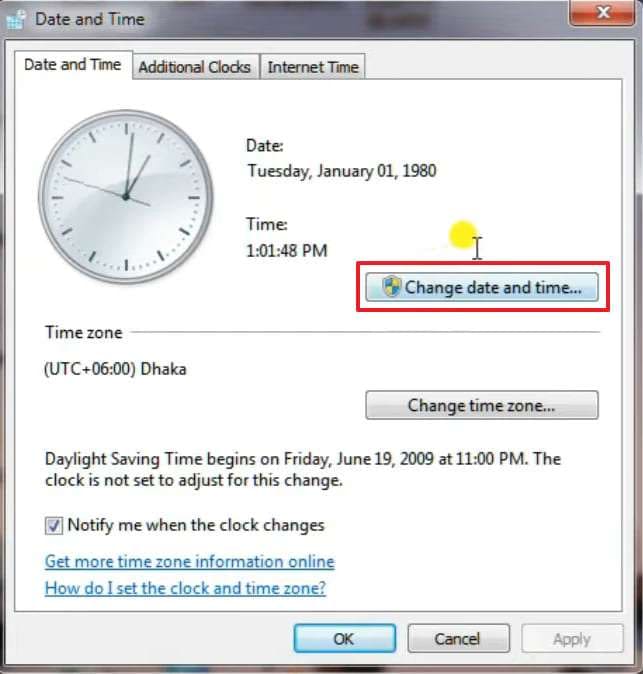
Fix 8. Correct the Windows Date, Time, and Security Settings
Secure video connections rely on certificate checks that fail if your system clock is wrong, even by a small amount. A drained CMOS battery is a common cause on older Windows 7 machines, resetting the clock after restarts.
-
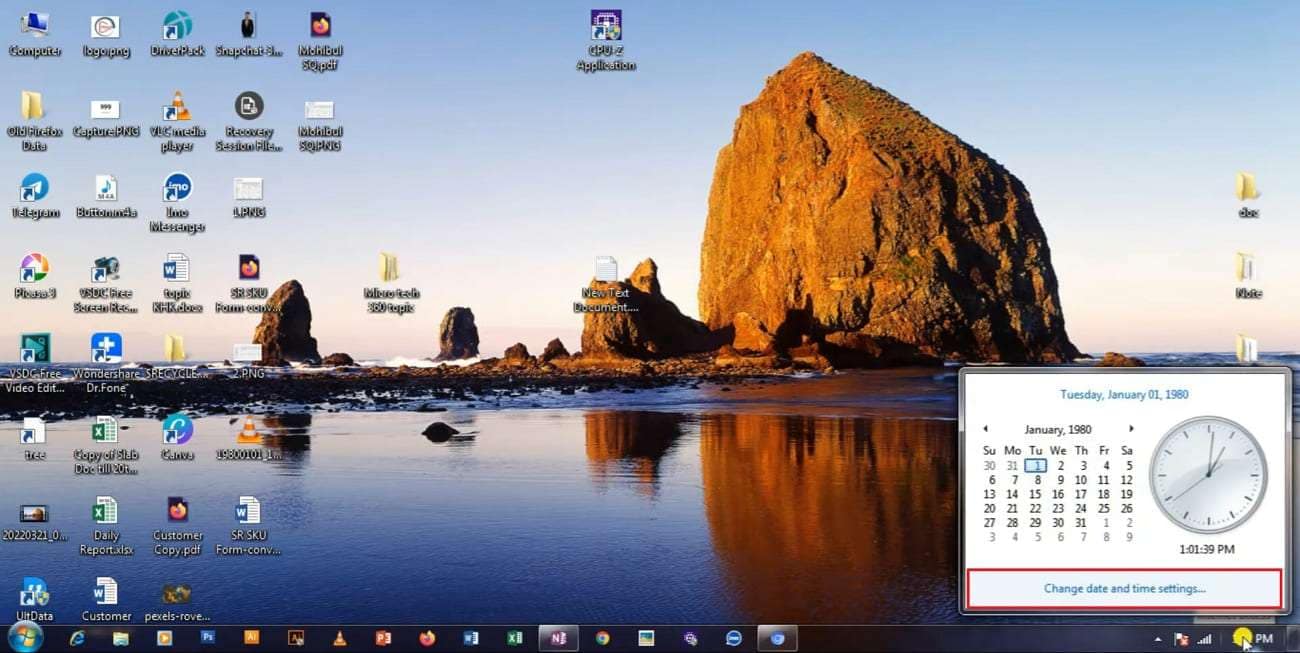
Step 1 When you click the “Clock” section, select the “Change Date and Time Settings…” option.
-
Step 2 Going ahead, press the “Change Date and Time” button and correct them manually.
Fix 9. Update, Reset, or Reinstall the Browser
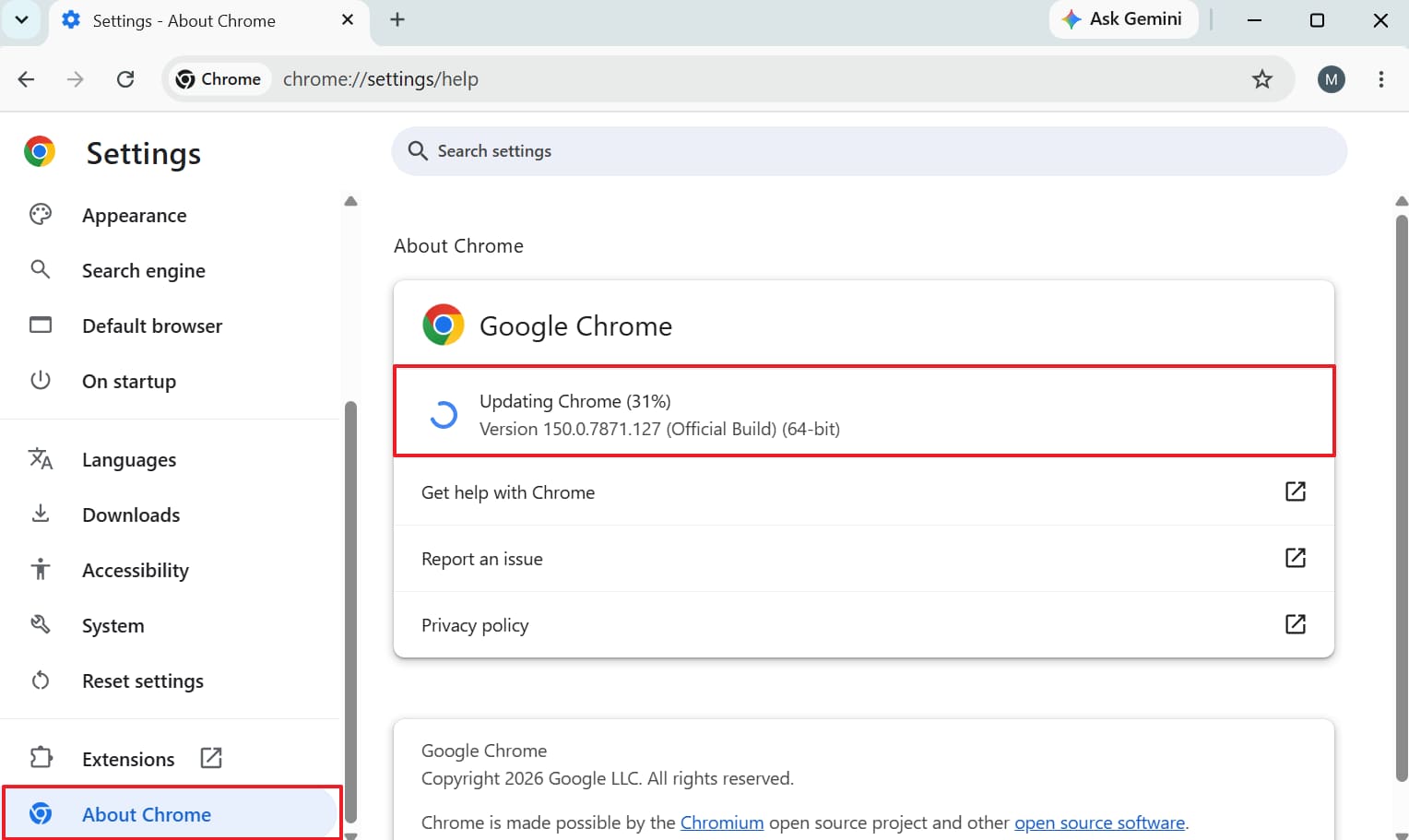
An outdated or corrupted browser installation often causes this exact playback error. This happens especially on Windows 7, where automatic updates may have stopped. A browser stuck on its final version can still run, but it loses compatibility with newer video standards. Hence, follow this guide to resolve error code 233011 on Windows 7 through updating:
Fix 10. Contact the Website or Use a Supported Operating System
If nothing else resolves the error, the problem may lie elsewhere. It could involve the website itself or Windows 7's compatibility limits directly. At this point, further guessing won't help fix the underlying issue anymore. Instead, gather details for support or start planning an OS upgrade.
Part 4. Fix All Your iPhone/Android Issues with Dr.Fone - System Repair
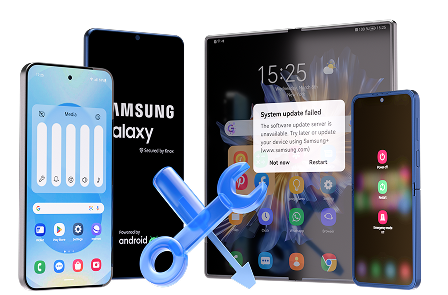
Error 233011 is a browser problem, but similar video playback failures on a phone often point to a deeper device issue instead. A phone stuck on a black screen or frozen during startup usually needs a system fix, not a browser workaround. To cater to these issues, tools like Dr.Fone - System Repair (Android) | Dr.Fone - System Repair (iOS) help resolve iOS/Android system problems.
The program can fix any issue, including boot loops, unresponsive screens, and software crashes. These are exactly the kinds of problems that stop apps like video players from working. It runs through a computer connection and targets the system itself, rather than one specific app or setting.
 Fix Android instantly – no skills needed.
- Solve boot loop, black screen, won’t turn on, etc.
- High success rate for all system issues.
- User-friendly interface with easy-to-follow steps.
Guide to Use Dr.Fone - System Repair to Repair Your Android Device
The following quick guide helps you find out how to use Dr.Fone to repair your Android phone:
-
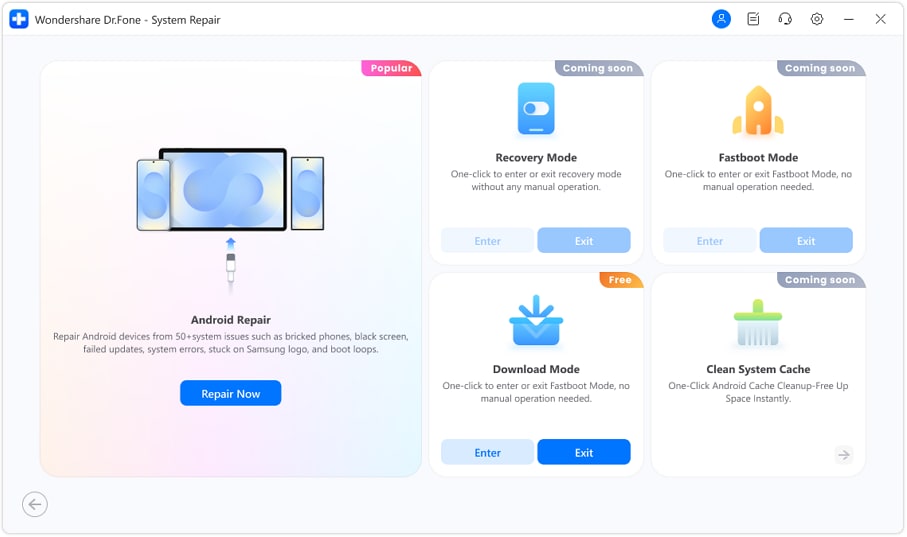
Step 1 Run the Tool’s Android Repair Feature
From the “Toolbox” tab, go to “System Repair” and choose “Android” as the device type. Prior to connecting the Android phone to the computer, click “Repair Now” under “Android Repair.”
-
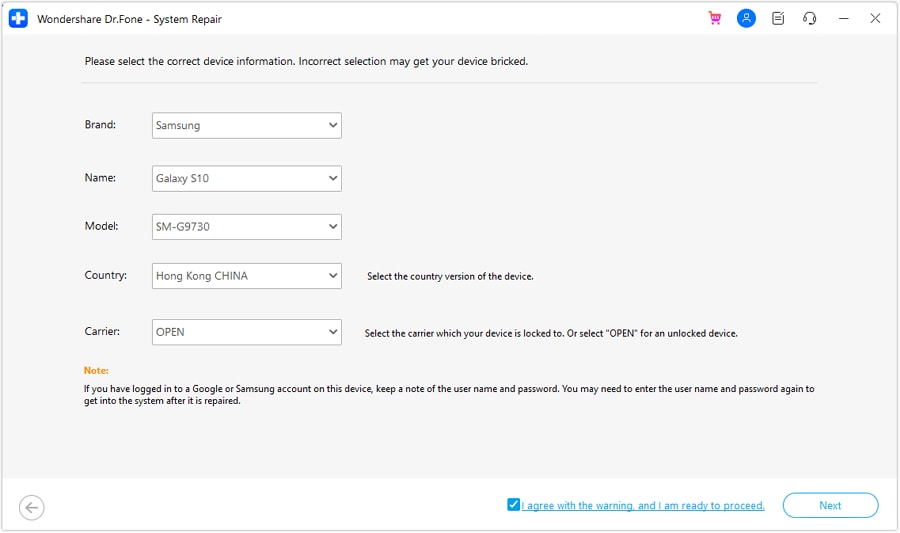
Step 2 Confirm Device Details and Download Firmware
Select the phone's brand, such as Samsung, then click “Start.” Enter the device information and press “Next.” Follow the visual prompts to enter Download Mode, allowing Dr.Fone to download the firmware package.
-
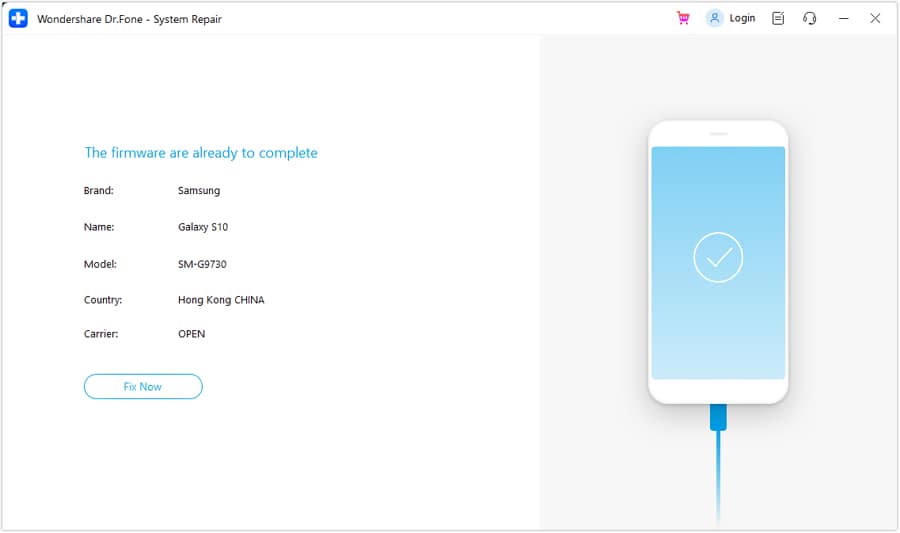
Step 3 Initiate the Android Repair inside Dr.Fone
When the firmware is ready, you need to click “Fix Now” to begin. Input “000000” when prompted to confirm the repair operation, then select “Continue.” The software will resolve the Android issue automatically.




Part 5. Also Try: Dr.Fone - Screen Unlock (iOS/Android)
- Unlock Android phone in seconds.
- Remove PIN, pattern, password, fingerprint.
- Bypass Google FRP lock easily.
- Works on all Android brands & models.
- No tech skills required – user-friendly.

Sometimes, video playback issues aren't the only problem you face on your device. If you've forgotten your iPhone or Android screen password, pattern, or PIN, you won't even be able to access the browser to troubleshoot error code 233011. Dr.Fone - Screen Unlock (Android)|Dr.Fone - Screen Unlock (iOS) helps you regain access to your locked device quickly and safely.
This tool supports removing 4-digit/6-digit passcodes, Touch ID, Face ID, and patterns on iOS devices, even when "Erase Data" is enabled or the device is disabled. For Android, it removes screen locks without requiring the Google account credentials after unlocking.
Part 6. Practical Tips to Prevent Error Code 233011
A few mentioned habits reduce how often this error shows up in the first place, on Windows 7 or any other system:
| Tip | Why It Helps |
|---|---|
| Clear Browser Cache and Cookies Regularly | Removes outdated site data that may interrupt secure video playback. |
| Update Your Browser Whenever Possible | Improves compatibility with modern streaming technologies and website security requirements. |
| Use a Stable Internet Connection | Reduces playback interruptions caused by unstable or inconsistent network performance. |
| Disable Unnecessary VPNs or Proxies | Prevents location and network verification failures during video playback requests. |
| Consider Upgrading from Windows 7 | Newer operating systems receive browser updates supporting modern video playback standards. |
Conclusion
Error code 233011 in Windows 7 comes down to a browser or system setting. Windows 7 users see it more often since browsers stopped receiving updates. This started happening after browser support ended back in early 2023.
Working through the checks and fixes in order usually resolves this error. If a similar playback issue shows up on a phone, consider deeper solutions. Dr.Fone – System Repair can help address underlying system problems in such cases.
FAQ
-
1. Is Internet Explorer suitable for modern video streaming?
No, it lacks support for modern video and security standards that current streaming sites expect. You should switch to a still-updated browser, or the newest version of Windows that it supports. -
2. Should I allow third-party cookies to play the video?
Generally, yes, for the specific site you're trying to watch, since many video players use third-party cookies to verify licensing. Allowing them across every site is a separate privacy tradeoff worth considering. -
3. When should I upgrade to a supported operating system?
Upgrade as soon as practical, since Windows 7 stopped receiving security updates. This happened back in January 2023, ending official Microsoft support. Waiting only increases both security risk and site compatibility issues. -
4. Does a VPN cause error code 233011?
It can, since a VPN can fail the location or network checks a video server performs before allowing playback. When you disable it, this is a quick way to test whether it's the specific cause.
 Add Wondershare Dr.Fone as a preferred source on Google