 Bypass iCloud Activation Lock and Android FRP without password.

 100% Security Verified | No Subscription Required | No Malware

 :
: 
 ChatGPT
 Perplexity
 Gemini
 Claude
 Grok
Grok
Your Samsung phone can disappear in seconds, but the trail it leaves behind may not. Even data on the last known location, account activity, nearby connections, and offline finding can help you find it. That is why how to find my lost Samsung phone is not just about seeing a dot on a map. It is about using the location evidence still available, protecting the device before someone else gets access, and knowing what to try when live tracking stops.
This guide shows how to track your lost Samsung phone using the most practical recovery options available today. It also explains what to do when the usual location clues are limited or unavailable.
In this article
Part 1. How to Find a Lost Samsung Phone: 4 Free Options
If you want to find your lost Samsung phone, use the tools that are connected to it first. Some can show its location, while others can make it ring, lock it, or assist with when it was last seen.
1. Find Your Samsung Phone With Find My Mobile
Samsung's Find My Mobile service can assist you in locating your missing or stolen Galaxy device. The phone can be seen on a map, and it also provides you with remote controls for device protection.
For this feature to work, your phone should already be signed in to a Samsung account. Location and Find My Mobile must also be enabled.
Set Up Find My Mobile
Step 1: Go to your Samsung phone settings.
Step 2: Now, go to the security section. It could also be labeled as Biometrics and security, Lock screen and security, or Security, depending on the phone.
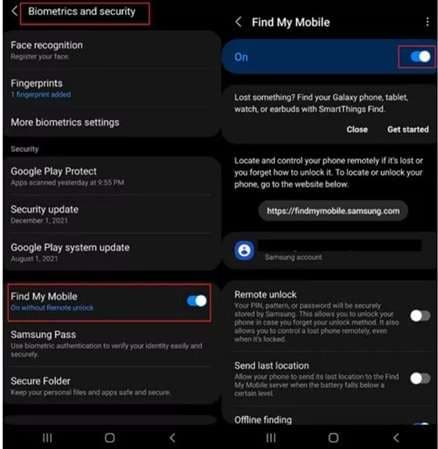
Step 3: Open Find My Mobile and switch it on.
It’s convenient to activate features like Remote unlock, Send last location, and especially Offline finding.
Offline location searching can help you find your phone when not on Wi-Fi or mobile data. A nearby compatible Galaxy phone, watch, or bud can detect the missing device via Bluetooth and relay its location.
Store your backup codes in a safe place, 2FA user! It can be hard to sign in from another device if your lost phone is the only device that receives verification codes.
Track the Lost Samsung Phone
Here’s how to track a lost Samsung mobile if it disappears. Just follow the steps below.
Step 1: Open the Find My Mobile website in a browser. SmartThings Find is also available to use the service.
Step 2: Log in with the Samsung account that you were using on the stolen device.
Step 3: Pick out the device that is lost from the list.
Step 4: Once your phone is located, its location will show on the map. You can also use the location tracking option to receive updated positions.
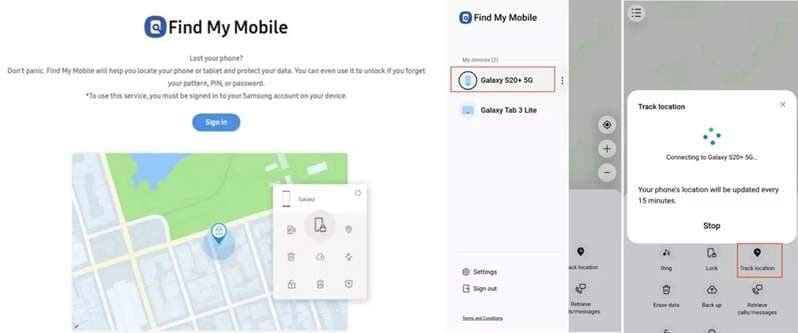
The service gives you a few extra controls as well. You can:
- Ring the phone if you think it is nearby.
- Extend battery life by reducing background activity.
- Lock the device and set a new PIN.
- Erase the phone if protecting the stored data becomes more important than recovering it.
2. Find Your Samsung Phone With Find My Device
Since Samsung Phones are Android and have Google services, Google’s Find My Device is another free option.
It can help you locate your lost Samsung phone, make it ring, lock it, or erase its data.
Step 1: Open a browser and go to the Google Find My Device website.
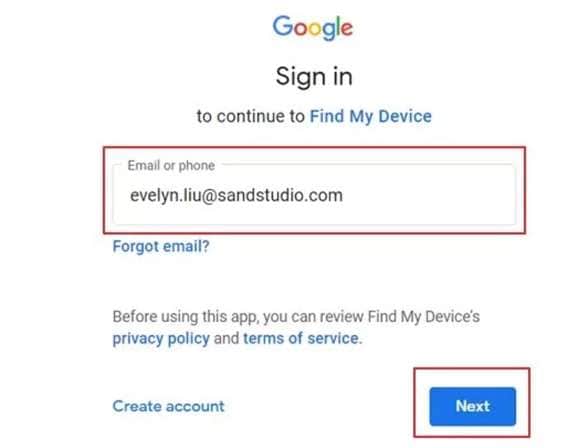
Step 2: Sign in with the Google account connected to your Samsung phone.
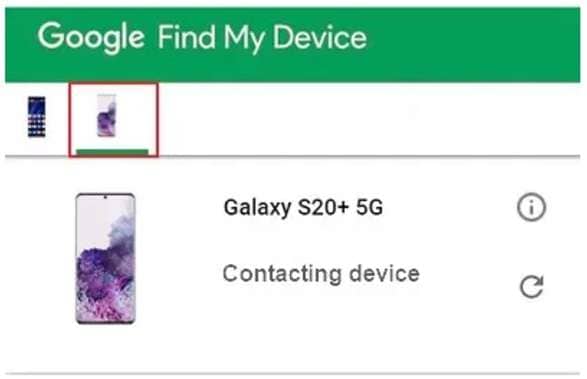
Step 3: The missing Samsung phone can now be selected if multiple devices are connected to the account.
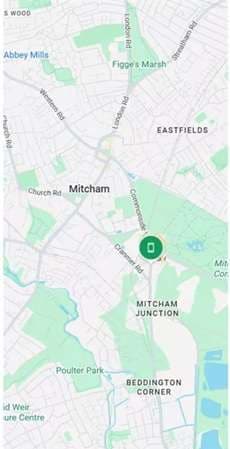
Step 4: Allow Google some time to find it. A map will appear if it is available.
The next step is to choose three main actions.
- Play Sound to make the phone ring.
- Secure Device to lock it and show a message.
- Erase Device if you need to remove its data remotely.
This option is useful when you are asking how do I find my lost Samsung phone but cannot access Samsung's own tracking service.
3. Use a Samsung Galaxy Watch to Find the Phone
If you’ve lost your phone nearby, you can check your Galaxy Watch. This is one of the quickest ways to know how to find a Samsung phone.
This method is simpler than using a browser and works well when you believe the mobile phone is somewhere around your home, office, or another nearby location.
Step 1: First, you can swipe up on the Galaxy Watch from below to view the app drawer.
Step 2: Tap the SmartThings Find icon.
Step 3: Select Start to enable the ring function.
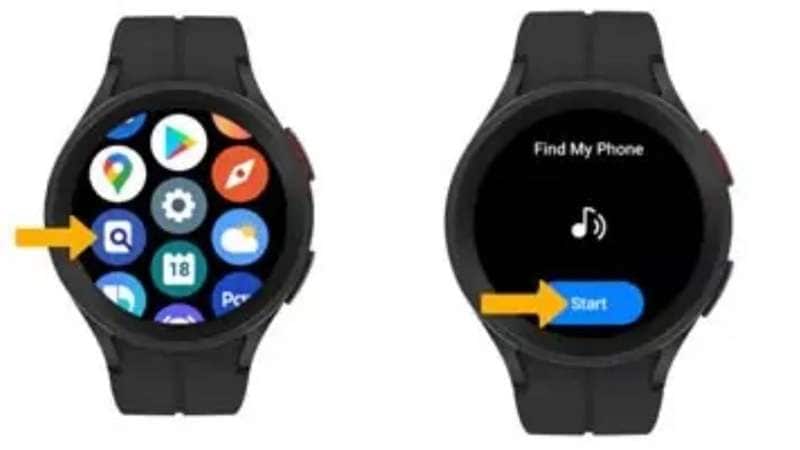
Your Samsung phone will start ringing so you can follow it.
4. Check Google Maps Timeline
Google Maps Timeline is helpful when the phone battery is dead and you want to look at the last recorded location of the device.
It doesn't give you the same control as the tracking tools above. Instead, it can assist you in retracing your steps.
Step 1: Open Google Maps on some other device.
Step 2: Use the same Google account on your lost Samsung and log in.
Step 3: Open the menu and select Your Timeline.
Step 4: Look up the phone’s location history for the day it went missing.
Look through the places and routes shown there. This may help you identify the last place where the phone reported its location.
Part 2. Tips for Preventing Phone Loss in the Future
Knowing find your lost Samsung phone can be useful, but with some care, you can reduce the risk of losing it in the first place.
1. Always Carry Your Mobile with You in Public.
Never leave your Samsung unattended for any amount of time. For instance, at a cafe, if you take your phone with you when you place an order or leave the table, it won’t be easily lost.
2. When not in use, put the device away.
A visible phone can attract unwanted attention from thieves. After use, keep it in a secure location rather than on the table or seat. This is most helpful in cafes and on public transport.
3. Three passwords that are hard to guess.
A strong password is an essential layer of protection in case the phone still goes missing. Steer clear of simple combinations like 1234, birthdays, and other guessable information.
Bonus part: Recovered Your Samsung but Locked Out? Try Dr.Fone - Screen Unlock (Android)
Getting the phone back is only half the recovery if the screen lock is no longer working in your favor. A forgotten PIN, pattern, or password can leave your own Samsung inaccessible even after you have found it. Dr.Fone - Screen Unlock (Android) offers an easy way to remove supported Android screen locks and access the device in this situation.
The tool is meant for all those people who want something easier than manual unlocking. It supports Samsung along with other Android brands and handles several common lock types. For selected older Samsung models, Wondershare also provides a no-data-loss unlock route. Other devices may need the standard removal process, which can erase stored data.
 Unlock Android phone in seconds.
- Remove PIN, pattern, password, fingerprint.
- Bypass Google FRP lock easily.
- Works on all Android brands & models.
- No tech skills required – user-friendly.

What Dr.Fone - Screen Unlock (Android) Offers
- Broad lock support: It can handle PINs, passwords, patterns, fingerprints, and face locks on supported Android devices.
- Large device range: Wondershare supports over 32 brands and more than 2,000 Android phones and tablets with its large device range.
- Samsung-specific recovery options: Certain older Samsung models can unlock devices without losing personal data using a Samsung-specific recovery.
- Easy guided workflow: The program walks users through device selection, confirmation, and the required recovery or download mode.

How to Unlock an Android Phone with Dr.Fone
-
Step 1 Open the Android Screen Removal Tool
Launch Dr.Fone and go to Screen Unlock > Android. Select Unlock Android Screen to begin removing the lock from your device.

-
Step 2 Choose the Phone Brand and Enter the Required Mode
Select the brand of the locked Android phone. Dr.Fone will then show the correct steps for placing that device in the required mode.
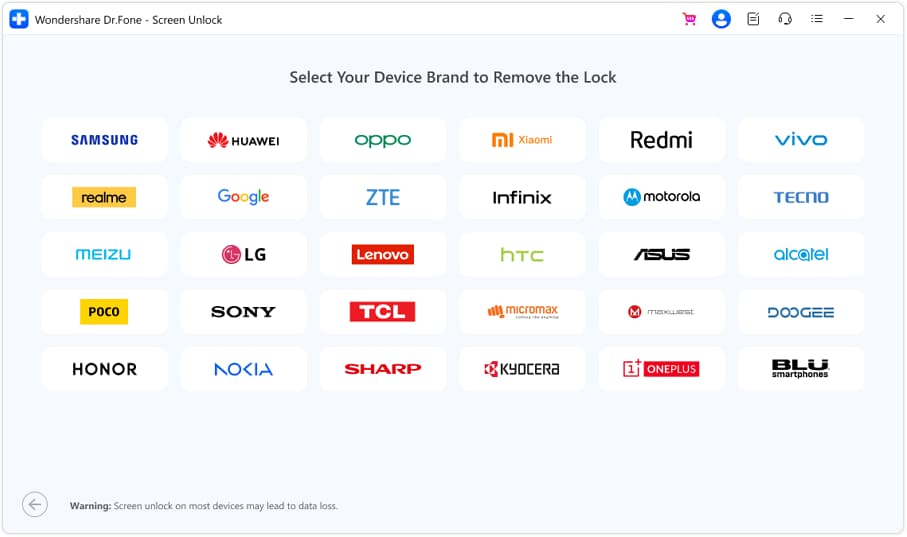
For Samsung phones that don’t allow unlocking without data loss, choose Samsung first and then select 100% Remove Screen Lock.
Do what you see on the screen. The button combination varies by phone manufacturer. When the device goes into the correct mode, Dr.Fone will start removing the lock. The technique could result in the removal of all information on the cellphone.
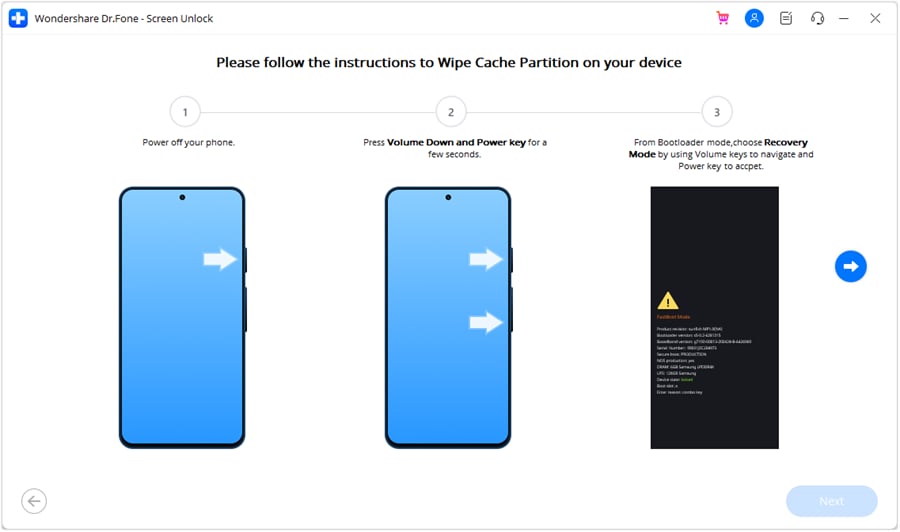
-
Step 3 Complete the Unlock Process
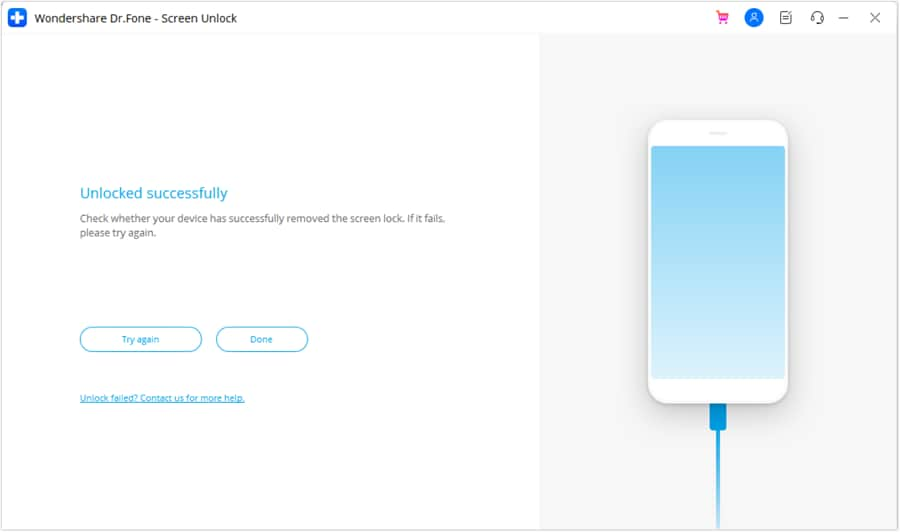
Keep the phone connected while Dr.Fone removes the screen lock. When the process finishes successfully, click Done.
If the attempt does not work, select Try Again and repeat the instructions carefully.




Conclusion
How to find my lost Samsung phone is something that matters most, provided the proper measures were activated before it got lost. If you lose one of your devices, Samsung and Google have set up different ways to retrieve the device and ring it, secure it, as well as erase it. The latest location may also come in handy in this event if live tracking does not work out for you. The best response is to act quickly, protect your accounts, and treat remote erasure as a last step.
If the Galaxy returns but a forgotten screen lock blocks access, Dr.Fone - Screen Unlock (Android) offers a guided screen-lock removal process for supported devices, with data retention limited to specific eligible Samsung models.
 Add Wondershare Dr.Fone as a preferred source on Google



