Bypass iCloud Activation Lock and Android FRP without password.

 100% Security Verified | No Subscription Required | No Malware

 :
: 
 ChatGPT
 Perplexity
 Gemini
 Claude
 Grok
Grok
Discord error 3002 shows up as a red banner reading, “It looks like Discord is not detecting any input from your mic.” According to Discord's own support documentation, this specific code means the app detects your microphone but isn't receiving any actual sound from it.
This guide walks through quick checks, 10 proven fixes, and what to do if error 3002 won't go away. It also covers how Dr.Fone - System Repair can help when the problem is linked to deeper system issues on Android or iPhone.
In this article
Part 1. What is Discord Error 3002?
Before you jump into fixes, it is important to know exactly what this error code means, why Discord shows it, and how it differs from similar codes. Discord error 3002 is officially labeled “Silent Audio Input” in Discord's own troubleshooting documentation, distinct from other audio and video error codes. It implies that Discord can see that a microphone is connected to your device but cannot pick up any sound.
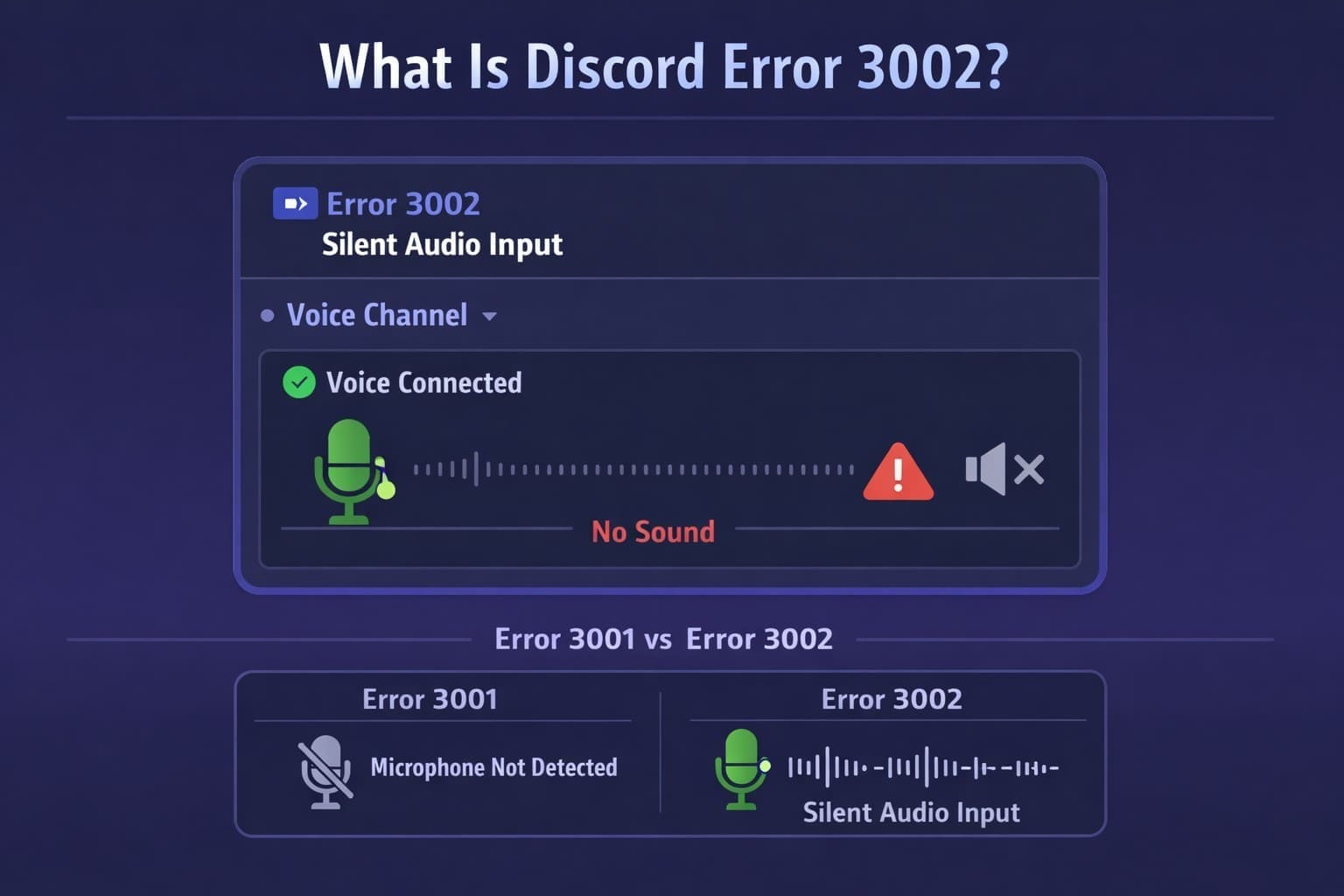
This is different from where Discord fails to find a microphone at all, which triggers error 3001 instead, says Discord Support. The red banner shows “It looks like Discord is not detecting any input from your mic. Let's fix that! (Error: 3002)” It can appear in the desktop app on Windows, Mac, and Linux, and in the browser version. All of these rely on the same underlying audio input process.
1-1. What Triggers Discord Error 3002?
Several system-level and software issues can trigger error 3002, often without any change on your end. It's important to understand why each one happens via the 5 mentioned points, which makes it easier to pick the right fix:
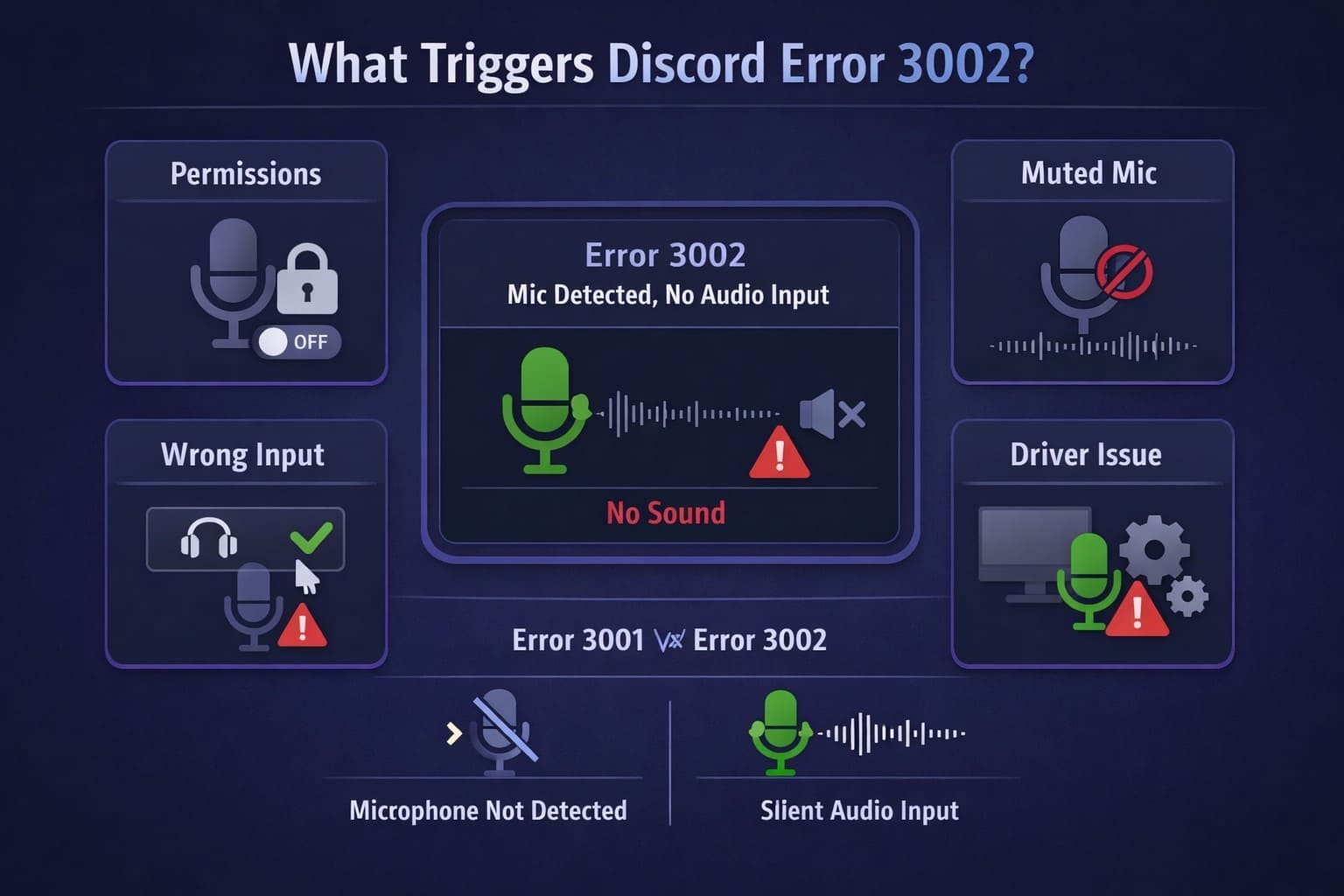
- Mic Permissions Off: Discord needs microphone access granted in Windows or macOS privacy settings to capture your voice. Permission settings may change after system updates or manual privacy changes.
- Low Volume or Muted Mic: When the microphone input volume is extremely low, or the device is muted, Discord detects the microphone but receives little or no usable audio. This can trigger error 3002.
- Wrong Input Device: When multiple headsets, webcams, or external microphones are connected, Discord may use the wrong input device. This often happens after reconnecting hardware or switching USB ports.
- Audio Driver Problems: Outdated, corrupted, or conflicting audio drivers can interrupt communication between your microphone and Discord. This may occur after Windows updates, driver updates, or other system changes.
- Noise Suppression Issues: Background noise filters, including Discord's built-in voice processing features or third-party tools like Krisp, can interfere with microphone input if configured incorrectly. Overly aggressive suppression settings may remove speech along with background noise.
Part 2. Quick Checks Before You Troubleshoot Discord Error 3002
The following quick checks resolve error 3002 for many users before any deeper troubleshooting is needed. They address the most common and easiest to fix causes first, so follow the 3 mentioned ones:
-
Check 1 Restart Discord and Your Device
A full restart clears temporary glitches and stuck background processes that can silently interrupt the connection between Discord and your microphone.
-
Check 2 Test the Microphone in Another App
If you test outside Discord, it tells you whether the Discord error 3002 is specific to Discord's settings or lies with the microphone or your system. Open your device's built-in voice recorder, or join a call in a different app. Speak normally and check whether that app picks up your voice correctly.
If the mic works elsewhere, the issue is likely tied to Discord's settings, which Part 3 covers in order. If it doesn't work anywhere, the problem lies with the microphone or your system.
-
Check 3 Reconnect the Microphone
A loose or partly seated connection doesn't always throw an obvious error 3002. Remove the microphone or headset from the computer or phone. Wait for a few seconds and plug it back in, preferably into a different USB port or audio jack. Open Discord and see if the microphone is showing and responding properly.
Part 3. How to Fix Discord Error 3002: 10 Solutions
When the Discord error 3002 remains, work through these fixes in order. The first few fixes address simple settings, while the later ones cover drivers, cache, and deeper system repairs.
-
Fix 1 Increase the Input Volume and Unmute the Microphone
This solution makes sure the mic isn't muted and lets Discord pick up your voice clearly. It's quick to check, needs no downloads, and is guided ahead:
Adjust Windows Input Volume Settings
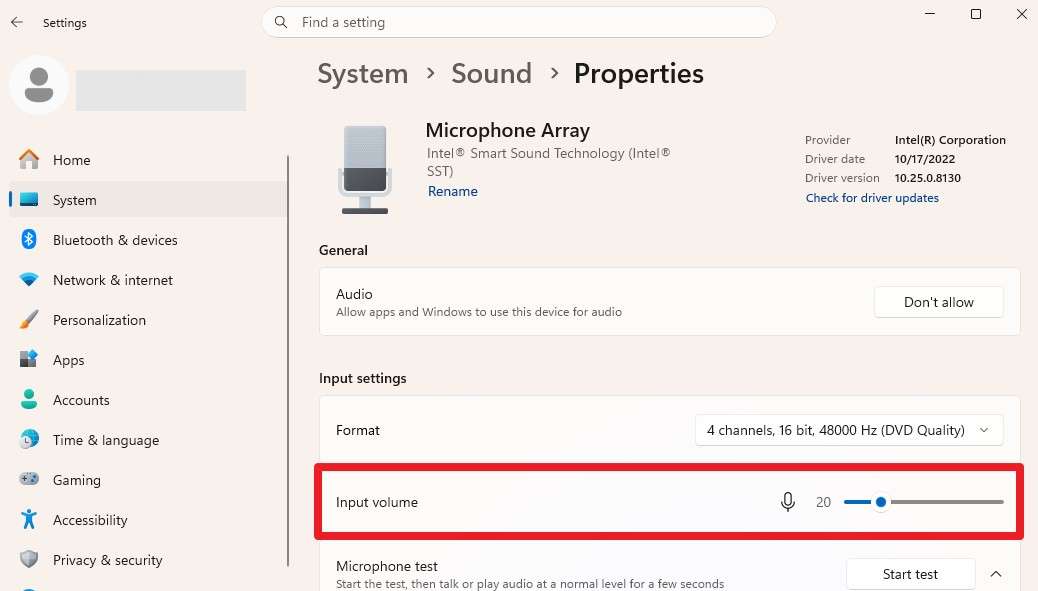
Step 1. Access the “System” settings, go to “Sound > Input," and select “Microphone Array.”
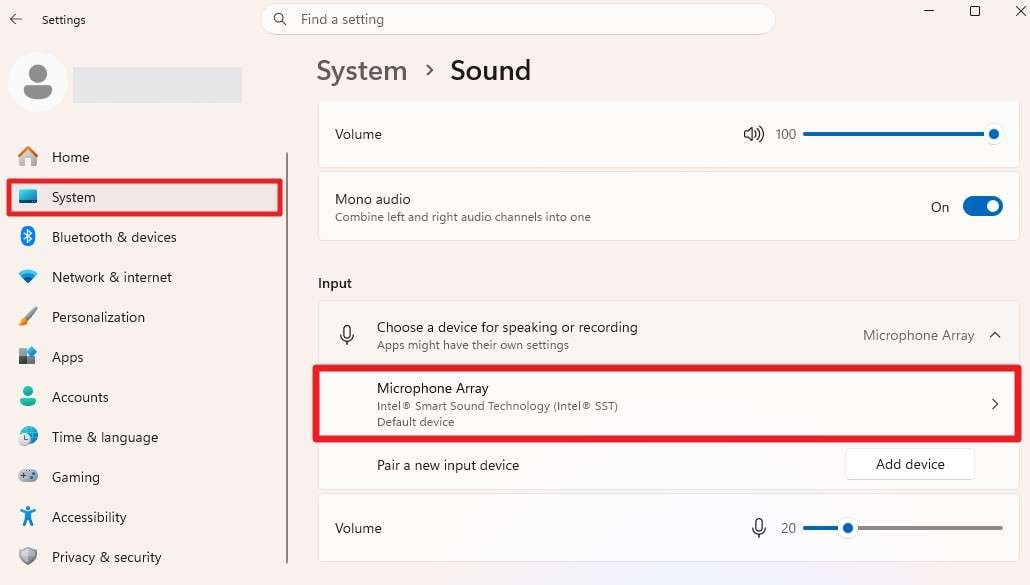
Step 2. Make sure the “Input Volume” is between 80 and 100, then test Discord again.
Adjust Mac Input Volume Settings
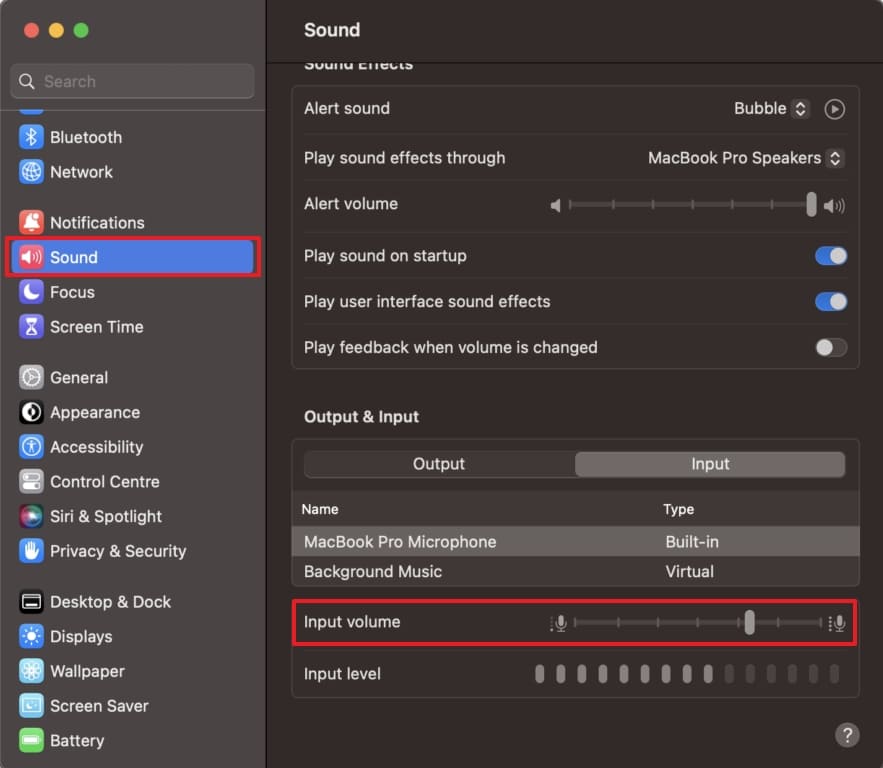
Instructions. Go to “Apple menu > System Settings > Sound > Input,” then choose your microphone and adjust the input volume, not the output volume.
Adjust Discord Voice Settings
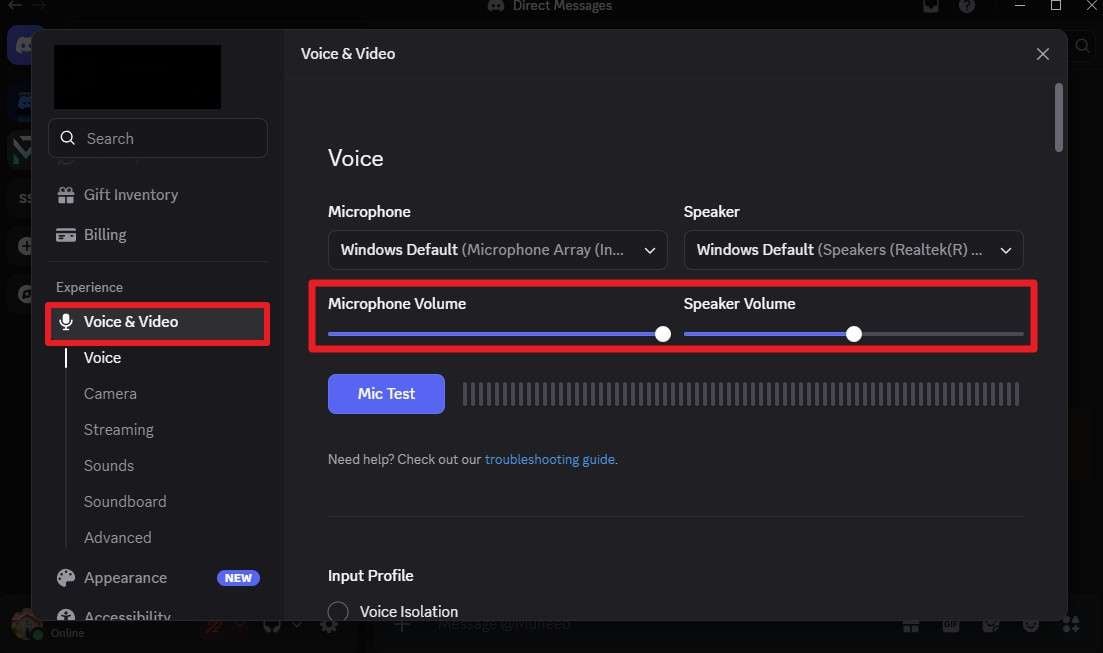
Instructions. Go to the Discord Settings and the “Voice & Video” tab to adjust the “Microphone Volume.”
 Note: Headsets with a physical mute switch are an easy detail to overlook, so check that switch even if all software settings look correct.
 -
Fix 2 Select the Correct Input Device in Discord
Another common fix for error 3002 is manually selecting the correct input device in Discord. Once done using this guide, this ensures Discord always listens to the mic you're actually speaking into:
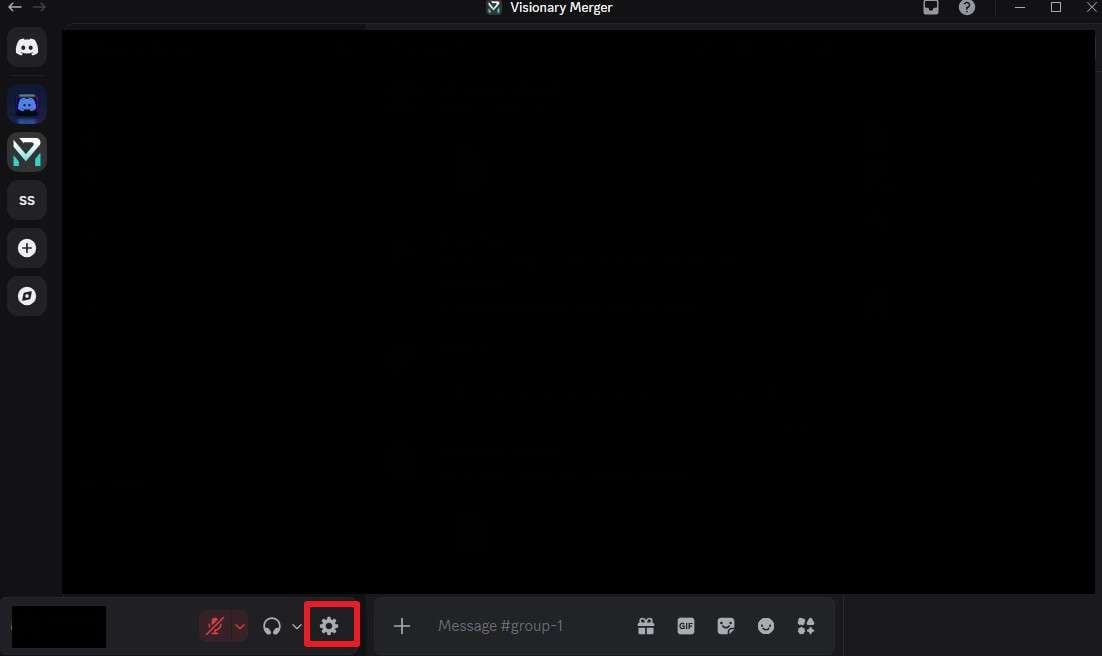
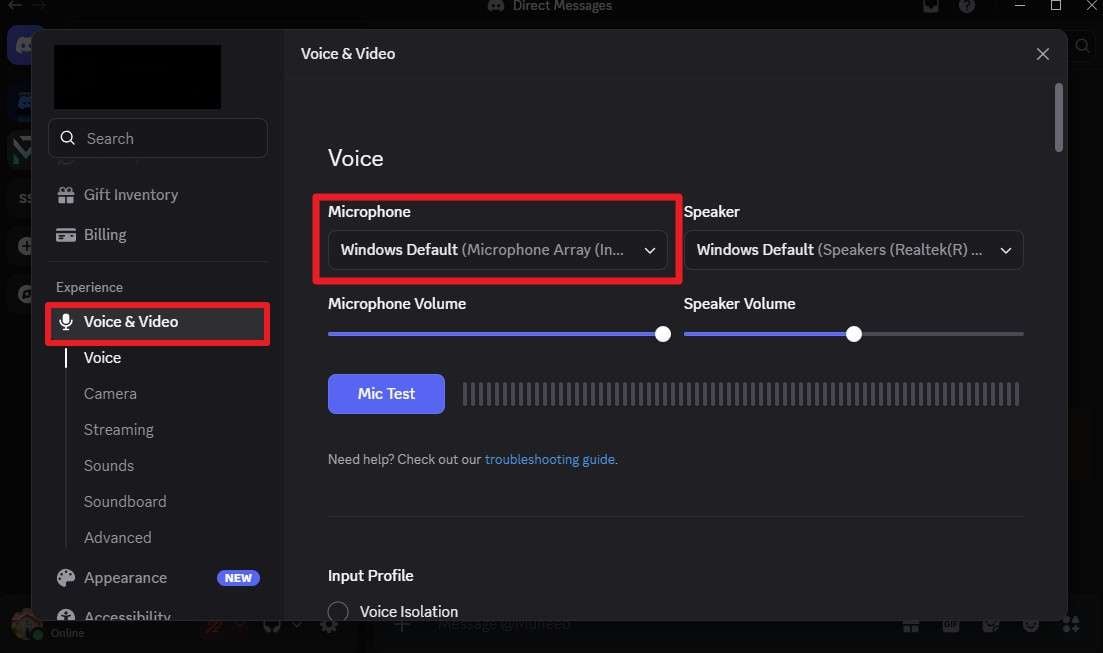
Step 1. Open Discord and tap the “Settings” icon to choose “Voice & Video.”
Step 2. Select your actual microphone from the “Microphone” dropdown menu, replacing whatever was selected before.
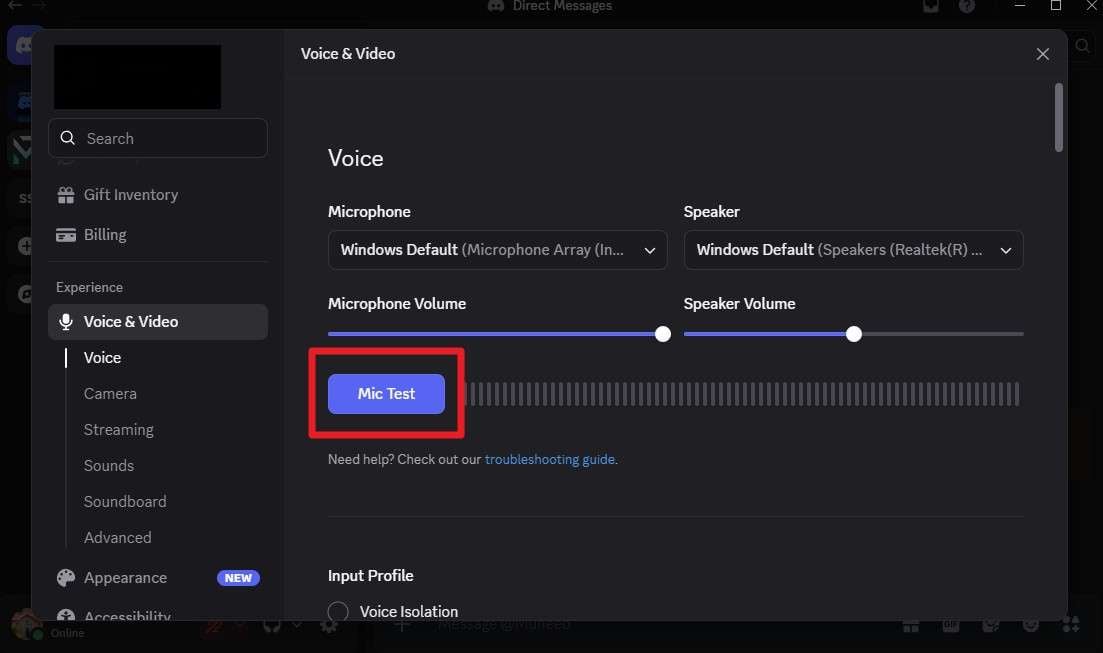
Step 3. Use the “Mic Test” button underneath to confirm Discord now picks up your voice.
-
Fix 3 Grant Discord Microphone Permission
This is the most frequently reported cause of Discord error 3002. Since Windows and macOS both require explicit permission, granting them can fix the issue, as shown:
For Windows
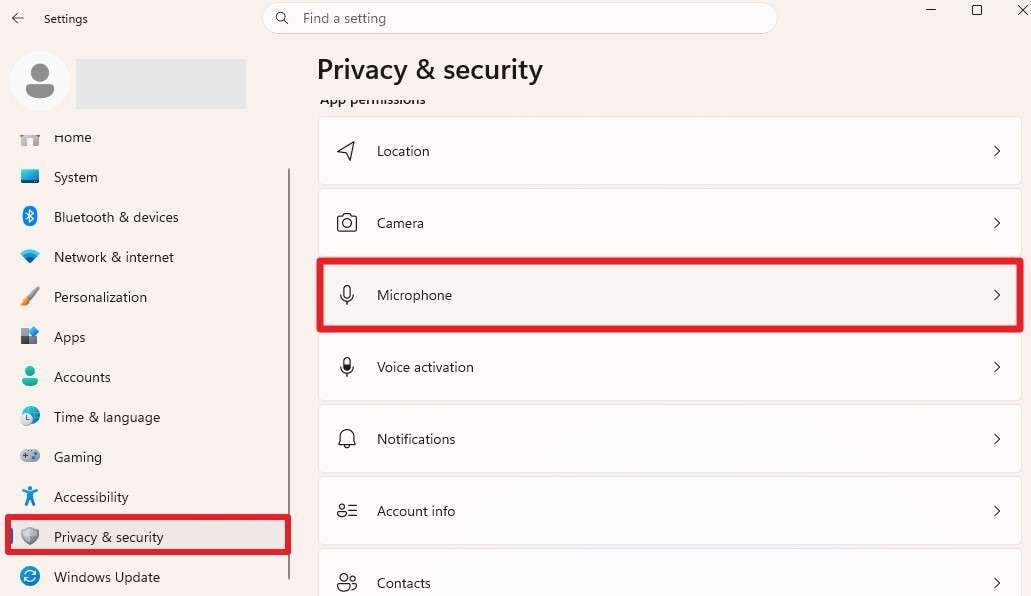
Step 1. Open “Settings,” go to “Privacy & Security,” then select “Microphone.”
Step 2. Make sure the main “Microphone Access” toggle is turned on for your device.
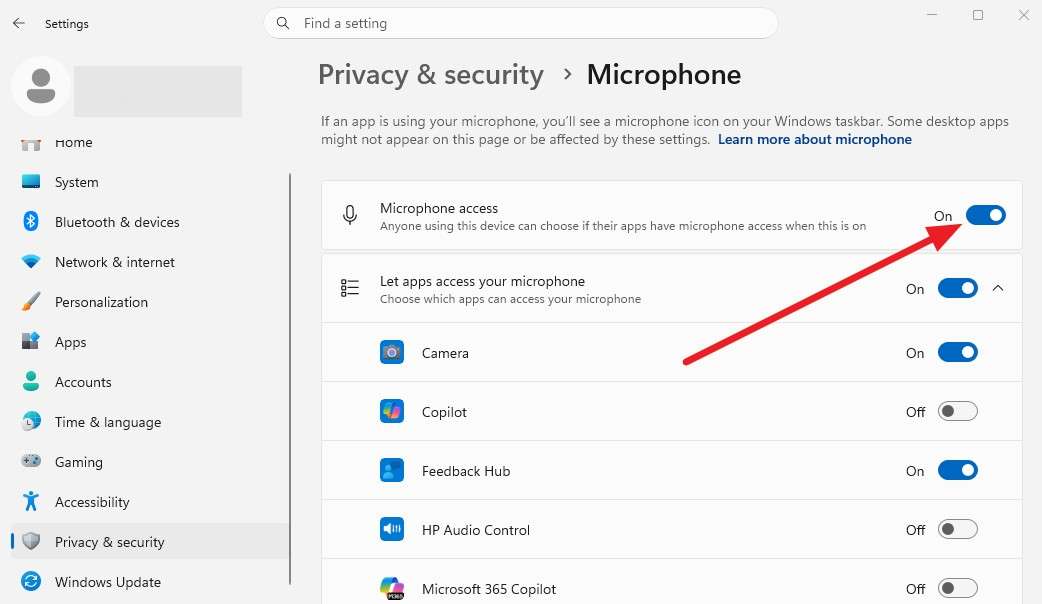
Step 3. Scroll through the app list and confirm that “Discord” has access.
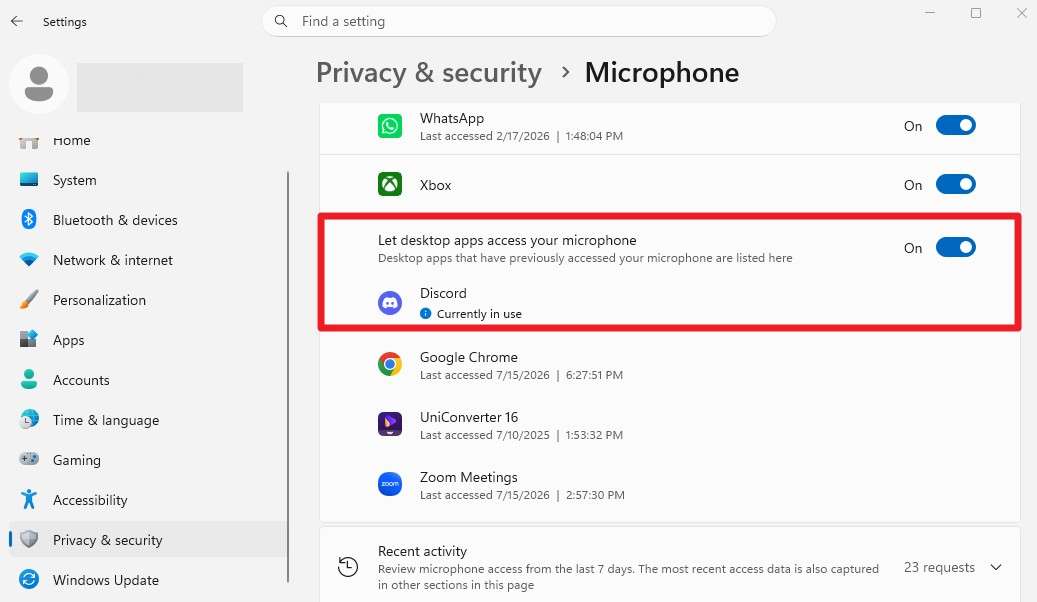
For Mac
Instructions. Check “System Settings > Privacy & Security > Microphone” and enable Discord there instead.
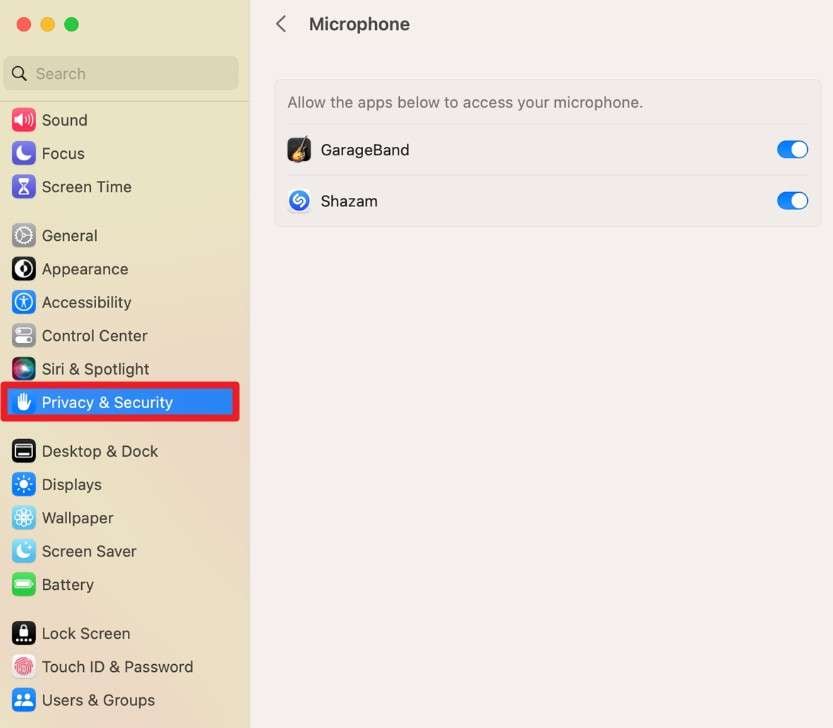 Note: If Discord already appears to be allowed, try turning the toggle off and back on. This refreshes the permission and occasionally clears a stuck state that a simple check won't reveal.
 -
Fix 4 Check the Input Mode and Voice Sensitivity
Discord's input mode controls when your microphone actually transmits sound to others. Adjusting the input mode and sensitivity settings gives Discord better control over detecting your voice. Here's how to update these settings:
Instruction. To fix Discord error 3002, go to “Settings > Voice & Video” to check whether “Voice Activity” or “Push to Talk” is currently selected.
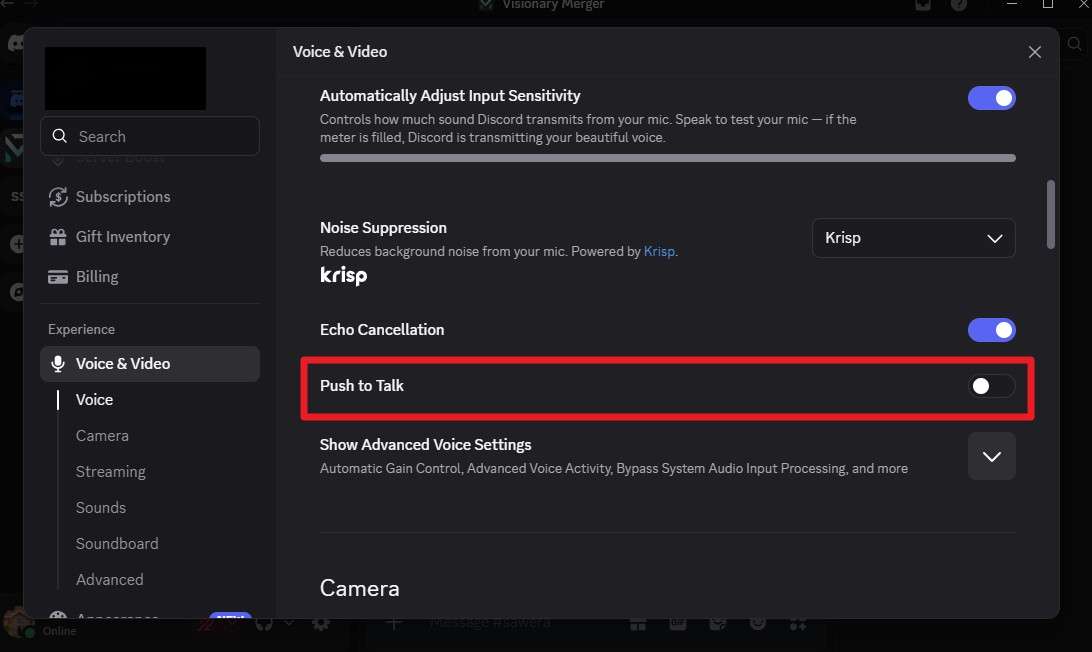 Note. If using Voice Activity, lower the sensitivity slider until normal speech consistently triggers the input indicator. Alternatively, switch to “Push to Talk” temporarily to confirm whether sensitivity was really the problem.
 -
Fix 5 Disable Noise Suppression and Audio-Processing Tools
Third-party tools like Krisp, along with Discord's own built-in noise suppression, are designed to filter background noise. A misconfigured version can instead filter out your voice entirely, so disable them to rule out audio processing, as shown:
Step 1. Open Discord's “Voice & Video” settings and expand the “Noise Suppression” to set it to “None.” Test your microphone again to see whether the input now registers correctly.
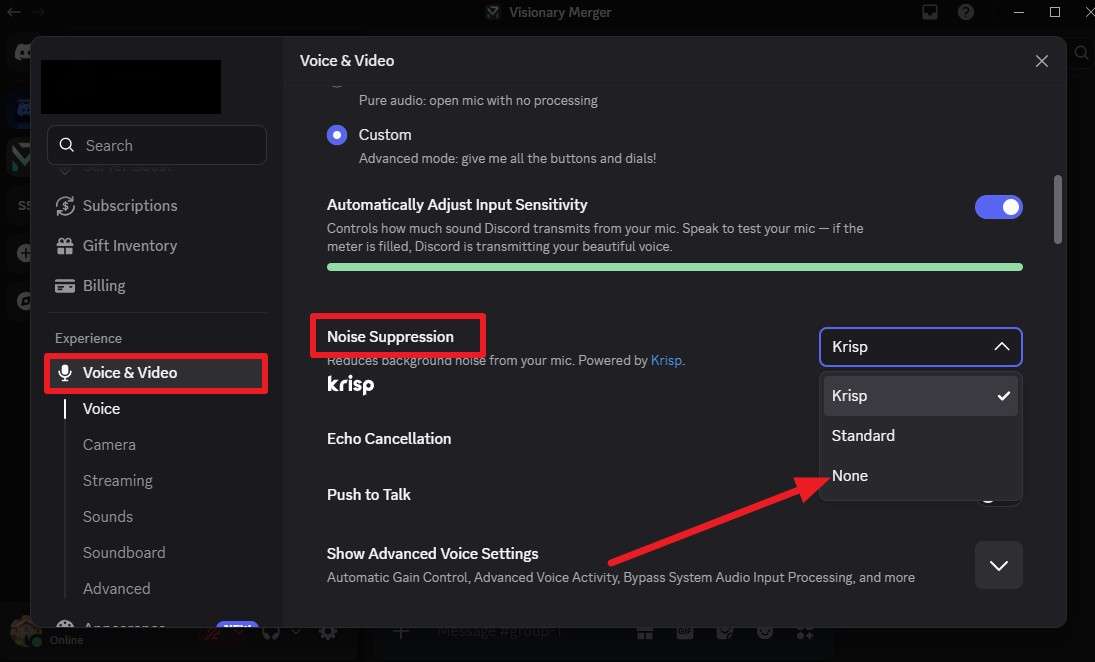
Step 2. If the issue disappears, re-enable each feature one at a time to identify which one caused the conflict.
Note: Other noise suppression apps running in your system tray can cause the same issue, so check for anything similar running alongside Discord. -
Fix 6 Reset Discord Voice and Video Settings
If individual settings don't resolve the Discord error 3002, reset them all at once. This will clear any conflicting combination you may have created while troubleshooting the earlier fixes, and is guided ahead:
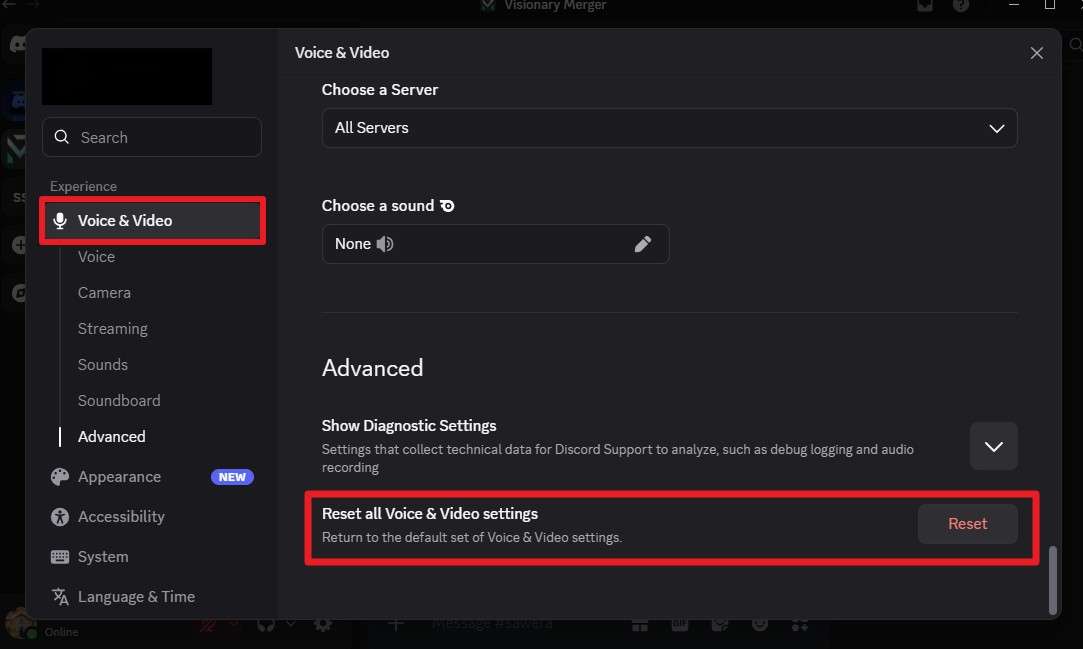
Step 1. Open "User Settings," go to "Voice & Video," scroll down, and select the "Reset" option under "Reset Voice Settings."
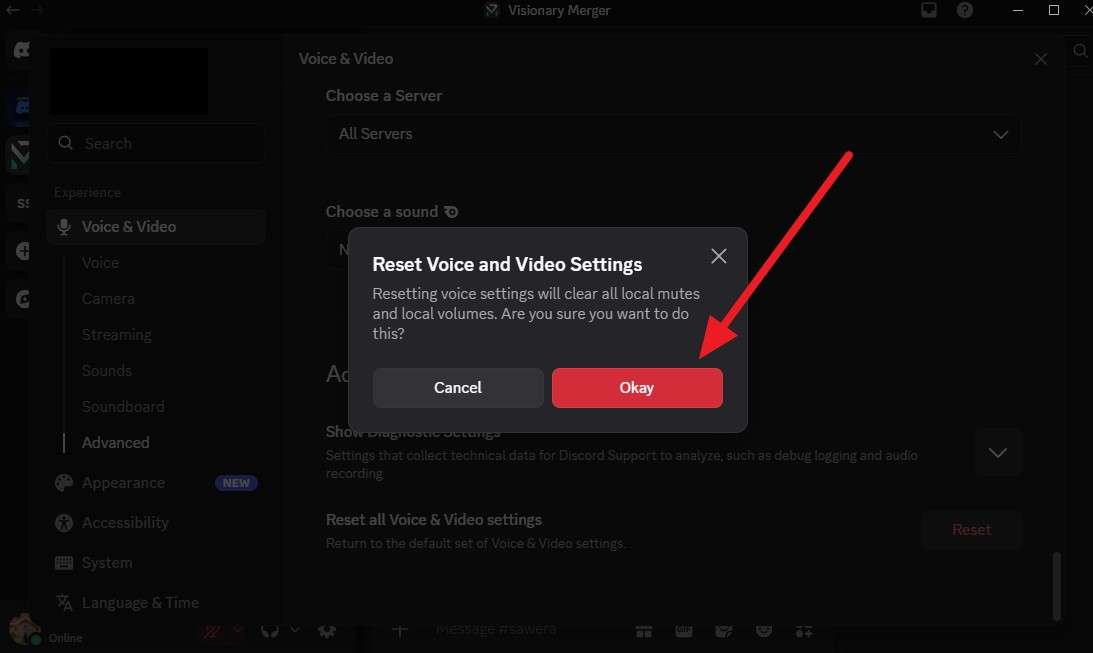
Step 2. Press “Ok” to confirm the reset when prompted, then restart Discord. Reselect your microphone from the input device list and test it again from scratch.
-
Fix 7 Update Discord and the Operating System
An outdated Discord client or operating system can lose compatibility with certain audio drivers over time. This sometimes triggers error 3002 without warning, so update both of them via the simple steps given below:
Update Discord
Instructions. Restart Discord to trigger its automatic update check, since the desktop app updates on launch.
Update Operating System
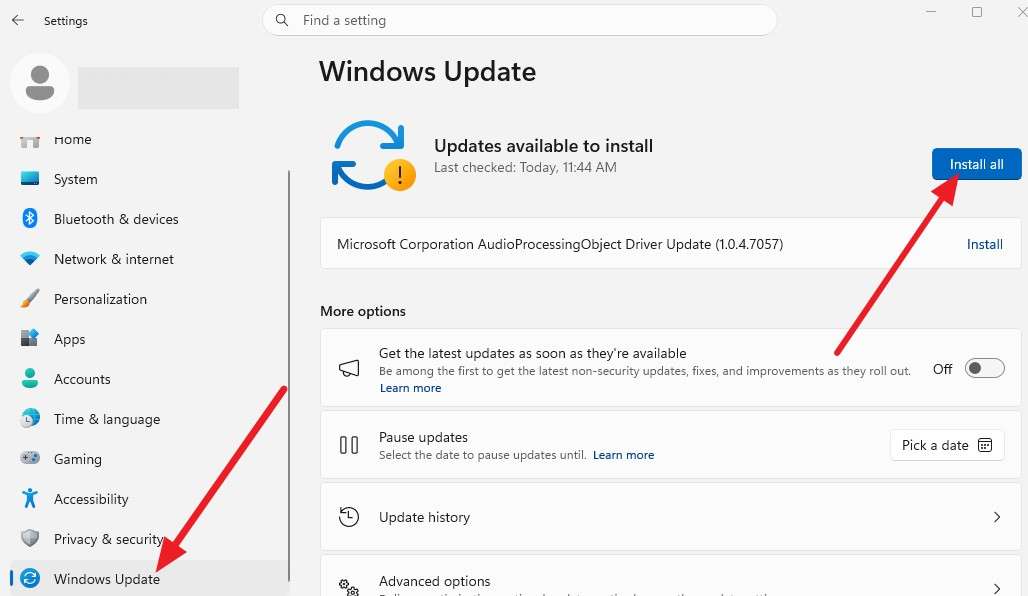
On Windows. Open your system settings and go to the “Windows Update” section and tap “Install All” if the update is available.
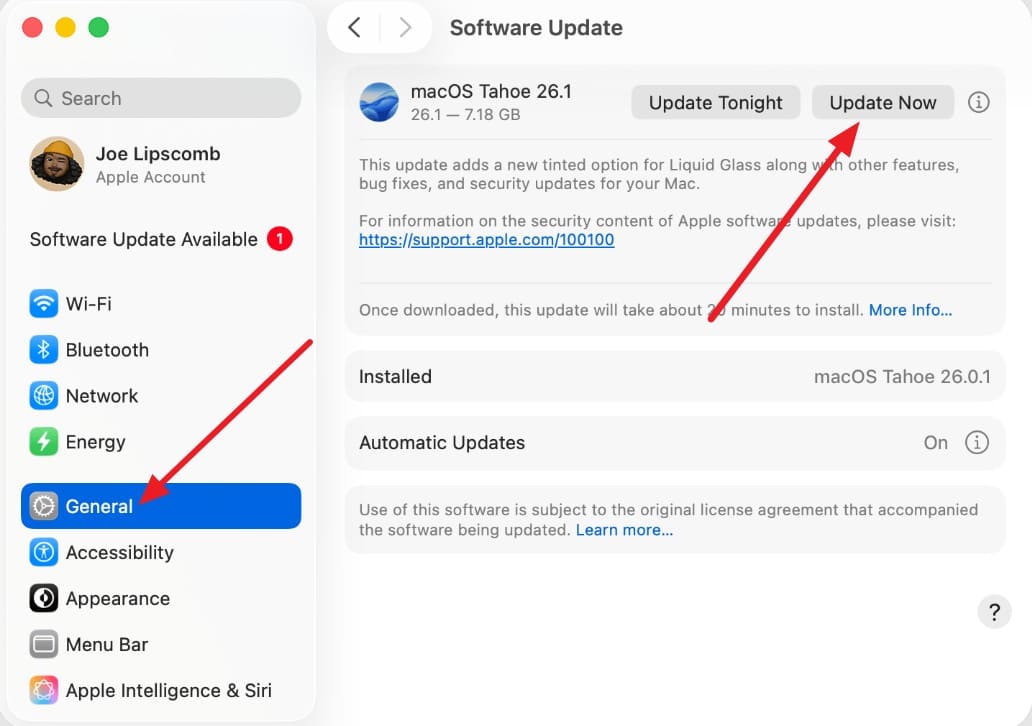
On Mac. Tap the Apple logo, go to “System Settings > General > Software Update > Update Now.”
 Note. Restart your device once the updates finish, then reopen Discord and test your microphone.
 -
Fix 8 Clear the Discord Cache or Reinstall Discord
To fix the Discord error 3002, clear the cache or reinstall Discord to rebuild corrupted cache files from scratch, since they interfere with how Discord communicates. So, if you want to clear the cache only, adhere to the given steps:
Step 1. Close Discord completely, press “Windows + R,” type “%appdata%/discord/Cache,” and then press “Enter.”
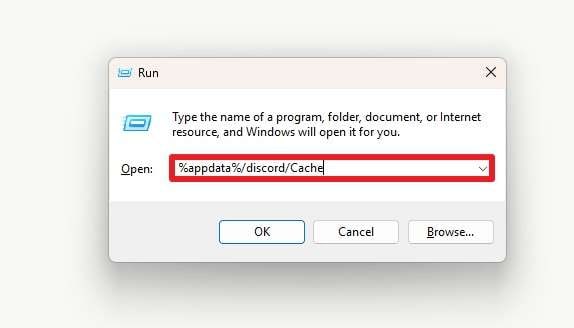
Step 3. Choose the folder and select the “Delete” icon, then reopen Discord and test your microphone. If the error persists, uninstall Discord entirely and reinstall the latest version from the official website.
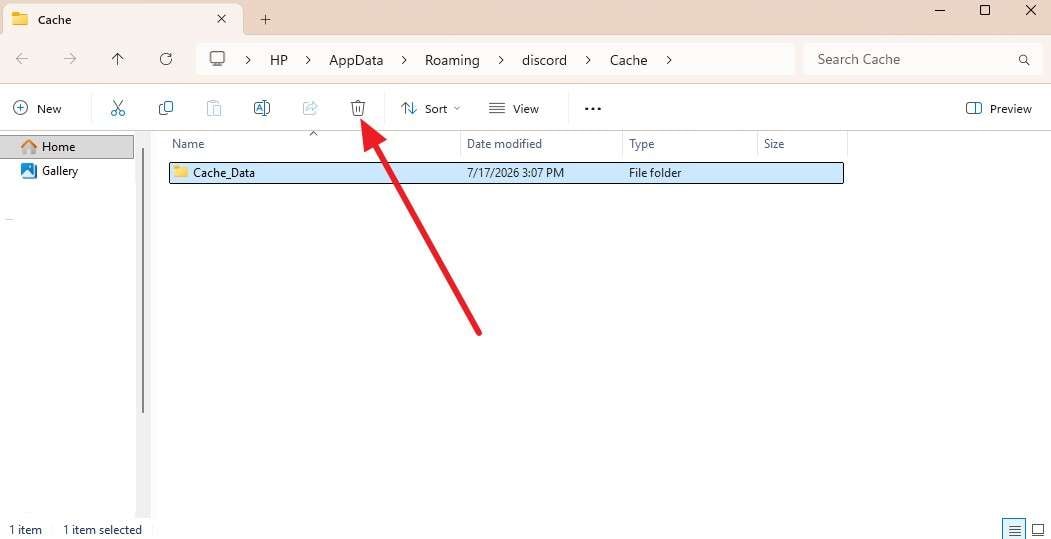 Note: A reinstall also fixes cases where an interrupted update leaves behind mismatched files, something a simple cache clear won't catch.
 -
Fix 9 Run Windows Audio Troubleshooting and Update Drivers
Windows includes a built-in troubleshooter that can automatically detect and fix common recording device problems. Hence, run the troubleshooter and update the drivers to resolve the error 3002, as guided:
Run Windows Audio Troubleshooting
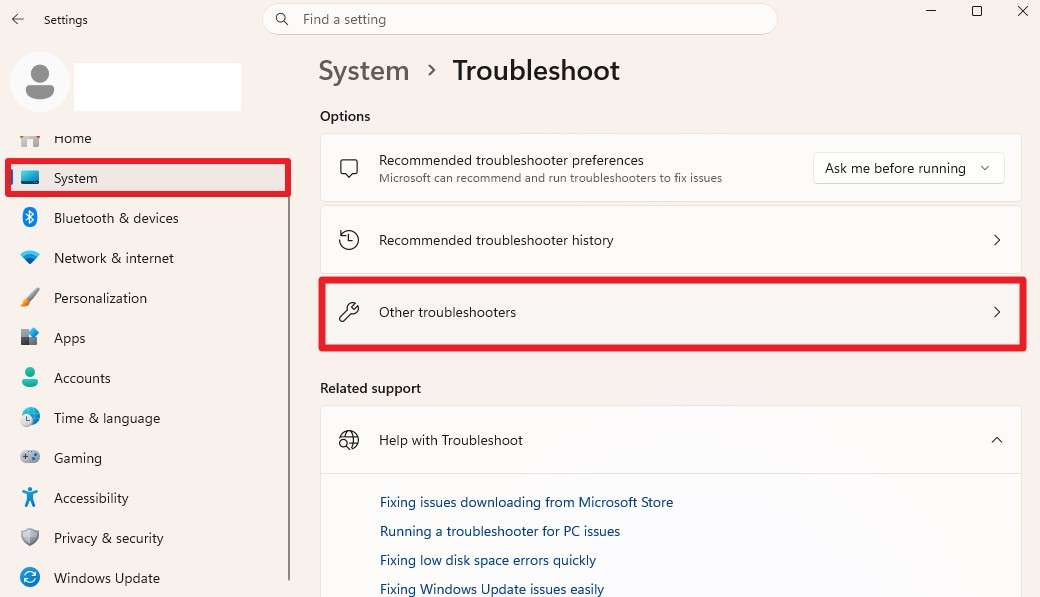
Step 1. Open “Settings” and go to “System > Troubleshoot > Other Troubleshooters.”
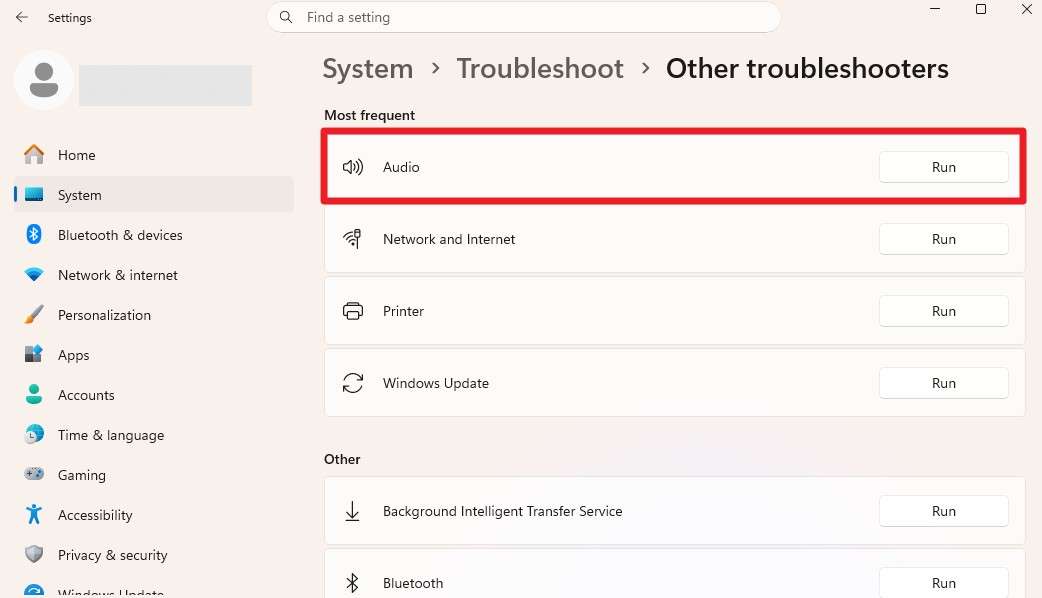
Step 2. Tap the “Run” option beside the “Audio” troubleshooter to see if the issue persists.
Update Drivers
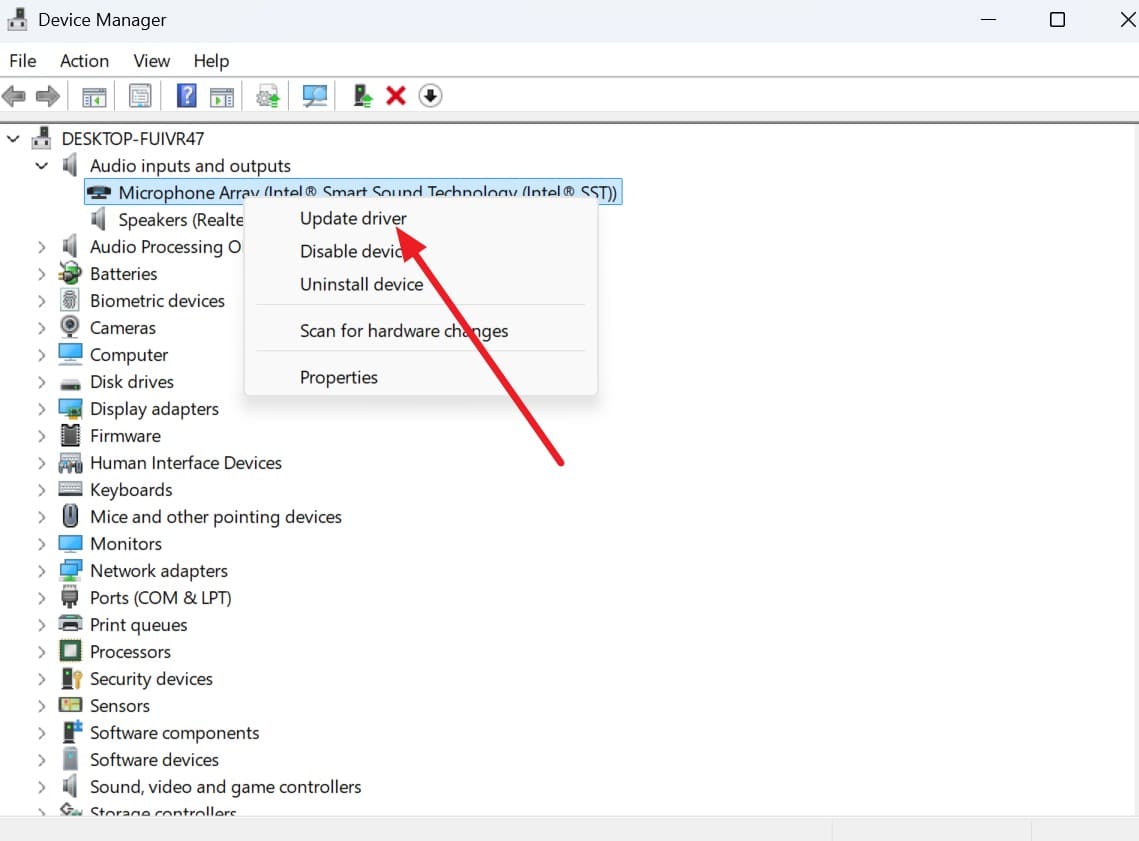
Step 1. Open “Device Manager,” expand “Audio Inputs and Outputs," and right-click your microphone to select “Update Driver.”
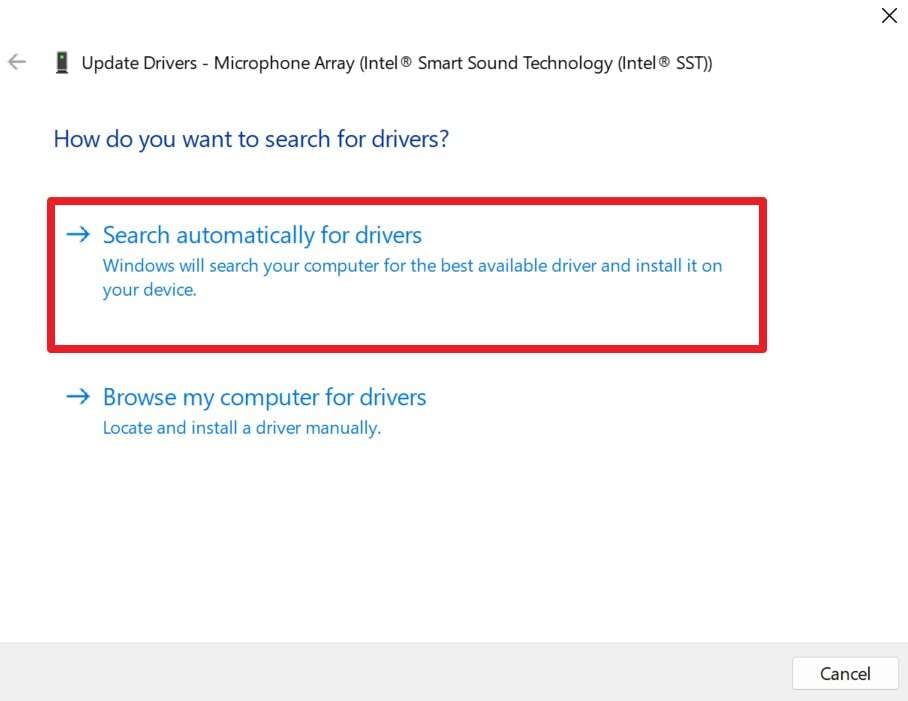
Step 2. When the popup appears, choose “Search Automatically for Drivers” to confirm the action.
 Note: If your PC uses Realtek audio hardware, check the Realtek Audio Console as well, since it can disable the microphone independently of Windows settings.
For Mac. To update drivers on a Mac, simply update your macOS.
-
Fix 10 Repair Your Android/iPhone System Issues with Dr.Fone – System Repair
If your Android or iPhone also experiences microphone issues outside of Discord Error 3002, Dr.Fone can help repair underlying system problems. Dr.Fone - System Repair (Android) is designed to repair a wide range of Android system issues on phones and tablets. It also lets you enter Samsung Download Mode (Odin Mode) for firmware repair at no cost.
 Fix iOS issues, no data loss.
- One-click repair for all iOS problems.
- Solve recovery mode, Apple logo, black screen, etc.
- Upgrade or downgrade iOS without iTunes
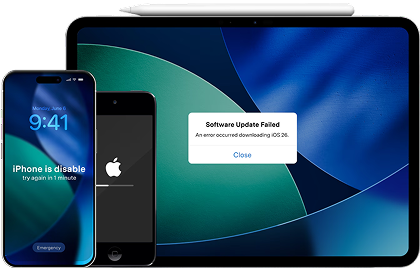
For iPhone and iPad users, Dr.Fone - System Repair (iOS) can fix 150+ issues on iOS 27, iPadOS 27, and iPhone 17 Series. It also provides guided tools to enter Recovery Mode and exit DFU Mode. In addition, its Standard Mode repairs most system problems without erasing your data, while Advanced Mode is available if a deeper repair is required.
Guide to Fix Android/iPhone System Issues with Dr.Fone
To know how well the tool performs, adhere to the given Dr.Fone - System Repair (iOS) guide and perform a real-world test:
Step 1. Choose iOS System Repair on Dr.Fone
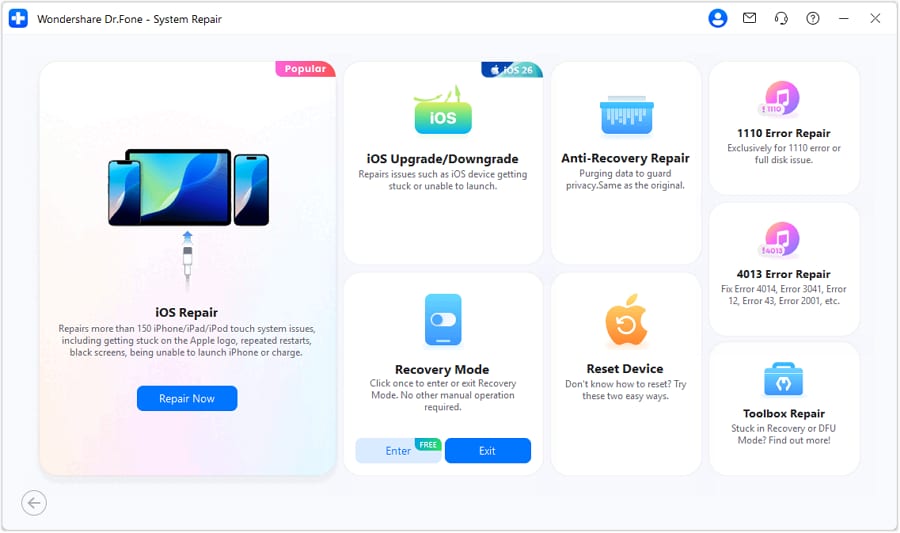
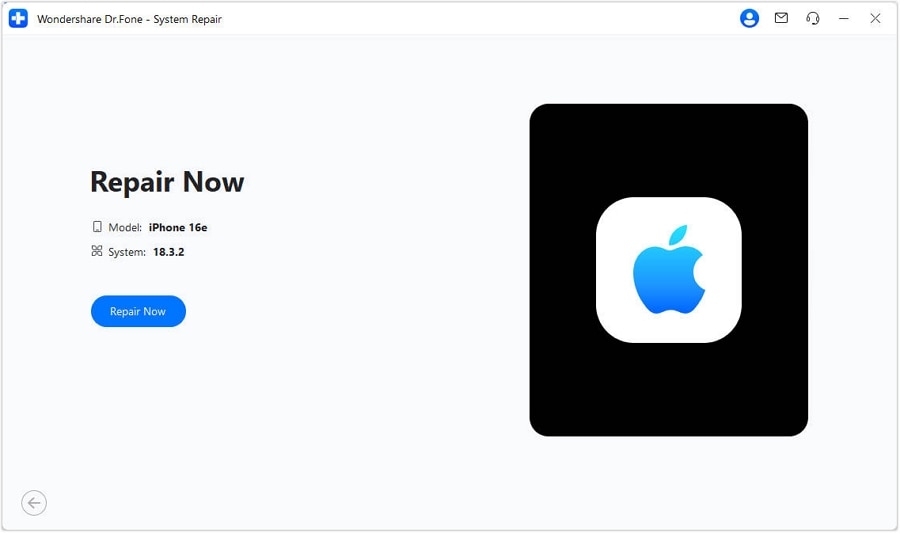
Press the “Repair Now” button as you choose the “iOS Repair” option in the System Repair tool for iPhone. Following this, connect your iPhone showing microphone-related issues.
Step 2. Opt For the Dr.Fone Standard Mode
Choose the “Standard Repair” mode and follow the instructions to access the Recovery Mode. When Dr.Fone shows a list of iOS firmware options, download the preferred one and wait for the installation to conclude.
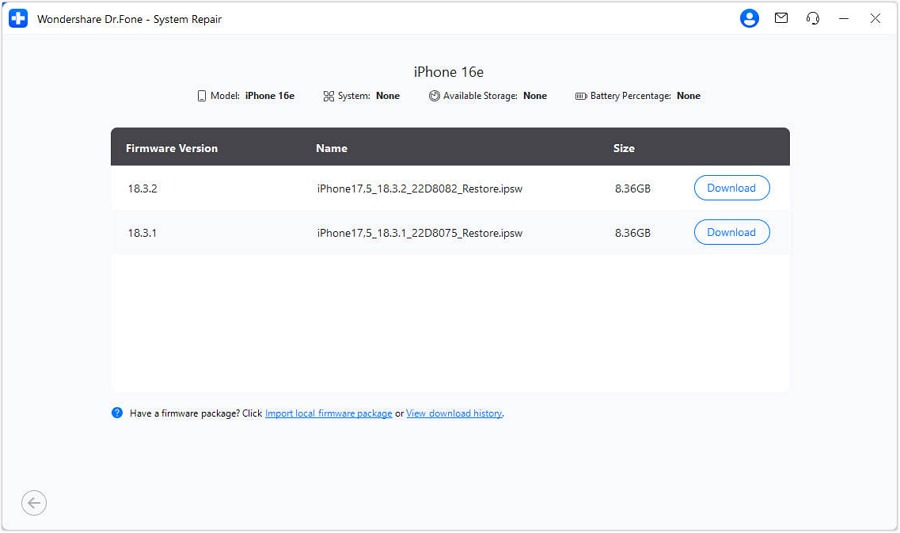
Step 3. Wait for the Tool to Repair Now
Click on the “Repair Now” button, and Dr.Fone will fix the microphone-related issues within 10 minutes.




Part 4. What If Discord Error 3002 Still Appears?
If none of the fixes above resolve error 3002, the issue may require Discord's direct support team to investigate further on their end. Submit a request through Discord's official support form, and include as much detail as possible to speed up the process:
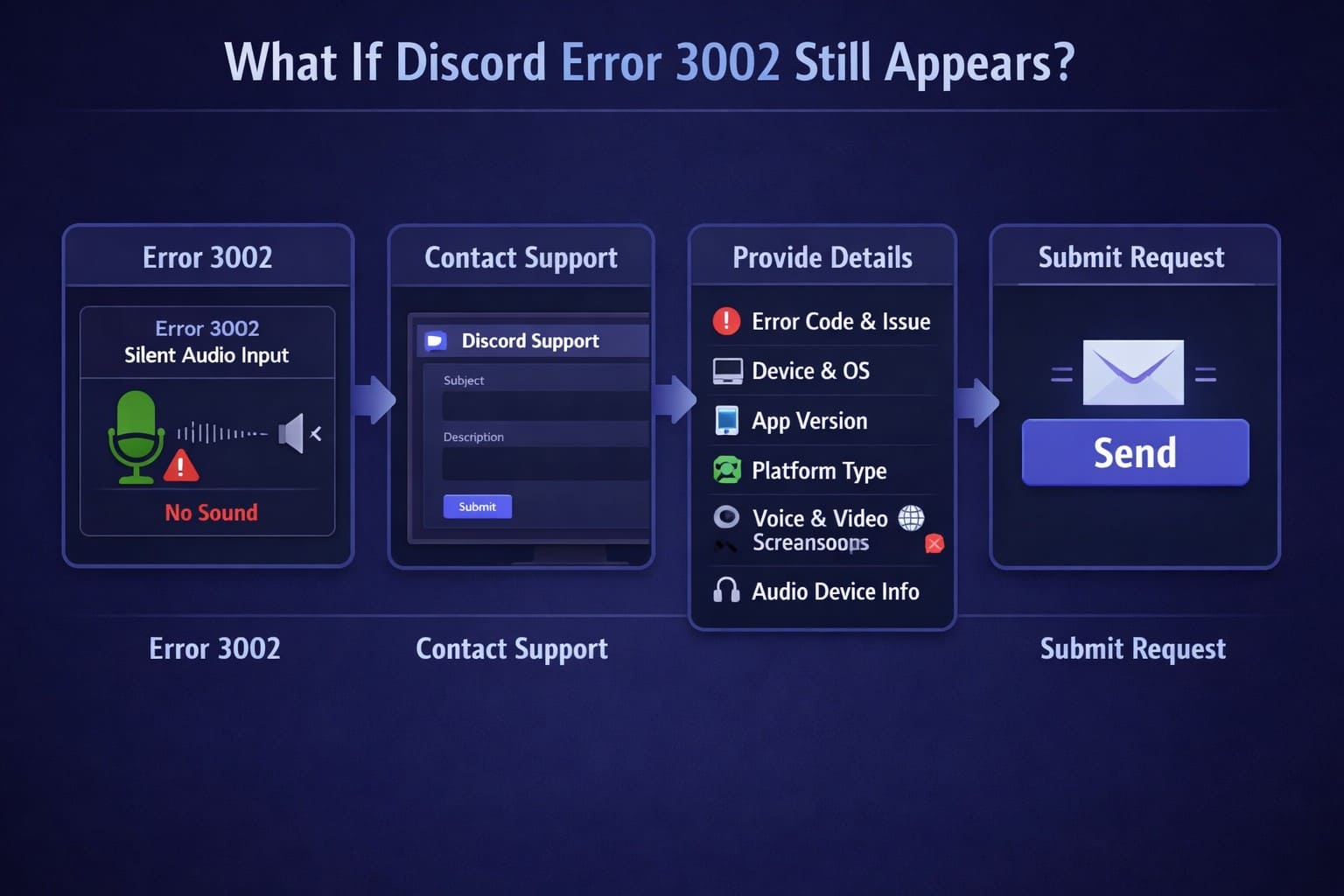
- A clear description of the issue and the exact error code
- Your device and operating system version
- The Discord app version you're using
- Which client the issue affects, such as browser, mobile, or desktop
- Screenshots of your Voice & Video settings
- A list of your input and output audio devices
Bonus Tool: Unlock Your iPhone or Android with Dr.Fone – Screen Unlock
Sometimes, the reason you can't fix Discord error 3002 on your phone is simple — you can't even access the device. Whether you've forgotten your passcode, Face ID isn't working, or your screen is frozen after an update, being locked out stops all troubleshooting in its tracks.
Dr.Fone - Screen Unlock (iOS) | Dr.Fone - Screen Unlock (Android) is designed to help you regain access to your iPhone or Android device in minutes, without needing technical skills. Once unlocked, you can then check microphone settings, grant permissions, or test audio in Discord — all the fixes mentioned in this guide become possible again.
Dr.Fone - Screen Unlock for iPhone
- Unlock iPhone/iPad passcode in minutes.
- Remove Face ID, Touch ID, MDM lock, and screen lock.
- Bypass iCloud Activation Lock easily.
- Support all iOS versions and devices.
- Simple steps, no technical skills needed.
Supports all iOS models from iPhone 5s to iPhone 17 Series, and compatible with iOS 27. It can remove 4-digit/6-digit passcodes, Face ID, Touch ID, and even screen time passcodes. No data loss in Standard Mode.
Dr.Fone - Screen Unlock for Android
- Unlock Android phone in seconds.
- Remove PIN, pattern, password, fingerprint.
- Bypass Google FRP lock easily.
- Works on all Android brands & models.
- No tech skills required – user-friendly.

Works with Samsung, Xiaomi, OPPO, Google Pixel, and over 15,000 Android models. Removes PIN, pattern, password, and fingerprint locks. Also supports removing Samsung FRP (Factory Reset Protection) lock.
Conclusion
Discord error 3002 almost always stems from a local audio issue rather than anything wrong with Discord's servers. Working through the checks and fixes in order resolves the issue for most users without needing to reinstall anything. If you also experience microphone problems while using Discord on your Android or iPhone, Dr.Fone can help resolve underlying system issues that may affect audio input.
Frequently Asked Questions
-
1. What is the difference between Discord Errors 3001 and 3002?
Error 3001 means Discord can't detect any microphone at all, usually because none is connected or is unrecognized. Whereas Error 3002 indicates that a microphone is detected but isn't sending any sound, suggesting a muted or misconfigured input. -
2. How do I fix Discord Error 3002 in a web browser?
Check your browser's microphone permissions, which are found in the site settings for discord.com, and make sure they're allowed. In addition, clear the browser cache and confirm that the correct input device is selected in Discord's Voice & Video settings. -
3. Is Discord error 3002 caused by a server outage?
No, Discord's own documentation describes error 3002 as a local audio input issue. So, check Discord's status page to rule out a wider outage, but the fix almost involves your microphone settings. -
4. How do I test my microphone in Discord?
Open User Settings, go to Voice & Video, and use the “Mic Test” option. Speak normally, then listen to the playback to confirm Discord receives your microphone input correctly.

Dr.Fone
AI Video Editing App & Software
Best tool for making videos anywhere for all creators!
Lorem Ipsum is simply dummy text of the printing and typesetting industry. Lorem Ipsum has been the industry's standard.
 Add Wondershare Dr.Fone as a preferred source on Google