 Bypass iCloud Activation Lock and Android FRP without password.

 100% Security Verified | No Subscription Required | No Malware

 :
: 
 ChatGPT
 Perplexity
 Gemini
 Claude
 Grok
Grok
A Google account screen on a reset phone is a dead end. The login details are lost, the device belongs to you, yet every step forward requires an unknown password. At this stage, technicians often recommend free utility software like the Ultra Unlock Tool. This review examines what Ultra Unlock Tool actually delivers beyond basic download links.
It also covers safety risks and provides a reliable alternative for users who prefer to avoid unverified community builds. Of all the substitute options, learn how Dr.Fone - Screen Unlock (Android) is a safe and guided choice.
In this article
- Part 1. What Is Ultra Unlock Tool?
- Part 2. Brands and Chipsets Supported by Ultra Unlock Tool
- Part 3. Is Ultra Unlock Tool Free? Pricing and Credits Explained
- Part 4. Is Ultra Unlock Tool Safe?
- Part 5. How to Download and Set Up Ultra Unlock Tool
- Part 6. Dr.Fone – Screen Unlock (Android): Best Alternative to Ultra Unlock Tool
- Frequently Asked Questions
Part 1. What Is Ultra Unlock Tool?
Ultra Unlock Tool is a Windows program offering free and paid FRP removal functions for supported Android devices. It can also be used for firmware flashing, screen lock servicing, IMEI-related repair functions, and device maintenance on supported models. While some functions are available without charge, many advanced operations require paid credits.
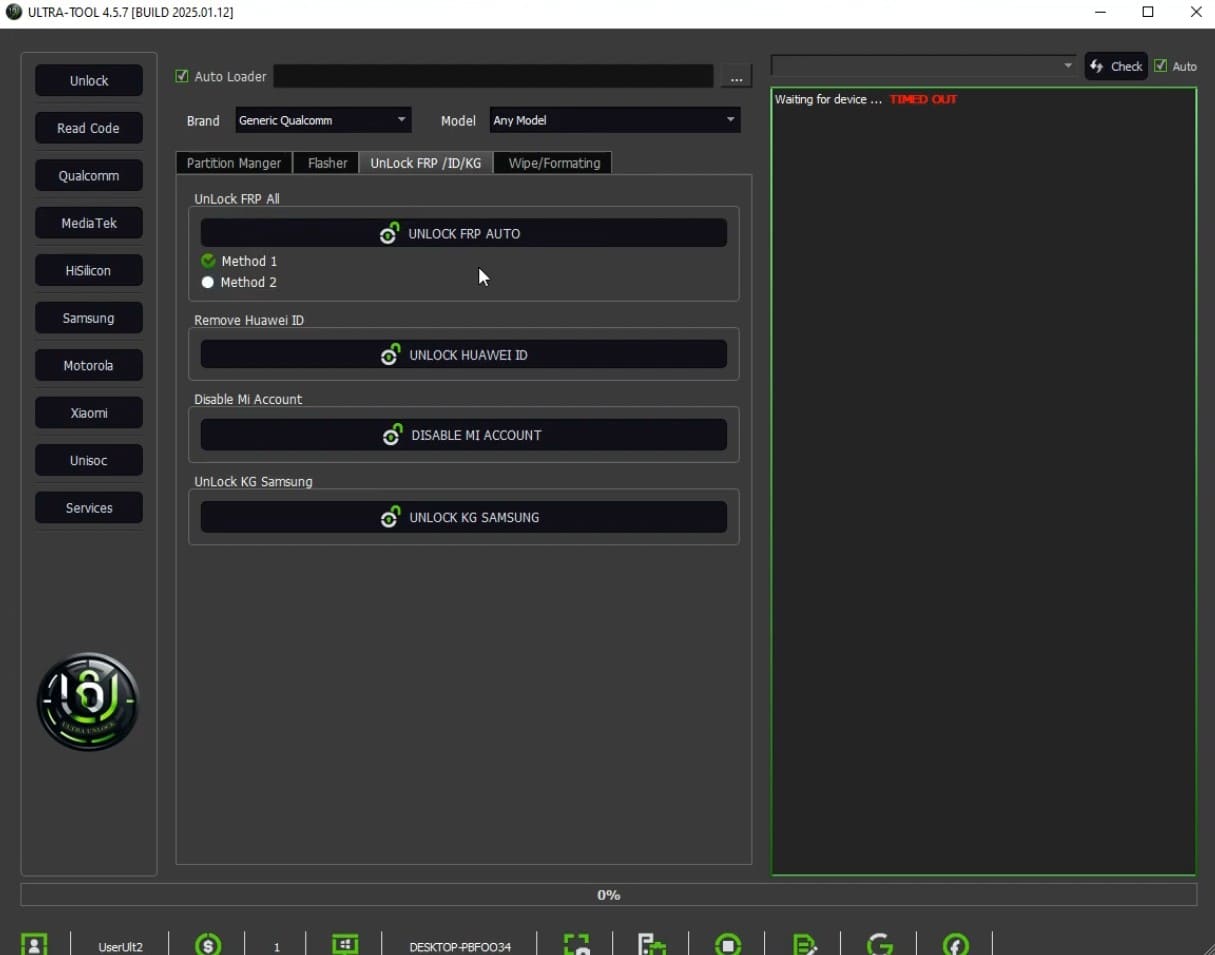
The software is distributed through its official website and reseller channels, which is why unofficial mirrors and modified installers are also common. As this Ultra Unlock Tool review highlights, there is no official support desk and no warranty. Users should download it carefully because third-party copies cannot always be verified.
What is Ultra Unlock Tool Used For?
To further understand the main purpose of this tool, review the mentioned points for clarity:
- FRP Bypass: Clearing the Google verification screen on a phone that was reset without first removing the account.
- Screen Lock Removal: Wiping out a pattern, PIN, or password nobody remembers on models within its reach.
- ADB and Test Mode Access: Opening an Android Debug Bridge channel where the standard route is closed. Several of its fixes begin there.
- Firmware and Repair Work: Firmware flashing, IMEI-related repair functions, bootloader operations, and other servicing tasks on supported Android devices.
Key Features of Ultra Unlock Tool
In addition to usage, this section explains the key aspects of the Ultra Unlock Tool in detail:
- Broad Chipset Support: Handles servicing tasks for supported MediaTek, Qualcomm, and Unisoc devices across a wide range of Android brands through model-specific operations.
- One-Click Samsung Functions: Provides preset FRP servicing routines for supported Samsung Galaxy devices across multiple security binary revisions.
- ADB and Diagnostic Tools: Includes ADB enablement and diagnostic mode utilities for supported Android devices during servicing.
- Lightweight Windows Software: Runs as a Windows desktop application without requiring a dedicated hardware box or USB dongle.
Is Ultra Unlock Tool the Same as i-ULTRA Unlock?
Many users search for Ultra Unlock Tool vs i-ULTRA Unlock and seek a quick answer. Hence, this Ultra Unlock Tool review has explained the key differences in this section in the table below:
| Feature | Ultra Unlock Tool | i-ULTRA Unlock |
|---|---|---|
| Platform | Android | iPhone & iPad (iOS) |
| Primary Purpose | FRP removal, screen lock servicing, flashing, repair tools. | iCloud Activation Lock bypass. |
| Lock Type | Google Factory Reset Protection (FRP) | Apple Activation Lock |
| Jailbreak Required | No | Yes, on supported devices |
| Typical Use Case | Android device servicing and repair | Accessing eligible iOS devices after Activation Lock |
| Same Tool? | No, they are separate tools with different developers and licensing models. | |
Pros and Cons of Ultra Unlock Tool
To further know if the Ultra Unlock Tool is worth using, glance at the listed perks and pitfalls:
- Offers free access to many everyday servicing tasks.
- Covers a wide range of Android brands from one interface.
- Reduces setup time for common repair and unlocking jobs.
- Runs without requiring expensive hardware activation tools.
- Supports an official site, yet many users download from forums.
- Some unofficial or modified releases may trigger antivirus warnings.
- Newer security patches close its routes without warning.
- Success rates vary by device model and firmware version.
Part 2. Brands and Chipsets Supported by Ultra Unlock Tool
To further uncover the Ultra Unlock Tool review, get to know about its supported models in this section:
| Brand | Chipset | Typical Functions | What to Expect |
|---|---|---|---|
| Samsung | Exynos, MediaTek, Qualcomm | ADB enablement, FRP removal, screen lock servicing | One of the tool's most actively supported brand families. |
| Xiaomi, Redmi, POCO | MediaTek, Qualcomm | Factory reset, FRP removal, firmware flashing | Mi Account lock remains separate from Google FRP. |
| Oppo, Realme | Qualcomm, MediaTek | Factory reset, FRP removal | Support varies with ColorOS version and security patch. |
| Vivo | MediaTek, Qualcomm | FRP removal, screen lock reset | Results depend on the device model and software version. |
| Infinix, Tecno, Itel | MediaTek, Unisoc | FRP removal, firmware flashing, IMEI repair | Wide support on compatible MediaTek and Unisoc models. |
| Motorola, Nokia | Qualcomm, MediaTek | FRP removal, repair functions | Compatibility differs by model, firmware, and security update. |
| Huawei, Honor | Kirin, Qualcomm | Limited FRP functions, service operations | Support is restricted on many newer EMUI and HarmonyOS devices. |

Part 3. Is Ultra Unlock Tool Free? Pricing and Credits Explained
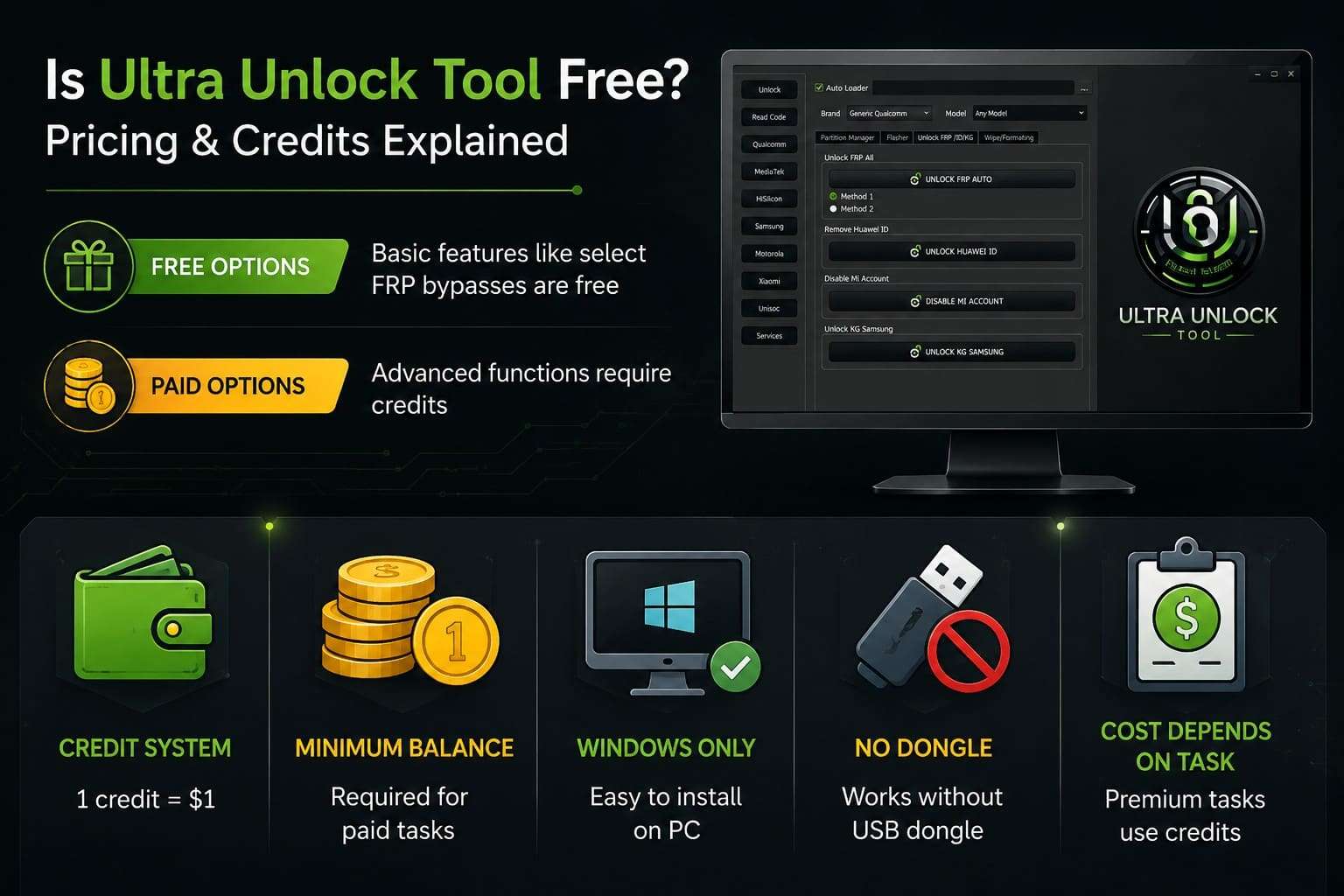
Ultra Unlock Tool provides both free and paid options. Basic features like select FRP bypasses cost nothing, but many advanced functions require credits bought through its official platform. This service uses a credit system where 1 credit equals $1, and paid tasks require a minimum balance.
Unlike hardware-based tools, it requires no USB dongle, reducing the overall setup cost while installing easily on a Windows PC. However, the total expense depends on the task, as premium operations consume credits while basic functions remain free.
Part 4. Is Ultra Unlock Tool Safe?
To further uncover this Ultra Unlock Tool review, know that the tool's safety depends on the download source and usage. The software targets Android device repairs, but unofficial files from third-party sites or forums can carry malware. Always get the installer from a trusted source and scan files before execution.
It's also important to remember that compatibility changes as Android security patches evolve. An FRP bypass that works today can fail on future updates. Some phones also need extra repairs if the original account stays locked.
Is Ultra Unlock Tool Legal?
Use this tool only on devices you own or have explicit permission to fix. Removing FRP on lost or stolen phones can violate local laws and owner rights. Always confirm ownership before you perform any repair.
Best Practices Before Using Ultra Unlock Tool
Given the considerations, here are some practices that you can follow while using the Ultra Unlock Tool:
| Recommendation | Why It Matters |
|---|---|
| Verify Device Ownership | Confirms the repair is legal and properly authorized. |
| Download from Trusted Sources | Lowers the risk of malware and tampered installers. |
| Scan the Installer with Antivirus | Identifies potentially unsafe files before installation. |
| Back Up Important Data | Prevents permanent data loss during flashing or formatting. |
| Use a Dedicated Service PC When Possible | Reduces the risk of exposing sensitive personal or business data. |
Part 5. How to Download and Set Up Ultra Unlock Tool
If those risks read as acceptable on a phone you own, setup is the next step in this Ultra Unlock Tool review. Get to know how you can use this tool to remove the FRP lock after safe installation:
-
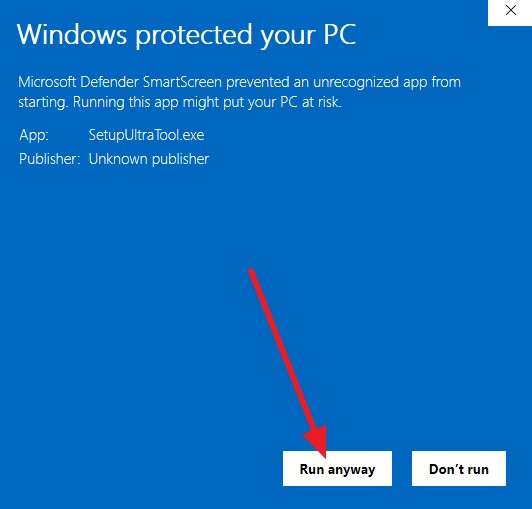
Step 1 Download the tool from the official site, and when the warning prompt appears, tap “More Info > Run Anyway.”
-
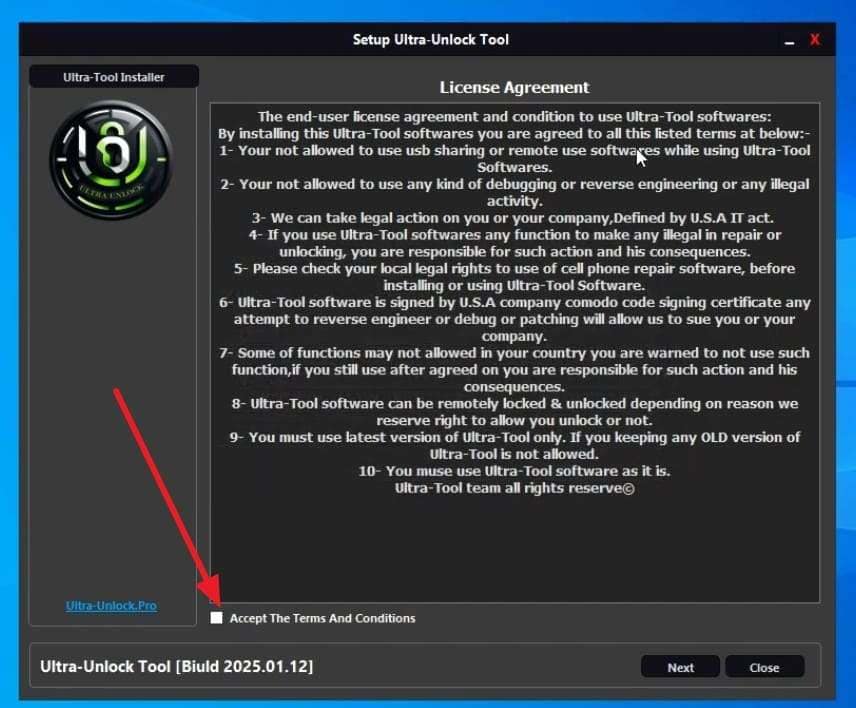
Step 2 Agree to the license agreement and continue installing the tool. Then install the USB drivers for your device's chipset, whether MediaTek, Qualcomm, or Unisoc, so Windows can recognize the phone in service mode.
-
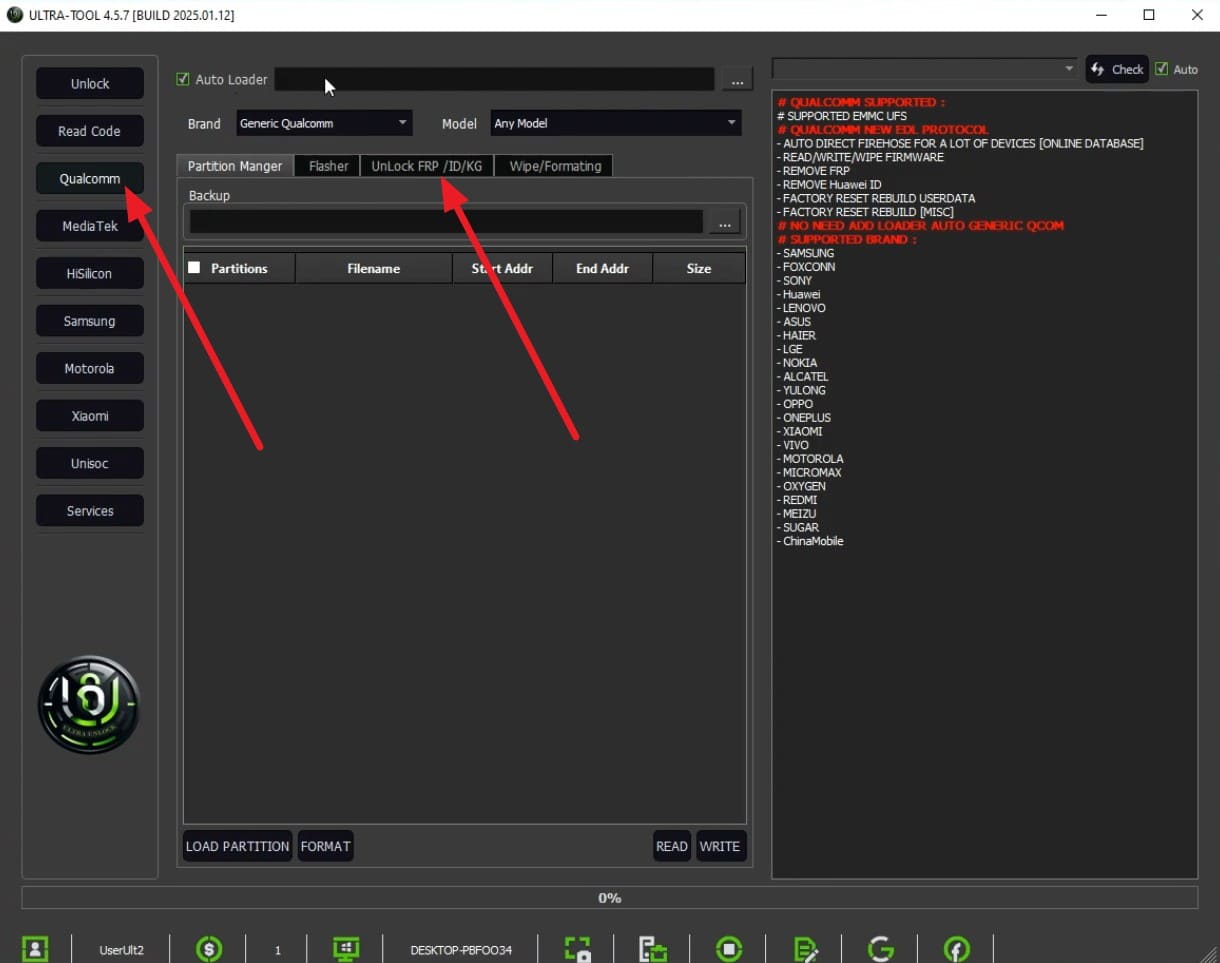
Step 3 Once set, go to the “Qualcomm” tab and access the “Unlock FRP/ID/KG” tab after you choose the brand and model.
-
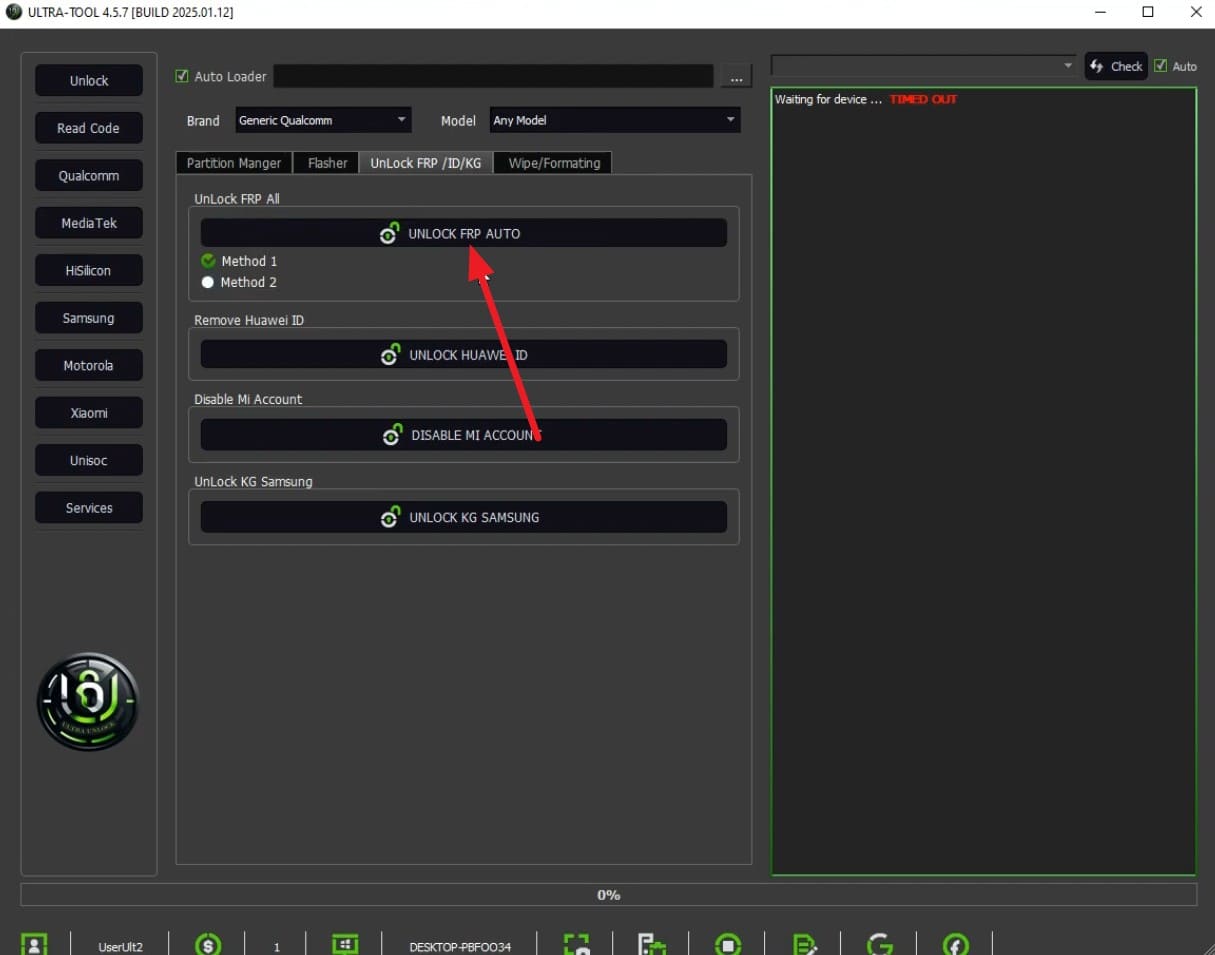
Step 4 Under the “Unlock FRP All” section, press the “Unlock FRP Auto” option and leave everything plugged in until the log reports completion. After that, power-cycle the handset and finish its setup wizard.
Part 6. Dr.Fone – Screen Unlock (Android): Best Alternative to Ultra Unlock Tool
Ultra Unlock Tool works well when you already know service modes and accept the risk. For a single locked phone, though, the calculation shifts. Dr.Fone - Screen Unlock (Android) performs the same FRP bypass through a signed application, backed by a named publisher and a staffed help desk. You skip antivirus exceptions, download mirrors, driver searches, and update checks.

Most of all, the tool allows you to remove the FRP lock from 20 brands, including Samsung Galaxy S26 Series and all Samsung Snapdragon devices. For Android 14-17 beta and all Samsung phones, users can also remove the FRP lock online, which makes Dr.Fone a go-to solution. Additionally, for major Android models, you can choose from MediaTek CPU and General Unlocking Methods.
Ultra Unlock Tool vs Dr.Fone – Screen Unlock (Android)
To know the best FRP lock removal option in this Ultra Unlock Tool review, compare both tools in this section:
| Feature | Ultra Unlock Tool | Dr.Fone – Screen Unlock (Android) |
|---|---|---|
| Primary Purpose | Android servicing, FRP, flashing, and repair functions | Guided FRP removal and screen unlock for supported devices |
| Supported Brands | Multiple Android brands with varying compatibility | Supports 20 Android brands with dedicated workflows |
| Ease of Use | Best suited to experienced technicians | Beginner-friendly with step-by-step guidance |
| Installation | Manual setup with chipset drivers | Guided installation with automatic configuration |
| Security | Download source must be verified carefully | Signed installer from Wondershare |
| Technical Knowledge | Requires familiarity with service modes | Minimal technical experience required |
| Android Compatibility | Success varies by model, firmware, and security patch | Regularly updated for newer Android releases |
| Additional Toolkit | Focused on Android servicing functions | Includes Screen Unlock, System Repair, Data Recovery, Phone Transfer, WhatsApp Transfer, and more |
| Customer Support | Community forums and reseller support | Official technical support, guides, and documentation |
| Best For | Repair shops and advanced users | Users who want an all-in-one mobile management toolkit |
 Unlock Android phone in seconds.
- Remove PIN, pattern, password, fingerprint.
- Bypass Google FRP lock easily.
- Works on all Android brands & models.
- No tech skills required – user-friendly.

How to Use Dr.Fone – Screen Unlock (Android)
Unlike the Ultra Unlock Tool, Dr.Fone’s process takes just a few minutes with zero technical steps. Fully charge your phone and use a reliable cable so the process completes as you follow the given guide:
-
Step 1 Access the Google FRP Unlock Feature
Install Dr.Fone on Windows or Mac and attach the phone. After that, go to the “Toolbox” tab, select the Screen Unlock tool for "Android," and choose the "Remove Google FRP Lock" feature.
-
Step 2 Confirm Your Model and OS Details
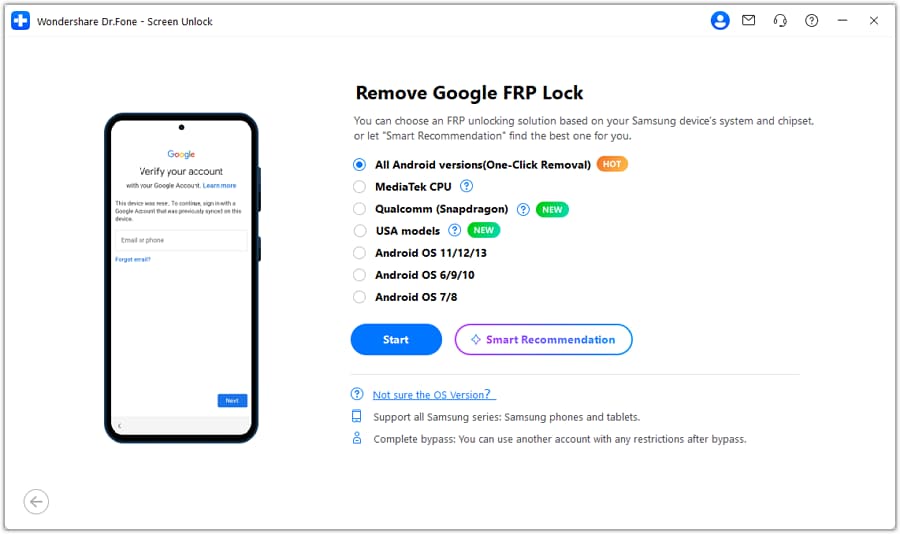
Choose “Samsung” from the supported Android brands list and press the "Start" button. Select the “Smart Recommendation (AI-Powered)” or “All Android versions (One-Click Removal)” option, then press “Start.”
-
Step 3 Work Through the Assisted Sequence
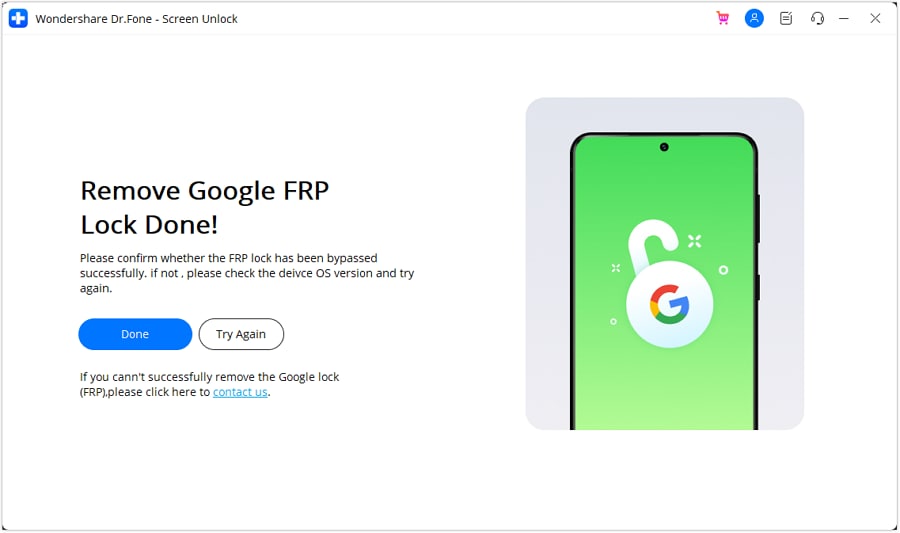
The window walks you through an on-device sequence, typically an emergency-dialer code that opens a hidden settings menu. Copy each tap exactly, keep the phone connected, and choose “Done” when the FRP lock is removed.




Conclusion
Choose the Ultra Unlock Tool if you handle repairs often. Experienced technicians can manage driver quirks, EDL modes, and security warnings. However, risks include unknown download sources, antivirus exceptions, and limited support for newer Android versions.
If the phone is yours and the account is merely forgotten, start with Google's own recovery process. It costs nothing and carries no risk. When that route closes, a reliable and practical application like Dr.Fone – Screen Unlock (Android) can clear the lock without asking you to lower your guard first.
Frequently Asked Questions
-
1. Is Ultra Unlock Tool safe to download?
Ultra Unlock Tool is generally safe to download when you use the official website or a trusted source. Unofficial mirror sites often package installers with malware or unwanted software. Always scan the file with antivirus software first and avoid links hidden behind surveys or short URLs. -
2. Does Ultra Unlock Tool work on Android 15 and 16?
Compatibility depends on your device model, chipset, and security patch level rather than the Android version alone. Newer Android 15 and 16 devices have limited support, and fully updated phones often block servicing features. -
3. Is Ultra Unlock Tool the same as i-ULTRA Unlock?
No, Ultra Unlock Tool deals with Google FRP on Android phones. i-ULTRA Unlock goes after iCloud Activation Lock on Apple hardware and depends on a jailbreak. Their similar names are the only real connection. -
4. Do I need Ultra Unlock Tool to remove an FRP lock?
No, the official method requires signing in with the original Google account. If you lose access, a tool like Ultra Unlock Tool can help, though success depends on your model and security patch.
 Add Wondershare Dr.Fone as a preferred source on Google



