Bypass iCloud Activation Lock and Android FRP without password.

 100% Security Verified | No Subscription Required | No Malware

 :
: 
 ChatGPT
 Perplexity
 Gemini
 Claude
 Grok
Grok
A repair tool can list many functions, but the real question is whether it supports your exact phone, chipset, and repair task. Mobile Sea Tool is designed for jobs such as FRP bypass, firmware flashing, screen-lock servicing, bootloader operations, and other device repair functions. The MobileSea Service Tool also supports several major Android brands and chipset platforms, making it useful for technicians who handle different devices. Still, you should check its setup, drivers, activation, and model support carefully.
This review covers the latest Mobile Sea Tool download, current activation requirements, key features, supported operations, and practical usage steps. It also explains the main limitations to consider before choosing Mobile Sea Tool for Android servicing.
In this article
Part 1. Introduction to Mobile Sea Tool
The Mobile Sea Tool is a mobile servicing program made for phone repair work. It brings all the repair features under one roof, including firmware flashing, backup, IMEI repair, FRP bypass, and account-related servicing. It's ideal for technicians as the tool works on popular Samsung, Huawei, Xiaomi, Vivo, and Oppo phones.
Instead of offering the same functions for every device, the MobileSea Service Tool provides options based on the brand and device platform. This allows technicians to choose the repair function that matches the phone they are handling.
1. General Features
The MobileSea Service Tool includes several functions used in common repair jobs:
- Firmware Flashing and Backup: Users can flash firmware on supported phones. They can also create backups before carrying out certain repair tasks.
- IMEI Repair: The tool includes IMEI repair functions for supported devices. This can help restore network-related operation when an IMEI issue is present.
- FRP Unlocking: MobileSea includes FRP removal functions that can help regain access to supported phones after a factory reset.
2. Brand-Specific Features
MobileSea also provides different options for individual phone brands. These functions are designed around the software and repair needs of each supported device.
Huawei
For Huawei phones, MobileSeaTool provides several service options:
- Bootloader Unlocking: The bootloader can be unlocked on supported devices, allowing the use of custom ROMs.
- Huawei ID and FRP Removal: The tool includes options for removing Huawei ID and FRP locks.
- Firmware Management: Users can work with Fastboot firmware and Board Firmware for supported Huawei devices.
Samsung
Samsung support covers both account and network-related repair functions:
- FRP and User Lock Functions: Supported Samsung phones can be serviced through ADB or Download Mode for FRP and user-lock tasks.
- IMEI and Baseband Repair: The tool provides options for repairing IMEI and baseband problems that may affect network service.
- EFS Reset: MobileSea also includes EFS reset functions that can help with certain network-related issues.
Xiaomi
The MobileSea Service Tool also offers several functions for Xiaomi phones:
- Account Unlocking: Xiaomi account locks can be handled through supported ADB or Fastboot methods.
- Screen Lock Management: The tool includes options to remove or apply screen locks without wiping data on supported devices.
- China-to-Global Conversion: It can convert supported Xiaomi firmware from Chinese to global.
Vivo and Oppo
For Vivo and Oppo devices, the tool provides:
- Bootloader Unlocking: Supported bootloaders can be unlocked for users who need access to install custom ROMs.
- FRP and User Lock Removal: The tool includes functions for handling FRP and user-data locks on supported models.
MediaTek Device Support
MobileSea also covers phones based on MediaTek chipsets. Its MediaTek functions include:
- Firmware Flashing: Users can flash firmware on supported MediaTek devices.
- IMEI Repair: IMEI repair functions are available for compatible MediaTek phones.
Other Useful Features
Beyond brand-specific tools, the MobileSea tool has two practical advantages for repair work:
- Multi-Brand Support: One program can handle servicing tasks across several major phone brands.
- Simple Interface: Its interface is designed for both new and experienced repair technicians.
Overall, MobileSea combines many common phone servicing functions in one program. However, having the software is only the first step. Users also need the correct version and setup before starting a repair task. The next section explains how to get the latest MobileSea tool download and prepare it for use.
Part 2. MobileSea Tool Download: Latest Version and Pricing
Getting the latest MobileSea tool download is a simple process. Before downloading it, users need to choose a paid plan based on how long they want to use the software. This can be useful for repair businesses that need regular access to its service functions.
MobileSea Service Tool Pricing
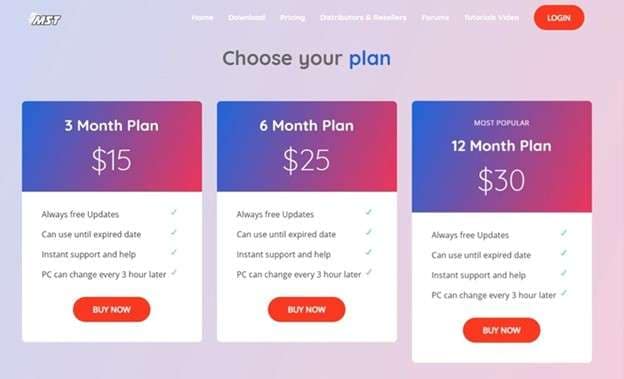
The MobileSea Service Tool comes with three validity periods. The available pricing is shown below:
| Validity | Price |
|---|---|
| 3 Months | $15 |
| 6 Months | $25 |
| 12 Months | $30 |
Users can select the option that best matches how often they expect to use the tool.
Steps for Mobile Sea Tool Download
Follow these steps to get the software on your computer:
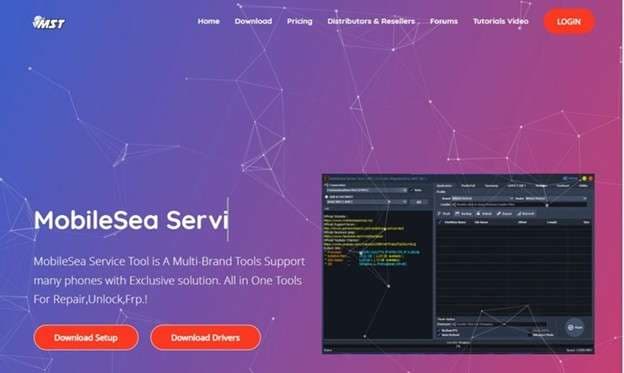
Step 1: Open the Official Website
Go to the official MobileSea Service Tool website to start the download process.
Step 2: Choose a Subscription Plan
Select the plan based on the required validity period. Complete the payment to continue.
Step 3: Download the Software
After payment, download the latest version of Mobile Seatool to your PC. Complete the required setup so the program is ready to open.
Step 4: Activate the Tool
Launch the software and enter the provided license key to activate your access.
Downloading the program alone does not complete the setup. The MobileSea Service Tool also needs activation before you can use its paid functions. The next section explains how the activation process works and why it is required.
Part 3. Does MobileSea Service Tool Require Activation?
Yes. The MobileSea Service Tool needs paid activation before you can use its unlock functions.
After installing the software, you must sign in with an account that has an active subscription or enough credit. The tool then connects to its server to verify your license.
Without valid activation, you cannot continue with FRP bypass or screen lock removal. Once the license is confirmed, the Mobile Sea Tool allows you to proceed with the supported unlock operation.
Part 4. How to Set Up and Use Mobile Sea Tool for FRP Unlocking
The Mobile Sea Tool can be used for mobile repair and unlocking tasks across different phone brands. Before starting, you need the software, an active license, and the correct USB drivers for your device.
How to Download and Set Up MobileSea Service Tool
Step 1: Visit the Official Website
Open the official MobileSea Service Tool website in your browser. Click Download Setup.
Step 2: Choose a Download Server
Pick a usable server and save the setup on your PC.
Step 3: Extract and Install the Tool
Extract the downloaded file and follow the setup instructions to install Mobile Seatool on your PC.
Step 4: Activate Your Account
Just open the program and create an account for your subscription. Enter the provided license key to activate the tool and access its features.
How to Use Mobile Sea Tool
Step 1: Install the Required USB Drivers
Install the compatible driver for your device, such as MediaTek, Qualcomm, Samsung, Oppo, ADB.
Step 2: Connect Your Phone
Once setup is done, connect the mobile to the system.
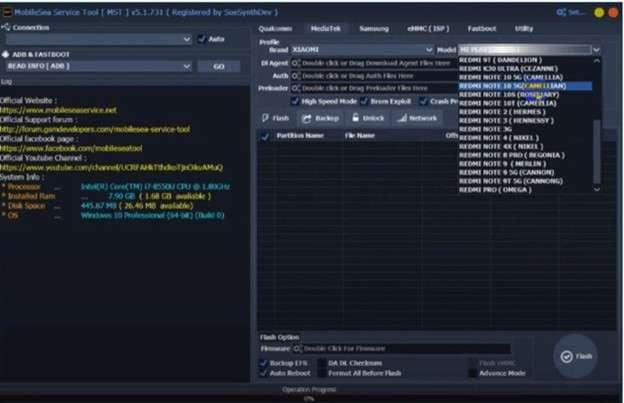
Step 3: Choose the Chipset and Model
Choose a suitable chipset, Qualcomm, MediaTek, etc. Then choose your phone model from the available options.
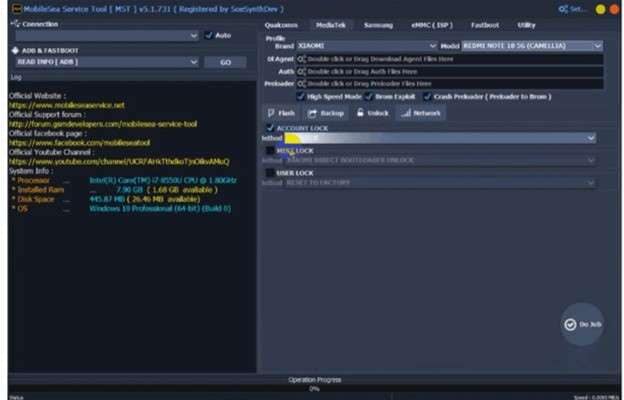
Step 4: Select the FRP Function
Open the Unlock tab and choose FRP Lock.
Step 5: Start the Process
Click Do Job to begin and complete the selected FRP operation.
While the MobileSea service tool offers a direct repair workflow, its setup still involves activation, drivers, chipset selection, and model matching. The next section looks at another Android screen unlock and FRP option with a more guided process.
Part 5. Dr.Fone - Screen Unlock (Android): A More Guided Unlock Option
The Mobile Sea Tool can handle many repair tasks, but its workflow requires activation, USB drivers, chipset selection, and the correct phone model. If your main goal is only to remove an Android screen lock or deal with Google FRP, a more guided tool may be easier to handle.
Dr.Fone - Screen Unlock (Android) focuses on these lock-related tasks. It can remove PINs, patterns, passwords, fingerprint locks, and face locks on supported Android devices. It also provides Google FRP removal for supported brands. Wondershare currently supports 32 brands and more than 2,000 Android phone and tablet models, including Samsung, Xiaomi, Motorola, Huawei, OPPO, Vivo, Lenovo, and OnePlus.
 Unlock Android phone in seconds.
- Remove PIN, pattern, password, fingerprint.
- Bypass Google FRP lock easily.
- Works on all Android brands & models.
- No tech skills required – user-friendly.

Key Features of Dr.Fone - Screen Unlock (Android)
- It handles PIN, password, pattern, fingerprint, and face locks compatible with Android devices.
- The tool supports a separate FRP removal function for specific Android brands.
- Wondershare supports 2000+ Android phone and tablet models across 32 brands.
- The current Dr.Fone Screen Unlock support is for Android 16. For newer Samsung devices there are existing FRP workflows.
- The software provides on-screen instructions based on the selected device and unlock method, reducing the need to manually choose chipset-level repair functions.
How to Remove a Samsung Screen Lock Without Data Loss
Dr.Fone can remove the screen lock without erasing data on selected Samsung devices only. If your model is not supported for this method, the standard unlock process may erase device data.
-
Step 1 Open Screen Unlock
Set up and run Wondershare Dr.Fone. Connect the Samsung phone using USB cable and after that, Toolbox > Screen Unlock > Android > Unlock Android Screen.

-
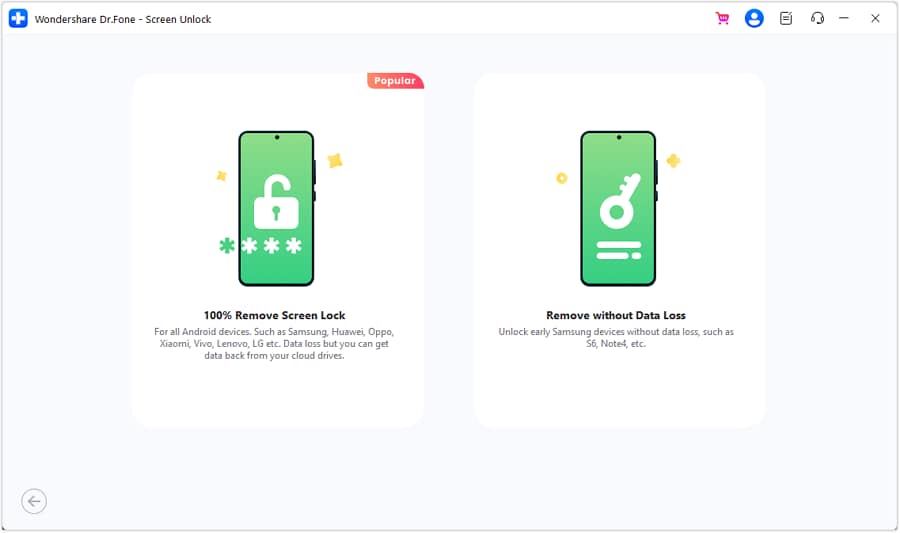
Step 2 Choose the Data-Safe Unlock Option
Select Samsung, then choose Remove without Data Loss. Enter the correct device name and model. Accept the warning and continue.
-
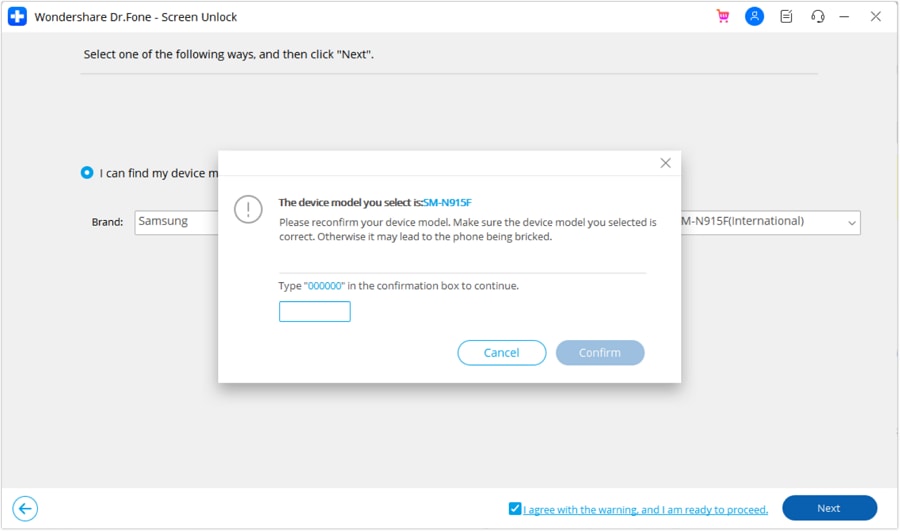
Step 3 Confirm and Enter Download Mode
When prompted by Dr.Fone, enter 000000 for confirmation. Afterwards, comply with the instructions appearing on the screen to put Samsung in Download Mode.
-
Step 4 Complete the Unlock
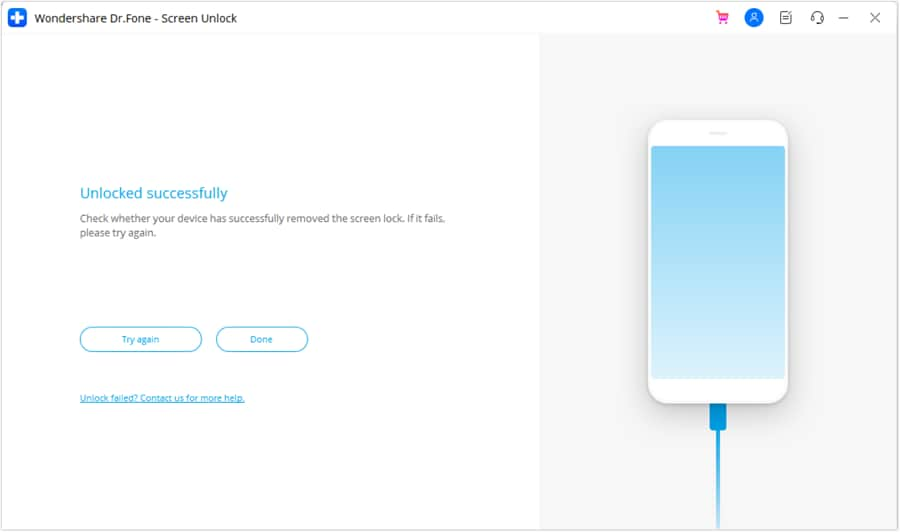
Dr.Fone gets the necessary drivers and configuration files and begins disabling the lock. Keep the device connected until the software confirms you can disconnect your device.




How to Bypass Samsung FRP With Smart Recommendation
Dr.Fone also provides Smart Recommendation (AI-Powered) for Samsung FRP removal. It checks details such as the connected device, Android version, and device environment, then suggests a suitable FRP removal method.
Step 1: Open the FRP Tool
Launch Dr.Fone and connect the Samsung phone or tablet. Go to Toolbox > Screen Unlock.
Step 2: Select Samsung FRP Removal
Select Android > Remove Google FRP Lock, choose Samsung and press Start.
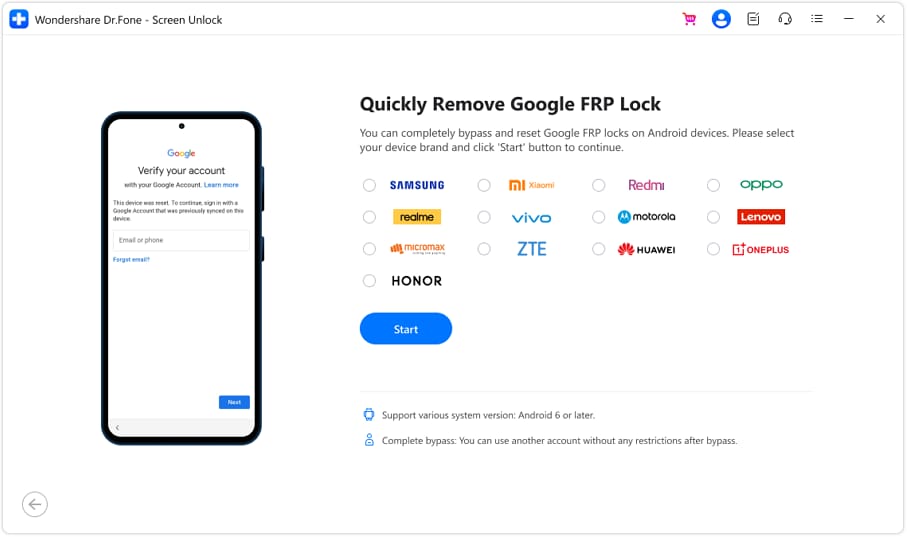
Step 3: Use Smart Recommendation
Select Smart Recommendation (AI-Powered). Dr.Fone scans the connected device and picks an appropriate FRP method for you, so you don't need to manually select from various Android os versions or chipset options.
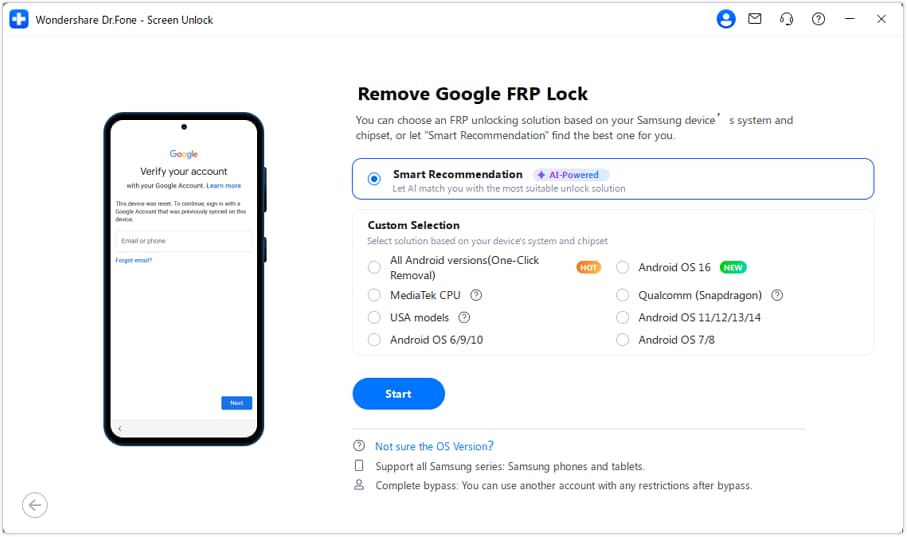
Step 4: Follow the Guided Process
Continue following the on-screen instructions. Dr.Fone leads you through the recommended FRP removal process based on the detected device details.
Conclusion
The Mobile Sea Tool is best suited to repair technicians who need more than basic unlocking. Its mix of flashing, FRP, screen-lock, and device service functions gives the MobileSea Service Tool broad repair value, but it also requires activation, correct drivers, chipset knowledge, and model matching.
If you simply need to remove Android screen lock or Google FRP, Dr.Fone - Screen Unlock (Android) is an easier and more targeted process with wider Android support. In other words, Mobile Seatool is used for technical repair but Dr.Fone is more practical for simple unlocking.
 Add Wondershare Dr.Fone as a preferred source on Google