Bypass iCloud Activation Lock and Android FRP without password.

 100% Security Verified | No Subscription Required | No Malware

 :
: 
 ChatGPT
 Perplexity
 Gemini
 Claude
 Grok
Grok
Many active users experience sudden interruptions when a video stops playing. Searching for YouTube “An Error Occurred” playback ID helps people find reliable solutions. According to Google Support, this is one of the platform's most common error messages.
This guide covers what triggers a YouTube playback error and the top fixes for the general error. You will also explore YouTube playback error 16 separately, a distinct location-based error specific to YouTube TV. Besides, it covers how Dr.Fone - System Repair can help with a related issue on a phone.
In this article
- Part 1. What is the "An Error Occurred" YouTube Playback Error?
- Part 2. Common Causes of YouTube Playback Errors and Error 16
- Part 3. Quick Checks Before Applying Fixes
- Part 4. How to Fix "An Error Occurred" on YouTube Playback?
- Bonus Tool: Dr.Fone – Screen Unlock (When You Can’t Access Your Device at All)
- Part 6. How to Fix YouTube Playback Error 16?
Part 1. What is the "An Error Occurred" YouTube Playback Error?
The “An error occurred” message means YouTube's player failed to start or continue a video stream. It is not a sign that the video itself is broken or removed.
The Playback ID that often follows the message is a unique reference string generated for that failed attempt. It changes every time the error appears again, so the ID itself isn't something to decode. This helps YouTube support pinpoint a session if you report the issue.
Part 2. Common Causes of YouTube Playback Errors and Error 16
Both YouTube playback errors share a general troubleshooting logic, but the specific triggers behind them are different, as explained below:
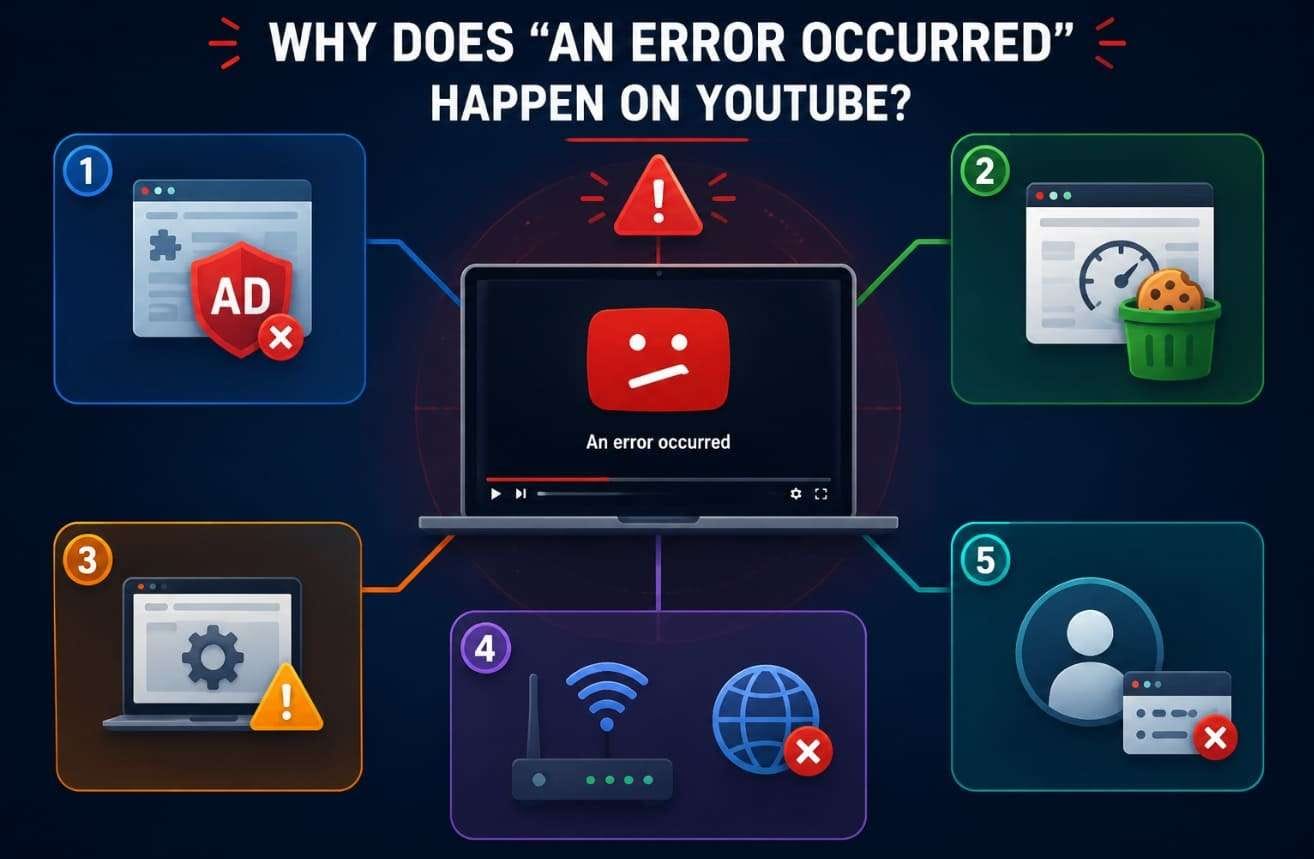
What Causes the General "An Error Occurred" Message?
According to Google Support, this message sits alongside a short list of other common errors, mentioned below:
- Browser Extensions: Ad blockers and other extensions alter scripts that the player depends on.
- Corrupted Cache: Stored cache or cookies can go stale after YouTube updates its player.
- Outdated Software: Older browsers or apps lose compatibility with YouTube's current player requirements.
- Network Issues: An unstable connection or a misconfigured DNS server may interrupt streaming.
- Session Problems: A stale sign-in session can occasionally prevent the player from authenticating.
What Causes YouTube Playback Error 16 Specifically?
YouTube playback error 16 relates to YouTube TV's home area verification failing, as per Google Support. YouTube TV ties your channel access to a registered home ZIP code and your current physical location. A VPN or proxy is one of the most common triggers, since it masks your real location entirely. Google also confirms that a VPN or proxy blocks YouTube TV playback outright, not just certain channels.
Part 3. Quick Checks Before Applying Fixes
These checks resolve the YouTube “An Error Occurred” playback ID error for many users:
Check 1. Refresh YouTube or Restart the App
A refresh forces YouTube to request the video again, which clears many temporary glitches. Thus, refresh the web page (F5 or the refresh button) before proceeding. On mobile devices, close and reopen the YouTube app before testing playback again.
Check 2. Test Your Internet Connection
Video quality has real bandwidth requirements that a weak connection can't sustain. A connection that can't keep up will trigger playback errors identical to other issues. Google Support lists recommended sustained speeds scaling directly with resolution, as shown here:
| Video Resolution | Recommended Sustained Speed |
|---|---|
| 4K UHD | 20 Mbps |
| HD 1080p | 5 Mbps |
| HD 720p | 2.5 Mbps |
| SD 480p | 1.1 Mbps |
| SD 360p | 0.7 Mbps |
Check 3. Check YouTube Server Status
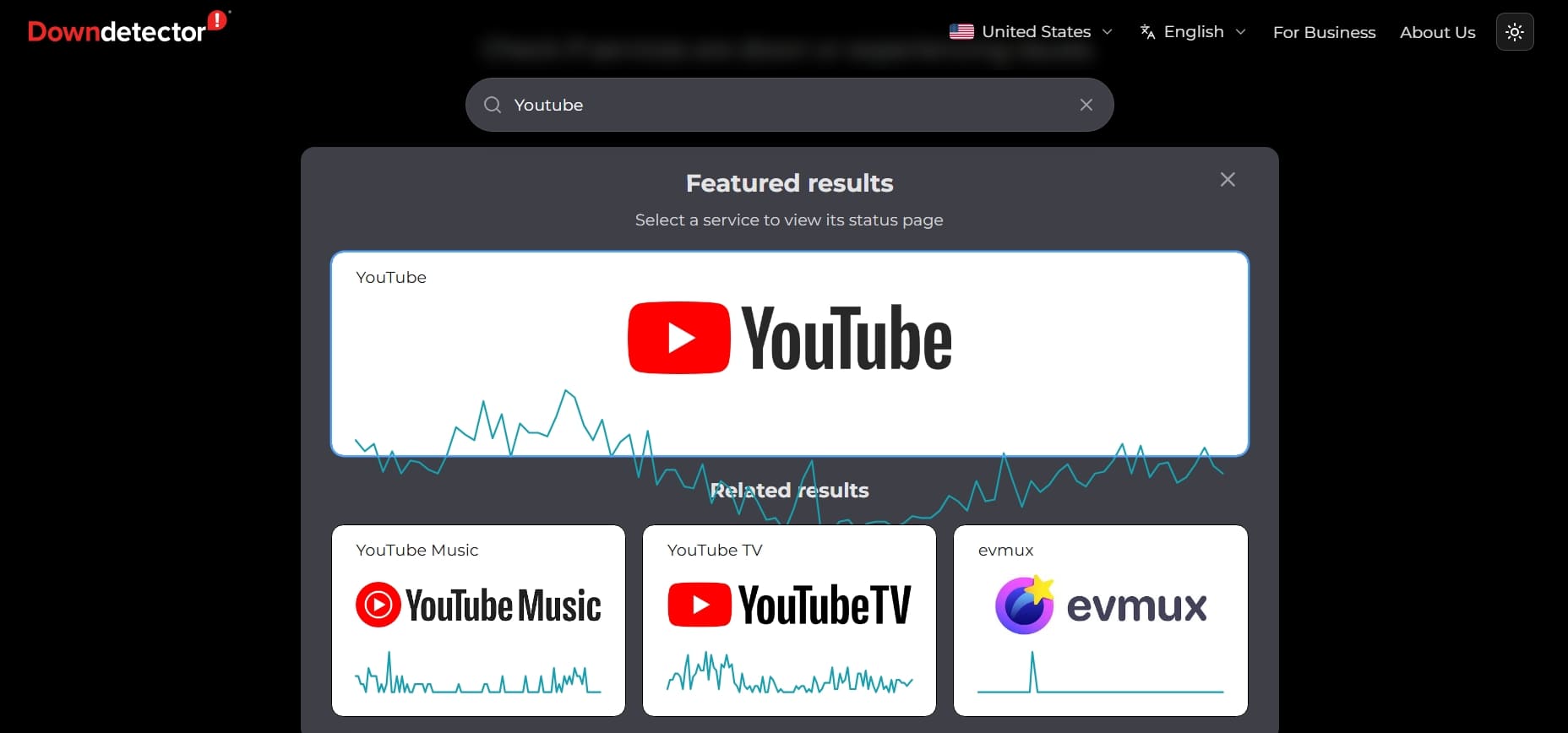
In some cases, the error isn't local, but stems from YouTube's own servers. A widespread outage produces the same error message as local problems. So, check the YouTube status via outage trackers like Downdetector to rule this out before moving further.
Check 4. Try Playing Another Video
Users should also test a different video to see if the problem is specific to one video. If every video fails identically, the problem likely isn't one piece of content. This points toward a broader YouTube playback error affecting your browser or network.
Part 4. How to Fix "An Error Occurred" on YouTube Playback?
According to YouTube’s official troubleshooting guide, YouTube “An Error Occurred” playback ID can often be resolved by updating browsers and checking network connections. If the quick checks don’t resolve it, work through these fixes to address this problem:
-
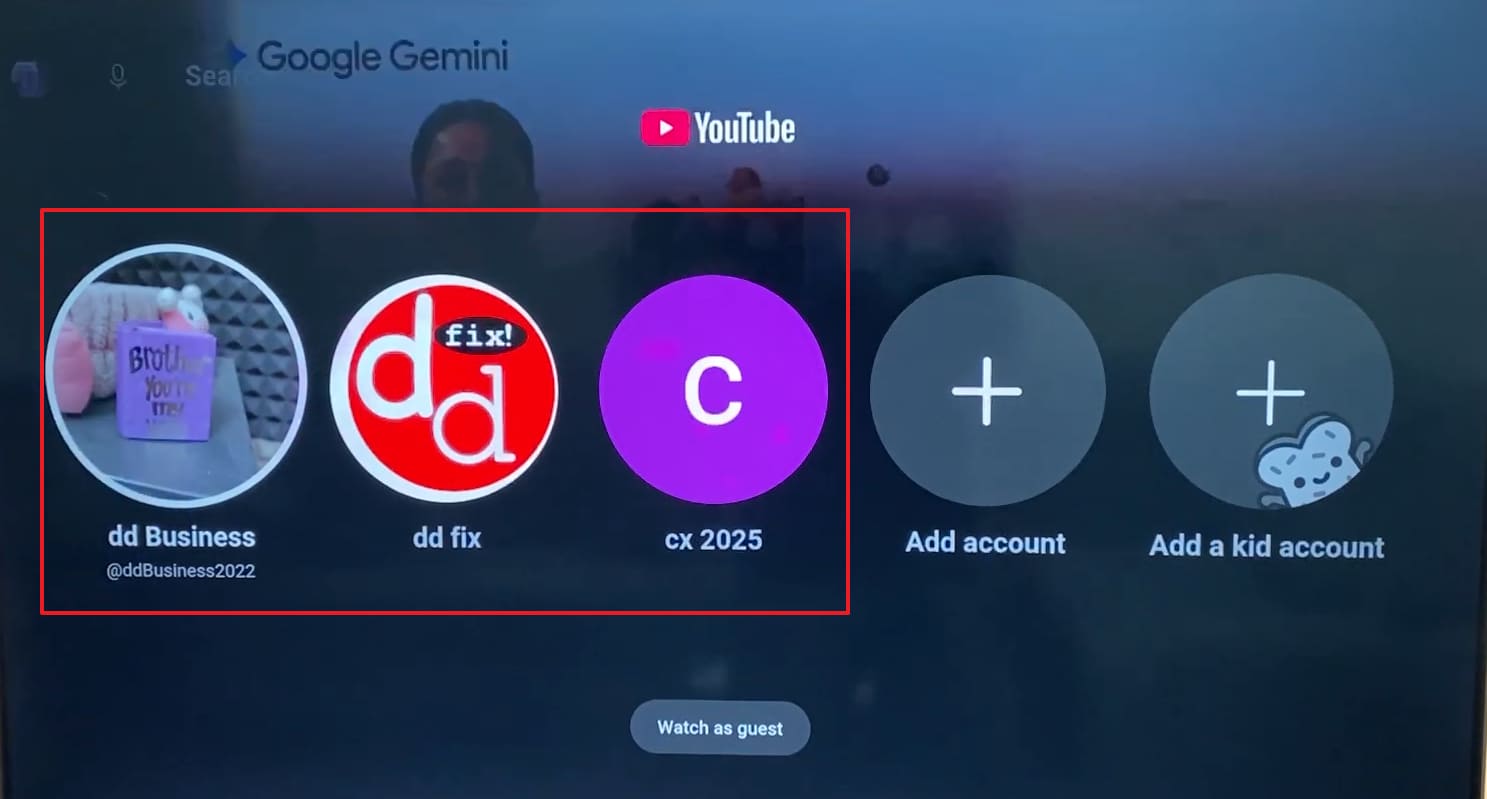
Fix 1 Sign Out and Sign Back Into Your YouTube Account
A stale account session can quietly prevent the player from authenticating correctly. This is typically after a security event or a password reset. Follow these steps to refresh your session and restore normal playback:
On Mobile
Step 1. As you tap the “Profile” icon, expand the “Accounts” section, and choose “Manage Accounts.”
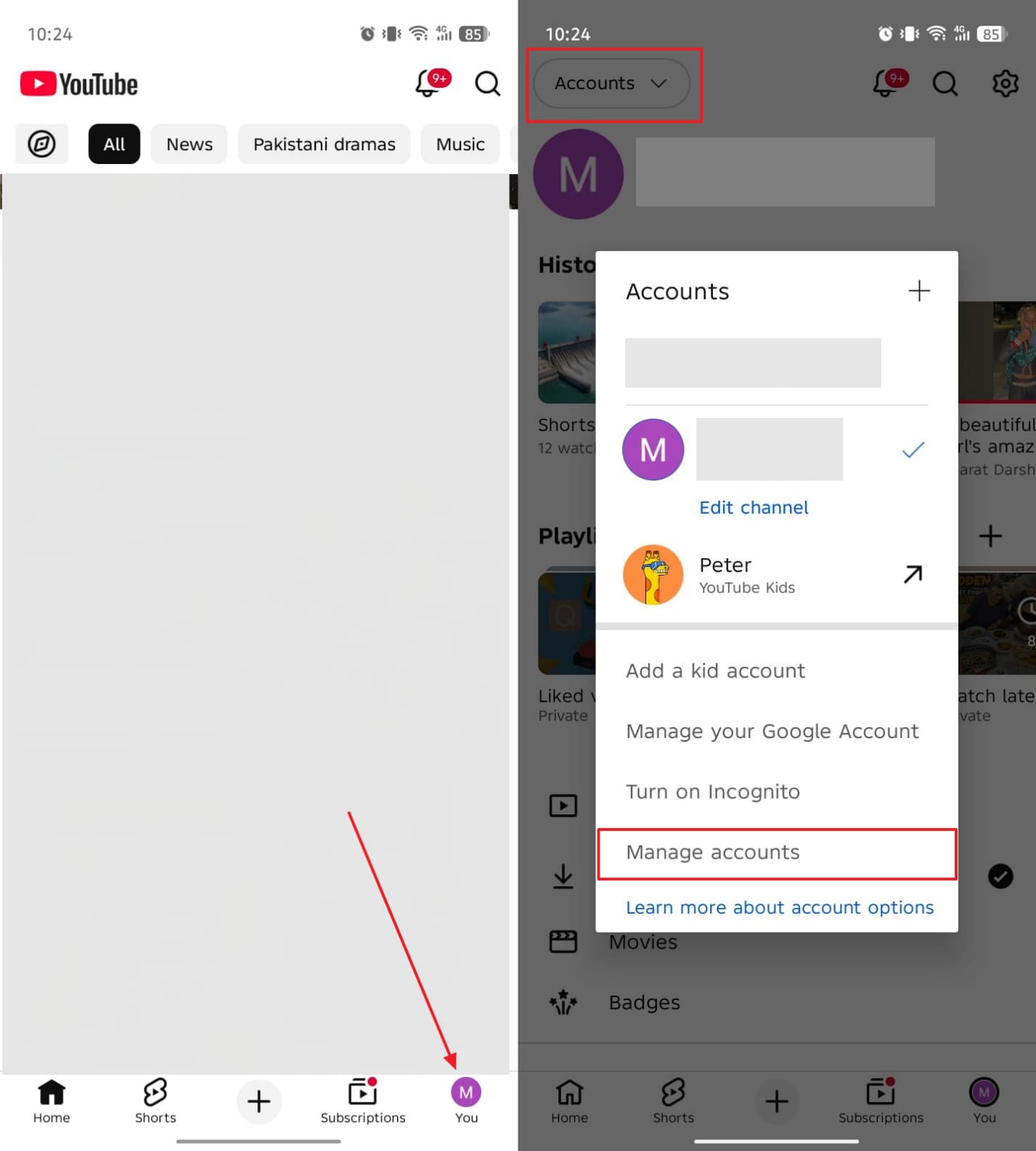
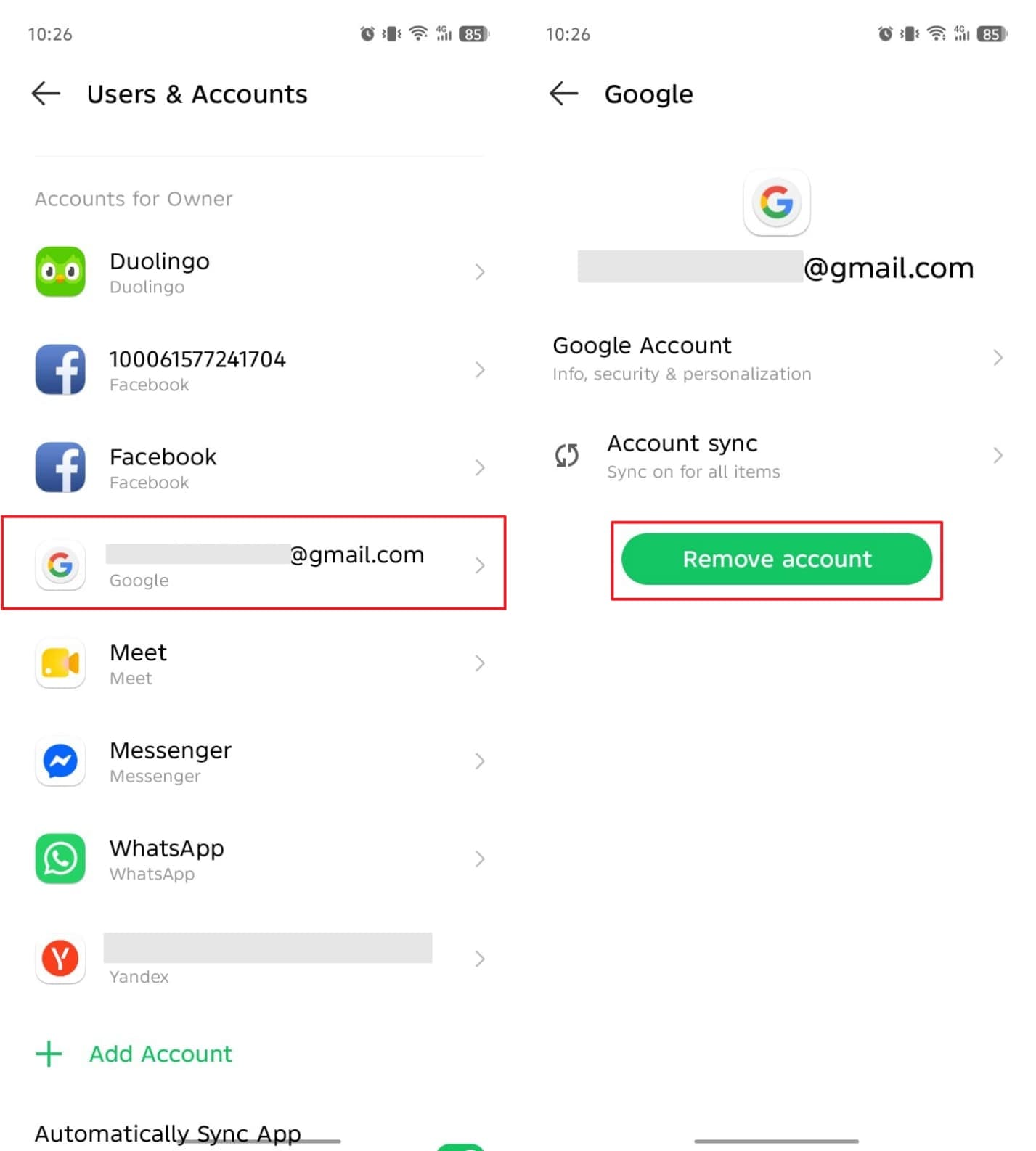
Step 2. Following that, head to your signed-in Google account and press “Remove Account.” After a while, you can sign in again to resolve the issue.
On Desktop
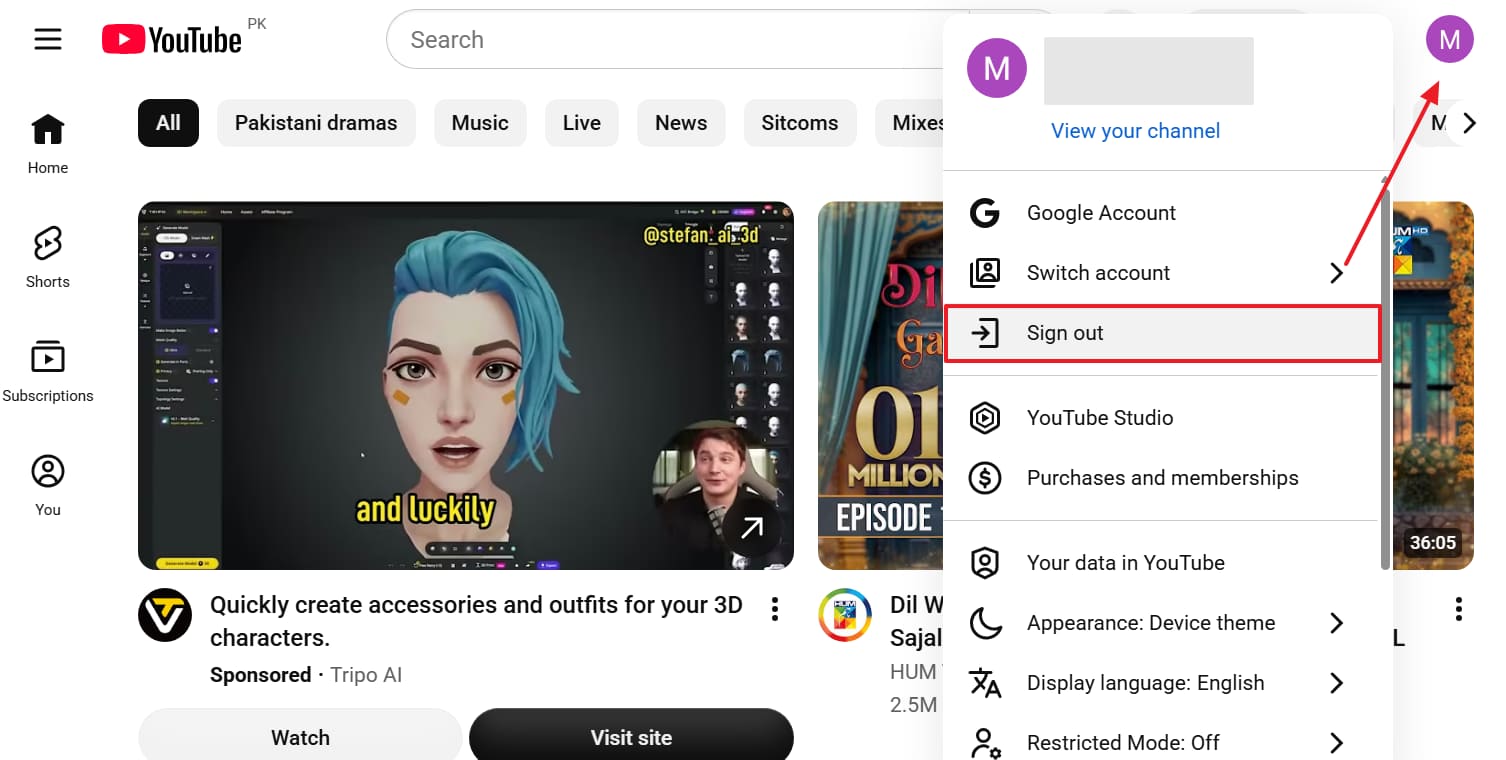
Instructions. Upon clicking the “Profile” icon, press the “Sign Out” option. Going ahead, sign in to your YouTube account again to resolve the issue.
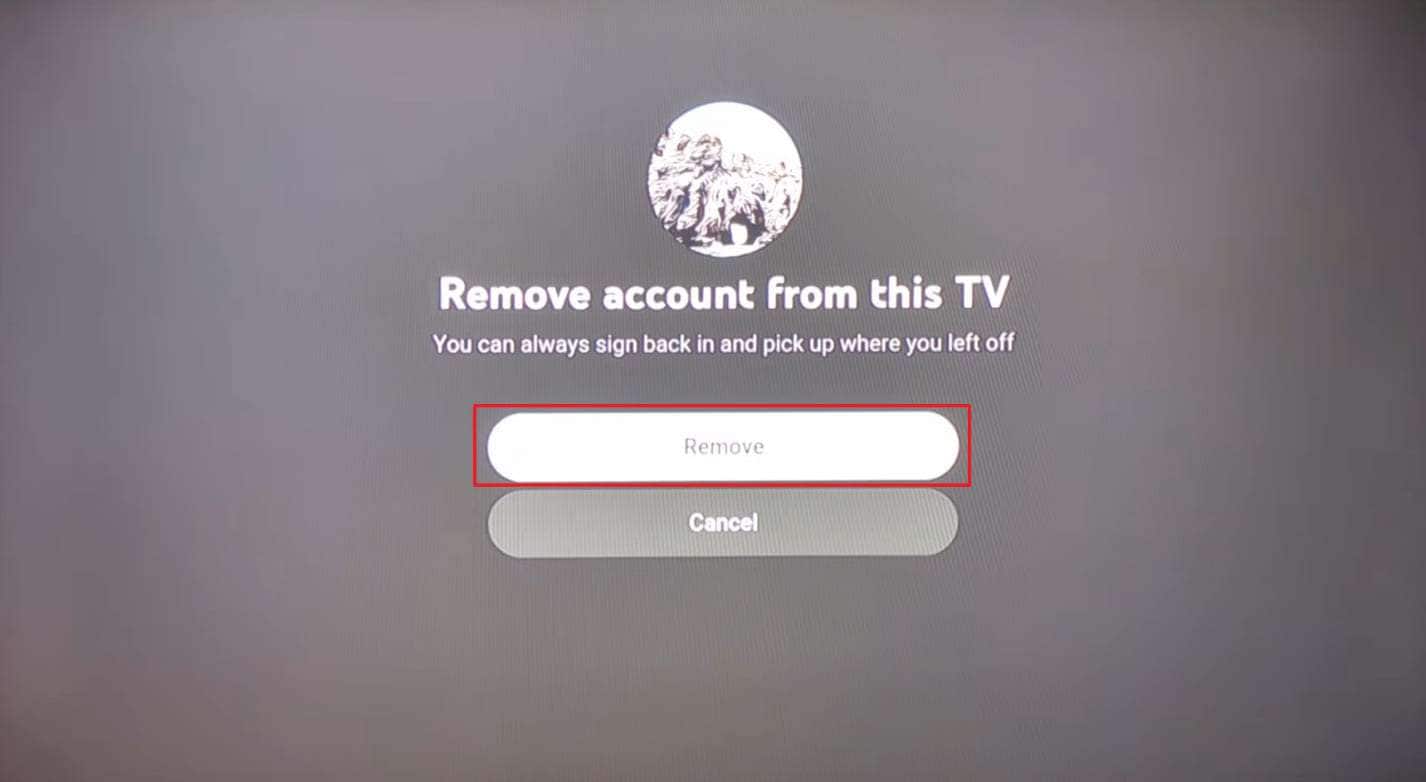
On TV
Step 1. When you head to your “Profile” section, click the “Settings” icon under your account.
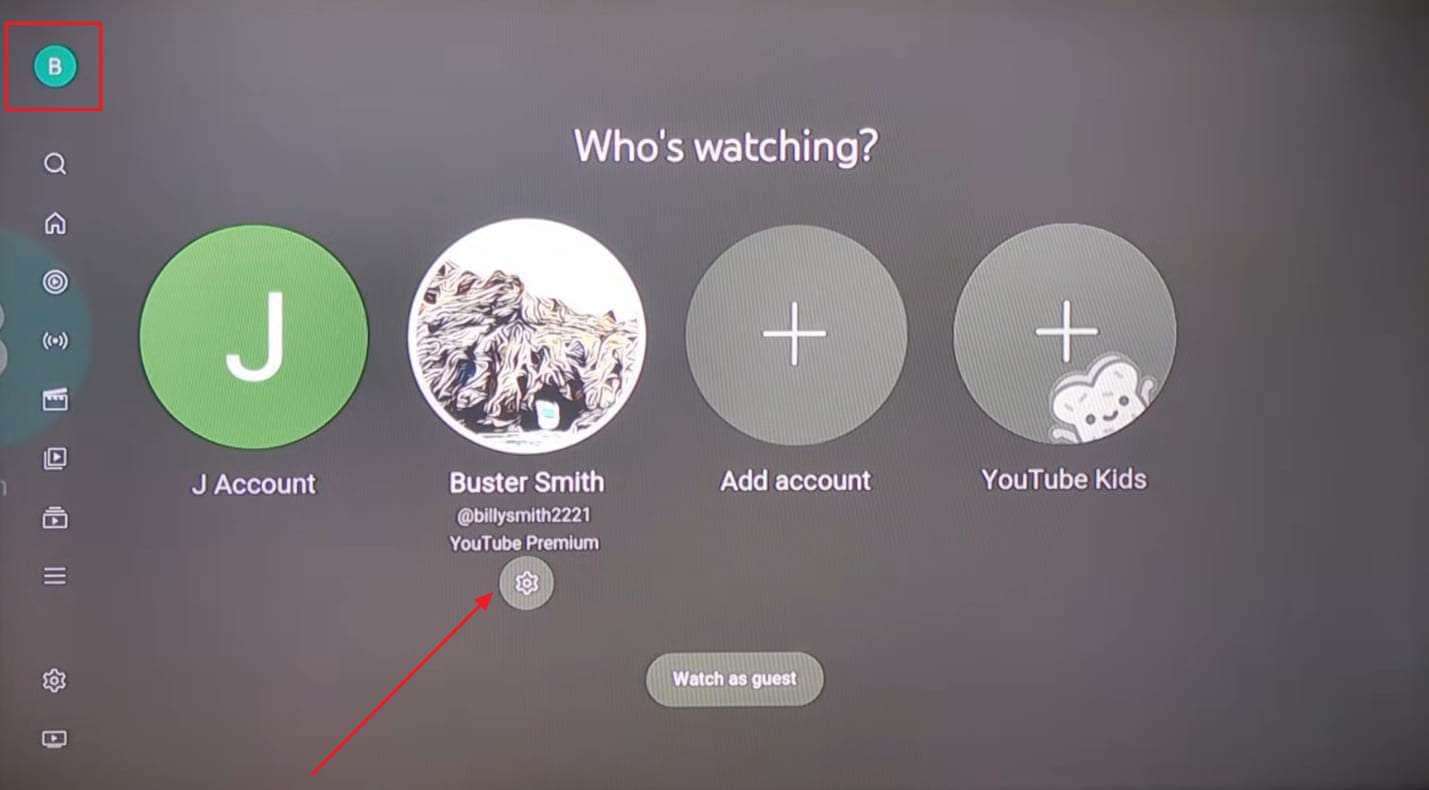
Step 2. Finally, press the “Remove” button and sign in again after a few moments.
-
Fix 2 Reduce YouTube Video Quality
If your connection can't sustain the required bandwidth, the player can fail outright. Auto quality should adjust automatically, but it often lags behind sudden bandwidth drops. Go through the given guide to manually lower the quality and restore smooth playback:
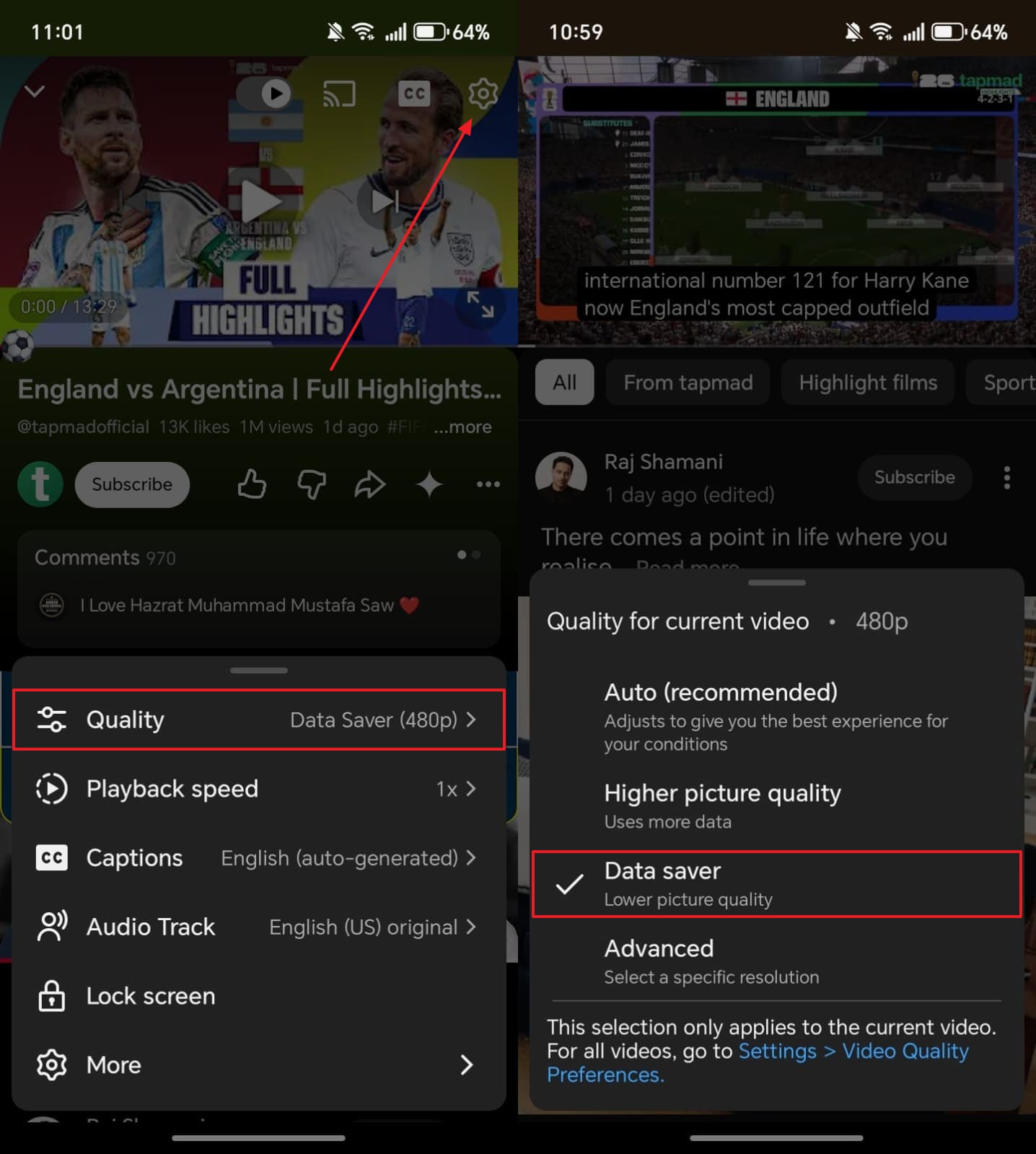
On Mobile
Instructions. Upon playing a video on your phone, tap the “Gear” icon and access “Quality” to choose “Data Saver.”
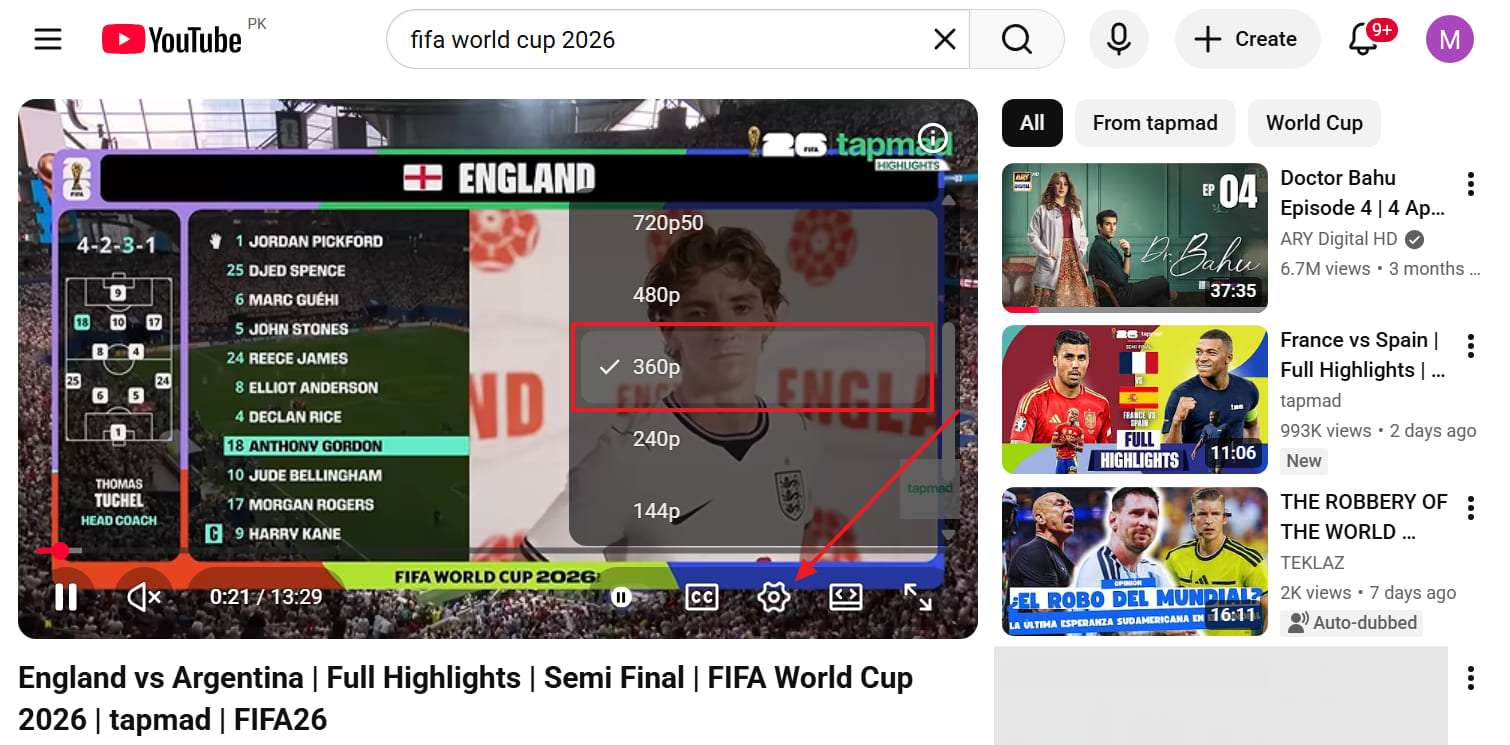
On Desktop
Instructions. As you press the “Settings” icon under a video, head to the “Quality” section to select a lower quality like “360p.”
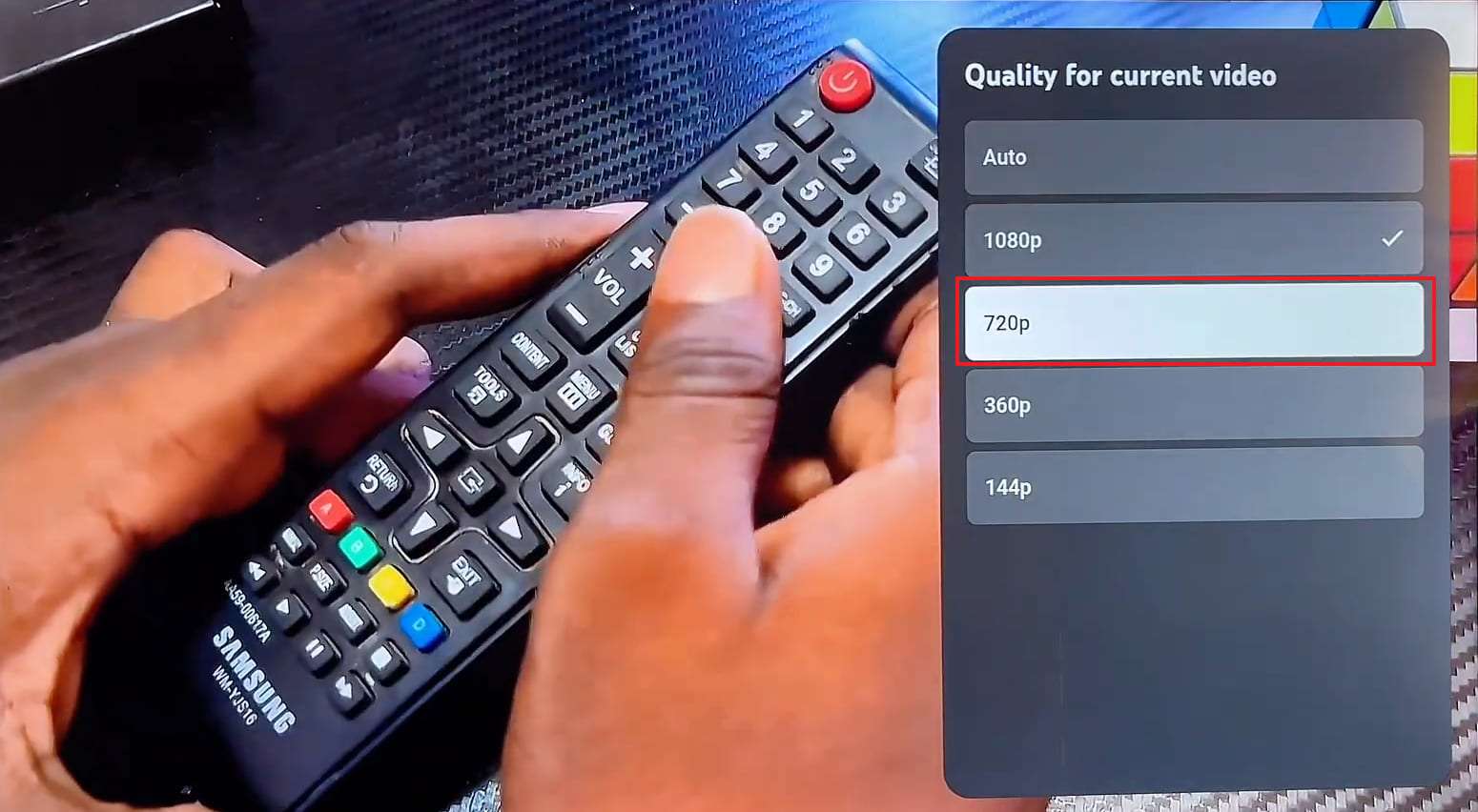
On TV
Step 1. When you play a video on your TV, head to the “Settings” section.
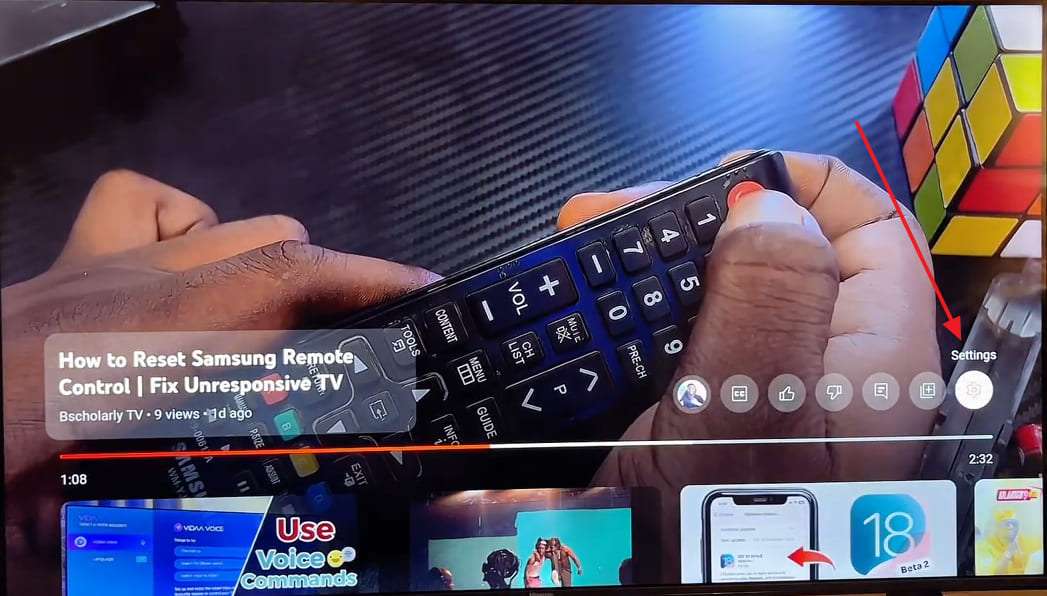
Step 2. Then, access the “Quality for Current Video” section and set a lower quality like “720p.”
-
Fix 3 Try Another Browser, Network, or Device
Testing a different browser, network, or device isolates whether the YouTube playback error is tied to one specific setup or something more general. A result that only fails on one combination points directly at that piece, rather than YouTube itself.
-
Fix 4 Disable Ad Blockers and Browser Extensions
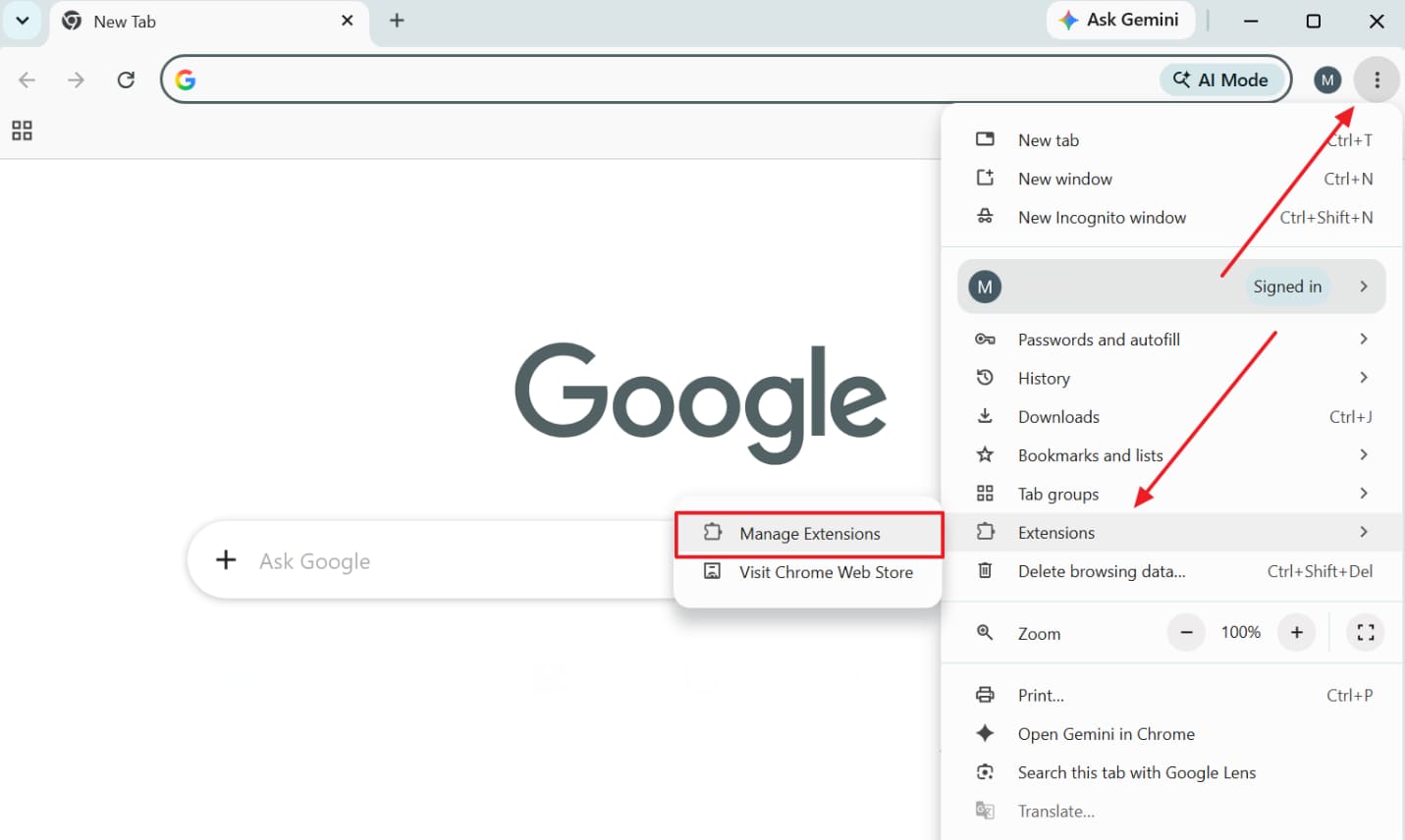
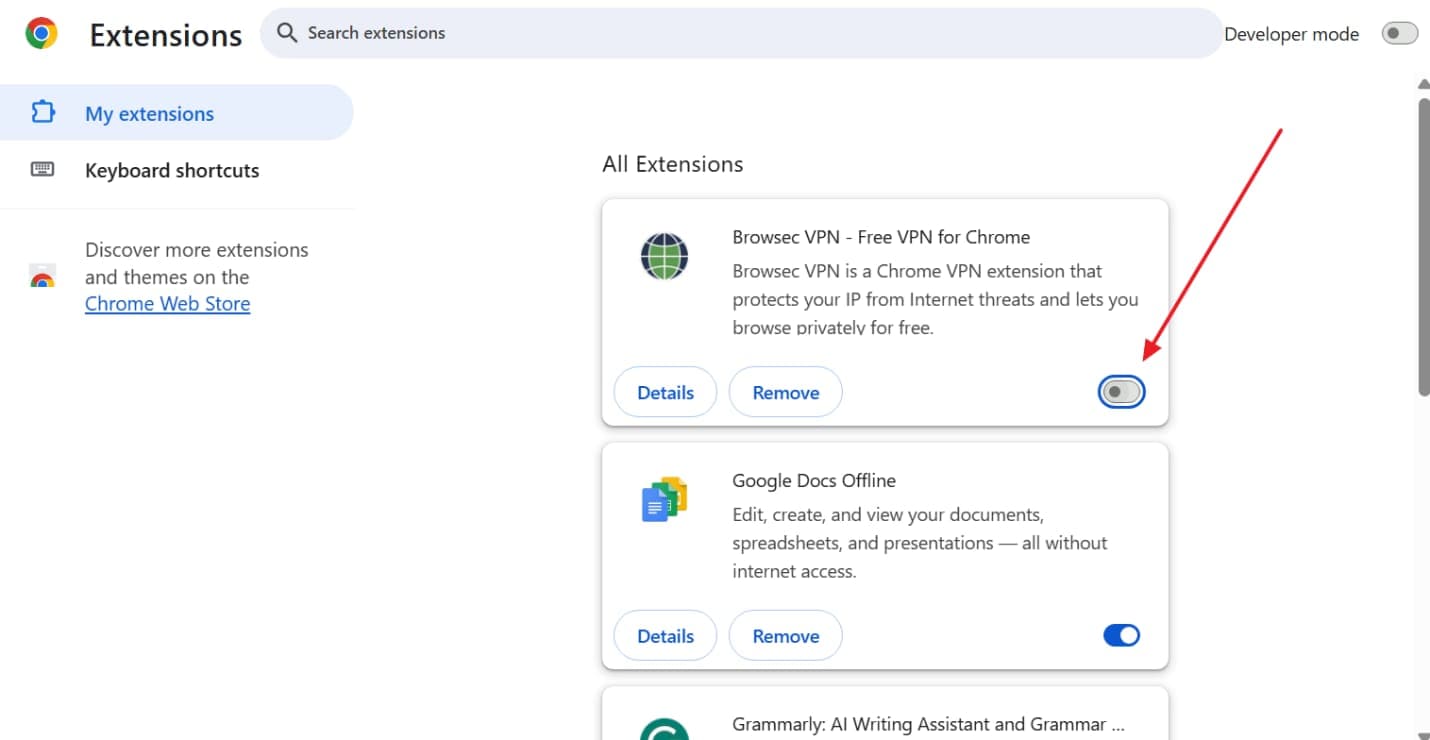
Extensions that block or rewrite page scripts are one of the most reported causes of this exact error, as per Google. Even extensions unrelated to ads or privacy can interfere, simply by modifying how a page's scripts load. Adhere to the given steps to disable extensions and confirm normal playback resumes:
Step 1. Head to “Extensions” by pressing the “Three Dots” icon and opt for “Manage Extensions.”
Step 2. Moving forward, press the “Toggle” to disable any ad blockers or extensions.
-
Fix 5 Clear YouTube Cache and Browser Cookies
Cached data tied to an older version of YouTube's player can create a mismatch after an update. This is likely right after YouTube ships a player update, since your browser may still reference the previous version's files. Take guidance from the given steps to resolve the YouTube "An Error Occurred" playback ID:
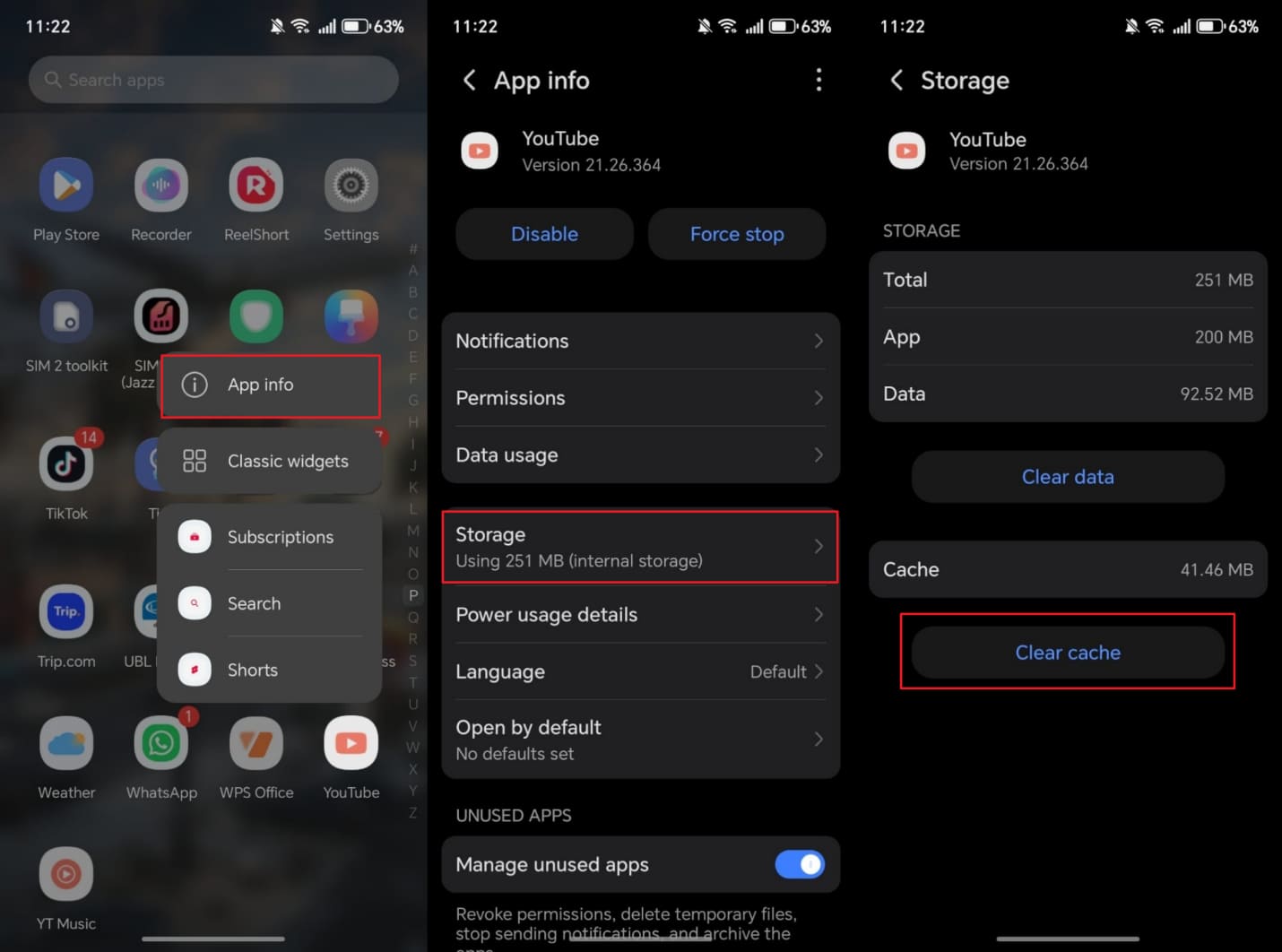
On Mobile [Only Android]
Instructions. Opt for the “App Info” option after pressing the YouTube app icon. Access the “Storage” section and tap the “Clear Cache” option.
On Desktop
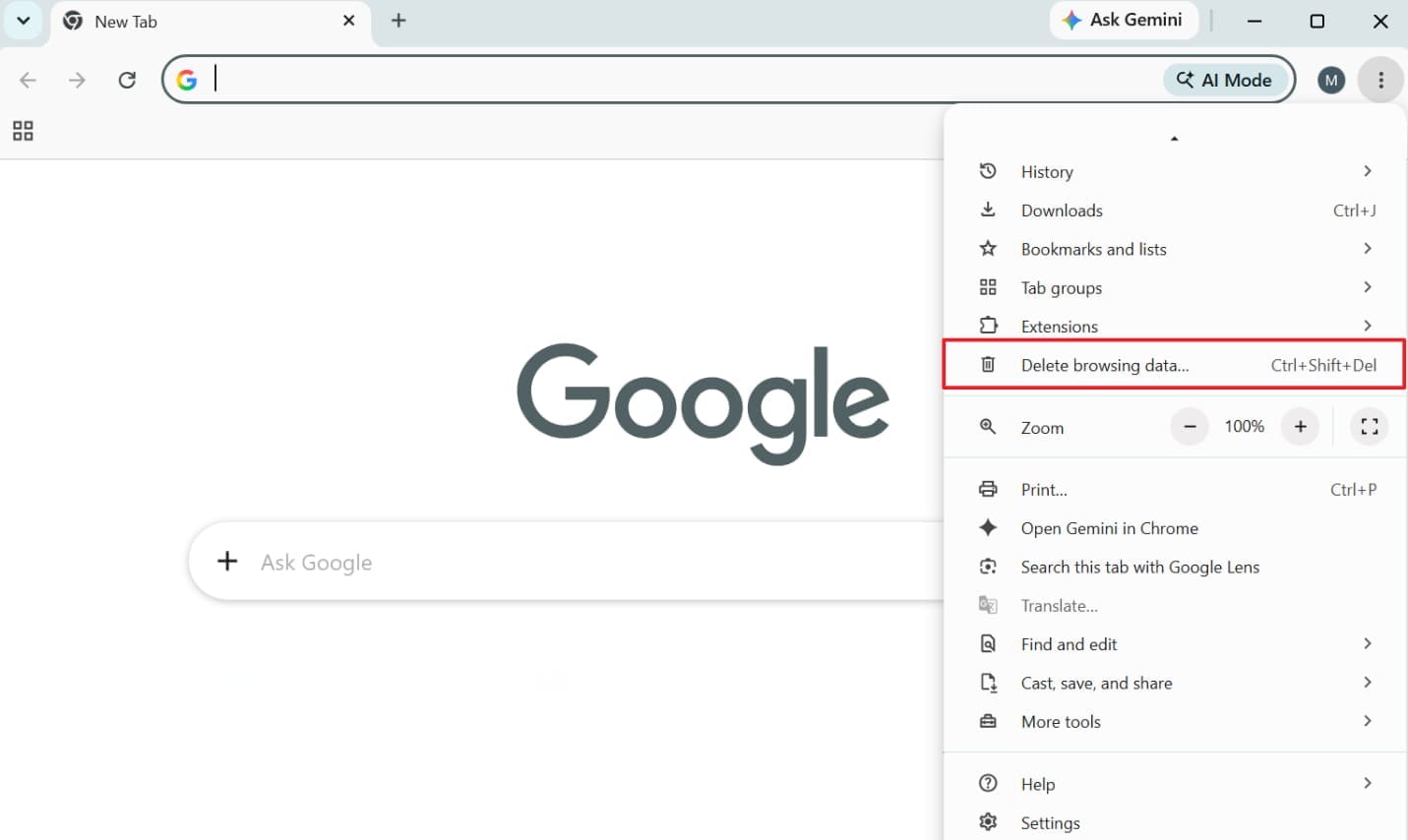
Step 1. As you press the “Three Dots” on your browser, click the “Delete Browsing Data” option.
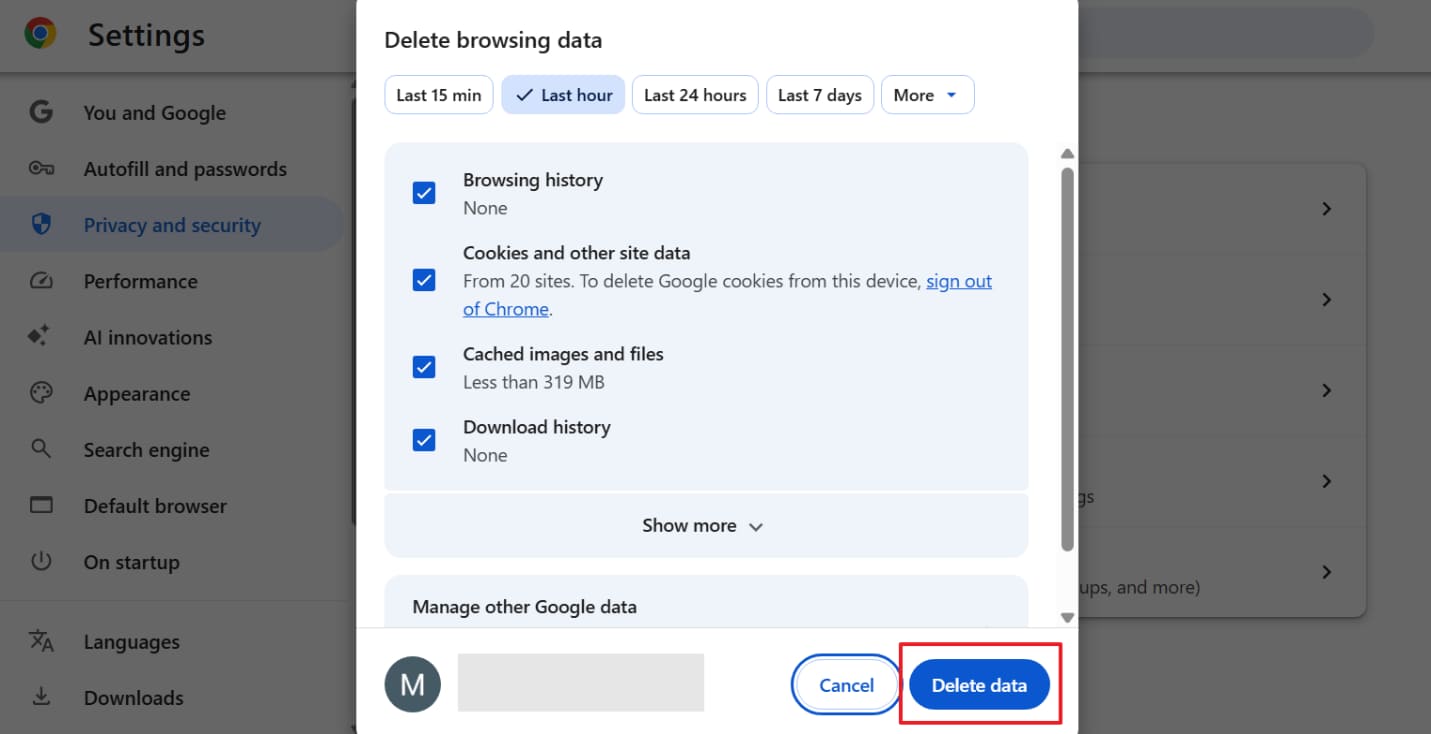
Step 2. Following that, choose “Cookies and Other Site Data” and the other option, confirm the time range, then click “Delete Data.”
On TV
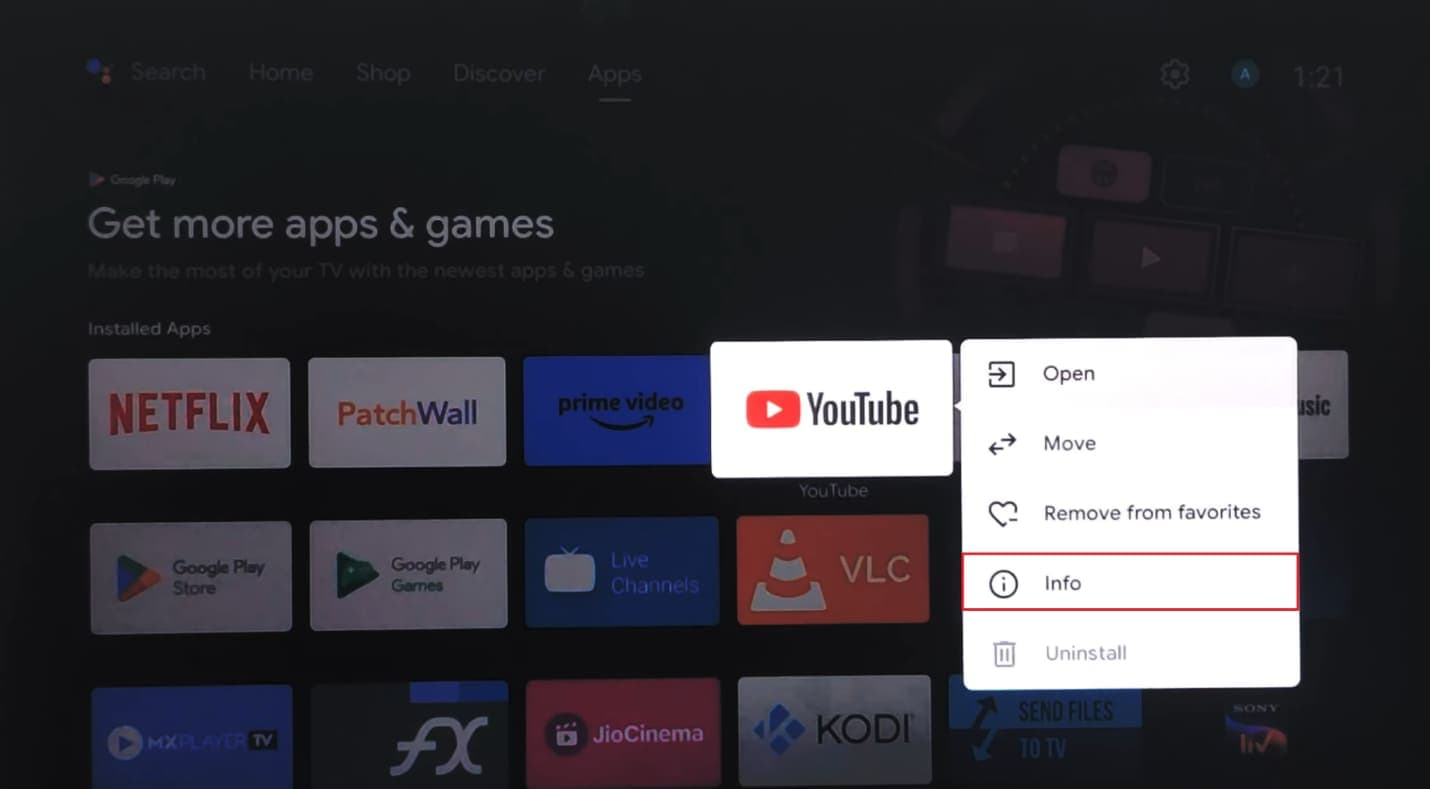
Step 1. When you tap and hold on the app, navigate to the “Info” section.
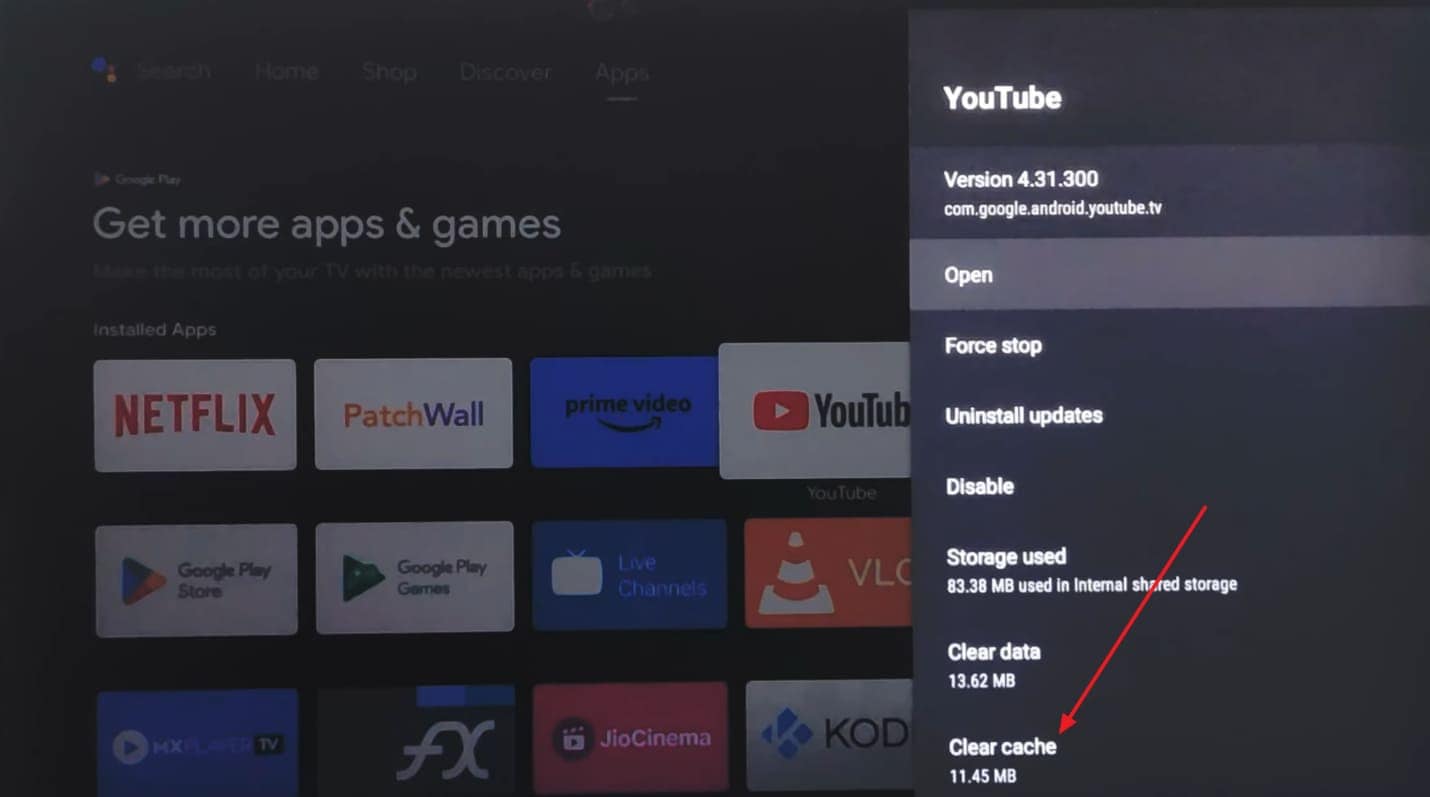
Step 2. Upon seeing a new list of options, opt for “Clear Cache.”
-
Fix 6 Update the YouTube App or Web Browser
An outdated app or browser gradually loses compatibility with YouTube's current player requirements. It increases how often this error appears over time. The app can appear current while actually running several versions behind, which need to be updated via the given steps:
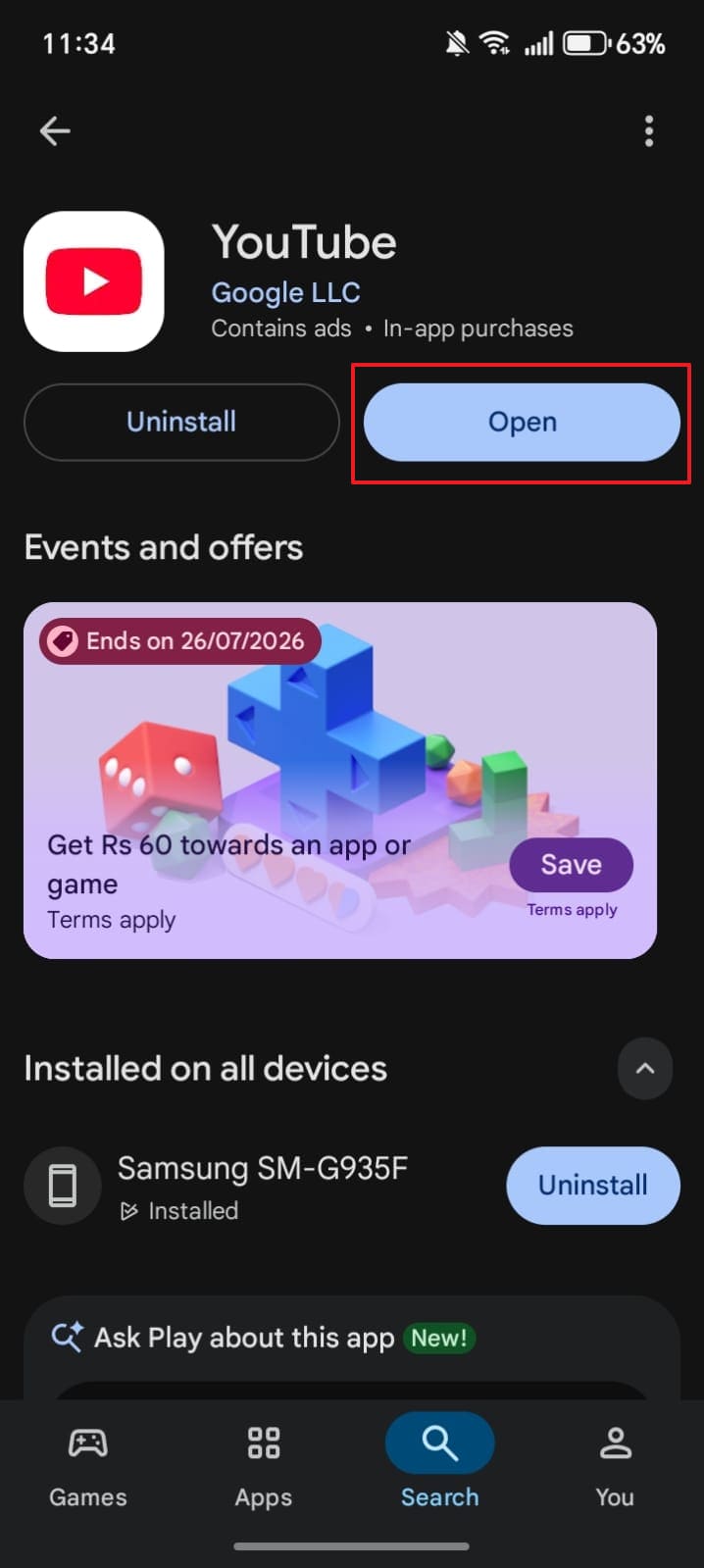
On Mobile
Instructions. As you search for the “YouTube” app on the Play Store or App Store, press “Update” if there is an update available.
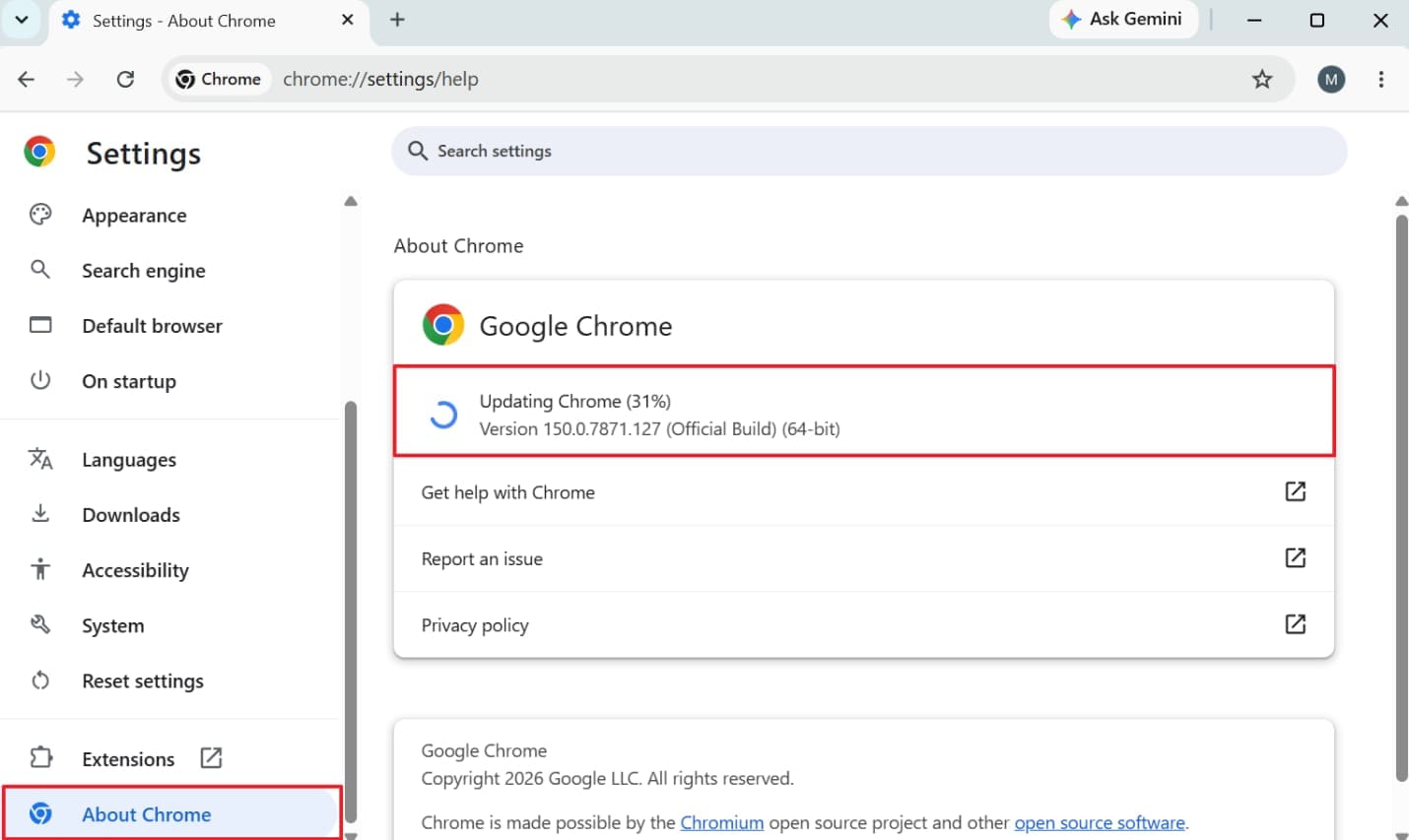
On Desktop
Instructions. Upon accessing the browser’s settings on your desktop, head to the “About Chrome” section. Then, your browser will start updating to the latest version.
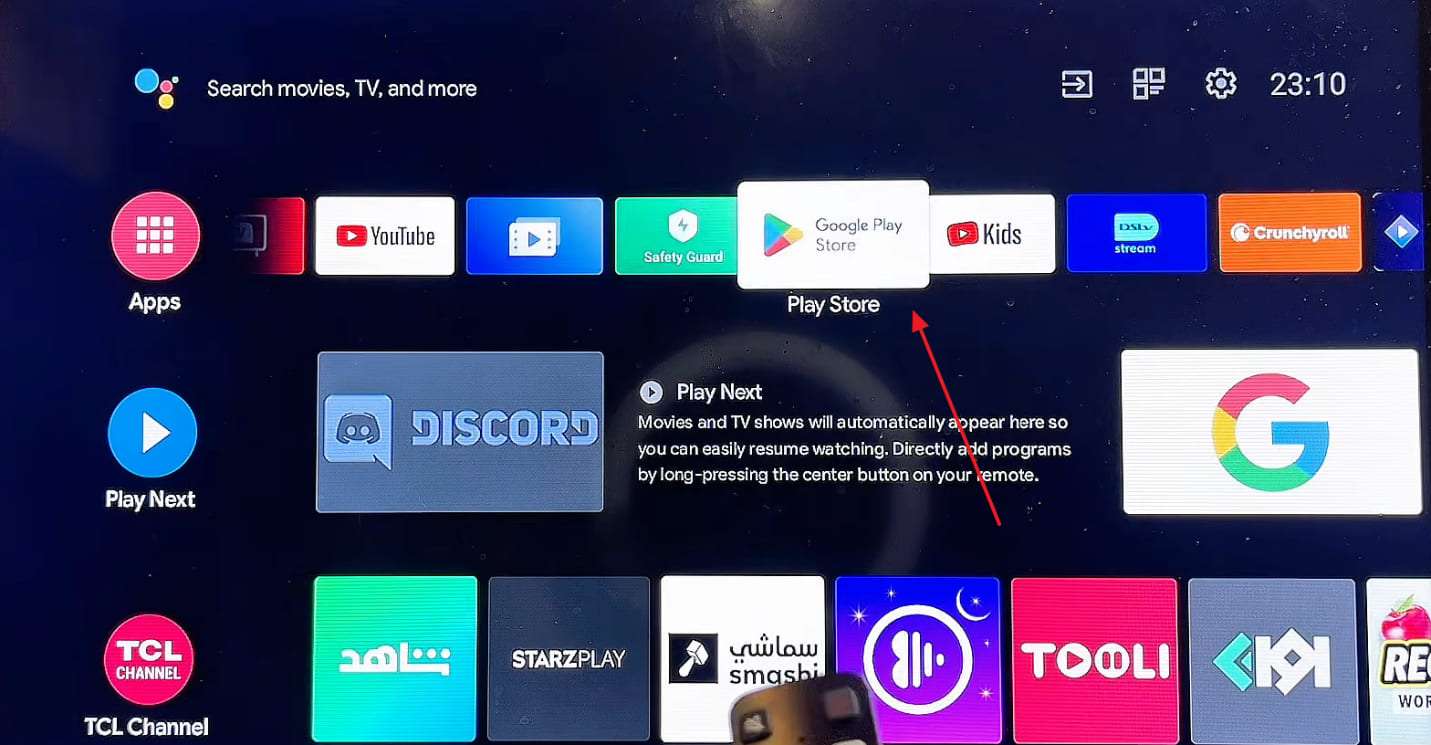
On TV
Step 1. You need to find and open the “Play Store” app on your TV.
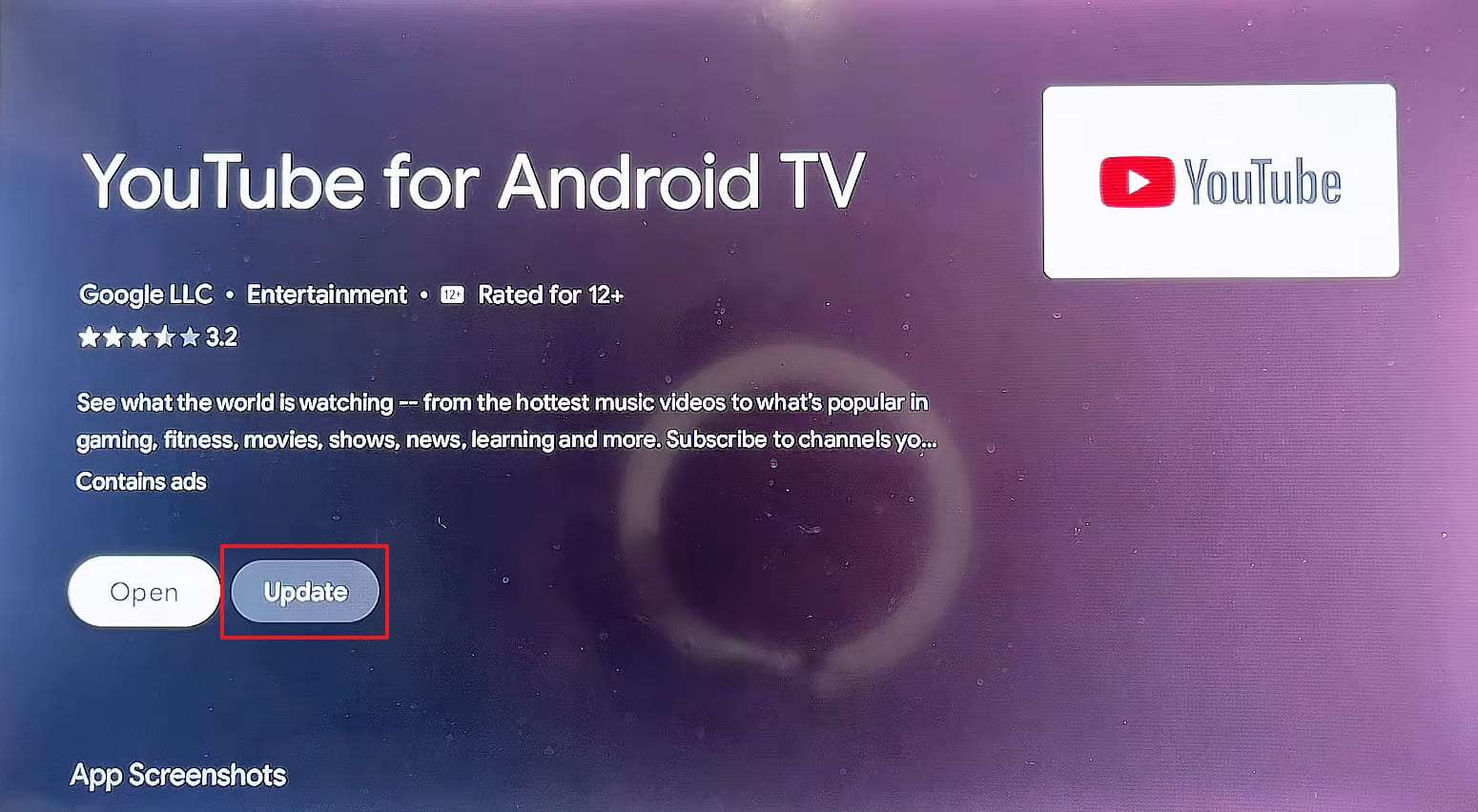
Step 2. After that, look for the “YouTube” app and open it to press the “Update” button.
-
Fix 7 Reinstall the YouTube App
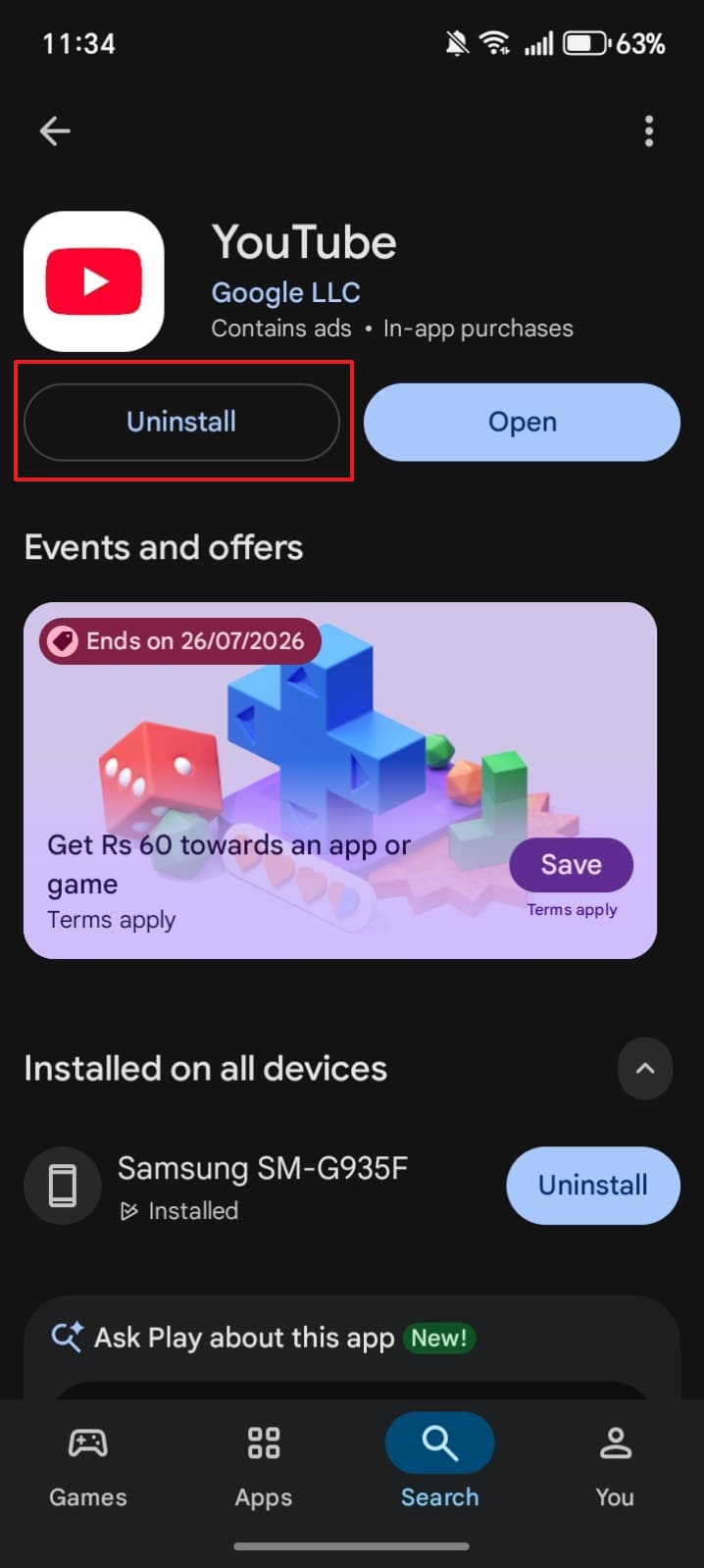
A corrupted app installation can cause the same symptoms as an outdated one, and a fresh install clears both possibilities. This is worth trying even if the app seems to open normally, since corruption can affect specific features. Go through the given steps to resolve the YouTube playback error:
On Mobile
Instructions. Once you look for the “YouTube” app on the Play Store or App Store, press the “Uninstall” button. After that, tap “Install” to successfully reinstall it.
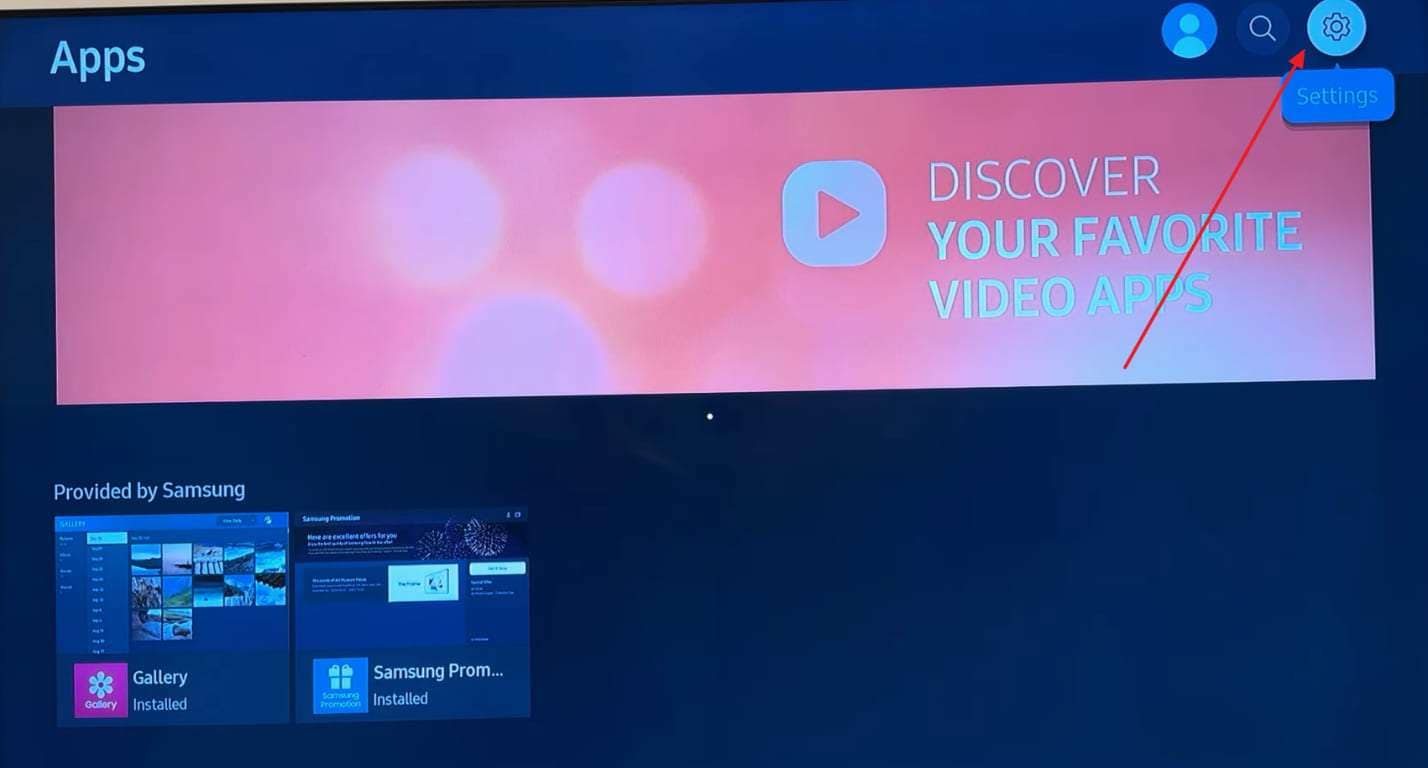
On TV
Step 1. From the “Apps” section on your TV, go to the “Settings” section.
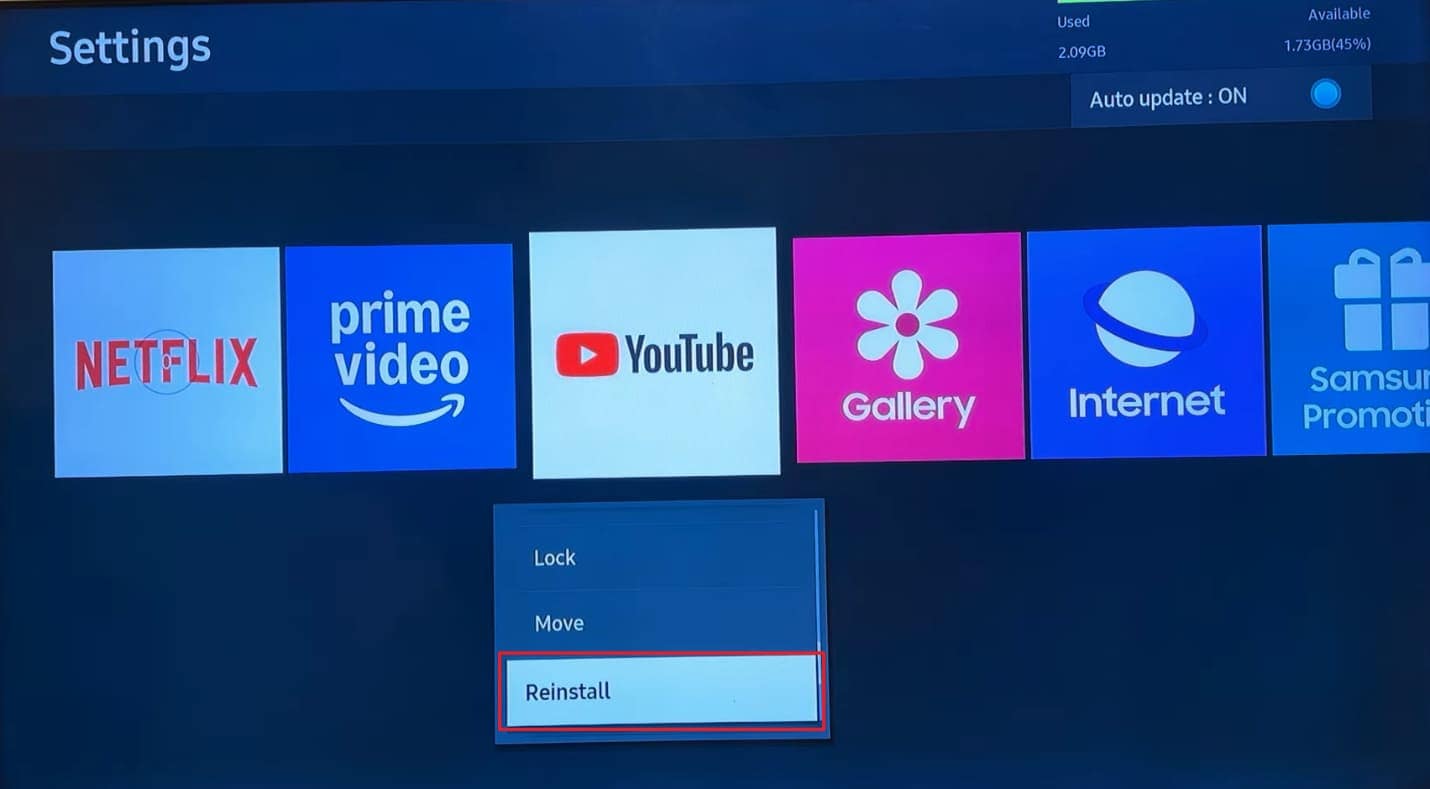
Step 2. Locate and choose the “YouTube” app and opt for the “Reinstall” option.
-
Fix 8 Repair Android/iPhone System Issues with Dr.Fone – System Repair
A playback error following you across every app suggests a deeper problem. This usually points to a deeper phone system issue, not YouTube itself. You should watch for apps crashing at launch or a device freezing. Tools like Dr.Fone - System Repair (iOS) and Dr.Fone - System Repair (Android) directly address these underlying iOS and Android system issues.
It effectively fixes boot loops and recurring software crashes, too. These system-level issues can affect any app, including YouTube, since they sit below. This means that a YouTube “An Error Occurred” playback ID issue may disappear too. Dr.Fone also supports both standard and advanced repair modes for added flexibility.
Guide to Repair Android System Issues with Dr.Fone – System Repair
Go through the following guide to help you understand how this tool works for repairing your Android phone:
Step 1. Run the Repair Tool to Resolve Issues
As you open the “Toolbox” section, select “Android” as your phone after clicking “System Repair.” Click “Repair Now” and connect the Android phone using a compatible cable.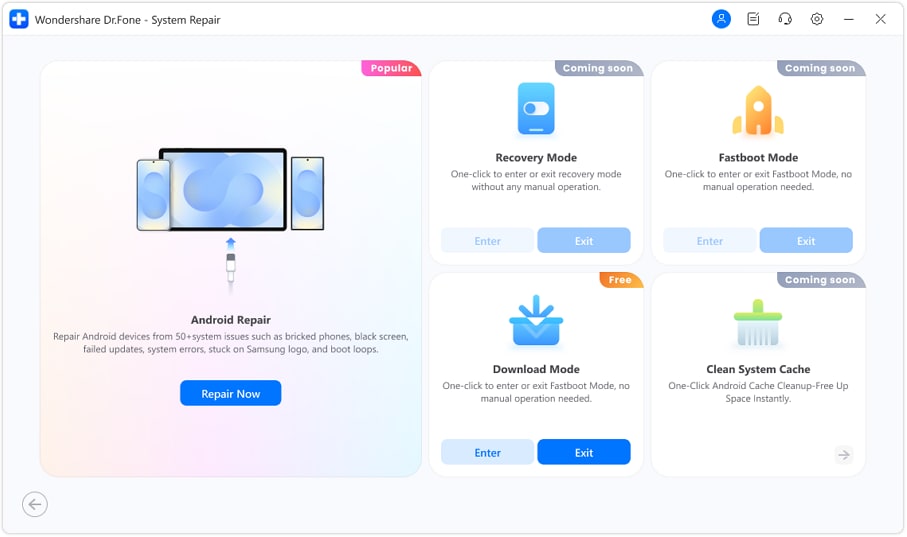
Step 2. Verify Device Information and Install Firmware
Choose the phone brand, identify the detected issue, then press “Start” to continue. Enter accurate device details to access “Download Mode,” then download the required firmware package.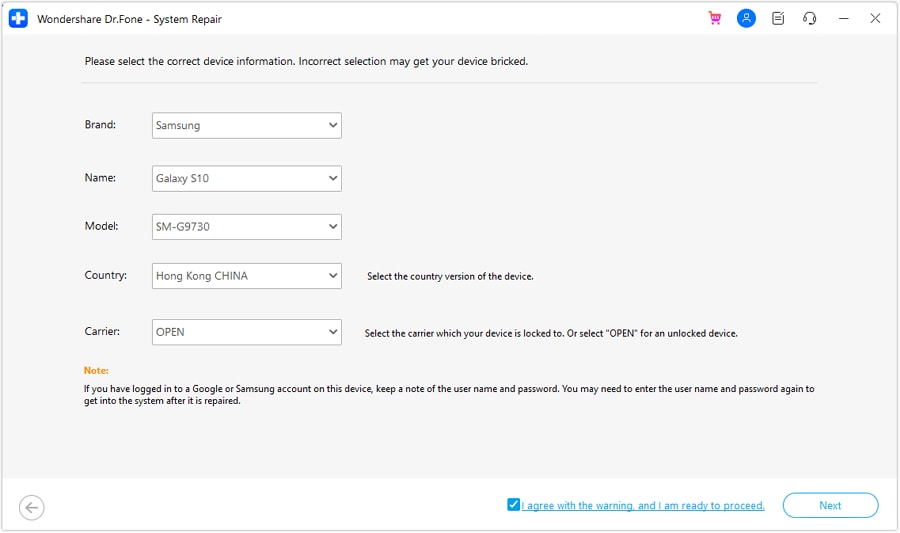
Step 3. Start the Android Repair Process
Click “Fix Now” after firmware preparation finishes, beginning the Android system repair process. Type “000000” to confirm, then continue while the software repairs the device automatically.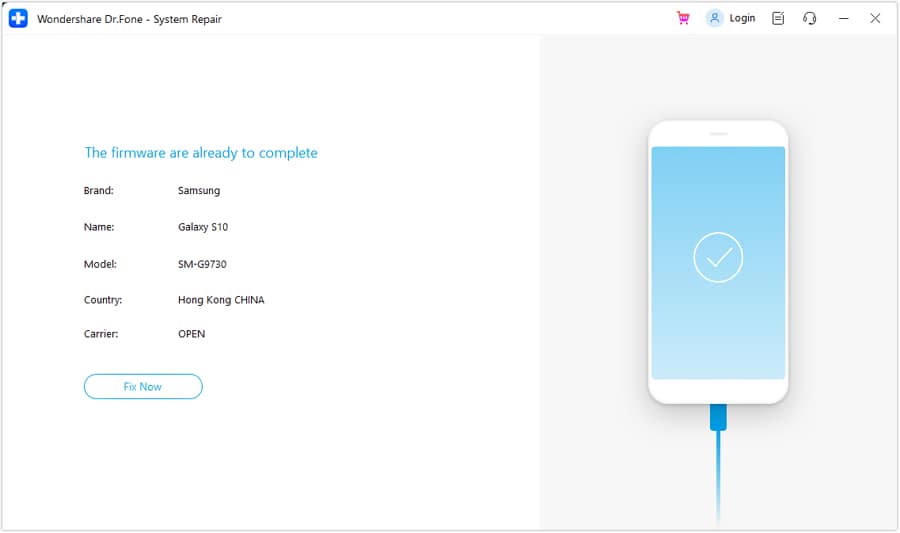
 Expert Note: Android repair often erases device data, so back up files first. iOS standard mode preserves data, but advanced mode may erase everything.




Bonus Tool: Dr.Fone – Screen Unlock (When You Can’t Access Your Device at All)
If your phone is locked due to a forgotten password, pattern, Face ID, or system crash, you won’t be able to open the YouTube app at all — let alone fix playback errors. Dr.Fone - Screen Unlock (Android) helps you regain access to your iPhone or Android in minutes, even if the device is disabled, frozen, or stuck in recovery mode.
This tool supports removing 4-digit/6-digit PINs, patterns, passwords, and biometric locks (Face ID, Touch ID) without requiring technical skills. It’s trusted by over 50 million users and fully compatible with the latest iOS and Android versions, including iOS 17 and Android 14.
 Unlock Android phone in seconds.
- Remove PIN, pattern, password, fingerprint.
- Bypass Google FRP lock easily.
- Works on all Android brands & models.
- No tech skills required – user-friendly.

-
Step 1 Launch Dr.Fone – Screen Unlock
Install and open Dr.Fone on your computer. Select “Screen Unlock” from the main interface.
-
Step 2 Connect Your Locked Device
Use a USB cable to connect your iPhone or Android. The tool will automatically detect the device model and lock type.
-
Step 3 Confirm Device Info & Start Unlock
Follow on-screen instructions to enter download mode (Android) or recovery mode (iPhone). The tool will download the necessary firmware and remove the lock.
Part 6. How to Fix YouTube Playback Error 16?
The YouTube playback error 16 needs a different approach from the general error, as explained below:
-
Fix 1 Check Home and Playback Area Settings
Your home area and current playback area are two separate settings, and a mismatch between them is the common trigger for this error. Even a short trip can cause this if YouTube TV hasn't updated your current location, which is described below:
Step 1. Select your “Profile” icon on your TV > Head to “Location.”
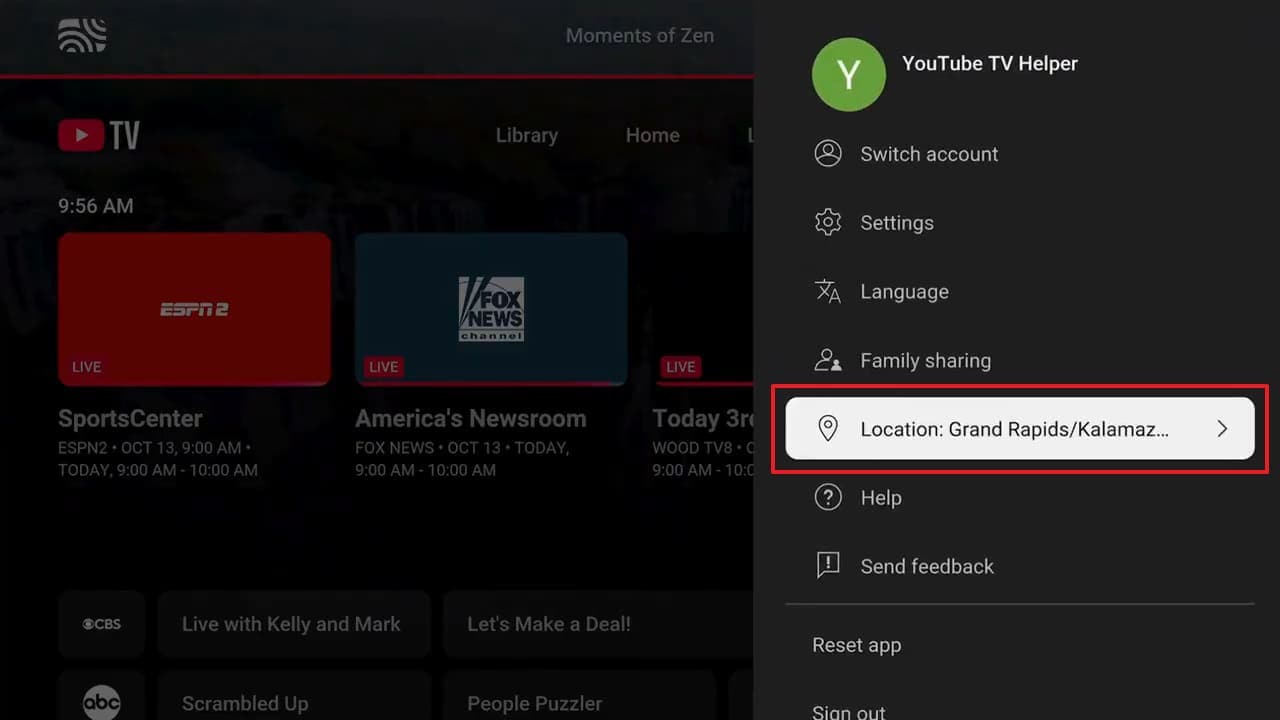
Step 2. Check both “Home Area” and “Current Playback Area” > Choose whichever setting looks incorrect to update it.
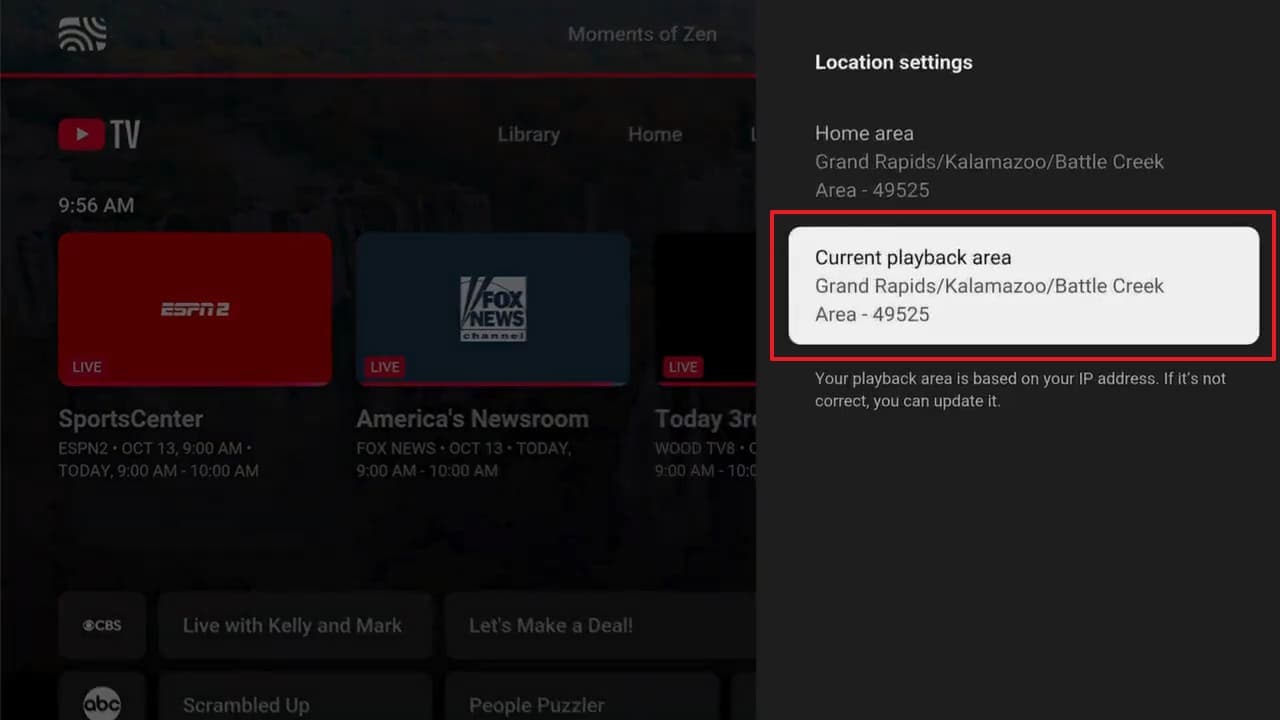 Expert Note: Google states that you can't change your Home Area more than twice within a 12-month period or while you're outside the new Home Area you want to set.
 -
Fix 2 Verify Device and Account Synchronization
YouTube TV verifies your location through your Google account and playback area. If your TV and mobile device use different Google accounts, or the playback area is outdated, location verification may fail. This often happens when a phone is used while traveling, but the TV remains at home.
Instructions. Open the YouTube app on your TV and go to the account or profile section. Confirm that you're signed in with the same Google account you use for YouTube TV on your mobile device. If needed, update your current playback area from the YouTube TV app on your phone.
-
Fix 3 Disable VPN or Proxy Connections
Many times, a VPN or proxy blocks YouTube TV playback outright, per Google Support. This happens because it masks the location data the service depends on. The VPN interference triggers a specific YouTube playback error tied to location.
Note: This applies specifically to YouTube TV, Primetime Channels, and content restricted by regional licensing or geographic availability.
Conclusion
The general YouTube “An Error Occurred” playback ID message almost comes down to a browser or cache. Yet, you have now discovered multiple checks and fixes in order, which resolve it for most people. Error 16 is a different problem entirely, tied to YouTube TV's location verification rather than your browser. If a similar playback issue follows you across apps on your phone, Dr.Fone - System Repair and Screen Unlock can help you.
FAQ
-
Q1. Why does YouTube playback error 16 appear?
Error 16 appears when YouTube TV can't verify your home area or location, most often due to travel or a setting mismatch. It's a location check failure, not a sign of a broken account or device. -
Q2. Can clearing the YouTube cache fix playback errors?
Yes, clearing cache and cookies resolves many playback errors, since stale data can conflict with an updated version. It's one of the most commonly recommended fixes across both browsers and the app. -
Q3. Does a YouTube playback error mean my account has a problem?
Not usually, since most playback errors trace back to a browser or device issue rather than the account itself. Signing out and back in can help, but it's a session refresh, not a sign of account damage. -
Q4. How do I fix the YouTube playback error on Safari?
Try the same core fixes, like clearing Safari's cache, or confirm that Safari is updated. If the error continues, testing the same video in another browser isolates whether Safari itself is the cause.
 Add Wondershare Dr.Fone as a preferred source on Google