Bypass iCloud Activation Lock and Android FRP without password.

 100% Security Verified | No Subscription Required | No Malware

 :
: 
 ChatGPT
 Perplexity
 Gemini
 Claude
 Grok
Grok
You hit play on a video, and nothing comes out of the speaker. The volume looks fine, and restarting the app doesn't help either. iPhone video sound not working ranks among the most common playback complaints. The speaker themselves is rarely the actual source of the problem.
Community reports like Reddit show that missing audio can sometimes affect individual recordings rather than all videos on the device. This guide walks through why it happens and works through 12 fixes in order, starting with the ones most people miss first. It includes a system-level repair option, Dr.Fone, for cases where sound goes missing across every app, not just one video.
In this article
Part 1. Why Does My iPhone Have No Sound on Videos?
If a video has no sound on an iPhone, it almost always comes down to a few common causes. This part shows what typically causes it and how each one shows up:
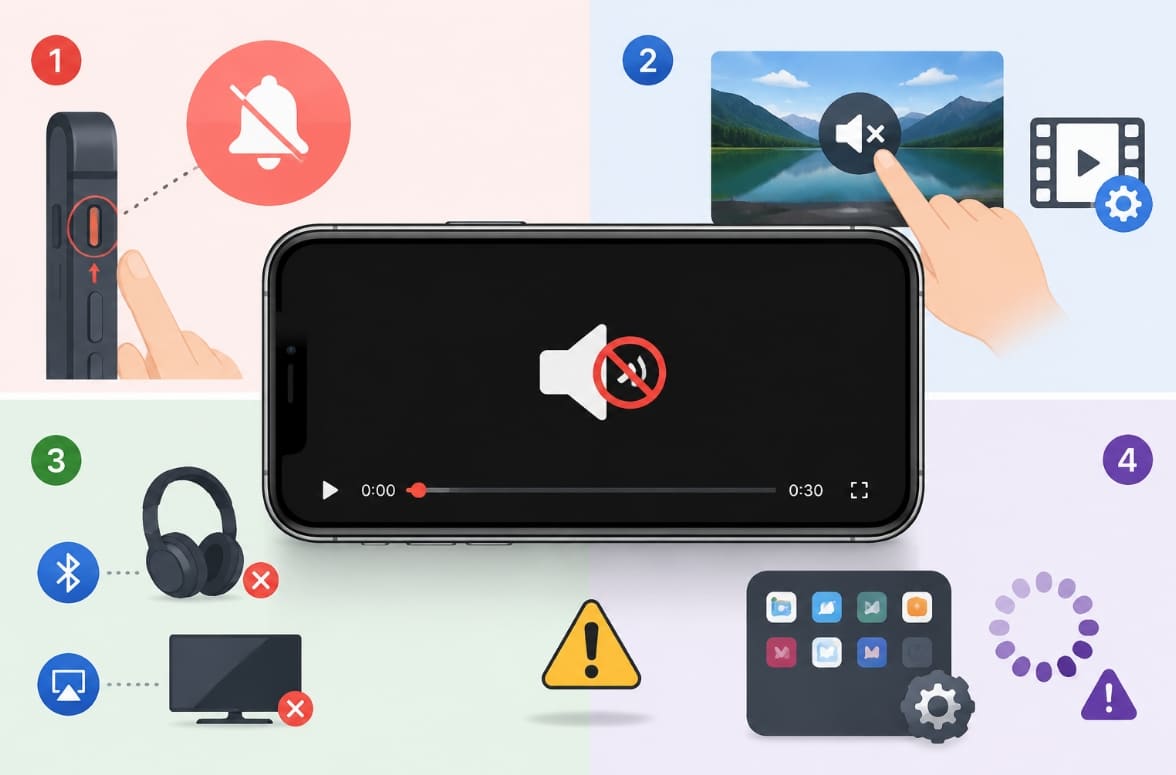
- Silent Mode or Low Media Volume: Silent mode mainly affects ringtones and alerts, but checking it alongside the media volume can quickly rule out common audio settings that affect video playback.
- Muted Video: Some videos may be played with the player muted by mistake or may have been recorded without audio. Playback stays silent until you unmute the video or use a recording that contains sound.
- Routed Audio: A previously paired Bluetooth or AirPlay device may still be selected as the audio output. iPhone keeps sending sound there instead of the built-in speaker until you switch the output.
- Software Glitch: Background processes, like calls or Screen Time prompts, can interrupt an app's audio session. The app keeps running normally, but its sound output may stop until the session resets.
How to Tell If It's a Software or Hardware Problem
Apple's own support documentation recommends a simple native test first by dragging the Ringtone and Alerts slider inside Sound settings. If you hear the test sound clearly, your speaker works, and the issue lies with a setting or app.
When you hear nothing or the slider itself appears dimmed, Apple's guidance notes that the speaker may need service. This same test rules out a hardware problem before you spend time on software fixes.
Part 2. How to Fix iPhone Video Sound Not Working? 12 Fixes
You can now work through the following fixes to resolve the iPhone video audio not working issue:
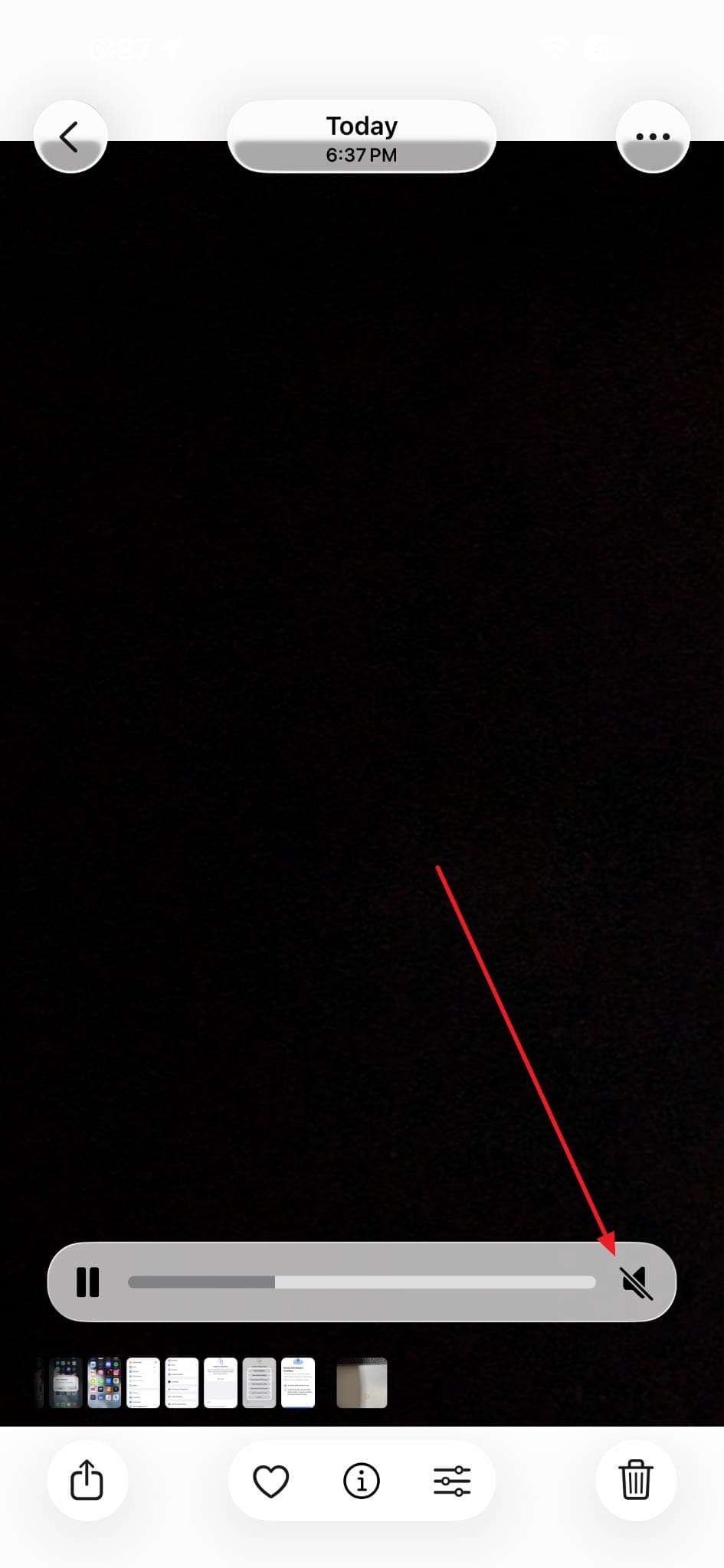
Fix 1. Unmute the Video and Increase the Media Volume
iPhone uses separate controls for media playback and ringtones. Because of this, adjusting the ringer volume alone won't bring back audio in a silent video. Apple recommends checking the relevant audio controls before moving on to advanced troubleshooting. Follow the steps below to unmute the video and turn up the media volume:
Fix 2. Play Another Video to Check for a File-Specific Issue
Testing a different video isolates whether one file causes the problem. While resolving no sound on my videos on iPhone, a single silent video usually points to an issue during the original recording. This distinction matters, since a single bad recording doesn't call for the same fix as a problem affecting every video.
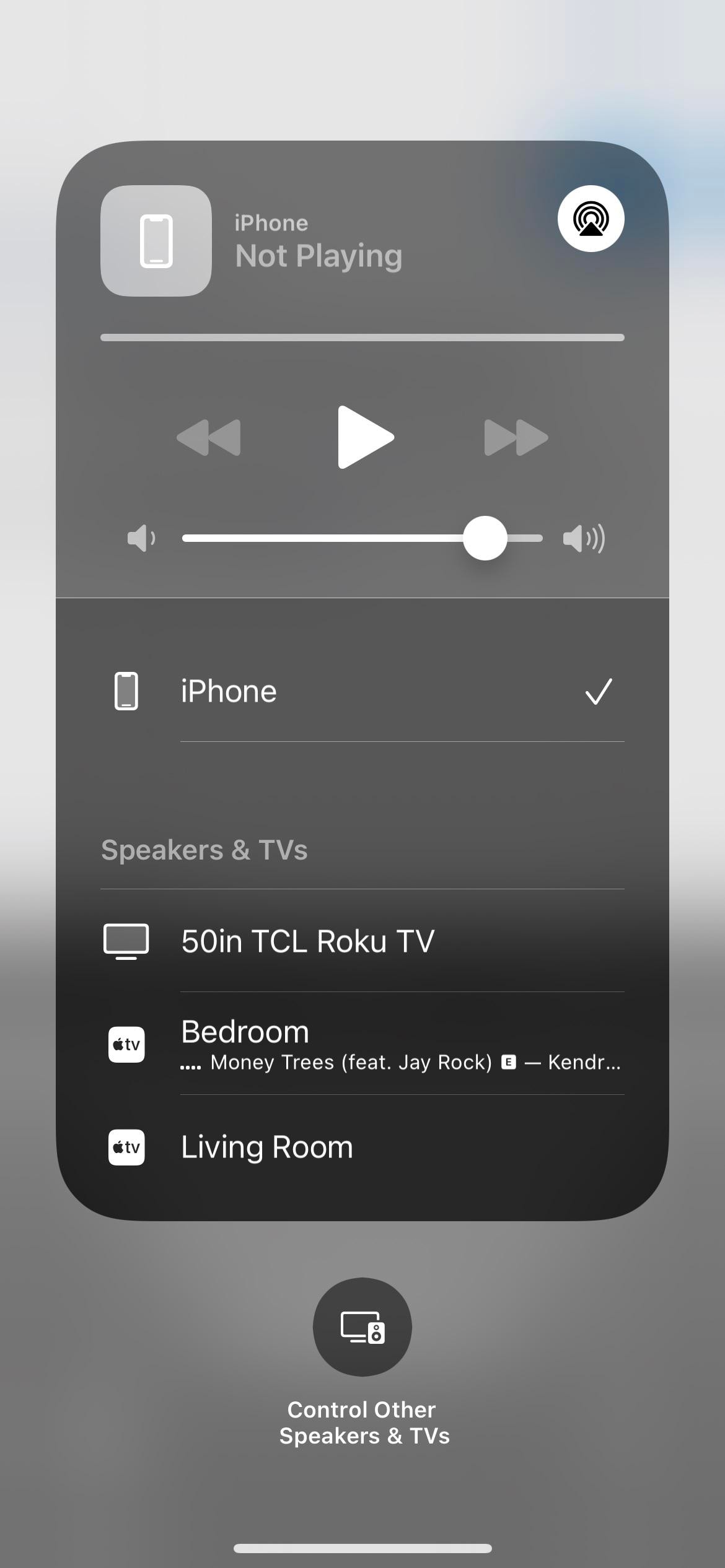
Fix 3. Disconnect Bluetooth, AirPlay, and External Audio Devices
Audio can be quietly routed to a paired Bluetooth speaker or AirPlay device. This is easy to miss when the connected device sits out of sight. Photos, in particular, can sometimes route audio to a connected AirPlay device instead of the iPhone speaker. Hence, you should disconnect any “Bluetooth” or “AirPlay” device currently selected.
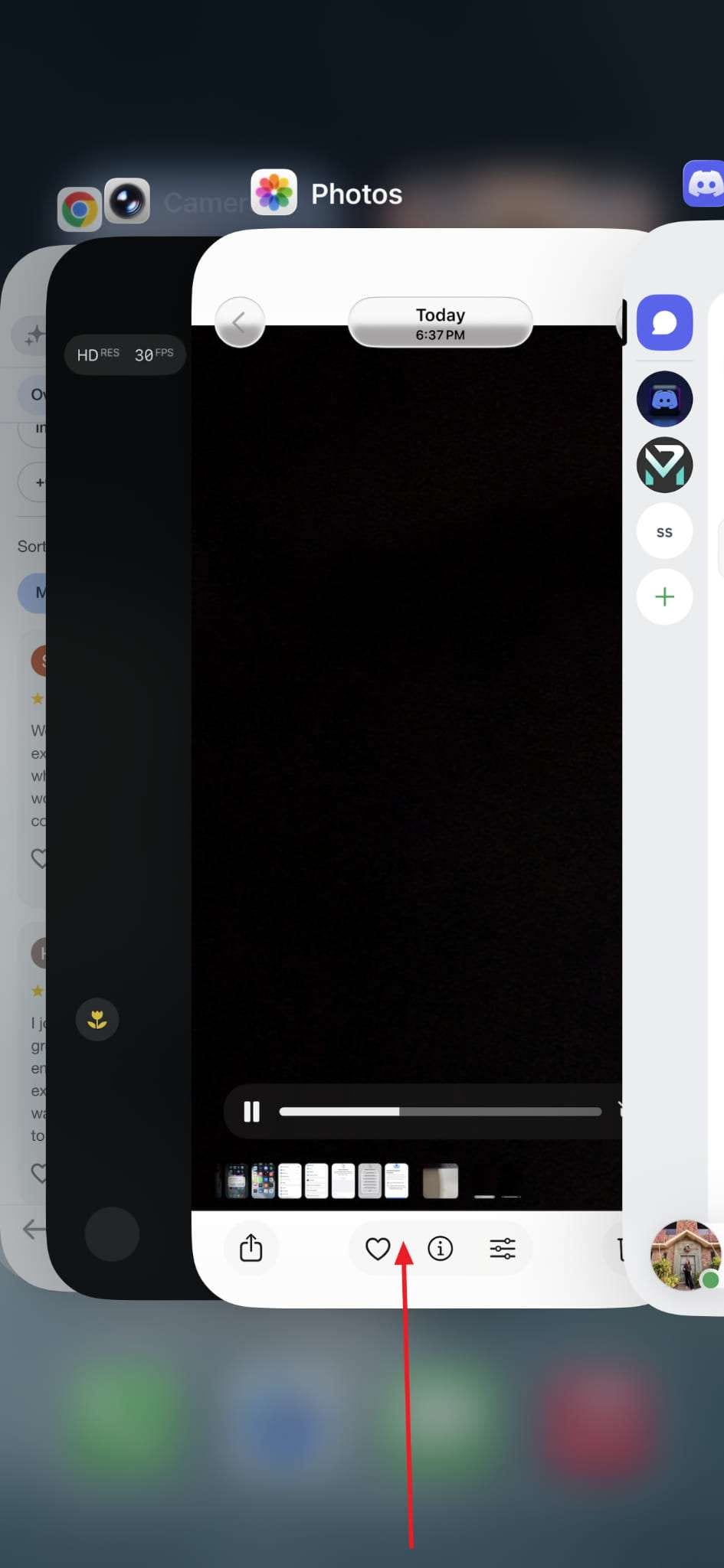
Fix 4. Force Close and Reopen the Photos or Video App
An app can get stuck in a bad audio state after a call, a Screen Time prompt, or running in the background for too long. It’s advisable to close it fully to clear that state rather than to refresh the current screen. This also fixes the iPhone video sound not working after calls or Screen Time prompts, as explored below:
Fix 5. Repair iOS System Issues with Dr.Fone – System Repair
Sound missing across every app points to a deeper iOS system issue. Other apps losing sound or randomly freezing confirm this pattern. A normal restart or settings change often can't fix corrupted system files. At this point, video has no sound on iPhone because of a system-level fault, not a simple setting.
Tools like Dr.Fone - System Repair (iOS) address this by targeting the software layer directly. Along with older models, this program supports iOS 27 and the iPhone 17 series. The tool repairs over 150 iOS system issues, including boot loops and unresponsive freezes. Its Standard Mode fixes common problems, like a stuck Apple logo or a black screen, without erasing any data.
 Fix iOS issues, no data loss.
- One-click repair for all iOS problems.
- Solve recovery mode, Apple logo, black screen, etc.
- Upgrade or downgrade iOS without iTunes
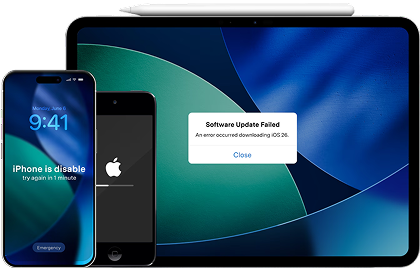
Guide to Repair iOS System Issues with Dr.Fone – System Repair
Go through the following guide to help you fix the iOS system issues via this iPhone system repair toolbox:
-
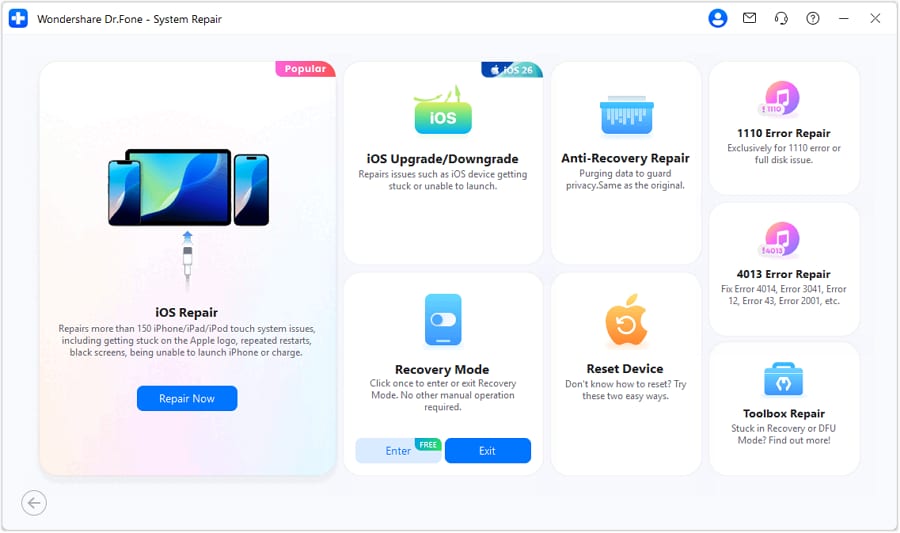
Step 1 Choose the System Repair of Dr.Fone
After selecting the “System Repair” option from the “Toolbox” section, click on “iPhone.” Under the section of “iOS Repair,” click on “Repair Now” on the upcoming screen.
-
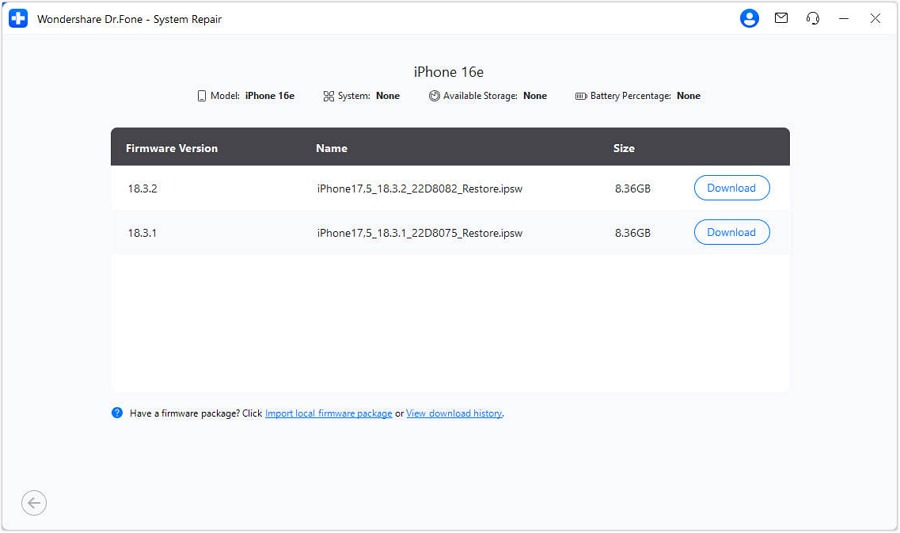
Step 2 Get Compatible iOS Firmware
Opt for “Standard Repair” and put your device in “Recovery Mode” via the given prompts. When the tool shows the compatible firmware versions, press “Download” next to your desired firmware.
-
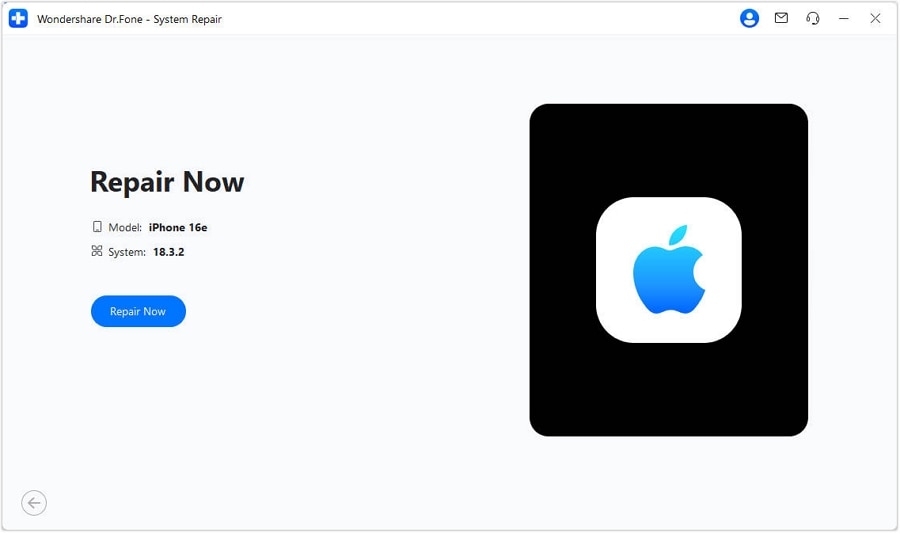
Step 3 Start Repairing Your iOS Device
After waiting for a few moments, click “Repair Now,” and the tool will start repairing your device for audio-related issues.




Fix 6. Bypass Any iPhone Passcode with Dr.Fone
You can't even test if your iPhone video has sound if you can't unlock your device. Whether you've forgotten your passcode, your child locked the screen, or your iPhone is stuck in a disabled state after too many failed attempts, a locked screen blocks access to everything — including your videos.
- Unlock iPhone/iPad passcode in minutes.
- Remove Face ID, Touch ID, MDM lock, and screen lock.
- Bypass iCloud Activation Lock easily.
- Support all iOS versions and devices.
- Simple steps, no technical skills needed.

Dr.Fone - Screen Unlock (iOS) helps you bypass iPhone passcodes, Face ID, Touch ID, and 4-digit/6-digit PINs quickly and safely. It works even when the device is disabled or shows "iPhone is Disabled, Connect to iTunes." No technical skills are needed — just a computer and a USB cable.
Fix 7. Play the Video in a Different Media Player
Third-party apps, like VLC, handle audio playback differently from the Photos app. A silent file in the Photos app can often play normally somewhere else. This quickly separates an app-specific bug from a broader system issue.
Fix 8. Force Restart Your iPhone
A force restart clears more temporary glitches than a regular restart does. It closes every background process, not just the apps currently visible on screen. This often resolves the no sound on my videos on my iPhone when nothing else worked, as explained below:
- For iPhone 6 or Earlier: As you hold down both the “Home” and “Sleep/Wake” buttons, wait until you see the Apple logo.
- For iPhone 7 or 7 Plus: Individuals need to keep pressing both “Volume Down” and “Power” together until the Apple logo appears.
- For iPhone 8 or Later: Once you press and release the “Volume Up” button, perform the same with the “Volume Down” button. Finally, keep pressing the “Side” button until the Apple logo appears.
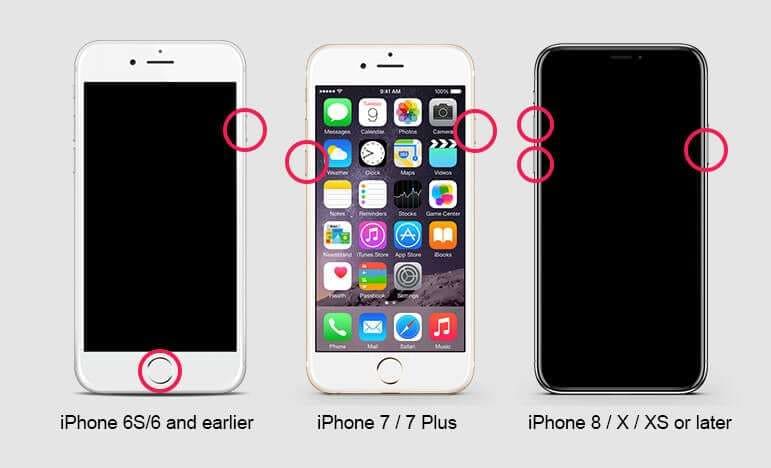
Fix 9. Remove the Case and Clean the Speaker Openings
Physical blockage is a genuinely common cause, especially with thicker cases. Apple's own support documentation recommends removing cases and screen protectors first. Checking the opening for dust often resolves the iPhone video audio not working issue. You can then clean it gently with a soft brush, which usually restores full sound quality.
Fix 10. Re-Download or Re-Transfer the Video
A slow or interrupted transfer can leave a video missing its audio track. This happens most often with videos sent through messaging apps over weak connections. You can ask the sender to resend the video if it came from someone else. Besides, re-download the file if it comes from a cloud service or website.
Fix 11. Update the Affected Video App
An outdated app can lose compatibility with how iOS handles audio playback over time, particularly after a recent iOS update changes something on Apple's side. Automatic updates being off causes no sound on my videos on iPhone unexpectedly, which needs the following fix:
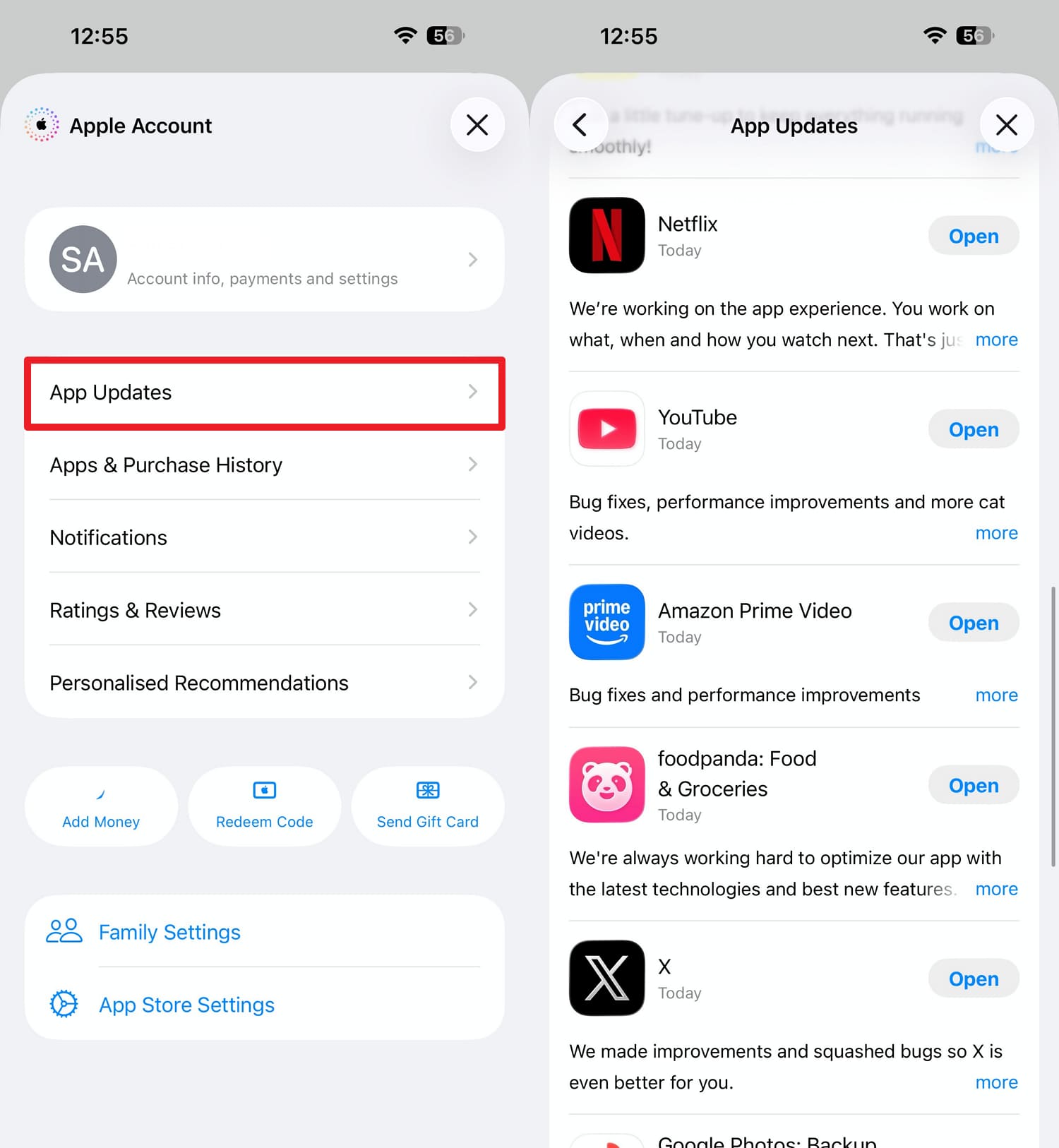
Fix 12. Install the Latest iOS Update
Apple regularly patches audio-related bugs in iOS updates, and an older version can mean missing a fix already released for this issue. It’s advisable to check for updates, which takes only a minute and rules out the most straightforward explanation. iOS updates also help fix bugs and maintain device performance, as per Apple Support. Go through the given guide to access and get the latest iOS update:
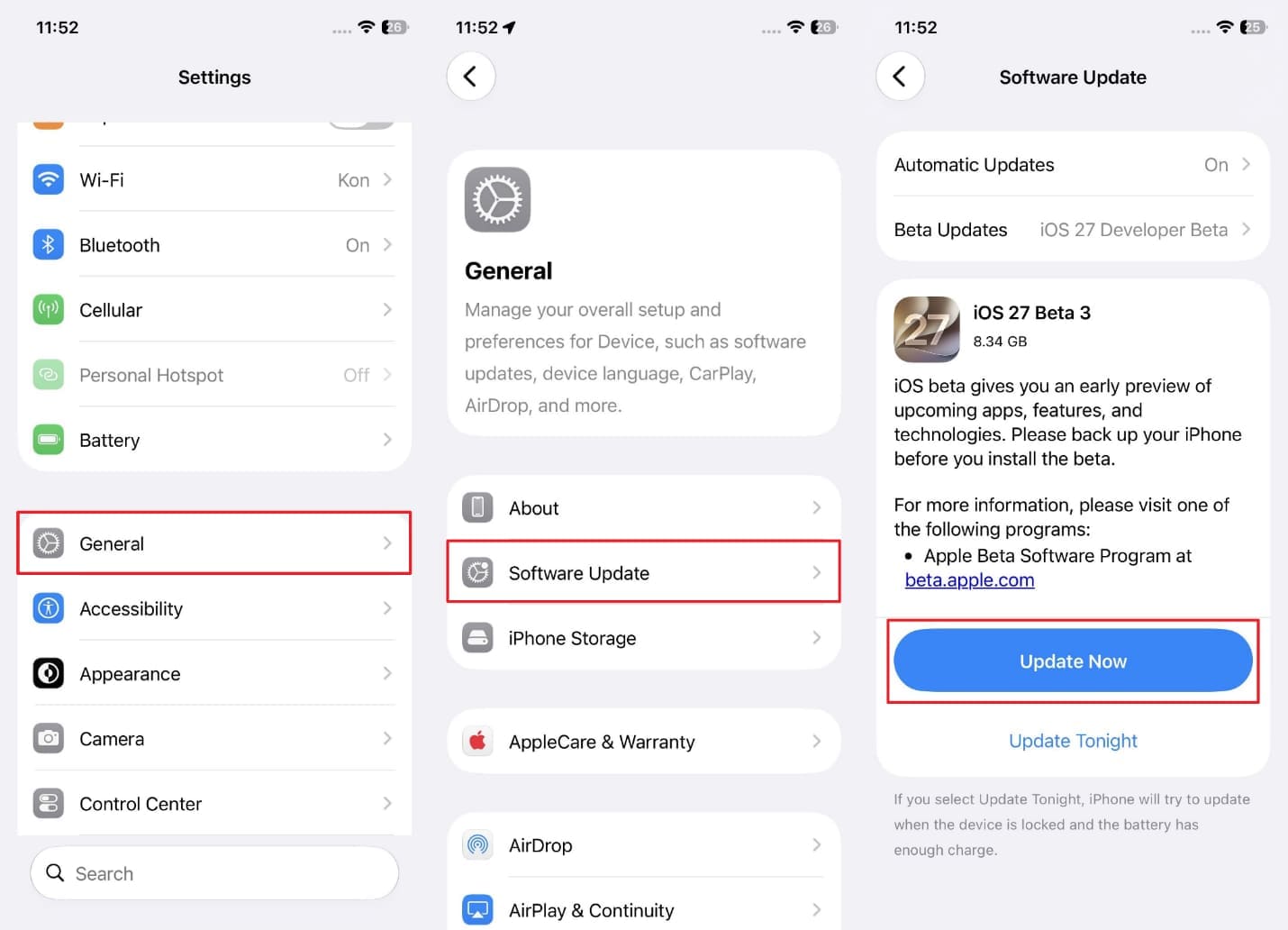
Fix 13. Reset All iPhone Settings
Such a particular solution clears every configuration change made, without deleting photos or apps. This includes settings you might not even remember changing yourself. It's a reasonable last resort for iPhone video audio not working issues, as shown below:
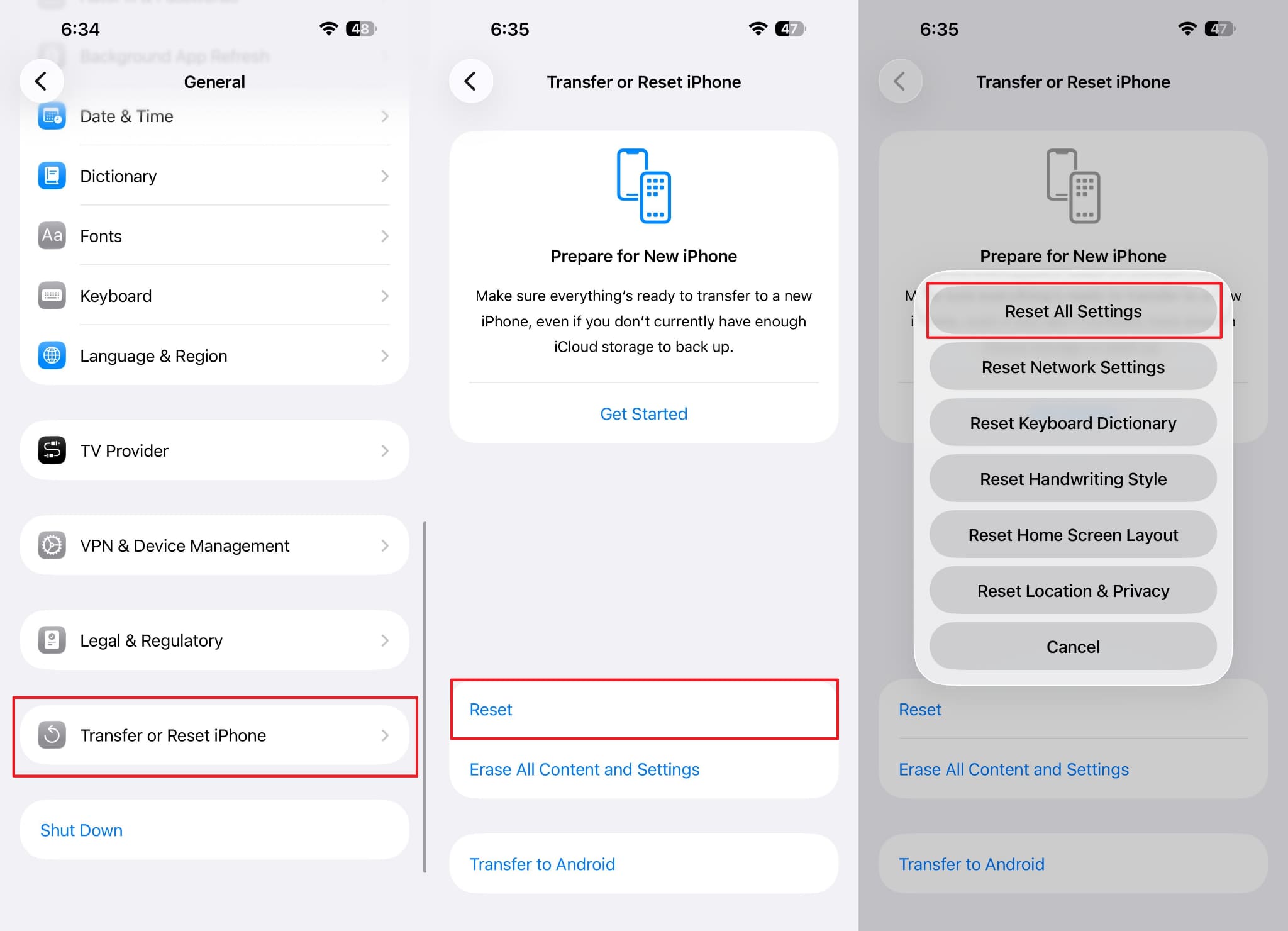
Part 3. How to Prevent Sound Issues on iPhone Videos?
A few ongoing habits keep the video from having no sound on iPhone from happening again. None takes more than a few seconds, and the table below covers each one:
| Habit | Why It Helps |
|---|---|
| Review Your Video Right After Recording | Helps you confirm that both the video and audio were recorded properly while you can still retake it. |
| Keep iOS and Your Video Apps Updated | Picks up Apple's own audio bug fixes as they're released. |
| Disconnect Bluetooth devices When Not in Use | Avoids sound routing somewhere other than the built-in speaker. |
| Use a Case Designed for your Exact iPhone Model | Reduces the chance of a case misaligning with the speaker opening. |
| Confirm the Video has Sound Right after Recording It | Catches a missing audio track before the moment has passed. |
Conclusion
To conclude, if you're searching for "no sound on my videos iPhone," the problem usually comes down to audio settings, Bluetooth routing, app glitches, or software issues. Working through the fixes in this guide should restore video sound in most cases.
If sound remains missing across every app after the simpler fixes, Dr.Fone - System Repair (iOS) can address a deeper iOS issue. Most people find the culprit within the first few fixes, well before needing advanced troubleshooting.
FAQ
-
1. Why is the volume icon grayed out on an iPhone video?
A grayed-out speaker icon usually means that the video doesn't have an audio track. It is often because of how it was recorded or transferred. This differs from a muted icon, which just needs a tap to turn the sound on. -
2. Can a Bluetooth connection cause video sound to disappear?
Yes, if a Bluetooth speaker or headphones stay connected in the background. Audio can quietly route there instead of the iPhone's native speaker. So, you should check the Control Center for the current audio output to confirm this before trying anything else. -
3. Do the iPhone 15, 16, and 17 use the same mute switch as older models?
No, iPhone 15 Pro and newer models replaced the physical Ring/Silent switch entirely. A customizable Action button now handles that same function instead. Checking that the Action button isn't set to Silent mode matters just as much as the switch did on older phones. -
4. Why does a video someone sent me have no sound?
This often happens due to an interrupted transfer or heavy messaging app compression. The problem is usually caused by the file transfer process instead of your iPhone. This can be completely resolved by asking the sender to resend the original file.
 Add Wondershare Dr.Fone as a preferred source on Google