Bypass iCloud Activation Lock and Android FRP without password.

 100% Security Verified | No Subscription Required | No Malware

 :
: 
 ChatGPT
 Perplexity
 Gemini
 Claude
 Grok
Grok
Location sharing is useful until you want a little privacy without making the change obvious. Many iPhone users asking how to turn off Find My Friends are really concerned about one thing: will the other person know? Apple says you can stop sharing with one person without sending them a direct notification on current systems. However, your location disappears from Find My and other connected Apple apps, so they may still notice. Older software may also show a Messages notice. That makes choosing the right method important, especially if you only need a short break. This guide explains how to turn off Find My Friends without them knowing, what each option actually changes, and which method best fits temporary or permanent location privacy.
In this article
- Part 1. How Find My Friends Shares Your Location
- Part 2: Can You Stop Sharing Your Location Without Alerting Someone?
- Part 3. How to Turn Off Find My Friends Without Them Knowing
- Part 4: Hide Your Location More Safely Without Ending Sharing
- Part 5: [ProTip] Locked Out of Your iPhone? Regain Access With Dr.Fone - Screen Unlock (iOS)
Part 1. How Find My Friends Shares Your Location
The iOS app ‘Find my Friends’ allows people to see where their friends or family members are (with approval). It determines a user’s location and marks it on the map by using GPS satellite and Wi-Fi information.
Users can select who can view their location in the app. Users can see the location of their contacts as long as the contacts allow it. Notify when someone arrives at or leaves a particular place using the app.
People use it to coordinate meetups regularly or check on their family members or loved ones. Because the location can be shared in real time, some users may want to disable Find My Friends later for more privacy.
Part 2: Can You Stop Sharing Your Location Without Alerting Someone?
Your location will not be shared with other people in many apps, so they will not be notified. According to Apple, if a user stops sharing, the person is not notified and can’t see you in their friends list.
Still, the change may become obvious later. They may notice that your location no longer updates, your name disappears from Find My, or Messages shows a status such as “Location expired.”
Other apps handle this differently. WhatsApp lets users end live location sharing at any time. Life360 may show “Location Sharing Paused” when sharing is disabled.
Part 3. How to Turn Off Find My Friends Without Them Knowing
If you want no one to be able to see your location or limit who can, then you can limit location access for some time and/or disable it. The method mentioned below disables Find My from using your iPhone’s location.
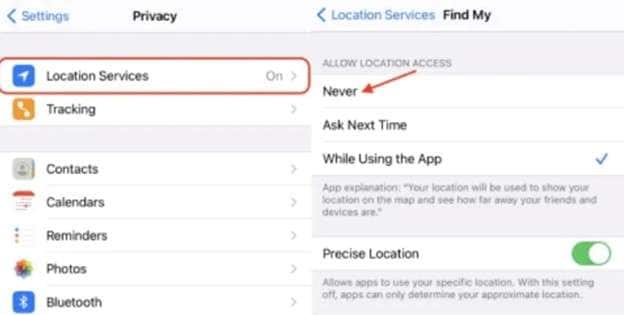
1. Switch off your phone’s location access.
A good way to stop stalking is to block the Find My app from accessing your location to disable Find My Friends tracking. Once you disable this permission, the app will not access your location.
Follow these steps:
-
Step 1 Open Settings on your iPhone.
-
Step 2 Tap Privacy.
-
Step 3 Select Location Services.
-
Step 4 Find and tap Find My.
-
Step 5 Choose Never.
2. Stop Sharing Your Location in Find My
The iPhone's Find My app has sections like People, Devices, and Me. If you’re curious about how to stop sharing your location on your iPhone, you can disable sharing directly via the app.
Follow these steps:
-
Step 1 Open the Find My app.
-
Step 2 Tap the Me tab.
-
Step 3 Find Share My Location.
-
Step 4 Turn the option off.
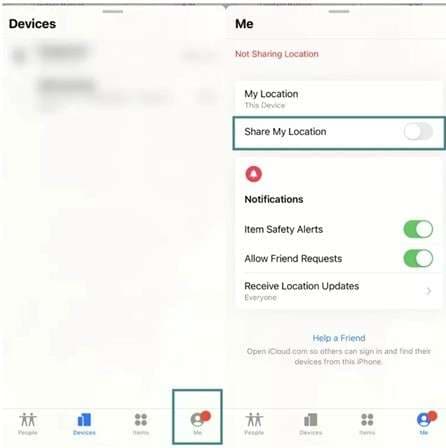
Once disabled, people in your friends list will no longer be able to see your location. If they try to check it, they may see a “Location unavailable” message. A similar message may also appear when your device is turned off.
3. Turn Off Location Services on iPhone
Location sharing depends on Location Services. If you turn this setting off, apps on your iPhone can no longer use your location. This includes apps such as Maps and other location-based services.
Apple also notes that switching off Location Services does not send a notification to other people. However, some apps may not work properly without location access.
Follow these steps:
-
Step 1 Open Settings on your iPhone.
-
Step 2 Tap Privacy & Security.
-
Step 3 Select Location Services.
-
Step 4 Turn the switch off.
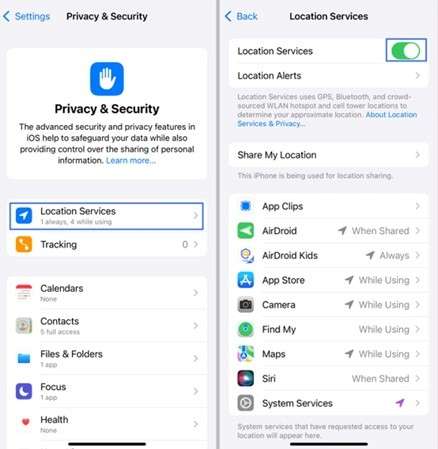
This can help if you are asking How do I stop sharing my location without them knowing. Keep in mind that it blocks location access for every app. If you only want to restrict one app, change that app’s Location Services permission instead. For a more temporary option, you can also use Airplane Mode.
4. Temporarily Pause Location Sharing with Airplane Mode
If you need to temporarily turn off Find My Friends location updates, you can use Airplane Mode as a quick option.
Enabling this feature cuts off your iPhone from cellular and Wi-Fi services, as well as Bluetooth. This prevents the phone from transmitting a new location update.
The other party isn't directly notified when you suspend sharing. They can, however, check Find My and see that your location is up there with a time saying “30 minutes ago,” and not live.
Follow these steps:
-
Step 1 Open Control Center. Swipe down from the upper right. Swipe up from the bottom on iPhones that have the Home button.
-
Step 2 Push the airplane icon.
-
Step 3 The orange icon means Airplane Mode is on.
-
Step 4 Tap the icon again to restore your connections.
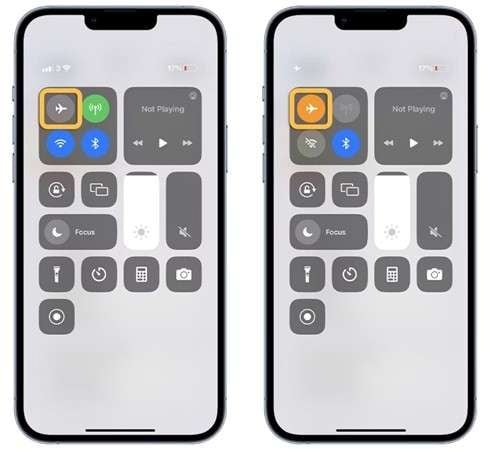
If you need a broader account-level option, the next method is signing out of iCloud on your device.
5. Sign Out of iCloud to Stop Find My Access
Signing out of iCloud will also sign out of Find My on that iPhone. This means that you can’t find the location of the device using your other Apple devices anymore.
Follow these steps:
-
Step 1 Open Settings.
-
Step 2 Tap your name at the top.
-
Step 3 Scroll down and select Sign Out.
-
Step 4 Enter your Apple ID password.
-
Step 5 Tap Turn Off to continue.
Disabling Find My Friends on iCloud prohibits anyone from tracking your device using that Apple ID. If you disable your iCloud account, you’ll lose access to all your data synced to iCloud. Your iCloud Drive will be disabled. Your iCloud Photos will be disabled. Your phone will stop backing up to iCloud, increasing your data loss risk if you lose or damage the phone.
If all you want is to add more privacy and you don’t want to stop sharing your location completely, the next section covers an alternative that won’t disrupt the service that you are using.
Part 4: Hide Your Location More Safely Without Ending Sharing
Stopping location sharing may not send an alert, but the other person can still notice. A better option is to review which Apple device is used as your location source.
Use Another Apple Device
If another device like an iPhone or iPad uses the same Apple ID, then you can set it as the source.
-
Step 1 Sign in on the other Apple device.
-
Step 2 Open Find My.
-
Step 3 Tap Me.
-
Step 4 Select Use This iPhone/iPad as My Location.
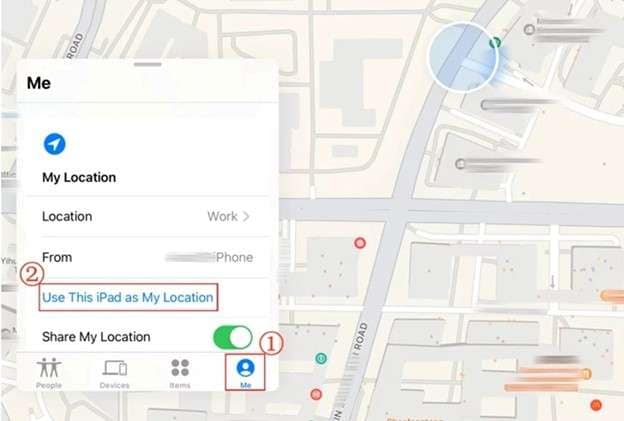
Use this only for normal privacy needs, not to mislead someone in a safety-sensitive situation.
Avoid Unofficial Location Changers
Fake-location apps may not be reliable and may violate app rules. They are also risky to download.
For safer privacy settings, use the built-in tools like Find My, Location Services, Safety Check, and app permissions.
If you are unable to access these settings due to the lock on your iPhone, proceed to the following section: Dr.Fone – Screen Unlock (iOS).
Part 5: [ProTip] Locked Out of Your iPhone? Regain Access With Dr.Fone - Screen Unlock (iOS)
The methods above assume that you can open Settings or Find My. But what happens if you cannot access your own iPhone because you forgot the screen passcode? You may find Dr.Fone - Screen Unlock (iOS) helpful in that case.
To be clear: Dr.Fone - Screen Unlock isn’t a Find My Friends location-hiding tool. Its role here is to restore access to your own locked iPhone. Once you can use the device again, you can manage Find My through Apple's normal settings.
 Unlock iPhone/iPad passcode in minutes.
- Remove Face ID, Touch ID, MDM lock, and screen lock.
- Bypass iCloud Activation Lock easily.
- Support all iOS versions and devices.
- Simple steps, no technical skills needed.
What Is Dr.Fone - Screen Unlock (iOS)?
Dr.Fone – Screen Unlock (iOS) is a desktop unlocking tool that helps you unlock iPhone, iPad, and iPod touch lock problems.
It can manage various iOS screen locks, including 4-digit and 6-digit numeric passcodes, numeric or alphanumeric passcodes, Touch ID, and Face ID. The expanded set of Screen Unlock options includes Screen Time, Apple ID, MDM, and other supported lock options.

How to Unlock Your iPhone with Dr.Fone - Screen Unlock (iOS)
-
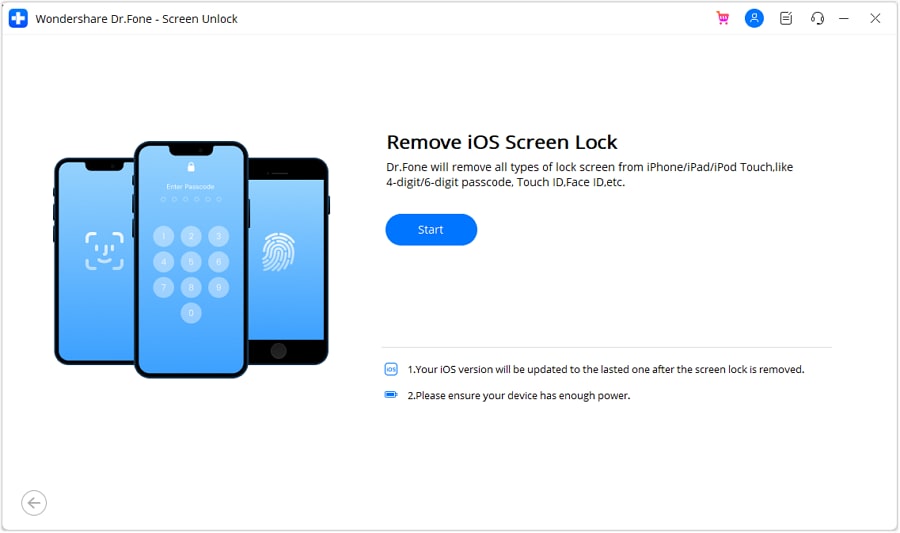
Step 1 Open the iOS Screen Unlock tool
Install and launch Dr.Fone on the computer. Open Toolbox, select Screen Unlock, and choose iOS. Click Unlock iOS Screen, connect the device, and select Start.
-
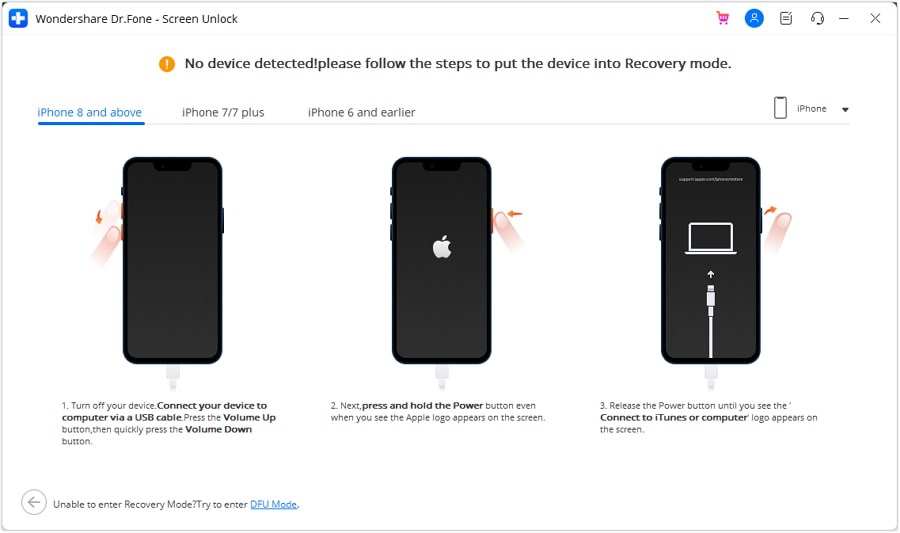
Step 2 Enter Recovery Mode
Follow the instructions that match your iPhone or iPad model to place it in Recovery Mode. Select Try DFU Mode if Recovery Mode does not work.
-
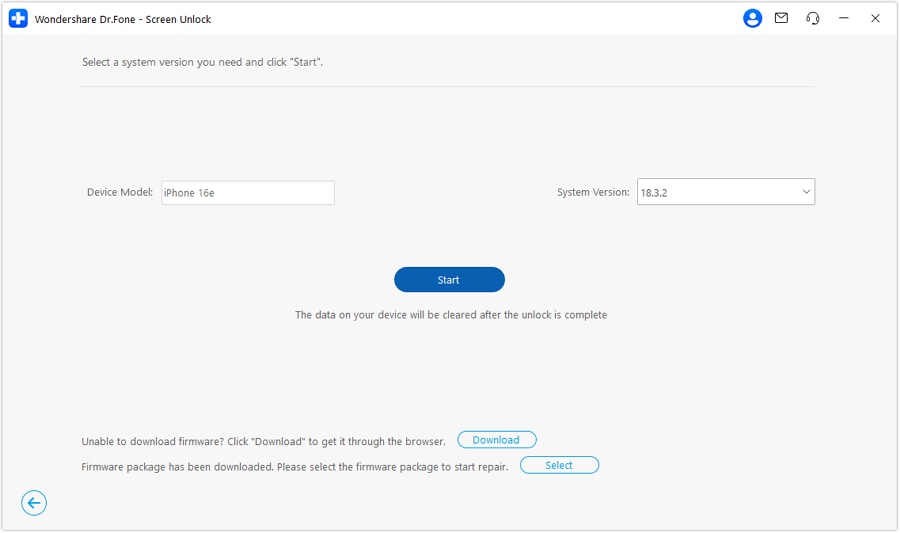
Step 3 Confirm and download the firmware
Dr.Fone detects the connected device model. Check the model and system version before continuing. Select Start to download the required iOS firmware package.
-
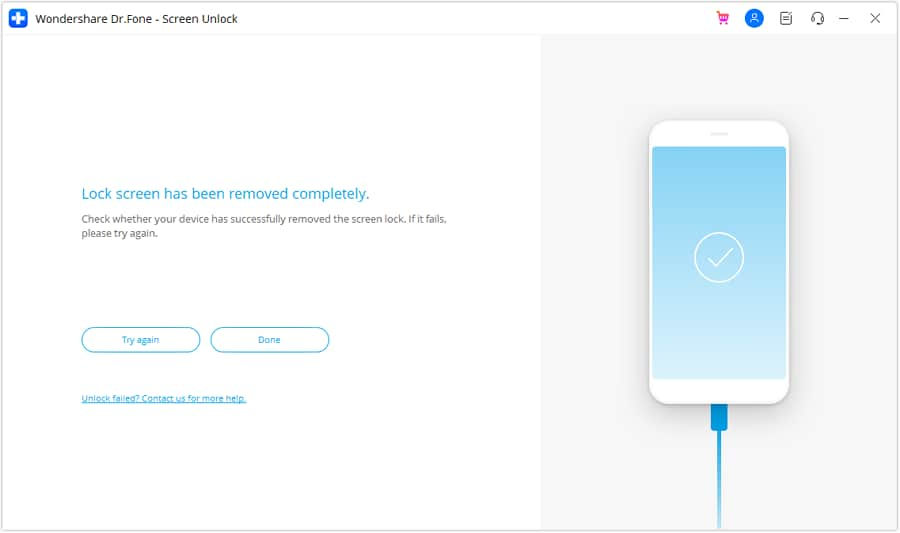
Step 4 Remove the screen lock
After verifying the firmware, press Unlock Now. Enter the confirmation code and select Unlock. Please keep the device connected as Dr.Fone installs the firmware and removes the lock. When the process finishes, select Done.




Conclusion
Find My enables you to manage who knows your whereabouts, from stopping the sharing of your location with just one person to disabling Location Services for everyone. If you disable Find My Friends, Apple may not send a notification, but the other person will notice that your location is missing.
The built-in iPhone settings are usually the best option generally. Dr.Fone - Screen Unlock (iOS) is a program that can help you regain access to your device if you’ve forgotten the passcode. Please make sure that unlocking a standard screen does not erase an iPhone’s data altogether.
FAQs.
-
1. Does the Other Person Get Notified When I Stop Sharing My Location?
It relies on the application. When you choose to stop sharing your location in iMessage, a status line is added to the chat which is only visible to you. Some third-party apps may send a push notification when sharing ends. -
2. What Does My Location Show When My Phone Is Turned Off?
Most apps show your last known location before the phone went offline. In Find My, it may appear with a timestamp such as “Last seen 2 hours ago.” -
3. How to Know If Someone Stopped Sharing Their Location With You?
In Messages, you may see a notice such as “[Name]’s location expired.” In Find My, the person may no longer appear in the People tab after they stop sharing with you.
 Add Wondershare Dr.Fone as a preferred source on Google