Bypass iCloud Activation Lock and Android FRP without password.

 100% Security Verified | No Subscription Required | No Malware

 :
: 
 ChatGPT
 Perplexity
 Gemini
 Claude
 Grok
Grok
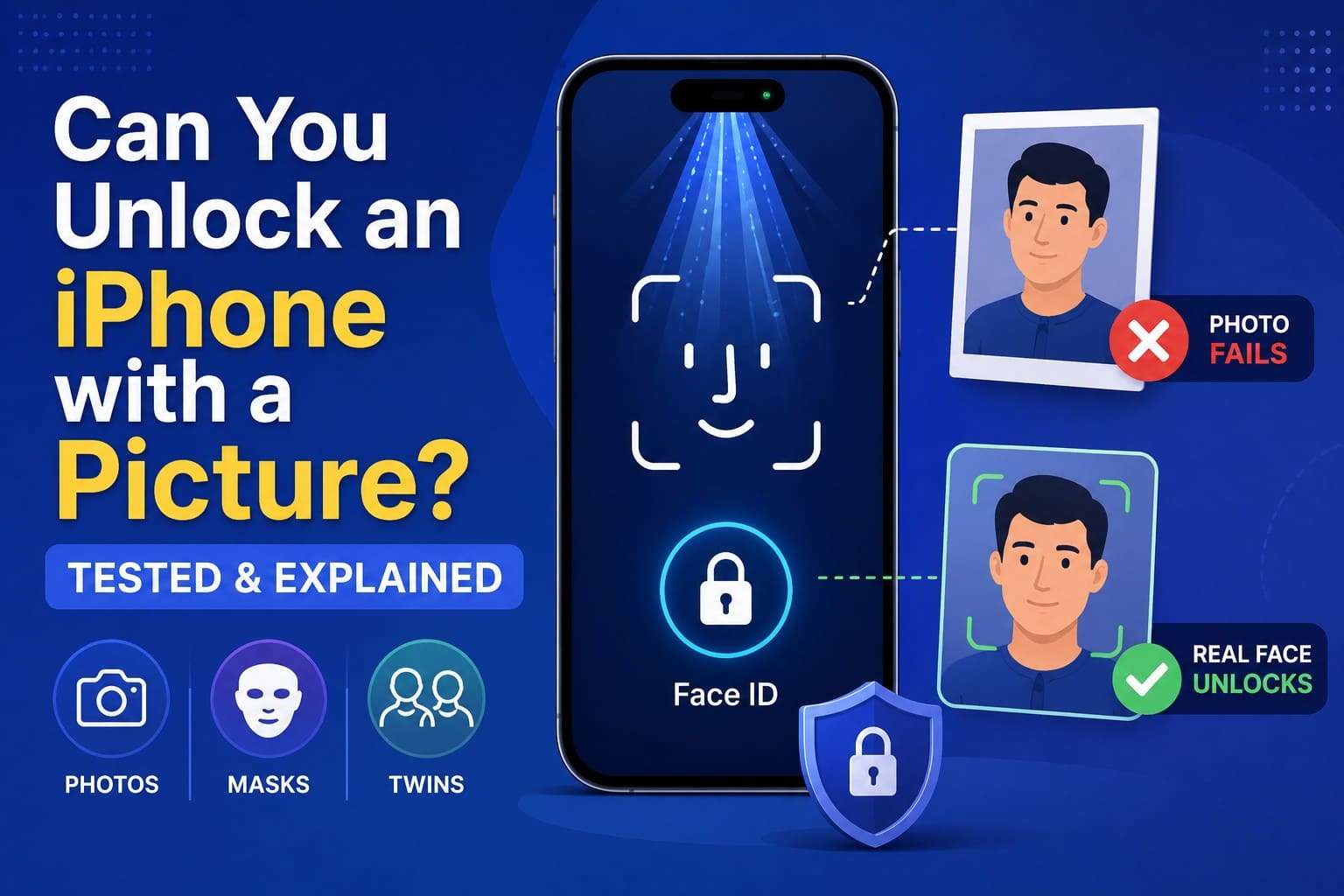
Anyone can easily find your photo on social media, shared camera rolls, or video calls. This leads many people to ask: Can you unlock an iPhone with a picture? The short answer is no, and the reason has nothing to do with how sharp the photo is.
This guide tests if photos, videos, masks, or twins fool the TrueDepth camera, and shows settings to increase security. It closes with what to do when Face ID or a forgotten passcode shuts you out of your own iPhone. In situations like these, learn how Dr.Fone - Screen Unlock (iOS) is a simple and effective method to regain access.
In this article
- Part 1. Can You Unlock an iPhone with a Picture?
- Part 2. How Does Face ID Work?
- Part 3. Testing Face ID with Photos, Videos, and Masks
- Part 4. Why Doesn't Face ID Work with 2D Images?
- Part 5. Can Twins, Masks, or Sleeping Users Bypass Face ID?
- Part 6. How to Make Face ID More Secure
- Part 7. Locked Out of Your iPhone? Here's What to Do
Part 1. Can You Unlock an iPhone with a Picture?
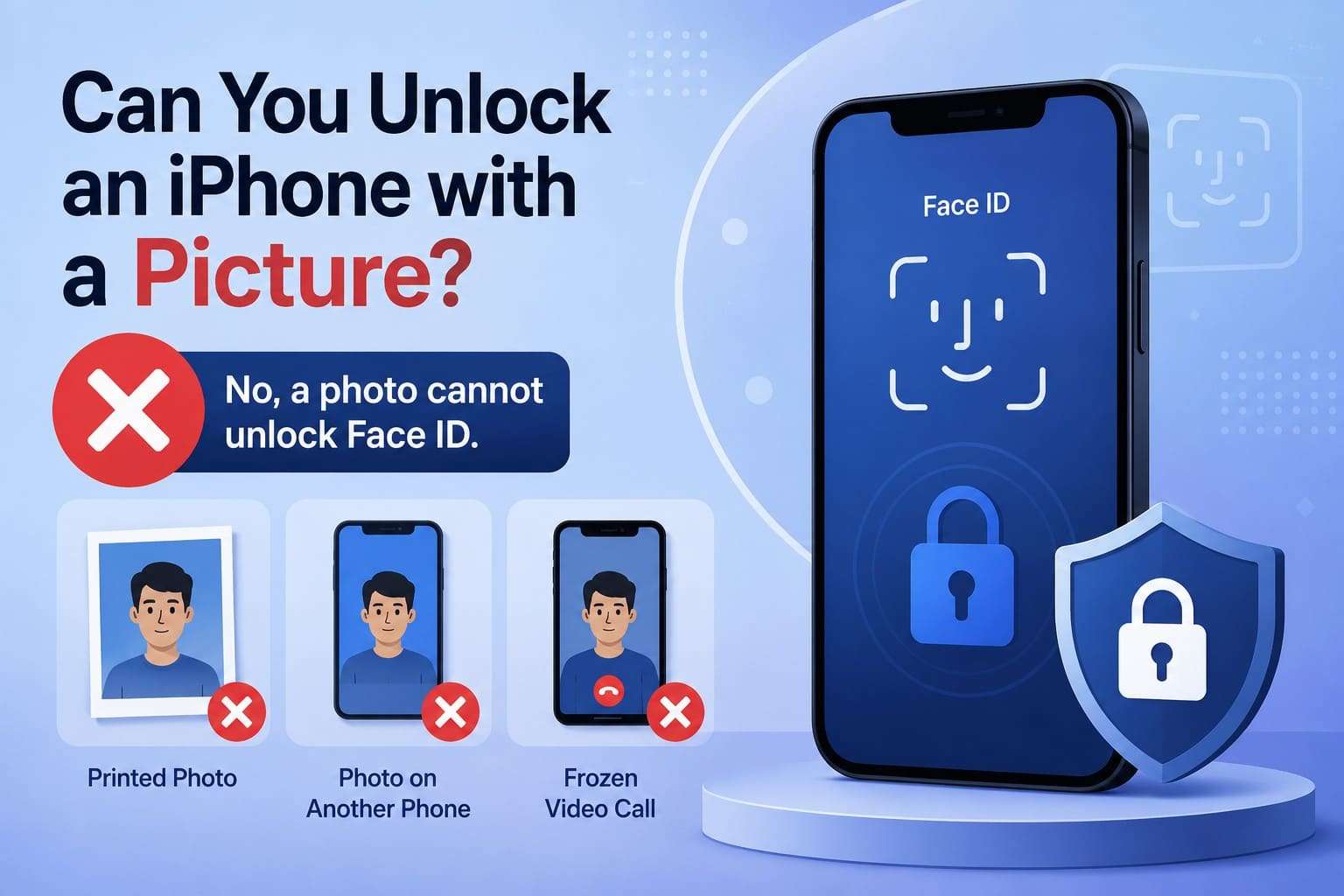
No, a photo cannot unlock Face ID on any iPhone model. Face ID never compares your face to a stored picture. It measures the shape of your face in three dimensions, then checks whether that shape is pointed at the screen.
A printed photo has no shape to measure, and neither does an image on another phone or a frozen video call. People ask this because early face unlock on other systems actually fell for simple printouts. Apple built Face ID on different hardware, so the answer to "can I unlock an iPhone with a picture?" is still no.
Part 2. How Does Face ID Work?
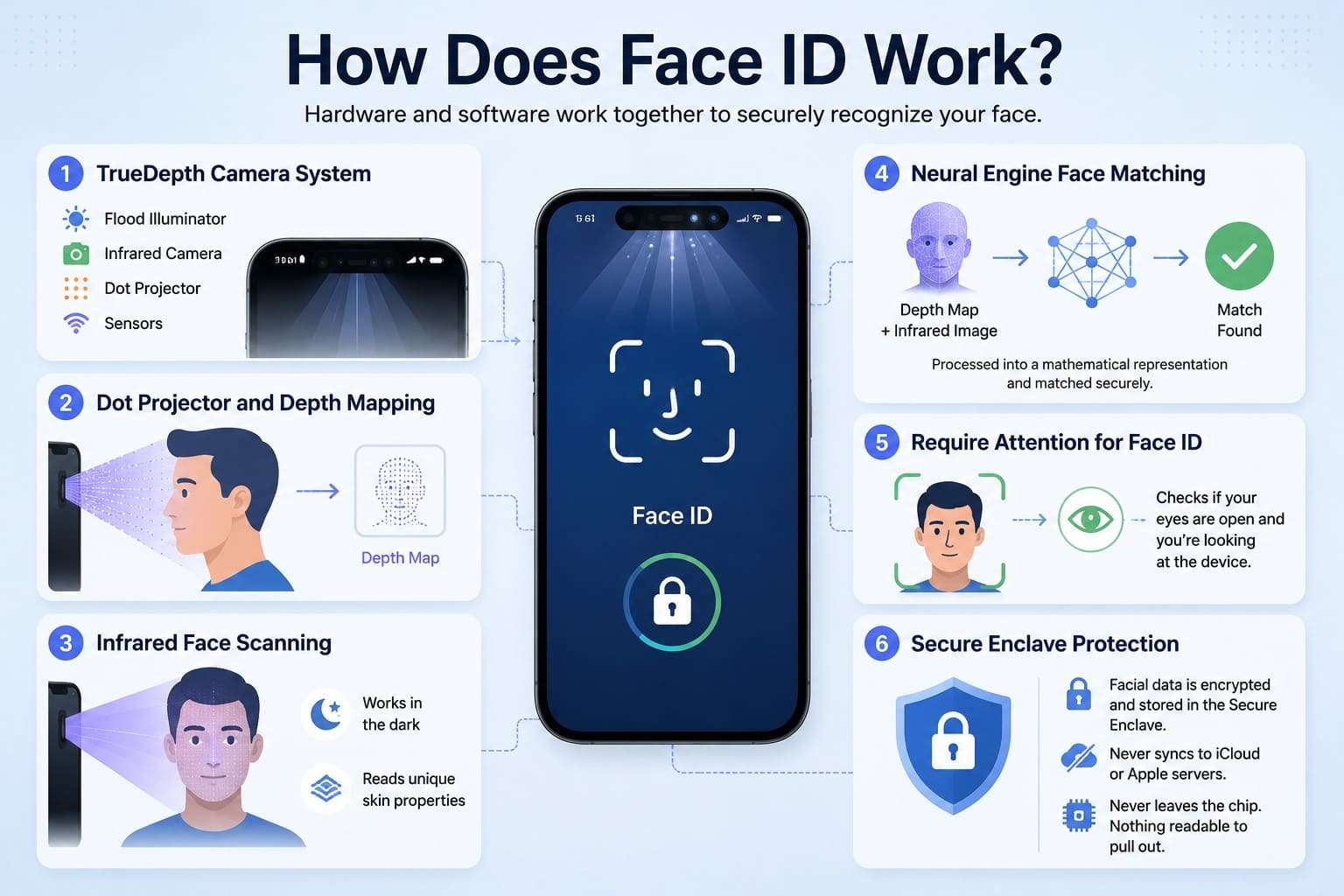
Hardware and software have to agree before your iPhone unlocks. Each feature stops flat images from bypassing security, and the given points explain this in detail:
1. TrueDepth Camera System
The notch or Dynamic Island holds far more than a selfie camera. A flood illuminator, an infrared camera, and a dot projector work together. Proximity and ambient light sensors decide how much illumination each scan needs before any of that fires.
2. Dot Projector and Depth Mapping
The projector casts roughly 30,000 invisible infrared dots across your face. How those dots land and distort builds a depth map, recording that your nose sits forward of your cheeks while your eye sockets sit back. If you still ask, "can you unlock your iPhone with a picture," remember that flat surfaces cannot generate the three-dimensional facial depth Face ID needs to authenticate.
3. Infrared Face Scanning
Alongside the dot pattern, the infrared camera captures a 2D image in a spectrum your eyes can't see. Infrared works in total darkness, which is why Face ID unlocks at night. It also detects how real skin reflects infrared light, something paper and glass simply cannot reproduce.
4. Neural Engine Face Matching
Apple explains that part of the neural engine sits walled off inside the Secure Enclave. It converts the depth map and infrared image into a mathematical representation, then compares that against your enrolled data. No picture of your face is stored or compared at any stage.
5. Require Attention for Face ID
Attention detection asks a separate question. Are your eyes open, and are they directed at the device? Apple's documentation notes this makes it harder for anyone to unlock your iPhone without your knowledge. The check is always enforced when Face ID runs with a mask.
6. Secure Enclave Protection
Your facial data is encrypted with a key only the Secure Enclave holds. It never syncs to iCloud, never reaches Apple's servers, and never leaves the chip. Even with full access to the phone's storage, there is nothing readable to pull out.
Part 3. Testing Face ID with Photos, Videos, and Masks
Now that you understand the basics, if you still ask, "can you unlock an iPhone with a picture," the tests below show what happens in each scenario. Tests on Face ID since 2017 show consistent results worth listing. Here is how each attempt performs, along with the mechanism deciding the outcome:
| Attempt Type | Result | Why It Passes or Fails |
|---|---|---|
| Printed Photo | Fails | Paper returns a flat depth map with no facial geometry to match. |
| Photo on Another Phone | Fails | A screen emits its own light and reflects infrared, nothing like skin. |
| Live Photo or Video | Fails | Movement adds no depth, so the missing third dimension stays missing. |
| Realistic Silicone Mask | Fails in practice | Researchers needed exact measurements and 3D printing to get anywhere. |
| Identical Twin | Sometimes succeeds | Apple confirms false-match odds rise for twins and lookalike siblings. |
| Sleeping Person, Attention On | Fails | Closed eyes mean attention detection never confirms. |
| Sleeping Person, Attention Off | Can succeed | Nothing is left to check whether you're awake or looking. |

Part 4. Why Doesn't Face ID Work with 2D Images?
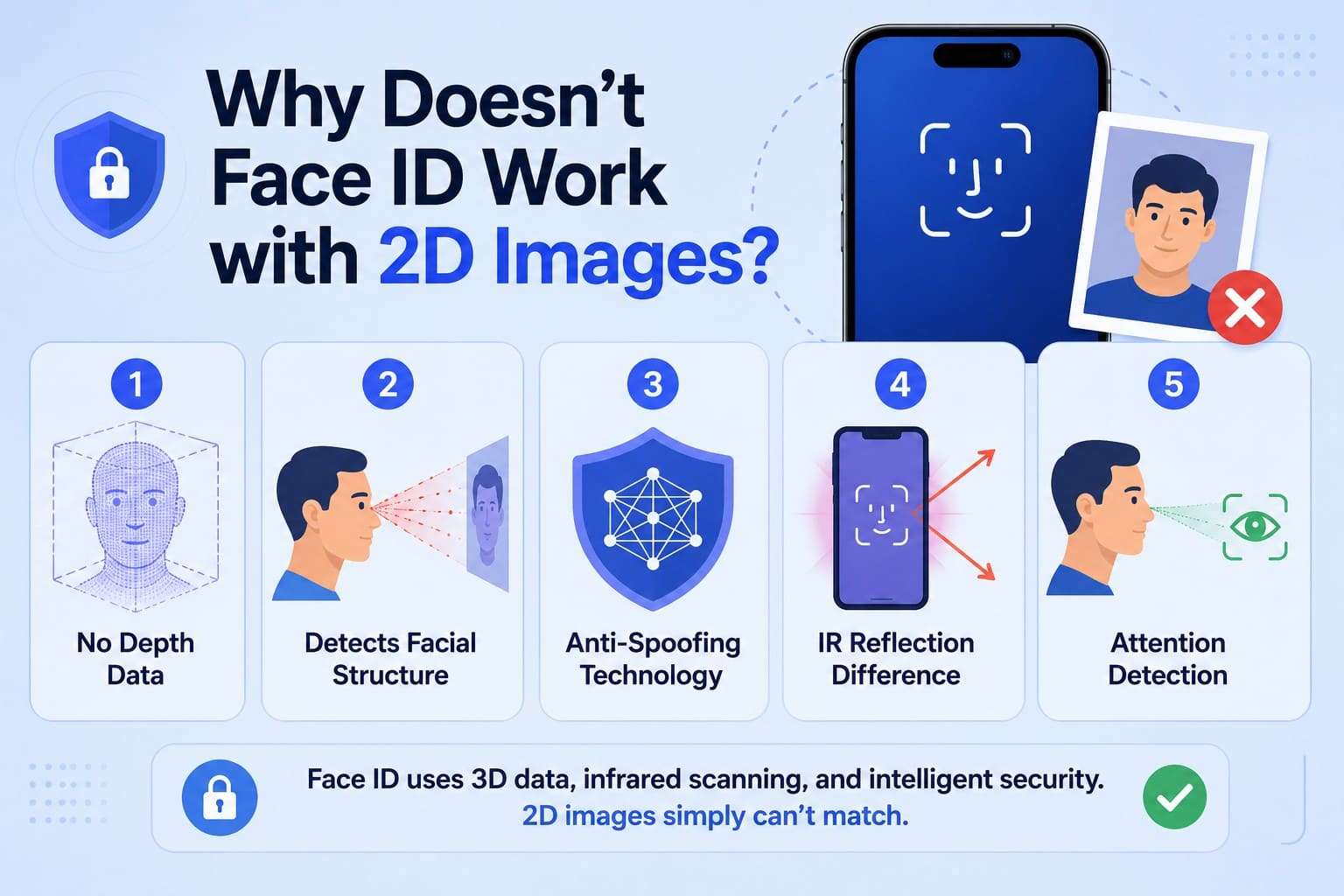
The answer to "can I unlock an iPhone with a picture" lies in five separate defenses that stand between a picture and an unlocked phone. To further understand why Face ID cannot work with 2D images, go through these points:
- Photos Have No Depth Data: Apple states plainly that Face ID matches against depth information, which isn't present in print or 2D digital photographs. The comparison fails before spoof detection is even needed.
- Infrared Scanning Detects Facial Structure: Skin, paper, and glass reflect infrared in measurably different ways. A face returns a soft, uneven signature, while a printout returns a uniform sheet.
- Anti-Spoofing Technology Identifies Fake Faces: Apple's security documentation describes a dedicated neural network trained to spot photos and masks. MacRumors reported that Apple strengthened those models again in iOS 15.
- Screens and Photos Reflect Infrared Differently: Displays throw back their own backlight along with glass reflections. According to Apple's platform security guide, the camera also randomizes its capture order and projects a device-specific random pattern.
- Attention Detection Confirms the User is Looking: Gaze detection requires live eye focus directly on the device. A photograph stares at nothing in particular, and a video won't track the phone as it moves.
Part 5. Can Twins, Masks, or Sleeping Users Bypass Face ID?
When people ask, "can you unlock iPhone with picture," the discussion often turns to twins, masks, and sleeping users. Apple puts the odds of a random person unlocking your iPhone below 1 in 1,000,000. That figure climbs for twins, lookalike siblings, and children under 13 whose features are still developing.
In addition, masks belong in a different category from photographs. Researchers have shown that highly realistic custom-made 3D silicone masks have occasionally bypassed Face ID under controlled conditions. However, the analysis of that work notes that those attempts required precise facial measurements and 3D printing.
Sleeping users are the practical weak point, and it sits entirely under your control. With Require Attention switched on, closed eyes stop the unlock. Turn it off for accessibility reasons, and that safeguard disappears, letting someone hold the phone in front of your face while you sleep.
Part 6. How to Make Face ID More Secure?
Now you know the answer to the question, "Can you unlock an iPhone with a picture?" Face ID handles the biometric side well on its own, and these 5 habits close the gaps that sit around it:
| Security Setting | Why Enable It | Where to Find It |
|---|---|---|
| Require Attention | Prevents Face ID from unlocking unless you're looking at the screen. | Settings > Face ID & Passcode > Require Attention for Face ID |
| Stolen Device Protection | Adds extra biometric checks and security delays for sensitive actions. | Settings > Face ID & Passcode > Stolen Device Protection |
| Strong Passcode | Makes your iPhone harder to unlock without authorization. | Settings > Face ID & Passcode > Change Passcode |
| Limit Lock Screen Access | Restricts access to sensitive features while your iPhone is locked. | Settings > Face ID & Passcode > Allow Access When Locked |
| Keep iOS Updated | Installs the latest Face ID security improvements and fixes. | Settings > General > Software Update |
Part 7. Locked Out of Your iPhone? Here's What to Do
Even after getting the answer to the question, "Can I unlock an iPhone with a picture?" many people still look for simple ways to unlock their iPhone. After 5 failed Face ID attempts, Apple demands the passcode, as mentioned. Hence, this section explains 5 simple routes and explains which one retains the data and which one does not:
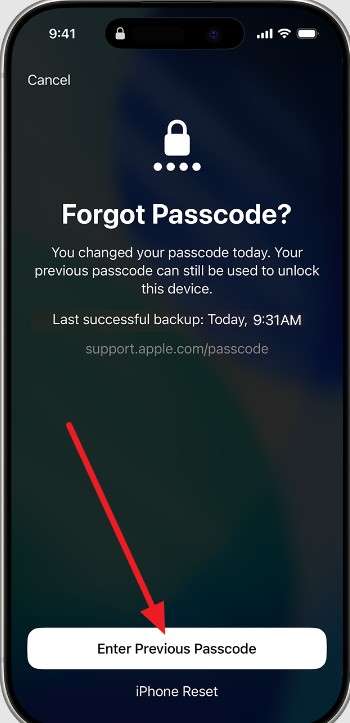
Solution 1. Use Your Previous Passcode
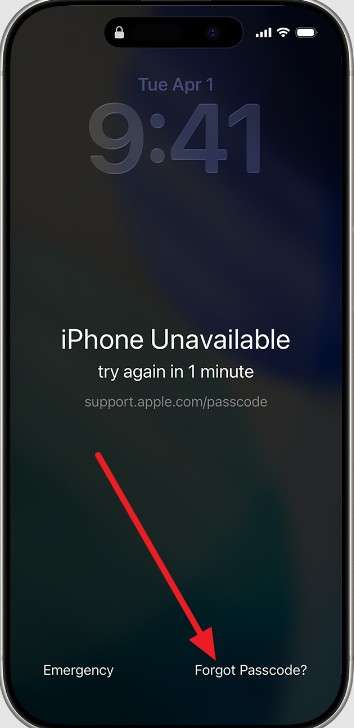
Anyone running iOS 17 or later gets a 72-hour grace period after changing a passcode. Apple calls this Passcode Reset, and it's the only method here that spares your data. To know how you can get past the iPhone Unavailable message, follow these steps:
-
Step 1 Enter the wrong code 5 times from the Lock Screen until the “iPhone Unavailable” message appears, then tap “Forgot Passcode?”
-
Step 2 Choose “Enter Previous Passcode,” type the code you used before the change, and follow the prompts to set a fresh one.
Solution 2. Unlock the iPhone with Dr.Fone - Screen Unlock (iOS)
Once that 72-hour window closes, Apple's remaining options all want your Apple ID password. People locked out of an inherited or long-dormant iPhone rarely have it. Now that you know the answer to "can you unlock an iPhone with a picture," Dr.Fone - Screen Unlock (iOS) can help if you're locked out of your device. The tool lets you bypass multiple lock types on iPhone, iPad, and iPad Touch without passcodes.
Since novices can struggle with Recovery Mode, Dr.Fone offers a detailed guide and DFU Mode access as an alternate option. Nonetheless, this iPhone screen unlocker is compatible with iOS 27 and iPadOS 27 and comes with weekly Screen Unlock updates for iOS. You can also bypass iCloud Activation Lock, and the process requires no skills.
 Unlock iPhone/iPad passcode in minutes.
- Remove Face ID, Touch ID, MDM lock, and screen lock.
- Bypass iCloud Activation Lock easily.
- Support all iOS versions and devices.
- Simple steps, no technical skills needed.

Simple Guide to Remove a Face ID Lock Using Dr.Fone
Keep the iPhone connected to your computer for the whole process, and then follow the mentioned steps to unlock your iPhone:
-
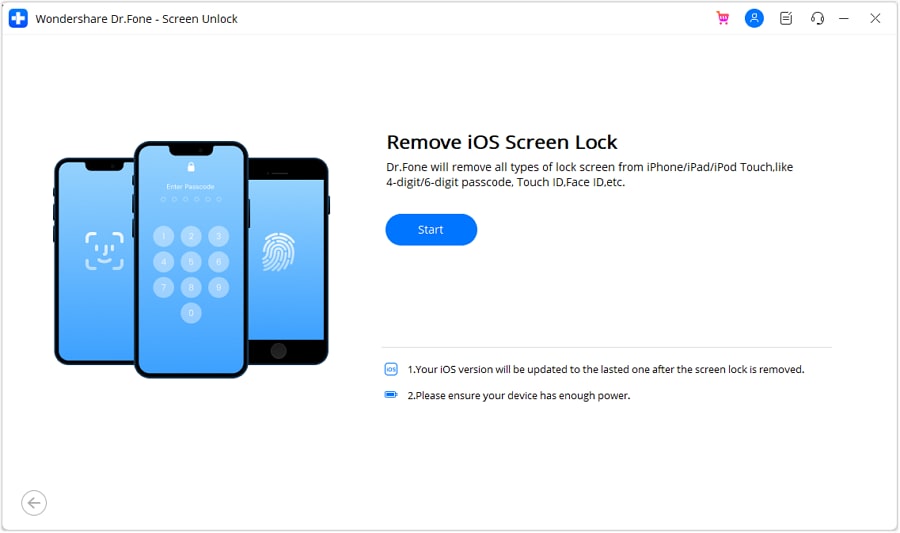
Step 1 Launch the Screen Unlock Tool and Begin
From the Dr.Fone Toolbox, choose the Screen Unlock tool for “iOS” and click on the “Unlock iOS Screen” option to “Start.”
-
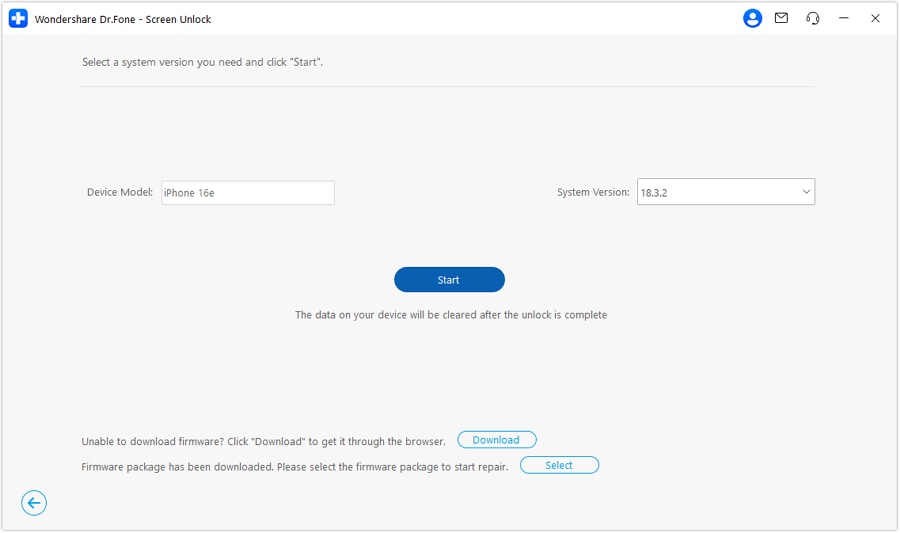
Step 2 Verify What the Software Reads Back
First, put your iPhone into Recovery Mode. Next, verify the detected device information, select the appropriate firmware version, and click the "Start" button to download the firmware.
-
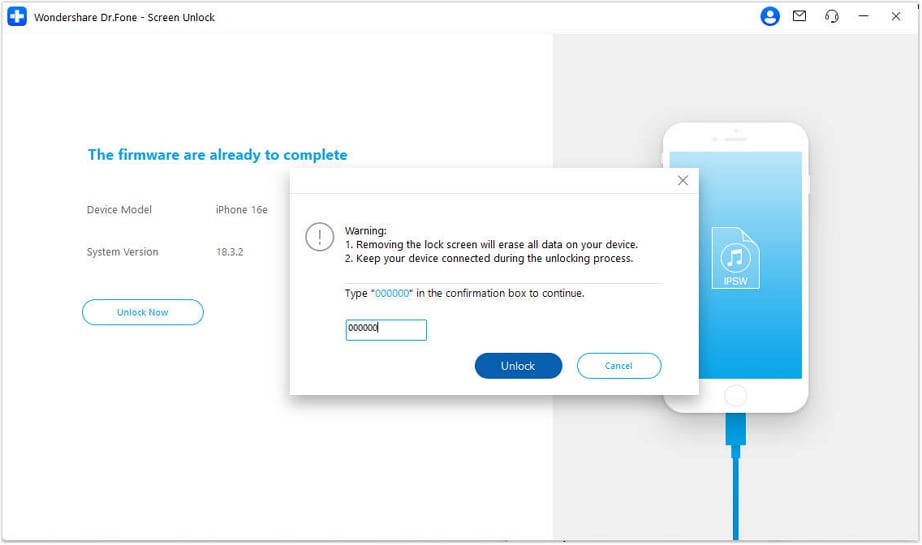
Step 3 Authorize and Clear the Lock
Choose the “Unlock Now” option, add the “000000” code, and click on “Unlock” to remove the iOS lock.




Solution 3. Use Forgot Passcode
Apple's on-device reset needs iOS 17 or later, a live network connection, Find My switched on, and your Apple Account password. It wipes the handset without a computer, and below are the detailed guidelines for this method:
-
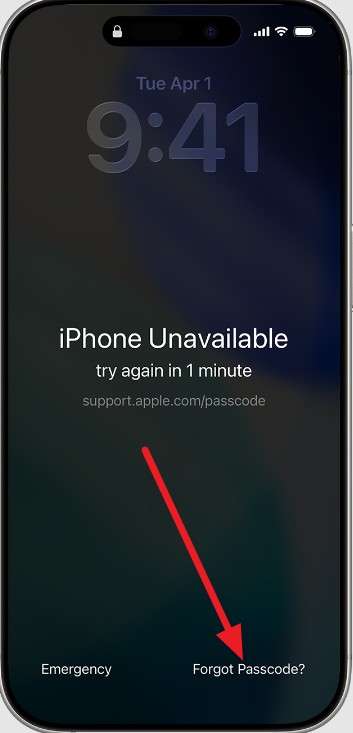
Step 1 Enter the passcode until the “Security Lockout” screen appears > Press “Forgot Passcode?” and “Start iPhone Reset.”
-
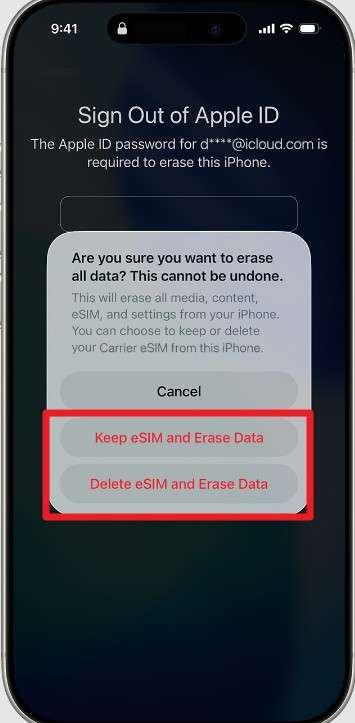
Step 2 Enter Apple Account password to sign out > Decide whether to keep eSIM > Tap “Erase iPhone.”
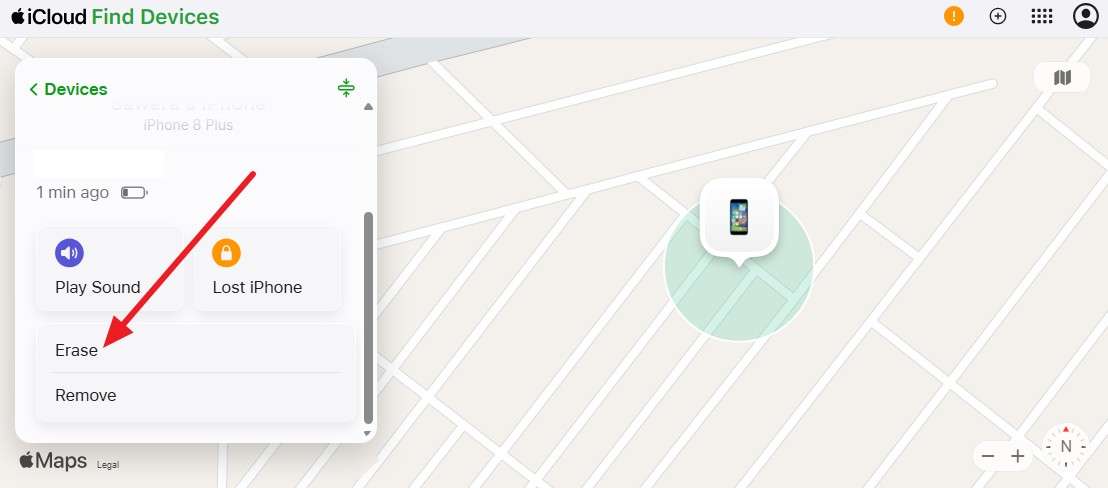
Solution 4. Erase the iPhone Through Find My
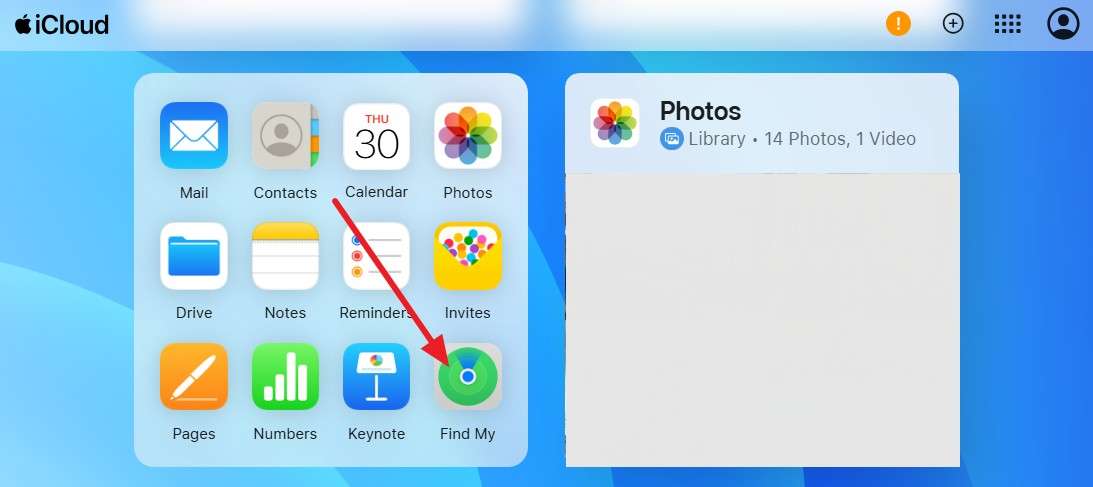
Now that you know the answer to "can you unlock an iPhone with a picture," try this method using another device. Find My must have been switched on before the lockout, or the option never appears. As for the guide, you can follow the simple directions given ahead:
-
Step 1 Sign in to iCloud.com and open “Find My.”
-
Step 2 Select the locked iPhone from the device list, tap the “Erase” option, and follow the instructions. Activation Lock still applies afterward, so keep the original account details handy.
Solution 5. Restore the iPhone in Recovery Mode
Every route above needs the iPhone online, so this is the fallback when it can't reach a network. Now that you know the answer to "can you unlock an iPhone with a picture," follow the steps below to restore your iPhone using Recovery Mode.
-
Step 1 Connect the iPhone to a Mac or PC and put it into Recovery Mode using the given button sequence according to your model:
Device Model Key Combinations & Steps iPhone 8 or Later (Including SE 2nd/3rd Gen) Press and release “Volume Up” > Press and release “Volume Down” > Hold the “Side” button until the recovery screen appears. iPhone 7 & 7 Plus Press and hold the “Side + Volume Down” buttons together until the recovery screen appears. iPhone 6s or Earlier (Including SE 1st Gen) Hold the “Home + Side (or Top)” buttons together until the recovery screen appears. -
Step 2 Select "Restore" when Finder, iTunes, or the Apple Devices app prompts you, then wait while it downloads and installs a fresh copy of iOS.
Conclusion
This guide has answered the question: can you unlock an iPhone with a picture? A picture can't unlock an iPhone because Face ID was never designed to authenticate using flat images. Explore the available unlock options, and use Dr.Fone - Screen Unlock (iOS) when you need a simple way to regain access. Keeping Face ID security features enabled and maintaining a strong passcode will also help protect your iPhone from unauthorized access.
FAQ
-
1. Can a printed photo unlock Face ID?
No, because print returns no depth data, and Face ID matches against depth rather than appearance. The scan fails well before the anti-spoofing checks are even needed. -
2. Can a photo on another phone unlock Face ID?
No, and a screen is arguably worse than paper. Displays emit their own backlight and bounce infrared in a way skin never does, which the sensor reads immediately. -
3. Does a Live Photo or video work on Face ID?
No, adding motion doesn't add depth, and attention detection still needs live gaze tracking. A recording can't reproduce that, however smooth the footage looks.
 Add Wondershare Dr.Fone as a preferred source on Google