Bypass iCloud Activation Lock and Android FRP without password.

 100% Security Verified | No Subscription Required | No Malware

 :
: 
 ChatGPT
 Perplexity
 Gemini
 Claude
 Grok
Grok
You hit play on an MP4 and the audio starts right on cue, but the screen stays black. That's one of the more common video playback complaints out there. In most cases, it's the video stream specifically that's affected, not the whole file.
This guide walks through what typically causes a black screen and how to find an MP4 black screen fix. It also covers Dr.Fone Basic, a toolbox worth knowing about for moving video files between a phone and a computer.
In this article
Part 1. What Causes a Black Screen in MP4 Files?
MP4 is a container format, so mismatched codecs often trigger playback trouble. Several separate issues are provided below that can trigger this MP4 black screen fix search:
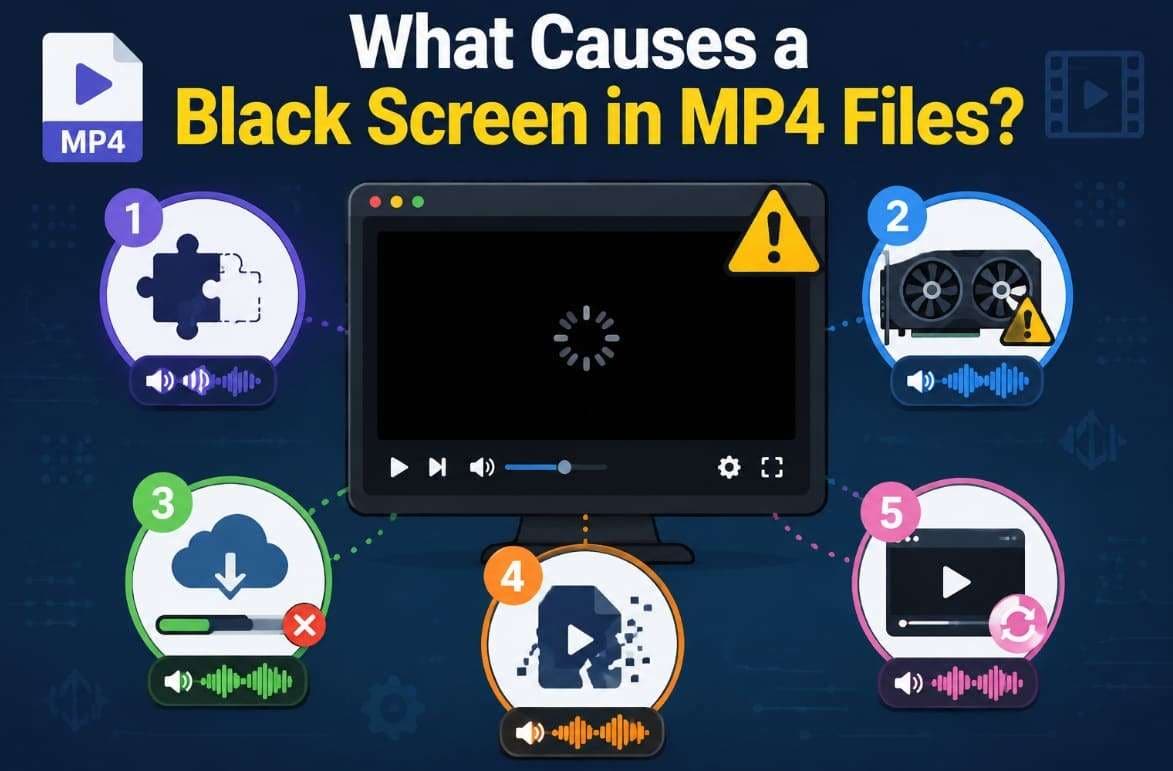
- Missing Codec: The player reads the audio track without any trouble at all. It simply lacks the decoder needed for that specific video codec.
- Hardware Conflicts: Your graphics card and player sometimes fail to communicate correctly here. The video frame stays unrendered even though decoding actually succeeds fine.
- Incomplete Transfer: Missing data partway through downloads can damage the video stream badly. The audio stream usually stays intact while the picture disappears.
- Corrupted Stream: The file itself may carry damage limited only to video data. That explains why sound plays normally with nothing shown on screen.
- Outdated Player: Older player versions sometimes lack support for newer video codecs entirely. Container variations can also confuse a player who hasn't been updated.
Alongside that, VLC community discussions also reveal common playback issues involving codecs and hardware acceleration settings.
Part 2. Quick Checks Before You Troubleshoot
These checks can be used to help narrow it down to which one you have, with those causes in mind:
-
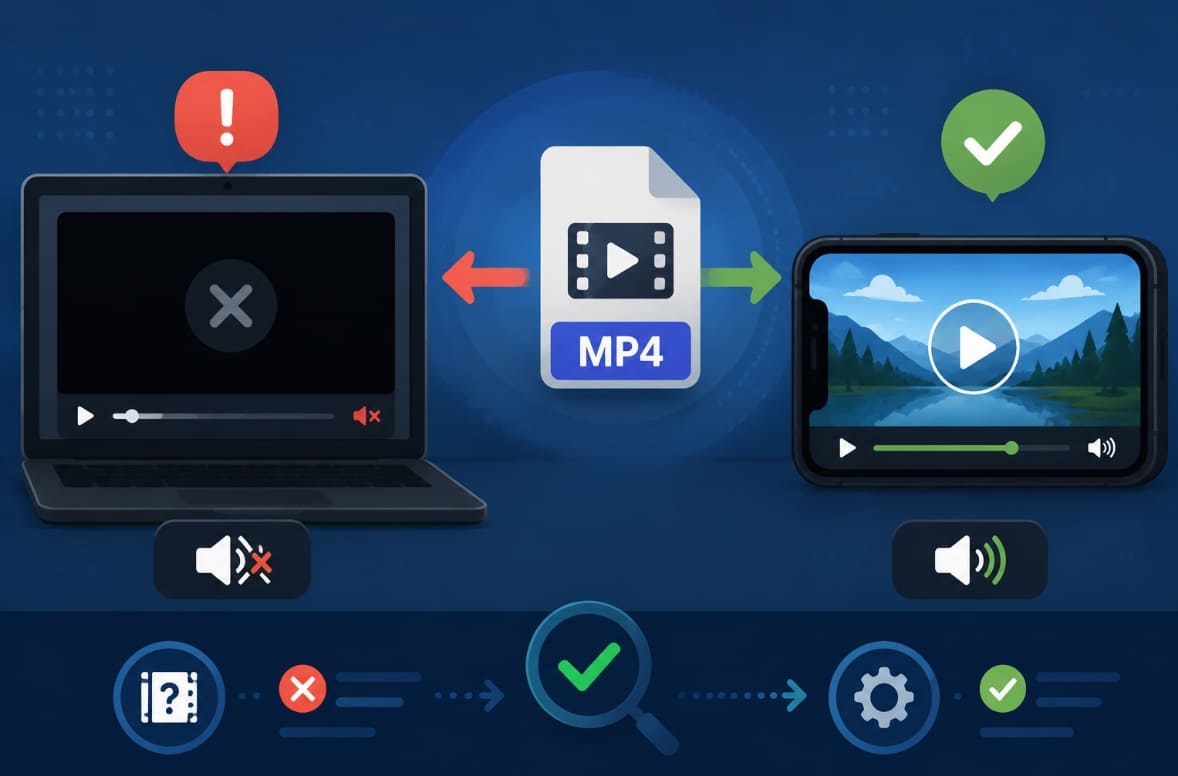
Check 1 Play the File on Another Device
Testing on a second device reveals whether the file itself is faulty. If playback works fine there, your player or system settings are likely responsible.
-
Check 2 Test the File With a Different Media Player
Some players handle codecs and rendering differently, so a file that fails in one can play normally in another. Therefore, this check quickly separates a player-specific bug from a genuine black screen MP4 problem.
-
Check 3 Confirm the Download or Transfer Completed
An interrupted download can leave a file looking whole while data is missing. That's the reason you should compare the file size to the original source to check for this.
-
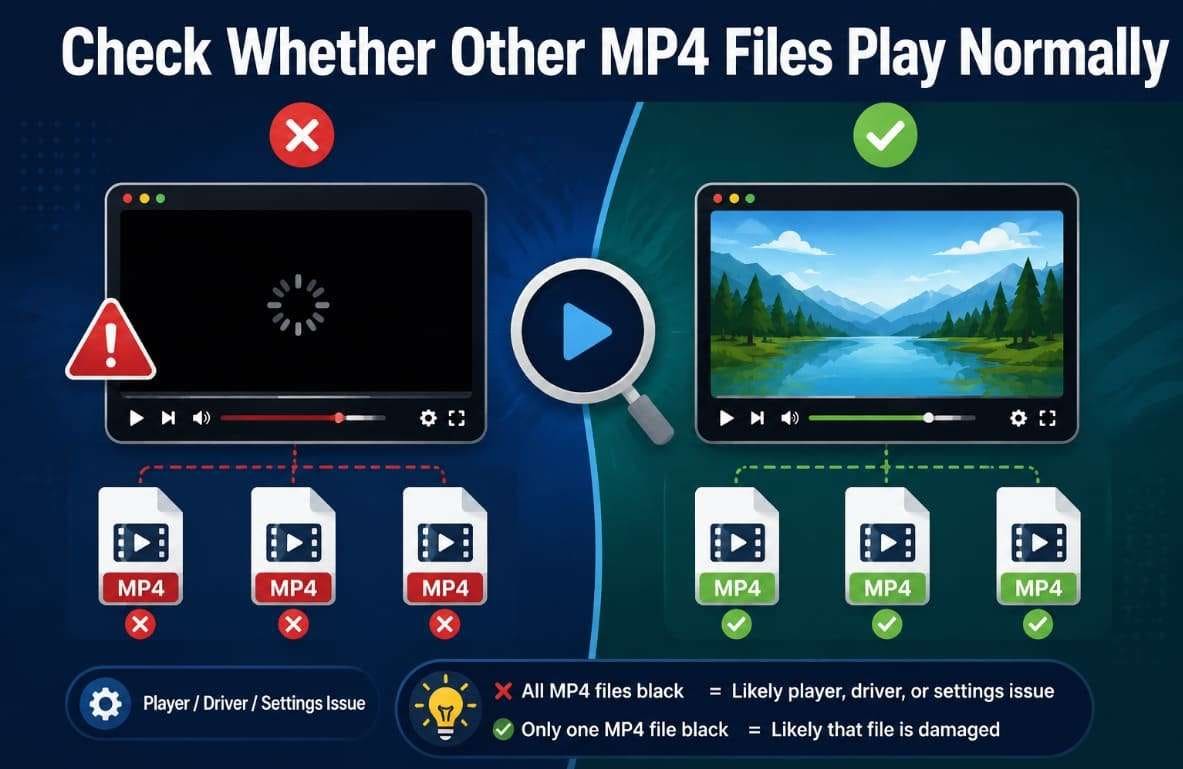
Check 4 Check Whether Other MP4 Files Play Normally
It is likely to be a driver or player settings issue if all of the MP4s are black. In that case, when it affects just one file, then it's likely that it's a problem with that one file.
Part 3. How to Fix an MP4 Video That Shows a Black Screen
If the checks above didn't resolve it, work through these 10 fixes in order to find an MP4 black screen fix for free:
-
Fix 1 Play the File in VLC Media Player
VLC includes an unusually wide range of native codecs, according to VideoLAN's own features documentation. It eventually helps resolve many black screen issues without installing anything separate. This makes it a reasonable MP4 black screen fix before troubleshooting anything more specific to your original player.
-
Fix 2 Copy the File to a Local Drive Before Playing It
Playing a file directly from a USB drive, network share, or cloud folder may introduce read errors. These can show up as a black screen even when the file is fine. This is especially common on slower network connections or drives with unstable read speeds. To cater to this need, copy the MP4 file and paste it onto a local PC drive.
-
Fix 3 Reset the Media Player to Its Default Settings
A setting changed at some point can cause consistent playback problems across files. You may not even realize which setting triggered the conflict in the first place. Resetting clears the entire configuration at once, fixing this black screen MP4 issue, as explored below:
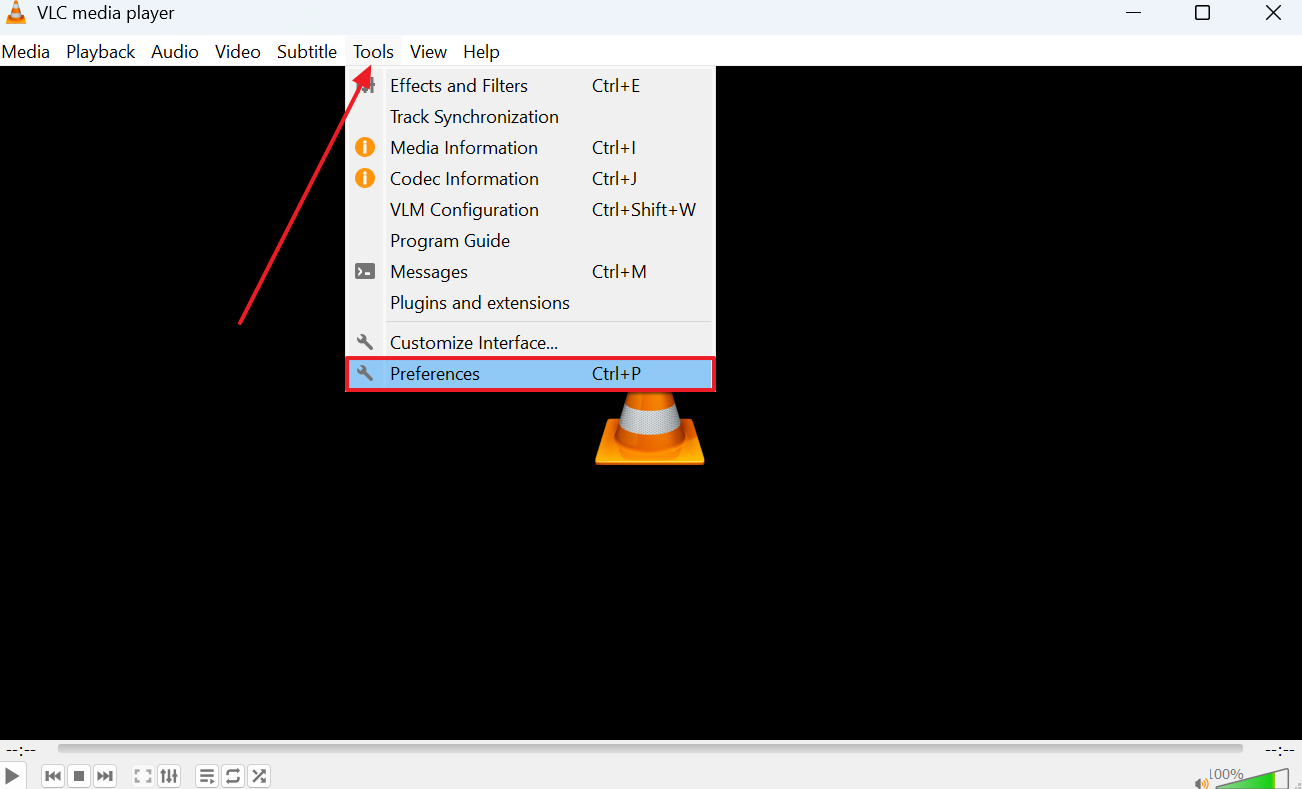
Step 1. As you run the media player like “VLC,” expand the “Tools” menu to choose “Preferences.”
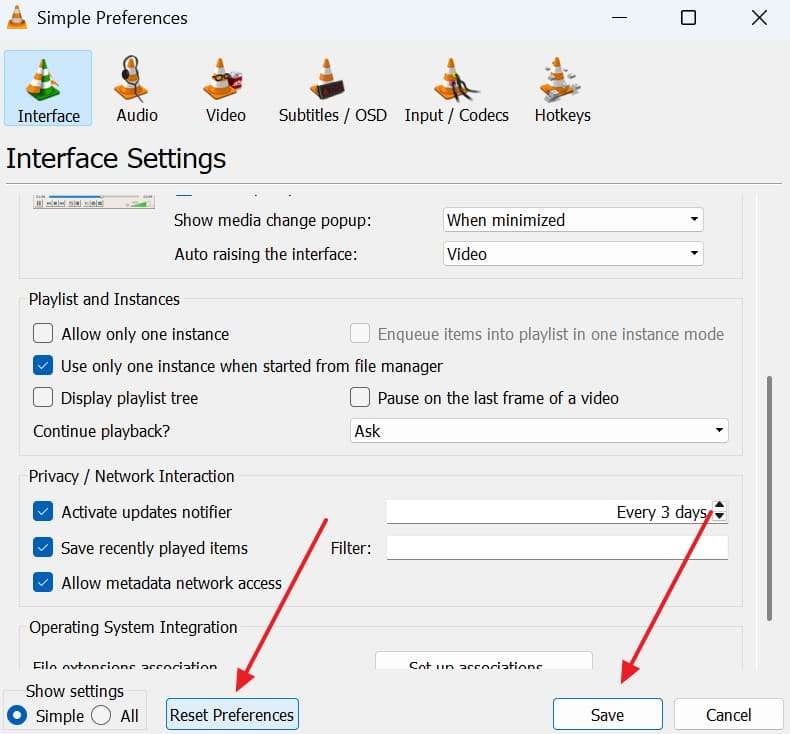
Step 2. When you see a properties panel, press both the “Reset Preferences” and “Save” buttons.
-
Fix 4 Update or Reinstall Your Media Player
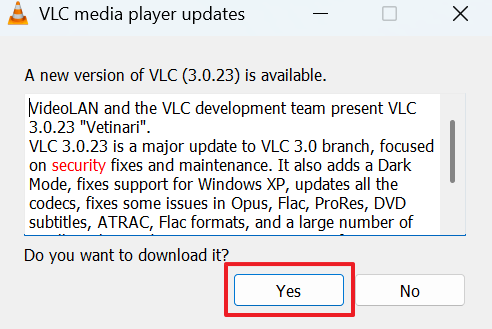
An outdated player build can lose compatibility with newer codecs over time. Moreover, a corrupt installation can cause similar symptoms without giving any obvious warning. Automatic updates being disabled makes this easy to miss, so follow these steps to fix it:
Step 1. You need to click the “Help” tab inside “VLC” and choose the “Check For Updates…” option.
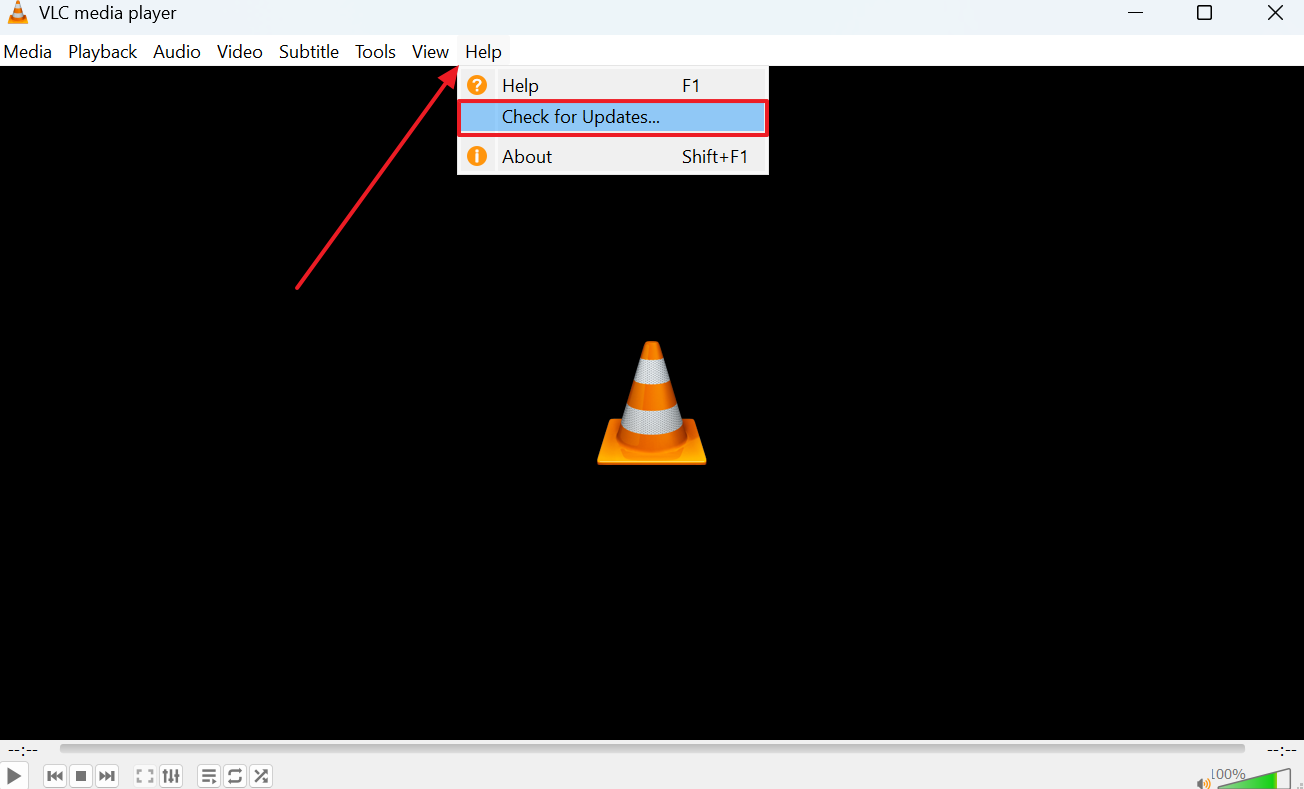
Step 2. If you see an update prompt, press the “Yes” button to download it.
-
Fix 5 Disable Hardware Acceleration
According to VideoLAN's own documentation, hardware acceleration can be turned off within preferences. GPU decoding is where black screens most often originate during video playback. This is one of the most frequently reported fixes, so follow the guide as a free MP4 black screen fix:
Instructions. From the “Preferences” menu, head to the “Input/Codecs” tab. After that, set “Hardware-accelerated Decoding” to “Disable” and press “Save.”
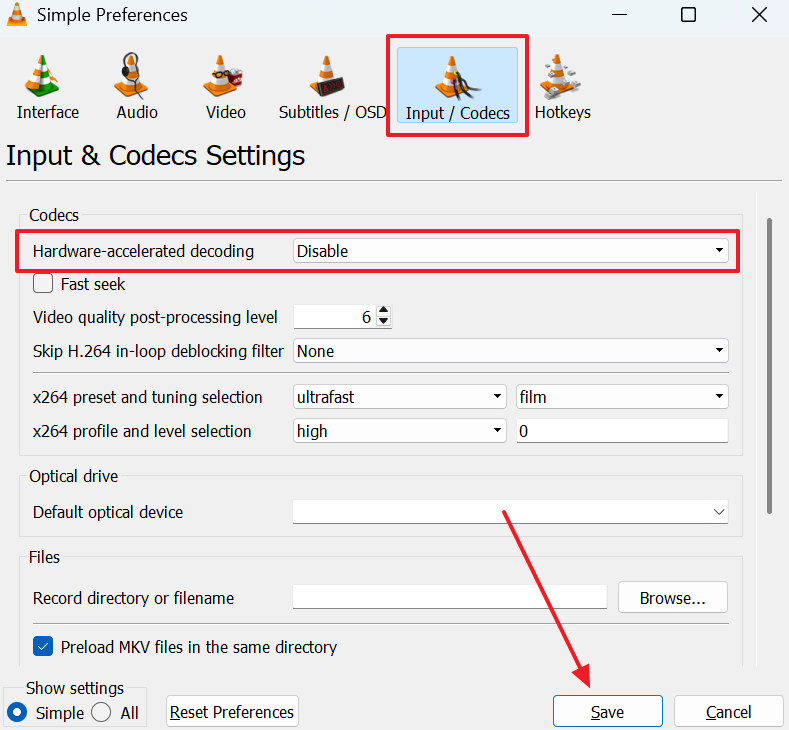
 Expert Note: This forces your processor to handle decoding instead of the graphics card, which can also help if the video plays but looks distorted.
 -
Fix 6 Identify and Install the Required Video Codec
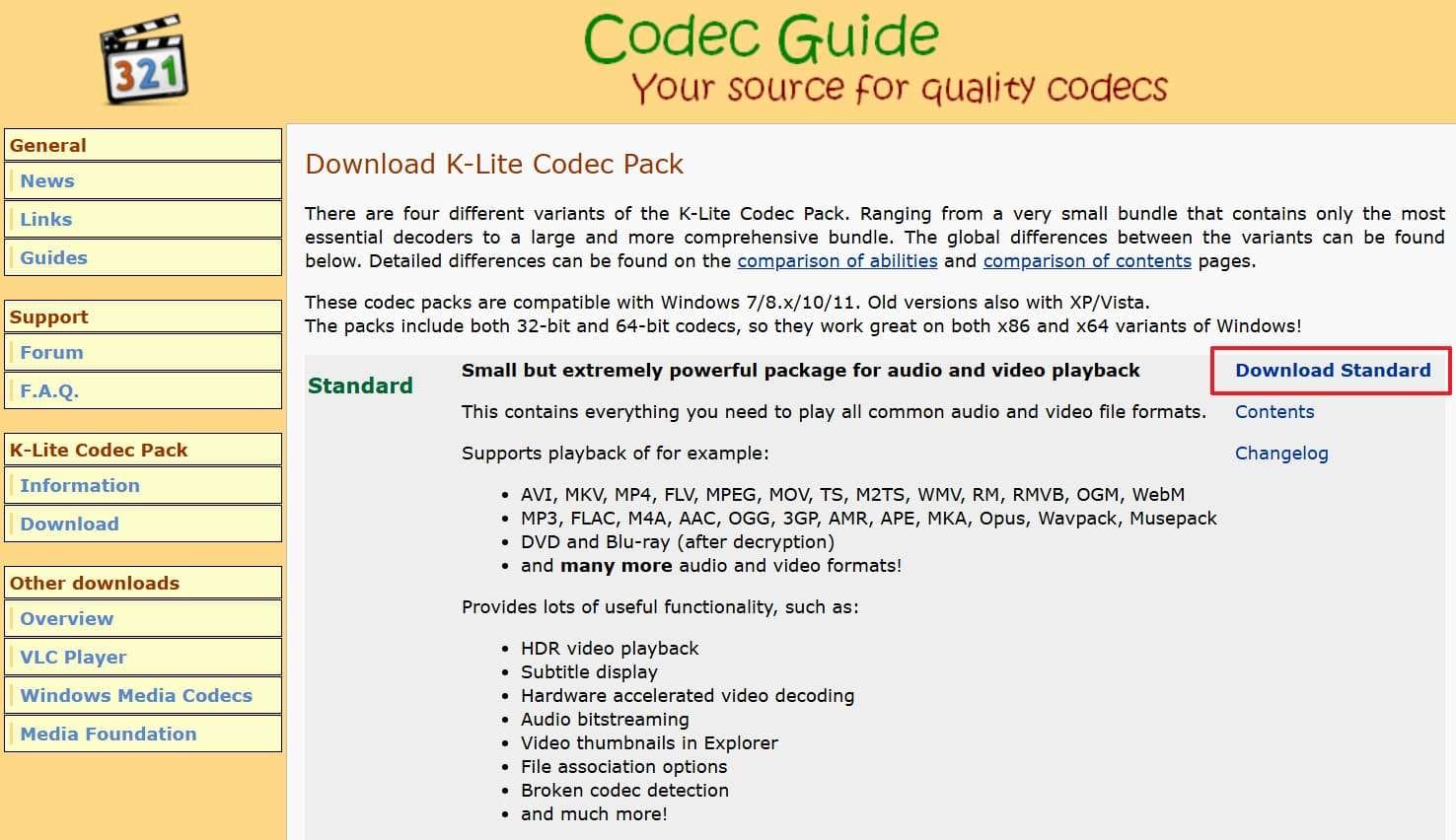
Once you know which codec a file uses, install the matching codec pack directly. This addresses the mismatch instead of just working around the problem entirely. This targeted approach beats generic codec packs and fixes black-screen MP4, as explained below:
Step 1. Users need to open a website like the “K-Lite Codec Pack” website and opt for “Download Standard.”
Step 2. Run the “.exe” file to choose the “Normal” option and opt for “Next.”
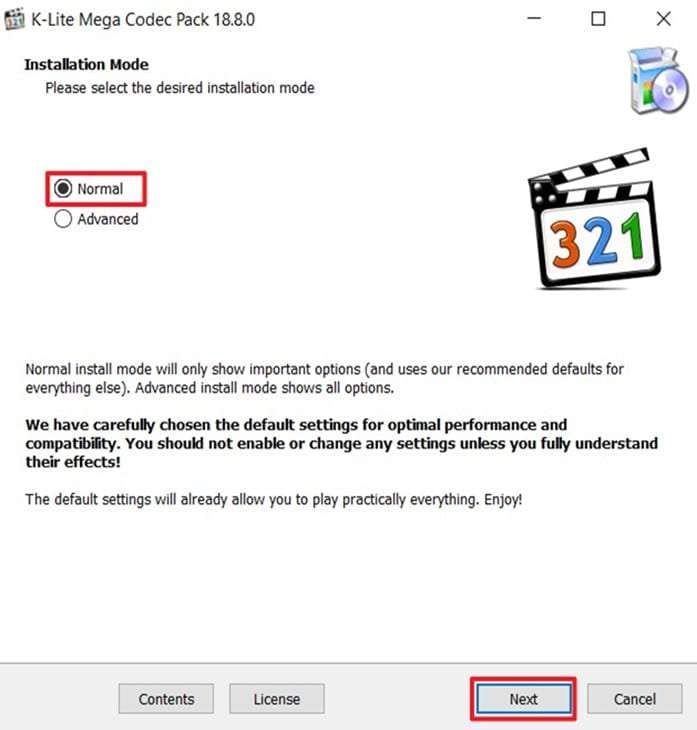
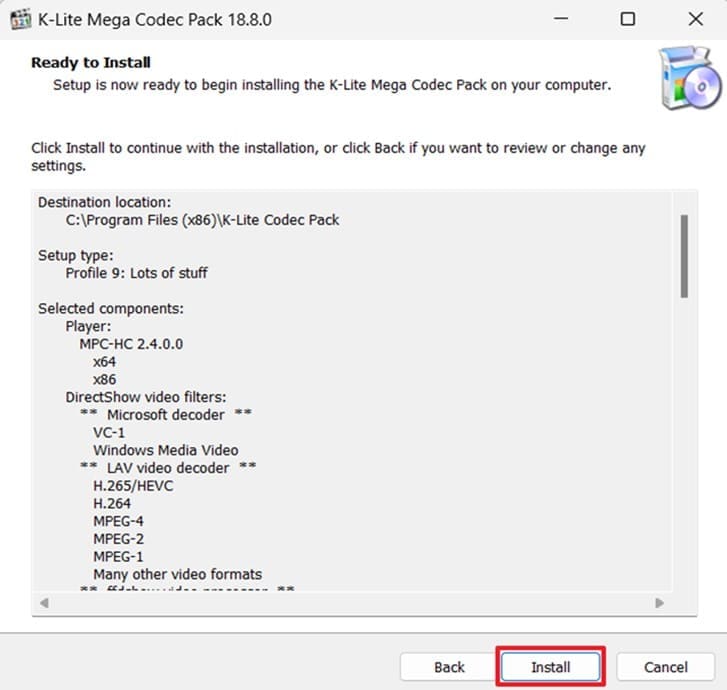
Step 3. You will then need to follow the visual prompts and click the “Install” button.
-
Fix 7 Update the Graphics Driver
An outdated driver can misinterpret hardware decoding instructions sent from the media player. This produces a black screen even though the rest of the playback works fine. Microsoft recommends updating graphics drivers to improve hardware compatibility and playback performance. Most apps don't rely on hardware decoding, so follow these steps to fix it.
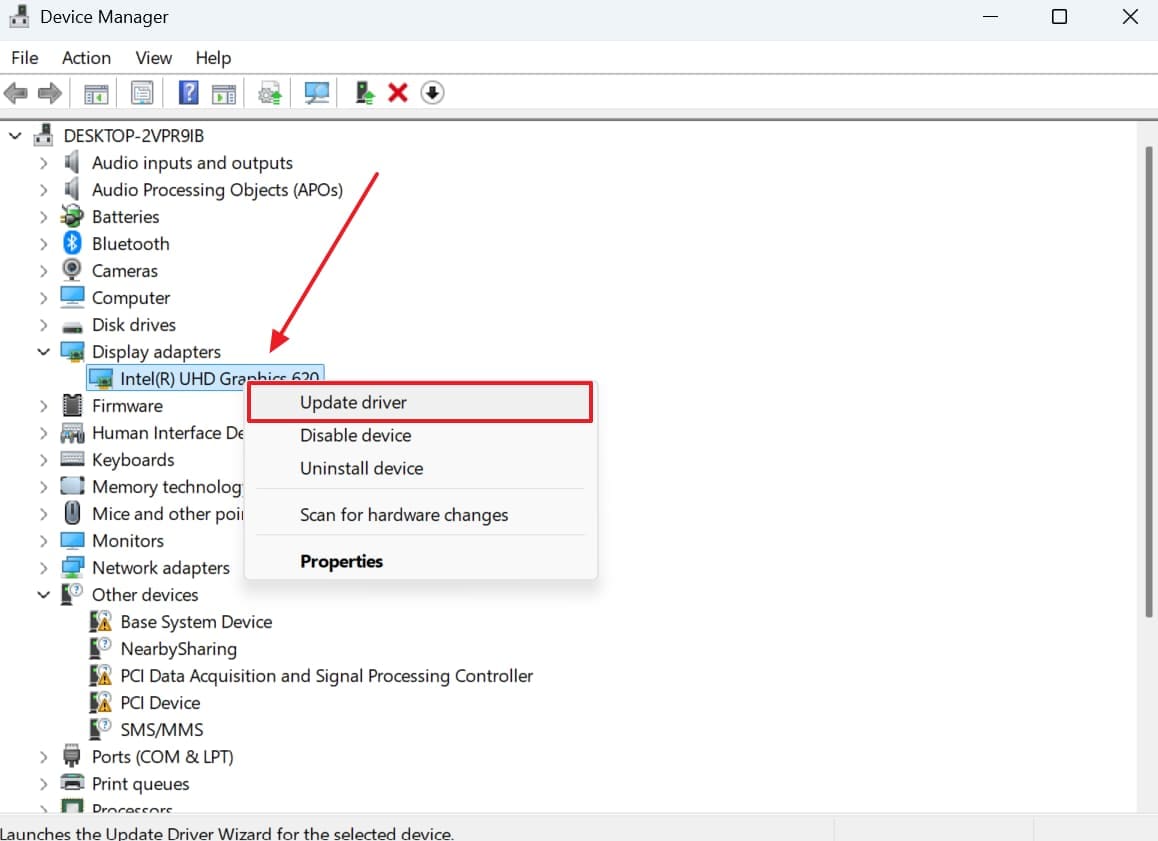
Step 1. From “Device Manager,” head to the “Display Adapters” section. When you right-click the graphics driver, select the “Update Driver” option.
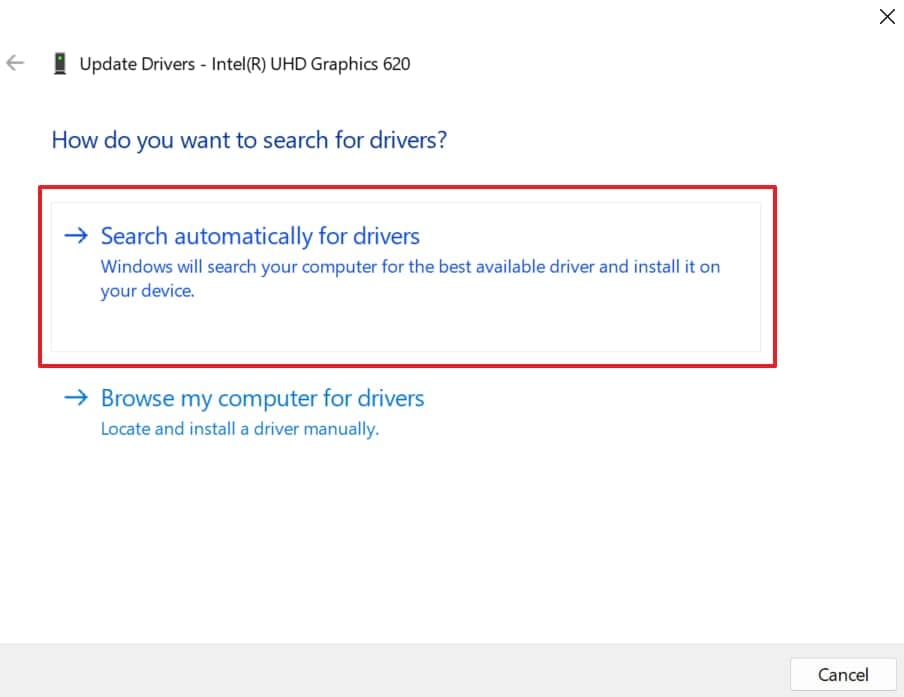
Step 2. Upon reaching the Update Drivers window, opt for “Search Automatically for Drivers.”
-
Fix 8 Remux the MP4 Without Re-Encoding
Remuxing repackages existing audio and video streams into a new container entirely. This fixes many container-level issues without touching video quality at all. FFmpeg community discussions on Reddit also share practical remuxing and conversion solutions for damaged video files. FFmpeg's copy option keeps this MP4 black screen fix lossless, so follow the steps below:
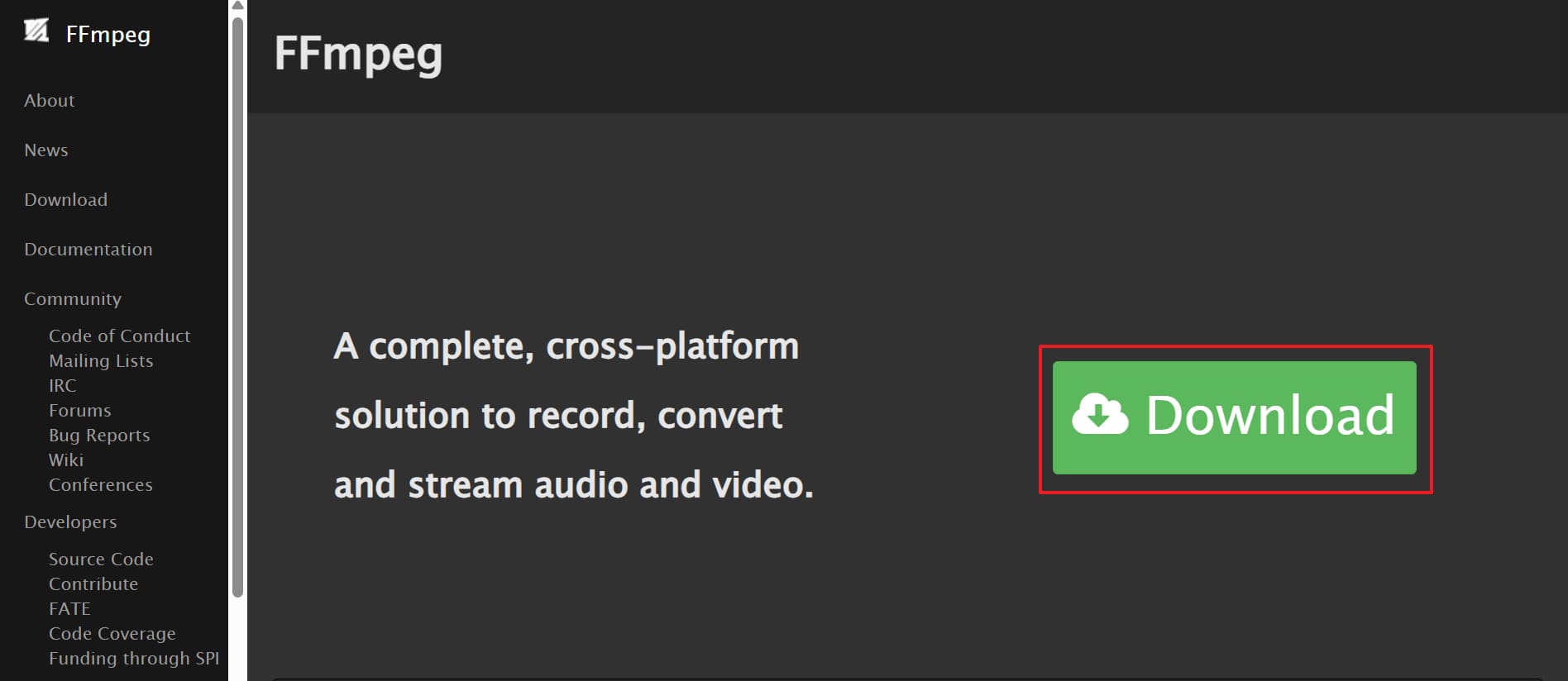
Step 1. Access the “FFmpeg” website and click “Download” to install it.
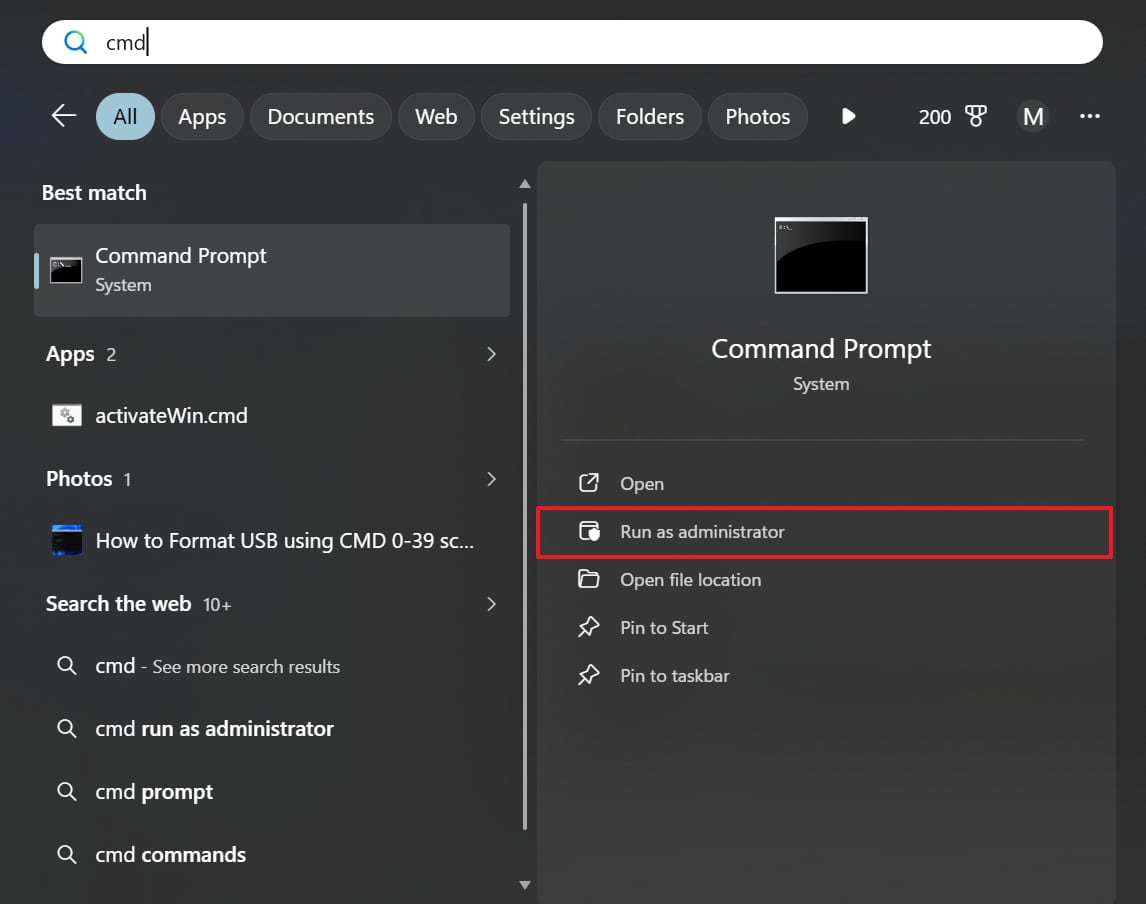
Step 2. Search for "CMD" and opt for the "Run As Administrator" option.
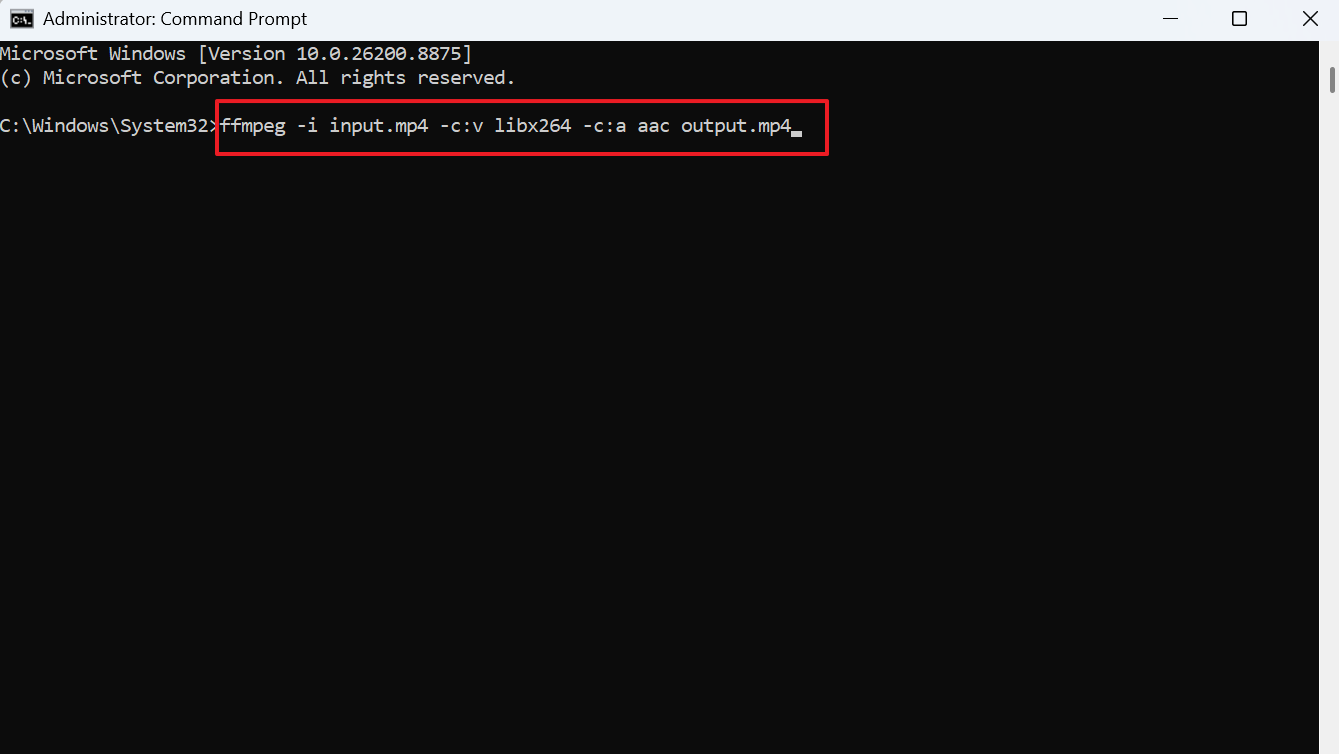
Step 3. Once opened, run the “ffmpeg -i input.mp4 -c copy output.mp4” command to remux the file without re-encoding.
-
Fix 9 Convert the MP4 to H.264 and AAC
Converting the file re-encodes video and audio into widely supported, compatible formats entirely. This resolves compatibility issues that remuxing alone simply cannot fix. UniConverter makes this conversion simple, so follow these steps below to fix a black screen MP4:
Step 1. As you access the “Converter” tab in UniConverter, press “+ Add Files/Folders” to import MP4 files.

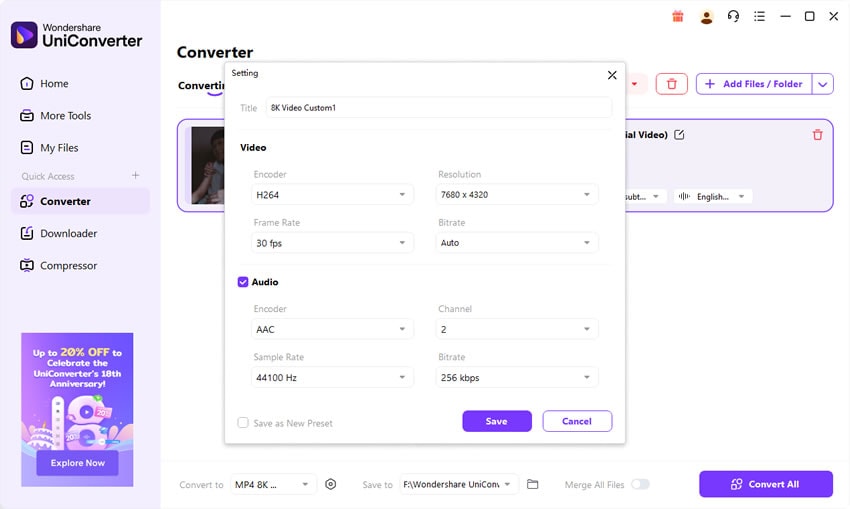
Step 2. Following that, press the "Gear" icon next to the "Convert To" section. Now, choose "H264" as the "Video" encoder and "AAC" as the "Audio" encoder, then press "Save" and "Convert All."
What to Consider Remux (Fix 8) Convert (Fix 9) Speed Fast, just repackaging Slower, full re-encode Quality Impact None, streams stay untouched Minimal quality loss with proper settings Fixes Codec Incompatibility No Yes Fixes Container-level Issues Yes (if streams are compatible) Yes Compatibility Limited to supported codecs Much broader device and player compatibility Best For Container issues with supported codecs Most playback issues, unsupported codecs, and maximum compatibility -
Fix 10 Repair the Corrupted MP4 File
If the file itself is damaged, a dedicated repair tool can rebuild it. Tools like Repairit specifically target damaged video data instead of simple compatibility mismatches. Its AI-powered engine handles severe corruption, batch repairs, and multiple format support easily. This makes it a reliable MP4 black screen fix, so follow these steps below.
Step 1. After accessing the “Video Repair” section, press “Start” to import the corrupted MP4 files. Once the damaged videos are added, you need to click “Repair.”

Step 2. Upon repairing, click “Preview” to check the result and press “Save” to download it.

Pro Tip. Transfer MP4 Files Safely with Wondershare Dr.Fone
Large video files often get corrupted during slow uploads or unstable cloud transfers between devices.
A damaged transfer is actually one of the common causes behind a black screen MP4 problem, so a safer transfer method matters. Dr.Fone Basic solves this by connecting directly to your device over USB. Since it skips the internet and cloud entirely, transfers stay fast, stable, and far less prone to data loss.
Beyond safer transfers, Phone Manager lets you browse your phone's storage right from your computer screen. You can organize videos into folders without squinting at a small display or app. Users can also use this tool to manage photos and other data types from one interface. It works for both iPhone and Android, so the same reliable workflow applies regardless of platform.
 Effortlessly manage data through preview, delete, export, etc.
- Transfer all data between devices.
- Robust backup solutions for reliable data protection.
- Mirror screens to PC for meetings, teaching, and control.

How to Transfer MP4 Files with Dr.Fone Basic
Users have to go through the following guide to use this program and move MP4 files:
-
Step 1 Choose Quick Transfer to Move MP4 Files
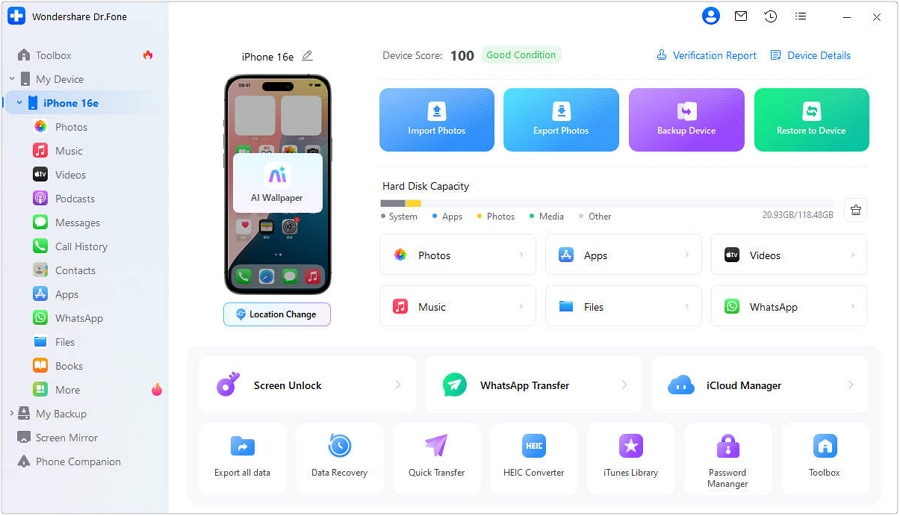
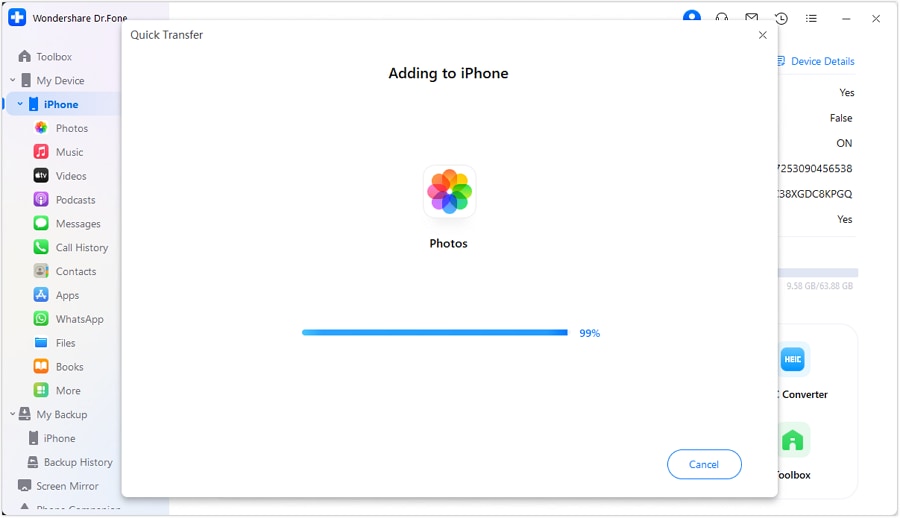
After you connect your iPhone to the PC via cable, access the “My Device” section inside Dr.Fone and click “Quick Transfer.”
-
Step 2 Transfer MP4 Files to Your Phone
After that, press “Select Files” to select the MP4 files from your PC and choose your destination app. The tool starts moving your MP4 files and shows you the confirmation screen upon completion.




Bonus Tool: Unlock Your iPhone or Android with Dr.Fone – Screen Unlock
You can't fix a black screen MP4 if you can't even access your phone. Whether you've forgotten your passcode, your Face ID stopped working, or your device is frozen after an update, being locked out blocks every troubleshooting step that requires file access.
Dr.Fone – Screen Unlock helps you regain full access to your iPhone or Android device in minutes — no technical skills needed. Once unlocked, you can transfer corrupted MP4 files to your computer, clear app caches, or reinstall media players to resolve playback issues.
Dr.Fone - Screen Unlock (iOS)
- Unlock iPhone/iPad passcode in minutes.
- Remove Face ID, Touch ID, MDM lock, and screen lock.
- Bypass iCloud Activation Lock easily.
- Support all iOS versions and devices.
- Simple steps, no technical skills needed.
Supports all models from iPhone 5s to iPhone 17 Series and works with iOS 27. Removes 4-digit/6-digit passcodes, Face ID, Touch ID, and Screen Time restrictions. Data-safe Standard Mode available.
Dr.Fone - Screen Unlock (Android)
- Unlock Android phone in seconds.
- Remove PIN, pattern, password, fingerprint.
- Bypass Google FRP lock easily.
- Works on all Android brands & models.
- No tech skills required – user-friendly.

Compatible with Samsung, Xiaomi, OPPO, Google Pixel, and over 15,000 Android models. Removes PIN, pattern, password, and fingerprint locks. Also supports removing Samsung FRP (Factory Reset Protection) without data loss in most cases.
Conclusion
An MP4 black screen fix usually comes down to a codec mismatch or file damage limited to the video stream. Working through the checks and fixes in order, starting with VLC and a local copy of the file, resolves most cases. If you regularly move videos between your phone and computer, Dr.Fone Basic is a useful tool to keep in mind.
Frequently Asked Questions
-
Q1. Does a black screen always mean the MP4 file is corrupted?
No, a black screen is often caused by a missing codec or hardware conflict. Actual file damage isn't always the culprit behind this common issue. A quick test in VLC or on another device usually clarifies the cause. -
Q2. Why does the audio play but the video stays black?
Audio and video are stored as separate streams inside an MP4 file. Meanwhile, damage or incompatibility can affect one stream without touching the other at all. This is exactly why sound plays normally while the picture doesn't. -
Q3. Will converting my MP4 reduce its quality?
The video gets re-encoded, which involves a small quality tradeoff from the original. Remuxing avoids this entirely, since it repackages existing streams without any recompression. -
Q4. Can a black screen issue happen on a phone, not just a computer?
Yes, the same codec and file damage issues apply to phones as well. Fixes look different, though, since desktop tools like VLC aren't always available. Testing the file on a computer first helps confirm the cause.
 Add Wondershare Dr.Fone as a preferred source on Google