 Bypass iCloud Activation Lock and Android FRP without password.

 100% Security Verified | No Subscription Required | No Malware

 :
: 
 ChatGPT
 Perplexity
 Gemini
 Claude
 Grok
Grok
For obscure Android firmware, technicians worldwide have relied on the HalabTech tool for years. What began as a simple file library has evolved into an essential suite of repair and unlocking utilities. This guide provides an honest look at the HalabTech Tool's features, device support, and pricing models.
It will also cover the unspoken risks and offer a straightforward alternative if you just need to unlock a single device. As an alternative, learn why Dr.Fone - Screen Unlock (Android) is a better option via a detailed comparison.
In this article
- Part 1. What Is HalabTech Tool?
- Part 2. Brands and Chipsets Supported by HalabTech Tool
- Part 3. Is HalabTech Tool Free? Understanding Credits and Licensing
- Part 4. How to Download and Use HalabTech Tool
- Part 5. Common HalabTech Tool Errors and Solutions
- Part 6. Is HalabTech Tool Safe? Risks and Things to Know
- Part 7. An Easier Alternative to HalabTech Tool: Dr.Fone – Screen Unlock (Android)
Part 1. What Is HalabTech Tool?
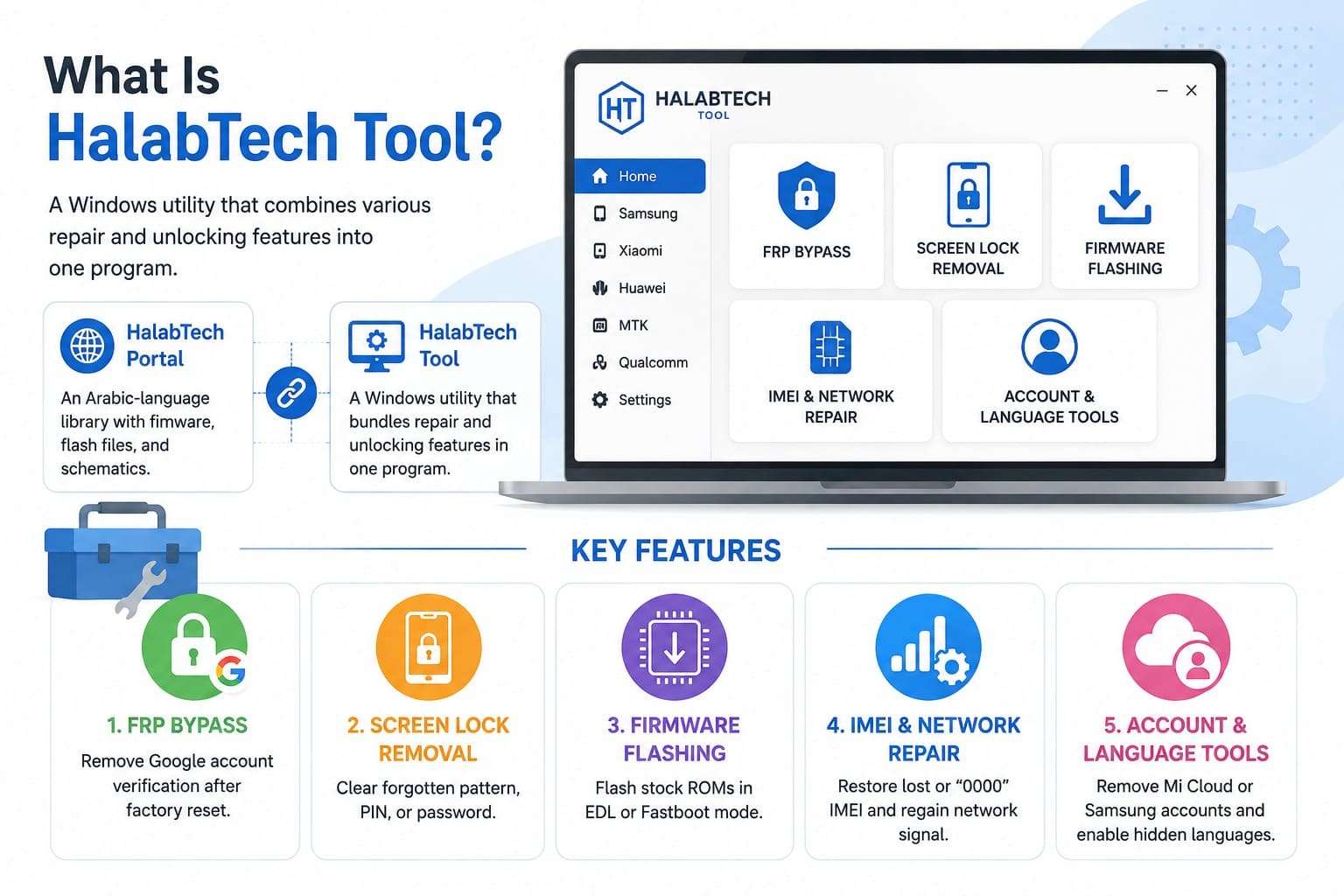
The name HalabTech refers to two distinct resources that users often mix up. The first is the HalabTech portal, an Arabic-language library packed with firmware, flash files, and schematics. The second is the HalabTech Tool, a Windows utility that combines various repair and unlocking features into a single program.
Repair shops reach for the software because it bundles several jobs into a single window. It removes Google FRP locks, strips screen passwords, flashes stock firmware, repairs damaged IMEI data, and handles account removal for Samsung, Xiaomi, and Huawei devices. The officially listed release is version 1.1, though community mirrors circulate builds labeled 1.1.6 and even 4.0 that the main site doesn't confirm.
HalabTech Tool Features Explained
To further understand the key aspects of the HalabTech tool, review the following features in detail:
- FRP Bypass: Removing the Google account check that greets a phone after a factory reset when the login is lost.
- Screen Lock Removal: Clearing a forgotten pattern, PIN, or password on supported models.
- Firmware Flashing: Writing stock ROMs in EDL or Fastboot mode to fix a bootloop or reverse a bad update.
- IMEI and Network Repair: Restoring a lost or "0000" IMEI so the phone regains signal and drops the "Emergency Calls Only" error.
- Account and Language Tools: Removing Mi Cloud or Samsung accounts and enabling hidden languages through the HalabTech translation module.
Pros and Cons of HalabTech Tool
To know if the HalabTech tool is worth using, glance at some of its pros and cons given ahead:
- Free core tool for FRP and lock removal.
- One interface for FRP, flashing, and IMEI work.
- Broad chipset reach across budget brands.
- Frequent file updates from an active community.
- Trusted name among working technicians.
- The firmware library sits behind paid membership.
- Interface and file sites lean heavily on Arabic.
- Steep for anyone without repair experience.
- Version numbering is muddled across mirrors.
- Manual driver setup trips up first-timers.
Part 2. Brands and Chipsets Supported by HalabTech Tool
Support is wide because the HalabTech tool depends on chipset-level access rather than a fixed device list. The table given below in this section shows where it reaches most reliably:
| Brand | Chipset | Supported Functions | Best Connection Mode | Notes |
|---|---|---|---|---|
| Samsung | Exynos, Qualcomm, MediaTek | FRP bypass, screen lock removal, flashing, EFS | Download Mode / MTP | Broadest support with frequent feature updates. |
| Xiaomi / Redmi / POCO | Qualcomm, MediaTek | FRP reset, Mi Account reset, bootloader tools, firmware flashing | Fastboot / EDL / USB | One of the most actively maintained device groups. |
| Huawei / Honor | Kirin, Qualcomm, MediaTek | FRP bypass, firmware flashing, EFS repair, kernel tools | Fastboot / Test Point / EDL | Strong Kirin and MediaTek device support. |
| Oppo / Realme | Qualcomm, MediaTek | FRP reset, formatting, firmware flashing | MTK Preloader / EDL | Support varies by model and ColorOS version. |
| Vivo | MediaTek | FRP reset, formatting | MTK Preloader | Primarily supports compatible MediaTek models. |
| Tecno / Infinix / Itel | MediaTek | FRP reset, formatting, MDM bypass (selected models) | BROM / Preloader | Support is available for many supported MediaTek devices. |
| Motorola / Nokia | Qualcomm, MediaTek | Flashing, repair, FRP bypass (selected models) | Fastboot | Compatibility depends on the exact device model and chipset. |
Part 3. Is HalabTech Tool Free? Understanding Credits and Licensing
The tool itself is completely free to download for basic FRP and lock removal. However, accessing the premium firmware files required for deeper flashing work requires a paid HalabTech site membership.
Free vs Paid Functions
The free version of the HalabTech tool gives you the software download, basic FRP bypass, and IMEI reading. The paid side covers the firmware library, premium files, and higher download bandwidth needed for regular repair work. Unlike pay-per-use tools, HalabTech relies on timed membership tiers with bandwidth limits rather than per-unlock credits.
HalabTech Tool Price Breakdown
Membership scales with how much firmware you pull and how long you need it. These are typical 2026 rates of the HalabTech tool, though resellers vary:
| Purchase Type | Price Range (USD) | What Is Included | Renewal Required |
|---|---|---|---|
| Free Tool | Free | The software, basic FRP, lock removal | No |
| Silver Membership | $19, 3 months | File library with limited bandwidth | Yes |
| Gold Membership | $35, 6 months | Wider access and more download room | Yes |
| Platinum Membership | $59, 1 year | All files, roughly 500 GB for the year | Yes |
| Super Platinum | $79, 1 year | Larger allowance and priority files | Yes |
Part 4. How to Download and Use HalabTech Tool
As for the usage of the HalabTech tool, the setup and FRP removal are simple and are guided below:
-
Step 1 Register on the official HalabTech site, then download the HalabTech Tool and extract the archive on your PC. Install the Qualcomm and MediaTek USB drivers, then briefly disable antivirus so the tool isn't flagged on launch.
-
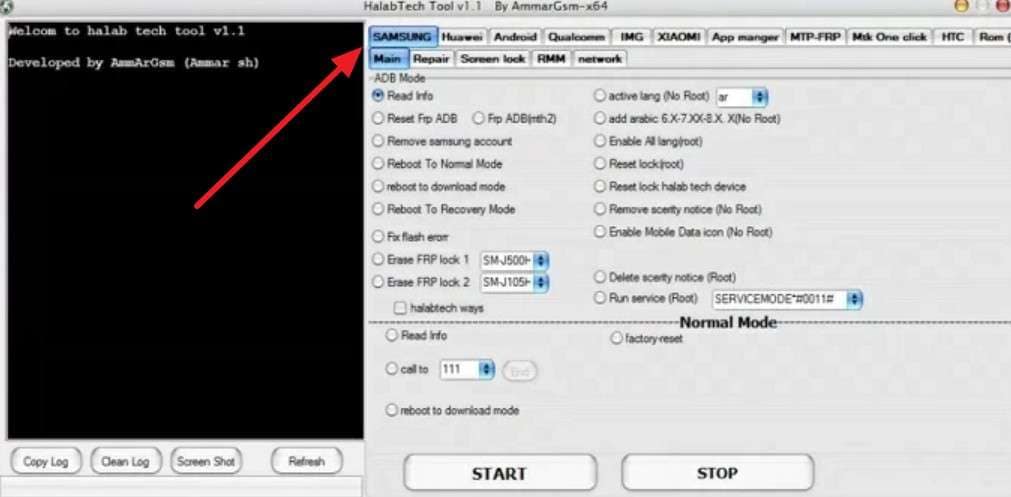
Step 2 Run the tool as Administrator, then open the “Samsung” tab, connect it in the required mode (MTP, EDL, or Download), and start the operation.
-
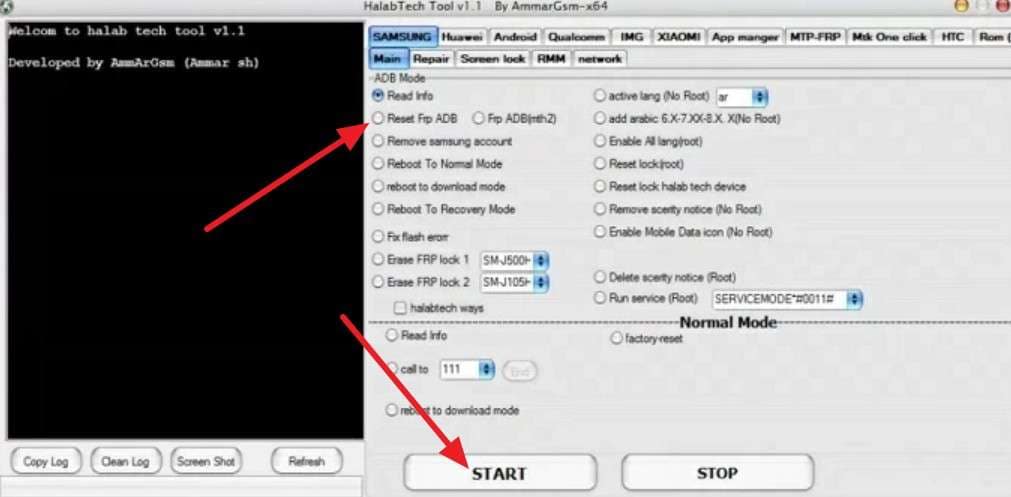
Step 3 After that, choose "Reset FRP ADB" and press the “Start” button. Wait for the “Success” message, then reboot the phone and finish setup without the previous lock.

Part 5. Common HalabTech Tool Errors and Solutions
Most failures in the HalabTech tool trace back to drivers, modes, or the file library rather than the tool itself. The table below lists a few of them and how to fix them in a few taps:
| Error | Possible Cause | Recommended Solution |
|---|---|---|
| Phone Not Recognized | Missing or incorrect USB drivers | Install the correct Qualcomm or MediaTek USB driver, then reconnect the device. |
| Tool Hangs on Connection | Device not in the required mode | Re-enter EDL, Download, or Preloader mode and verify the correct COM port. |
| File Requests a Password | Restricted firmware download | Sign in with an active HalabTech membership to access protected files. |
| Google Lock Returns | Original Google account still linked | Sign in with the previously synced Google account instead of repeating the FRP bypass. |
| Flashing Stops Midway | Incorrect firmware package | Download firmware matching the exact model, region, and hardware variant. |
| Download Times Out | Server load or bandwidth limit | Wait a few minutes, then retry or check your remaining membership bandwidth. |
Part 6. Is HalabTech Tool Safe? Risks and Things to Know
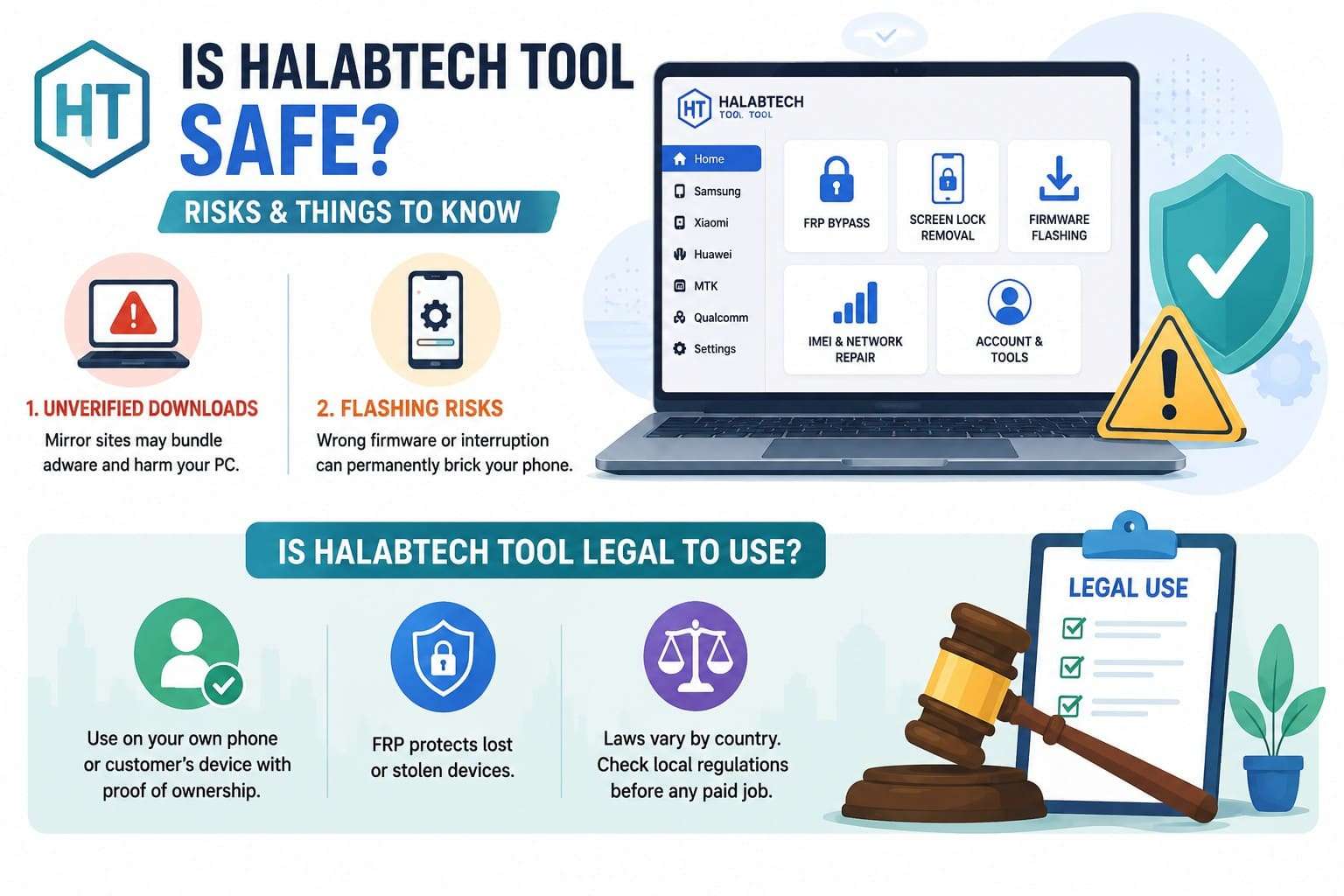
While the HalabTech tool itself isn't malware, using it carries two major risks. Downloading it from unverified mirror sites puts your PC at risk of bundled adware. Additionally, flashing the wrong firmware or interrupting the process can permanently brick your phone.
Is HalabTech Tool Legal to Use?
Legality depends on ownership, not the tool. Removing a lock or FRP from a phone you own, or a customer's device with proof of purchase, is standard repair work. Google designed Factory Reset Protection to stop a wiped phone being reused by a thief. Clearing it on one whose owner you can't verify slides toward defeating that safeguard. Rules also differ by country, which is worth checking before any paid job.
Safety Checks Before Using HalabTech Tool
A few habits keep both you and the phone out of trouble, and below are a few of them:
- Make certain the handset is yours, or that the owner has signed off, before running a single function.
- Download the tool from the official HalabTech portal alone, where repackaged mirror builds can't reach you.
- Save a full backup wherever you can, since a flash or format leaves nothing behind on the phone.
- Match the firmware to the precise model and region, because the wrong file is the quickest way to a dead device.
Part 7. An Easier Alternative to HalabTech Tool: Dr.Fone – Screen Unlock (Android)
HalabTech tool is designed for professional shops, but it is overkill for a single locked phone. If you want to remove an FRP lock on a Samsung device, a guided unlock tool is a far easier choice. This is where Dr.Fone - Screen Unlock (Android) comes in with a guided, AI-powered solution for removing Samsung FRP locks. It supports Samsung Snapdragon devices, Android 16, and the latest Galaxy S25 and S26 series.
Besides Samsung, you can remove FRP locks from 19 different Android brands and get detailed, separate guides. Unlike other tools, it's relatively affordable and offers access to 1-5 devices and 2 PCs with free weekly updates. For most Android brands, users can easily choose between MediaTek CPU and General Unlocking Methods that most tools lack.
HalabTech Tool vs. Dr.Fone – Screen Unlock (Android)
Before you dive into Dr.Fone usage, learn why it's the better choice than the HalabTech tool via the given table:
| Feature | HalabTech Tool | Dr.Fone Screen Unlock (Android) |
|---|---|---|
| Hardware Requirements | Windows PC; some advanced functions require a paid firmware membership. | Windows or Mac, or use Dr.Fone Online FRP Unlock for supported devices. |
| Installation Difficulty | Manual installation with chipset drivers; Arabic-focused interface. | Guided installer in English, or browser-based Online FRP Unlock. |
| Technical Knowledge | Designed for technicians and advanced users. | Beginner-friendly with guided workflows. |
| Supported Functions | FRP bypass, screen unlock, firmware flashing, IMEI/EFS repair, formatting, bootloader, and account tools. | Screen unlock, FRP removal, Android repair, data recovery, phone transfer, WhatsApp transfer, backup & restore, system repair, and more. |
| FRP Support | Supports FRP bypass for 15+ Android brands. | Supports FRP removal for 20 Android brands through the desktop tool and Online FRP Unlock. |
| Driver Requirements | Manual Qualcomm, MediaTek, and Samsung drivers required for many operations. | Drivers are handled automatically in most supported workflows. |
| Customer Support | Community forum and knowledge base, primarily in Arabic. | Dedicated technical support with English documentation and regular updates. |
| Best Use Case | Repair shops performing firmware, FRP, and advanced servicing. | Users needing an all-in-one Android toolkit with screen unlock, repair, transfer, recovery, and FRP removal. |
How to Use Dr.Fone – Screen Unlock (Android)
Since Dr.Fone - Screen Unlock (Android) outshines the HalabTech tool, here is how it can remove an FRP lock in 3 steps:
-
Step 1 Open Screen Unlock and Attach the Phone
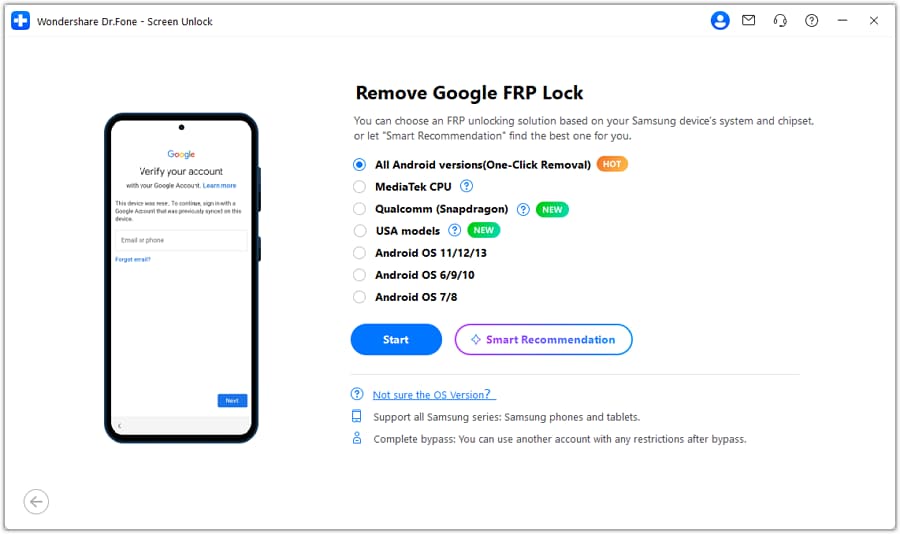
Install and open Dr.Fone, connect the Android device by cable, and choose the “Remove Google FRP Lock” option in the Screen Unlock tool for Android.

-
Step 2 Select Your Brand and the FRP Option
Select your Android brand from the list, like Samsung, then click "Start." On the next screen, choose "Smart Recommendation (AI-Powered)" or "All Android Versions (One-Click Removal)" based on your device.
-
Step 3 Follow the Instructions on Dr.Fone
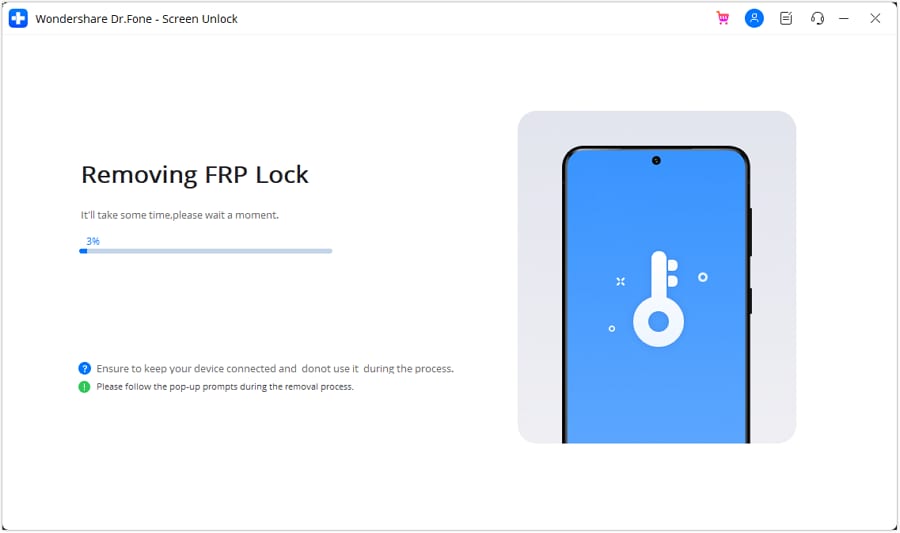
Click the “Start” button and follow the on-screen instructions to let Dr.Fone remove the FRP lock.
Conclusion
HalabTech tool is an ideal pick for active repair shops that need daily firmware downloads and understand chipsets. The free tool plus a yearly membership is a fair deal when the work is steady. For a single locked Galaxy, though, that setup is more than the moment calls for.
Recover the original Google account first whenever possible, as it's the safest way to remove an FRP lock. If that isn't an option and you need a guided solution for a supported device, Dr.Fone - Screen Unlock (Android) offers a simpler approach.




FAQ
-
1. Is the HalabTech Tool download free?
The tool carries no download fee and covers basic FRP and lock removal at no cost. The spending starts with the firmware library, since flash files and premium downloads sit behind a paid membership. -
2. What is the latest version of HalabTech Tool?
The officially listed release is version 1.1. Mirror sites push builds labeled 1.1.6 or 4.0, but the main HalabTech page doesn't confirm those, so treat unofficial versions with caution. -
3. Will the HalabTech Tool run on the newest Android versions?
It reaches many current devices, yet handsets on the latest security patches frequently block FRP and lock functions. What works comes down to the exact model, not the Android number alone. -
4. Do I need HalabTech Tool just to remove an FRP lock?
No. For a single FRP lock, HalabTech Tool is often unnecessary. Recover the original Google account first, or use Dr.Fone Screen Unlock (Android) for a guided alternative without firmware downloads.
 Add Wondershare Dr.Fone as a preferred source on Google



