Bypass iCloud Activation Lock and Android FRP without password.

 100% Security Verified | No Subscription Required | No Malware

 :
: 
 ChatGPT
 Perplexity
 Gemini
 Claude
 Grok
Grok
Handing your phone to someone to show one picture is a small act of trust. One swipe in either direction and they're into your entire camera roll. That's the moment most people start wondering how to lock photos on an iPhone, and iOS offers more than one way to do it.
Some methods hide a handful of photos, while others lock the entire Photos app with Face ID. This guide covers 5 approaches, what each protects against, and where each quietly falls short. It ends with Dr.Fone - Screen Unlock (iOS), which handles the reverse problem of an iPhone you can't unlock yourself.
In this article
- Part 1. Ways to Lock Photos on iPhone – Overview
- Part 2. How to Hide and Lock Photos Using the Hidden Album?
- Part 3. How to Lock the Photos App with Face ID?
- Part 4. How to Lock Specific Photos Using the Notes App?
- Part 5. How to Auto-Lock the iPhone When Photos Opens Using Shortcuts?
- Part 6. 3 Best Third-Party Apps to Lock Photos on iPhone
- Part 7. Which iPhone Photo-Locking Method Should You Use?
- Pro Tip. How to Access Your Locked iPhone in Seconds
Part 1. Ways to Lock Photos on iPhone – Overview
Before learning how to lock a photo on an iPhone, it's helpful to understand the available methods first. Review the given table and learn what each method is best for and where pitfalls are so you can pick the right one:
| Method | Security Level | Can Lock Individual Photos? | Best For | Main Limitation |
|---|---|---|---|---|
| Hidden Album | Moderate | Yes | Hiding a few photos quickly. | Anyone with your device passcode can access them. |
| Lock the Photos App | Strong | No | Protecting the entire photo library. | Locks the app but doesn't organize or hide specific photos. |
| Locked Notes | Strong | Yes | Storing a few highly sensitive images. | Protects a copied image, not the original photo. |
| Shortcuts Automation | Weak | No | Older iPhones running iOS 16.4–iOS 17. | Locks the entire iPhone instead of only the Photos app. |
| Third-Party Vault Apps | Varies | Yes | Separate albums, decoy vaults, and extra privacy features. | Many apps rely on app-level PIN protection instead of true file encryption. |
Important Difference: Hiding Photos vs Locking Photos
Many people searching for how to lock hidden photos on iPhone assume hiding and locking mean the same thing. Knowing which one you need saves you from installing something you'll never open.
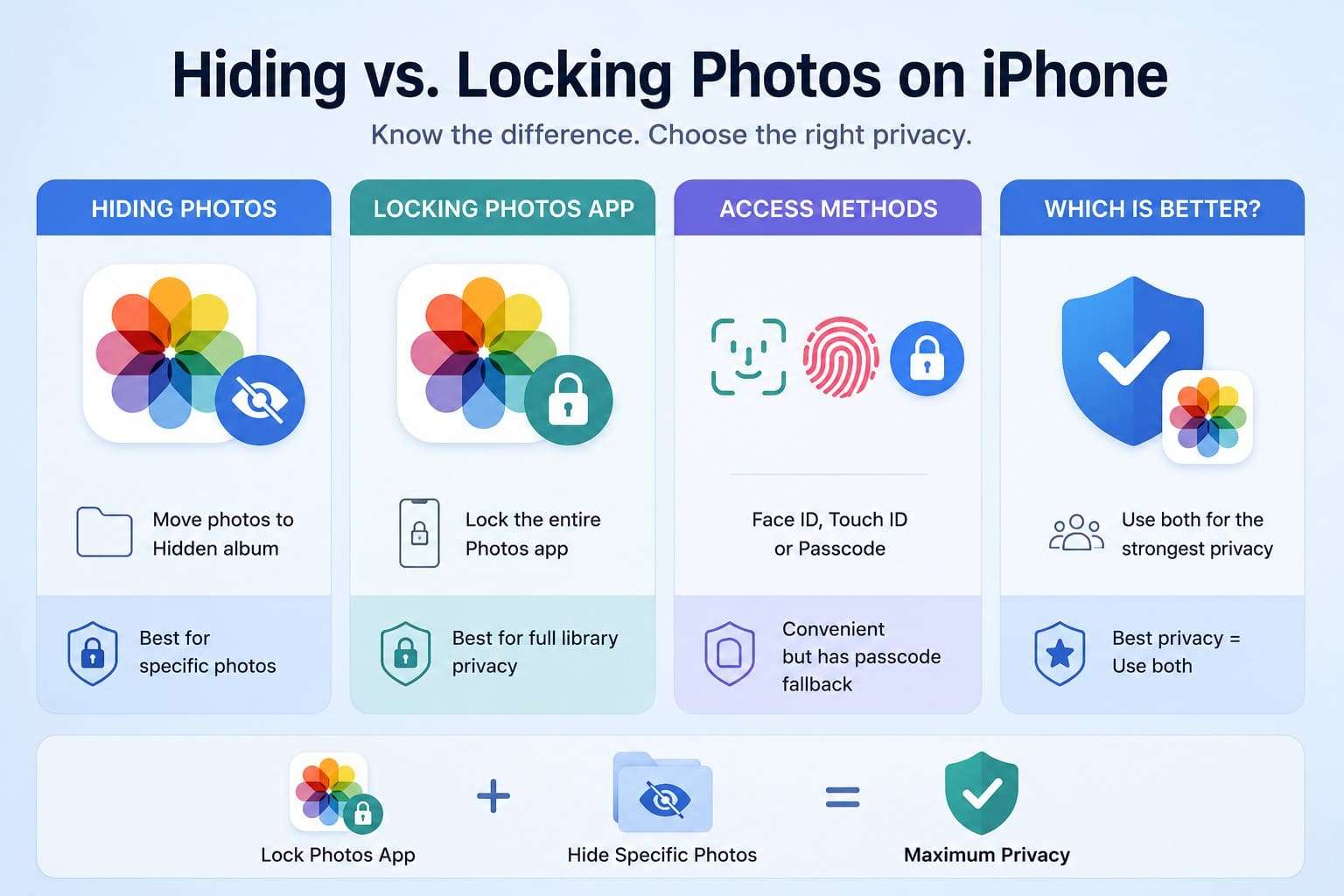
Hiding Selected Photos
Hiding pulls chosen images out of your main library, your search results, Memories, and widgets. The photos still sit on the device inside an album called Hidden. On any iPhone running iOS 16 or later, that album is locked by default, so hiding and locking now happen in one motion.
Locking the Entire Photos App
Locking works at the app level instead of the image level. Nothing gets moved, renamed, or reorganized in your library. Anyone who taps Photos cannot bypass the security prompt. This locks all your photos, even old screenshots. On iOS 18 and later, you can lock the entire Photos app via Face ID, Touch ID, or your device passcode.
Face ID, Touch ID, and Passcode Access
All 3 unlock methods share one weakness worth understanding. After a few failed biometric attempts, iOS falls back to your device passcode. Anyone who watched you type it reaches whatever Face ID was guarding. That gap undermines most attempts to lock a photo on an iPhone.
Which Option Provides Better Privacy?
App-level locking wins for everyday privacy because it covers your whole library with no ongoing effort. The Hidden album works better when you want specific images out of sight while scrolling. Running both together is sensible and costs nothing.
Part 2. How to Hide and Lock Photos Using the Hidden Album?
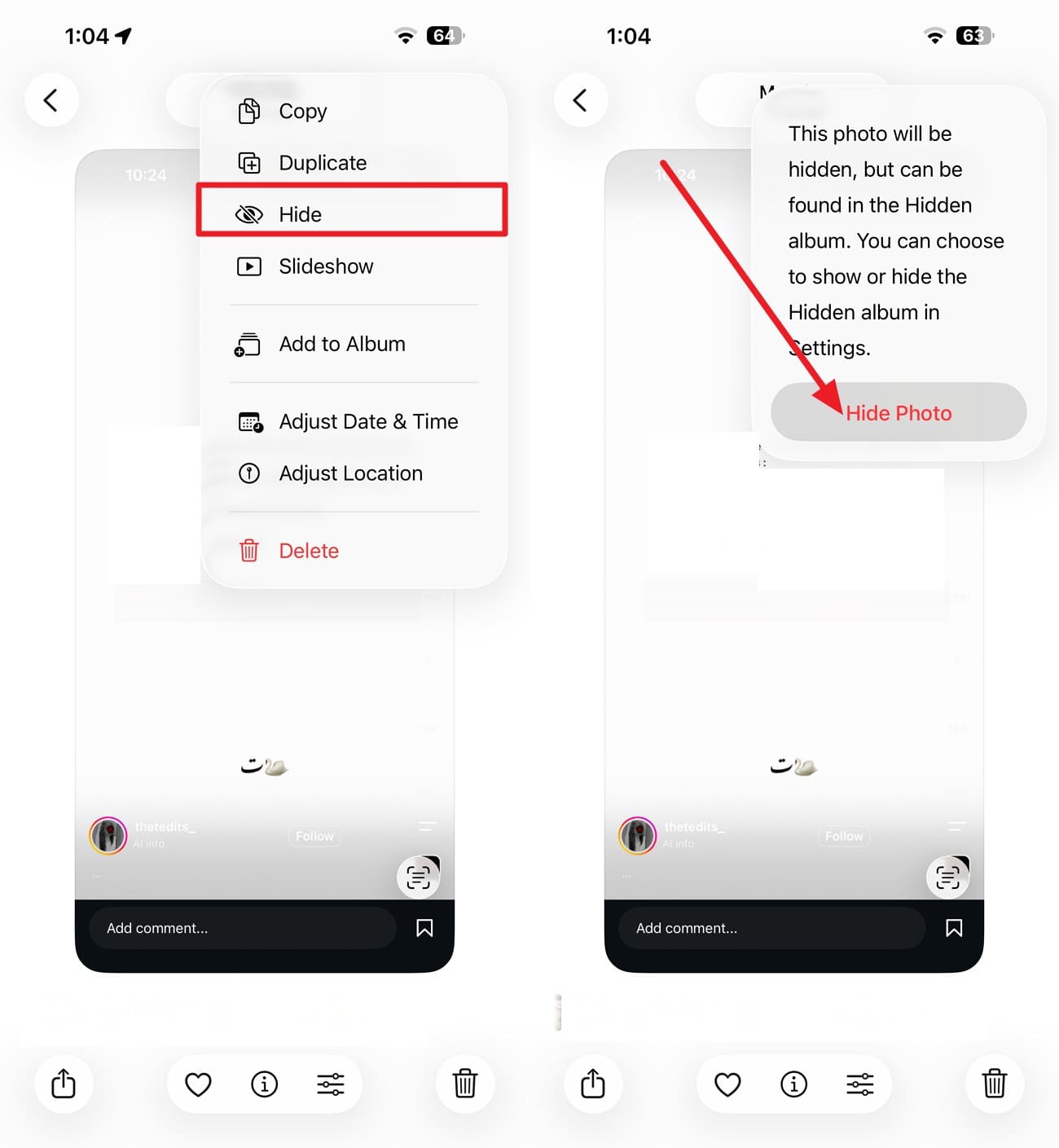
After understanding the basics, you might wonder how to lock your photos on an iPhone through Hidden Album. In iOS 16 and iPadOS 16.1, Apple changed how hidden photos work. Earlier versions of iOS did not do this automatically. Now, hidden photos are protected by Face ID, Touch ID, or your device passcode by default. Here's how:
-
Step 1 Select the photo you want to hide > Tap "Three Dots" and the "Hide" option > Confirm "Hide Photo" when prompted.
-
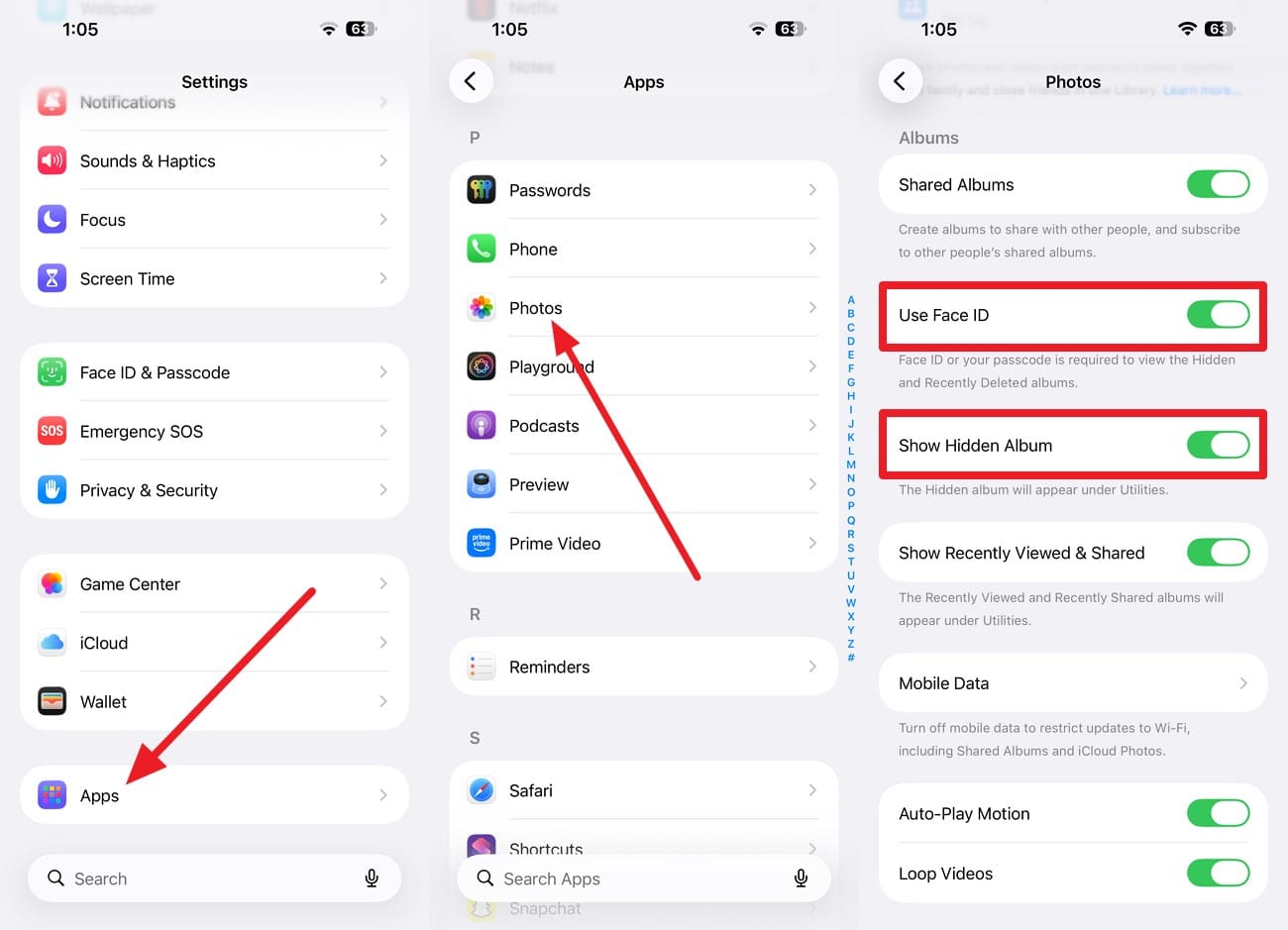
Step 2 In Settings, pick “App > Photos > Enable “Use Face ID” and toggle off “Show Hidden Album.”

Part 3. How to Lock the Photos App with Face ID?
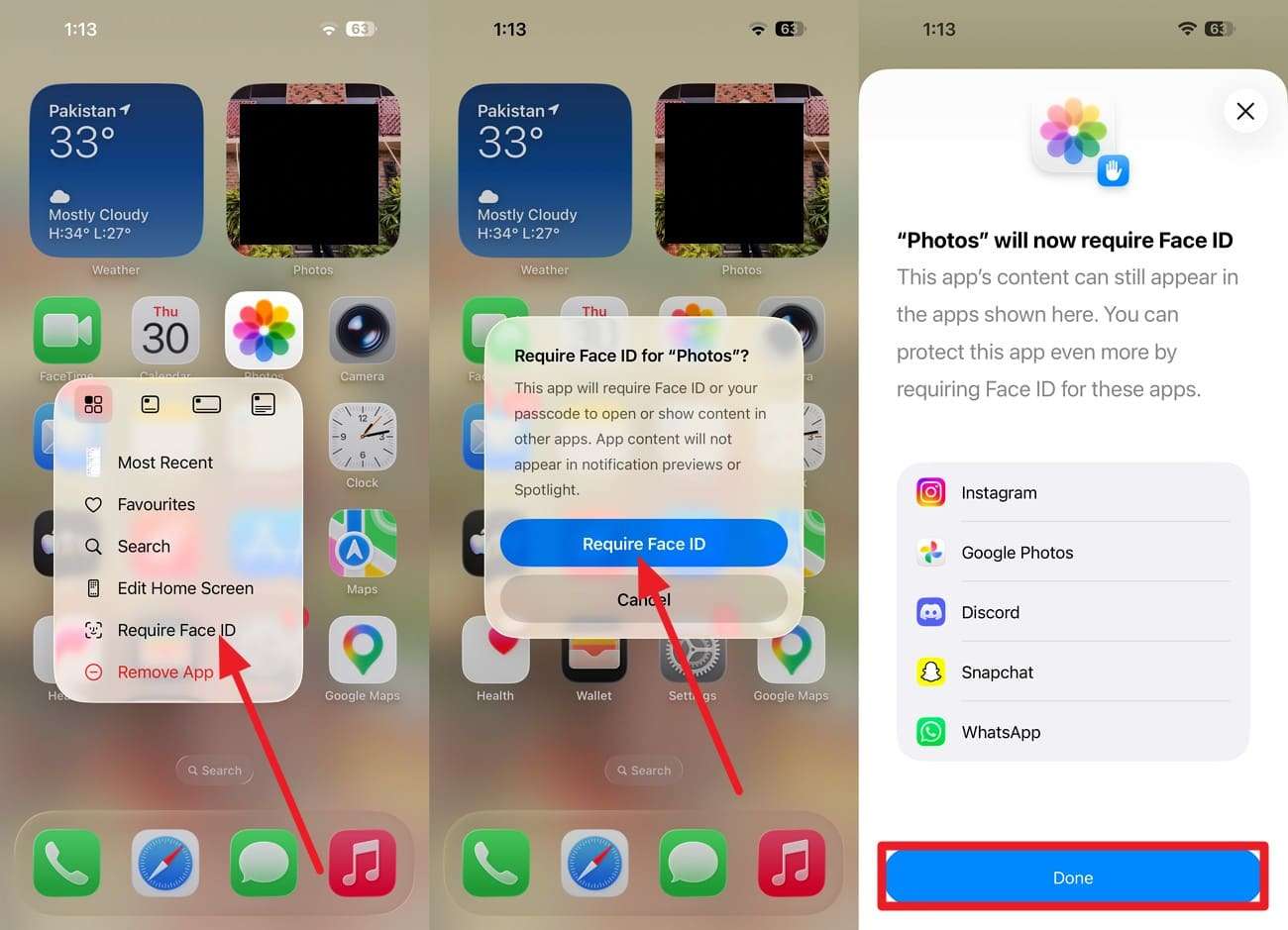
This method for how to lock photos on an iPhone takes just a few seconds and protects your entire photo library. It was introduced in iOS 18 in September 2024; older phones can use Part 5 instead. Once the app is locked via the given directions, Apple says the information won’t appear in other locations:
-
Step 1 Hold the Photos app icon > Choose the "Require Face ID" option > Confirm "Require Face ID" and tap "Done."
Part 4. How to Lock Specific Photos Using the Notes App?
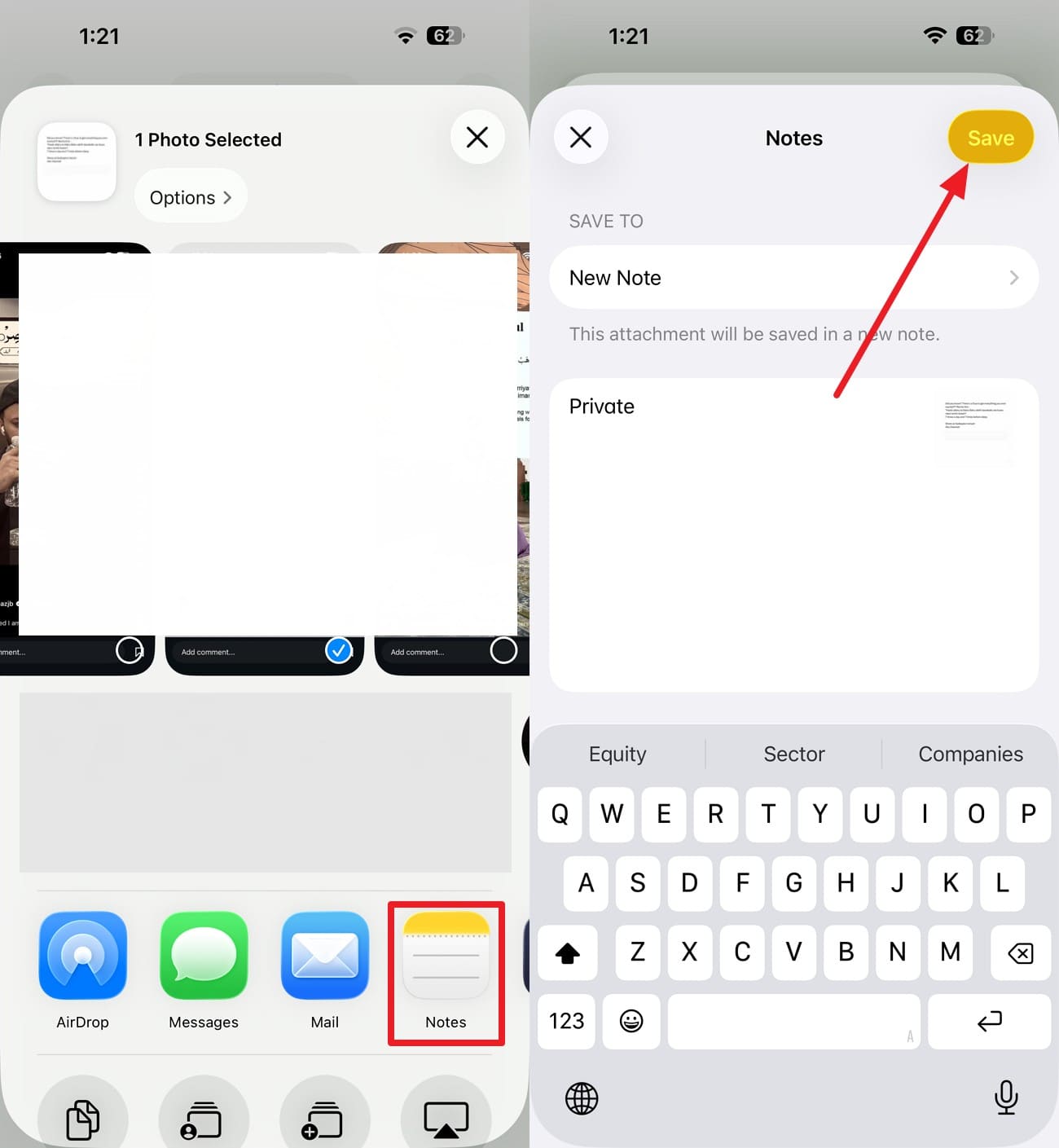
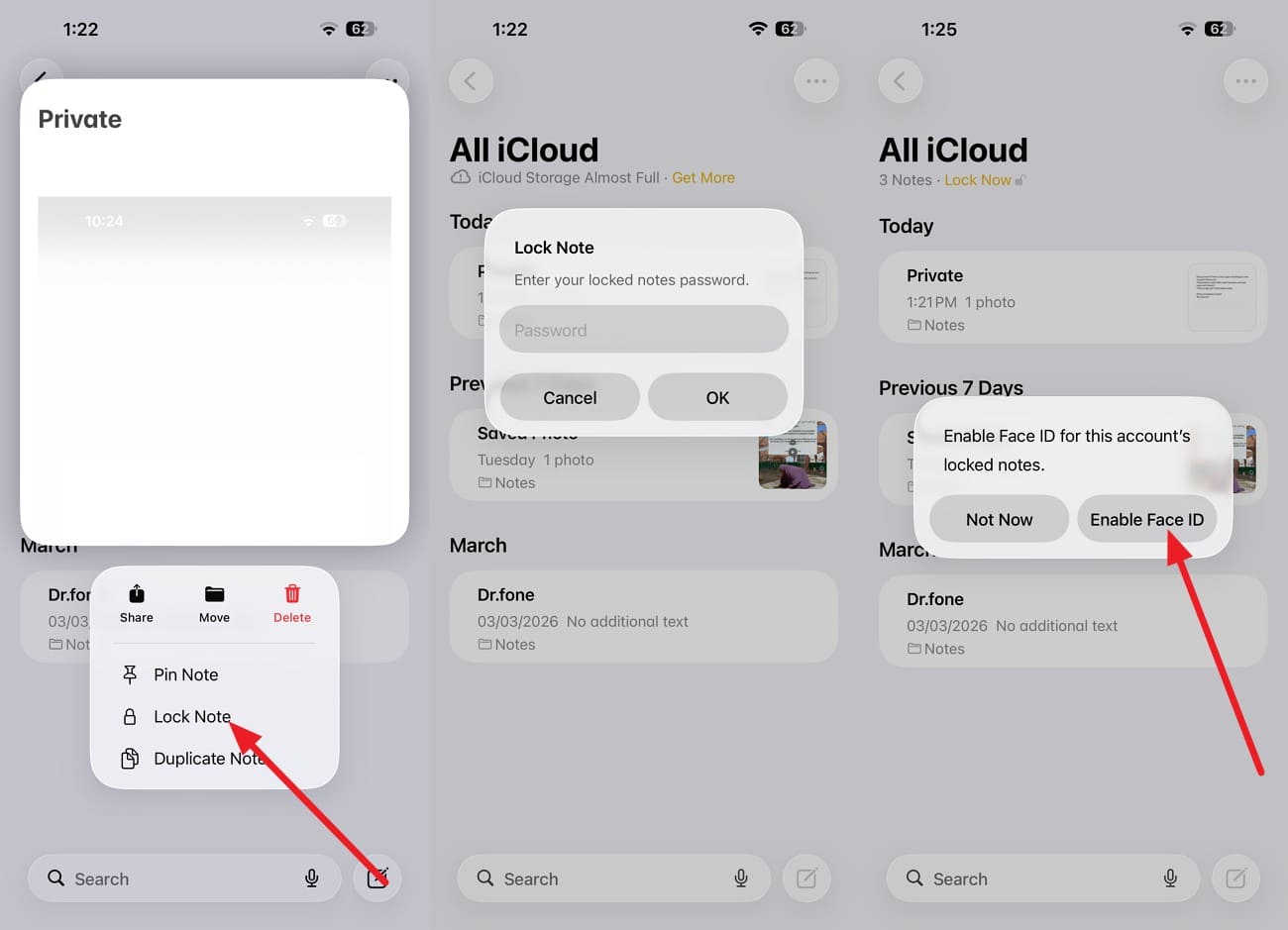
Notes let you lock specific photos by storing them in a locked note, making it a useful option if you're wondering how to lock a photo on an iPhone. Notes holding PDFs, audio, or video files can't be locked at all, though embedded images are fine. You just need to attach the picture to a note, lock it later, and the mentioned steps show how:
-
Step 1 Tap the image you want to lock > Press “Share” > Choose “Notes.” Name the note and select the “Save” option, and go to the Notes app to lock it.
-
Step 2 Hold the created note > Select “Lock Notes” > Use iPhone Passcode or Create Password > Add the passcode > Tap “Enable Face ID” if you want to.
Part 5. How to Auto-Lock the iPhone When Photos Opens Using Shortcuts?
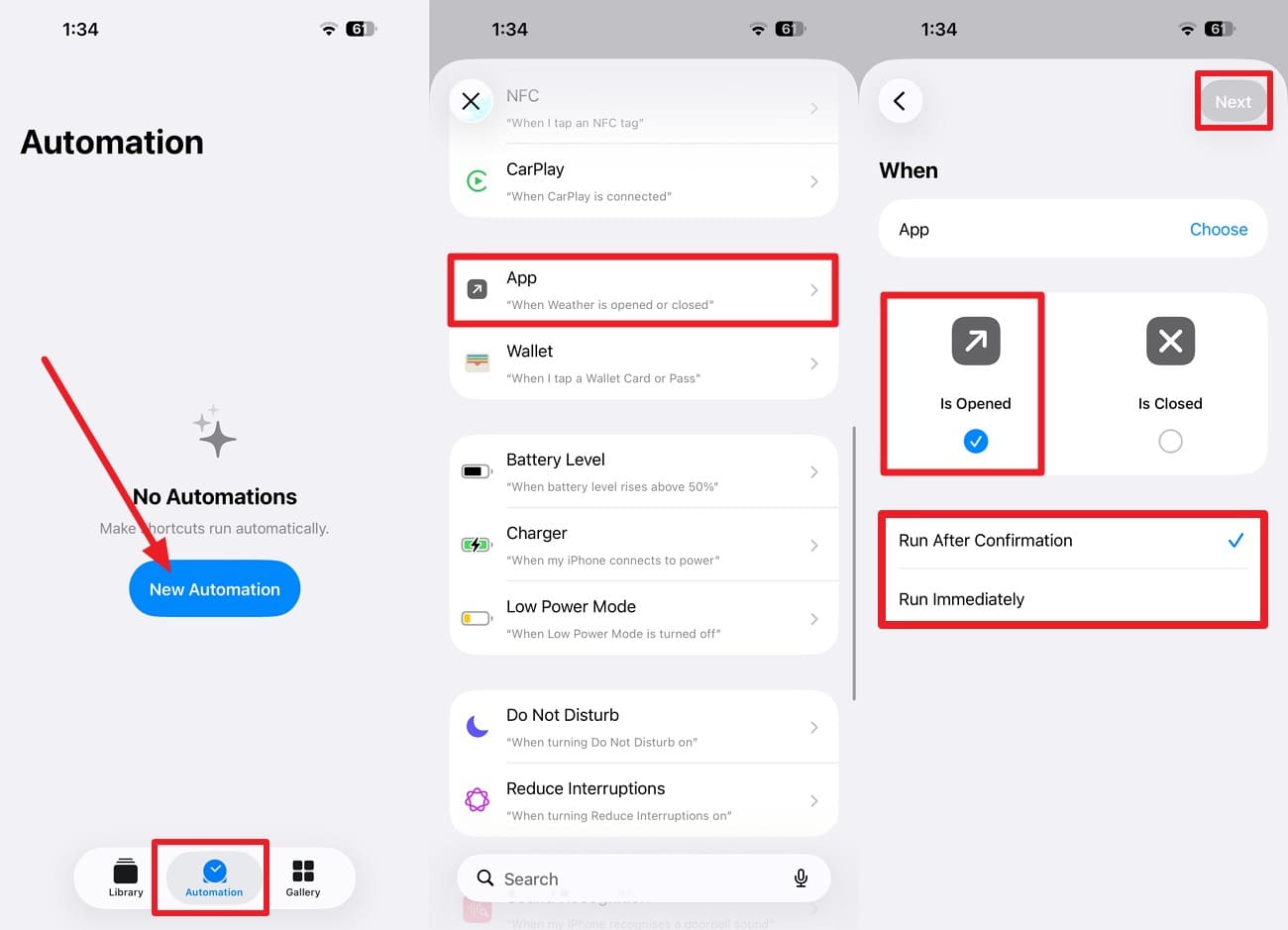
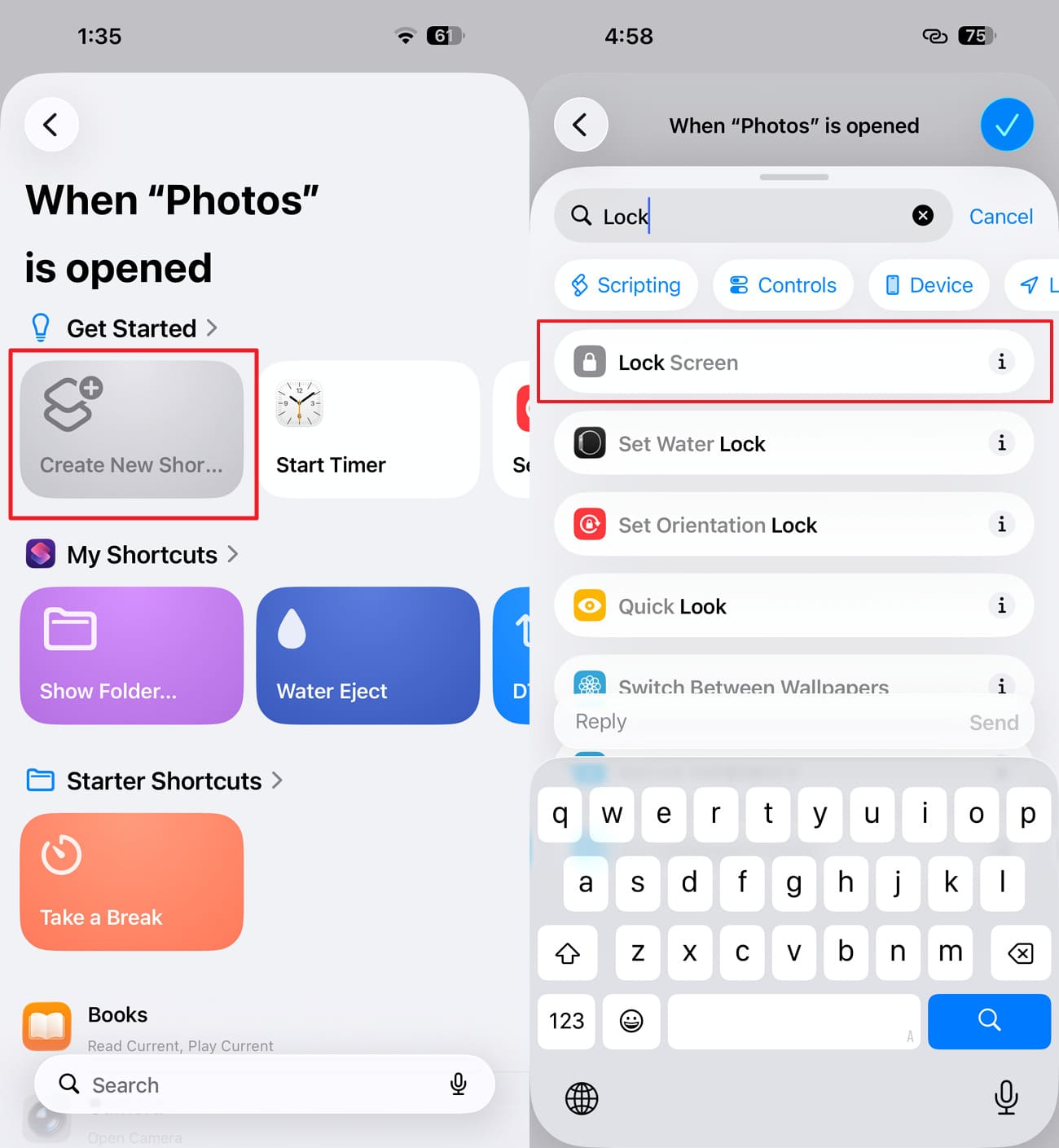
Before iOS 18 introduced native app locking, this automation was a popular workaround for anyone wondering how to lock photos on an iPhone. It still works, but remains only one workaround for iPhones running versions from iOS 16.4 through iOS 17. Build the automation with these two steps and save your memories:
-
Step 1 Go to the “Automation” tab > “New Automation” > “App” > Choose “Photos.” After that, select “Is Opened” and pick an option between “Run After Confirmation” and “Run Immediately,” and press “Next.”
-
Step 2 Tap on “+Create New Shortcut” > Add the “Lock Screen” action > Press the “Tick” icon to confirm.
Part 6. 3 Best Third-Party Apps to Lock Photos on iPhone
Every method on how to lock hidden photos on the iPhone above falls back to your device passcode. Vault apps break that pattern with a credential your iPhone knows nothing about. Marketing claims are less strict than actual technical limits, so read the given limitations carefully:
| App | Lock Options | Best Feature | Main Limitation |
|---|---|---|---|
| Private Photo Vault – Pic Safe | PIN, Face ID, Touch ID | Break-in alerts and album-level protection | Cloud backup is limited on the free plan. |
| Secret Photos KYMS | PIN, Face ID, Touch ID | Calculator disguise with decoy mode | Losing your password or recovery key can permanently lock your data. |
| Keepsafe Photo Vault | PIN, Face ID, Touch ID | Private camera and optional cloud backup | Cloud backup stores your files on Keepsafe's servers. |
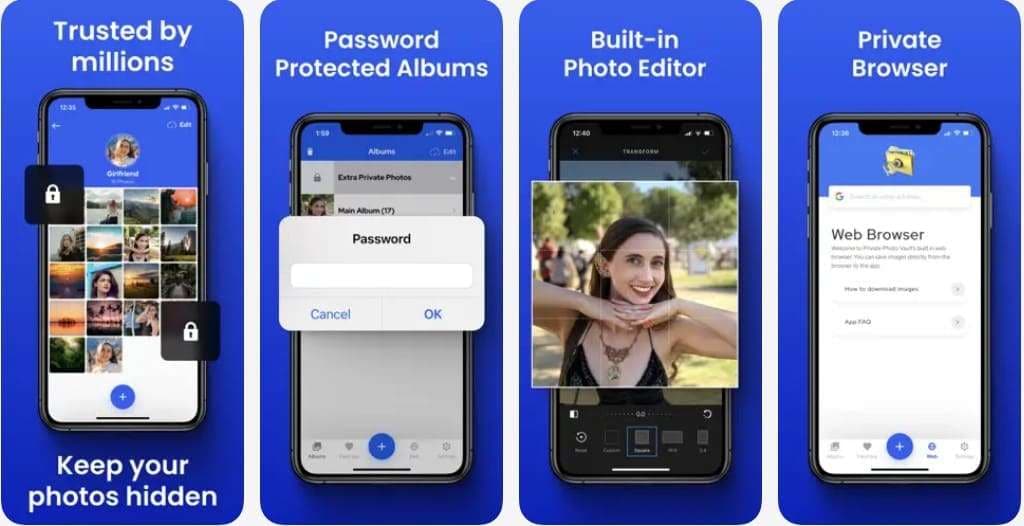
1. Private Photo Vault: Pic Safe
This vault from Legendary Software Labs is one of the most established names in the category. You import your pictures, delete the originals, and access them through a PIN, Face ID, or Touch ID. Break-in alerts notify you of failed attempts, and each album can have its own code. Independent testing has found that files stored inside the app remain protected behind that PIN.
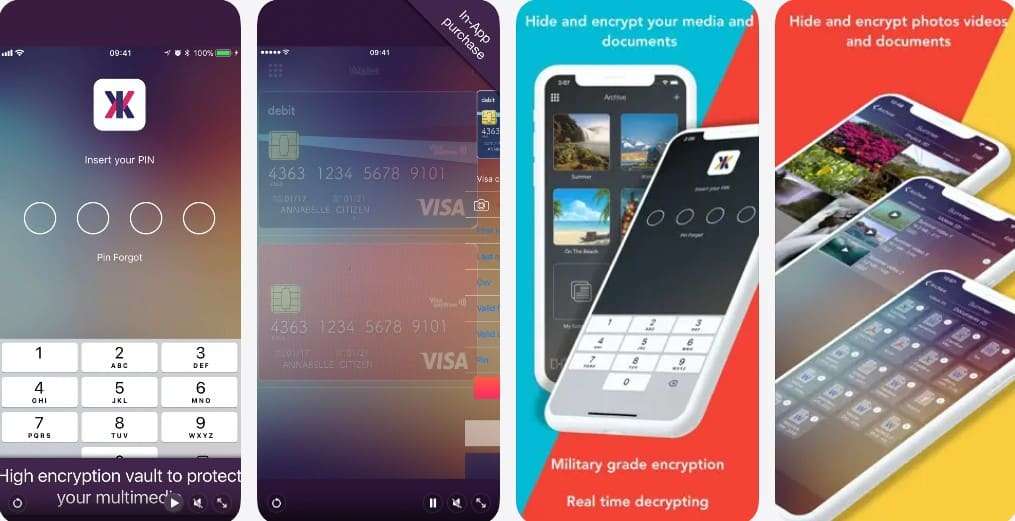
2. Secret Photos: KYMS
The app’s icon on your Home Screen looks like a calculator and behaves like one until you punch in your code. KYMS then opens an AES-encrypted space holding photos, videos, documents, and saved passwords. A fake PIN routes snoopers into a decoy vault, and a panic gesture logs you out when you cover the screen.
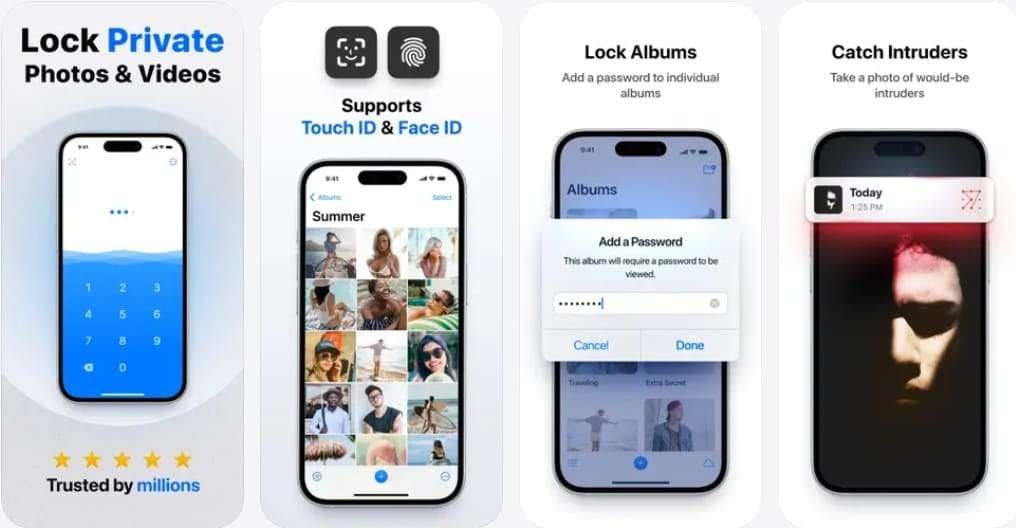
3. Secret Photo Vault: Keepsafe
Cross-platform coverage sets Keepsafe apart, since the same albums open on iPhone and Android. Its built-in camera saves photos directly to the vault, so sensitive images never reach your camera roll. Album passwords, face-down auto-locking, and cloud backup come standard. This makes it a convenient choice if you want to keep private photos separate from your main Photos library.
Part 7. Which iPhone Photo-Locking Method Should You Use?
After you know how do you lock your photos on iPhone, review the given points to choose the method based on your need:
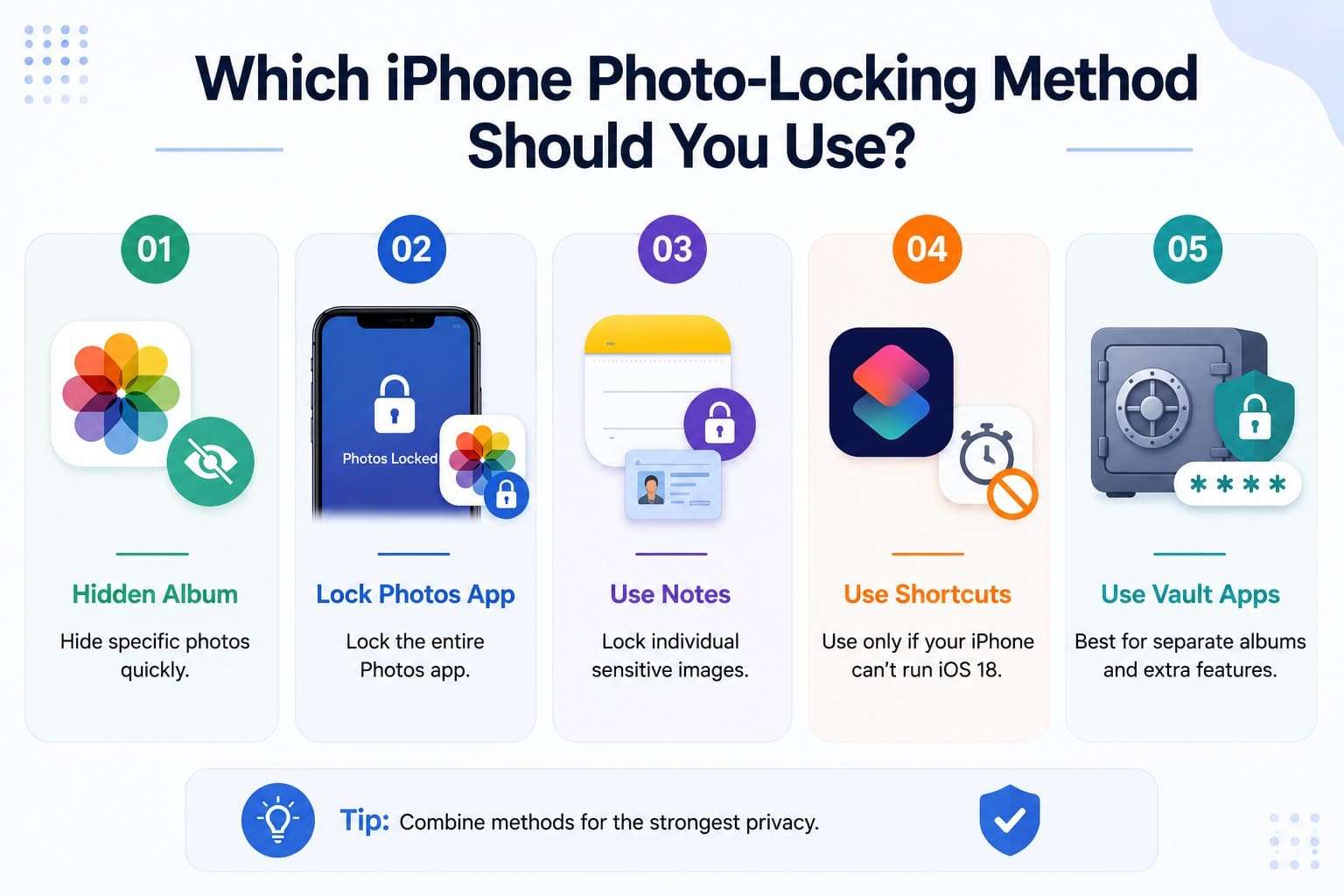
- Use the Hidden Album for Selected Photos: Pick this when a curious friend or a shared family iPad is the concern. This method simply takes two taps and installs nothing.
- Lock the Photos App for Complete Protection: Choose this on iOS 18 or later when you often hand your unlocked phone to other people. It's the only method covering every image at once.
- Use Notes for Individual Sensitive Images: Reach for this with documents, ID scans, and receipts. Locking one note beats locking a library you rarely worry about.
- Use Shortcuts Only as an Older Workaround: Keep this on the shelf unless your iPhone can't run iOS 18. Native app locking replaced it and does the job properly.
- Use Vault Apps for Separate Albums and Features: Go this way when you want decoy screens, break-in logging, or a credential separate from your passcode.
Pro Tip. How to Access Your Locked iPhone in Seconds
At some point, a forgotten passcode, a second-hand iPhone carrying someone else's Apple ID, or too many failed attempts leaves you outside your own device. If you're searching for how to get photos off a locked iPhone, the answer involves a backup. Your pictures come back from a copy you already made, not from the locked iPhone itself.
Nonetheless, if you want to regain access to the device, use Dr.Fone - Screen Unlock (iOS). This innovative tool is designed to unlock iPhone, iPad, and iPod Touch without a passcode or to remove the Apple ID. Since the kit caters to any type of iOS lock, it can also remove iCloud activation lock and remove MDM on iPhone and iPads.
How to Remove an iPhone Lock Screen with Dr.Fone
After you have learned how to lock a photo on iPhone, review the following guide and explore how this tool can help in locked phone situations:
 Unlock iPhone/iPad passcode in minutes.
- Remove Face ID, Touch ID, MDM lock, and screen lock.
- Bypass iCloud Activation Lock easily.
- Support all iOS versions and devices.
- Simple steps, no technical skills needed.

-
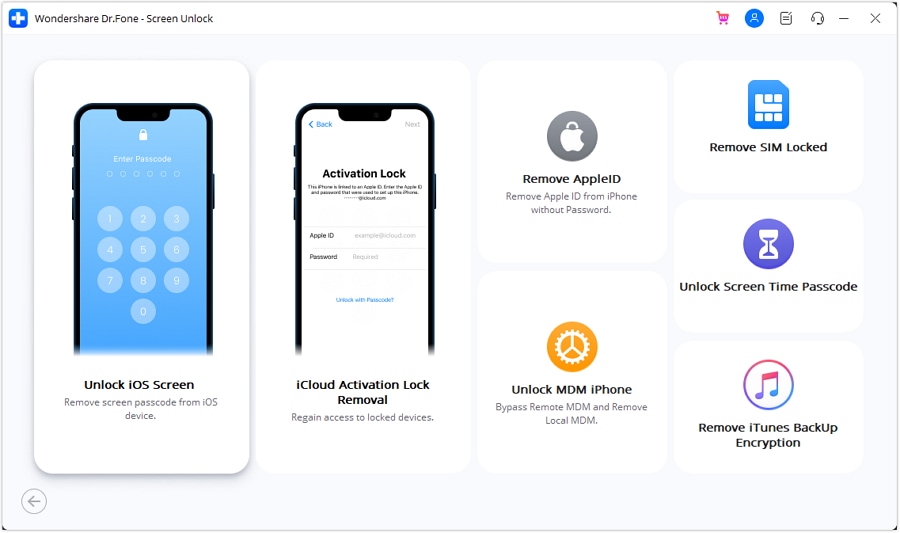
Step 1 Open the Screen Unlock Toolbox
From the Screen Unlock tool of Dr.Fone, proceed with "iOS," press the "Unlock iOS Screen" option, and commence the process.
-
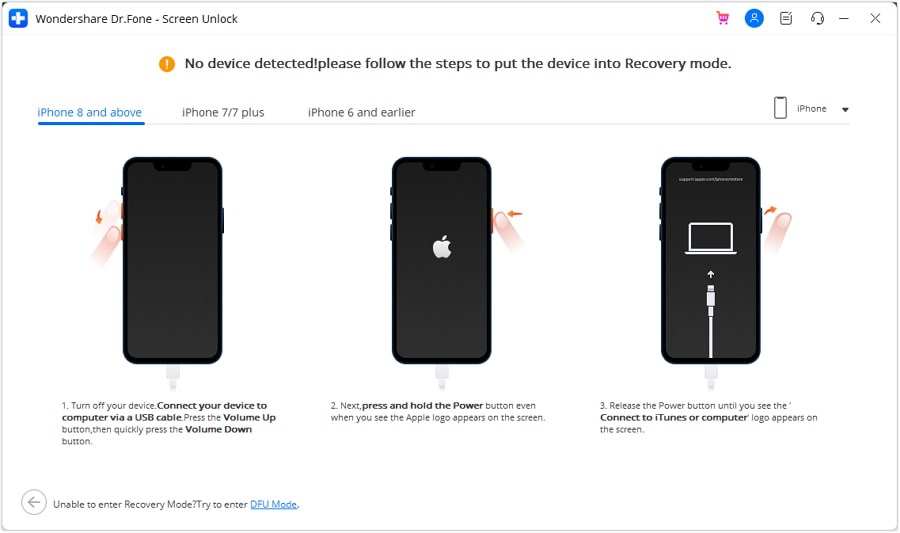
Step 2 Put the iPhone into Recovery Mode
Click "Start" and follow the on-screen instructions to enter Recovery Mode. If Recovery Mode doesn't work, switch to DFU Mode and try again.
-
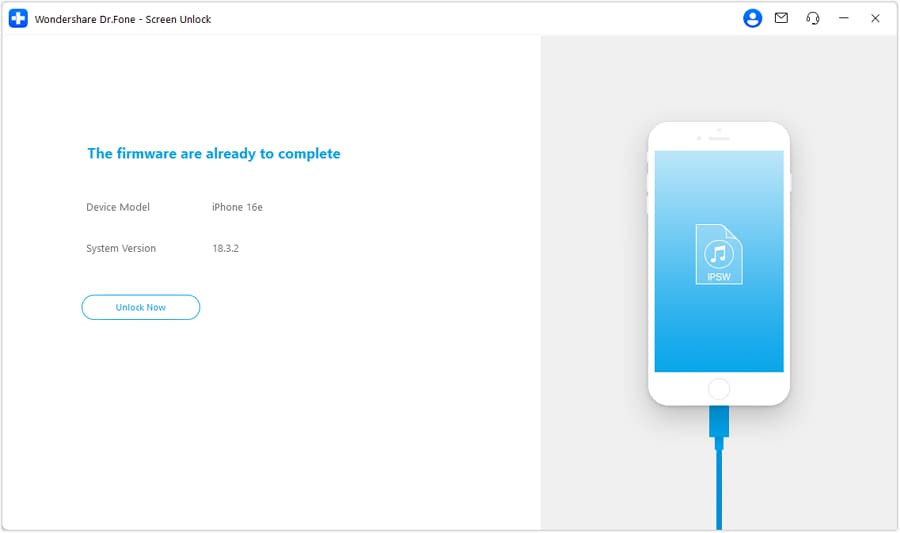
Step 3 Confirm the Firmware and Unlock
Check the detected device model and system version, then click "Start." On the next screen, monitor the firmware download and installation process. Once it's complete, tap "Unlock Now" and enter the confirmation code when prompted to begin unlocking your iPhone.




Conclusion
With growing privacy concerns, many people search for how do you lock photos on an iPhone. In this regard, this guide has explained 5 options and explained when to use each one. Whichever route you take, keep a current backup running alongside it.
A lock you can't open only becomes a disaster when no copy waits somewhere else. If you get locked out of the device, Dr.Fone - Screen Unlock (iOS) can handle multiple lock types.
FAQ
-
1. Can you lock a single photo without locking the entire Photos app?
Yes, you can hide an individual photo, which places it in the locked Hidden album on supported iOS versions. Another built-in option is to save the photo in a locked note, while third-party vault apps offer additional privacy features. -
2. Is the Hidden album protected by Face ID or a passcode by default?
On iPhones running iOS 16 or later, the Hidden album is protected by Face ID, Touch ID, or your device passcode by default. You can change this in Settings > Apps > Photos. -
3. Can someone see hidden photos if they know my iPhone passcode?
Yes, and that's the most common misunderstanding about this feature. The passcode is the fallback once Face ID fails, so it opens the Hidden album just like your face does. -
4. Can you create multiple locked photo albums on an iPhone?
Not with the built-in Photos app, which offers a single Hidden album and no per-album locks. Vault apps fill that gap, and several assign a separate PIN to every album you create.
 Add Wondershare Dr.Fone as a preferred source on Google