Resolve common problems and system crashes on both iPhone and Android devices.

 100% Security Verified | No Subscription Required | No Malware

 :
: 
 ChatGPT
 Perplexity
 Gemini
 Claude
 Grok
Grok
An iPhone 18 Pro stuck on the Apple logo does not always mean the same problem. You may see a moving progress bar, a completely frozen logo, or an Apple logo that repeatedly appears and disappears. Identifying the exact behavior matters because choosing the wrong fix too early, especially a full restore, could erase your data unnecessarily.
This guide covers 7 fixes for an iPhone 18 Pro stuck on the Apple logo, starting with safer options before moving to data-erasing solutions. You will learn when to force restart, use Recovery Mode, try Dr.Fone - System Repair (iOS), restore the device, or seek Apple service.

In this article
- Part 1. Static Logo, Progress Bar, or Apple Logo Loop: Which Problem Do You Have?
- Part 2. What Caused the iPhone 18 Pro to Stop at the Apple Logo?
- Part 3. 7 Ways to Fix an iPhone 18 Pro Stuck on the Apple Logo
- Part 4. After Update, After Setup, or Apple Logo Loop: Why the Trigger Matters
- Part 5. Which iPhone 18 Pro Apple Logo Fixes Won’t Erase Your Data?
- Frequently Asked Questions
Part 1. Static Logo, Progress Bar, or Apple Logo Loop: Which Problem Do You Have?
Before fixing an iPhone 18 Pro frozen on the Apple logo, first check exactly what appears on the screen. Whether the progress bar is moving, completely stuck, or missing can help determine the right fix to try next.
| Apple Logo State | What It Usually Means | When to Act | First Response |
|---|---|---|---|
| Progress Bar Still Moving | Update, restore, or migration is still progressing | Not yet | Keep it connected to power |
| Progress Bar Stopped | The current process may have stalled | If it remains unchanged | Follow the relevant recovery steps |
| Static Logo, No Progress Bar | iPhone is not completing startup normally | After several minutes | Force restart |
| Logo Appears and Disappears | iPhone may be stuck in a boot loop | After repeated restarts | Force restart first |
| Logo After Update or Restore | Update or restore may not have completed correctly | If the device remains stuck | Recovery Mode Update |
| Logo After Setup or Migration | Setup, restore, or migration may have stalled | After an hour without movement | Recovery Mode |

Part 2. What Caused the iPhone 18 Pro to Stop at the Apple Logo?
An iPhone 18 Pro stuck on the Apple logo after an update does not always mean the update itself caused the problem. Failed restores, interrupted data transfers, low storage, or hardware issues can also prevent normal startup. Here are the most common causes to consider:

-
Interrupted iOS Updates: An incomplete iOS installation can leave critical system files unfinished or improperly installed. The iPhone may then fail to complete its startup sequence, causing it to remain on the Apple logo or repeatedly restart.
-
Migration and Restore Interruptions: Restoring a backup or migrating data requires the iPhone to process and configure transferred information before startup finishes. Apple documents situations where the Apple logo and progress bar can remain unchanged during this process.
-
Insufficient Device Storage: Extremely low available storage can interfere with an iOS update because the device needs enough temporary space to download, prepare, and install system files. Without sufficient space, the installation may fail to complete and disrupt normal startup.
-
Failed Software Restores: A restore that fails or stops before completion can leave iOS in an incomplete state. Communication errors, connection interruptions, or other restore failures can prevent the operating system from being installed correctly, leaving the iPhone unable to boot normally.
-
Underlying Hardware Failures: Persistent Apple logo loops are not always caused by damaged software. Apple documents certain update and restore errors associated with hardware problems, which can prevent the device from completing startup even after software recovery attempts.
Part 3. 7 Ways to Fix an iPhone 18 Pro Stuck on the Apple Logo
The right fix depends on what is causing the iPhone 18 Pro Apple logo loop and how the device responds. Here are 7 solutions, starting with safer steps before moving to more advanced repair options:
Fix 1. Wait if the Update or Setup Progress Bar Is Still Moving
This method applies only when the Apple logo appears with a progress bar. Apple explains that the bar can move slowly or appear stuck during an update, restore, or migration. Since the time required depends on the process and amount of data involved, avoid interrupting genuine progress.
Keep the iPhone connected to power during an over-the-air update, and check the bar against a fixed point every 15 minutes to confirm whether it is still moving.
Fix 2. Force Restart a Frozen iPhone 18 Pro
Use a force restart when the iPhone is frozen or unresponsive. This process restarts the device using the required button sequence without erasing your personal data. If the iPhone returns to the same Apple logo afterward, the startup issue is still unresolved. Follow this button sequence for an iPhone 18 Pro stuck on the Apple logo:
Instructions. Press and quickly release the “Volume Up” and “Volume Down” buttons. Hold the “Side” button until the Apple logo appears, then release it. Let the iPhone 18 Pro attempt to start normally. If it reaches the Lock Screen, the restart succeeded.

Fix 3. Enter Recovery Mode and Choose Update First
If an iPhone 18 Pro won't boot past the Apple logo after a force restart, Recovery Mode is the next non-erasing option to try. It allows a Mac or Windows PC to reinstall iOS without completing a normal startup. Choose Update first to reinstall the software while attempting to preserve your personal data. Follow these steps to continue:
Step 1. You can access Recovery Mode using either of the following methods, depending on how the iPhone responds.
Method 1. Use the Standard Recovery Mode Sequence
Connect the iPhone to your computer. Quickly press and release the “Volume Up” button, then quickly press and release the “Volume Down” button. Press and hold the “Side” button until the “Connect to Computer” screen appears.

Method 2. Use the Recovery/Restore Screen
On iPhone 18 Pro, hold the "Side" button during startup and continue holding when "Continue Holding for Recovery…" appears. Release it once "Loading Recovery Options…" appears. From the "Recovery/Restore" screen, select "Recovery Mode" to continue with computer-based recovery.

Step 2. Open Finder on a Mac, or the Apple Devices app or iTunes on Windows, and select the connected iPhone. When the “Update or Restore” prompt appears, choose “Update” to reinstall iOS while attempting to preserve your personal data.

Fix 4. Resolve Recovery Update Errors and Retry the Update
Try this method when Recovery Mode Update shows an error or fails to complete. The problem may come from outdated computer software, an unreliable USB connection, security software, network access to Apple’s servers, or an underlying hardware issue. Before moving to a deeper repair for the iPhone 18 Pro stuck on the Apple logo after setup, try these quick checks:
-
Install the latest macOS updates, Apple Devices app, or iTunes version. Connect the iPhone directly to the computer instead of using a USB hub.
-
Try another compatible USB cable or computer port. Check whether security software, a firewall, or the network is interfering with Apple’s update servers.
-
Record the exact error number or message that appears. If the same error continues, retry the update on another computer using a different network.
Fix 5. Fix the iOS Startup Failure Using Dr.Fone - System Repair (iOS)
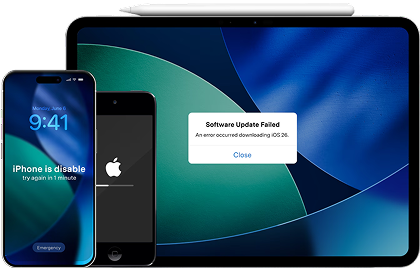
By this point, a force restart and Apple’s Recovery Mode Update haven’t fixed an iPhone 18 Pro frozen on the Apple logo. A deeper software problem may still be responsible, although hardware issues cannot be ruled out. Dr.Fone - System Repair (iOS) can fix 150+ iOS issues, including devices stuck on the Apple logo and Recovery Mode loops. Its Standard Repair mode is designed to resolve these issues without erasing existing personal data.
The tool also provides a one-click function to enter or exit Recovery Mode on connected iOS devices. Beyond boot loops, Dr.Fone can resolve 200+ iTunes-related syncing, connection, and update errors, including Error 4013 and 1110. It supports modern iOS/iPadOS versions, the latest iPhone models like the 18 Pro, and older devices across the Apple ecosystem.
Guide to Fix iOS Startup Failure with Dr.Fone System Repair
To see how Dr.Fone can resolve an iPhone 18 Pro Apple logo loop while preserving your data, follow the step-by-step repair guide below:
 Fix iOS issues, no data loss.
- One-click repair for all iOS problems.
- Solve recovery mode, Apple logo, black screen, etc.
- Upgrade or downgrade iOS without iTunes
-
Step 1. Connect the Phone to the Computer
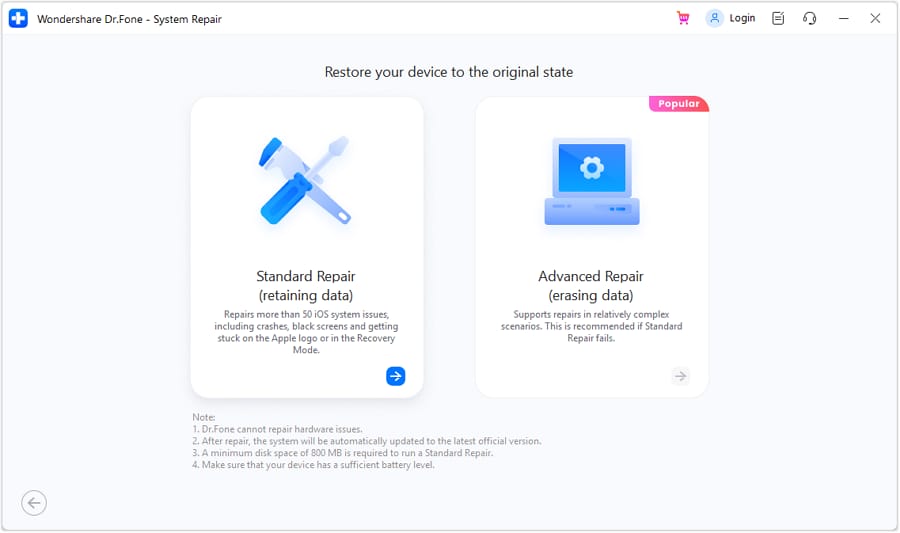
Launch Dr.Fone and open the “System Repair” tool for “iOS.” Connect your iPhone 18 Pro to the computer, then choose the “Standard Repair” mode to continue.
-
Step 2. Enter Recovery Mode and Download
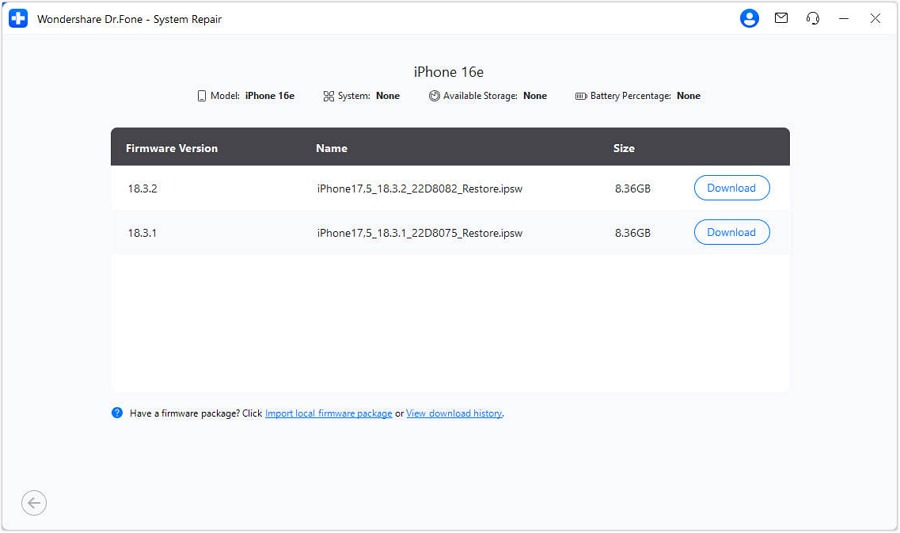
Press “Enter Recovery Mode” to put the iPhone into Recovery Mode. Dr.Fone will then detect the appropriate iOS firmware for your device. Review the firmware details and click “Download” to continue.
-
Step 3. Download the Firmware and Repair iPhone 18 Pro
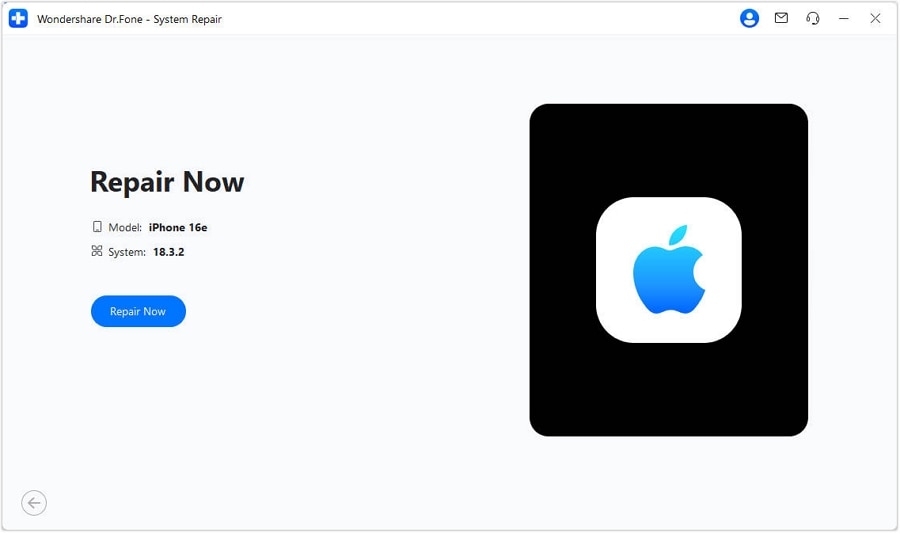
Wait for the firmware download and verification to finish, then click “Repair Now.” Keep the iPhone 18 Pro connected while Dr.Fone completes the repair and restarts the device.




Fix 6. Restore the iPhone Through Recovery Mode
A Recovery Mode Restore reinstalls iOS but erases all data on the iPhone. Before proceeding, make sure you have an existing iCloud or computer backup if you want to restore your data afterward. Once confirmed, follow these steps to fix the iPhone 18 Pro stuck on the Apple logo after an update issue:
Step 1. Enter Recovery Mode again through the steps mentioned in Fix 3.
Step 2. When the computer displays the “Update or Restore” prompt, choose “Restore.” Keep the iPhone connected while iOS is reinstalled, then wait for the “Hello” screen to appear.

Fix 7. Get Apple Service When Software Recovery Cannot Restore Boot
Apple service is the final step when Recovery Mode Update, Dr.Fone - System Repair (iOS), or a full restore cannot get the iPhone booting normally. Hardware service may also be necessary if a damaged button prevents recovery. When contacting Apple, mention any drop, liquid exposure, overheating, previous hardware repair, or recurring error codes to help with diagnosis.
Part 4. After Update, After Setup, or Apple Logo Loop: Why the Trigger Matters
If your iPhone 18 Pro is stuck on the Apple logo after an update, during setup, or in a repeating boot loop, what happened just before the issue can reveal the likely cause. The table below covers 6 common triggers and the most suitable first response:
| When It Started | More Likely Explanation | Best First Repair Path | Main Risk |
|---|---|---|---|
| After an iOS Update | Update may not have completed correctly | Force restart → Recovery Mode Update → Dr.Fone - System Repair | Restoring too early can erase data |
| During Initial Setup | Setup or data transfer may have stalled | Wait if progressing → Recovery Mode Update → Dr.Fone - System Repair | Interrupting an active setup process |
| After Migrating from Another iPhone | Migration may have stalled before completion | Wait an hour if unchanged → Recovery Mode Update → Dr.Fone - System Repair | Interrupting an active migration |
| After a Computer Restore | Restore may have failed to complete | Recovery Mode Update → Dr.Fone - System Repair | Repeating an unsuccessful restore |
| Loop With No Update Involved | Software corruption or another startup failure | Force restart → Recovery Mode Update → Dr.Fone - System Repair | Treating a persistent loop as a temporary freeze |
| After a Drop or Liquid Exposure | Internal hardware may be damaged | Apple service | Software repair cannot fix physical damage |
Part 5. Which iPhone 18 Pro Apple Logo Fixes Won’t Erase Your Data?
Compare the available fixes and their data impact to choose the safest option when your iPhone 18 Pro won't boot past the Apple logo.
| Repair Option | Expected Data Impact | When to Use It | Repair Priority |
|---|---|---|---|
| Wait for Active Progress | No data is erased | Progress bar is still moving | Lowest |
| Force Restart | No data is erased | iPhone is frozen or unresponsive | Low |
| Recovery Mode Update | Attempts to preserve user data | iPhone still cannot boot normally | Low to Moderate |
| Dr.Fone Standard Repair | Designed to preserve personal data | Software startup issue continues | Moderate |
| Recovery Mode Restore | Erases all iPhone data | Non-erasing options have failed | High |
| Dr.Fone Advanced Repair | Erases device data | Deeper repair is required | High |
| Apple Hardware Service | Depends on service performed | Hardware failure is suspected | Final Escalation |
Conclusion
Fixing an iPhone 18 Pro stuck on the Apple logo starts with identifying the screen behavior and choosing a repair method that minimizes data loss. Simple cases may respond to a force restart or Recovery Mode Update. For persistent software-related issues, Dr.Fone - System Repair (iOS) offers Standard Repair to resolve startup problems while preserving personal data.
This makes Dr.Fone a practical choice before moving to data-erasing restore options. When software repair cannot restore normal startup, Apple service may be necessary to check for an underlying hardware problem.
Frequently Asked Questions
-
1. How long should an iPhone stay on the Apple logo before it is considered stuck?
It depends on what the screen shows. Apple’s one-hour guidance applies when the Apple logo and progress bar remain unchanged after a restore or migration. Without a progress bar, several minutes of no response may indicate a startup problem. -
2. Can an iPhone 18 Pro stuck on the Apple logo be fixed without losing data?
A force restart or Recovery Mode Update can resolve many startup issues without erasing data. For more persistent software problems, Dr.Fone’s Standard Repair provides a deeper repair option designed to preserve your personal data. -
3. Should I choose Update or Restore when Recovery Mode detects the iPhone?
Choose Update first, as it reinstalls iOS while attempting to preserve your personal data. Restore erases the iPhone and reinstalls iOS, so use it only when Update or other non-erasing repair options fail. -
4. Why does an iPhone return to the Apple logo after an update or setup?
An incomplete iOS update, setup, restore, or data migration can prevent the iPhone from completing startup. A recurring Apple logo may indicate the process stalled or iOS did not load correctly, resulting in a boot loop.
 Add Wondershare Dr.Fone as a preferred source on Google