Resolve common problems and system crashes on both iPhone and Android devices.

 100% Security Verified | No Subscription Required | No Malware

 :
: 
 ChatGPT
 Perplexity
 Gemini
 Claude
 Grok
Grok
Seeing a cable and computer icon can be concerning, but an iPhone 18 Pro stuck in Recovery Mode does not necessarily mean your data is lost. A failed iOS update, interrupted restore, software issue, or connection problem can leave the device on the recovery screen.
A force restart may be enough to exit Recovery Mode if the iPhone can boot normally afterward. If the screen returns, the underlying issue may require further repair. This guide covers 6 solutions, including non-destructive options like Dr.Fone - System Repair (iOS), before moving to a full restore that erases your data.

In this article
- Part 1. Is Your iPhone 18 Pro Actually in Recovery Mode?
- Part 2. Why Is iPhone 18 Pro Stuck in Recovery Mode?
- Part 3. How to Exit Recovery Mode on iPhone 18 Pro Without Restoring
- Part 4. How to Fix an iPhone 18 Pro Recovery Mode Loop?
- Part 5. Why Does iPhone 18 Pro Keep Going Back into Recovery Mode?
- Part 6. Recovery Mode After an Update vs. After a Restore
- Part 7. When Does Recovery Mode Point to an iPhone Hardware Problem?
- Frequently Asked Questions
Part 1. Is Your iPhone 18 Pro Actually in Recovery Mode?
An iPhone 18 Pro recovery screen can appear in several different recovery environments, so the first step is to identify exactly what you see on the display. On iOS 27, Apple also provides iOS Recovery, an on-device recovery environment that is different from traditional Recovery Mode. It can appear automatically after certain failed updates, restores, or stability problems, or it can be started manually.
From iOS Recovery, you may see options such as Recovery Assistant, Software Update, Diagnostics Mode, Erase All Content and Settings, or traditional Recovery Mode. These options have different purposes and data risks, so do not assume every recovery-related screen means the iPhone is already stuck in traditional Recovery Mode.
| Screen or Behavior | What It Means | Erases Data? | Best Next Action |
|---|---|---|---|
| Connect to Computer Screen | Standard Recovery Mode awaiting a computer | No | Try a force restart first |
| Screen Returns After Restart | An underlying startup issue may remain | No | Update or repair iOS |
| iOS Recovery / Recovery Assistant Screen | iOS 27 is offering on-device recovery options for a startup or stability issue | No, unless you choose an erase option | Try Recovery Assistant or another non-erasing option first |
| Nearby Restore Screen | Exit recovery mode using a nearby iPhone/iPad | No | Use a nearby iPhone or iPad |
| Apple Logo, No Progress | Startup may have stalled | No | Force restart the iPhone |
| Apple Logo With Progress | iOS may still be installing | No | Wait and avoid interrupting it |
| Completely Black Screen | Device may be off or have a display issue | No | Charge it, then try again |

iOS Recovery vs. Recovery Assistant vs. Recovery Mode
On iOS 27, iOS Recovery is the broader on-device recovery environment, while Recovery Assistant and Recovery Mode are two different recovery paths available within or alongside that environment. Understanding the difference helps you avoid moving to an erasing restore too early.
| Recovery Option | What It Does | What You Need | Data Impact |
|---|---|---|---|
| iOS Recovery | Provides guided on-device recovery options when iOS detects a failed update, restore, or stability problem. | iOS 27 | Depends on the option you choose |
| Recovery Assistant | Attempts to repair stability or operating-system startup problems by downloading a recovery software package. | Passcode and Wi-Fi | Designed to avoid erasing data |
| Software Update | Restarts the iPhone and uses a nearby Apple device to update the software. | Passcode and another iPhone or iPad | Designed to preserve data |
| Diagnostics Mode | Restarts the device into diagnostics so AppleCare or the user can run hardware and software checks. | Wi-Fi | No intentional data erase |
| Erase All Content and Settings | Erases the iPhone directly without first connecting it to a computer. | Passcode | Erases device data |
| Traditional Recovery Mode | Restarts the iPhone to the cable-and-computer recovery screen so Finder or Apple Devices can update or restore iOS. | A Mac or Windows PC | Update is designed to preserve data; Restore erases data |
Part 2. Why Is iPhone 18 Pro Stuck in Recovery Mode?
When your iPhone 18 Pro won't exit Recovery Mode, the problem usually points to an interrupted update, restore failure, connection issue, software modification, or hardware fault. Here are 5 possible causes to consider:

- Failed iOS Updates: An incomplete software installation can prevent iOS from starting normally. The interruption may leave the iPhone stuck on the Recovery Mode screen.
- Incomplete Restores: A system restore that stops unexpectedly can leave iOS installation incomplete. As a result, the iPhone may remain in Recovery Mode instead of starting normally.
- Connection Errors: Faulty USB cables, unstable computer connections, security software, or network interruptions can disrupt an update or restore. The iPhone may enter Recovery Mode when the process cannot finish.
- Modified Software: Unauthorized modifications like jailbreaking or unsuccessful downgrade attempts can interfere with normal iOS operation. These changes may cause startup problems or prevent the iPhone from booting properly.
- Hardware Failures: Problems involving internal storage, the logic board, power components, or required buttons can interfere with recovery. Persistent failures after software and connection troubleshooting can indicate an underlying hardware problem.
Part 3. How to Exit Recovery Mode on iPhone 18 Pro Without Restoring
If your iPhone 18 Pro is showing the traditional cable-and-computer Recovery Mode screen, try the non-erasing methods below first. However, if you are still in the iOS Recovery environment and see Recovery Assistant or other recovery options, complete a non-erasing iOS Recovery option before trying to force the iPhone out of Recovery Mode.
Exiting traditional Recovery Mode only solves the problem if the iPhone starts normally afterward. If the recovery screen returns, the underlying startup or iOS issue may still need repair.
Method 1. Force Restart iPhone 18 Pro to Exit Recovery Mode
If your iPhone 18 Pro won't exit Recovery Mode, try a force restart before reinstalling iOS. Apple recommends restarting an iPhone when the Restore screen appears. A force restart does not erase your personal data, so follow these steps to proceed:
Instruction. With the Recovery Mode screen displayed, press and quickly release the ‘Volume Up’ button, then the ‘Volume Down’ button. Hold the ‘Side’ button until the Apple logo appears, then release it. If the iPhone restarts normally, no further recovery steps may be necessary.

Method 2. Exit Recovery Mode with Dr.Fone - System Repair (iOS)
In case the button sequence does not work, Dr.Fone - System Repair (iOS) provides a computer-based Exit Recovery Mode option. Dr.Fone offers this feature for free, allowing you to exit Recovery Mode with one click without erasing personal data.
It works without iTunes, Apple Devices, or Finder, offering a simpler way to get the device out of Recovery Mode. Dr.Fone supports a broad range of iPhone, iPad, and iPod touch models and iOS versions. Follow these steps to exit the iPhone 18 Pro Recovery Mode loop:
 Fix iOS issues, no data loss.
- One-click repair for all iOS problems.
- Solve recovery mode, Apple logo, black screen, etc.
- Upgrade or downgrade iOS without iTunes
-
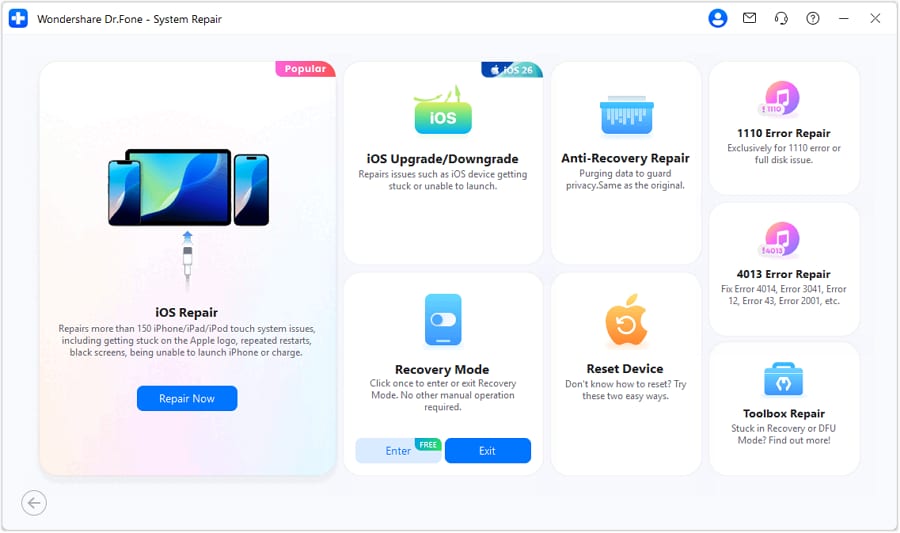
Step 1. Choose Enter/Exit Recovery Mode
From the System Repair tool for iPhone, choose ‘Enter/Exit Recovery Mode’ and tap ‘Exit’ after you connect the iPhone 18 Pro.
-
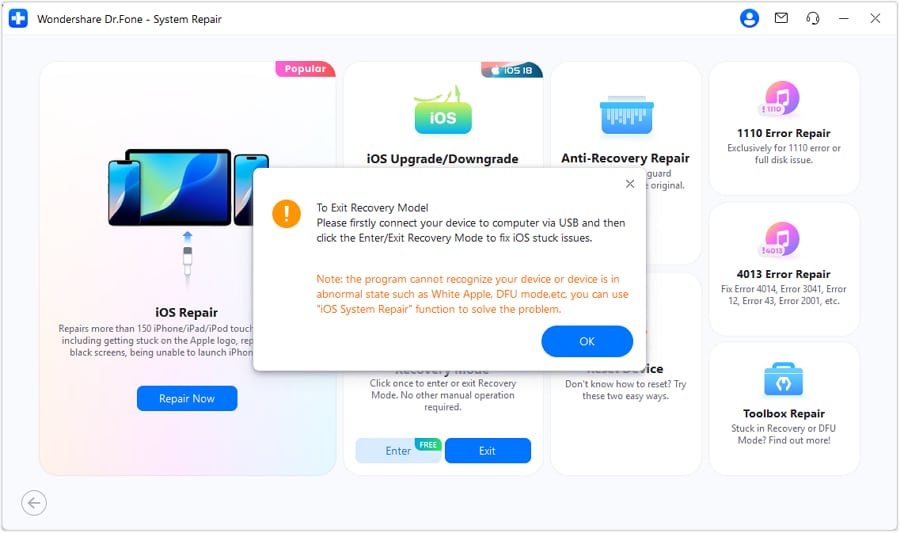
Step 2. Confirm Your Exit Action
Press the ‘Ok’ button in the pop-up menu and wait for the process to complete. Let the iPhone restart, then check whether it boots normally. If Recovery Mode returns, an underlying iOS issue may still need repair.




Part 4. How to Fix an iPhone 18 Pro Recovery Mode Loop?
If your iPhone 18 Pro won't exit Recovery Mode after repeated attempts, an underlying iOS issue may need repair. Try these 4 methods in order, starting with non-destructive options before moving to a full restore:
Method 1. Update iPhone 18 Pro with Finder, iTunes, or Apple Devices
If Recovery Assistant or another available iOS Recovery option does not resolve the startup problem and your iPhone 18 Pro returns to the traditional cable-and-computer Recovery Mode screen, a computer-based iOS Update is the next non-erasing recovery option to try.
Apple explains that Update reinstalls iOS while keeping your personal data, whereas Restore reinstalls iOS and erases the device. Try Update before Restore whenever possible.
-
Step 1 Connect the iPhone
With the ‘Connect to Computer’ Recovery Mode screen displayed, connect your iPhone 18 Pro to a Mac or Windows PC using a USB-C cable.

-
Step 2 Update the iPhone
Open ‘Finder’ on your Mac, select the iPhone 18 Pro from the sidebar, and choose ‘Update’ when prompted to reinstall iOS without erasing your data.

Method 2. Repair the Recovery Mode Loop with Dr.Fone - System Repair (iOS)
If the iPhone 18 Pro Recovery Mode loop continues after exiting Recovery Mode, an underlying iOS issue may require repair. Unlike Method 2, which only exits the recovery screen, Dr.Fone’s Standard Repair addresses iOS system problems without erasing data. It can resolve 150+ issues, including boot loops, black screens, Apple logo freezes, and startup failures.
Dr.Fone can also address iOS update and restore errors, including Error 4013 and 1110. For more severe cases, it provides options to reset locked or disabled devices to factory settings. It supports current iOS and iPadOS versions across a broad range of iPhone, iPad, and iPod touch models, with regular software updates and a straightforward repair process.
- Fix iOS issues, no data loss.
- One-click repair for all iOS problems.
- Solve recovery mode, Apple logo, black screen, etc.
- Upgrade or downgrade iOS without iTunes
Guide to Repair the Recovery Mode Loop on iPhone 18 Pro
Still unable to fix the iPhone 18 Pro Recovery Mode after an update? Follow the steps below to repair underlying iOS system issues with Dr.Fone:
-
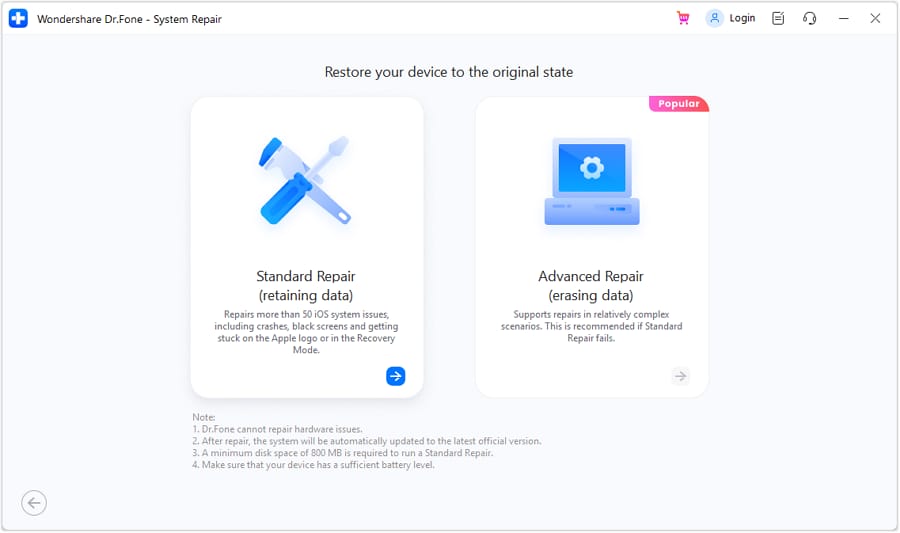
Step 1 Connect and Open System Repair
Connect the iPhone 18 Pro to your computer, open the ‘System Repair’ tool for iPhone, and select ‘iOS Repair.’ Then, choose ‘Standard Repair’ to proceed.
-
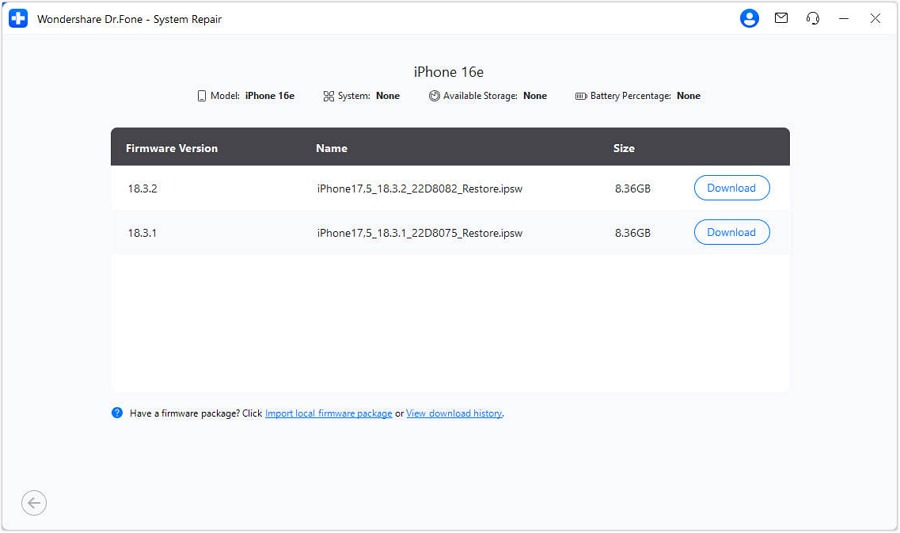
Step 2 Select Enter Recovery Mode
With the iPhone 18 Pro connected, select ‘Enter Recovery Mode’ or ‘Guide.’ Dr.Fone will detect compatible iOS firmware for the device. Choose the required version and click ‘Download’ to proceed.
-
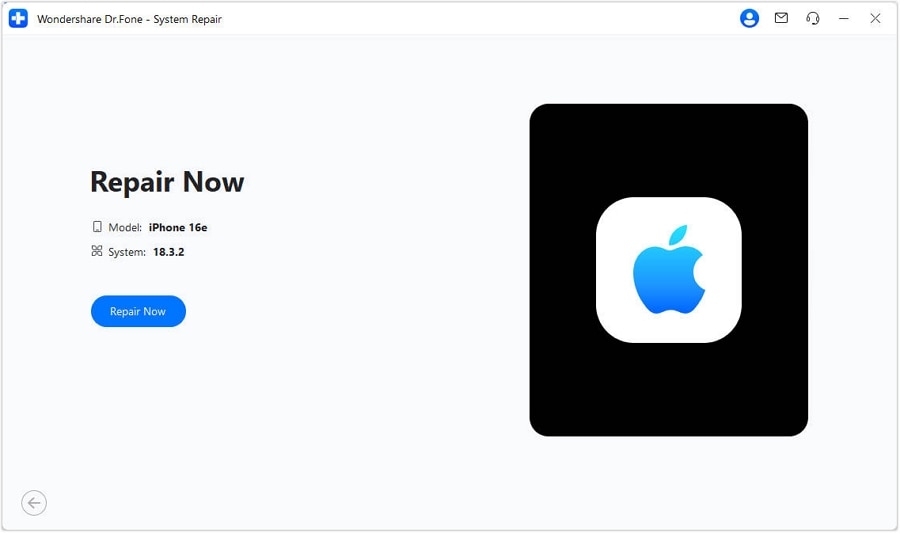
Step 3 Repair the iPhone 18 Pro Now
Once the firmware is downloaded, click ‘Repair Now’ and wait while Dr.Fone repairs the iOS system issues. Keep the iPhone connected until the repair process is complete.
Method 3. Restore iPhone 18 Pro with a Nearby iPhone or iPad
A recovery screen showing two devices moving together indicates that your iPhone 18 Pro can be restored wirelessly using a nearby iPhone or iPad. Make sure the helper device is unlocked, connected to Wi-Fi, and running iOS 18, iPadOS 18, or later. Follow the steps below to complete the Nearby Restore process:
-
Step 1 Connect the affected iPhone
Connect the affected iPhone to a power source. Place it near another unlocked iPhone or iPad that is already connected to Wi-Fi.
-
Step 2 Complete Nearby Restore
When ‘Restore Nearby [device]’ appears on the helper device, tap ‘Continue’ and wait for the devices to connect. A 6-digit code will appear on the device in Recovery Mode. Enter the code on the helper device to share its Wi-Fi connection. Tap ‘Exit Recovery Mode,’ then tap ‘Continue’ on the helper device.

Method 4. Restore iPhone 18 Pro Through Recovery Mode
If safer fixes fail to resolve an iPhone 18 Pro stuck in Recovery Mode after a restore loop, use Recovery Mode Restore as a last resort. This process reinstalls iOS and erases the device, so try the non-erasing Update option first when possible. Follow the instructions below to restore your iPhone through Recovery Mode:
Instructions. Keep the iPhone in Recovery Mode and connected to your computer. In ‘Finder’ on Mac, select the iPhone 18 Pro and choose ‘Restore.’ Keep the device connected while iOS downloads and reinstalls. Once the restore finishes, the iPhone will restart. Set it up again and restore your personal data from an available backup, if needed.

Part 5. Why Does iPhone 18 Pro Keep Going Back into Recovery Mode?
An iPhone 18 Pro stuck in a Recovery Mode loop may behave differently after each recovery attempt. What happens next can help identify the cause and determine the appropriate troubleshooting step. Review the table below to see what to do next:
| What Happens After Recovery | What It Suggests | Best Next Action |
|---|---|---|
| Force Restart Works, Phone Starts | Startup issue may have been temporary | No further action unless it returns |
| Recovery Assistant Completes, Phone Starts | The startup or stability issue was likely resolved | Keep iOS updated and monitor the device |
| Recovery Assistant Finishes, Recovery Screen Returns | The underlying startup problem may still remain | Try an iOS update or traditional Recovery Mode next |
| Recovery Mode Returns Immediately | iOS may still be unable to boot | Move to Update or Repair |
| Apple Update Completes, Phone Starts | Software issue was likely resolved | Keep the iPhone updated |
| Update Completes, Recovery Mode Returns | Software or hardware issue may remain | Try Standard Repair next |
| Update Fails With a Repeatable Code | Connection, software, or hardware issue | Check the error and connection |
| Standard Repair Completes, Loop Returns | Software repair did not resolve it | Consider Restore, then service |
| Nearby Restore Can't Complete | Network or helper-device requirements may not be met | Check Wi-Fi and OS requirements |
| Wiped, Reinstalled, Still Looping | Hardware failure becomes more likely | Book a hardware diagnostic |
| Computer Can't Update or Restore | Connection, computer, or hardware issue | Troubleshoot connection, then seek service |
Part 6. Recovery Mode After an Update vs. After a Restore
Seeing your iPhone 18 Pro in Recovery Mode after a restore can indicate a different problem than Recovery Mode following an iOS update. Checking what the iPhone was doing before the recovery screen appeared can help identify the likely cause, determine the next step, and assess the potential risk to your data.
| When It Started | Likely Failure Point | First Priority | Main Data Risk |
|---|---|---|---|
| After an iOS Update | Installation may not have completed | Try Update again | Restoring too early |
| During an iOS Update | Update was interrupted | Let it finish or retry Update | Interrupting the installation |
| iPhone 18 Pro Recovery Mode After Restore | Restore may have failed | Retry recovery or Restore | Data may already be erased |
| During a Restore | Restore stopped before completion | Retry the Restore | Incomplete iOS installation |
| After a Computer Error | Cable, port, software, or connection issue | Fix the connection first | Repeated failed attempts |
| After System Repair | Repair may not have completed | Retry repair or use Restore | Moving to an erase too early |
| Entered Manually | There may be no startup fault | Force restart to exit | None |
Part 7. When Does Recovery Mode Point to an iPhone Hardware Problem?
In case the iPhone 18 Pro Recovery Mode loop continues after ruling out software and connection issues, the problem may involve the device hardware. Look for these signs that make a hardware failure more likely:

- Recovery Mode Loop After Clean Restore: The iPhone 18 Pro keeps returning to Recovery Mode even after you successfully erase and reinstall iOS. Persistent boot failures after a clean restore make an underlying hardware problem much more likely.
- Hardware Error Codes Persist: Finder, iTunes, or Apple Devices repeatedly report the same update or restore errors. Persistent errors such as 9, 4005, 4013, or 4014 after recommended troubleshooting may require further support.
- Failures Across Different Computers: The update or restore continues to fail after trying known-good USB cables, direct ports, and different computers. This makes the original computer or connection less likely to be the cause.
- Repeated Disconnections During Recovery: The iPhone repeatedly disconnects from the computer during an update or restore. If the issue continues after trying different cables, ports, and computers, an underlying hardware problem becomes more likely.
- Damaged Physical Buttons: Broken or stuck buttons can prevent you from entering Recovery Mode correctly. If a required button does not work and Recovery Mode cannot be used, Apple recommends seeking service.
Conclusion
When an iPhone 18 Pro stuck in Recovery Mode repeatedly fails to boot, simply exiting the mode may not fix the underlying problem. Dr.Fone - System Repair (iOS) can exit Recovery Mode for free and repair iOS system issues causing recovery loops without data loss. If these non-destructive solutions fail, consider a full restore or seek professional service when an underlying hardware problem is suspected.
Frequently Asked Questions
-
1. Can a low battery cause iPhone 18 Pro to remain in Recovery Mode?
A low battery can interfere with the recovery process if the iPhone 18 Pro does not have enough power. Connect the device to a reliable power source before retrying the update or restore, and keep it connected throughout the process. -
2. How long can an iPhone safely stay on the Recovery Mode screen?
An iPhone can remain in Recovery Mode without the mode itself erasing its data. However, staying on this screen does not resolve the underlying startup issue, so you should troubleshoot the problem rather than leave the device there indefinitely. -
3. Why does my computer not recognize iPhone 18 Pro in Recovery Mode?
The problem may involve the USB cable, port, computer software, or device connection. Use a reliable data cable, connect the iPhone directly to the computer, and ensure Finder, iTunes, or the Apple Devices app is updated before trying again. -
4. Can a bad USB cable cause repeated Recovery Mode or restore errors?
Yes. A faulty or unstable USB cable can interrupt communication between the iPhone 18 Pro and computer during an update or restore. If the connection drops during the process, the update or restore may fail and leave the iPhone displaying the Recovery Mode screen. -
5. Is iOS Recovery the same as Recovery Mode on iPhone 18 Pro?
No. On iOS 27, iOS Recovery is an on-device recovery environment that can offer options such as Recovery Assistant, Software Update, Diagnostics Mode, Erase All Content and Settings, and traditional Recovery Mode. Traditional Recovery Mode is the cable-and-computer recovery state used with Finder or Apple Devices to update or restore iOS.
 Add Wondershare Dr.Fone as a preferred source on Google