Resolve common problems and system crashes on both iPhone and Android devices.

 100% Security Verified | No Subscription Required | No Malware

 :
: 
 ChatGPT
 Perplexity
 Gemini
 Claude
 Grok
Grok
An iPhone 18 Pro black screen can be alarming, especially when the phone suddenly stops responding. However, a dark display does not always mean the device is completely dead. Your iPhone may show no signs of life, continue working behind a black screen, or go dark after an iOS update or setup.
Several issues can trigger the problem, including a drained battery, faulty charging accessories, frozen iOS, display damage, or internal hardware trouble. Identifying how the black screen started can help you choose the right fix. This guide covers 7 practical solutions, followed by Dr.Fone - System Repair (iOS) for stubborn software-related problems.

In this article
- Part 1. Is the iPhone Actually Off or Is Only the Screen Black?
- Part 2. Why Does an iPhone 18 Pro Get a Black Screen?
- Part 3. If the iPhone 18 Pro Shows No Signs of Life
- Part 4. If the Phone Is On but the Screen Is Still Black
- Part 5. If the Black Screen Started After an Update or Setup
- Part 6. If Software Fixes Do Not Bring the Screen Back
- Part 7. Black Screen After Update vs. After Setup: Does the Trigger Change the Fix?
- Part 8. Which Black-Screen Fixes Can Preserve Your Data?
- Frequently Asked Questions
Part 1. Is the iPhone Actually Off or Is Only the Screen Black?
Before fixing an iPhone 18 Pro black screen, first determine whether the phone is completely off or only the display has gone dark. These quick checks can point you toward the right troubleshooting path:
| What You Notice | What It Suggests | Most Likely Direction | First Action |
|---|---|---|---|
| No Sound or Detection | Phone is unresponsive | Power, battery, or frozen iOS | Force restart, then charge for 1 hour |
| Low Battery Symbol Shows | Display is working | Battery is deeply discharged | Charge for at least 30 minutes |
| Rings, Screen Stays Dark | Phone remains responsive | Display issue or frozen iOS | Force restart, then diagnose |
| Detected, Screen Stays Dark | Phone remains responsive | Display issue or frozen iOS | Force restart, then check |
| Black After an Update | Startup problem followed update | iOS or update issue | Try Recovery Mode Update |
| Black During Setup | Setup or startup did not complete | iOS or setup issue | Try Recovery Mode Update |
| After a Drop or Liquid | Physical damage is possible | Display or internal hardware | Seek hardware service |
Part 2. Why Does an iPhone 18 Pro Get a Black Screen?
After confirming whether the iPhone is completely unresponsive or only its display is black, the next step is identifying the possible cause. An iPhone 18 Pro won't turn on for several reasons, with these 5 being the most common:

- Software Crashes and Freezes: iOS can become unresponsive even when the iPhone still has power, leaving the display completely black. Apple recommends a force restart as an initial step for an unresponsive iPhone.
- Fully Drained Battery: A deeply discharged battery can prevent an iPhone 18 Pro from turning on and make the device appear dead. It may need to remain connected to power before responding.
- Charging Problems: A damaged cable, faulty adapter, dirty charging port, or another charging issue can prevent the battery from receiving power. Apple recommends checking the cable, adapter, connections, and charging port.
- Software Update Issues: An iPhone 18 Pro screen going black after an update can result from an iOS installation or startup problem. Apple recommends Recovery Mode when an iPhone cannot update, restore, or start properly.
- Hardware and Display Damage: A black screen can also result from display or internal hardware damage, particularly after a drop, impact, or liquid exposure. Physical problems generally require hardware diagnosis or service.
Part 3. If the iPhone 18 Pro Shows No Signs of Life
If your iPhone 18 Pro won't turn on, first determine whether frozen iOS or a power problem is stopping it from starting. Begin with these 2 practical fixes before moving to deeper troubleshooting.
Fix 1. Force Restart the iPhone
A completely black screen does not always mean your iPhone has lost power. An Apple-recommended force restart can restart an unresponsive iPhone without erasing its data, making it a safe first fix to try. Here is how to perform it:
Instructions. Press and quickly release the “Volume Up,” then “Volume Down” buttons. Now, hold the “Side” button and keep doing so until the Apple logo appears.

Fix 2. Charge It for One Hour and Check the Power Path
Apple recommends charging an unresponsive iPhone for one hour before trying again. Connect your iPhone 18 Pro to a working power source and let it charge uninterrupted. Meanwhile, check the cable and power adapter for damage and make sure the charging port is free of debris.
Part 4. If the Phone Is On but the Screen Is Still Black
At this stage, check whether the iPhone is still responding despite its dark display. An iPhone 18 Pro with a black screen but the phone is on requires different troubleshooting than a completely unresponsive device. Use the following checks to narrow down the problem:
Fix 3. Separate a Dead Display from an iOS Black Screen
Sound, vibration, or computer detection can indicate that an iPhone 18 Pro black screen but phone is on condition still allows the device to respond. These signs cannot confirm display failure, but they can help narrow the problem to the screen, iOS, or another component:

- Test Device Responsiveness: Call the iPhone from another phone and check for ringing or vibration. A response indicates that the device still has power, although it does not confirm that iOS or the display is working normally.
- Check Computer Recognition: Connect the iPhone to a Mac or Windows PC with a reliable USB cable. Check whether it appears in Finder or the Apple Devices app, which can indicate that the device is still communicating with the computer.
- Review Recent Physical Damage: Consider whether the iPhone was recently dropped, exposed to liquid, or suffered a strong impact. If the black screen appeared afterward, hardware damage becomes more likely and may require professional diagnosis.

Part 5. If the Black Screen Started After an Update or Setup
An iPhone 18 Pro screen black after an update or setup often calls for deeper software troubleshooting. Recovery Mode Update is a practical next step that can reinstall iOS while preserving data. For persistent system issues, a dedicated repair tool offers another recovery option.
Fix 4. Use Recovery Mode and Try Update Before Restore
Apple’s Recovery Mode provides a built-in way to reinstall iOS when an iPhone cannot start properly. Choose “Update” before Restore to reinstall iOS without intentionally erasing your personal data. Here is how to use this recovery option:
-
Step 1. Connect the iPhone 18 Pro to a Mac or PC and press and quickly release the “Volume Up > Volume Down” buttons. After that, hold the Side button, and keep holding it past the Apple logo until the “Recovery Mode” screen appears.

-
Step 2. Once Finder, iTunes, or the Apple Devices app displays the “Update” and “Restore” options, choose “Update.” This reinstalls iOS without intentionally erasing your personal data.

Fix 5. Repair a Software-Related Black Screen with Dr.Fone - System Repair
Even after a Recovery Mode Update, the issue of your iPhone 18 Pro not turning on may persist because of deeper iOS problems. In this case, Dr.Fone - System Repair (iOS) provides another software repair option when there are no clear signs of physical damage. Its Standard Repair mode addresses 150+ iOS system issues while preserving your data.
Beyond system repair, Dr.Fone can resolve 200+ iTunes errors and provides one-click access to Recovery Mode. Advanced Repair targets more severe system problems when Standard Repair fails, but it erases device data. The tool also supports upgrading or downgrading to compatible iOS versions without relying on iTunes or Finder.
Guide to Fix the Software-Related Black Screen Issues
To resolve the iPhone 18 Pro black screen after setup with Dr.Fone – System Repair (iOS), follow these 3 simple steps:
 Fix iOS issues, no data loss.
- One-click repair for all iOS problems.
- Solve recovery mode, Apple logo, black screen, etc.
- Upgrade or downgrade iOS without iTunes
-
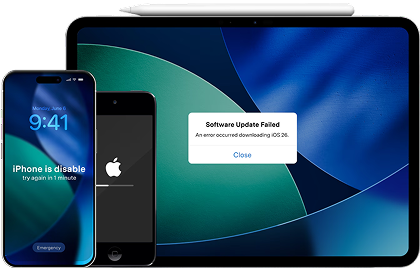
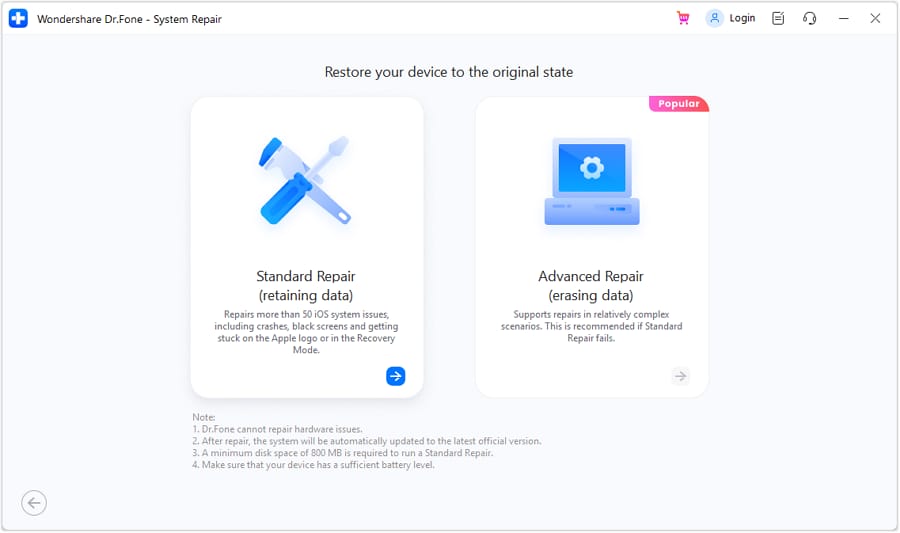
Step 1. Connect iPhone and Open System Repair
Connect the iPhone 18 Pro to your computer and open the “System Repair” tool. Select “iOS,” then choose the “Standard Repair” mode to continue.
-
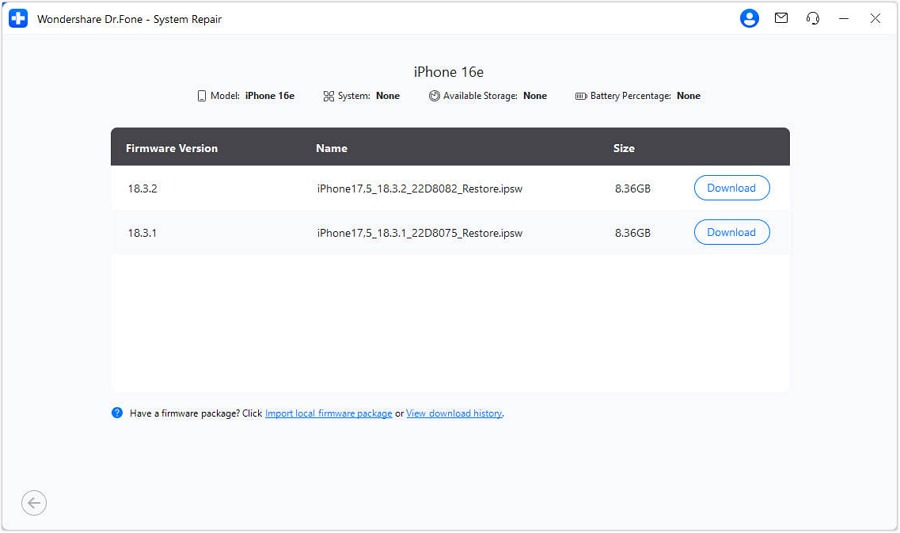
Step 2. Access Recovery Mode and Download Firmware
Select “Enter Recovery Mode” and wait for Dr.Fone to identify compatible iOS firmware for your iPhone 18 Pro. Choose the required firmware version and click “Download” to continue.
-
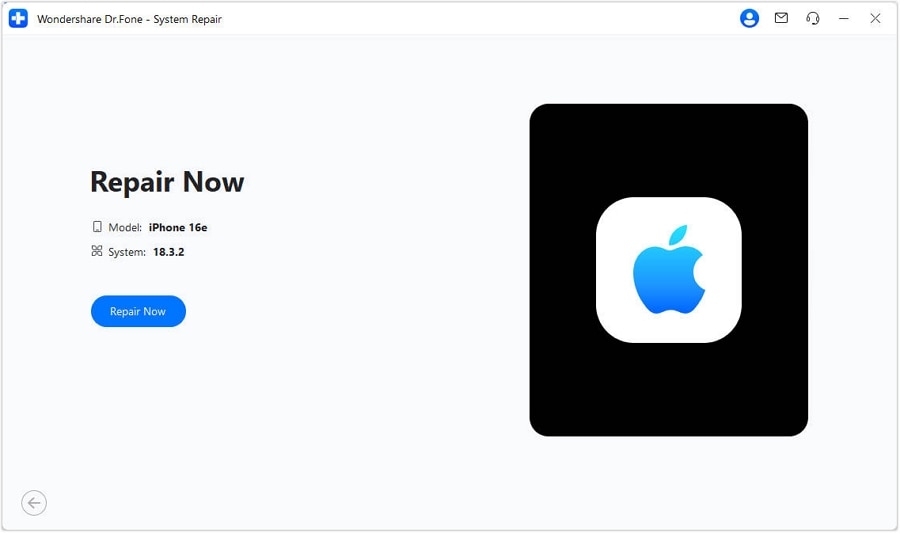
Step 3. Start the iPhone 18 Pro Repair
Wait for Dr.Fone to download and verify the iOS firmware. Once it is ready, click “Repair Now” to begin fixing the iPhone 18 Pro black screen issue.




Fix 6. Restore iOS Only as the Last Software Recovery Option
When the iPhone 18 Pro black screen persists after an Update, Recovery Mode Restore becomes a last resort. Unlike Update, Restore reinstalls iOS and erases the iPhone. Consider this option only after safer recovery methods have failed:
Instructions. Put the iPhone 18 Pro into “Recovery Mode” again and connect it to your computer. Select “Restore” in Finder, iTunes, or the Apple Devices app. Keep the device connected while iOS downloads and reinstalls. Once completed, set up the iPhone again and restore an available backup.

Part 6. If Software Fixes Do Not Bring the Screen Back
At this stage, you may be dealing with an iPhone 18 Pro dead screen that the earlier fixes cannot resolve. According to Apple, an iPhone that still will not turn on after a force restart and proper charging may require professional service.
Fix 7. Get Apple or Qualified Hardware Service
Further software troubleshooting may not help if the black screen comes from a failed display, battery, charging component, or other internal hardware. In such cases, Apple iPhone repair service can diagnose the device and recommend the appropriate repair. Be sure to mention any recent drops, liquid exposure, overheating, or previous repairs.
Part 7. Black Screen After Update vs. After Setup: Does the Trigger Change the Fix?
What happened before the iPhone 18 Pro black screen appeared can provide an important clue about the cause. Compare these 7 common triggers to identify the most suitable troubleshooting path and avoid fixes that could unnecessarily risk your data.
| When It Started | More Likely Direction | Best First Path | Main Warning |
|---|---|---|---|
| Right After an Update | iOS or update issue | Recovery Mode Update, then Dr.Fone | Advanced Repair erases data |
| During an Installation | Interrupted installation | Recovery Mode Update, then Dr.Fone | Do not interrupt an active update |
| Restarted During Setup | Setup or startup issue | Recovery Mode Update, then Dr.Fone | Do not assume hardware failure |
| After Quick Start | Transfer or startup issue | Recovery Mode Update, then Dr.Fone | Rule out transfer issues first |
| After Setup Completed | Cause may be unrelated | Force restart, then charge | Do not assume setup caused it |
| After a Drop or Liquid | Possible hardware damage | Hardware diagnosis or service | Software cannot repair physical damage |
| No Update or Incident | Power, iOS, or display issue | Charge, then diagnose | Do not jump directly to Restore |
Part 8. Which Black-Screen Fixes Can Preserve Your Data?
For an iPhone 18 Pro won't turn on situation, it is also important to consider how each fix affects your data. Some troubleshooting methods preserve your files, while others can erase the iPhone completely. Use this comparison before taking your next step:
| Fix | Designed to Erase Data | Best Use Case | When to Consider It |
|---|---|---|---|
| Force Restart | No | Frozen but powered | First |
| Charge and Power Check | No | No signs of life | First |
| Display Diagnosis | Depends on repair | Phone responds, screen dark | After basic checks |
| Recovery Mode Update | No intentional erase | Black after an update | After basic fixes |
| Dr.Fone Standard Repair | Preserves data | Software fault surviving Update | After Recovery Mode Update |
| Recovery Mode Restore | Yes | Safer routes failed | Last software resort |
| Dr.Fone Advanced Repair | Yes | Severe system fault | When Standard Repair fails |
| Hardware Service | Depends on the fault | Suspected component failure | When hardware damage is likely |
Conclusion
When dealing with an iPhone 18 Pro black screen, first determine whether the phone is still responding. Sounds, haptics, or computer detection indicate that the device remains active, but they do not confirm a failed display. If there is no response, charge the iPhone for a full hour and try a force restart.
For software-related problems, move to Recovery Mode Update before using more disruptive options. If the issue persists, Dr.Fone - System Repair (iOS) offers Standard Repair for system problems without erasing data. Suspected physical damage should instead be handled through professional hardware service.
Frequently Asked Questions
-
1. Why is my iPhone 18 Pro screen black but the phone is still on?
The iPhone may have a display problem or an iOS freeze. Ringing, haptics, or computer detection show the device is still responding. However, these signs alone cannot confirm whether the display or iOS is causing the black screen. -
2. How long should I charge an iPhone that will not turn on?
Apple recommends charging an unresponsive iPhone for one hour before trying again. If the low battery screen appears, continue charging until the iPhone has enough power to start. -
3. Can an iOS update cause an iPhone black screen?
Yes. An iOS update can trigger a black screen if an installation or startup problem occurs. Try Recovery Mode Update first. If the issue persists, Dr.Fone - System Repair (iOS) can address software-related problems using its Standard Repair mode. -
4. Can an iPhone black screen be fixed without restoring the device?
Yes. A force restart, proper charging, Recovery Mode Update, or Dr.Fone’s Standard Repair can resolve certain black screen issues while keeping your data intact. Recovery Mode Restore should be a last resort because it erases the iPhone. -
5. How can I tell whether a black screen is a display problem or an iOS problem?
Call the iPhone and connect it to a computer. Ringing, vibration, or computer detection indicates the device is still responsive. If a force restart restores the screen, frozen iOS was likely responsible. Otherwise, a persistent black screen may require further display or hardware diagnosis.
 Add Wondershare Dr.Fone as a preferred source on Google