Resolve common problems and system crashes on both iPhone and Android devices.

 100% Security Verified | No Subscription Required | No Malware

 :
: 
 ChatGPT
 Perplexity
 Gemini
 Claude
 Grok
Grok
If your iPhone 18 Pro keeps restarting or appears to turn off randomly, first watch what happens next. A black screen followed by the Apple logo usually points to an unexpected restart, while a phone that stays powered off can point more toward battery, power, or hardware conditions. If the Apple logo repeats and the Lock Screen never appears, you are dealing with a boot loop rather than an occasional random reboot.
For iPhone 18 Pro and iPhone 18 Pro Max devices, iOS 27.0.1 specifically fixes unexpected restarts that can happen when Face ID fails to authenticate. Other random shutdowns, panic-full logs, update failures, and boot loops can have different causes. This guide helps you separate those patterns and start with the least disruptive fix. For persistent software-related problems, Dr.Fone - System Repair (iOS) offers Standard Repair as a guided repair path designed to preserve device data.

In this article
- Part 1. Random Restart or Boot Loop: Which Problem Does Your iPhone Have?
- Part 2. Before You Repair It: Check Why It Restarts or Turns Off Randomly
- Part 3. If the iPhone Still Works Between Restarts
- Part 4. If the iPhone Is Stuck in a Restart or Boot Loop
- Part 5. Restarting After an Update or Migration: What Changes?
- Part 6. What Does a Panic-Full Log Mean on iPhone 18 Pro?
- Part 7. Software Problem or Hardware Problem? Know When to Stop Troubleshooting
- Part 8. Which Restart Fixes Can Preserve Your Data?
- Frequently Asked Questions
Does iOS 27.0.1 Fix iPhone 18 Pro Face ID Restarts?
Yes. Apple released iOS 27.0.1 on September 28, 2026, with a specific fix for an issue that could cause iPhone 18 Pro and iPhone 18 Pro Max to unexpectedly restart when Face ID failed to authenticate.
If your iPhone freezes, turns black, shows the Apple logo, and restarts after a failed Face ID attempt, update to iOS 27.0.1 or later before moving to deeper restart or system-repair troubleshooting.

Part 1. Random Restart or Boot Loop: Which Problem Does Your iPhone Have?
Check the restart pattern first, because users often describe the same symptom as “restarting,” “turning off,” or “shutting down.” If your iPhone 18 Pro keeps rebooting and the Apple logo appears again, follow the restart path below. If it powers off and stays off, pay closer attention to battery, temperature, charging, or hardware clues.
| Restart Pattern | What You See | More Likely Direction | Track to Follow |
|---|---|---|---|
| Occasional Reboots, Works Between | Normal use, then an unexpected restart | Software, storage, app, or power | Part 3 |
| Restarts With the Same App | Restart repeatedly follows one app or action | App-related issue | Fix 3 |
| Restarts After Face ID Fails | Face ID fails, then the iPhone freezes or unexpectedly reboots | Known iOS issue on iPhone 18 Pro models | Update to iOS 27.0.1 or later |
| Randomly Turns Off or Shuts Down | Screen goes black; it may restart by itself or stay off | Restart if Apple logo returns; power/hardware if it stays off | Part 2, then Fix 4 |
| Started Right After an Update | Stable before, restarting since the update | iOS or update-related issue | Part 3, then Part 4 |
| Started During Migration | Restarting began during or after data transfer | Setup or software issue | Part 4 |
| Reboots at Similar Intervals | Roughly the same gap between restarts | System or possible hardware issue | Part 6, then service |
| Apple Logo Appears Repeatedly | Apple logo, restart, then logo again | Boot loop | Part 4 |
| Never Reaches the Lock Screen | No usable time between restarts | Startup failure | Part 4 |
| Started After Damage or Repair | Restarting follows a drop, liquid exposure, or repair | Possible hardware issue | Part 7 |
Part 2. Before You Repair It: Check Why It Restarts or Turns Off Randomly
If your iPhone 18 Pro keeps turning off randomly, do not assume the battery is automatically at fault. First confirm whether the phone actually powers down or crashes and restarts. A black screen followed by the Apple logo is an unexpected reboot; a phone that stays off until you press the Side button points more toward power, battery, temperature, or hardware. Then check these 5 factors to choose the right troubleshooting path.

-
Check Lock Screen Status: Check whether the iPhone reaches the Lock Screen or remains in a continuous Apple logo loop. Note if it starts normally before unexpectedly restarting again.
-
Review Recent iOS Updates: Check whether the restarts started immediately after installing or attempting an iOS update. If the update cannot finish normally, connect the iPhone to a computer and use Recovery Mode.
-
Test Individual Apps: Notice whether the iPhone repeatedly restarts while using a particular app or performing the same action. If the problem continues, update the app or delete and redownload the affected app.
-
Inspect Available Storage: Go to Settings > General > iPhone Storage and check how much storage remains available. If the device is nearly full, follow Apple's storage guidelines to free up space.
-
Check Battery Health: Go to Settings > Battery > Battery Health and review the battery condition and any performance-related messages. A degraded battery may contribute to unexpected shutdowns or other power-related problems.
Part 3. If the iPhone Still Works Between Restarts
When your iPhone 18 Pro randomly restarts but remains usable between reboots, start with these 4 fixes before moving to more advanced repair options:
Fix 1. Update to iOS 27.0.1 or Later
Start by checking your iOS version. Apple released iOS 27.0.1 with a fix for an issue that could cause iPhone 18 Pro and iPhone 18 Pro Max to unexpectedly restart after Face ID failed to authenticate. If your restarts happen after a failed Face ID attempt, install iOS 27.0.1 or later before moving to deeper troubleshooting.
For restarts that are not related to Face ID, installing the latest stable iOS version is still a useful first step because later updates may include additional stability and bug fixes.
Instructions. Connect the iPhone to power and Wi-Fi, then go to “Settings > General > Software Update.” If iOS 27.0.1 or a later public update is available, tap “Update Now.” After the update finishes, use the iPhone normally and check whether the unexpected restarts happen again.

Fix 2. Free Up iPhone Storage
When your iPhone is nearly full, free up storage before trying more advanced fixes for the iPhone 18 Pro boot loop. Apple explains that low available storage can affect device performance. Your iPhone also needs sufficient space to download and install iOS updates. Use these steps to review your storage and free up space:
Step 1. In Settings, choose “General > iPhone Storage” and review any storage recommendations shown on the screen.

Step 2. You can also free up space by offloading large, unused apps. Select an app and tap “Offload App” to remove the app while keeping its documents and data.

Fix 3. Update or Remove a Repeatable Problem App
To address the iPhone 18 Pro keeps restarting issue, check whether the restarts repeatedly occur while using a particular app. Apple recommends updating an app first when it stops working as expected. If the problem continues, delete and reinstall the affected app. Follow these steps to troubleshoot it:
Step 1. Go to the App Store, tap Profile, choose “App Updates > Update” for the problematic app.

Step 2. Try the app again to see whether the restarting continues. If the same issue returns, press and hold the app, then choose “Remove App > Delete App > Delete” before reinstalling it from the App Store.

Fix 4. Check Battery, Temperature, and Power Conditions
Check the battery and temperature conditions when the iPhone 18 Pro is restarting after an update. Battery health alone cannot identify the exact cause, but degraded capacity or power-related warnings can provide useful clues. Follow Apple’s guidance to review the battery condition using these steps:
Instructions. Go to Settings > Battery > Battery Health and review the battery information and any warnings shown. Note whether shutdowns occur more often at low charge levels or in extreme temperatures. If a temperature warning appears, turn off the iPhone and move it to a cooler location away from direct sunlight.

Part 4. If the iPhone Is Stuck in a Restart or Boot Loop
A persistent iPhone 18 Pro boot loop that never gets past the Apple logo requires a different troubleshooting approach. Work through these four fixes in order, beginning with the least disruptive option:
Fix 5. Force Restart the iPhone Once
Start with a force restart before using Recovery Mode. This method forces the iPhone 18 Pro to reboot without erasing your data and may clear a temporary system issue preventing normal startup. Use the following button sequence:
Instructions. Press and quickly release the “Volume Up” button, then do the same with “Volume Down.” Next, hold the “Side” button until the Apple logo appears. Release it and wait for the iPhone 18 Pro to start. If the Apple logo loop continues, proceed to Recovery Mode.

Fix 6. Use Recovery Mode and Choose Update Before Restore
When your iPhone 18 Pro is restarting after an update and cannot complete startup, Recovery Mode can help reinstall iOS. Start with “Update” because it attempts to repair the software without erasing your data. Choose “Restore” only if updating does not work, as it erases the device. Follow Apple’s Recovery Mode guide below:
Step 1. Plug your iPhone 18 Pro into your computer using a USB cable. Press and quickly release the “Volume Up,” then “Volume Down” buttons. Hold the “Side” button until you see the “Connect to Computer” recovery mode screen.

Step 2. On a Mac, for example, open Finder and select your iPhone 18 Pro. Choose “Update,” then keep the device connected until the update finishes.

Fix 7. Repair a Software Restart Loop Using Dr.Fone - System Repair (iOS)
If Recovery Mode Update finishes but your iPhone 18 Pro restart loop continues, you can try a system repair tool. Dr.Fone - System Repair (iOS) offers Standard Repair and can fix 150+ iOS system issues without data loss. These include Apple logo freezes, boot loops, black or white screens, and frozen devices. Entering Recovery Mode is available in one click for free; exit, repair, and other actions may require a paid license depending on the feature and current plan.
Dr.Fone can also address common iTunes errors, including 4013 and 1110. It works from your computer, and repair time varies with the firmware download, device, connection, and system issue. Besides Standard Repair, Advanced Repair provides a deeper system repair but erases device data. Anti-Recovery is designed to permanently erase data when preparing an iPhone for sale or transfer.
Guide to Fix iPhone 18 Pro Restart Loop with Dr.Fone
Follow the steps below to use Dr.Fone’s Standard Repair to resolve the iPhone 18 Pro boot loop while preserving your device data:
 Standard Repair is designed to preserve data.
- Guided repair for common iOS system issues.
- Solve recovery mode, Apple logo, black screen, etc.
- Upgrade or downgrade iOS without iTunes
-
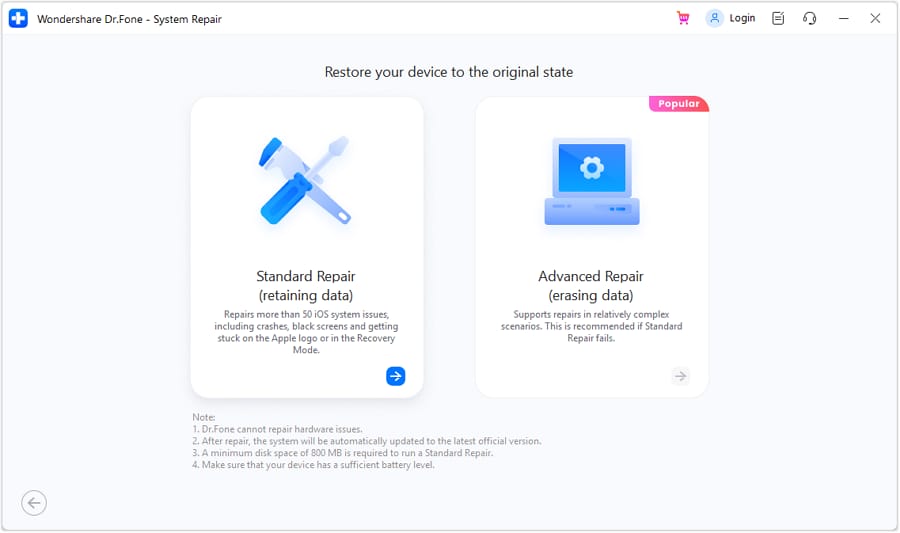
Step 1. Connect the Phone and Open System Repair
With the iPhone 18 Pro connected, go to the “System Repair” tool for “iPhone” and choose the “Standard Repair” mode.
-
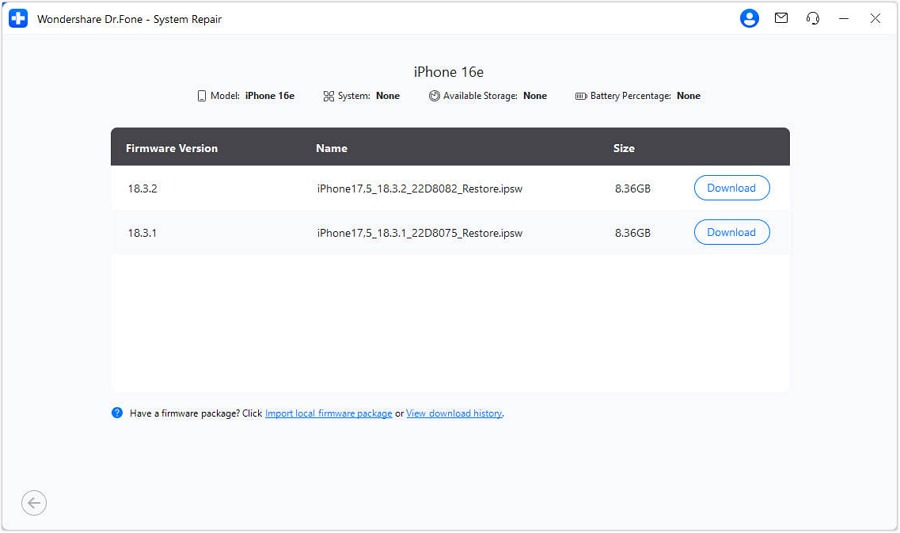
Step 2. Enter Recovery Mode & Download Firmware
Select “Enter Recovery Mode” or “Guide,” then let Dr.Fone identify the compatible iOS firmware for your iPhone 18 Pro. Click “Download” to save the firmware package to your computer before starting the repair.
-
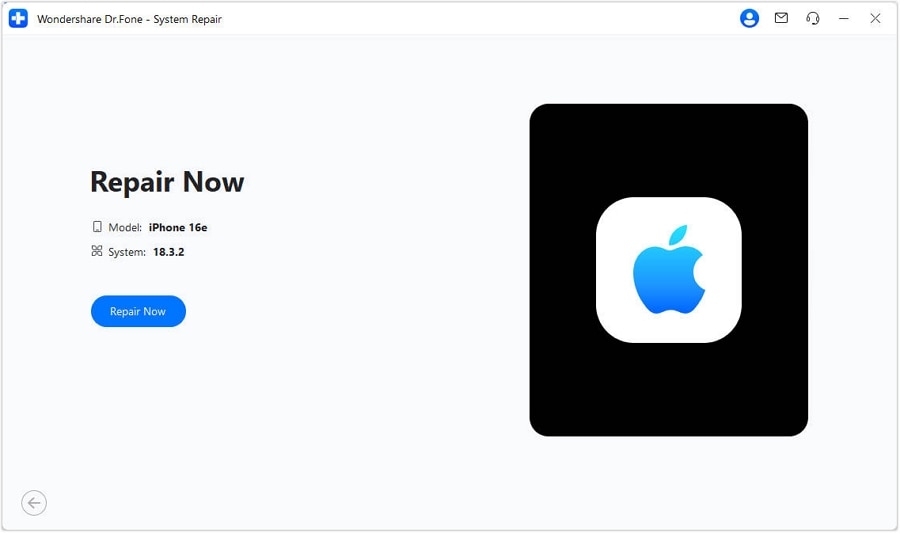
Step 3. Verify the Firmware and Repair
After the firmware downloads, Dr.Fone will verify the package automatically. Click “Repair Now” to begin fixing the iPhone 18 Pro boot loop, then keep the iPhone connected until the repair finishes.




Fix 8. Restore the iPhone Only as the Last Software Fix
A persistent iPhone 18 Pro boot loop may require a Recovery Mode Restore when the previous software fixes do not work. This option reinstalls iOS but completely erases the data stored on the iPhone. Use these steps to perform the restore:
Step 1. Connect the iPhone to your computer and enter Recovery Mode. Once the restore options appear, choose “Restore” and keep the device connected until the process finishes.

Step 2. After the Hello screen appears, follow the on-screen instructions to set up your iPhone. Contact Apple for service if the device still cannot start normally.
Part 5. Restarting After an Update or Migration: What Changes?
If your iPhone 18 Pro keeps rebooting after an update or migration, the point when the restarts began can reveal what may have triggered the problem.
| Trigger | More Likely Problem | What to Try First | What Not to Assume |
|---|---|---|---|
| Immediately After an Update | iOS or update-related issue | Fix 1, then Recovery Mode Update | The battery is automatically at fault |
| Boot Loop During Installation | Interrupted or failed installation | Recovery Mode Update | Waiting longer will always fix it |
| After Quick Start or Migration | Setup or software issue | Recovery Mode Update | Migration damaged the hardware |
| After Restoring a Backup | Restored content or low storage | Free storage, then troubleshoot | The backup itself is corrupt |
| Days After an Update | App, storage, software, or power issue | Follow Part 3 in order | The update definitely caused it |
| Continues After a Clean Restore | Possible hardware issue | Contact Apple for service | Reinstalling iOS again will help |
Part 6. What Does a Panic-Full Log Mean on iPhone 18 Pro?
A panic-full log on iPhone 18 Pro means iOS recorded a serious system-level failure around a restart. It is useful evidence, but it does not by itself prove that a specific hardware component has failed. Compare repeated logs with the exact restart time, the trigger you observed, your current iOS version, and Apple diagnostic results before deciding whether the problem is software or hardware.
You may also see other analytics records around a reboot, including ResetCounter or watchdog-related entries. Treat the filename and repeated timing as clues rather than a home diagnosis, especially when the phone is new or the behavior changed after an iOS update.

-
Access Analytics Data: Go to Settings > Privacy & Security > Analytics & Improvements > Analytics Data to review available system logs. Look for similar entries that repeatedly appear around the times your iPhone restarts.
-
Review Repeated Log Records: Focus on recurring panic or analytics entries instead of drawing conclusions from a single log. Repeated patterns can provide more useful clues about what may be triggering the restarts.
-
Avoid Single Log Diagnoses: One panic log alone cannot reliably identify a failed component or confirm a hardware problem. Avoid treating online panic log interpretations as a definitive diagnosis.
-
Save Details Before Service: Record when the random restarts occur and keep relevant analytics entries available if software fixes do not work. These details may help during further diagnostics or professional service.
-
Run Diagnostic Tools: Use Apple’s available diagnostic options to check for potential hardware problems. Diagnostic results, restart patterns, and relevant logs provide stronger evidence than relying on panic logs alone.
Part 7. Software Problem or Hardware Problem? Know When to Stop Troubleshooting
When your iPhone 18 Pro keeps restarting after iOS 27.0.1 or later, use the evidence below to decide whether more software troubleshooting is reasonable. Repeated matching panic-full logs, failed Apple diagnostics, restarts during setup or idle use, or the same problem after a clean restore are stronger reasons to stop repeating repairs and contact Apple for service.
| Evidence | Software Likely | Hardware Likely | Recommended Next Action |
|---|---|---|---|
| Started Right After an iOS Update | Likely | Possible | Update or repair iOS first |
| Stops After a Newer iOS Version | Likely | Unlikely | Keep iOS updated |
| Stops After Recovery Mode Update | Likely | Unlikely | Back up your iPhone |
| One App Triggers Every Restart | Likely | Unlikely | Update or reinstall the app |
| Repeated Similar Panic Logs | Possible | Possible | Have the logs professionally reviewed |
| Restarts at Consistent Short Intervals | Possible | Possible | Run diagnostics and check hardware |
| Battery or Power Warning Appears | Unlikely | Likely | Check battery and power hardware |
| After Drop, Liquid, or Repair | Possible | Likely | Seek service and mention the history |
| Repeated Hardware Diagnostic Errors | Unlikely | Likely | Stop reinstalling iOS and seek service |
| Continues After a Clean Restore | Unlikely | Likely | Contact Apple for hardware service |
Part 8. Which Restart Fixes Can Preserve Your Data?
Before fixing an iPhone 18 Pro restart loop, compare each repair option to understand its potential impact on your data before proceeding.
| Fix | Needs a Usable Phone | Expected Data Impact | Escalation Level |
|---|---|---|---|
| Update iOS | Yes | Designed to preserve existing data | Lowest |
| Free Storage | Yes | Removes only selected data | Lowest |
| Remove a Problem App | Yes | May remove that app’s local data | Low |
| Force Restart | No | Does not intentionally erase data | Low |
| Recovery Mode Update | No | Designed to reinstall iOS without erasing data | Low to Moderate |
| Dr.Fone Standard Repair | No | Designed to preserve device data | Moderate |
| Recovery Mode Restore | No | Erases all iPhone data | High |
| Dr.Fone Advanced Repair | No | Erases device data | High |
| Apple Hardware Service | No | Data impact depends on the repair | Final |
Conclusion
Start with the fix that matches your restart pattern. If your iPhone 18 Pro keeps restarting but remains usable, check iOS, storage, apps, and battery conditions first. For a persistent Apple logo loop, move to Recovery Mode Update. If software issues continue, Dr.Fone - System Repair (iOS) offers Standard Repair as another option designed to fix iOS problems without erasing your data.
Frequently Asked Questions
-
1. Why does my iPhone 18 Pro keep restarting randomly?
Random restarts can result from iOS issues, low storage, problematic apps, battery or power problems, or hardware faults. Check when and how often the restarts occur to help narrow down the cause. -
2. What is the difference between random restarts and an iPhone boot loop?
Random restarts happen occasionally while the iPhone remains usable between reboots. In contrast, a boot loop repeatedly returns to the Apple logo and prevents the device from completing its normal startup. -
3. Can an iOS update cause an iPhone restart loop?
Yes, especially if the installation is interrupted or fails to complete correctly. For persistent software issues, Dr.Fone offers Standard Repair to fix common iOS problems while preserving your data. -
4. What does a panic-full log mean when an iPhone keeps restarting?
A panic-full log records details about a critical system failure that caused the iPhone to restart. Repeated similar logs can provide useful diagnostic clues, but a single entry cannot reliably confirm the exact software or hardware cause. -
5. Why does my iPhone 18 Pro keep turning off randomly?
If the screen goes black and the Apple logo appears again, the phone is restarting rather than simply powering off. Check iOS updates, repeatable app triggers, storage, battery or temperature conditions, and analytics logs. If it stays powered off, restarts after a clean restore, or Apple diagnostics report a hardware issue, seek service.
 Add Wondershare Dr.Fone as a preferred source on Google