Resolve common problems and system crashes on both iPhone and Android devices.

 100% Security Verified | No Subscription Required | No Malware

 :
: 
 ChatGPT
 Perplexity
 Gemini
 Claude
 Grok
Grok
Setup Assistant involves several stages, and each can fail for a different reason. Quick Start depends on your old iPhone, activation connects to Apple’s servers, and eSIM setup relies on your carrier. Identifying where the process stops helps narrow down the cause instead of assuming your iPhone 18 Pro stuck on setup has a hardware problem.
This guide covers 7 practical fixes for Quick Start, activation, eSIM, updates, and frozen setup screens. For repeated software freezes or crashes, you’ll also learn how Dr.Fone - System Repair (iOS) can help repair underlying iOS issues.
In this article
- Part 1. Which iPhone 18 Pro Setup Stage Is Stuck?
- Part 2. How to Fix iPhone 18 Pro Stuck on Setup?
- Part 3. Should You Wait, Restart, Erase, or Fix an iPhone 18 Pro During Setup?
- Part 4. Why Is iPhone 18 Pro Setup Taking So Long?
- Part 5. Why Does iPhone 18 Pro Setup Keep Freezing or Restarting?
- Part 6. When Should You Stop Setup Troubleshooting and Get Help?
- Frequently Asked Questions
Part 1. Which iPhone 18 Pro Setup Stage Is Stuck?
An iPhone 18 Pro setup stuck on Quick Start can have a different cause than one stuck during activation, eSIM setup, or a software update. Identify the exact stage where the process stops first. The table below can help you match each setup issue with its likely cause and the best first action:
| Setup Stage | What You See | Likely Cause | Best First Action |
|---|---|---|---|
| Quick Start Won't Appear | No setup prompt | Wi-Fi or Bluetooth issue | Check both connections |
| Transfer Too Slow | Progress barely moves | Data size or connection | Check time estimate |
| Stuck on Activating | Activation won't finish | Apple service or network | Check System Status |
| eSIM Setup Stuck | Plan won't activate | Carrier provisioning issue | Contact your carrier |
| Sign-In Stuck | Account won't verify | Account or network issue | Retry or skip |
| Locked to Owner | Activation Lock appears | Previous owner's account | Contact owner or Apple |
| Update Stuck | Checking or verifying | Network or update issue | Retry the update |
| Screen Frozen | Screen won't respond | Setup Assistant crash | Force restart |
| Setup Keeps Restarting | Returns to same stage | Setup dependency failing | Identify failing stage |
| Apps Still Downloading | App icons are incomplete | iCloud restore continues | Wait for downloads |
Part 2. How to Fix iPhone 18 Pro Stuck on Setup?
Once you identify where setup has stopped, choose the fix that matches that specific stage. Whether your iPhone 18 Pro is stuck setting up during Quick Start, activation, or an update, addressing the actual cause can prevent unnecessary resets.
Fix 1. Fix Quick Start or Data Transfer Stuck on iPhone 18 Pro
First, confirm whether the transfer has actually stalled. Apple says transfer times can vary based on network conditions and the amount of data being moved. During a direct device-to-device transfer, both iPhones remain occupied until the process finishes.
Make sure Wi-Fi and Bluetooth are enabled on your old iPhone. Keep both devices nearby and connected to power. If the Quick Start prompt disappears, restart both iPhones and try again. You can also choose an iCloud-based transfer if available.
Fix 2. Fix iPhone 18 Pro Stuck on Activating
An iPhone 18 Pro stuck on activating may result from Apple’s activation service, network problems, or a SIM/eSIM issue. Start with the solutions below to check the activation service, refresh the connection, and activate the iPhone using a computer if needed:
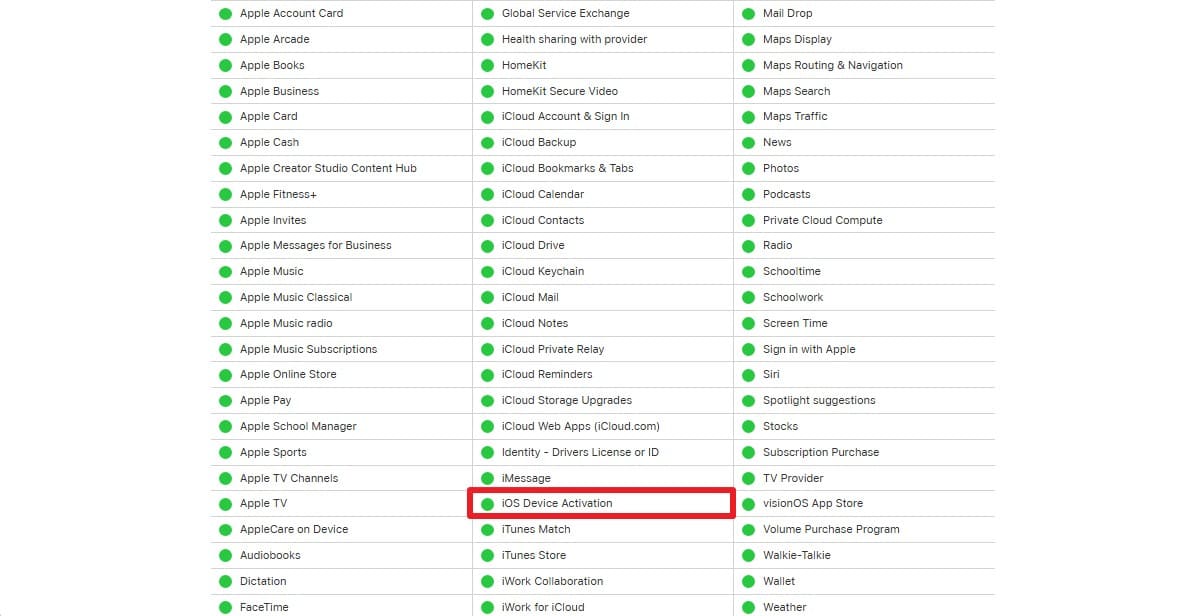
- Check Apple's Activation Service: Open Apple System Status and check “iOS Device Activation.” If it isn't green, Apple recommends trying activation again later.
- Restart and Change the Connection:
-
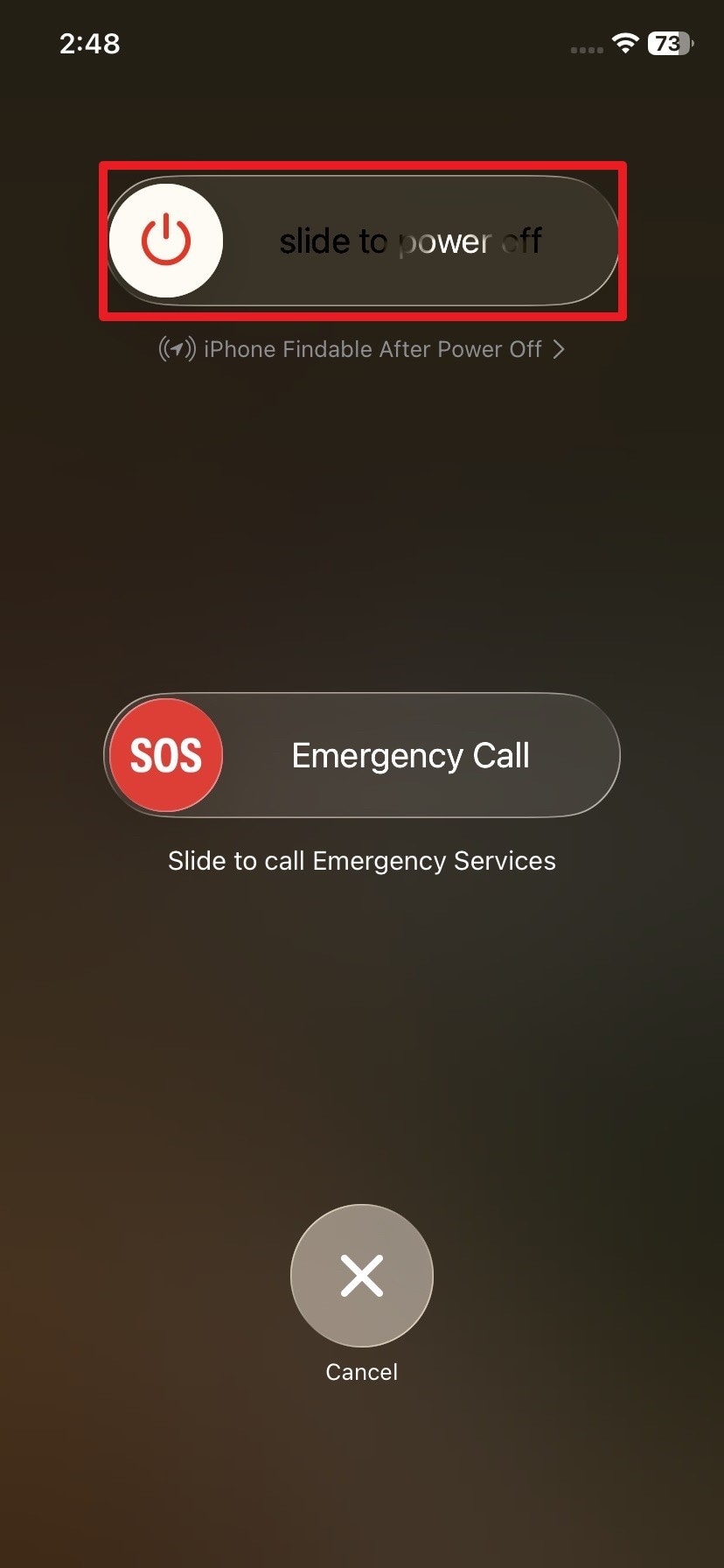
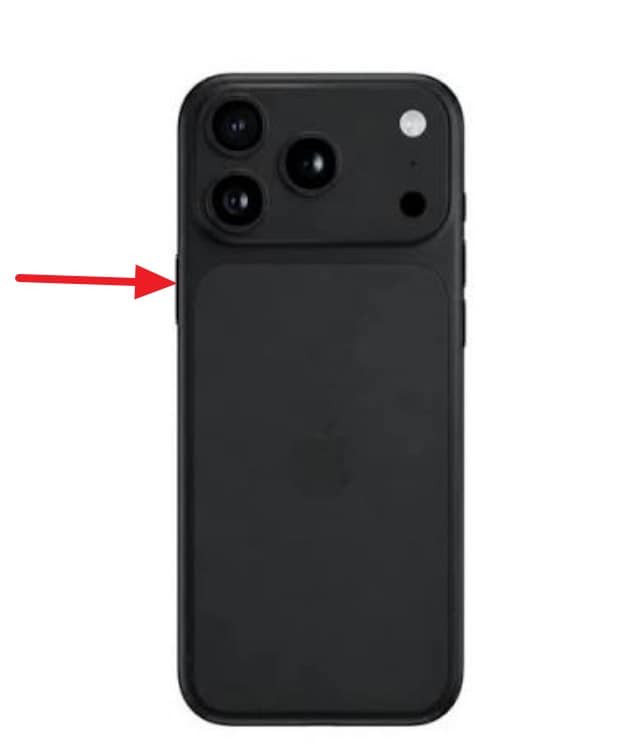
Step 1. Hold the “Power + Volume Up” buttons and slide the “Slide to Power Off” slider.
-
Step 2. After 30 seconds, press the “Power” button and connect it to a reliable Wi-Fi network when it turns on. If the activation server is temporarily unavailable, wait a few minutes, then try again.
-
- Try Activation with a Computer:
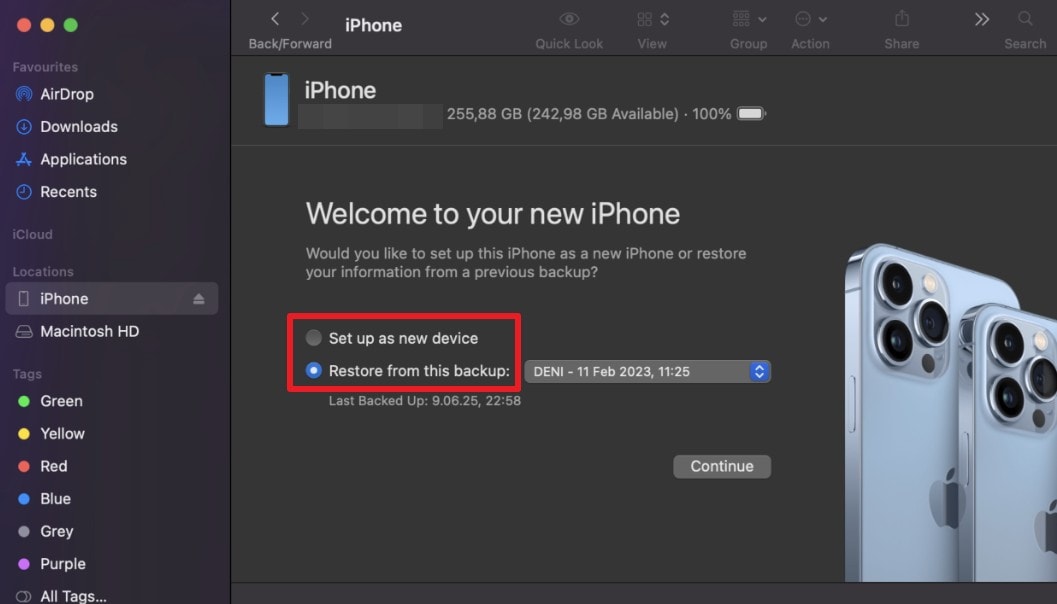
If the iPhone still won’t activate, connect it to an internet-connected Mac or PC and locate the device on your computer. Wait while the computer detects and activates your iPhone 18 Pro. If Apple says “Set up as New” or “Restore from Backup” appears, the iPhone is successfully activated.
Top of Form
Bottom of Form
Fix 3. Fix iPhone 18 Pro Stuck on Cellular or eSIM Setup
When your iPhone 18 Pro is stuck setting up cellular service, start by checking your carrier, cellular plan, and internet connection. Apple recommends several checks when eSIM activation fails. Try the following actions to resolve the issue:
- Check Your Plan and Carrier Support: Confirm your cellular plan is active and your carrier supports eSIM on your iPhone model in your region.
- Check the Connection and Retry: Connect the iPhone to Wi-Fi or a hotspot. If activation still fails, turn Airplane Mode on and off.
- Contact Your Carrier: If the eSIM still will not activate, Apple recommends contacting your carrier. They may need to check your account, coverage, service status, or eSIM setup details.
Fix 4. Resolve Apple Account Sign-In or Activation Lock During Setup
Apple Account sign-in and Activation Lock can both prevent setup from continuing, but each requires a different approach. If your iPhone 18 Pro setup is stuck at either stage, use the solutions below to resolve the specific problem and continue setup:
- Check Your Apple Account Sign-In: Make sure the iPhone has a stable internet connection. Then, enter the email address or phone number and password associated with your Apple Account.
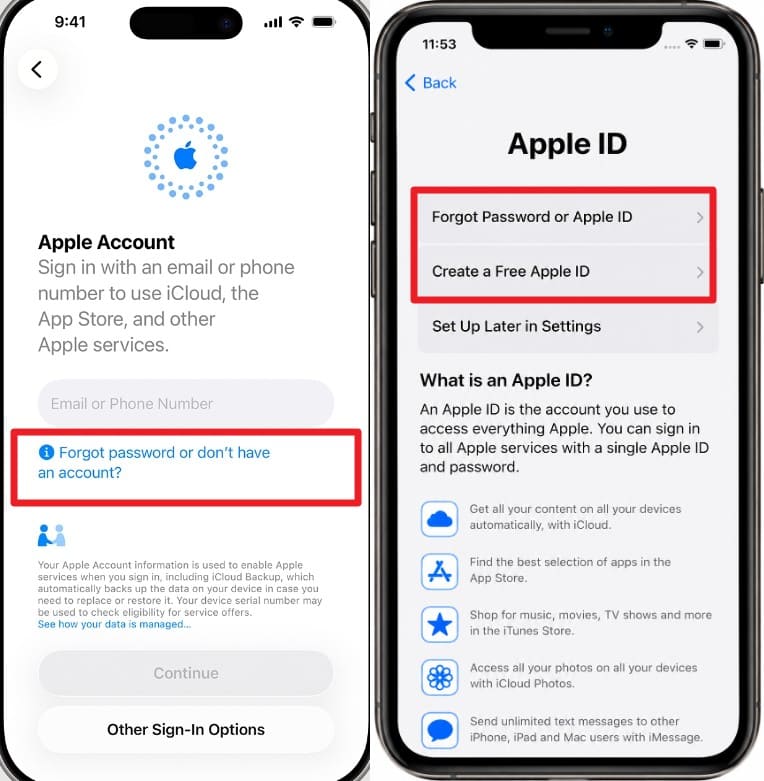
- Recover the Account or Set It Up Later: On the Apple Account screen during setup, tap “Forgot password or don’t have an Apple Account?”. You can then recover your Apple Account or password, create a new Apple Account, or choose to set it up later.
- Remove Activation Lock Properly: When “iPhone Locked to Owner” appears, ask the previous owner to remove the iPhone from their Apple Account. Device owners can use Apple’s supported Activation Lock removal process and provide proof of purchase when required.
 Note: For the detailed guide to remove the Activation Lock, follow this Dr.Fone iPhone Unlock Guide.
Fix 5. Fix iPhone 18 Pro Stuck on Software Update During Setup
Why Does a New iPhone 18 Pro Ask for an iOS 27 Update During Setup?
If your brand-new iPhone 18 Pro or iPhone 18 Pro Max asks you to install an iOS 27 update during setup, it does not necessarily mean there is a problem with the device. Launch-day iPhone 18 Pro models may receive a day-one iOS 27 software update before setup can continue.
This update can also affect data migration. If you are restoring an iCloud or computer backup created on a newer version of iOS than the version currently installed on the new iPhone, the device may need to update before the backup can be restored. Apple recommends updating the new iPhone to the required iOS version first and then restarting the restore process.
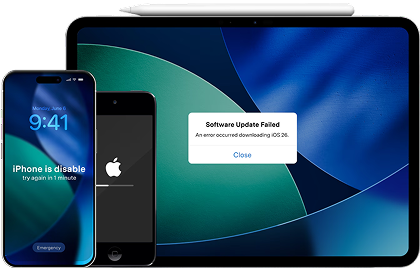
For an iPhone 18 Pro setup frozen during a software update, first check whether the update is still progressing or has failed. Keep the iPhone connected to power and reliable Wi-Fi. When an update error appears, retry the update before moving to other solutions.
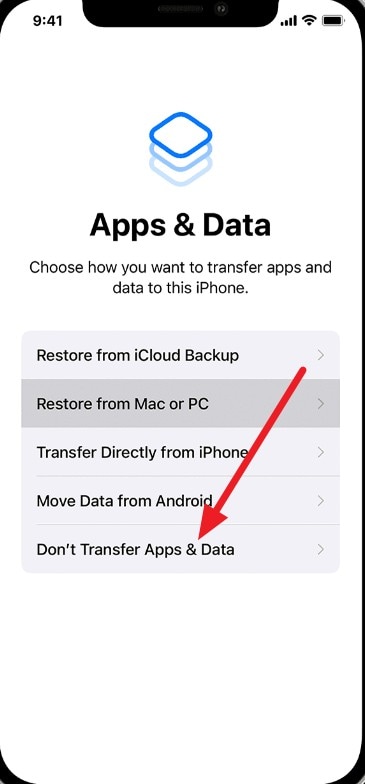
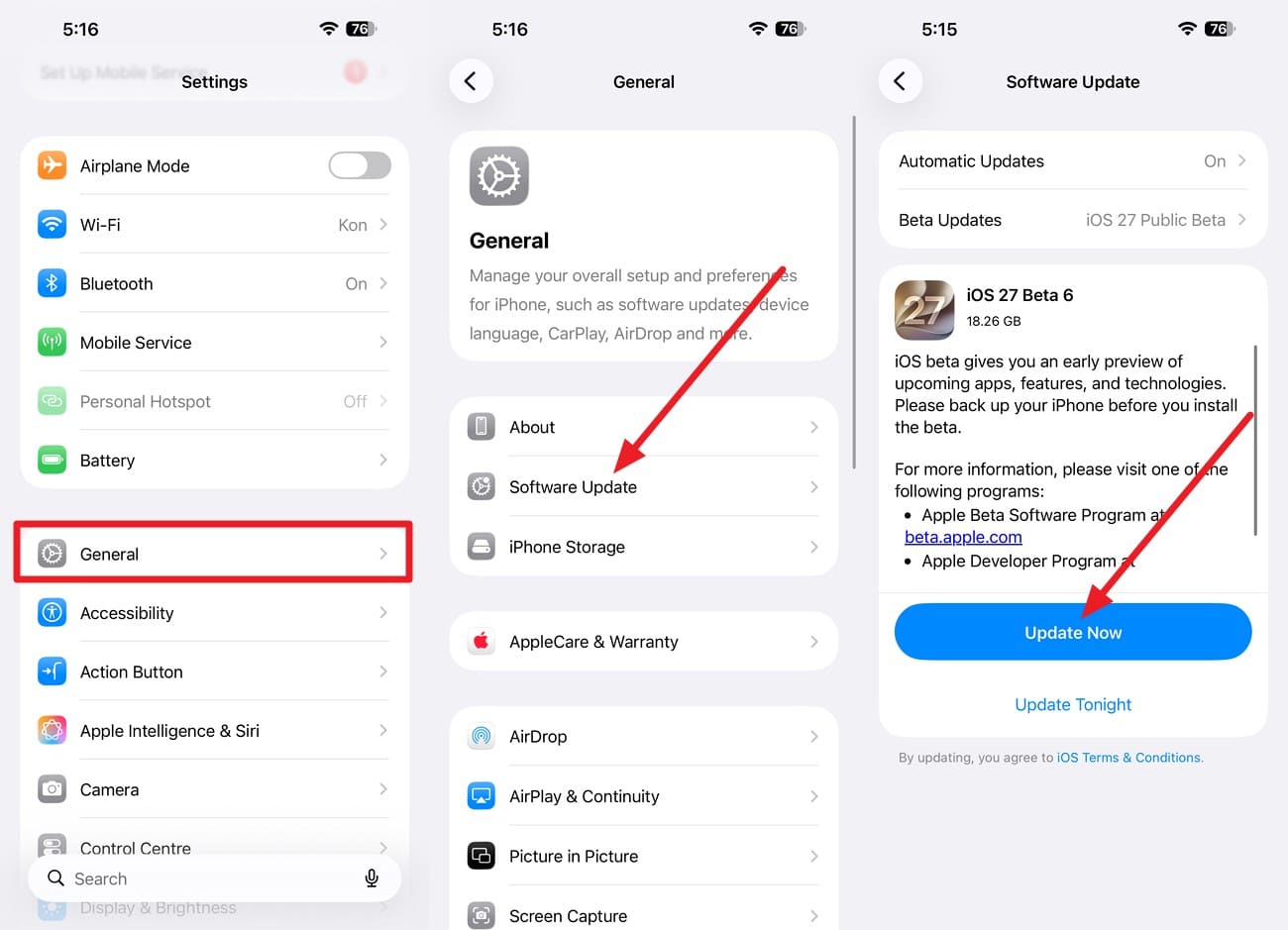
A backup created with a newer iOS version may also prevent restoration during setup. Apple recommends temporarily choosing “Don’t Transfer Apps & Data.” Follow the steps below to use this workaround:
-
Step 1. On the “Transfer Your Apps & Data” interface, choose “Don't Transfer Apps & Data.” Complete setup temporarily and skip the Apple Account, Face ID, and passcode.
-
Step 2. Connect to a strong Wi-Fi network once you are on the Home screen and go to “Settings > General > Software Update > Update Now.”
-
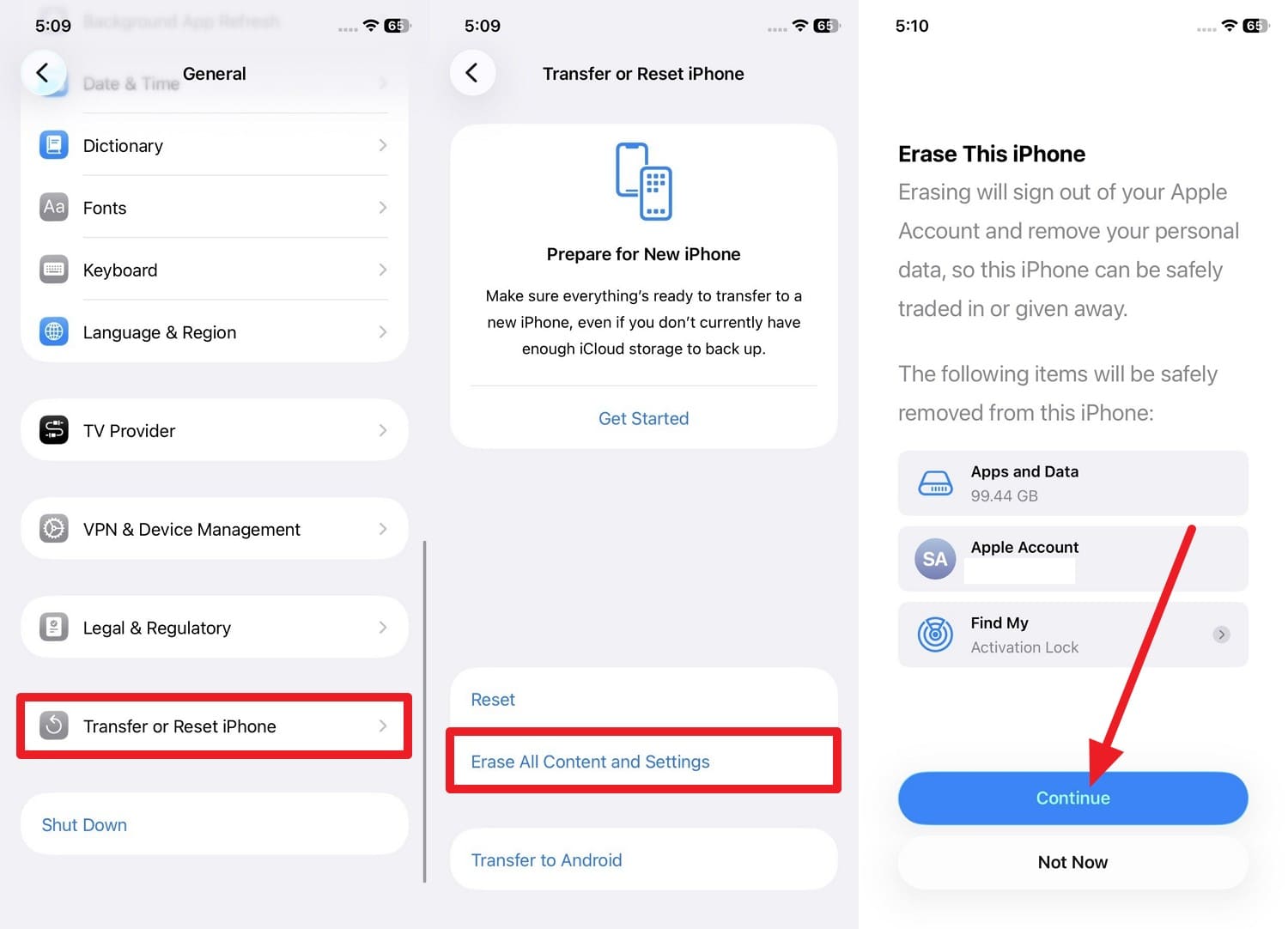
Step 3. Following this, choose “Settings > General > Transfer or Reset iPhone > Erase All Content and Settings > Continue.” After the iPhone restarts, run Setup Assistant again and restore the backup.
Fix 6. Force Restart a Frozen iPhone 18 Pro Setup Screen
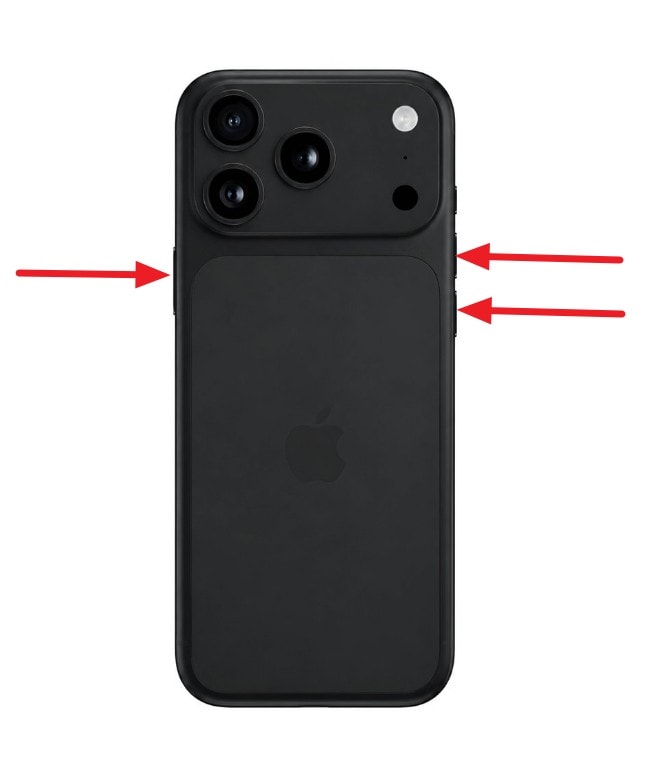
When iPhone 18 Pro setup is taking forever and the screen no longer responds to taps, a force restart may help. However, wait if the screen remains responsive or the setup progress is still changing. For an unresponsive setup screen, follow the steps below to force restart your iPhone 18 Pro:
Instructions. Quickly press and release “Volume Up” and “Volume Down” > Hold the “Side” button until the Apple logo appears. After the iPhone restarts, continue through Setup Assistant and check whether you can move past the previously stuck screen.
Fix 7. Repair iPhone 18 Pro Stuck on Setup with Dr.Fone - System Repair (iOS)
Your iPhone 18 Pro stuck setting up repeatedly at the same stage may indicate an underlying iOS problem. Dr.Fone - System Repair (iOS) provides three repair modes for different situations. Standard Repair addresses common system issues while preserving data. Advanced Repair performs a deeper system repair when Standard Repair fails, but it erases device data.
Anti-Recovery Mode goes further by repairing complex iOS issues while deeply erasing device data to help prevent later recovery. It is mainly intended before selling, trading in, or disposing of an iPhone. Dr.Fone also provides separate one-click tools to enter or exit Recovery Mode and exit DFU Mode. The tool supports 150+ iOS system issues and addresses 200+ iTunes errors during computer-based troubleshooting.
 Fix iOS issues, no data loss.
- One-click repair for all iOS problems.
- Solve recovery mode, Apple logo, black screen, etc.
- Upgrade or downgrade iOS without iTunes
Guide to Fix the iPhone 18 Pro Stuck on Setup Issue via Dr.Fone
To fix system-level problems causing your iPhone 18 Pro setup stuck issue, follow the step-by-step guide below using Dr.Fone - System Repair (iOS):
-
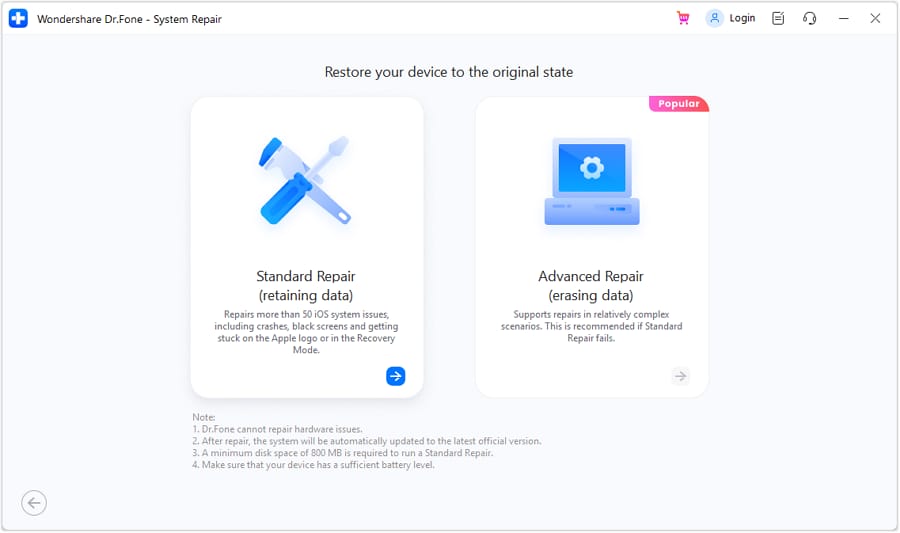
Step 1. Connect the iPhone and Choose Standard Repair
Connect your iPhone 18 Pro to the computer and open the “System Repair” tool > Choose “iOS” > Select “iOS Repair.” Afterward, choose “Standard Repair” to continue.
-
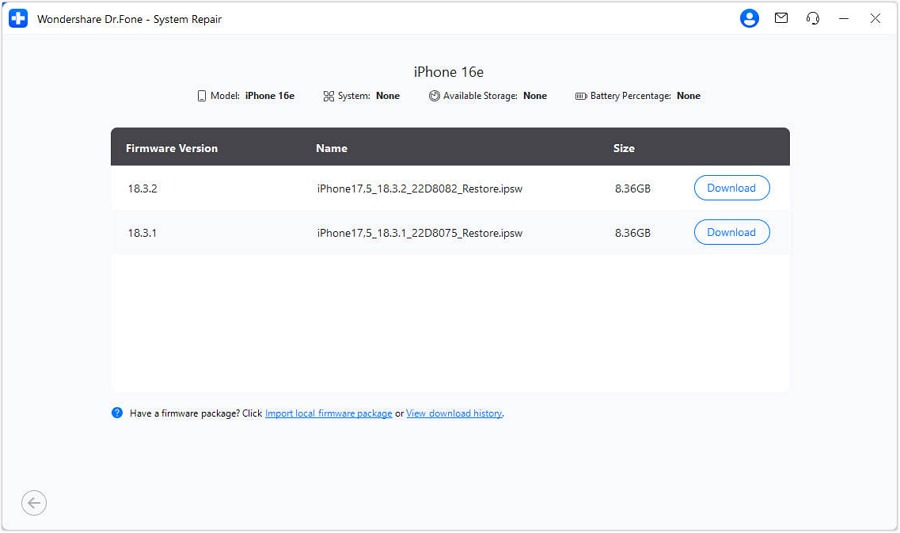
Step 2. Download the iOS Firmware
Press the “Enter Recovery Mode” button and select “Download” after the tool detects the appropriate iOS firmware.
-
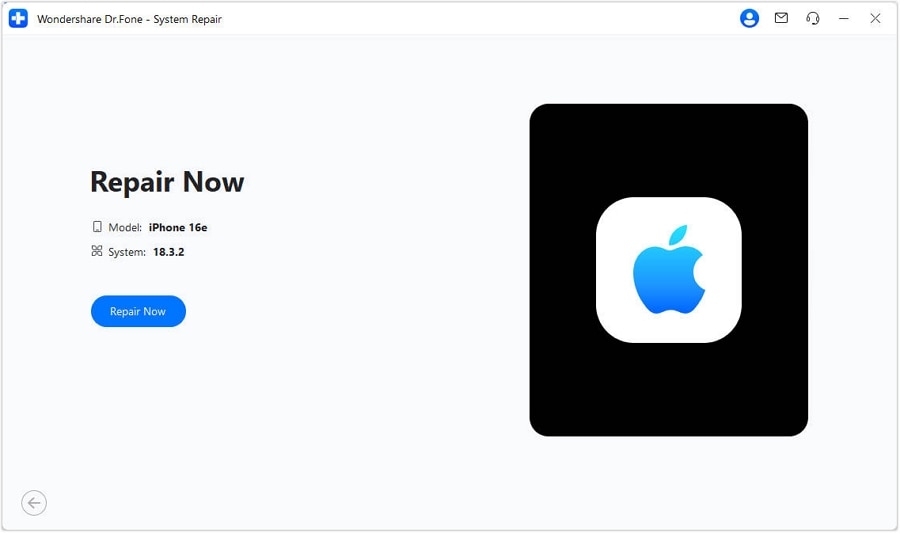
Step 3. Repair the iPhone 18 Pro Setup Issue
Once the firmware download is complete, click “Repair Now” to begin repairing the iOS issues causing your iPhone 18 Pro to get stuck during setup.




Part 3. Should You Wait, Restart, Erase, or Fix an iPhone 18 Pro During Setup?
When iPhone 18 Pro setup is taking forever, avoid restarting or erasing the device while setup is still making progress. The right action depends on whether you need to wait, restart, fix iOS issues, or erase the device. Use the table below to choose the appropriate action based on what happens during setup:
| Setup Situation | Best Action | Why |
|---|---|---|
| Quick Start Progressing | Wait | Transfer is still progressing |
| Quick Start Stopped | Restart both | Re-establishes Quick Start |
| Activation Service Down | Wait | Apple service must recover |
| Carrier Activating eSIM | Wait or skip | Provisioning is carrier-side |
| Sign-In Blocked | Set Up Later | Setup can continue |
| Update Progressing | Wait | Installation is underway |
| Update Repeatedly Fails | Update with computer | Bypasses OTA update issues |
| Assistant Frozen | Force restart | Restarts unresponsive setup |
| Same Stage Fails Again | Fix iOS with Dr.Fone | Repairs possible iOS issues |
| Temporarily Set Up | Erase after update | Setup Assistant must rerun |
| Recovery Mode Needed | Update, not Restore | Update attempts data preservation |
Part 4. Why Is iPhone 18 Pro Setup Taking So Long?
To understand why your iPhone 18 Pro is stuck on activating or setup takes longer than expected, review the common causes in the table below:
| Cause | Why Setup Takes Longer |
|---|---|
| Large Data Transfer | More data requires additional time to transfer between iPhones. |
| Slow Wi-Fi | A weak connection can delay activation, downloads, restores, and verification. |
| iCloud Restore | Apps, photos, and other content may continue downloading after initial setup. |
| Software Update | Downloading, preparing, verifying, and installing an iOS update can extend setup time. |
| Apple Service Issue | An Apple activation service issue can prevent activation from completing. |
| eSIM Activation | Cellular setup may take longer while your carrier activates or provisions the eSIM. |
| Large Photo Library | Transferring a large collection of photos and videos can significantly extend migration time. |
Part 5. Why Does iPhone 18 Pro Setup Keep Freezing or Restarting?
The following points explain why your iPhone 18 Pro is stuck setting up or keeps freezing even after trying the recommended fixes:
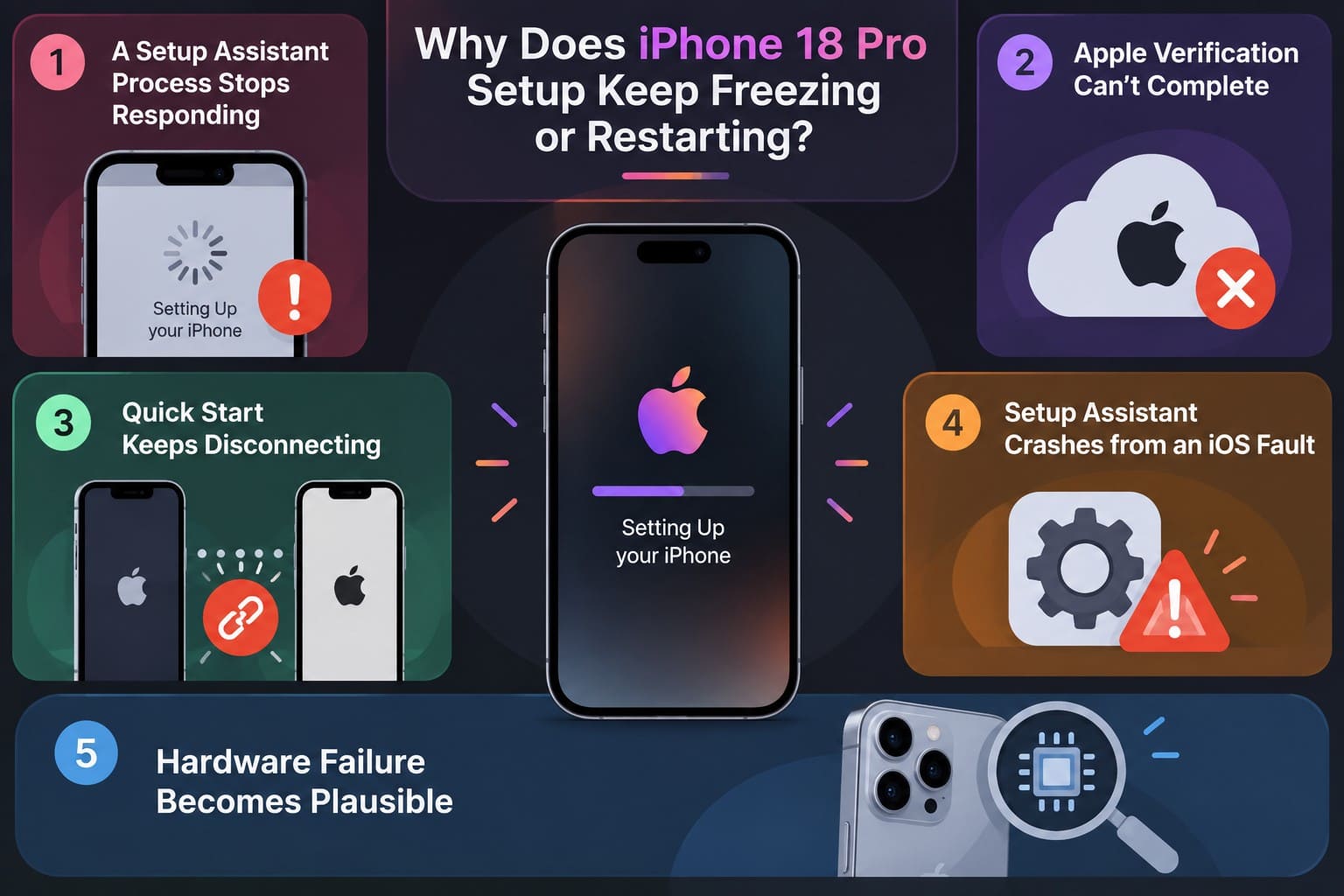
- Setup Assistant Stops Responding: A temporary process failure can freeze the setup screen even while the iPhone remains powered on.
- Apple Verification Cannot Complete: Activation or Apple Account verification may stall when the device cannot complete a request with Apple’s services.
- Quick Start Keeps Disconnecting: Data migration may stop or restart if the two iPhones lose their required connection during transfer.
- An iOS Issue Crashes Setup Assistant: A system-level software problem can repeatedly freeze, crash, or restart Setup Assistant at the same stage.
- Hardware Problems Become More Likely: Hardware should be considered if setup still fails after software recovery and external causes have been ruled out.
Part 6. When Should You Stop Setup Troubleshooting and Get Help?
If your iPhone 18 Pro setup is frozen after trying the recommended fixes, certain signs may indicate that further troubleshooting will not resolve the problem:
| Sign | When to Get Help |
|---|---|
| External Causes Ruled Out | Network, carrier, account, and transfer checks have not resolved the setup problem. |
| Same Stage Keeps Failing | Setup repeatedly freezes or restarts at the same point despite basic troubleshooting. |
| Computer Activation Fails | The iPhone still cannot activate after connecting it to an internet-connected Mac or PC. |
| Recovery Mode Update Fails | Updating through Recovery Mode does not resolve the recurring setup or iOS problem. |
| Repeated Update or Restore Errors | The same error continues appearing during computer-based update or restore attempts. |
| Recent Physical Damage | Setup problems started after the iPhone experienced a drop, impact, or liquid exposure. |
| Software Recovery Does Not Help | Setup still fails after software recovery, making professional diagnosis the appropriate next step. |
Conclusion
When an iPhone 18 Pro gets stuck on a setup issue, first identify the exact frozen stage. Most delays point to Apple servers, your mobile carrier, or your old phone, not a broken device. If crashes continue after checking external connections, iOS software might be the cause. Once you rule out external factors, tools like Dr.Fone - System Repair (iOS) can safely fix software loops and get your phone past the setup screen.
Frequently Asked Questions
-
1. Why is my iPhone 18 Pro stuck on setup?
Your iPhone 18 Pro may get stuck when activation servers, eSIM provisioning, Quick Start, or the network fails to complete the required step. Software update problems or a frozen Setup Assistant can also prevent setup from progressing. -
2. How long should iPhone 18 Pro setup take?
There is no fixed setup time. An iPhone 18 Pro setup taking forever may simply involve a large data transfer, a slow network, or a software update. Check whether the progress bar or estimated transfer time is still changing. -
3. Why is my iPhone 18 Pro stuck on activating?
Your iPhone 18 Pro may get stuck activating because of Apple’s activation service, an unstable network, or a SIM/eSIM issue. Check the iOS Device Activation status, use reliable Wi-Fi, and retry activation after restarting the iPhone. -
4. What should I do if Quick Start is taking forever?
Check whether the transfer estimate is still changing before restarting either iPhone. Large transfers can take longer to complete. Keep both devices nearby and connected to power, or choose iCloud transfer if available. -
5. Can I skip Apple Account or cellular setup and finish it later?
Yes. You can skip some optional Apple Account or cellular setup steps and complete them later. After reaching the Home Screen, open Settings to finish Apple Account sign-in or configure cellular service.
 Add Wondershare Dr.Fone as a preferred source on Google