Resolve common problems and system crashes on both iPhone and Android devices.

 100% Security Verified | No Subscription Required | No Malware

 :
: 
 ChatGPT
 Perplexity
 Gemini
 Claude
 Grok
Grok
Unboxing a brand-new iPhone should be exciting, but a software update stall can stop Setup Assistant before you even reach the Home Screen. An iPhone 18 Pro stuck on the software update screen can interrupt data transfers, backup restores, and initial setup. In some cases, the new iPhone needs a newer iOS version before it can restore your existing backup.
The update may stall while checking, downloading, preparing, verifying, or installing iOS. Identifying the exact stage helps you choose the right solution instead of restarting everything blindly. This practical guide covers 7 practical fixes, including Dr.Fone - System Repair (iOS) for persistent software-related installation failures.

In this article
- Part 1. Where Is the iPhone 18 Pro Software Update Actually Stuck?
- Part 2. Why Does a Brand-New iPhone Need a Software Update During Setup?
- Part 3. 7 Fixes for iPhone 18 Pro Stuck on Software Update During Setup
- Part 4. Why Does Setup Keep Returning to the Software Update Screen?
- Part 5. When Is the Problem Not an iOS System Failure?
- Part 6. What Should You Protect Before Restarting Setup?
- Frequently Asked Questions
Part 1. Where Is the iPhone 18 Pro Software Update Actually Stuck?
If your iPhone 18 Pro software update is stuck, identify the exact stage where it stopped first. The table below shows common signs and the appropriate first action:
| Update Stage | What the iPhone Is Doing | What Counts as a Real Problem | First Action |
|---|---|---|---|
| Checking for Update | Contacting Apple's servers | Repeatedly fails to check | Switch Wi-Fi networks |
| Downloading Update | Downloading the iOS package | Progress repeatedly stops | Check connection stability |
| Preparing Update | Preparing update files | Remains stuck unusually long | Delete and redownload |
| Verifying Update | Verifying the update with Apple | Repeated verification failure | Try a different network |
| Install Now Spinning | Waiting to begin installation | Spinner remains unchanged | Force restart, then retry |
| Apple Logo With Progress | Installing the iOS update | Progress remains unchanged unusually long | Wait before interrupting |
| Back at Software Update | Previous attempt did not complete | Same update repeatedly fails | Try Apple's version workaround |

Part 2. Why Does a Brand-New iPhone Need a Software Update During Setup?
An iPhone 18 Pro iOS update taking forever can result from several setup, software, or connection issues. Here are 5 common reasons behind the delay:

- Factory-Installed iOS is Not the Latest: A brand-new iPhone can ship with an iOS version released before the latest update. Setup may therefore offer or require newer software during configuration.
- Backup Requires Newer iOS: An iCloud or computer backup may have been created on a newer iOS release. Apple requires a compatible iOS version before that backup can be restored.
- Device-to-Device Transfer Needs Compatibility: The old and new iPhones may run different software versions. Updating the destination device can provide the compatibility needed to complete migration successfully.
- Quick Start Triggers the Update During Setup: Quick Start checks requirements while configuring and transferring data to the new iPhone. A necessary software update can therefore appear before migration finishes.
- Apple Provides Updates During Activation and Setup: A newer iOS release may already be available when the iPhone is first activated. Installing it during setup brings the new device onto the current available software.
Part 3. 7 Fixes for iPhone 18 Pro Stuck on Software Update During Setup
Based on these causes, follow the 7 solutions below to fix an iPhone 18 Pro stuck on a software update during setup or after completing the initial setup.
Fix 1. Make Sure the iOS Update Is Actually Stuck
A slow iOS update does not necessarily mean the process has stalled. Apple explains that update time can vary based on the download size and internet speed. Keep the new iPhone connected to power and a stable Wi-Fi network. Watch the progress indicator and allow the update more time if it continues moving.
Fix 2. Fix the Wi-Fi or Update-Server Connection
An iPhone 18 Pro update stuck during setup may show “Unable to Check for Update,” “Unable to Download,” or another connection-related error. These messages can appear when the iPhone cannot reach Apple's update servers. Apple recommends retrying the update and switching networks if the problem continues.
Keep the iPhone connected to a stable Wi-Fi network during setup. Retry the update on the same network first. If it still fails, connect the iPhone to another reliable Wi-Fi network and try again.
Fix 3. Force Restart the iPhone and Retry Setup
For persistent iPhone 18 Pro stuck installing iOS issues, a force restart can help interrupt frozen software loops and reload the device's operating code. The process also resets the temporary working memory (RAM) and system code without erasing personal files. Here's how to perform a force restart:
Instructions. Press and quickly release “Volume Up,” then hold and release the “Volume Down” button. Keep holding the “Side” button and release it when the Apple logo appears. Let Setup Assistant restart, then check whether the software update progresses beyond where it previously stopped.

Fix 4. Finish Setup Without Transferring, Update, Then Restart the Migration
If your backup requires a newer iOS version, Apple recommends temporarily setting up the new iPhone without transferring your data. This allows you to update iOS while keeping the existing backup available for restoration afterward. Follow these steps to resolve the iPhone 18 Pro stuck on software update during setup issue using this workaround:
-
Step 1 Select “Don't Transfer Apps & Data”
On the “Transfer Your Apps & Data” screen, select “Don't Transfer Apps & Data.” Complete the temporary setup while skipping the Apple Account, Face ID, and passcode options.

-
Step 2 Update iOS from Settings
Once you reach the home screen, connect to a strong Wi-Fi network. Go to “Settings > General > Software Update > Update Now” and install the latest iOS update directly.

-
Step 3 Erase Only the New iPhone and Restart Setup
After the update finishes, factory reset the phone by going to “Settings > General > Transfer or Reset iPhone > Erase All Content and Settings > Continue.” After the iPhone restarts at the Hello screen, run Setup Assistant again and select the backup you want to restore.

Fix 5. Delete the Downloaded Update and Download a Fresh Copy
For an iPhone 18 Pro stuck installing iOS after setup, deleting the existing update package and downloading a fresh copy may resolve the issue. Delete the existing iOS update from storage, then download a fresh copy before attempting the installation again. Follow these 2 simple steps to complete the process:
-
Step 1 Delete the Existing Update
Open “Settings > General > iPhone Storage,” select the downloaded “iOS Update,” then tap “Delete Update > Delete.”

-
Step 2 Download the Update Again
Head back to “General > Software Update > Update Now” to get a clean, fresh copy of the update. Keep your phone connected to a strong Wi-Fi network and ensure it has enough battery or is plugged in while the new copy downloads.

Fix 6. Update the New iPhone with a Mac or Windows PC
The iPhone 18 Pro software update stuck issue may require a computer-based update if wireless troubleshooting does not work. Apple supports updating through Finder on a Mac or Apple Devices/iTunes on a Windows PC. This provides another way to download and install the available iOS update. Go through these steps to perform this fix without any errors:
-
Step 1 Access Recovery Mode
Turn off the iPhone 18 Pro and wait about one minute. Hold the “Side” button through “Continue Holding for Recovery…” and release it at “Loading Recovery Options….” Select “Recovery Mode > Restart iPhone,” then quickly connect the iPhone to your Mac or Windows PC using a USB cable.

-
Step 2 Choose Update
Open Finder on a Mac or Apple Devices/iTunes on Windows and select the connected iPhone. Choose “Update” to reinstall iOS without erasing your data. Avoid “Restore,” as this option reinstalls iOS and erases the device.

Fix 7. Repair a Genuine iOS Installation Failure with Dr.Fone - System Repair (iOS)
If the “iPhone 18 Pro is stuck on a software update” problem continues, the issue may be tied to the iOS installation itself. Dr.Fone - System Repair (iOS) provides Standard Repair for software-related update failures without erasing personal data. For more severe system corruption, Advanced Repair offers a deeper repair option but erases the device during the process.
The tool also resolves common connection and update error codes, such as Error 4013 and 1110. It even provides one-click Recovery Mode controls and lets you switch iOS versions or test iOS Beta builds without iTunes, Finder, or jailbreaking. Overall, Dr.Fone supports modern iOS and iPadOS versions across compatible iPhone and iPad models.
 Fix iOS issues, no data loss.
- One-click repair for all iOS problems.
- Solve recovery mode, Apple logo, black screen, etc.
- Upgrade or downgrade iOS without iTunes
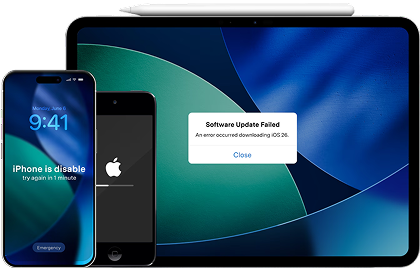
Guide to Fix iOS Installation Failure on iPhone 18 Pro
To repair persistent iOS installation issues with this tool, follow the detailed Dr.Fone - System Repair (iOS) guide below:
-
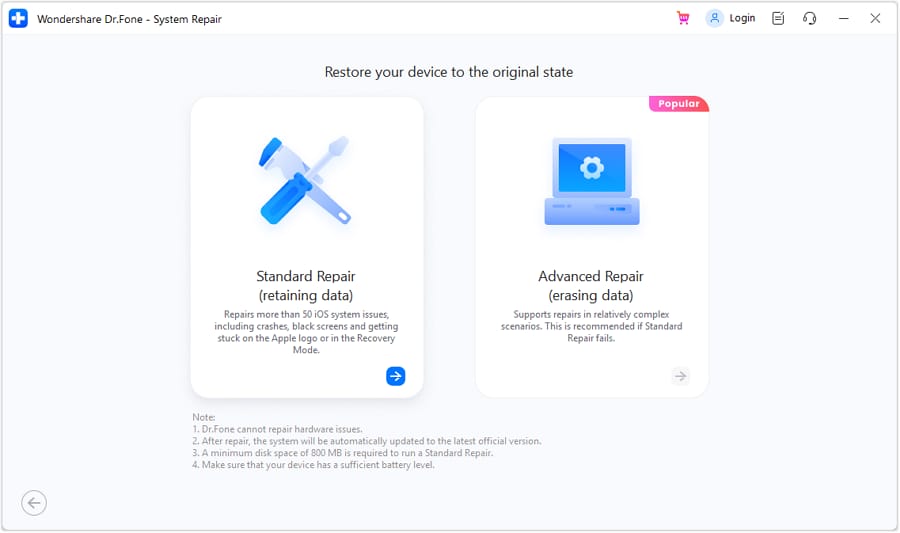
Step 1 Connect the iPhone and Select Standard Repair
Connect the iPhone to your computer, launch Dr.Fone - System Repair (iOS), and select “Standard Repair” mode to continue.
-
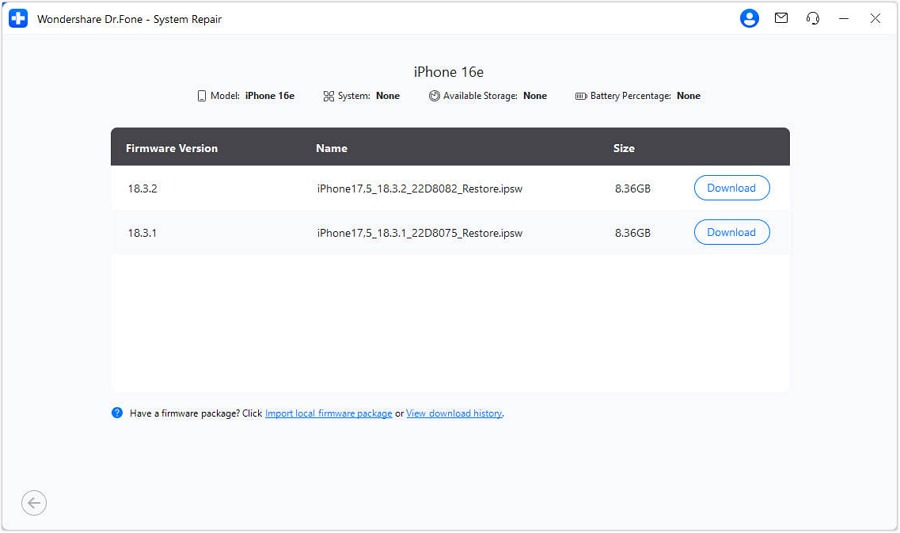
Step 2 Enter Recovery Mode and Download the Firmware
Click “Enter Recovery Mode,” allow Dr.Fone to detect the compatible iOS firmware, then select the required version and click “Download.”
-
Step 3 Start the Standard Repair
Once the firmware download is completed, click “Repair Now” to begin the repair. Keep the iPhone 18 Pro connected until the process completes and the device restarts, then return to Setup Assistant and retry the transfer.
Part 4. Why Does Setup Keep Returning to the Software Update Screen?
When the iPhone 18 Pro is stuck on a software update issue and keeps returning, the recurring behavior can help pinpoint the cause. Use the table below to identify the problem and choose the appropriate next step:
| Repeating Behavior | Most Likely Direction | Best Next Move |
|---|---|---|
| Downloads, Then Returns to Software Update | Update did not install successfully | Delete and redownload |
| Reaches Preparing but Never Installs | Download may be incomplete | Try Fix 5, then computer update |
| Restarts and Requests the Same Update | Required iOS version is not installed | Use Apple's “Don't Transfer” workaround |
| Quick Start Keeps Triggering It | New iPhone needs a compatible iOS version | Update the new iPhone first |
| iCloud Says a Newer iOS Is Required | Backup requires newer iOS | Follow the Fix 4 workaround |
| Computer Update Also Fails | Software, connection, or hardware issue | Diagnose further before repair |
| Update Finishes, Setup Still Blocked | Account, carrier, or activation issue | Check Apple Account and eSIM |
Part 5. When Is the Problem Not an iOS System Failure?
Not every iPhone 18 Pro software update stuck in a loop points to an iOS system failure. The table below helps identify other possible causes and the appropriate action:
| Problem Type | Clue | Correct Direction | Dr.Fone Appropriate? |
|---|---|---|---|
| Weak or Unstable Wi-Fi | Download stalls or resumes | Change Wi-Fi networks | No |
| Server or Verification Error | Update cannot be verified | Retry later or change networks | No |
| Apple Account Sign-In Problem | Setup loops at sign-in | Check Apple Account | No |
| eSIM or Carrier Activation Delay | Update completes, activation stalls | Contact the carrier | No |
| Backup Needs Newer iOS | Newer iOS is explicitly required | Use Fix 4 workaround | No |
| Insufficient Available Storage | Storage warning appears | Free storage or use a computer | No |
| Damaged Update Download | Preparing repeatedly stalls | Delete and redownload | Yes |
| Repeated Installation Failure | Clean update attempts keep failing | Diagnose or repair iOS | Yes |
Part 6. What Should You Protect Before Restarting Setup?
Once the iPhone 18 Pro stuck installing iOS issue is resolved, protect your important data before restarting Setup Assistant. Here are 5 precautions to take first:

- Keep the Old iPhone Intact: Do not erase, reset, or trade in your old iPhone until the transfer finishes. Confirm that all important data reached the new device first.
- Maintain a Recent Backup: Create a fresh iCloud or computer backup of the old iPhone before restarting setup. This provides a recovery copy if the transfer fails.
- Verify Source Data First: Check that important photos, messages, contacts, and files remain accessible on the old iPhone. This ensures your source data is intact before another transfer attempt.
- Erase Only the New iPhone: Apply any required erase-and-restore process only to the new destination iPhone. Avoid erasing the old device while it still holds your original data.
- Avoid Restore Unless Necessary: Recovery Mode Restore reinstalls iOS and erases the iPhone. Try the non-erasing Update option first, and use Restore only when necessary.
Conclusion
To conclude, an iPhone 18 Pro stuck on a software update can often be fixed by identifying the stage causing the problem. Start with network, download, and iOS compatibility fixes before considering system repair. When persistent software-related installation failures prevent setup from completing, Dr.Fone - System Repair (iOS) offers Standard Repair to resolve system issues without erasing data from the new iPhone.




FAQ
-
1. How long should an iPhone software update take during initial setup?
There is no fixed timeframe for an iPhone software update. The duration depends on factors such as the update size and internet speed. Check whether the progress indicator continues moving rather than relying on a specific time limit. -
2. Can you skip a software update while setting up a new iPhone?
Not when the backup requires a newer iOS version. You can select “Don't Transfer Apps & Data” to complete setup temporarily, update the iPhone, then erase it and restart setup to restore the backup. -
3. Why does a new iPhone need an iOS update before transferring data?
A new iPhone may need an iOS update if your backup was created on a newer iOS version. Updating the new iPhone provides the required compatibility so the backup can be restored successfully. -
4. Will force restarting an iPhone during setup erase the old phone's data?
No. Force restarting the new iPhone only reboots that device and does not erase data from the old iPhone or affect the backup used for the transfer. -
5. Why does the iPhone return to Software Update every time Setup restarts?
Setup Assistant may return to Software Update when the required iOS version has not been installed successfully. The new iPhone must complete the update before it can restore a backup that requires newer software.
 Add Wondershare Dr.Fone as a preferred source on Google