Resolve common problems and system crashes on both iPhone and Android devices.

 100% Security Verified | No Subscription Required | No Malware

 :
: 
 ChatGPT
 Perplexity
 Gemini
 Claude
 Grok
Grok
A Cellular Update Failed alert can leave your iPhone unable to make calls, send texts, or use cellular data while Wi-Fi still works. The iPhone cellular update failed warning commonly appears after an iOS update and indicates a cellular update problem.
Apple recommends reinstalling the current iOS version from a computer first. This guide covers that procedure, carrier and SIM/eSIM checks, network troubleshooting, and Dr.Fone - System Repair (iOS). It also explains when persistent iPhone 7 problems may require hardware diagnosis.

In this article
- Part 1. What Does "Cellular Update Failed" Mean on iPhone?
- Part 2. Why Does Cellular Update Failed Happen?
- Part 3. How to Fix Cellular Update Failed on iPhone
- Part 4. iPhone 7 Cellular Update Failed: When Hardware May Be the Real Problem
- Part 5. How to Tell Software Failure from a Cellular Hardware Failure?
- Part 6. What If Cellular Update Failed Is Gone but You Still Have No Service?
- Part 7. When Should You Contact Apple or Get the iPhone Serviced?
- Frequently Asked Questions
Part 1. What Does "Cellular Update Failed" Mean on iPhone?
Apple describes “Cellular Update Failed” as an alert that can appear after an iOS update. For an iPhone cellular update failed issue, Apple recommends reinstalling the current iOS version from a computer first. However, the alert alone does not confirm whether the underlying cause is software or hardware.
| Symptom | Accurate Meaning | Best First Check |
|---|---|---|
| Alert Appears After an iOS Update | Apple documents Cellular Update Failed as an update-related alert | Follow Apple's computer-based reinstall procedure |
| No Service Alongside the Alert | Cellular service is unavailable, but the alert alone does not identify the exact cause | Complete Apple's reinstall first, then troubleshoot No Service if needed |
| Cellular Menu Shows an Error | A cellular update or connectivity problem may still be present | Follow Apple's documented reinstall procedure |
| Calls and Texts Stop Working | Cellular service may be unavailable while the issue persists | Reinstall iOS, then check the carrier and account if service does not return |
| Data Fails While Wi-Fi Works | The issue affects cellular connectivity rather than Wi-Fi | Follow Apple's cellular-update procedure first |
| Alert Returns After Reinstall | The initial software procedure did not resolve the issue | Check the update connection, computer, USB connection, and possible hardware issues |
| iPhone 7 With Persistent No Service | Software and carrier issues should be ruled out before suspecting hardware | Complete software and carrier checks, then seek hardware diagnosis if the issue persists |
Part 2. Why Does Cellular Update Failed Happen?
This section explains the common reasons why you might encounter the “cellular update failed iPhone” alert:

- Interrupted Software Installation: The Cellular Update Failed alert can appear after an iOS update when the cellular update process does not complete properly.
- Outdated Carrier Settings: Outdated carrier settings can affect cellular connectivity and compatibility with your carrier’s network.
- Failed Connection to Apple’s Servers: The reinstall downloads software from Apple, so connection problems can prevent the process from completing.
- Security Software Interference: Firewalls, antivirus software, or other security tools can interfere with communication between the computer and Apple’s update servers.
- Unstable Cable or USB Port: An unreliable cable or USB connection can interrupt communication between the iPhone and computer during the reinstall.
- SIM or eSIM Problems: A damaged SIM or improperly provisioned eSIM can prevent the iPhone from connecting to cellular service.
- Incorrect Network Configuration: Incorrect VPN, APN, or other network settings can interfere with cellular connectivity after the update.
- Modified or Damaged iOS Software: Modified or incomplete iOS software can cause system-level problems that may affect cellular functionality.
- Modem, Baseband, or Logic-Board Failure: Hardware faults remain possible when the alert persists after software, carrier, and SIM/eSIM troubleshooting.
- Known iPhone 7 Fault: Apple confirmed that certain iPhone 7 models could show No Service because of a failed logic-board component.
Part 3. How to Fix Cellular Update Failed on iPhone
Follow these solutions in order to troubleshoot the cellular data update failed alert and restore cellular service on your iPhone:
Fix 1. Reinstall the Current iOS Version with a Mac or Windows PC
Unlike a factory restore, this procedure reinstalls the current iOS version without erasing your existing data. Follow the steps below to troubleshoot the iPhone cellular update failed alert using Apple’s recommended update procedure:
Step 1. Open “iTunes” and connect the iPhone to your computer. Tap “Trust” if prompted, select the “Device” icon, open “Summary,” and press “Update.”

Step 2. Press the “Update” button again and wait for the process to finish.

Fix 2. Check the Computer, USB Connection, and Apple Update Connection
The reinstall requires a stable connection between your iPhone, computer, and Apple’s servers. If it fails, update macOS or install the latest “Apple Devices” app or “iTunes” on Windows. Connect the iPhone directly using a compatible USB cable, then try another cable, USB port, or computer if the “cellular update failed iPhone” issue persists.
Fix 3. Check for a Carrier Settings Update
Carrier settings updates can improve cellular connectivity and add support for network features such as 5G or Wi-Fi Calling. Checking for an available update helps rule out carrier configuration issues when cellular service is unavailable. Follow these steps to update the carrier settings and troubleshoot the cellular data update failed alert:
Instructions. Connect your iPhone to a Wi-Fi or cellular network and open “Settings > General > About.” If a carrier settings update is available, an installation prompt will appear. Tap “Update” to install it.

Fix 4. Restart the iPhone and Refresh the Cellular Connection
Restarting the iPhone and refreshing its cellular connection can clear temporary software issues and help the device reconnect to the cellular network. These are useful secondary checks but do not replace Apple’s computer-based procedure for an iPhone Cellular Update Failed alert. Follow these steps to refresh the connection and restart your iPhone:
Refresh the Cellular Connection with Airplane Mode
Instructions. Open “Control Center” and tap the “Airplane Mode” icon to turn it on. Wait about 15 seconds, then tap the icon again to turn “Airplane Mode” off.

Restart Your iPhone
Step 1. Press and hold the “Side + Volume Up” buttons, then drag the “Slide to Power Off” slider to the right.

Step 2. Wait 30 seconds for it to shut down completely, then press the "Power" button to power on.

Fix 5. Check the SIM, eSIM, and Carrier Account
If cellular service remains unavailable after software checks, confirm that your iPhone has an active cellular line. Depending on the model and region, it may use a physical SIM, eSIM, or Dual SIM setup. Checking the line, SIM/eSIM, and carrier account can help identify activation or provisioning issues affecting cellular connectivity.
Check Whether the Cellular Line Is Turned On
Instructions. Open “Settings > Cellular” and select the cellular line you want to use. If it is disabled, tap “Turn On This Line,” then check whether cellular service returns.

- For a Physical SIM Card: Remove and reinsert the physical SIM. Check it for visible damage and make sure it sits correctly in the SIM tray.
- For an eSIM: If the eSIM or cellular line does not appear, contact your carrier to confirm activation or set up the eSIM again.
- Check the Carrier Account: Ask your carrier to confirm the account is active, the device is not blocked from cellular service, and no local outage affects service.
Fix 6. Repair a Software-Related iOS Failure with Dr.Fone - System Repair (iOS)
If Apple’s recommended reinstall completes successfully but the cellular data update failed alert still returns, the problem may involve a deeper iOS software issue. In this situation, Dr.Fone - System Repair (iOS) provides another repair option by downloading firmware that matches the connected iPhone. Its Standard Mode repairs supported iOS system issues without erasing existing user data.
Beyond system repair, the tool can fix failed iOS updates and common iTunes errors like 1110, 4013, 4014, and 2001. It also provides one-click options to enter or exit Recovery Mode and exit DFU Mode without button combinations. For deeper system problems, Advanced Mode performs a more extensive repair but erases data. Anti-Recovery Mode serves a different purpose by securely wiping data before selling or giving away the device.
Guide to Fix Software-Related iOS Failure with Dr.Fone - System Repair
Follow this detailed guide to repair software-related issues that may trigger the “cellular data update failed” alert:
 Fix iOS issues, no data loss.
- One-click repair for all iOS problems.
- Solve recovery mode, Apple logo, black screen, etc.
- Upgrade or downgrade iOS without iTunes
-
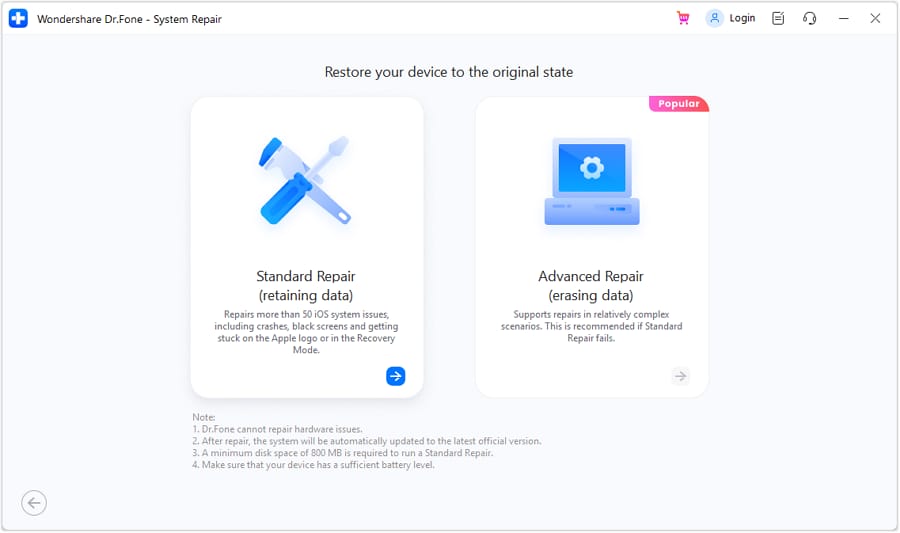
Step 1. Connect the iPhone and Open System Repair
Connect your iPhone to the computer and launch Dr.Fone. Open “System Repair,” select “iPhone,” and choose “Standard Repair” to proceed.
-
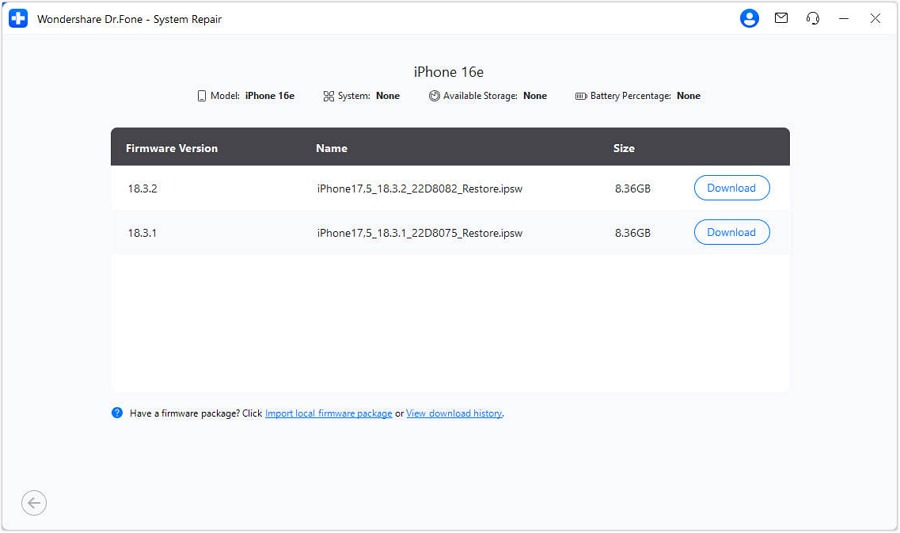
Step 2. Enter Recovery Mode and Download the Firmware
Follow the on-screen instructions to put your iPhone into “Recovery Mode.” Select the matching iOS firmware and click “Download” to proceed.
-
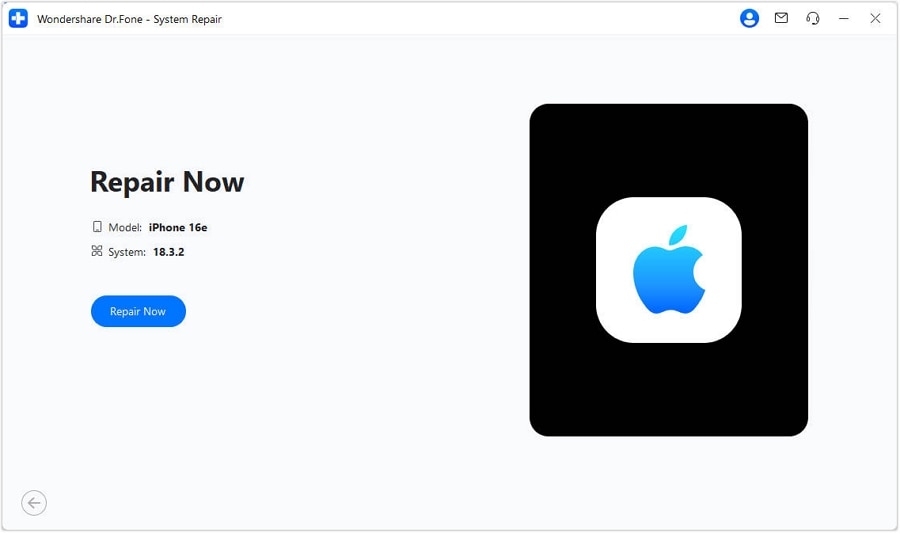
Step 3. Download the Firmware and Run the Repair
Wait for the firmware download to complete, then click “Repair Now” to begin repairing the iOS system issues.




Fix 7. Reset Network Settings
If cellular service still does not work after checking the software, carrier, and SIM/eSIM, resetting network settings can help rule out configuration problems. Apple recommends this step for persistent connectivity issues. It removes saved Wi-Fi networks and passwords while resetting cellular, VPN, and APN settings. Follow these steps to troubleshoot cellular update failed iPhone connectivity issues:
Step 1. Open “Settings > General > Transfer or Reset iPhone > Reset > Reset Network Settings.”

Step 2. Enter the passcode twice and tap “Reset Network Settings” to confirm.

Part 4. iPhone 7 Cellular Update Failed: When Hardware May Be the Real Problem
Apple confirmed that some iPhone 7 units showed No Service because of a failed logic-board component, even in areas with cellular coverage. However, not every iPhone 7 cellular update failure case indicates hardware failure. If the issue persists after software and carrier checks, consider having the iPhone inspected for hardware problems.
| iPhone 7 Clue | Software More Likely | Hardware More Likely | Recommended Action |
|---|---|---|---|
| Appeared Right After an Update | Yes | Possible | Run Apple’s reinstall first |
| Reinstall Restores Service | Yes | No | Keep iOS updated and monitor service |
| Returns After a Clean Reinstall | Possible | Possible | Complete carrier checks, then seek diagnosis |
| Settings Keep Showing an Error | Possible | Possible | Complete software and carrier checks |
| No Service With Working SIMs | Possible | Possible | Check carrier provisioning, then seek diagnosis |
| Carrier Confirms Everything Is Fine | Possible | More Likely | Complete software checks, then seek diagnosis |
| Software Repair Cannot Restore Cellular | Less Likely | More Likely | Seek hardware diagnosis |
| Impact, Liquid, or Board Repair History | Less Likely | More Likely | Mention the history during diagnosis |

Part 5. How to Tell Software Failure from a Cellular Hardware Failure?
When the iPhone cellular update failed alert appears, these signs can help you determine whether the issue is more likely software- or hardware-related:
| What Happens | More Likely Cause | What to Do Next |
|---|---|---|
| Service Returns After Reinstalling iOS | Software issue | Monitor cellular service |
| Service Returns After Carrier/Network Changes | Carrier or configuration issue | Keep the working settings |
| Changing the SIM/eSIM Changes the Problem | SIM/eSIM or carrier issue | Contact the carrier if needed |
| Problem Survives iOS Reinstall and Carrier Checks | Hardware becomes more plausible | Request hardware diagnostics |
| Cellular Line or SIM Remains Undetected | SIM, carrier, or hardware issue | Complete carrier checks, then seek service |
| Cellular Failure Persists After All Checks | Possible hardware failure | Contact Apple or an authorized provider |
Part 6. What If Cellular Update Failed Is Gone but You Still Have No Service?
Fixing the cellular data update failed alert does not always restore cellular service. If the alert disappears but you still have no service, try these checks:

- Read the Status Bar First: SOS means emergency service may still be available, while No Service or Searching indicates no cellular network connection.
- Install Any Carrier Settings Update: Check for an available carrier settings update, which can improve cellular connectivity and network compatibility.
- Confirm the Line or eSIM is Enabled: Make sure your cellular line is turned on, especially if it was disabled during troubleshooting.
- Check the Physical SIM: If your iPhone uses a physical SIM, remove and reinsert it, then check the SIM and tray for damage.
- Verify the Account and Coverage: Ask your carrier to confirm your account is active and check for outages, coverage problems, or provisioning issues.
- Reset Network Settings: If cellular service remains unavailable after carrier checks, reset network settings to rule out an incorrect network configuration.
Part 7. When Should You Contact Apple or Get the iPhone Serviced?
A broken modem, antenna, or logic board cannot be fixed through repeated software reinstalls. If the cellular update failed iPhone alert persists after Apple’s reinstall and carrier checks, hardware diagnosis becomes reasonable.
The same applies when the carrier confirms the account and network are working, but cellular service remains unavailable. For an iPhone 7, persistent failure deserves hardware inspection because certain models had a documented logic-board issue. Past drops, liquid exposure, or repairs also strengthen the case for diagnosis. If Dr.Fone’s Standard Repair cannot resolve the issue, contact Apple or an authorized service provider.
Conclusion
Follow Apple’s recommended troubleshooting order for the iPhone cellular update failed alert. Start with a computer-based iOS reinstall, then check carrier settings, the SIM/eSIM, and network configuration. Dr.Fone - System Repair (iOS) provides another repair option if the issue remains software-related. Persistent cellular failure after software and carrier checks may indicate hardware trouble, so contact Apple or an authorized provider for diagnosis.
Frequently Asked Questions
-
1. What does Cellular Update Failed mean on an iPhone?
It means iOS detected a problem with the cellular update after an iOS update. Apple recommends reinstalling the current iOS version from a computer, but the alert alone does not identify the underlying cause. -
2. Why does my iPhone 7 keep saying Cellular Update Failed?
Software problems can trigger the alert, while some iPhone 7 models had a documented logic-board fault causing No Service. If software and carrier checks fail, consider hardware diagnosis. -
3. Can a SIM card cause Cellular Update Failed?
A damaged SIM or unprovisioned eSIM can cause cellular service problems, but it does not directly confirm a Cellular Update Failed cause. Reseat the SIM or contact your carrier to check SIM/eSIM provisioning. -
4. Does Cellular Update Failed mean the baseband is damaged?
Not necessarily. The alert alone does not confirm baseband damage. Hardware becomes more plausible if the issue persists after Apple’s iOS reinstall, carrier checks, and SIM/eSIM troubleshooting.
 Add Wondershare Dr.Fone as a preferred source on Google