Resolve common problems and system crashes on both iPhone and Android devices.


 100% Security Verified | No Subscription Required | No Malware

 :

 ChatGPT
 Perplexity
 Gemini
 Claude
 Grok
An Android white screen can leave you staring at a blank app or an unreadable phone while calls still come through. When you cannot see your files or use the usual controls, it can be difficult to know what to try. Checking whether Home and Settings still work helps you choose the right starting point: troubleshoot one app, or move on to phone-wide checks.
In this article
Android White Screen: One App or the Whole Phone?
“Android white screen of death” describes a symptom, not one confirmed fault. Check what remains visible and usable.
One App Is White, but Home and Settings Work
Return to Home and open another app. If those screens work, start with the affected app rather than reinstalling the phone's firmware. Note whether the blank area is the entire app, a login page, or one website. A web-based app also needs a working internet connection.
The Whole Screen Is White, Even During Startup
Record whether a logo appears before the white screen, whether the phone rings, and whether the problem followed a drop or liquid exposure. Sounds and vibration show some activity, but do not establish the cause or guarantee access to stored files.
| What still works? | Where to start | When to change direction |
|---|---|---|
| Home and Settings work; one app is white | App update and cache checks | Contact its developer if other apps remain normal |
| Display returns after restarting | Back up, then test Safe Mode | Seek inspection if the white screen keeps returning |
| A Samsung screen intermittently turns white or green | Compare available display settings while readable | Treat improvement as temporary if symptoms recur |
| Screen stays white after damage or through startup | Manufacturer or display service | Avoid blind menus and repeated erasing attempts |
How to Fix an Android App White Screen
Use these checks only while Home and Settings remain usable. If several unrelated screens become white, move to the phone-wide checks.
Force Stop and Update the App
Force stopping closes the app; any unsaved work in the current session may be lost.
-
1. Open Settings > Apps, select the affected app, and tap Force stop. Confirm if asked. Labels vary by manufacturer.
-
2. Open the app again and check the same page. For online content, confirm that another app or website can connect.
-
3. If it remains white, open Play Store > profile icon > Manage apps & device > Updates available. Install an available update for that app.
-
4. Reopen it. If only this app is still affected, try its cache next.
Clear Cache Before Considering Storage or Reinstallation
Clear cache removes temporary app files. Clear storage/Clear data resets the app's local data and can remove settings, sign-ins, downloads, and other unsynced content. They are different choices.
-
1. Open the affected app's information page. On Samsung, use Settings > Apps > [app] > Storage; other Android phones may say Storage & cache.
-
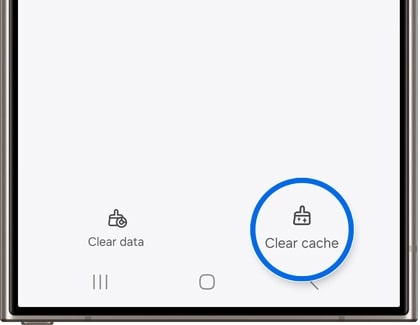
2. Tap Clear cache, then reopen the app and test it.
-
3. Before trying Clear storage/Clear data or uninstalling, confirm that important app content is synced or backed up and that you can sign in again. Stop if it contains irreplaceable local files.
-
4. If you accept the loss, reset that app's data using the actual device control. On Samsung, tap Clear data > Delete. Alternatively, uninstall and reinstall the app from its original store.
-
5. Test again. If other apps work normally, contact the app developer rather than resetting the entire phone.
Check Internal Storage and Relevant App Updates
If the phone reports low storage, check its internal space before deleting anything.
-
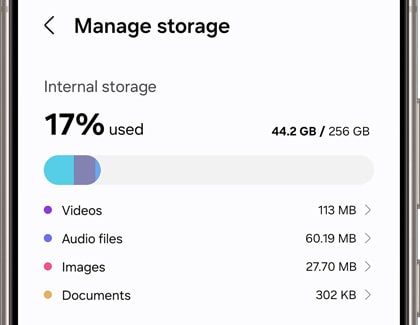
1. Open the device's Storage settings. On supported Samsung versions, use Settings > Device care > Storage.
-
2. Review large downloads or files you no longer need. Delete only items you can discard or have a readable copy of elsewhere, then reopen the affected app.
-
3. If the white area is an embedded web or login page, check for an available stable Android System WebView update from Google in the Play Store. Players in a Guild Wars discussion reported improvement after updating it; that does not make WebView the cause of every white screen.
-
4. For a Google Chrome white screen on Android, update Chrome itself and test again. Also check an available system update through your phone's System update/Software update menu when the phone is usable. Let installation finish before restarting.
Do not switch to experimental WebView builds or uninstall core services for this walkthrough. If there is no applicable update or storage pressure, return to the app-versus-phone distinction instead of deleting more data.
How to Fix a White Screen on an Android Phone
If the phone is unusually hot or shows a cooling-down warning, stop using it, disconnect the charger, and let it cool naturally before testing. Do not heat it or put it in a refrigerator to change the display.
Restart Your Android Phone Using the Correct Buttons
There is no single button combination for every Android model.
-
1. Identify the phone's brand. Google's general guidance for many Android phones is to hold Power for about 30 seconds, or until the phone restarts.
-
2. For a Samsung Galaxy, use Side/Power + Volume Down together for at least seven seconds. Release when the Samsung logo appears or the phone vibrates.
-
3. If your model uses different controls or does not respond, use its manufacturer-specific instructions rather than combining Samsung, Home, and Bixby sequences.
-
4. After startup, check whether Home and Settings are visible. Back up important files if access returns. A screen that remains white needs the service decision below.
Test an Android White Screen in Safe Mode
Safe Mode temporarily disables downloaded apps. Use your manufacturer's entry procedure; the following is a Samsung example for a phone that can boot.
-
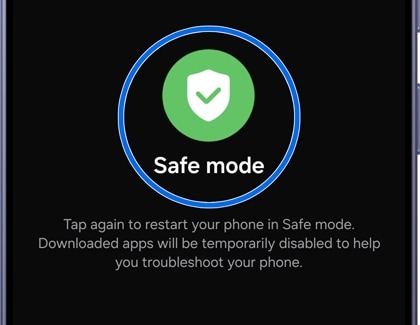
1. Hold Side + Volume Down until the power menu appears, then release. Touch and hold Power off, then tap Safe mode.
-
2. Alternatively, start with the Samsung turned off. Turn it on, then hold Volume Down when the Samsung logo appears until startup finishes.
-
3. Confirm the Safe mode label near the bottom of the screen and check whether the white display returns. If you cannot read the screen or confirm the mode, stop rather than tapping blindly.
-
4. Restart normally to exit. If Safe Mode helped, save important app data, then remove recently installed or updated apps one at a time and retest.
If the white screen persists in Safe Mode, arrange an assessment. Do not treat that result alone as proof that a particular display component failed.
Samsung White Screen That Comes and Goes: Compare Display Settings
In a Galaxy S20 discussion, a user suggested changing resolution and refresh rate once the display became readable again, while acknowledging that the white or green screen could recur. This is a limited comparison for a usable Samsung, not a repair for a permanently white display.
-
1. Record the original options under Settings > Display. Skip menus your model does not offer.
-
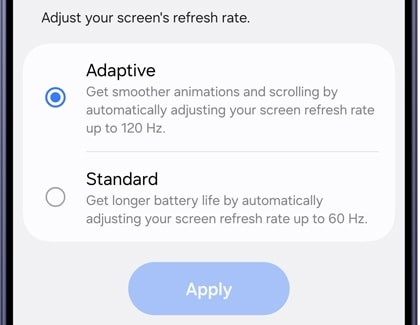
2. Open Motion smoothness, choose another available option, such as Standard, and tap Apply if shown. Check the same screen.
-
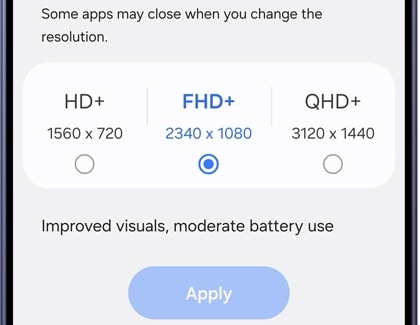
3. Restore the original refresh setting before separately testing another available Screen resolution option.
-
4. Restore unsuccessful changes. If the screen improves briefly, back up while it is usable and arrange inspection if the white screen returns.
Samsung White Screen: Use a Visible Recovery Cache Option
Try this only if the Samsung is already in a readable Recovery menu, is not installing an update, and explicitly offers Wipe cache partition. Otherwise skip it. Do not choose Wipe data/factory reset, which erases personal data. Recovery cache clearing is separate from clearing one app's cache.
-
1. Use the volume keys to highlight Wipe cache partition, then press Power to select it.
-
2. Read any confirmation carefully before approving the cache operation.
-
3. When it finishes, select Reboot system now and check the display.
Do not repeat this indefinitely or guess a Recovery-entry sequence on an unreadable phone. Persistent white screens belong on the service path.
Dr.Fone System Repair for an Android White Screen
Dr.Fone - System Repair (Android) guides supported devices through firmware selection, preparation, and repair. It keeps firmware preparation and repair in one desktop workflow for a supported phone with a suspected software fault.
Check the Brand, Model, and Data Consequences
Android System Repair runs on Windows, and full repair requires paid access. Confirm the exact model and firmware support. The Samsung workflow erases device data. The supported Xiaomi/Redmi/POCO workflow is designed to preserve data without root; that design is not a guarantee of successful repair or data retention.
| Route | Appropriate starting point | Data decision |
|---|---|---|
| App checks | Only one app fails | Cache first; app data reset or uninstall can remove local content |
| Dr.Fone Samsung repair | Supported Samsung; suspected software fault | Accept device-data erasure before proceeding |
| Dr.Fone Xiaomi/Redmi/POCO repair | Exact supported model and firmware | Data-preserving design; back up when possible |
| Display service | Damage or persistent phone-wide white display | Ask about access and data handling before service |
Prepare a suitable USB cable and follow the matching branch. The common opening steps are:
 Fix Android instantly – no skills needed.
- Solve boot loop, black screen, won’t turn on, etc.
- High success rate for all system issues.
- User-friendly interface with easy-to-follow steps.
-
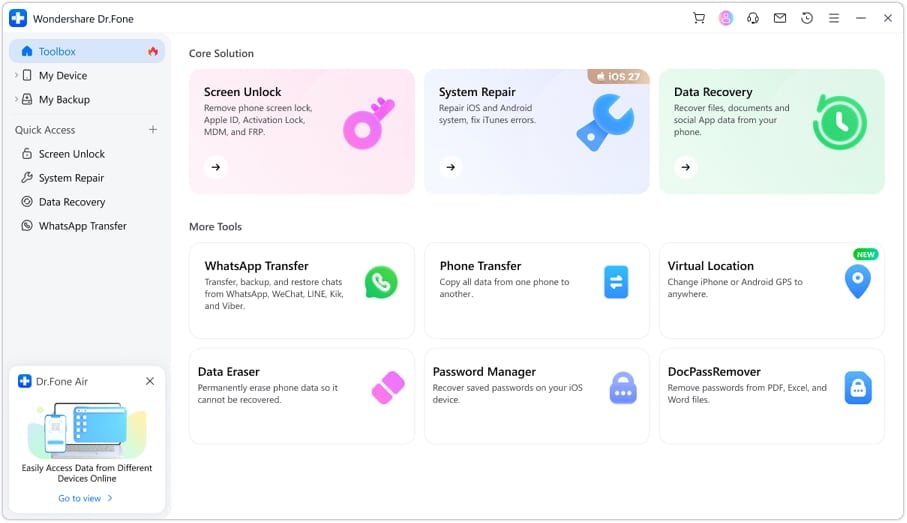
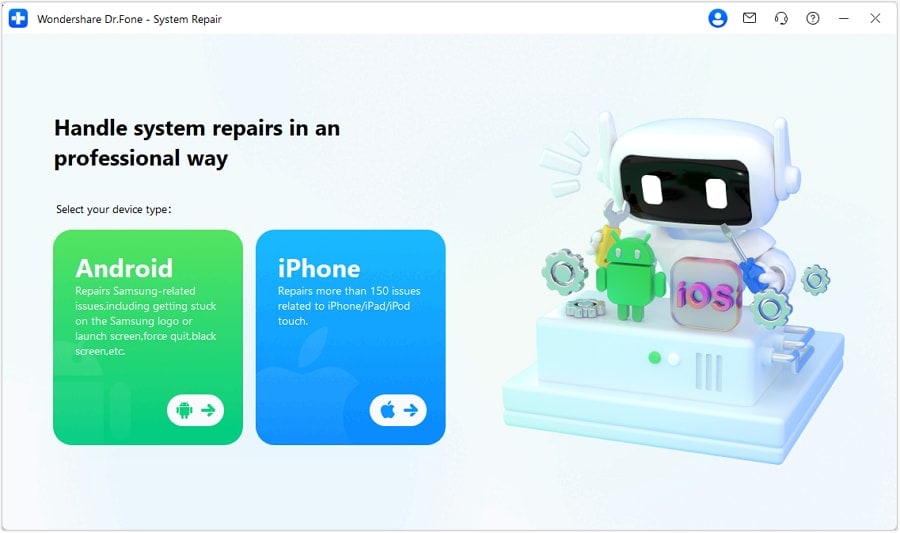
1. Connect the phone to your Windows PC, open Dr.Fone, and choose System Repair.
-
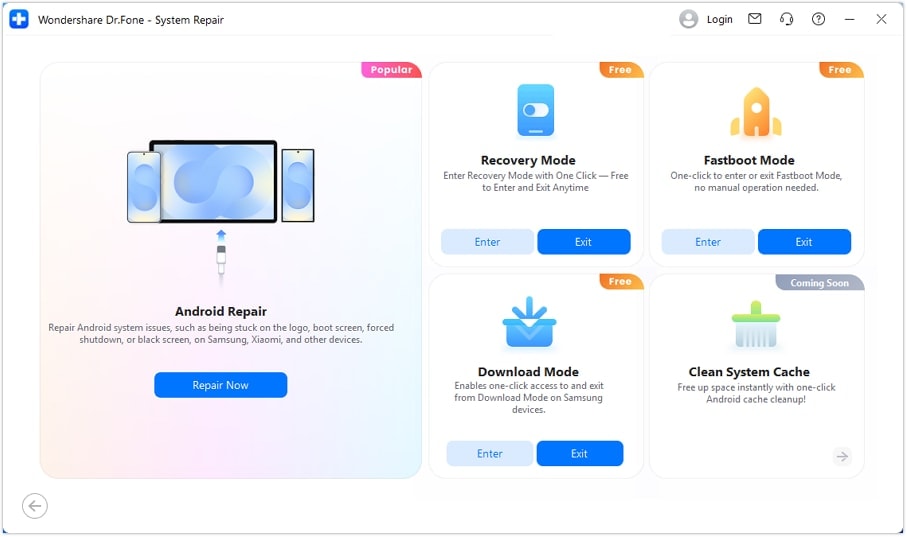
2. Select Android, then Android Repair > Repair Now.
-
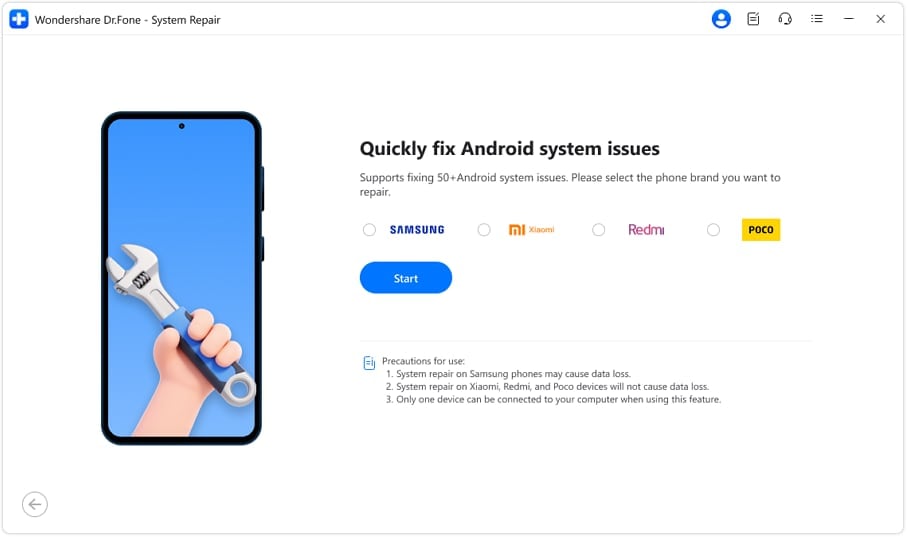
3. Select your phone's brand. Continue with the appropriate workflow below.




Samsung White Screen Repair: Follow the Data-Erasing Workflow
Before continuing, check your backup or decide whether you accept losing unprotected files. “Samsung white screen of death” does not establish that firmware repair will fix the display.
- Fix Android instantly – no skills needed.
- Solve boot loop, black screen, won’t turn on, etc.
- High success rate for all system issues.
- User-friendly interface with easy-to-follow steps.
-
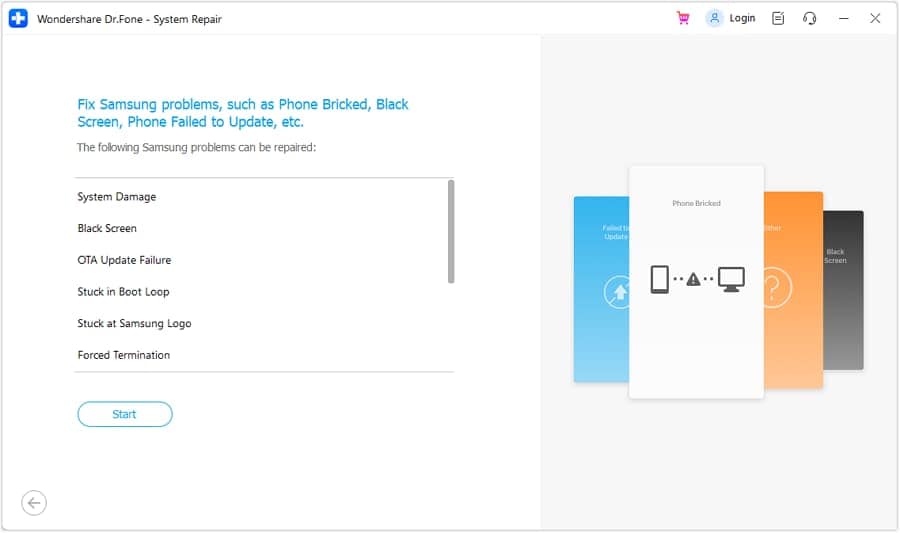
1. With Samsung selected, click Start to open its repair workflow, then Start on the Samsung repair screen.
-
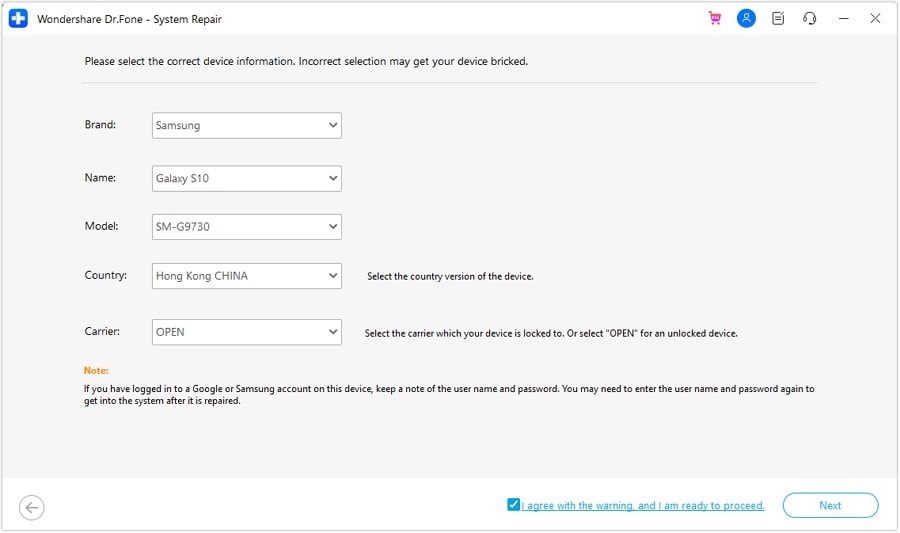
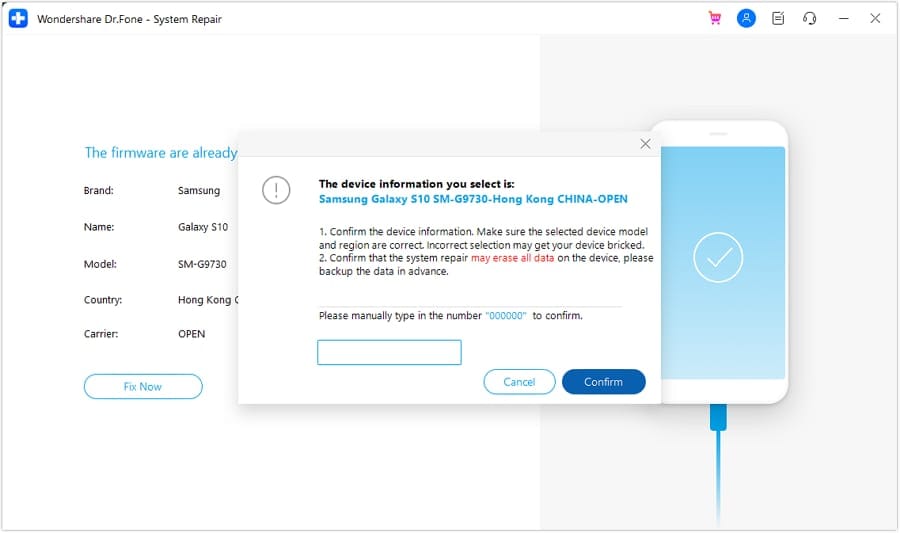
2. Check Name, Model, Country, and Carrier against your device. Accept the applicable warning only when ready, then click Next. Stop if no exact supported match exists.
-
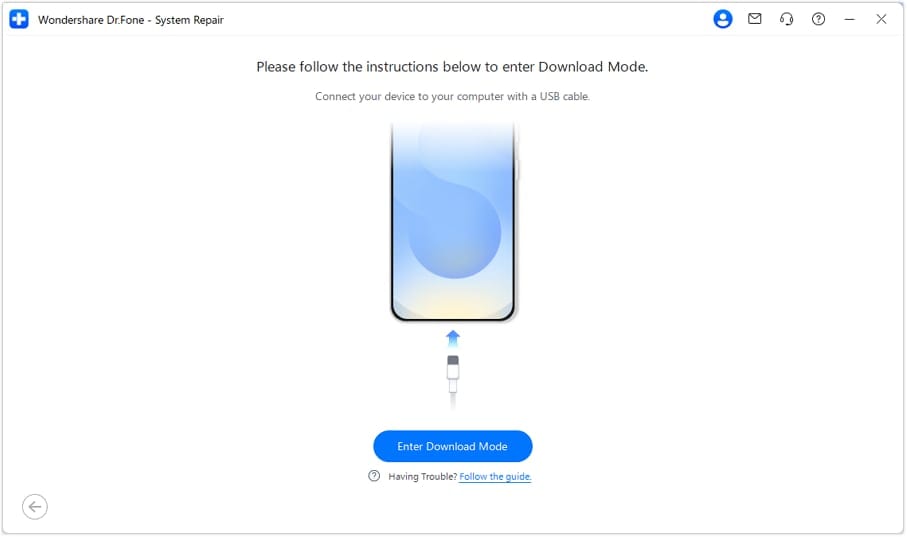
3. If the connected Samsung is already unlocked, click Enter Download Mode. If this route is unavailable, verify the software's instructions for your exact model; do not borrow another Galaxy's button sequence.
-
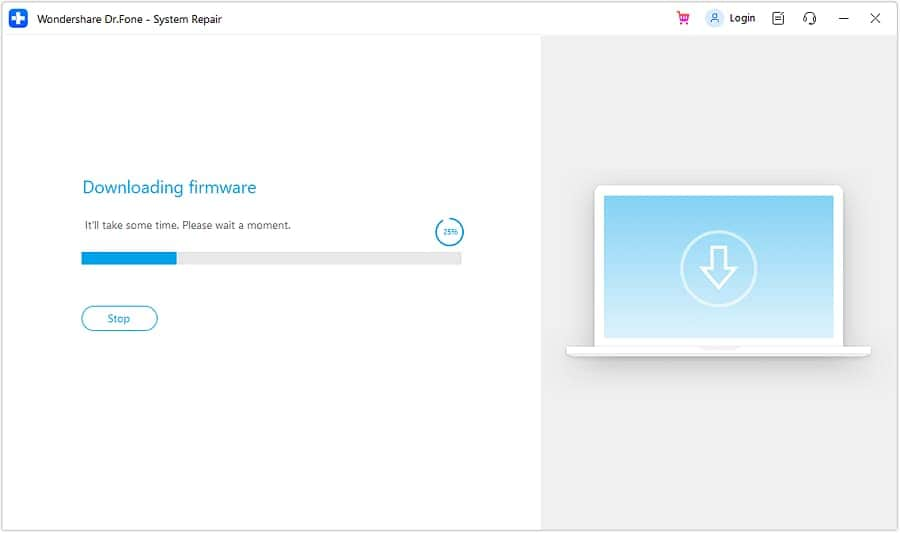
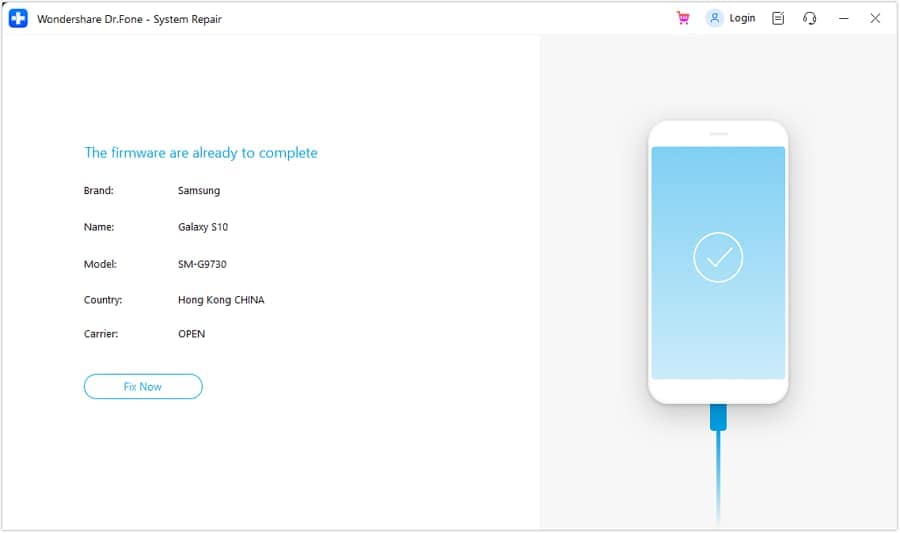
4. Wait for the matching firmware to download and be verified. Check the displayed information, then click Fix Now.
-
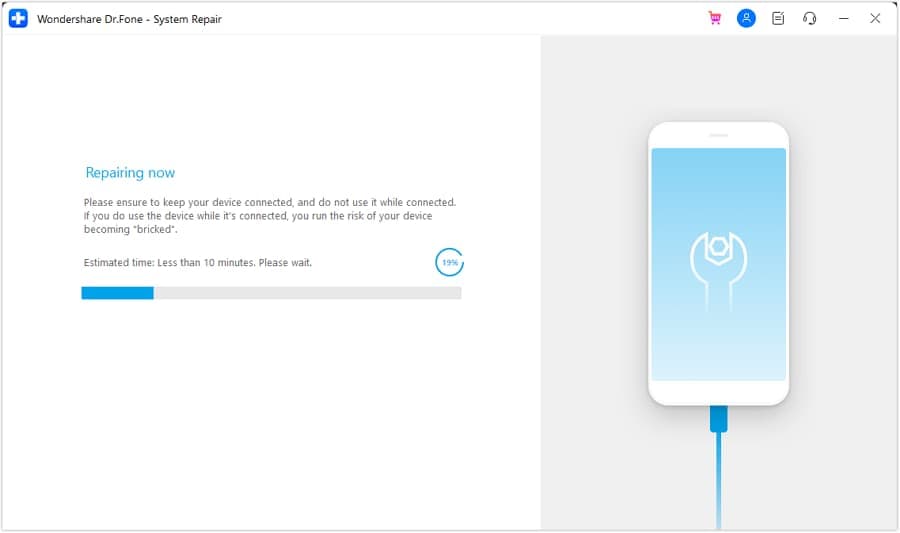
5. Read the data-erasure confirmation. Type 000000, click Confirm, and keep the phone connected throughout repair.
-
6. When repair completes and the phone starts, click Done and check the actual screen. If it remains white, seek inspection rather than repeatedly erasing it.
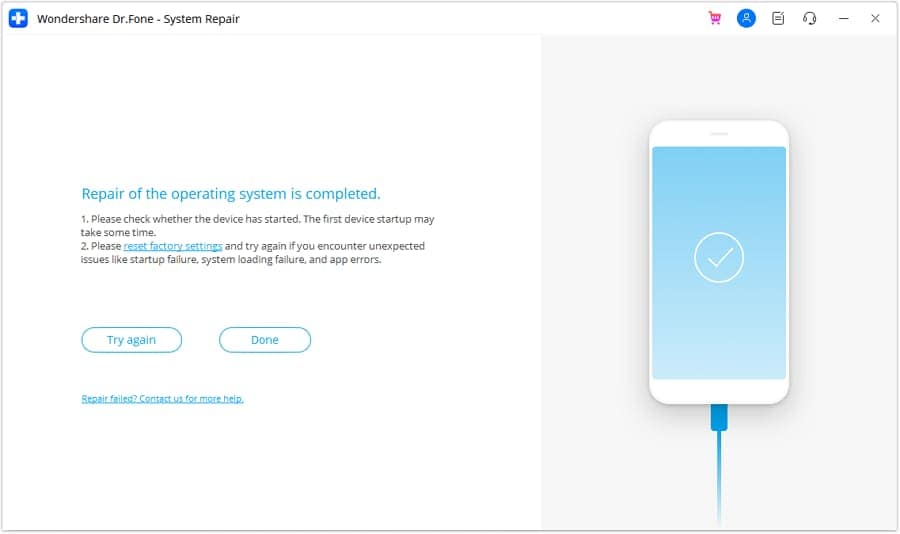
The Samsung firmware repair workflow provides the matching product instructions.
Xiaomi, Redmi, or POCO: Follow the Matching Firmware Workflow
Use this separate route only for a supported Xiaomi, Redmi, or POCO device. Back up first if the phone is accessible.
- Fix Android instantly – no skills needed.
- Solve boot loop, black screen, won’t turn on, etc.
- High success rate for all system issues.
- User-friendly interface with easy-to-follow steps.
-
1. From the shared brand screen, select Xiaomi, Redmi, or POCO, as applicable, and click Start.
-
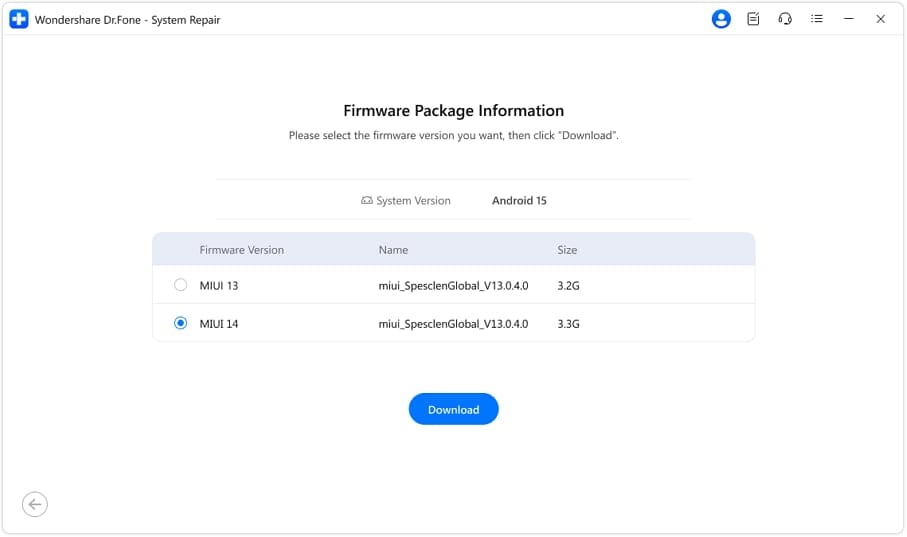
2. Review the compatible firmware packages Dr.Fone presents for the connected model and system. Select the appropriate package and click Download.
-
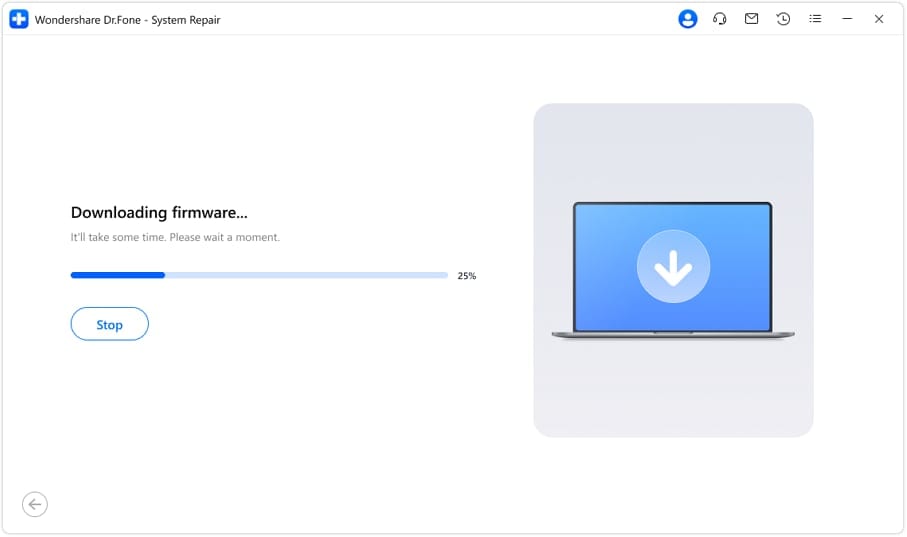
3. Wait while the package downloads, unpacks, and prepares for repair.
-
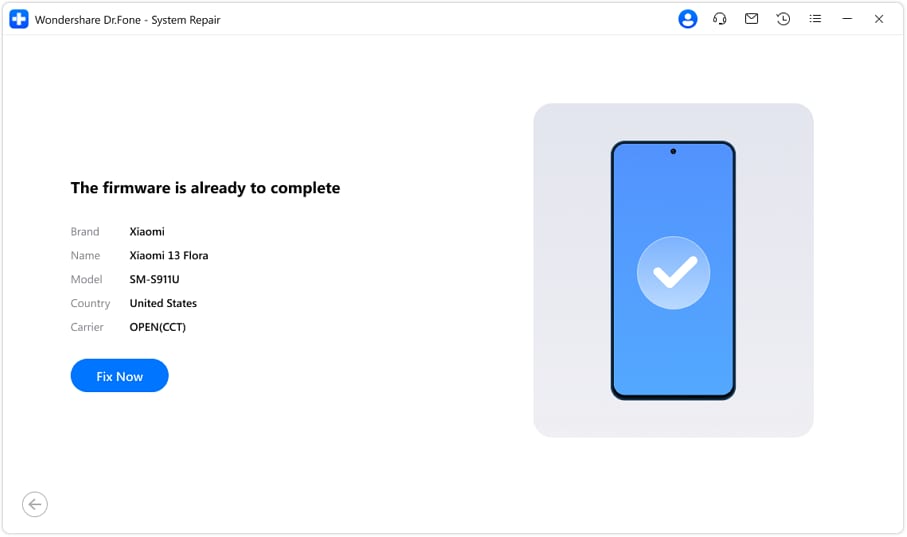
4. Confirm the displayed device and firmware information, then click Fix Now.
-
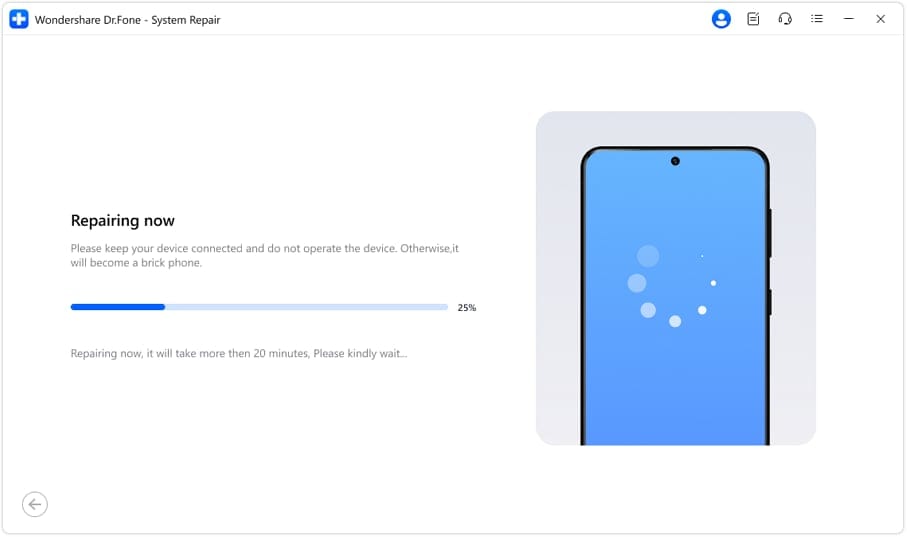
5. Keep the USB connection stable and do not use the phone during repair.
-
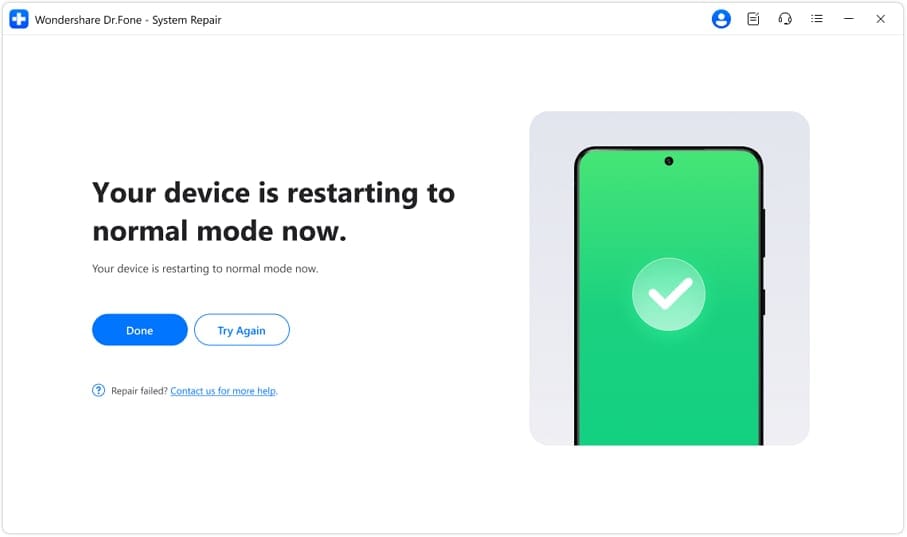
6. Allow the phone to restart, click Done when appropriate, and check the display. If repair fails or the white screen remains, contact support or the device manufacturer.
The Xiaomi, Redmi, and POCO repair guide covers this route. Do not add root, bootloader-unlock, or unofficial firmware steps to it.
Android White Screen After Damage or Failed Checks: Get Help
If the white screen followed a drop or liquid exposure, or persists across startup and Safe Mode, prioritize inspection over further software experiments.
Factory Reset as a Last Software Option
A factory reset is a separate software choice, not a mandatory follow-up to Dr.Fone. It erases personal data on the phone. Confirm the backup's contents and date, including app-specific files, or explicitly accept losing anything not protected.
-
1. Prepare your Google account, screen-lock credentials, and any required manufacturer account. Charge to at least 70% and have a network connection. Wait 24 hours if you recently changed your Google password.
-
2. On a usable Samsung, decrypt an encrypted microSD card first if present. Open Settings > General management > Reset > Factory data reset and review the information.
-
3. If ready, tap Reset > Delete all, then enter the credentials requested. Other brands need their own verified reset path; do not copy Samsung menus or blind button sequences.
-
4. After initial setup begins, observe the display before restoring third-party apps. If it is still white, arrange service.
Android Phone Still On but Showing a White Screen
An Android phone that rings but shows a white screen may still be running, yet a new USB backup can require unlocking it, choosing file transfer, or approving computer access. Connecting a cable alone does not guarantee a copy of your files.
If the display briefly returns, back up what matters. If it stays white and unbacked-up data is important, discuss restoring screen access with a qualified repair provider before agreeing to a wipe. Share the drop or repair history and the checks already attempted. Avoid pressing the panel, opening connectors, or attempting board repair yourself.
Android White Screen FAQs
-
1. Should I Move an App to an SD Card to Fix a White Screen?
Not as a general white-screen fix. Some compatible devices and apps support moving app storage to microSD, which can help manage internal space. That does not establish that moving the app will resolve its blank display. Start with its update and cache checks, and contact the developer if it alone remains affected.
Conclusion
To fix an Android white screen, start with what still works. If Home and Settings are usable, troubleshoot the affected app first. For a phone-wide problem, follow your manufacturer's restart and Safe Mode instructions. Consider Dr.Fone only with a supported device and a clear data decision. If the screen remains white after damage or troubleshooting, prioritize inspection and access to important files.
 Add Wondershare Dr.Fone as a preferred source on Google