Resolve common problems and system crashes on both iPhone and Android devices.


 100% Security Verified | No Subscription Required | No Malware

 :

 ChatGPT
 Perplexity
 Gemini
 Claude
 Grok
Your Galaxy screen flashes while you’re reading a message, then looks fine by the time you try to show someone. Samsung screen flickering can be hard to pin down when it comes and goes. This guide helps you narrow down what’s happening, decide what you can check yourself, and know when to get the display looked at.
In this article
- When Does Your Samsung Screen Flicker?
- Troubleshoot Samsung Screen Flickering with Basic Checks
- Samsung Screen Flickering After an Update or in One App
- Dr.Fone System Repair for Samsung Screen Flickering
- Samsung Screen Still Flickering? Reset or Display Service?
- Samsung Screen Flickering FAQs
- Conclusion
| Option | What it helps you do | Data consequence | Best fit |
|---|---|---|---|
| Basic checks and Safe Mode | Compare settings and isolate apps | No intended wipe; uninstalling affects app data | Phone starts and remains usable |
| Dr.Fone Samsung repair | Prepare and reinstall supported firmware | Erases device data | Supported Samsung, Windows PC, suspected software issue |
| Factory data reset | Test a clean device setup | Erases device data | Ready to reset after backup checks |
| Display service | Assess persistent or damaged-screen symptoms | Ask about service data handling | Drop, damage, or flickering that persists in Safe Mode |
When Does Your Samsung Screen Flicker?
Notice what changes just before the flicker starts. Keep the same app open while comparing settings, and write down what helps. A short recording made with another device can also help a technician see an intermittent problem.
Flickering at Low Brightness or in One App
If your Samsung phone has a flickering screen only when dimmed, start with the brightness comparison below. If it happens inside one app, note the app name and whether the home screen looks normal. Check for a charging connection too: a problem that appears only while plugged in deserves a separate cable-and-charger check.
Persistent Flicker, Lines, or Recent Damage
A fixed green line is different from an image that repeatedly flashes or changes brightness. Samsung green screen flickering can describe several symptoms, so record whether the whole screen changes color or a line stays in one place.
| What you notice | First useful check | What to do with the result |
|---|---|---|
| Flickering at low brightness | Turn off Adaptive brightness and compare | Record the usable level; continue if it returns |
| Flickering in one app | Safe Mode, then app checks | Remove or update the app if the evidence points to it |
| Flickering while charging | Disconnect and compare compatible accessories | Stop using a damaged accessory |
| Flickering after a drop, with lines, or in Safe Mode | Display inspection | Arrange service rather than repeated software changes |
Troubleshoot Samsung Screen Flickering with Basic Checks
Work through one change at a time. If the phone becomes easier to use, take the opportunity to back up important files before continuing.
Force Restart Your Galaxy
A restart can clear a temporary freeze without intentionally wiping your files.
-
1. Remove a case if it prevents you from pressing the buttons fully.
-
2. Hold Side/Power + Volume Down together for at least seven seconds.
-
3. Release when the Samsung logo appears or the phone vibrates, then check the screen after startup.
If flickering returns, compare the conditions below. A restart that briefly helps does not identify the underlying cause.
Compare Low-Brightness Flickering with Adaptive Brightness Off
Use this check when the screen pulses as brightness changes or becomes harder to read when dimmed.
-
1. Open Settings > Display.
-
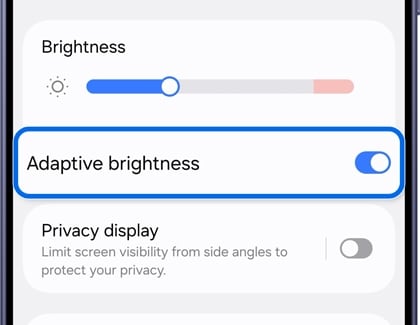
2. Turn Adaptive brightness off so the phone is not automatically changing the level during your comparison.
-
3. Increase brightness a little if the flicker is worse at low brightness. Stay within a comfortable viewing range.
-
4. Compare the same screen. If it becomes worse, restore the previous level; if it improves, record the setting and watch for recurrence.
A usable brightness level can make the phone easier to operate, but temporary relief does not establish that a damaged display has been repaired.
Try Motion Smoothness or Screen Resolution if Available
Some Galaxy models offer these settings; others do not. Skip any option that is absent.
-
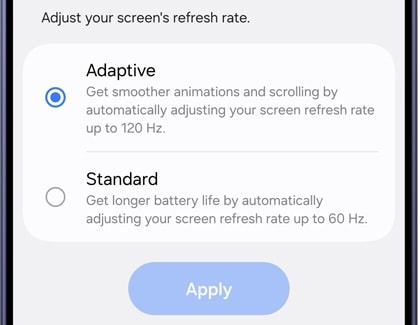
1. Record the current setting under Settings > Display > Motion smoothness.
-
2. Select another offered option, such as Standard instead of Adaptive, and tap Apply if shown. Check the same app again.
-
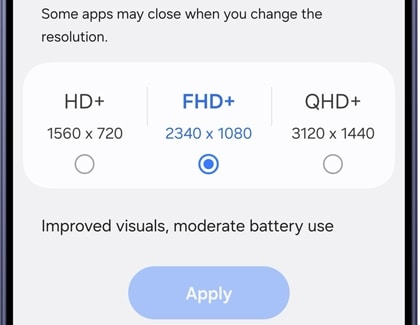
3. Restore the original refresh setting before testing a separate change under Display > Screen resolution. Choose another available resolution and apply it.
-
4. Keep a change only if it helps and remains comfortable to use. Restore unsuccessful changes before moving on to Safe Mode.
Samsung Screen Flickering While Charging
If flickering starts when you plug in the phone, compare charging and unplugged use before changing software.
-
1. Check the charger and cable for visible damage. Stop using an accessory that is damaged or unusually hot.
-
2. Disconnect the charger safely and compare the same screen.
-
3. Try a known-good, Samsung-compatible charger and cable, with a sound connection and another suitable outlet.
-
4. Note whether the problem follows one accessory. Do not return a suspect charger to regular use; arrange inspection if the phone still flickers with compatible equipment.
Samsung Screen Flickering After an Update or in One App
Flickering that begins after an update is worth recording, but timing alone does not prove that the update caused it. Safe Mode helps narrow down whether downloaded apps are involved.
Test Samsung Screen Flickering in Safe Mode
The phone must be able to start for this check.
-
1. Hold Side + Volume Down until the power menu appears, then release the buttons.
-
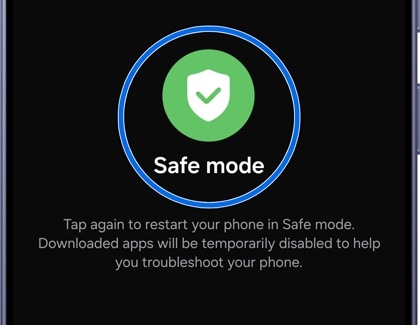
2. Touch and hold Power off, then tap Safe mode when offered.
-
3. After startup, confirm the Safe mode label near the bottom of the screen. Compare the flicker at the same brightness and charging state.
-
4. If you cannot use the power menu, turn the phone off. Start it, then hold Volume Down when the Samsung logo appears until startup finishes. Confirm the label before judging the result.
-
5. Restart normally to leave Safe Mode.
If the flickering stops, investigate recent apps. If it continues in Safe Mode, especially after damage, arrange a display assessment. This result points toward service; it is not a component-level diagnosis.
Remove Recent Apps and Check for Available Updates
If Safe Mode helped, start with recent apps. If it did not, checking for updates is still worthwhile, but repeatedly uninstalling apps is less useful.
-
1. If Safe Mode helped, return to normal mode and sync or save important local data from a suspected app before uninstalling it.
-
2. Remove the most recently installed or changed app first. Check the screen after each removal so you can identify what made a difference.
-
3. Open Play Store > profile icon > Manage apps & device. Review available updates and update the affected app or other pending apps.
-
4. Open Settings > Software update > Check for updates. Some versions use Download and install. Follow the available prompts with sufficient battery power and a reliable connection.
Check again after the update finishes. If the screen remains unstable across apps, weigh the software-repair and service options below.
Dr.Fone System Repair for Samsung Screen Flickering
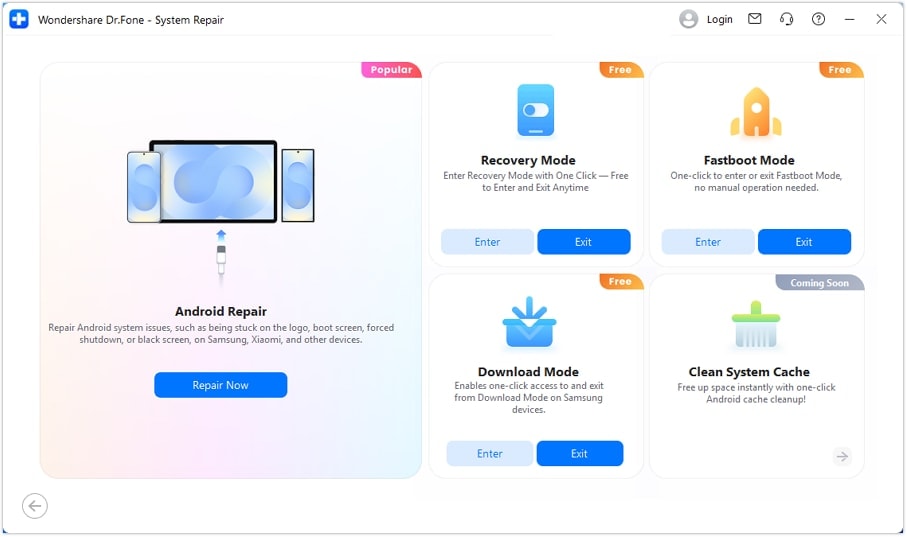
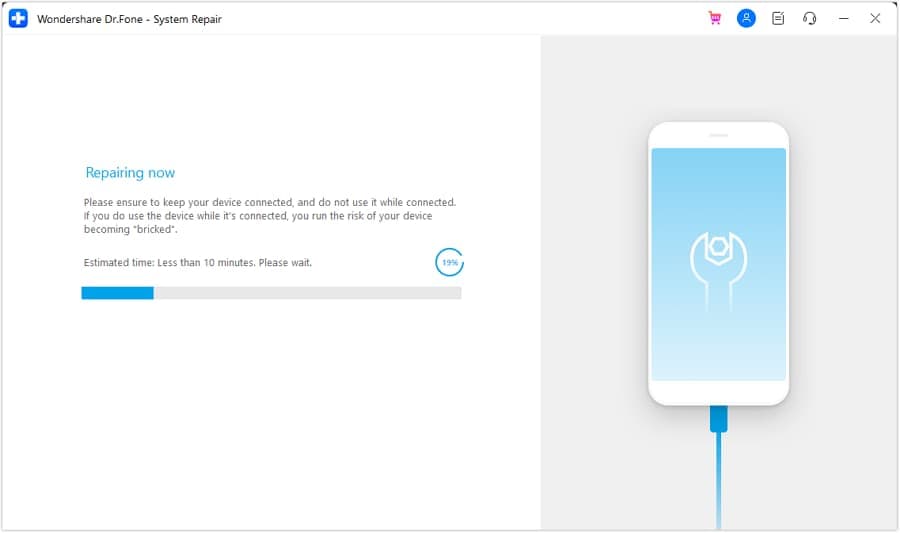
Dr.Fone - System Repair (Android) brings device identification, firmware preparation, and repair progress into one guided desktop workflow. For a supported Samsung that still has a suspected system-software problem, it guides you through a firmware repair after the simpler checks.
Follow the Samsung Firmware Repair Workflow
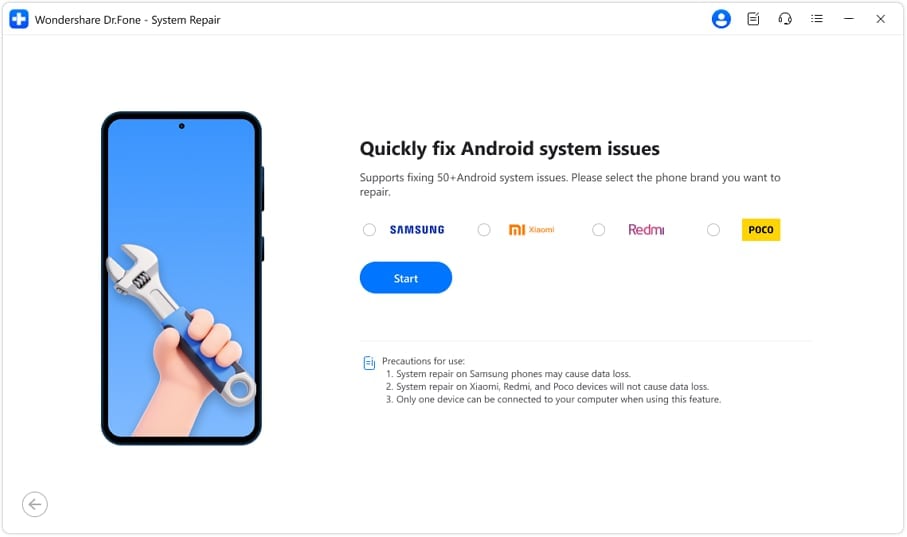
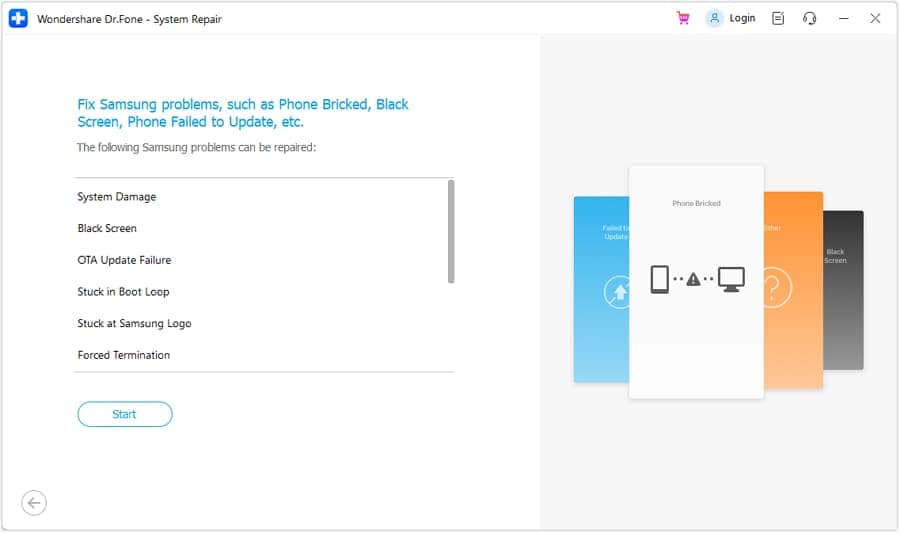
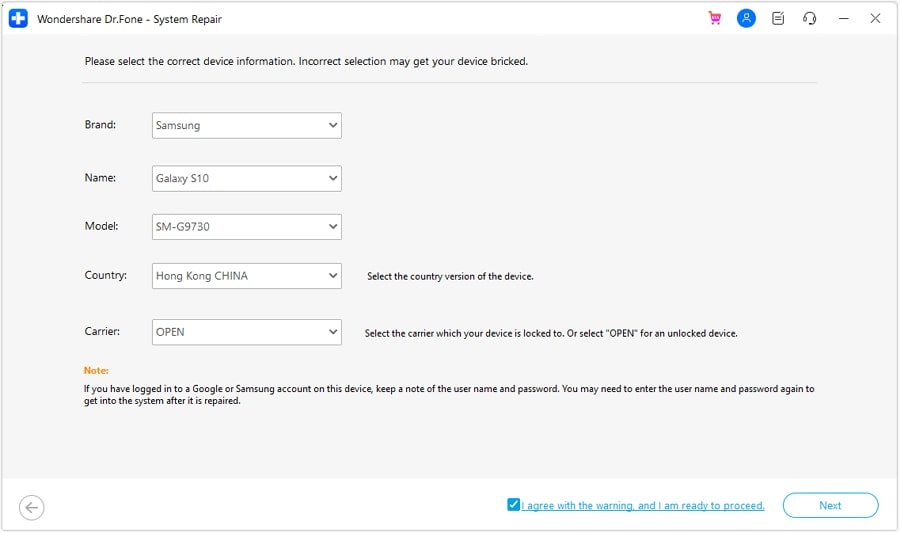
Have a suitable USB cable ready. The screenshots illustrate the official workflow; select your own device details rather than copying the pictured example.
 Fix Android instantly – no skills needed.
- Solve boot loop, black screen, won’t turn on, etc.
- High success rate for all system issues.
- User-friendly interface with easy-to-follow steps.
-
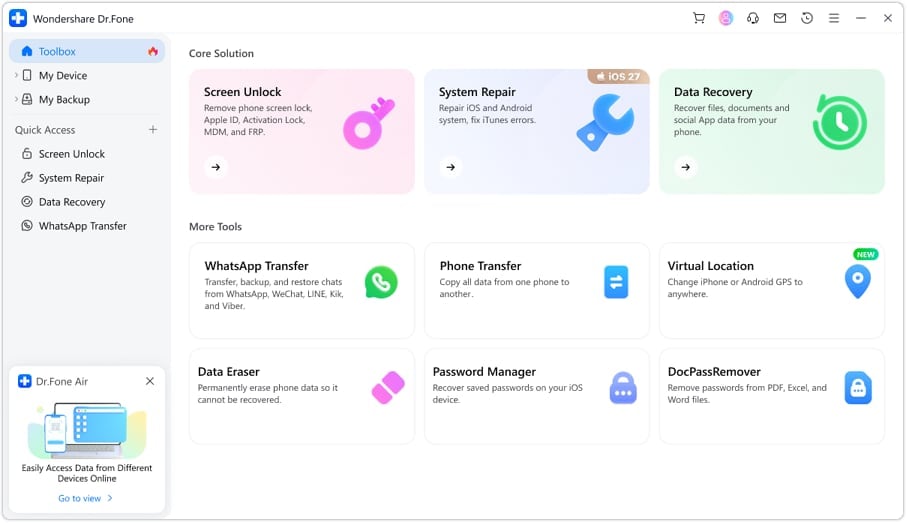
1. Open Dr.Fone on the Windows PC and choose System Repair.
-
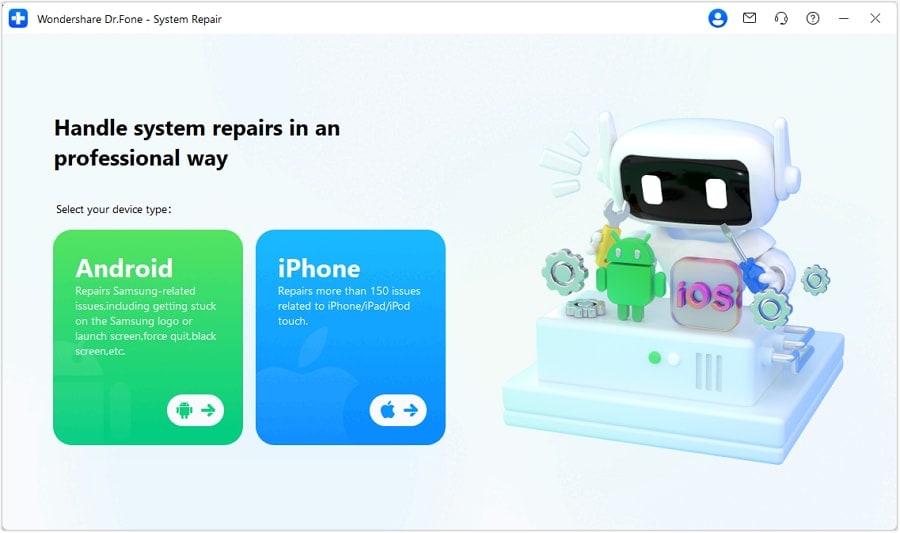
2. Select Android, then choose Android Repair > Repair Now.
-
3. Choose Samsung, then click Start on its repair screen. Connect the phone as prompted.
-
4. Check Name, Model, Country, and Carrier against your phone, accept the applicable warning only if you are ready, and continue with Next. Stop if your exact device is not supported.
-
5. Put the phone in Download Mode using the instructions offered for your device. If it is connected and already unlocked, click Enter Download Mode to use the documented entry option.
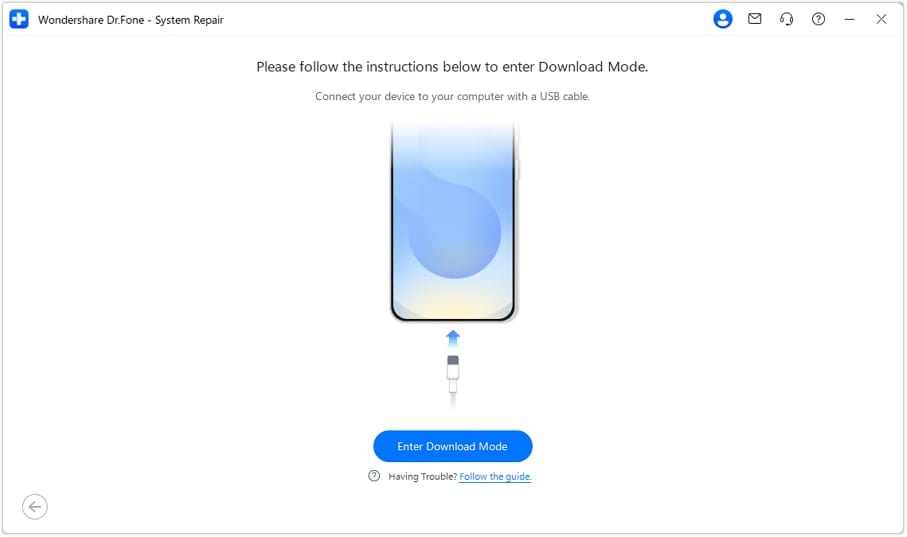
If that option is unavailable, use the matching model instructions displayed by the software. Do not guess a Home, Bixby, or volume-button combination from another Galaxy. Stop and verify the model if the displayed branch does not match your phone.
-
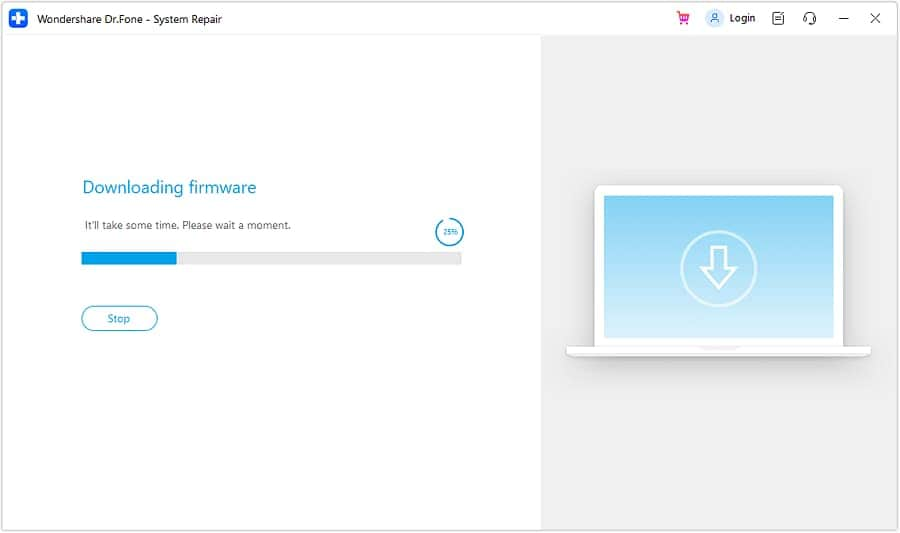
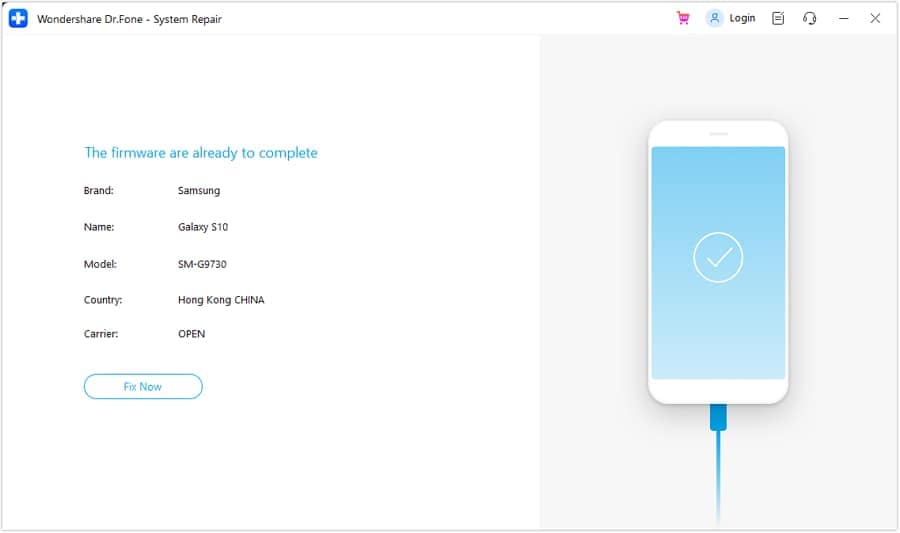
6. Wait for the firmware download and verification. Check the displayed device details, then choose Fix Now when ready.
-
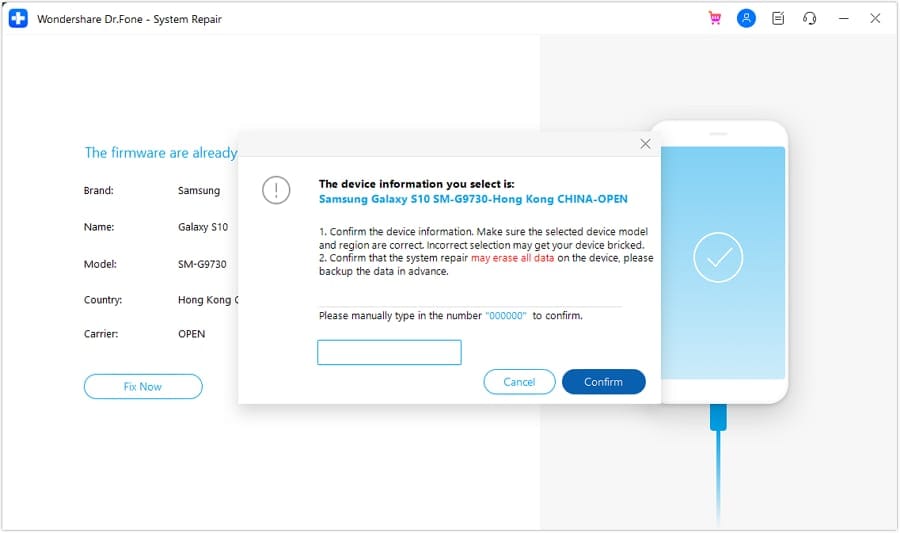
7. Read the erasure confirmation. To proceed, type 000000 and click Confirm. Keep the phone connected while repair runs.
-
8. When repair completes and the phone starts, click Done and check whether the flickering remains.
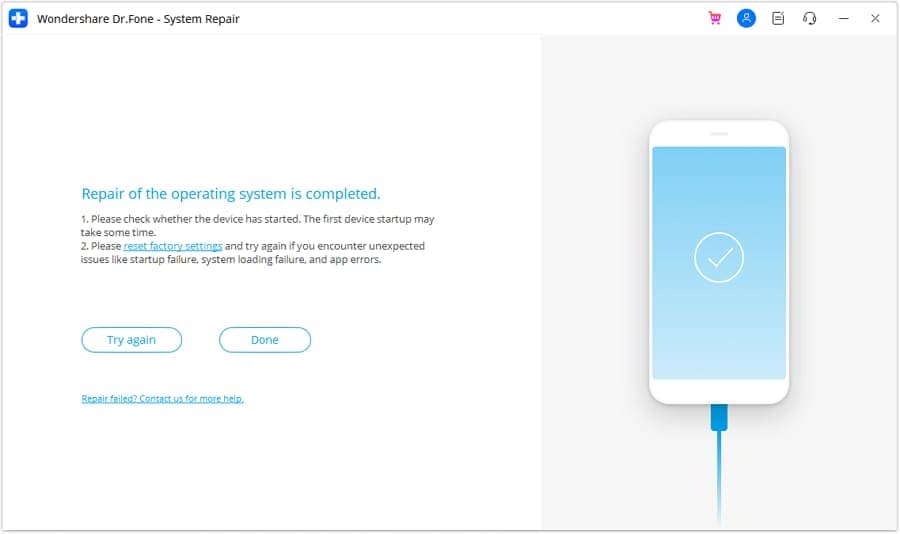




The Samsung firmware repair instructions provide the corresponding workflow. If the model is unsupported or the display remains unstable, seek service rather than guessing another firmware package.
Samsung Screen Still Flickering? Reset or Display Service?
A factory reset is a separate last software option. You do not need to run it after Dr.Fone as part of a fixed sequence. If the phone has physical damage or continues flickering in Safe Mode, discuss inspection before committing to an erase.
Reset Only After Checking Your Backup
Confirm that important photos, files, and app data are actually backed up. A backup setting being enabled does not tell you that every app's local data is covered. Keep your Google and Samsung account passwords and screen-lock credentials available.
Factory data reset removes personal data from the phone. Continue only when you have checked your backup or accept the loss of unprotected files.
-
1. Charge to at least 70% and have a network connection available. If you recently changed your Google password, wait 24 hours before resetting.
-
2. If your phone uses an encrypted microSD card, decrypt it first through the device's Decrypt SD card option.
-
3. Open Settings > General management > Reset > Factory data reset. Review the data-removal information.
-
4. Tap Reset > Delete all when ready. Enter the screen-lock credentials and Samsung account password if requested.
-
5. After the phone restarts, check the screen during initial setup and before restoring third-party apps. Persistent flickering on that clean setup warrants service.
Menu names vary by software version. If flickering prevents reliable navigation, stop rather than tapping through an unseen erase confirmation.
Samsung Screen Flickering After a Drop: When to Get Service
A drop can affect the display even when the outer glass looks intact. Persistent lines, flicker from startup, or the same symptom in Safe Mode are reasons to arrange a Samsung display inspection. Avoid pressing the panel or opening the phone to try a connector fix.
If the problem began after a screen or button repair, contact the repairer with the timeline, a recording, and your test results. Ask about inspection and data handling before handing over the device. The timing helps explain the case, but does not establish which component failed or who caused it.
Samsung Screen Flickering FAQs
-
1. Does a Force Restart Erase Data Like a Factory Reset?
No. A force restart reboots the phone and does not intentionally erase stored photos, apps, or accounts. A factory data reset removes personal data. Online discussions sometimes use “hard reset” for different actions, so check the actual instructions: holding restart buttons and confirming Factory data reset > Delete all are different operations.
Conclusion
Choose the next step from what your screen does. A brightness-dependent flicker deserves a controlled settings comparison; a Safe Mode improvement points toward app checks. For a supported Samsung with a suspected software fault, guided firmware repair or a factory reset is a separate data-erasing choice. If the display still flickers after damage or in Safe Mode, take your observations to a technician.
 Add Wondershare Dr.Fone as a preferred source on Google