Resolve common problems and system crashes on both iPhone and Android devices.


 100% Security Verified | No Subscription Required | No Malware


 :

 ChatGPT
 Perplexity
 Gemini
 Claude
 Grok
Your iPad shows the Apple logo, flashes red, and starts again. Or the screen stays red even though the device seems to be running. The "iPad red screen of death" can describe either problem. What happens just before the red screen appears helps you decide whether to restart, reinstall iPadOS, or arrange a repair.
In this article
Why Is My iPad Screen Red?
First, check whether the red screen interrupts startup or appears on an iPad you can still use.
| What you notice | What to check | Where to start |
|---|---|---|
| Apple logo, red flash, then another restart | Does the same sequence repeat before the Lock Screen? | Force restart, then recovery-mode Update |
| A red tint while apps and touch still work | Is the whole interface tinted, rather than startup failing? | Back up accessible data and check display settings before reinstalling |
| Red screen after a drop, liquid exposure, or screen replacement | Did the problem begin immediately after damage or repair? | Arrange a hardware inspection |
iPad Red Screen After the Apple Logo
An iPad red screen after the Apple logo belongs to the startup-failure path. It may flash too quickly to read anything before the device restarts. Note the sequence and any computer error message so you can describe the problem if you need service.
A red low-battery symbol is different from a whole red display. If the iPad appears unpowered, check charging rather than repeatedly trying recovery steps.
Red Tint on a Working iPad vs. a Red Screen After Damage
If you can unlock the iPad and use apps, make a backup first. For a tint on an otherwise working screen, open Settings > Accessibility > Display & Text Size > Color Filters and check whether a filter is enabled. A solid red display, lines, or flickering after damage needs inspection. Tell the technician whether it started after a fall, liquid exposure, or a recent repair.
iPad Red Screen Fix: Force Restart Your iPad
A force restart is a useful first iPad red screen fix when the device is frozen. It does not intentionally erase your files. Choose the instructions by the presence of a Home button, not by whether the iPad uses Face ID.
If the interface still works, you can try a normal restart: hold the top button and either volume button on a no-Home iPad, or just the top button on a Home-button iPad. Use the power-off slider, wait 30 seconds, then hold the top button to turn it on.
Force Restart an iPad Without a Home Button
-
1. Quickly press and release the volume button nearest the top button.
-
2. Quickly press and release the other volume button.
-
3. Hold the top button until the Apple logo appears, then release it.
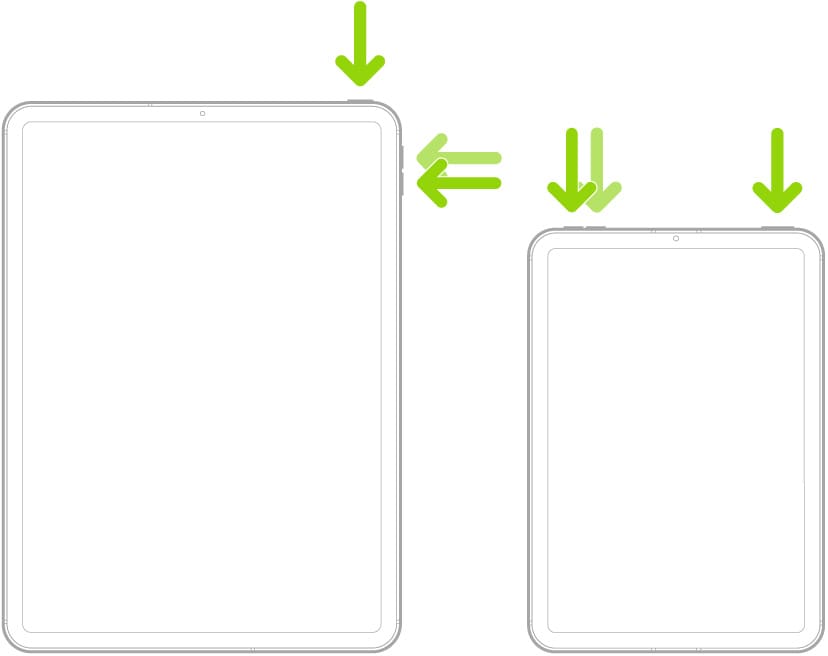
Force Restart an iPad With a Home Button
-
1. Hold the Home button and top button together.
-
2. Release them when the Apple logo appears.

If the Lock Screen appears and the iPad works normally, unlock it and back up important data. If the red screen returns during startup, continue below.
iPad Red Screen Boot Loop: Try a Recovery-Mode Update
Recovery mode lets a computer attempt to reinstall iPadOS when the iPad cannot finish starting. Prepare a reliable USB data cable and update the computer software first. Use Finder on macOS Catalina or later, iTunes on older Macs, or the latest Apple Devices app or iTunes on Windows.
Put the iPad in Recovery Mode With a Computer
-
1. Connect the iPad to the computer and open the appropriate app.
-
2. Locate the iPad in the sidebar or device list.
-
3. Without a Home button: quickly press the volume button nearest the top button, then the other volume button. Hold the top button past the Apple logo until the recovery-mode screen appears.
-
4. With a Home button: hold the Home and top buttons together. Continue holding through startup until the recovery-mode screen appears.
The important difference from a force restart is the stopping point: stay with the button sequence until you reach the cable/computer recovery screen.
iPad Recovery-Mode Update vs. Restore: Choose Update First
-
1. When the computer offers Update or Restore, select Update. It attempts to reinstall iPadOS while preserving personal data.
-
2. Leave the iPad connected while the software downloads and installs. If the download exceeds 15 minutes and the iPad leaves recovery mode, let the download finish, then repeat the recovery-mode button sequence.
-
3. Check whether the iPad reaches the Lock Screen after installation. If it does, unlock it and make a backup.
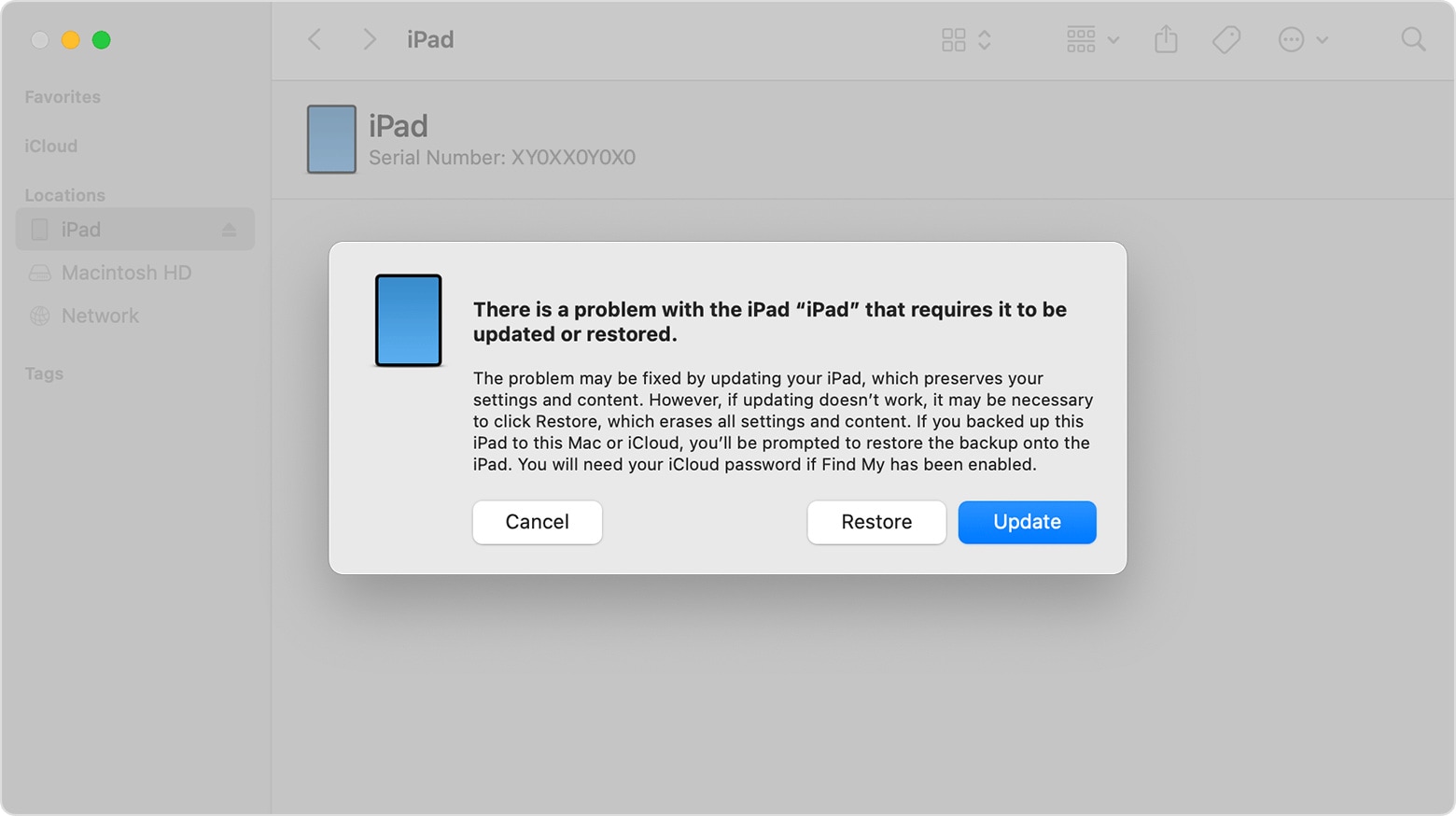
If an iPad red screen boot loop continues, note the exact error. Check the cable and USB connection before another attempt. A repeated failure is the point to consider the software-repair option below or the restore/service decision, rather than restarting downloads indefinitely.
Repair iPad Red-Screen Software Issues With Dr.Fone
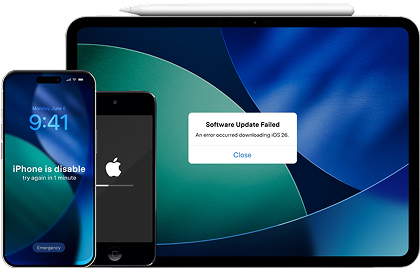
Dr.Fone - System Repair (iOS) can help fix an iPad red screen caused by a system software issue. You can follow the recovery instructions on your computer and see which firmware is available for your iPad in the same app. Standard Repair is designed to keep your apps and personal files while reinstalling the system.
 Fix iOS issues, no data loss.
- One-click repair for all iOS problems.
- Solve recovery mode, Apple logo, black screen, etc.
- Upgrade or downgrade iOS without iTunes
-
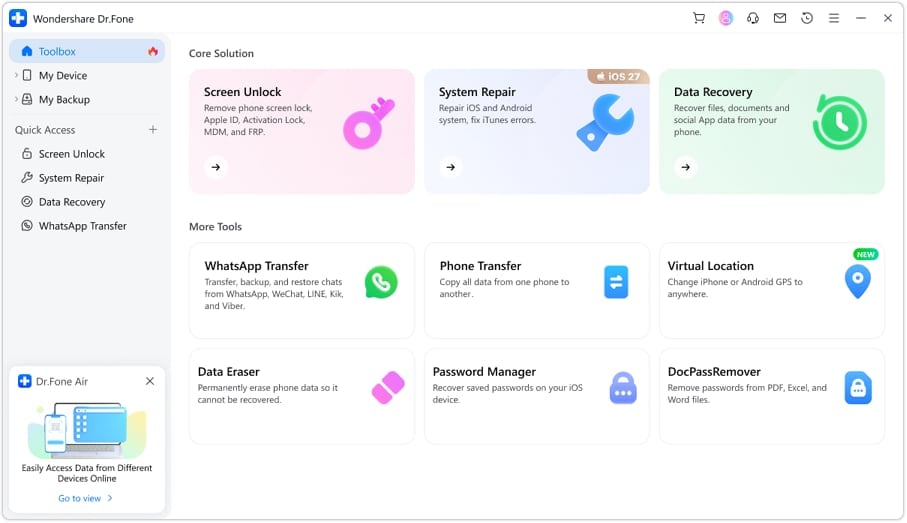
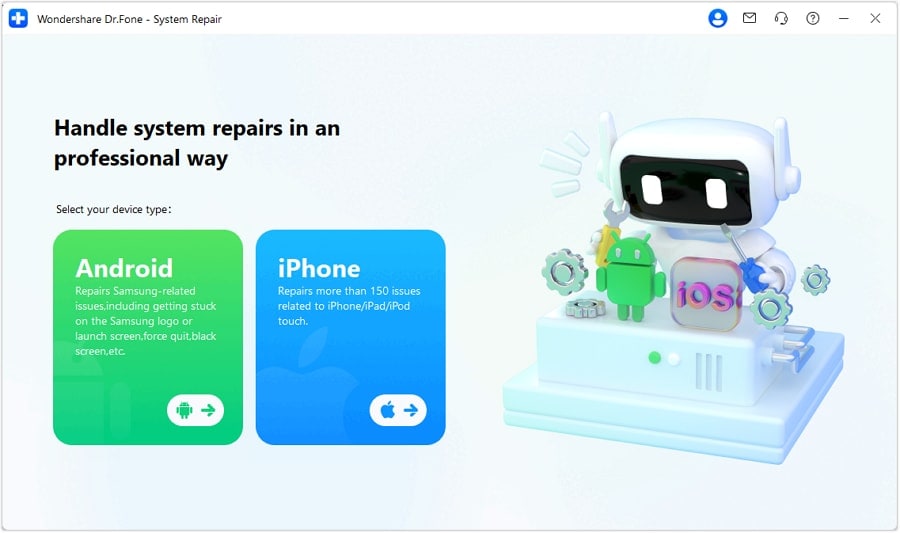
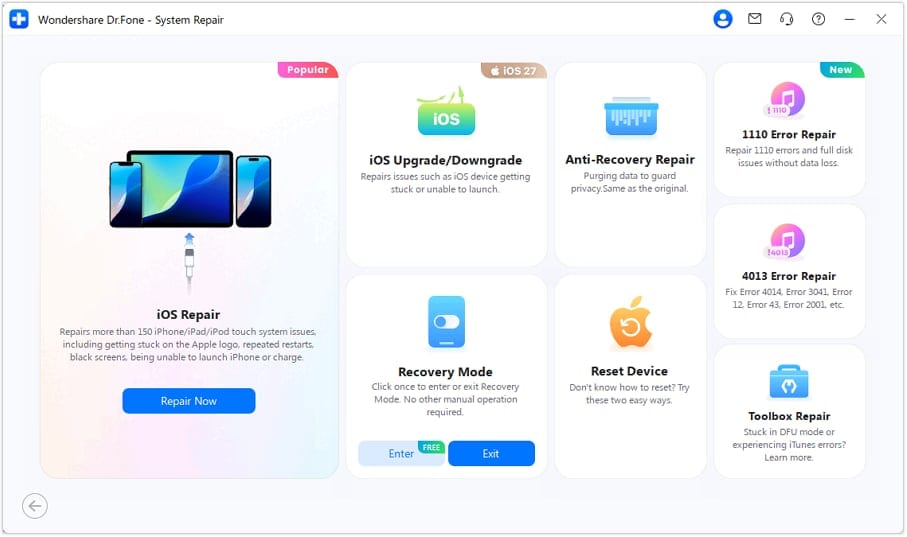
1. Connect the iPad and launch Dr.Fone. Open Toolbox > System Repair, select the iPhone device category, then choose iOS Repair.
-
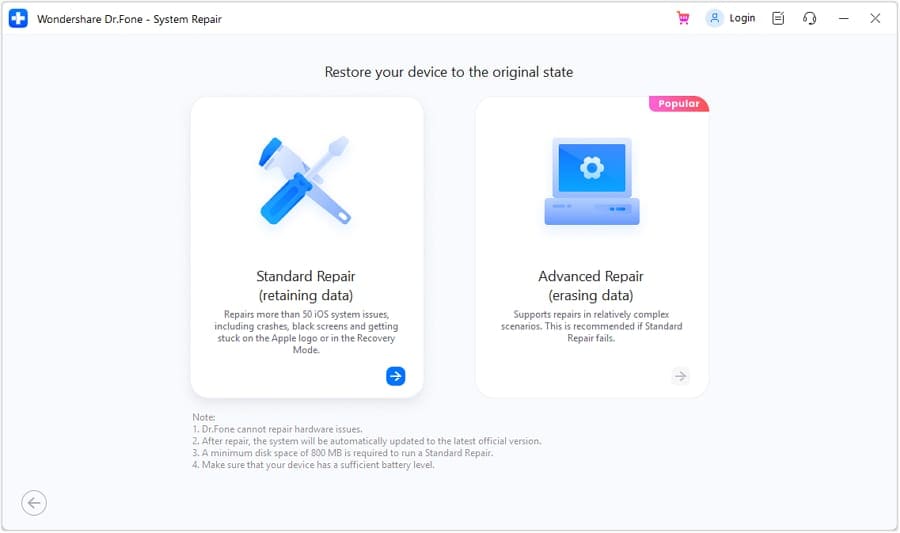
2. Choose Standard Repair. Advanced Repair and Anti-Recovery Repair are data-erasing modes.
-
Download iPad Firmware and Complete Standard Repair
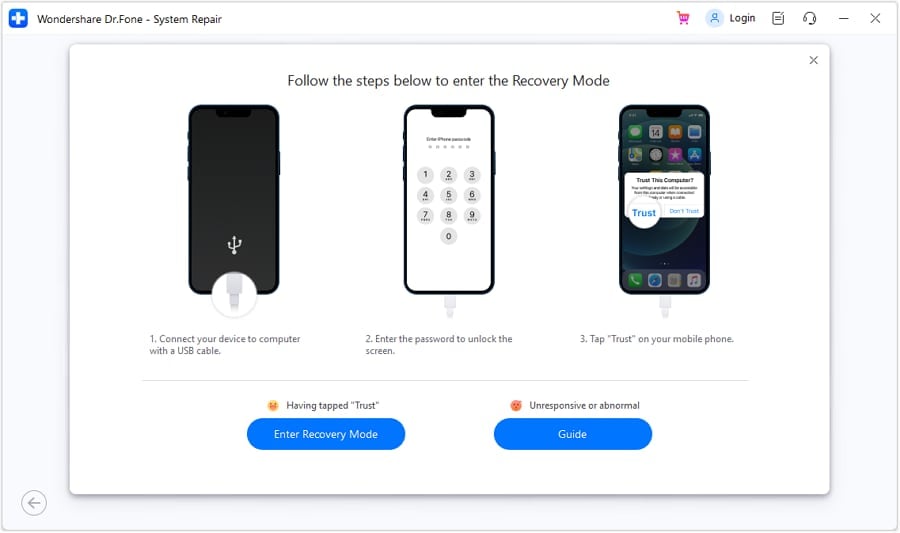
3. Select Guide for an unresponsive device, then put the iPad into recovery mode using the Home/no-Home button sequence above.
-
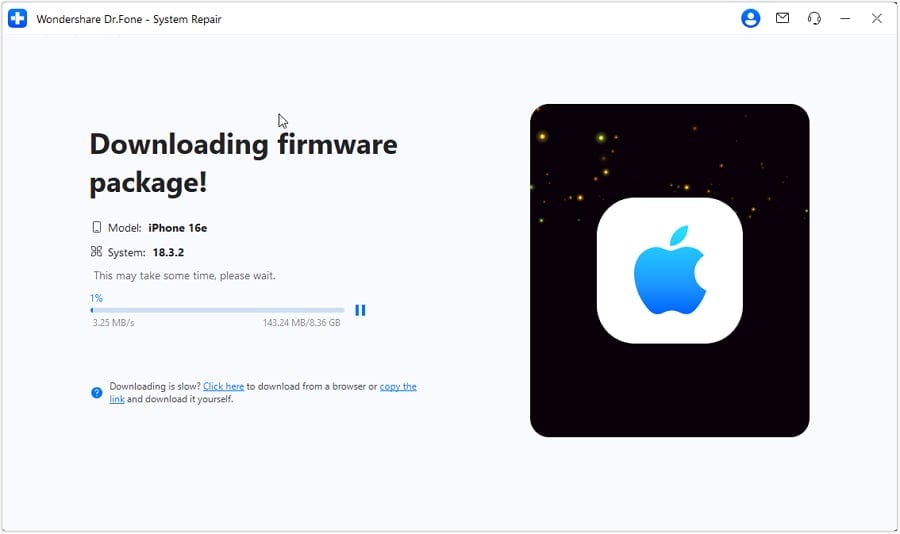
4. Check the detected iPad model and available firmware. Click Download beside the matching package. If the model is wrong or no matching package appears, stop before proceeding.
-
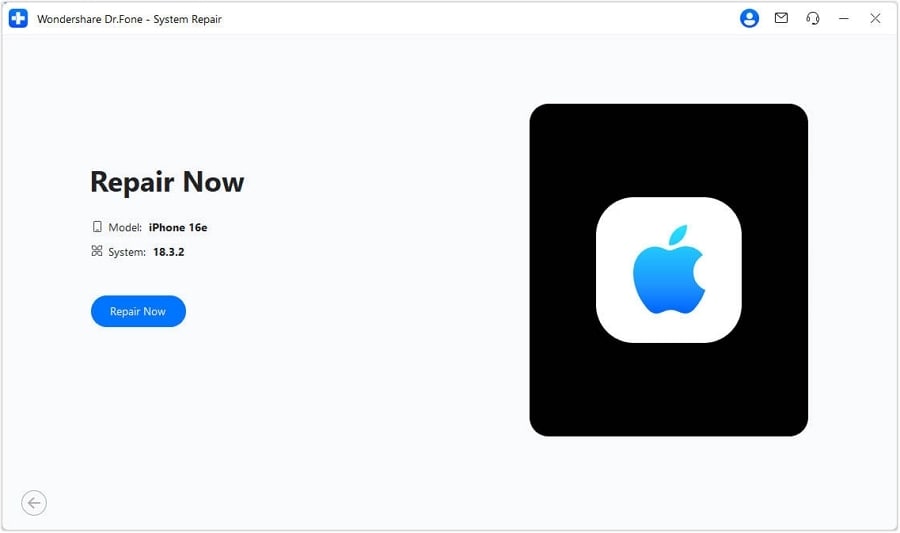
5. Wait for the download and verification to finish. Select Repair Now when it becomes available, and leave the iPad connected throughout installation.
-
6. At completion, select Done. Check that the iPad starts normally and that you can open important apps and files, then make a backup.
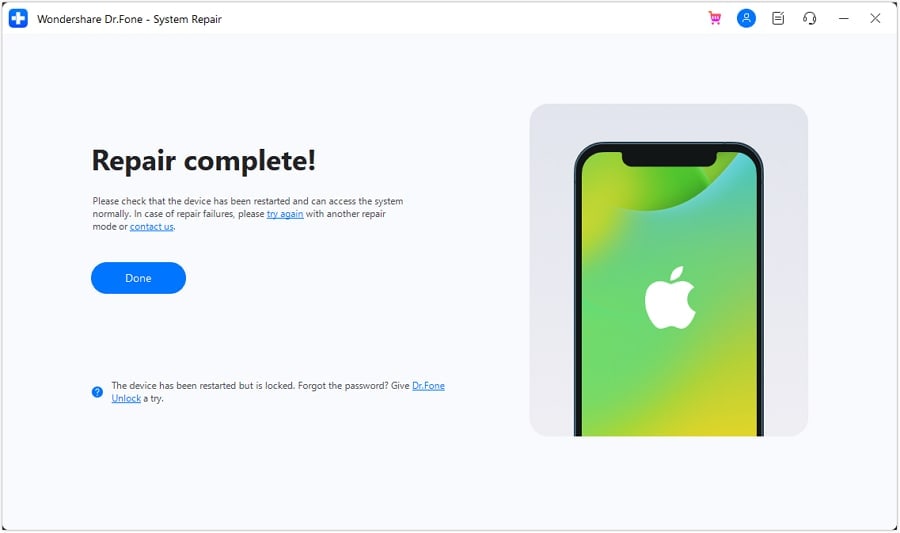




The iOS system repair walkthrough provides additional interface details. If Standard Repair fails, choose between Restore and service based on your backup and the iPad's condition. A damaged display or board needs hardware repair.
Can You Fix an iPad Red Screen Without Losing Data?
Recovery-mode Update attempts to keep personal data, and Standard Repair is designed to preserve it. Neither is a guarantee. Restore erases the iPad, so compare the options with your backup in mind.
| Option | Computer needed | Data consequence | When to consider it |
|---|---|---|---|
| Recovery-mode Update | Yes | Attempts to keep personal data | First computer-based attempt after restart fails |
| Dr.Fone Standard Repair | Windows or Mac | Designed to preserve data; full repair is paid | Optional guided software-repair attempt |
| Restore | Yes | Erases the iPad | You accept losing data that is not backed up or synced |
When to Restore an iPad That Still Shows a Red Screen
Before you restore, check the date and contents of any existing backup. iCloud Photos synchronization is not a complete device backup. If you cannot make a fresh backup, unsynced local files may be lost permanently.
-
1. Confirm that you accept erasing the iPad.
-
2. Connect it to the computer and enter recovery mode using the button sequence above.
-
3. Select Restore, confirm the operation, and keep the cable connected until reinstallation finishes.
-
4. Set up the iPad and restore from an available backup. If the red screen remains or Restore fails, arrange service and provide the error message.
iPad Screen Red After a Drop or Screen Replacement
If your iPad screen turned red after a drop, arrange a hardware inspection. If it started after a screen replacement or other internal repair, return to the repairer and describe exactly when it began. There may be a problem that requires inspecting the installation or components.
You do not need to erase the iPad before requesting that inspection. Avoid pressing the display, tapping the case, or reopening it to reseat connectors.
When a Persistent iPad Red Screen Needs Service
Stop using or charging an iPad with swelling, unusual heat, or suspected liquid damage. Seek service if buttons are broken, the computer-based Update cannot complete after connection checks, or the screen stays abnormal. If unbacked-up data matters more than another software attempt, explain that priority before agreeing to an erase or replacement.
Conclusion
If your iPad starts again, use that opportunity to back up your data. If it still flashes red during startup, recovery-mode Update is the next computer-based step. After failed software attempts, choose between an erasing restore and service based on your backup and the device's condition. A red screen that followed damage or a repair is a reason to seek inspection sooner.
iPad Red Screen FAQs
-
1. Does an iPad Red Screen Mean It Has a Virus?
No. Screen color and restart behavior alone are not enough to diagnose malware. Check whether the iPad can start, whether the tint appears across working apps, and whether there was a recent drop or repair. Those observations help you choose the next troubleshooting step without assuming a virus is responsible.
-
2. Should You Try DFU Mode for an iPad Red Screen?
DFU is not a required next step for every red screen. Entering the mode and performing a restore are different actions: a DFU restore erases the device. If Update fails repeatedly, review your backup and consider service before another firmware procedure. A hardware problem will not be repaired by reinstalling iPadOS.
 Add Wondershare Dr.Fone as a preferred source on Google