Resolve common problems and system crashes on both iPhone and Android devices.


 100% Security Verified | No Subscription Required | No Malware

 :

 ChatGPT
 Perplexity
 Gemini
 Claude
 Grok
Your Galaxy is stuck on a blue screen, and you’re wondering whether to wait or reach for the power button. If you’re dealing with the Samsung blue screen of death, think back to what the phone was doing when the screen changed. This guide helps you use that clue to decide what you can try yourself and when to get your Galaxy checked.
In this article
What Does the Samsung Blue Screen Mean?
“Samsung blue screen of death” describes a symptom, not one specific fault. Read any message on the display, then use this table to find your starting point.
| What you see | What it may be | Your next step |
|---|---|---|
| "Downloading... Do not turn off target" | Download Mode, also called Odin Mode | Use the idle Download Mode restart below. |
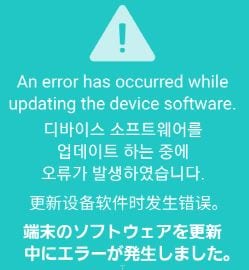
| "An error has occurred while updating the device software" with a recovery instruction | An interrupted or failed software update | Check the Smart Switch emergency-recovery route. |
| A solid blue or blank frozen display without recovery text | An unresponsive phone or display | Try the frozen-device restart. Seek assessment if the display stays blank or blue. |
| A usable phone with a blue tint | A display-color issue | Troubleshoot the tint separately rather than starting firmware recovery. |
“Downloading… Do not turn off target”
This is Download Mode, also called Odin Mode. It lets a computer install firmware on your Galaxy. The warning can appear even when nothing is being installed; the computer’s progress window tells you whether an update is actually running.
An Update-Error Message
A message about an error while updating means the update didn’t finish. If it directs you to Smart Switch, start with the emergency recovery instructions below. Photograph the message so you can share the exact error if you need help.
A Blank or Solid Blue Screen
If there’s no readable message, start with the frozen-device restart below. A blue background alone doesn’t identify Download Mode. If the display stays blank or the problem followed a drop or liquid exposure, arrange an assessment.
A Blue Tint, PC Error, or TV Screen
These fixes are for Galaxy phones. A phone that still works but looks blue needs display-color troubleshooting. A Samsung laptop with a Windows stop code or a TV with no picture needs its own repair instructions.
Restart Your Galaxy
A restart may clear a freeze or get your phone out of idle Download Mode. Choose the instructions for the screen you see.
Check the Computer First
If Smart Switch or another connected tool is installing firmware, don’t unplug the phone or force it to restart. Wait for the tool to finish or show recovery instructions. A phone display that hasn’t changed doesn’t, by itself, mean the update has stopped.
Exit Idle Download Mode
-
1. With no update or firmware write running, hold Volume Down + Power together for 7 seconds on models covered by Samsung’s Australian guidance. Check your model’s local Samsung instructions if its buttons or timing differ.
-
2. Release the buttons when the phone restarts. Wait to see whether it reaches the Samsung logo and then the lock screen.
-
3. If it returns to the same screen, note the message. Use Smart Switch for a matching update error, or contact Samsung if Download Mode keeps returning.
If the blue screen appeared during an Odin operation, use the error message to narrow down the problem. See the Samsung Odin failure troubleshooting guide for help with those errors.
Force Restart a Frozen Screen
For an unresponsive blue or blank display, use the frozen-device button combination after the computer check above:
-
1. Find the Side key and Volume Down key.
-
2. Hold both for more than 7 seconds, until the phone restarts. Check model-specific instructions if your Galaxy has a different button layout.
-
3. Let it start up, then test the display and touch controls.
-
4. If the screen stays blue or blank, arrange support rather than repeating the restart.
Once you can use the phone, back up important files before trying further repairs.
Recover a Failed Update with Smart Switch
If your Galaxy shows an update error and tells you to use Smart Switch, its desktop app may be able to restart the failed update. Open the app and look for emergency recovery. The option must be available for your device; a missing menu isn’t a reason to initialize it another way.
Run Emergency Software Recovery
After the update has failed and the computer is no longer writing firmware:
-
1. Disconnect the phone, close Smart Switch, then reopen the app.
-
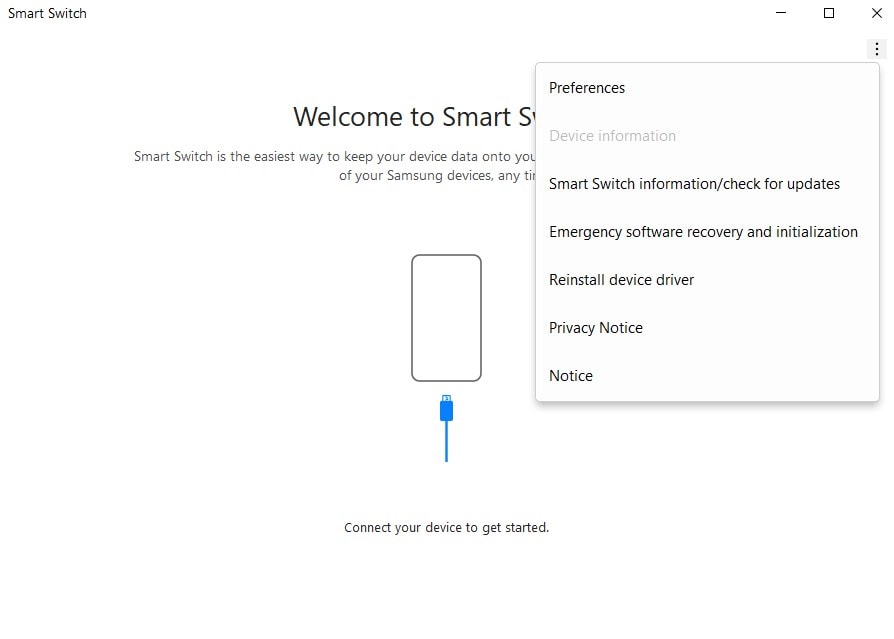
2. Open More → Emergency Software Recovery and Initialization.
-
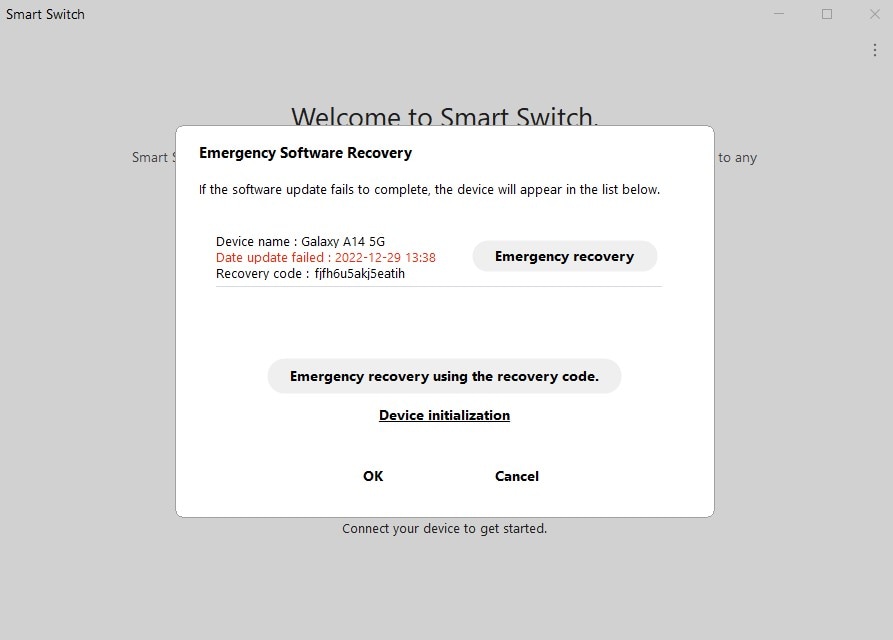
3. Select your Galaxy from the devices listed for emergency recovery.
-
4. Read the information before selecting OK. If deletion is mentioned or the effect on your files is unclear, ask Samsung before proceeding with data you haven’t backed up. Continue only when you accept the displayed terms and any data loss.
-
5. Connect the phone when prompted and complete the confirmation. Leave it connected while recovery runs.
-
6. When recovery finishes, check whether the phone reaches the lock screen.
Can’t find the menu or your phone in the list? Contact Samsung. Avoid installing an older Smart Switch release or trying firmware files from an unknown source.
Try a Recovery Code on Another Computer
If recovery fails and Smart Switch provides a recovery code, you can continue on another computer:
-
1. Reopen the emergency-recovery menu on the first computer and write down the code.
-
2. Open Smart Switch on another computer and go to the same menu.
-
3. Select Emergency recovery using the recovery code and enter your code.
-
4. Review the information and data warnings, then select OK if you’re ready. Connect the phone and confirm when prompted.
-
5. Wait for recovery to finish, then check whether the phone starts normally.
If there’s no recovery code, or the second attempt fails, give Samsung the error details.
How Dr.Fone Can Help Fix a Samsung Blue Screen
Guided Firmware Repair for Your Galaxy
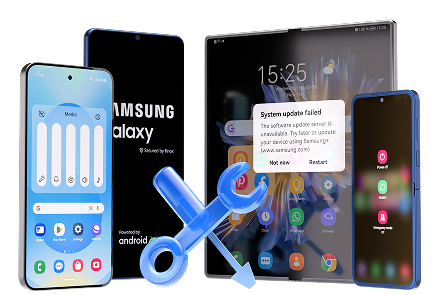
Dr.Fone - System Repair (Android) can help fix a Samsung blue screen caused by a system software issue. It guides you through Download Mode for your Galaxy and prepares the matching firmware, so you don’t have to hunt for a package yourself. You can review the device and firmware details before installing it.
Samsung firmware repair erases the phone’s data. Back up what you can before starting.
 Fix Android instantly – no skills needed.
- Solve boot loop, black screen, won’t turn on, etc.
- High success rate for all system issues.
- User-friendly interface with easy-to-follow steps.
-
1. Open the repair tool on Windows.
Connect the Galaxy to your PC. In Dr.Fone, open Toolbox → System Repair → Android → Android Repair → Repair Now. Choose Samsung, select Start, and continue through the repair introduction.
-
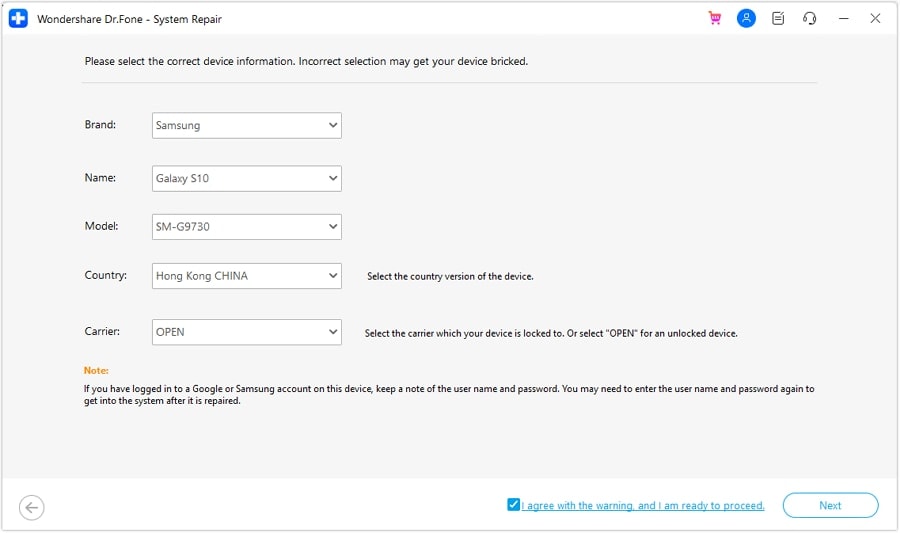
2. Match the device details.
Choose the exact Name, Model, Country, and Carrier. Use OPEN only for a carrier-unlocked device as instructed. Check the details before accepting the warning and selecting Next. Don’t guess: the wrong selection can cause a failed or damaging firmware installation.
Have your Google or Samsung account sign-in details ready for setup after repair.
-
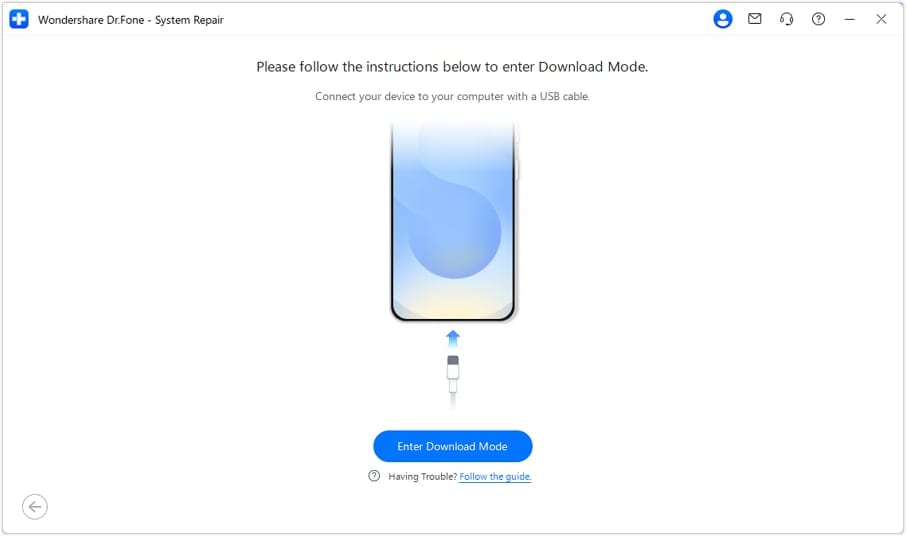
3. Put the phone in Download Mode.
Already in Download Mode? Continue from there. Otherwise, follow the entry option for your device:
- Connected and unlocked phone: Use Enter Download Mode when that option is available.
- Phone with a physical Home button: Turn it off. Hold Volume Down + Home + Power, then press Volume Up at the warning screen.
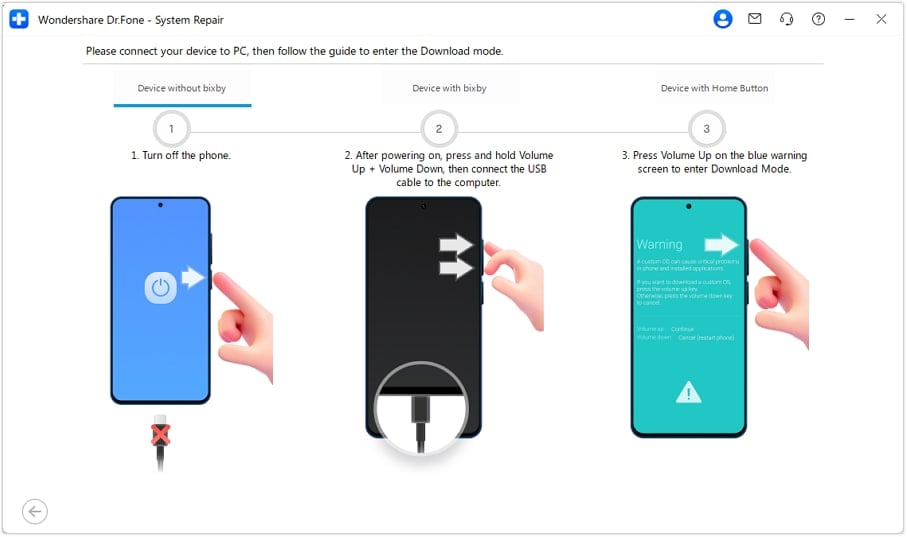
- Phone without a dedicated Bixby button: Select the matching volume-button/USB option. Follow the power-state and cable instructions verified for your exact model.
- Phone with a dedicated Bixby button: Get the model-specific entry sequence from support before proceeding; the other button combinations aren’t interchangeable.
The screenshot below shows the volume-button/USB option for phones without a dedicated Bixby button. Confirm your model’s power-state and cable timing with support before following it. If you can’t verify the sequence, stop here rather than improvising.
-
4. Download and check the firmware.
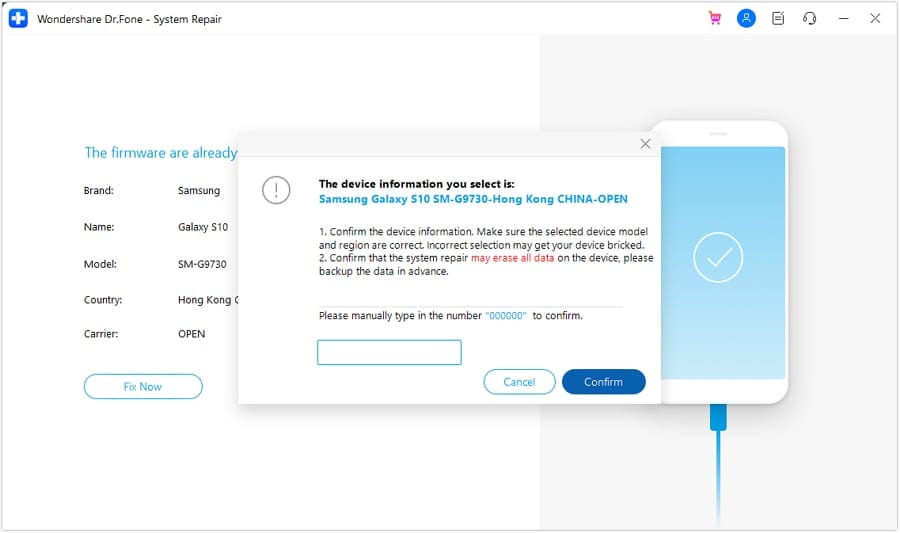
Let Dr.Fone download and verify the firmware. Review the displayed device and firmware details, then select Fix Now.
-
5. Confirm the data wipe.
At the prompt, enter 000000 and select Confirm only if you accept erasing the phone’s data. Cancel if you need to reconsider your backup or recovery options.
-
6. Check the result.
Keep the phone connected while installation runs. When the completion message appears, check whether it boots normally. If it still won't start, record the result and contact support instead of repeatedly running the repair. The Samsung Android repair walkthrough covers the matching tool screens.




When to Contact Samsung
After a Drop or Liquid Exposure
A blue screen after an impact, cracked display, or liquid exposure needs an inspection. Stop using a phone damaged by a strong impact. Don’t open it, reseat parts, or dry it with a hair dryer. Keep chargers and accessories disconnected until a wet device is fully dry.
When Restarts or Recovery Don’t Work
Contact Samsung if the same screen keeps returning, the computer can’t identify the phone, or recovery fails. Get help too if you can’t confirm the model information needed for a firmware repair.
Have these details ready:
-
1. Your Galaxy’s model and a photo of the exact screen message.
-
2. When the problem started, including any update, drop, or liquid exposure.
-
3. The restarts or recovery attempts you’ve tried, and whether important files are backed up.
Before authorizing service or initialization, ask what will happen to your data.
FAQs
-
1. Is a Samsung with a Blue Screen Permanently Bricked?
Not necessarily. A phone waiting in Download Mode may only need a restart. An update error may be recoverable, while a persistent blank display needs assessment. The message and the phone’s response to the appropriate restart are more useful clues than the screen color alone.
-
2. Will Smart Switch Emergency Recovery Erase My Data?
Data retention isn’t guaranteed. Check the warning for the recovery option offered on your computer. If deletion is mentioned or the effect is unclear, ask Samsung before risking files you haven’t backed up.
-
3. Can Dr.Fone Fix Every Samsung Blue Screen?
No. It repairs supported software and firmware problems on listed Samsung devices using Windows. Full repair is paid and erases Samsung device data. A damaged display or other hardware fault needs a repair assessment.
Conclusion
If you’re dealing with the Samsung blue screen of death, start with the message on the display. It can point you toward a restart or Smart Switch recovery. For a software-related blue screen, Dr.Fone System Repair for Android can guide you through reinstalling the firmware. If the screen appeared after damage or the phone still won’t start, share the error details and your backup status with Samsung.
 Add Wondershare Dr.Fone as a preferred source on Google