Resolve common problems and system crashes on both iPhone and Android devices.


 100% Security Verified | No Subscription Required | No Malware

 :

 ChatGPT
 Perplexity
 Gemini
 Claude
 Grok
You unlock your phone and notice white lines on your iPhone screen. You can still read your messages, but a stripe cuts through the text and stays in the same spot when you swipe home. Before changing settings, check whether the line follows you across apps and think back to when it first appeared.
In this article
- White Lines on iPhone Screen After a Drop, Spill, or Repair
- How to Tell if the White Lines Might Be a Display Problem
- How to Fix White Lines on iPhone Screen When Software May Be Involved
- Run Apple Diagnostics on an iPhone 14 or Later
- When to Try Dr.Fone iOS System Repair
- When to Stop Troubleshooting and Get Display Service
- FAQs
- Conclusion
White Lines on iPhone Screen After a Drop, Spill, or Repair
If a white line appeared after your iPhone fell or bent and stays there, arrange a display inspection even if the glass looks intact. If it started after a screen replacement, contact the shop that did the work and tell them how soon the line appeared. Mention any area where taps or swipes have stopped registering.
After a spill, disconnect any cable if the port is wet or your iPhone shows a liquid detection alert. Wait until the connector and cable are completely dry before plugging them back in. If the white lines persist, move on to preparing the phone for service.
How to Tell if the White Lines Might Be a Display Problem
A horizontal stripe, two vertical lines, and a mix of green and white all call for the same checks. Color, count, and direction alone can’t identify the part at fault. Use the table if you can still see part of the picture.
| What you see | What to do first | When to get service |
|---|---|---|
| A line that appears only in one app or on one video | Try another app or video, then close and update the affected app. | It persists across apps after a restart or touch becomes unreliable. |
| A fixed line across apps, with no obvious drop or crack | Back up while touch still works, then restart and check for an iOS update. | It stays after a restart or returns in the same place. |
| Lines right after a drop, spill, or screen replacement | Follow the physical-damage or recent-repair steps above. | The lines persist, even if the glass looks fine. |
| Lines that spread, flicker, or appear with missed taps | Back up if the phone is safe to operate and record the symptom. | Arrange an inspection, especially if touch is getting worse. |
Check Whether the Line Appears in One App or Everywhere
-
1. Leave the affected app and check the Home Screen and another app. See whether the line stays in the same physical spot.
-
2. If the line is visible and you can share a screenshot, take one while it’s there. On a Face ID iPhone, press and release the Side and Volume Up buttons together. On models with a Home button, press and release Home and the Side or Top button together.
-
3. View the screenshot on another device with a working display. If the mark is in the saved image, check whether it belongs to the app or the content. If the image looks clean but the line was visible when you took it, the display itself warrants a closer look.
A screenshot that missed an intermittent line tells you little. If it’s difficult to reproduce, use another device to photograph the screen when the line returns.
Notice When the Line Goes Away and Comes Back
Make a note if locking or restarting the phone clears the line briefly. Recheck the same screen when it returns. If it keeps coming back in the same place, grows, or affects touch, back up and book an inspection. If it first appeared after an iOS update, tell the technician when that happened and whether the line appeared before you opened any apps.
How to Fix White Lines on iPhone Screen When Software May Be Involved
Close and Update the Affected App
-
1. Open the app switcher. On a Face ID iPhone, swipe up from the bottom and pause. On a Home button model, double-click Home.
-
2. Swipe up on the affected app’s preview to close it, then reopen it and return to the screen where you saw the line.
-
3. Open the App Store, tap your profile picture, and check for an update to the app. Try the same screen again after updating.
If the line stays in one app, tell its developer where it appears. If it spreads across apps, restart the phone.
Restart or Force Restart Your iPhone
If touch still works, go to Settings > General > Shut Down and drag the slider. Press and hold the Side or Top button to turn the iPhone back on. If it won’t respond to touch or shut down normally, use the force-restart sequence for your model.
| iPhone model | Force-restart buttons |
|---|---|
| iPhone 8 and later, including iPhone SE (2nd and 3rd generation) | Quickly press and release Volume Up, then Volume Down. Hold the Side button until the Apple logo appears. |
| iPhone 7 and 7 Plus | Hold the Side and Volume Down buttons together until the Apple logo appears. |
| iPhone 6s and earlier, including iPhone SE (1st generation) | Hold Home and the Side or Top button together until the Apple logo appears. |
After startup, check both the Home Screen and the app where you first noticed the line. If the phone works normally apart from a stripe that never moves, a display inspection is the next useful step.
Back Up and Install an Available iOS Update
-
1. On Wi-Fi, go to Settings > [your name] > iCloud > iCloud Backup and tap Back Up Now. Wait for it to finish and check the time of the most recent backup.
-
2. If you can safely connect the iPhone to power, plug it in and go to Settings > General > Software Update. Install any available update and follow the prompts.
-
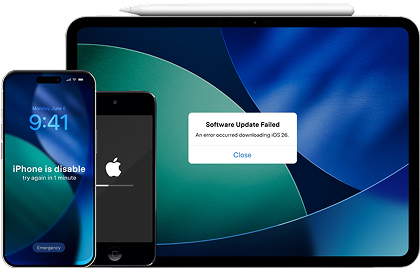
3. Check the same screens again after startup. If an update fails and the phone also freezes or struggles to start, you can consider the software repair below. If the stripe is still the only symptom, move on to diagnostics or service.
Run Apple Diagnostics on an iPhone 14 or Later
Run the Display Pixel Anomalies Test
Apple Diagnostics can help you spot a line against several test colors. You’ll need an iPhone 14 or later, Wi-Fi, and working touch input. Turn off the phone and hold the Side button as it starts up to open Recovery Assistant. If the menu doesn’t appear, connect the iPhone to a computer or power source, turn it off, and hold the Side button until the Connect to Computer screen appears. Release it, then press the Side button twice.
-
1. Tap Diagnostics Mode if it appears and follow the on-screen prompts. If the option is missing, skip the test and arrange service if the lines persist.
-
2. Select Display pixel anomalies. Tap or draw over any line or irregular area you see.
-
3. Swipe left with two fingers to move through the test patterns, then tap Done.
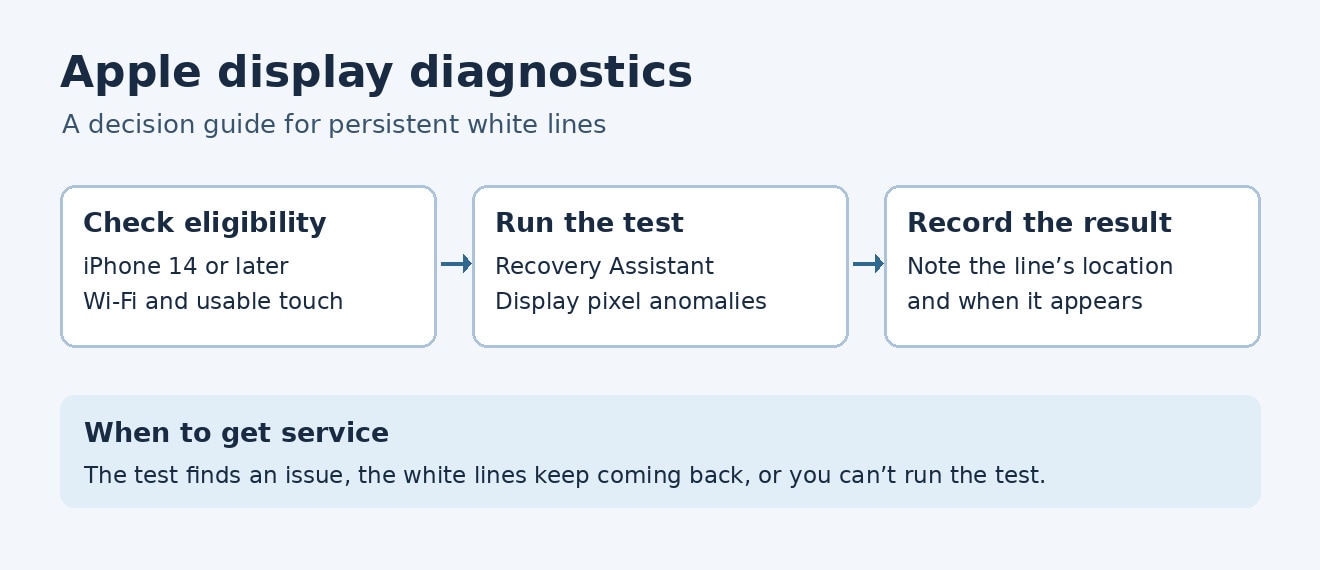
Write down which pattern made the line easiest to see. If the test finds an issue, you can’t run it, or the line comes back after a normal result, arrange a display inspection.
When to Try Dr.Fone iOS System Repair
If the white lines appeared alongside a failed update, repeated freezes, or trouble starting iOS, Dr.Fone iOS System Repair gives you a guided firmware repair on Windows or Mac. It helps you enter Recovery Mode and identifies compatible firmware for your iPhone. Standard Repair is designed to keep your personal data while it repairs supported iOS problems.
Use Standard Repair for a Supported iOS Issue
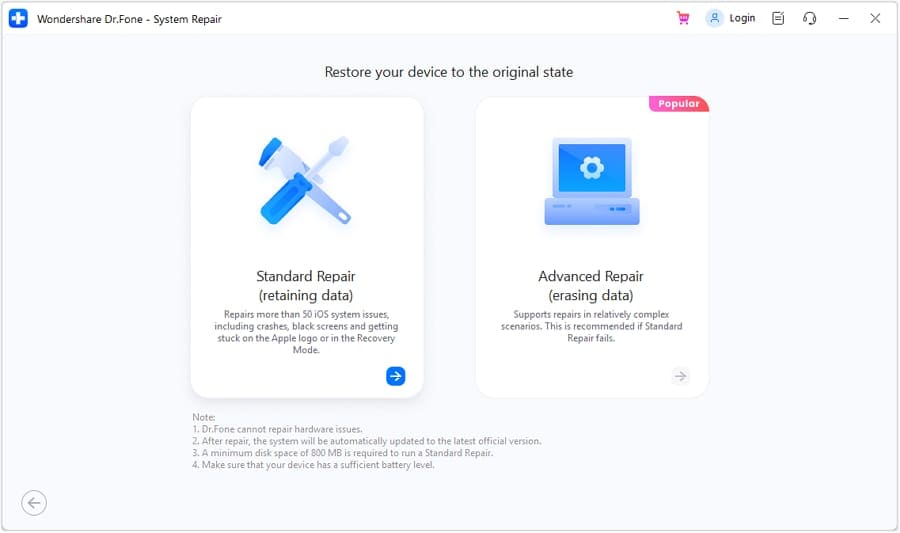
Have a compatible iPhone, a USB cable, a stable internet connection, and a recent backup if you can make one. Choose Standard Repair for this route. Advanced Repair erases your data.
 Fix iOS issues, no data loss.
- One-click repair for all iOS problems.
- Solve recovery mode, Apple logo, black screen, etc.
- Upgrade or downgrade iOS without iTunes
-
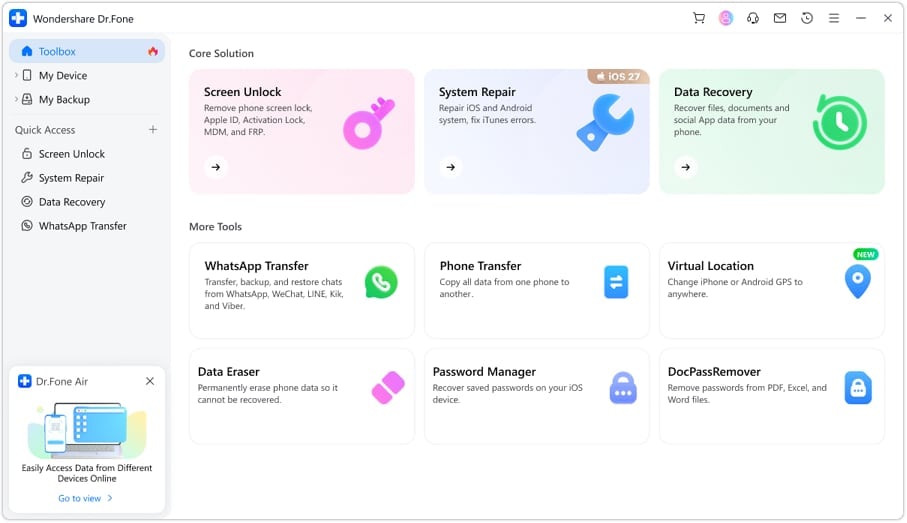
1. Open Dr.Fone on your computer, choose System Repair from Toolbox, and connect your iPhone by USB.
-
2. Choose iPhone, select iOS Repair, and pick Standard Repair.
-
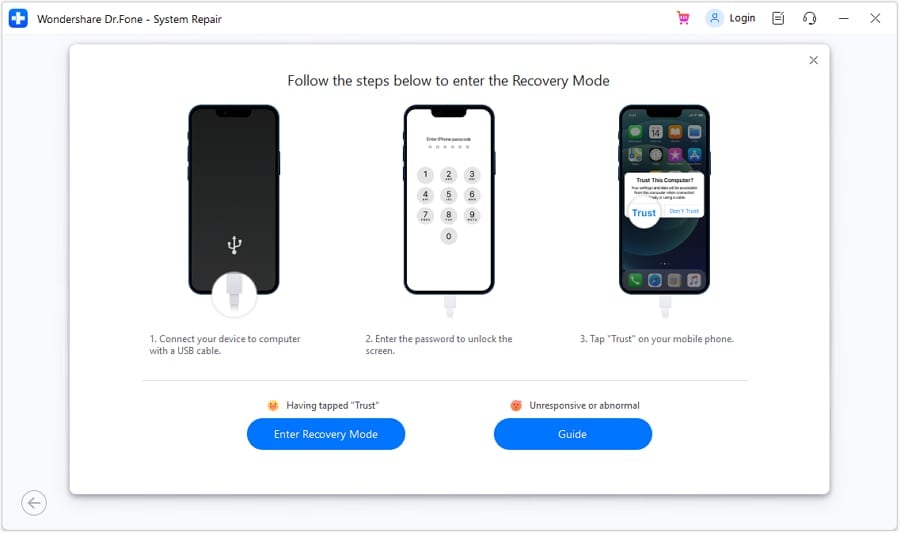
3. Unlock and trust the computer if prompted, then select Enter Recovery Mode. If the iPhone is unresponsive, select Guide for the button instructions for your model.
-
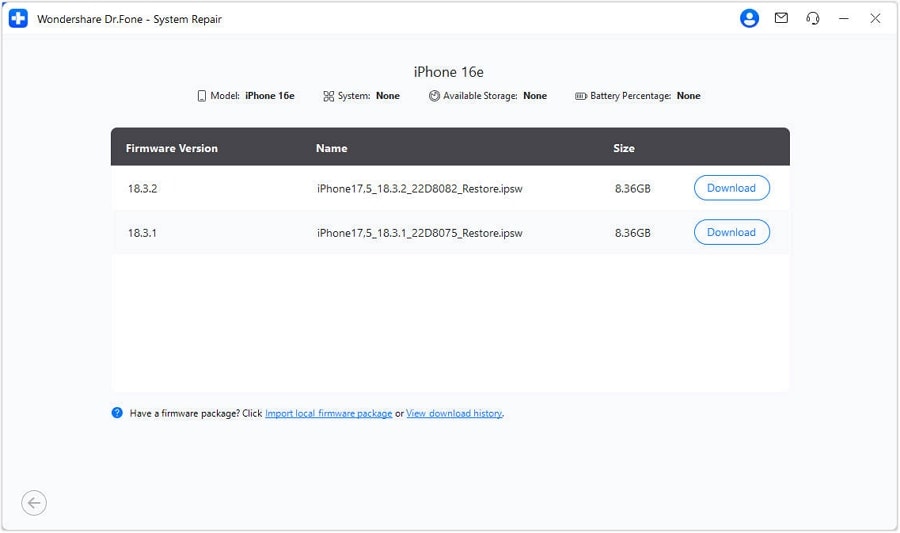
4. Choose an available compatible firmware version, click Download, and wait for Dr.Fone to verify it.
-
5. Click Repair Now and keep the phone connected throughout the installation.
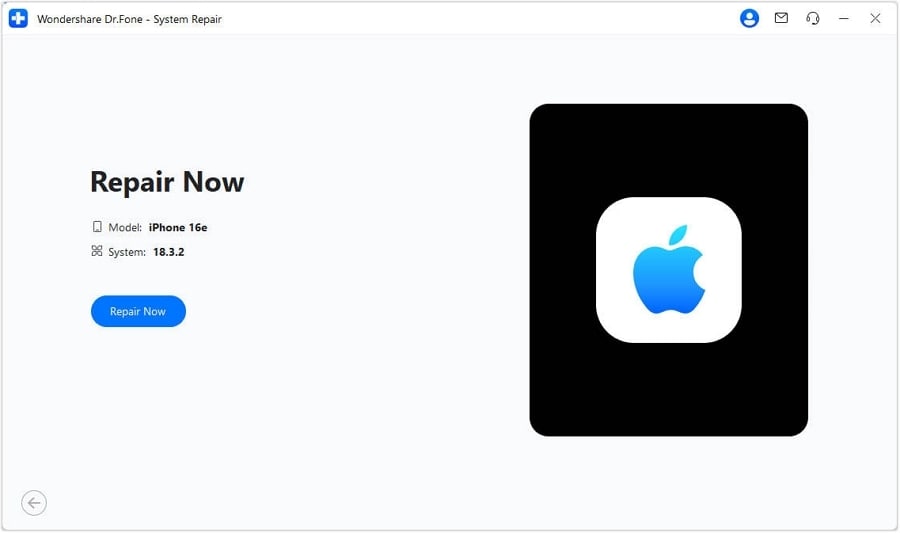
When the repair completes, click Done and check whether iOS starts normally and whether the line returns.
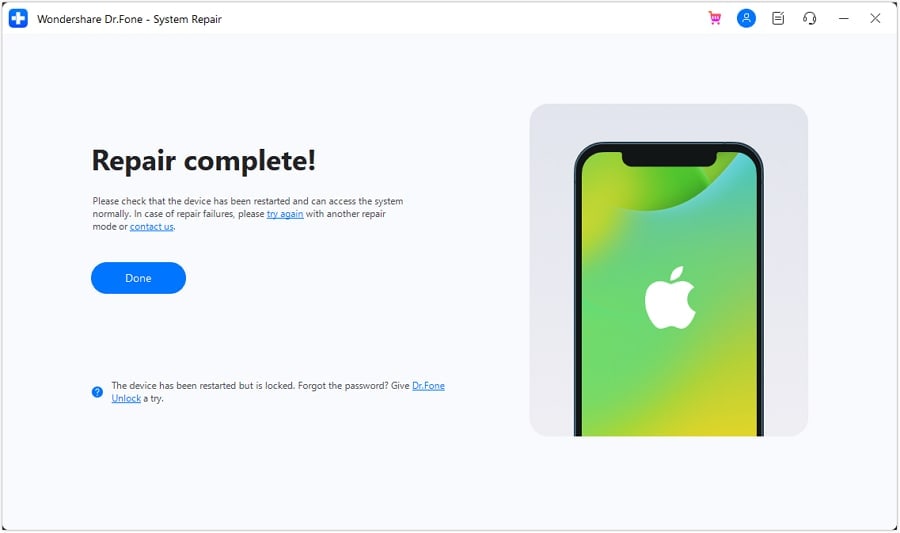




If iOS starts normally but the line returns, arrange a display inspection. Contact support if the startup or update problem persists.
When to Stop Troubleshooting and Get Display Service
Back Up and Prepare Your iPhone for Service
If the line stays in the same place after a restart, spreads, or comes with unreliable touch, contact Apple, an Apple Authorized Service Provider, or the shop that recently replaced your screen. If the phone is still usable, confirm the time of your latest backup and use another device to take a photo of the line.
Tell the technician when it began, whether it follows you across apps, and whether it appears during the display test. If the screen was recently replaced, look for Parts and Service History under Settings > General > About on supported models. Share any relevant record with the repair provider. Tell the provider before the appointment if you can’t use the screen to back up.
Avoid Pressing or Heating the Screen
Skip pressing or massaging the display, applying heat, and opening the phone to reconnect parts. If the line looks like a mark on a screen protector or touch has become erratic, remove the external case or protector if it comes off easily, then check again.
FAQs
-
1. Why Is There a White Line at the Bottom of My iPhone Screen?
On a Face ID iPhone, a short, centered bar along the bottom may be the normal gesture indicator. Try switching apps or swiping up to go home. If you see an irregular stripe stretching across the screen or staying visible in the same spot as the interface changes, check it using the steps above.
-
2. Can White Lines on an iPhone Screen Go Away on Their Own?
They can fade or disappear for a while. If the screen stays clear when you revisit the same app or screen, keep an eye on it. If the lines return in the same place, widen, or make tapping difficult, take a photo and back up while the phone still works.
-
3. Should I Factory Reset My iPhone Before Getting the Screen Repaired?
Back up first and follow the instructions from your repair provider. Preparation can differ for an in-person appointment and a mail-in repair. There’s no need to erase the iPhone just to see whether the line goes away.
Conclusion
If you still see white lines on your iPhone screen, use the last check you ran to decide what to do today. A line confined to one app is a reason to start with that app. A separate startup or update failure may be a fit for Dr.Fone iOS System Repair. If the line stays fixed, keeps returning, or follows a drop, save a backup while you can and bring a photo of the symptom to your repair appointment.
 Add Wondershare Dr.Fone as a preferred source on Google