Resolve common problems and system crashes on both iPhone and Android devices.


 100% Security Verified | No Subscription Required | No Malware

 :

 ChatGPT
 Perplexity
 Gemini
 Claude
 Grok
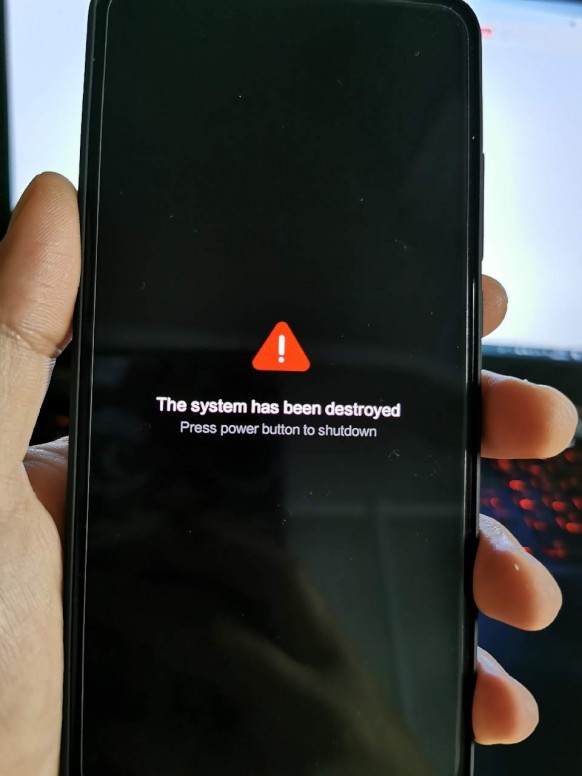
When your Xiaomi shows “The system has been destroyed,” pressing Power may shut it down without getting it any closer to the Home Screen. The next time you turn it on, pay attention to where it stops. A phone that can open Recovery gives you a different set of options from one that returns to the error every time.
If you have photos or files you haven’t backed up, decide how important they are before choosing a repair.
In this article
What “The System Has Been Destroyed” Means
Some Xiaomi and Redmi phones show “The system has been destroyed” followed by “Press power button to shutdown.” The phone has stopped before Android can load normally. Android checks components of its operating system as it starts, and a failed check can stop the boot process. The wording alone can’t tell you which component failed or whether a particular repair will work.
What Happened Before the Error?
Think back to the last time the phone started normally. If it failed immediately after an update or a firmware installation, note what you installed and whether the process finished. If it happened after someone changed the bootloader state, record that too. A Redmi 8 owner reported the same message without installing a third-party ROM, so leave the cause open if you made no recent changes.
Write down any other screen you saw along the way. A phone that reaches Fastboot and a phone that repeatedly restarts at the Xiaomi logo give a technician different clues. A photo of the error and a short timeline are more useful than a guess about which system file is damaged.
Record the Model and Any Data You Need to Keep
Check the box, receipt, or order history for the exact model and the market it was sold for. If you bought an imported phone, record where it was originally sold if you know. Use the information for your own device when checking firmware, even if a guide shows the same error on a similar Redmi model.
Check which photos, messages, or work files are already backed up. If Android won’t open, check any existing cloud backup from another device you trust. Make a note of what you still need from the phone. You can share that list with a repair provider before deciding whether to allow a reset or a firmware write.
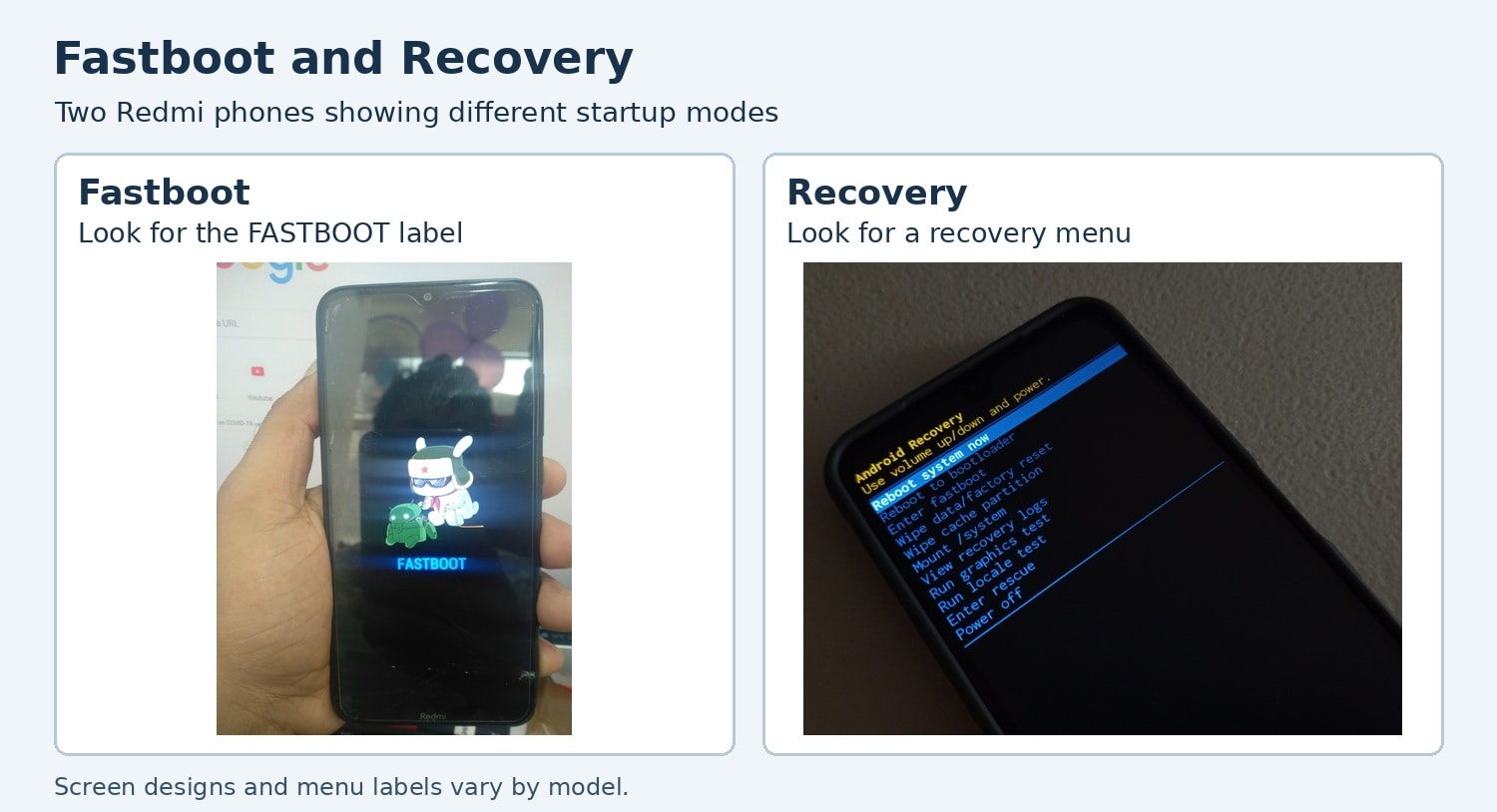
Check Whether Fastboot or Recovery Is Reachable
Try a Normal Restart First
Follow the on-screen Power button prompt to shut down, then press Power to start the phone again. Do this only when an update or repair tool is no longer writing to the device. If Android loads, back up while the phone is accessible. If you get the same error again, check which startup mode still opens.
Keep Fastboot and Recovery Separate
-
1. With the phone off, use the Fastboot button combination for your model. Xiaomi’s general instructions use Power + Volume Down. If the Fastboot screen opens, record that.
-
2. Check Recovery separately using your model’s instructions. On many Xiaomi phones, use Power + Volume Up from a powered-off state. If the same error returns, record that Recovery didn’t open.
-
3. If Recovery opens and offers Reboot, use it to try starting the phone again. Leave Wipe Data untouched while you’re checking what the phone can do.
If you land in Fastboot without trying to, check whether the Volume Down button is stuck. When the phone is unresponsive and nothing is being written to it, Xiaomi advises holding Power for more than 10 seconds to force a restart.
| What you can reach | What to do next |
|---|---|
| Android starts again | Back up your important files and note whether the error returns. |
| Fastboot opens, but Recovery returns to the error | Record both results. Check the phone’s identity, firmware options, and any bootloader restriction before authorizing a repair. |
| Recovery opens | Try Reboot if offered. If the error returns, keep the data intact and decide whether to have the firmware assessed. |
| Both modes return to the error or the phone is unresponsive | Give those details to Xiaomi support or a qualified repair provider. |
Check the Bootloader, ROM, and Data Risks Before Repair
A Locked Bootloader Is a Separate Constraint
Reaching Fastboot, being detected by a computer, finding firmware that matches, and being allowed to write it are separate checks. If you see a message such as “Flashing is not allowed in Lock State,” stop at that point and ask support what recovery options apply to your model and software version.
If you already know the bootloader was locked or unlocked before the error appeared, include that in your notes. When you can’t verify the state, leave it as unknown. An instruction that starts in Android’s Developer Options is useful only when Android opens. A phone that stops at this error may need a different route.
Match the Device, ROM Type, and Region
A Fastboot ROM and a Recovery or over-the-air update package are meant for different installation paths. A similar filename or model name is a poor basis for choosing one. Use the tool’s device details or ask the service provider to confirm the specific device variant, the software region, and the package type before you approve an installation.
This matters if your phone was imported or previously ran a different ROM. Tell the repair provider both where it was sold and what software was last installed, if you know. If you have a package someone suggested online but can’t verify it against your device, set it aside.
Decide What Data You Can Afford to Lose
A factory reset erases user data and settings. If you need files that exist only on this phone, ask whether a provider can examine it without erasing it first. If the phone has already been reset or flashed, give the provider the sequence of actions you took. That helps them assess what may still be accessible and what you can retrieve from a backup.
Use Dr.Fone to Check and Repair Supported Xiaomi Firmware
If your Xiaomi still stops at the error and you’re unsure which firmware to use, Dr.Fone System Repair for Android gives you a way to check for a match and install it in the same workflow. For supported Xiaomi, Redmi, and POCO phones it detects, Dr.Fone lists the available firmware for the device and guides you through preparing and installing it. That saves you from searching ROM archives and running flashing scripts yourself.
The Xiaomi repair workflow is designed to preserve personal data on supported devices.
 Fix Android instantly – no skills needed.
- Fix boot loops, black screens, won’t turn on, etc.
- High success rate for all system issues.
- User-friendly interface with easy-to-follow steps.
Follow the Xiaomi, Redmi, or POCO Repair Flow
-
1. Open Dr.Fone on your Windows PC, connect the phone by USB, and choose System Repair.
-
2. Select Android, open Android Repair, and choose Repair Now to enter the workflow.
-
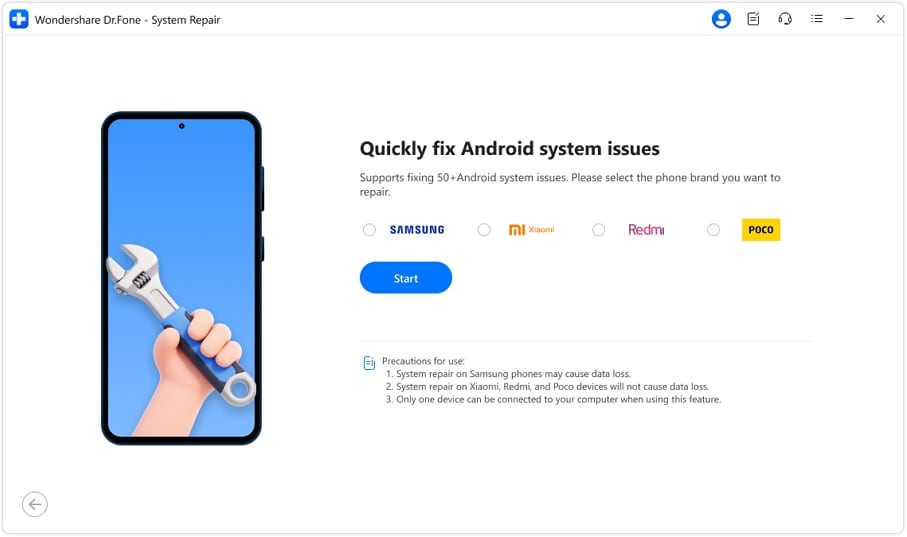
3. Choose the phone’s actual brand, Xiaomi, Redmi, or POCO, then click Start. Check that Dr.Fone recognizes the device and offers suitable firmware before continuing.
-
4. Review the firmware options for the detected device. Select the one that matches and click Download. Wait for Dr.Fone to finish downloading and preparing the package.
-
5. Review the phone and firmware details shown on the confirmation screen. When they match the device and you’re ready to proceed, click Fix Now.
-
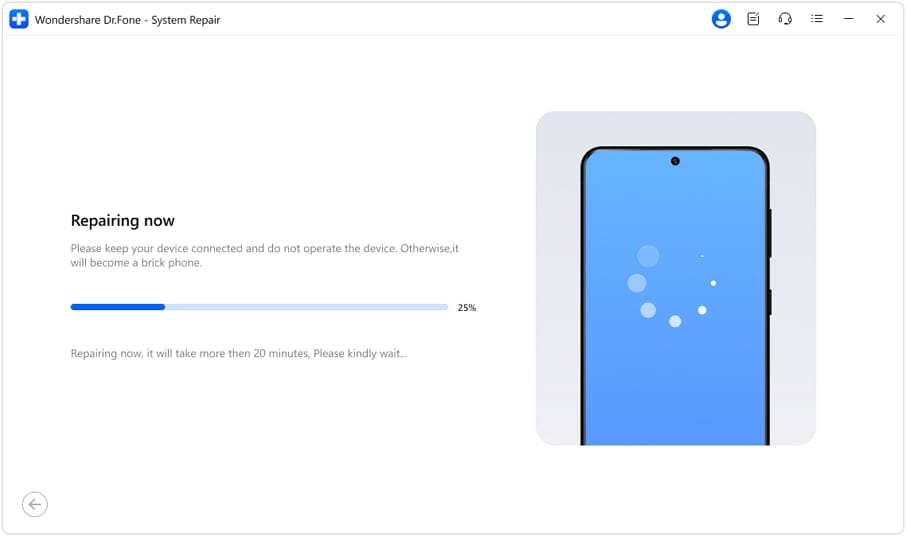
6. Keep the phone connected and leave it alone while the progress screen is active. When the tool finishes, check whether the phone can actually start Android.




If Android starts, back up your important files. If the original message returns, save the repair result and contact support with the model, firmware shown, and any error the tool reported.
When a Manual ROM Restore Needs Expert Help
Ask for expert help with a manual restore if you can’t confirm the phone variant, the correct package, or whether the device accepts a firmware write. If you recently installed a ROM or changed the bootloader state, tell the provider exactly what happened before the first failed startup. For an imported handset, confirm that the provider services your model and the market it was originally sold in.
Have this information ready when you contact Xiaomi support or a qualified repair provider:
- A photo of the error and the phone’s full model name.
- The original purchase market, if known, and the last update, firmware, or bootloader change you remember.
- Whether Android, Fastboot, or Recovery opens, along with any repair-tool error.
- What you have backed up and which files exist only on the phone.
Ask whether they can check the device before erasing it and whether a data-preserving firmware repair is available for that model and condition. Xiaomi describes this type of service for some software problems. The provider can confirm whether it’s available for your phone before you authorize work.
Conclusion
If your Xiaomi shows “The system has been destroyed,” start with the mode you can still reach. Back up if Android opens. If Dr.Fone System Repair for Android detects the phone and lists matching firmware, use its guided firmware installation. If a write is blocked or your files take priority, share your notes with a repair provider before approving any changes.
FAQs
-
1. Does This Error Mean My Files Have Been Deleted?
The startup message only tells you the phone couldn’t load Android normally. To see what you already have, check your cloud or computer backups. If you still need files from the phone itself, tell the repair provider before approving any reset or firmware work. Access depends on the condition of your device.
-
2. Will a Factory Reset Reinstall the Firmware?
A factory reset clears user data and settings. Reinstalling firmware writes a system package to the device. If the phone returns to the same startup error because the installed firmware is damaged or incompatible, erasing your files may leave that underlying problem in place.
 Add Wondershare Dr.Fone as a preferred source on Google