Resolve common problems and system crashes on both iPhone and Android devices.


 100% Security Verified | No Subscription Required | No Malware

 :

 ChatGPT
 Perplexity
 Gemini
 Claude
 Grok
An Android stuck in Fastboot Mode may show a bootloader menu instead of your usual apps. You might have entered it by accident, or the phone may return to it after every restart. Check the screen and buttons first, then choose an exit method that fits your device.
In this article
Identify Fastboot and Why It Keeps Returning
Fastboot, Recovery, or Samsung Download Mode?
Fastboot is a device mode used for certain low-level operations, such as communicating with a computer before Android starts. Seeing it doesn’t by itself mean your phone has been erased or that its system is damaged.
Look at the words on the screen before choosing an action. A Pixel may show a bootloader menu, while some Xiaomi phones display a Fastboot graphic. Recovery is a different menu that may include a factory-reset option. Samsung Download Mode is also different; don’t assume Fastboot commands or another brand’s button instructions apply to it.
Menus vary by model and software version. If you’re unsure what you’re looking at, note the exact screen text and device model before proceeding.
You may also see the term fastbootd. This is a separate userspace Fastboot mode, not the bootloader itself; its screen and available options can differ. Follow the directions for the mode your device actually displays.
Check the Volume Button and Recent Changes
A pressed or stuck Volume Down button can cause a Xiaomi phone to enter Fastboot during startup. Remove a case that may be pressing the buttons, then check whether the volume buttons move normally. Don’t pry them out or dismantle the phone.
Also note whether the problem began after an update, a repair attempt, or a firmware change. That history can help a support technician diagnose a recurring problem. If a button is damaged or remains pressed, a software restart won’t repair it.
Exit Fastboot Without a Computer
Try a normal restart before moving to computer tools. Don’t interrupt an active firmware installation or flashing operation.
Restart a Xiaomi, Redmi, or POCO Phone
For a Xiaomi phone already in Fastboot, Xiaomi suggests checking for an accidentally pressed or stuck Volume Down button. Its guidance also says the phone may start on its own if left alone for a while.
If it remains unresponsive:
-
Remove anything pressing against the buttons and check Volume Down.
-
Press and hold Power for more than 10 seconds to force a restart.
-
Wait for the phone to start and check whether Android opens normally.
If the phone returns to Fastboot, check the button again and move to the troubleshooting section below. Redmi and POCO models may follow similar guidance, but check the instructions for your exact model if its controls or response differ. If the phone still won’t power on, contact an authorized service center.
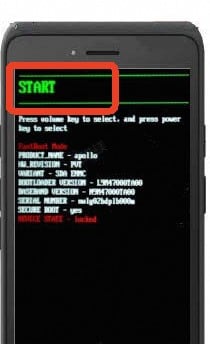
Select Start If Your Bootloader Menu Offers It
Some phones show a bootloader menu with a Start option. If yours does, use the on-screen directions or the model’s documented button controls to select Start. On a Pixel bootloader menu, the volume buttons move through available options and Power selects the displayed option.
Let the phone restart, then check whether it reaches Android. If Start isn’t available, don’t select an unfamiliar option just to leave the screen. Use your manufacturer’s instructions or try the computer method instead. In particular, avoid selecting a wipe or factory-reset option unless you intend to erase the phone.
Use the Fastboot Reboot Command on a Computer
If the buttons aren’t helping and your computer can detect the phone in Fastboot, Google’s Platform-Tools package includes the fastboot command. The restart command below does not unlock the bootloader, flash firmware, or perform a factory reset.
Install Platform-Tools and Check Device Detection
-
Download the package for your operating system from Android SDK Platform-Tools and extract it.
-
Connect the phone to the computer with a USB data cable. Leave the phone on its Fastboot screen.
-
Open a terminal in the extracted platform-tools folder. Disconnect other Android devices so you can identify the intended phone.
-
Check for the device:
Windows PowerShell:
.\fastboot.exe devices
Mac or Linux:
./fastboot devices
The output should identify the connected phone, typically by a device serial number. Don’t share that identifier in public screenshots. If nothing appears, try another data-capable cable or USB port and check the manufacturer’s driver guidance for your computer and model. A charging-only cable may not provide the needed data connection.
USB debugging is an Android setting; it isn’t a general prerequisite for communicating with a phone that is already in Fastboot. If the device still isn’t detected, don’t download an unidentified flashing tool as a substitute.
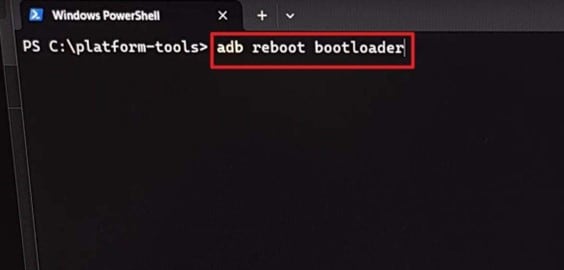
Run fastboot reboot and Check the Result
Once the intended phone appears in the device list, run the matching command from the same folder:
Windows PowerShell:
.\fastboot.exe reboot
Mac or Linux:
./fastboot reboot
Wait for the restart and see whether Android loads. If the command reports an error, keep the exact message for troubleshooting. If the phone reopens Fastboot, move on to the button, software, and service checks below rather than running the same command repeatedly.
Try Dr.Fone’s Free Fastboot Exit Tool on Windows
Want to exit Fastboot without typing terminal commands? Dr.Fone - System Repair (Android) offers a free one-click Fastboot exit. Once your phone is connected and you’ve selected Fastboot Mode, click Exit to start the process and follow its progress on screen.
You’ll need a Windows computer, a USB data cable, and a phone that the tool can recognize. Availability can depend on the device and software version.
 Fix Android instantly – no skills needed.
- Solve boot loop, black screen, won’t turn on, etc.
- High success rate for all system issues.
- User-friendly interface with easy-to-follow steps.
-
Open Dr.Fone on Windows, connect the phone, and choose Toolbox > System Repair.
-
Select Android, then find Fastboot Mode.
-
Choose Exit, not Enter, and follow the prompts on your screen.
-
Keep the phone connected while the exit process runs.
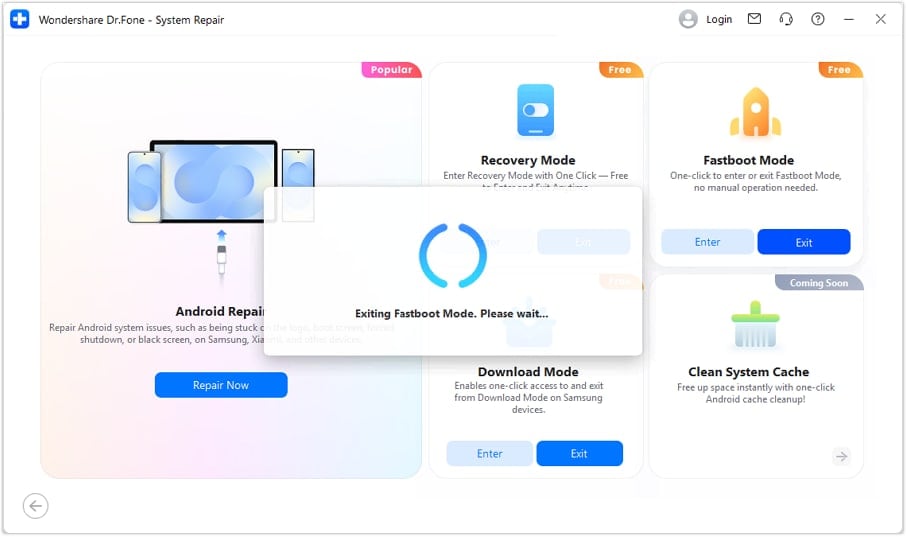
-
When the tool reports that the process has finished, close the prompt and check the phone itself.
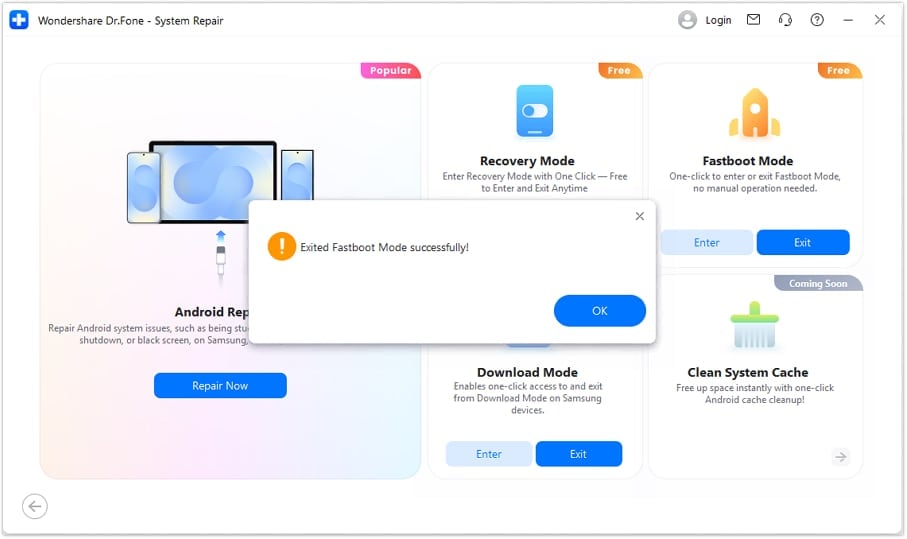




The screen labels may differ between versions. If Dr.Fone doesn’t recognize the phone, check the cable, connection, and device compatibility. If the phone exits but returns to Fastboot, the exit action alone hasn’t resolved the underlying issue.
If Your Phone Reboots Straight Back into Fastboot
Getting out of the menu once doesn’t necessarily explain why it appeared. If the phone keeps returning to Fastboot, focus on what happens immediately before the screen reappears.
Check for a Stuck Button or Failed Firmware Change
Check whether the case is pressing a button and whether Volume Down moves freely. If a key is physically jammed, contact the manufacturer or a repair service instead of trying to compensate by repeatedly rebooting.
If the issue followed an update or a firmware change, write down the model, the steps you took, and any error message. Use manufacturer support for that model; a firmware package or button combination intended for a different phone can create a new problem.
Try Google’s Update and Software Repair Tool on a Supported Pixel
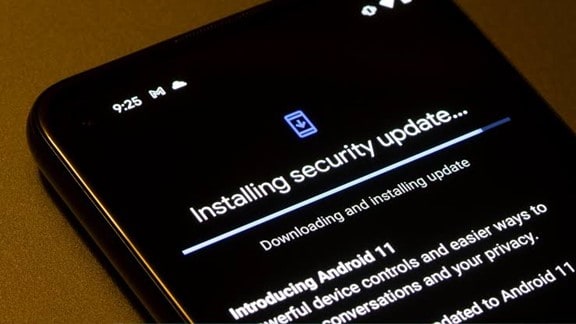
Google offers an Update and Software Repair tool for eligible Pixel devices. Google’s support guidance describes its use for Pixel 4a and later, including Fold. The tool’s welcome page also lists Android version and computer storage requirements; check its current eligibility and instructions for your exact device.
-
Connect the Pixel to a computer with a compatible USB data cable.
-
Open the tool and follow its instructions to identify the phone.
-
Read the available options before proceeding. If the tool offers an update without a factory reset for your device, you may be able to try that route first.
-
Keep the connection in place while the tool works, then check whether the phone starts normally.
An update without reset is a possibility, not a guarantee of success or data preservation. Google says reinstalling the software resets the device and erases its data. Stop and seek support if you can’t accept losing unbacked-up data.
Choose Model-Specific Repair, Reset, or Service
If the phone still won’t start, choose the next step based on the model, the error, and the importance of any unbacked-up files. An authorized technician may be the right choice for a stuck button or suspected hardware fault.
If an eligible Xiaomi, Redmi, or POCO phone still won’t start, Dr.Fone’s separate Xiaomi system repair workflowcan find matching firmware and guide you through downloading and installing it, without requiring root access. This repair workflow is separate from the free Fastboot exit utility and may require payment. Verify the model, cost, and on-screen data warnings before proceeding; a data-preserving workflow is not a guarantee that every file can be recovered.
If you have a Pixel and decide a reset is acceptable, follow the model-specific steps below. Don’t treat those steps as instructions for every Android brand.
Factory Reset Only After Accepting Data Loss
A factory reset erases the data stored on your phone. Try the less destructive options first. If your files haven’t been backed up and you can’t afford to lose them, stop before choosing a wipe option and contact Google or an authorized repair provider.
For a Pixel, Google recommends charging the phone to at least 70% before a reset. Make sure you know the Google Account credentials associated with the phone and its screen-lock information. Check that the data you need is in a usable backup; if you recently changed your Google Account password, Google recommends waiting 24 hours before resetting.
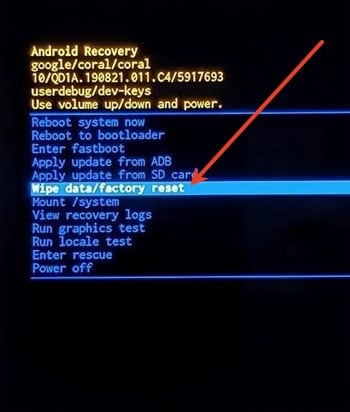
If you’ve accepted the data loss and your Pixel is already on its Fastboot screen:
-
Use the volume buttons to display Recovery Mode, then press Power to select it.
-
If you see No command, hold Power, press Volume Up once, and quickly release both buttons.
-
In Android Recovery, use Volume Down to highlight Wipe data/factory reset and press Power.
-
Select Factory data reset only after confirming that you’re ready to erase the device.
-
When the wipe finishes, select Reboot system now. Follow the setup prompts and restore the data available in your backup.
If the reset fails or the phone still returns to Fastboot, contact Google support or an authorized repair provider. A reset cannot fix a physically stuck button and may not resolve every software fault.
Conclusion
Start with the model-specific restart or an available Start option, then try a computer method if your phone can be detected. For a command-free option, Dr.Fone - System Repair (Android) offers free one-click Fastboot exit for supported devices on Windows.
An Android stuck in Fastboot Mode again after a restart may need more than another reboot. Check the buttons and the phone’s recent history before moving to repair or service, and confirm your backup and accept the data loss before choosing a factory reset.
FAQs
-
1. Does Exiting Fastboot Erase My Data?
Simply exiting Fastboot or issuing a reboot is not the same operation as erasing the phone. A factory reset deletes local data, and actions such as unlocking or flashing can also affect data. If the system is already damaged, a successful restart cannot guarantee that all files are intact.
-
2. Can I Exit Fastboot from a Mac?
Yes, you can use the Mac version of Android Platform-Tools to run fastboot reboot if your Mac recognizes the device in Fastboot. The Dr.Fone Android tool described in this article is for Windows; a Mac download link for other Dr.Fone features doesn’t establish Mac support for Android System Repair.
 Add Wondershare Dr.Fone as a preferred source on Google