Resolve common problems and system crashes on both iPhone and Android devices.


 100% Security Verified | No Subscription Required | No Malware

 :

 ChatGPT
 Perplexity
 Gemini
 Claude
 Grok
If your Android system update failed, what you can still do on your phone helps narrow down the fix. Maybe the download stopped, or the update wouldn’t install and sent you back to Settings. Maybe the phone restarted and never got past the logo. This guide helps you find the steps that fit your situation and spot any recovery options that could erase your files.
In this article
- Android System Update Failed: Identify the Update and Error Stage
- Android Update Failed to Download or Install? Check the Basics
- Check Android Update Availability and Device Compatibility
- Android Phone Won’t Boot After an Update: Try OEM Recovery
- How Dr.Fone Can Help After an Android System Update Fails
- Factory Reset or Support After an Android Update Failure
- Conclusion
Android System Update Failed: Identify the Update and Error Stage
Android OS, Security Patch, or Google Play System Update?
Go to Settings → About phone → Android version on devices that use Google’s standard menu. Check the Android version, security update date, Google Play system update date, and build number. On Galaxy devices, look under About phone → Software information for version details. Updating an app in the Play Store is a separate action from installing a Google Play system update.
If possible, note the full error and the screen where it appeared. The update type and build help you avoid trying a fix intended for a different update or model.
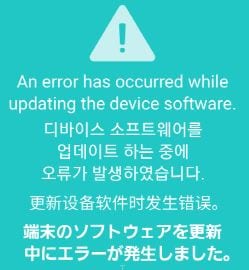
Samsung recovery-screen example; record your own error before choosing a route.
Download Failed, Install Failed, or Phone Won’t Boot?
| What you see | What it tells you | Where to start |
|---|---|---|
| The download stops or asks for more space | The phone still opens Settings, so you can check the conditions it needs before installing. | Check the basics |
| Installation is progressing or the phone restarts during the update | Some devices restart as part of installation. Pixel can install an update in the background and activate it on the next restart. | Keep power connected and follow the on-screen instructions. |
| The update is unavailable, or verification fails repeatedly | The exact model, carrier, and build can determine whether an update applies. | Check update availability and compatibility |
| The update ended or displayed an error, and the phone can’t reach the lock screen | Instructions that require Settings may be out of reach. | Start with manufacturer recovery |
Seeing the old build during a Pixel background install can be normal. Verify the result after the phone prompts you to restart and completes that restart. If a progress screen has stopped changing and you can’t tell whether the device is still writing the update, contact the manufacturer before trying to force it off.
Android Update Failed to Download or Install? Check the Basics
Use a Stable Connection and Charge the Phone
-
Connect to a Wi-Fi network that can load a web page reliably. If the current network keeps dropping, try a different trusted connection.
-
Charge your phone. Google recommends at least 75% before updating Android. Follow any more specific requirement displayed by your phone.
-
Return to the update page. On many Android phones it’s under System → Software updates. On a Galaxy it’s usually Software update or System updates. Retry if the screen offers it, then check whether the download advances or returns the same error.
Some interrupted downloads retry automatically. If the phone begins installing, leave it connected as directed and give it time to finish. If it fails before installation again, use the exact error to decide whether to check storage or move on to update eligibility.
Not Enough Space for an Android Update? Check Internal Storage
-
Read the storage amount in the update warning, then open Settings → Storage. Some Galaxy models show it under Device care → Storage. Compare the warning with the phone’s internal free space.
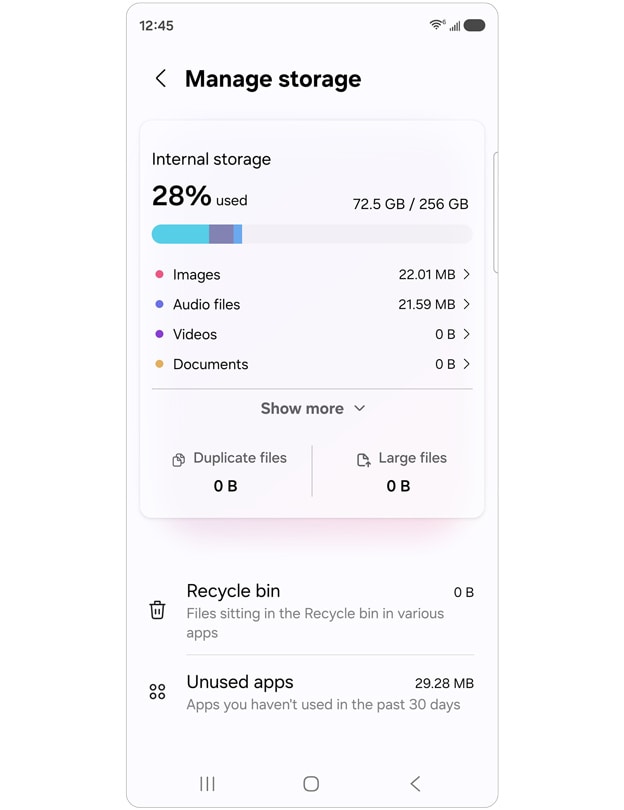
The storage figures are specific to this example. Check the space requested by your phone.
-
Start with downloads you can get again, such as offline videos, podcasts, or music. If you want to remove photos or files you care about, verify that a backup opens before deleting the local copies.
-
Recheck the available space and try the update again if offered. Look for the storage warning to clear or the update to progress beyond the point where it stopped.
Available space for installing an update can differ from the download size. Use the device’s own requirement. If you free space by removing an unused app, check for local data you’d want to keep. Clear storage can erase an app’s saved data and settings.
Restart Only After the Update Has Stopped
If the screen confirms that the update failed and you can use the phone, restart it normally from the power menu. Open the same update page and retry if prompted. Write down the error if it happens again, especially a verification or compatibility error. That makes it easier to check the build or explain the failure to support.
Check Android Update Availability and Device Compatibility
Check Your Model, Carrier, and Android Build
Find the full model number and build in Settings. Check the manufacturer’s release information for that exact model and region. If it’s a US carrier model, check the original carrier’s release information too, even if the phone is now unlocked. Carriers and regions can receive the same update at different times, even for phones sold under the same name.
If the update reports a signature or verification error, record the message and check its source and compatibility with the manufacturer. Keep to the update offered for your build. For an update that hasn’t been released to your device or a model no longer supported, a factory reset won’t make the update appear.
Samsung Software Update Failed? Check Smart Switch
For a compatible Galaxy that can still connect, Smart Switch can offer another official way to install an available update.
-
Open Samsung Smart Switch on a Windows PC or Mac and connect the Galaxy with a USB data cable. Allow the computer connection if the phone prompts you.
-
Wait for Smart Switch to recognize the device. If it shows Update, select it and follow the prompts. Keep the cable connected and avoid using the phone until installation and the automatic restart finish.
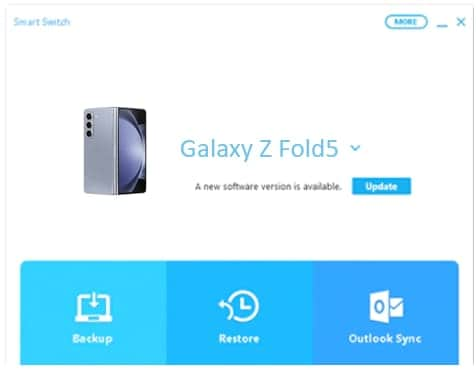
Update appears only if Smart Switch offers an update for the connected device.
-
Check the build and update status once the phone starts. If there’s no Update button, check release availability. If detection or installation fails, note the error and use Samsung’s troubleshooting path.
Android Phone Won’t Boot After an Update: Try OEM Recovery
Use the Restart Instructions for Your Brand
For a Galaxy stuck at the logo after the update has clearly finished or stopped, Samsung’s instructions for many models call for holding Side/Power + Volume Down for at least seven seconds to restart. Check your model’s instructions first. For Pixel and other brands, use the manufacturer’s restart procedure for your specific phone.
If a Galaxy can reach its logo and you suspect a recently installed app, Samsung’s model-specific Safe Mode can help you test that possibility. If the phone starts in Safe Mode, back up important data before making changes. Safe Mode helps narrow down a startup problem. If the phone still won’t start or shows power or charging problems, contact the manufacturer before moving to a reset.
Check an Available OEM Recovery Option
Use Samsung’s emergency software recovery only if a computer update has already failed, the device shows the applicable recovery screen, and Smart Switch lists that device for recovery. Read every prompt before you confirm. Stop if it calls for initialization or erasure and you need the data or haven’t verified a backup.
On the computer where the update failed, reopen Smart Switch and go to the emergency software recovery option under More. The exact wording can vary by version. Select the failed device and follow the recovery prompts. Wait for the result and check whether the phone starts normally.
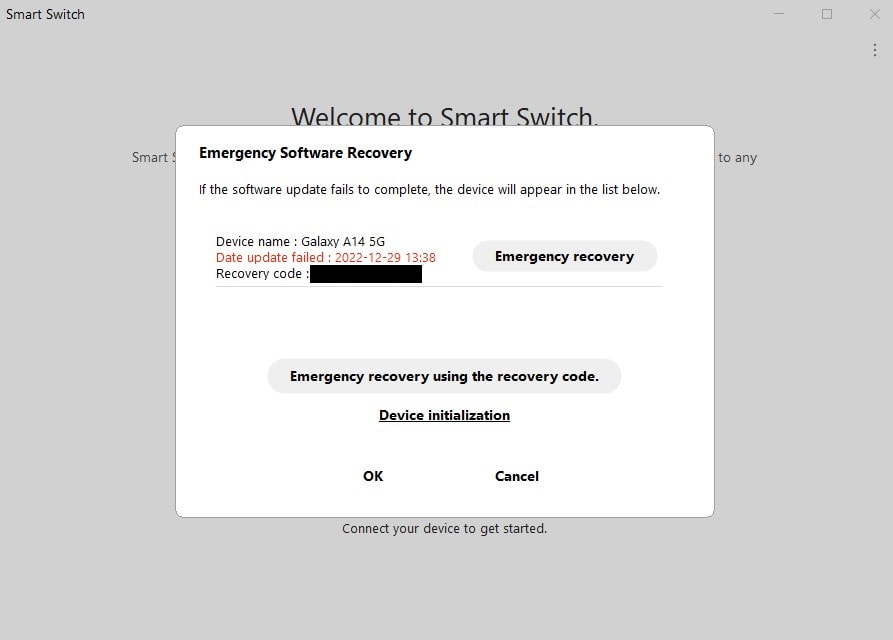
If recovery repeatedly fails on that computer and Smart Switch displays a recovery code for the failed device, you can use the recovery-code option on another computer. Retrieve the code from the original computer, choose the code-based recovery option on the second one, and review its instructions and data warnings before confirming. If the required device, menu, or code is missing, use Samsung’s software update support.
How Dr.Fone Can Help After an Android System Update Fails
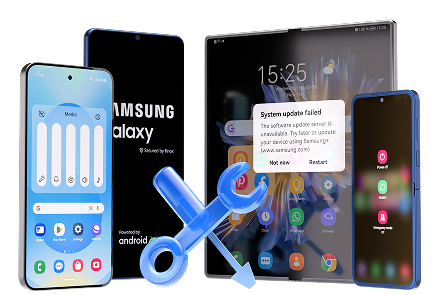
Dr.Fone System Repair for Android can help get a supported phone running again after an Android system update fails and leaves the phone with a firmware problem. It walks you through confirming the device details, preparing matching firmware, and reinstalling Android in one app. You can review the package before installation starts.
On a Windows PC, choose the steps below for your phone brand. If Dr.Fone can’t detect your device or offer matching firmware, stop and contact support.
Reinstall Galaxy Firmware with Dr.Fone
Samsung firmware repair erases the data on your phone. Back up what you need before starting and verify the backup. If you can’t back up important files, ask Samsung about your options before choosing this repair.
 Fix Android instantly – no skills needed.
- Solve boot loop, black screen, won’t turn on, etc.
- High success rate for all system issues.
- User-friendly interface with easy-to-follow steps.
-
Connect your Samsung phone to the Windows PC via USB. Open Dr.Fone → System Repair → Android → Android Repair → Repair Now, choose Samsung, and start the workflow.
-
Check the device name, model, country or region, and carrier. Use the values for your own phone. Review the on-screen erasure warning before continuing.
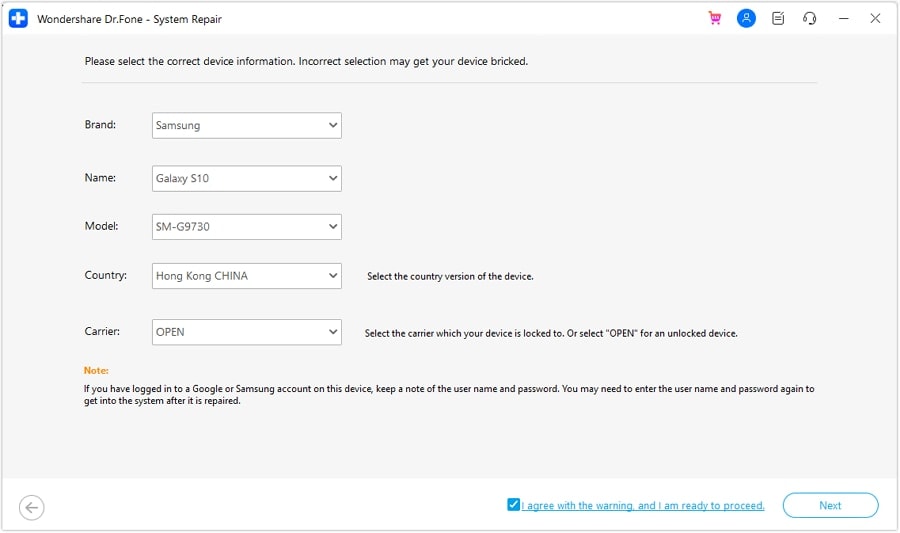
The Guide uses an example model and region. Choose the settings for your own phone.
-
Follow the Download Mode instructions shown for your exact model in the Samsung Android repair guide and the tool. Only use one-click entry if the tool offers it for your connected device. If the instructions don’t match the phone or it won’t enter the required mode, pause.
-
Let Dr.Fone retrieve and verify the firmware, then review the details before choosing Fix Now. The documented confirmation asks you to enter 000000. Confirm only if the prompt matches and you’ve accepted the erasure.
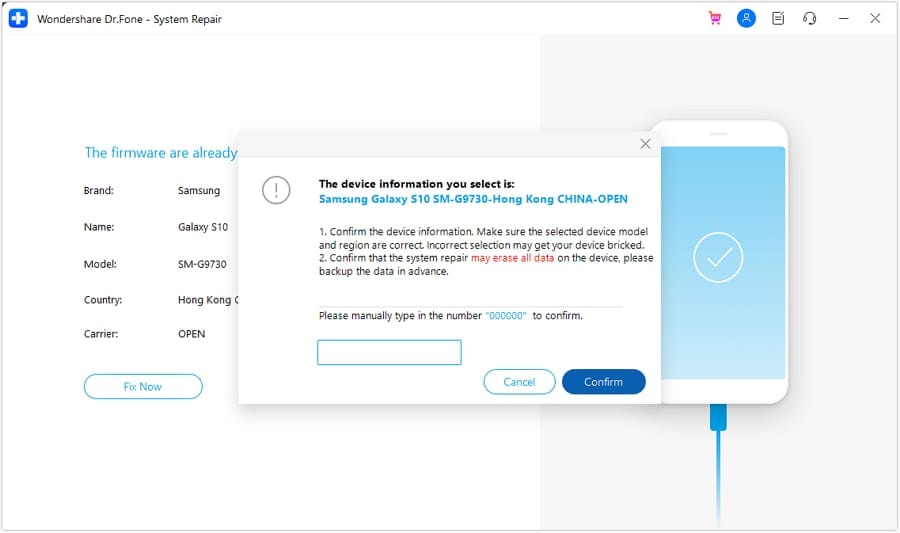
Review the erasure warning before confirming.
-
Keep the device connected until the repair finishes. If the phone starts normally, follow the success screen. If it remains stuck, contact support with the model, firmware shown, and the stage where the repair stopped.




Repair Xiaomi, Redmi, or POCO Firmware
On eligible Xiaomi, Redmi, and POCO phones, Dr.Fone scans for firmware that matches your model and offers a repair designed to keep your personal data. Back up first if the phone is usable, then review the package and on-screen prompts before starting.
- Fix Android instantly – no skills needed.
- Solve boot loop, black screen, won’t turn on, etc.
- High success rate for all system issues.
- User-friendly interface with easy-to-follow steps.
-
Connect the phone by USB to the Windows PC and open System Repair → Android → Android Repair → Repair Now.
-
Choose your phone’s Xiaomi, Redmi, or POCO brand and start the scan. The Xiaomi-family repair guide shows this workflow. Continue only if the tool detects the device and shows a suitable firmware package.
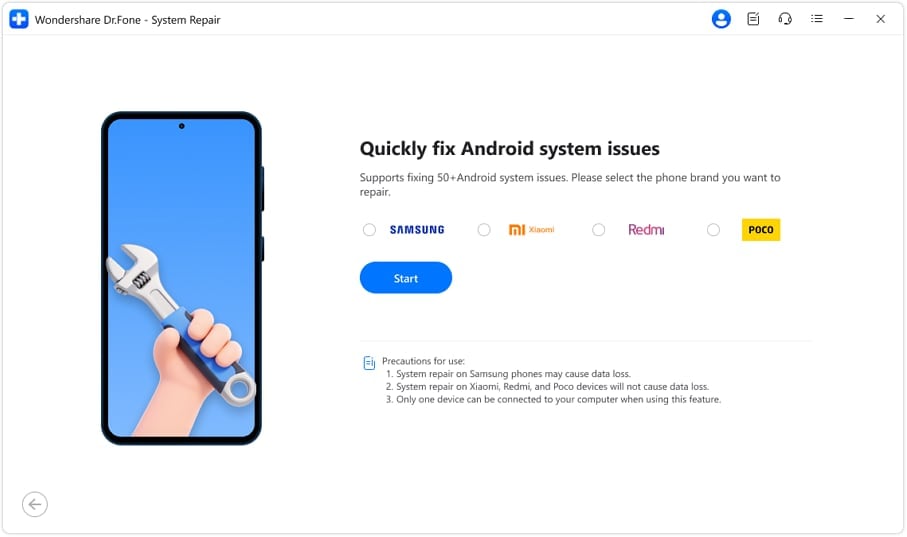
Select the actual device brand before Dr.Fone checks for firmware.
-
Review the firmware it found, select the matching package, and download it. Wait until the software finishes preparing the files.
-
Review the device and firmware details again, then choose Fix Now if they match. Leave the phone connected and avoid operating it until the repair ends.
-
Check that the phone starts normally and can open Settings. If installation fails or the device stays at the logo, record what the tool reported and contact support.
Factory Reset or Support After an Android Update Failure
A factory reset erases data from the phone. Consider it only after the lower-risk checks and when the manufacturer recommends it for your exact model and failure state. If the issue is that your model or carrier hasn’t received the update, go back to the release information instead.
Before a reset, verify what your backup contains. Confirm you can sign in to the Google Account already on the phone and know the screen-lock credentials. Google recommends waiting 24 hours after changing the account password and charging to at least 70% before resetting. Have a network connection available for signing in afterward. Use the manufacturer’s procedure for your specific model, especially when Settings won’t open.
If you can’t verify the backup or don’t want to lose local data, contact the manufacturer or original carrier before resetting. Share the model number, current build if available, exact error, and the last screen the device reached. Include whether the failure happened over Wi-Fi or through a computer.
Conclusion
If your Android system update failed and you can still open Settings, use the error message and build number to decide what to check next. If the phone won’t start, try the manufacturer’s recovery route first. For a supported phone with a firmware problem, Dr.Fone System Repair for Android can guide you through reinstalling the system. Check what the repair would do to your files before choosing it or a factory reset.
 Add Wondershare Dr.Fone as a preferred source on Google