Resolve common problems and system crashes on both iPhone and Android devices.


 100% Security Verified | No Subscription Required | No Malware

 :

 ChatGPT
 Perplexity
 Gemini
 Claude
 Grok
When your phone won’t turn on after water exposure, it is tempting to plug it in or keep pressing the power button. But if your photos, messages, or other files are still on the device, your next choice matters. Keep the phone disconnected first, then consider a repair assessment and check whether you already have a backup.
In this article
- What to Do Immediately When a Wet Phone Won’t Turn On
- Why a Phone Can Stop Working After Water Exposure
- Drying and Charging: Follow the Right Manufacturer Guidance
- Get a Water-Damage Assessment Before More Power Tests
- Protect Your Photos and Files from a Phone That Won’t Start
- Avoid Water-Damage Fixes That Can Make Things Worse
- Conclusion
- FAQs
What to Do Immediately When a Wet Phone Won’t Turn On
The goal is not to diagnose the phone in the first few minutes. It is to avoid adding power while moisture may still be inside and to get the device ready for assessment.
Disconnect Power and Stop Testing the Phone
- Move the phone away from the liquid. If it is connected to a charger, disconnect it from power and remove any cables or accessories when it is safe to do so.
- Leave the phone off. If it is already off and will not start, do not turn it on just to shut it down again. If it is still on and responds normally, turn it off.
- Stop testing the power button or charger. A wet exterior or an unresponsive screen cannot tell you whether the inside is dry.
If the phone is unusually hot, swollen, smoking, or has a damaged battery, move away from it and contact the appropriate emergency or professional service. Do not handle a damaged battery yourself.
Dry the Outside Without Heat or Rice
Remove the protective case and gently wipe the outside with a soft, dry, lint-free cloth. Put the phone in a dry place with airflow at room temperature. Do not put a cotton swab or paper towel inside the charging port.
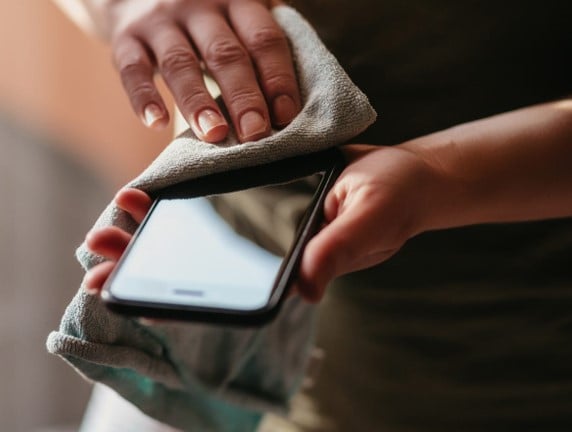
Skip the hair dryer, heater, compressed air, and bag of rice. Rice particles can enter the connector, while heat or forced air is not a substitute for assessing possible internal moisture. If the phone remains unresponsive after being exposed to water, contact the manufacturer, an authorized service provider, or a repair shop experienced with liquid damage.
These steps help you avoid additional exposure; they do not prove that the phone is dry inside or guarantee that it will work again.
Why a Phone Can Stop Working After Water Exposure
Liquid can reach parts that are not visible from the outside. Moisture and residue may affect connections or electronics, and a phone that works briefly after an accident can develop problems later. The exact damage depends on the device, the liquid, and what it reached.
A Black Screen Does Not Identify the Failed Part
A phone that seems completely silent may have a different problem from one that rings or vibrates with a black screen. Repeated restarts are another possible symptom. None of these observations alone identifies a failed battery, display, or circuit board.
Tell a technician what you noticed before the phone was switched off. You do not need to turn it on again to collect more symptoms.
Saltwater and Delayed Failure Need Prompt Service
Saltwater and other liquids can leave residue as well as moisture. If the phone stopped working after saltwater exposure, tell the repair provider what happened and seek an assessment promptly. The same applies if it worked for a while after getting wet and then stopped.
An individual case cannot predict the outcome for your phone. A repair professional needs to inspect it before you can make a useful repair-or-replacement decision.
Drying and Charging: Follow the Right Manufacturer Guidance
Advice about a wet charging connector is not always advice for a phone that was submerged and now will not start. Match the manufacturer's guidance to the phone's condition rather than choosing a universal waiting time.
Whole-Device Water Exposure vs. a Connector Alert
| Situation | What the guidance means |
| A phone was immersed or otherwise exposed to liquid and will not start | Keep it disconnected and arrange an assessment. A dry-looking case or a countdown does not establish that the interior is safe to power. |
| An otherwise usable iPhone shows a liquid-detection alert for its connector | Apple says to disconnect the cable and let the connector dry. Its alert-specific instructions say to try a cable again after at least 30 minutes; if the alert returns, drying can take up to 24 hours. Do not apply this retry schedule to an unresponsive, potentially internally wet phone. |
| An iPhone has been exposed to liquid | Apple says not to charge until the device is completely dry and to allow at least five hours before connecting a cable or accessory. Five hours alone does not establish that a water-damaged phone is dry inside. |
| A Pixel, Samsung Galaxy, or another Android phone has been exposed to liquid | Follow the instructions for that manufacturer and model. A moisture alert on an otherwise usable phone is a different situation from a phone that will not start. |
Apple also describes emergency options for a connector alert, but a submerged, unresponsive phone is not a reason to bypass that distinction or test wireless charging.
Why a Dry Exterior Is Not Permission to Charge
Water can remain where you cannot see it. If the phone will not turn on after immersion, a technician can assess the device before further power tests. When you contact the provider, explain the exposure and any charging attempts that already happened.
Get a Water-Damage Assessment Before More Power Tests
A repair assessment gives you more useful information than guessing which part failed. It also gives you a chance to explain whether the information on the phone matters more to you than the hardware.
What to Tell the Repair Technician
Write down what you already know:
- The phone's make and model.
- The type of liquid and approximately when contact happened.
- Whether the phone was submerged or splashed.
- What you noticed before switching it off, including a black screen or restart loop.
- Whether it was charged, powered on, or placed in rice after the incident.
- Whether photos or other files may exist only on the phone.
Ask whether the provider handles liquid damage and whether they can assess data recovery. You do not need to open the phone or clean its circuit board yourself.
Repair, Replacement, and Data Priorities
Before authorizing work, ask for a diagnosis, the proposed repair, an estimate, and any available alternatives. If data matters, ask what a reset, board replacement, or device replacement would mean for it. Replacing a device or its main board should not be assumed to bring back files that were never backed up.
Also ask the provider to check the actual warranty, insurance, or service-plan terms for your device and region. Coverage and costs depend on the circumstances; another owner's experience is not a guarantee of yours.
If the device cannot be repaired, compare the cost of replacement with the value of a specialist data-recovery assessment and any existing backups. If it is repaired and a technician says it is safe to use, back up accessible data before making further system changes.
If a technician has addressed any liquid damage and confirmed that the phone is safe to connect, but a separate software issue remains, Dr.Fone - System Repair (iOS) can help with supported problems such as an iPhone stuck on the Apple logo. Its Standard Repair is designed to preserve data; Advanced Repair erases data. Dr.Fone - System Repair (Android) offers guided software repair on Windows for supported Samsung, Xiaomi, Redmi, and POCO models; the Samsung repair workflow erases data. Back up first where possible, check your exact model and the on-screen warnings, and note that full repair may require payment. Neither tool repairs water-damaged hardware.
 Fix iOS issues, no data loss.
- One-click repair for all iOS problems.
- Solve recovery mode, Apple logo, black screen, etc.
- Upgrade or downgrade iOS without iTunes
Protect Your Photos and Files from a Phone That Won’t Start
Your first check does not require the wet phone. A trusted computer or another phone may already have access to photos, contacts, or a device backup. What you can recover depends on what was actually synced or backed up before the accident.
Check Existing Cloud Backups from Another Device
- Look for backed-up Google Photos. On a trusted computer or another phone, open Google Photos and sign in to the Google Account you used on the damaged device. Check whether the photos you need are present. If you have more than one account, check the relevant one.
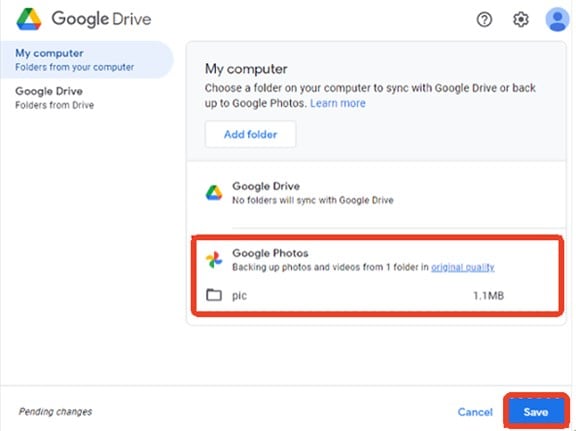
- Check for an Android device backup. Open the Google Account dashboard and sign in to the account associated with your phone to review active backups. Do not select Delete all data: that action deletes backup data. A backup entry or date does not prove that every file you want is included.
- Check what is already available in iCloud. On another trusted device, sign in to iCloud.com with your Apple Account and look for the content you previously synced. An iCloud device backup is different from separately synced photos or files, so do not assume that one confirms the other.
- Consider a backup restore only when you are ready. During setup of a new iPhone or iPad, Apple's Transfer Your Apps & Data screen offers restoration from an iCloud or computer backup. An already configured replacement device may need to be erased before a backup can be restored. Protect its existing data first, and do not erase it merely to inspect a backup.
- Verify the result. Open the photos or files you need after syncing or restoring. A listed backup is a useful starting point, not proof that every item is recoverable.
If you have an accessible iCloud or computer backup of an iPhone, Dr.Fone - Data Recovery (iOS) can help you preview supported data and selectively recover files without restoring the entire backup to a phone. Scanning and previewing are free, while exporting or restoring files may require a paid license. What is available depends on the backup and data type.
If your backed-up images are available and you have a working replacement Android phone, you can also save Google Photos to the Android gallery. That follow-up uses the replacement device, not the wet phone.
If you cannot sign in because your verification method was on the damaged device, use the account provider's recovery process. Do not assume you can create a new backup from a phone that cannot safely turn on.
Ask About Recovery Before Resetting or Replacing Hardware
If important files are missing from your backups, tell the repair provider before approving a reset or hardware replacement. Ask whether they can assess recovery from the original device and what risks or costs apply.
Access to data on an unresponsive, encrypted phone depends on the device's condition and the credentials needed to unlock it. Do not rely on a claim that desktop software can simply scan a completely unpowered phone and retrieve everything. If a specialist cannot access the data, the practical fallback may be the copies already in your accounts or on other devices.
Avoid Water-Damage Fixes That Can Make Things Worse
| Avoid | Why | Better next step |
| Putting the phone in rice | Rice is not a reliable way to establish that the inside is dry; particles can damage a connector. | Dry the exterior and seek an assessment if the phone is unresponsive. |
| Using a hair dryer, heater, or compressed air | These are not a safe substitute for following the manufacturer's drying guidance. | Leave the phone in a dry place with airflow. |
| Repeatedly charging or pressing power | A phone that looks dry may still have moisture inside. | Keep it disconnected until it can be assessed. |
| Opening a sealed phone or cleaning the board yourself | Disassembly and battery handling can create additional risks. | Ask a qualified repair provider about liquid damage. |
| Flashing firmware or running a software repair on wet hardware | Software cannot remove liquid or repair physical damage. A reset can also affect data. | Discuss hardware and data priorities before authorizing any reset or replacement. |
Conclusion
A water-damaged phone needs a careful decision, not a series of guesses. Tell the repair provider what happened, ask about your data before approving work, and check any existing backups from a trusted device. For an accessible iPhone backup, Dr.Fone - Data Recovery (iOS) offers another way to preview supported files.
If your phone won’t turn on after water exposure, keep it disconnected and arrange an assessment instead of treating a fixed drying time as proof that it is safe to charge. The best next step depends on the condition of the phone and the copies of your files that already exist.




FAQs
-
1. Does an IP Rating Guarantee Protection from Water Damage?
No. An IP rating describes protection under specified test conditions; it is not a promise that a phone cannot suffer water damage in everyday use. Water resistance can also decline with wear. Check the rating and guidance for your specific model rather than assuming every phone has the same protection.
-
2. Does Apple’s Limited Warranty Cover Liquid Damage?
Apple says liquid damage is not covered under its warranty, though consumer-law rights may apply. An insurance policy or additional service plan may have different terms and fees. Ask Apple or the relevant provider to check your particular device, region, and coverage before you decide on a repair.
 Add Wondershare Dr.Fone as a preferred source on Google