Resolve common problems and system crashes on both iPhone and Android devices.


 100% Security Verified | No Subscription Required | No Malware

 :

 ChatGPT
 Perplexity
 Gemini
 Claude
 Grok
A Samsung white screen can leave you unable to read messages or unlock your Galaxy phone, even while it rings or vibrates. Sometimes only one app opens to a blank page; sometimes the entire display turns white. Start with what you can still see and control: that determines which checks you can use and whether it is time to seek service.
Below, you'll find restart, app, and software checks, followed by a comparison of service and guided system repair. Before you reach the Dr.Fone steps, you can check device support and decide whether you accept the data erase.
In this article
- Samsung white screen of death: Identify the symptoms
- How to fix a white screen on a Samsung phone: First checks
- Check apps and software for a Samsung Galaxy white screen
- Samsung white screen repair: Compare software and service options
- Use Dr.Fone when a Samsung white screen points to software
- Conclusion
- FAQs
Samsung white screen of death: Identify the symptoms
“White screen of death” is a common name for the symptom, not a diagnosis or proof that your phone is beyond repair. Use what is visible on the screen to choose a starting point.
| What you see | Can you read and use the interface? | Where to start |
|---|---|---|
| One app opens to a white page | Home and other apps work | App checks below |
| The whole display is white | Menus are unreadable | Force restart, then assess the result |
| Icons and text are clear but have no color | Yes | Check the grayscale distinction below |
| Fixed white lines or a half-white screen | Partly or not at all | Service assessment, especially after damage |
Is the white screen in one app or across the whole display?
If you can navigate, return to Home and open another app. Check whether the notification panel still displays normally. A blank page confined to one app gives you a narrower problem to investigate than a white display that also hides the startup logo and system menus.
If you cannot see the interface, avoid entering your PIN or tapping Settings blindly. Ringing and vibration tell you the phone is active, but they do not establish whether its display hardware works properly. Record when the problem began, including any completed update, drop, liquid exposure, or setting change. Timing alone does not prove the cause.
A black-and-white Samsung screen is a different issue
A readable interface with missing colors is grayscale, rather than a blank white display. Review any color-related settings you enabled in Modes, Sleep settings, or Accessibility. Their names and locations vary by Galaxy model and One UI version.
Fixed white lines and a half-white display belong on the service path. Older Galaxy phones can show similar symptoms; check their button layout and exact model before using a repair procedure.
How to fix a white screen on a Samsung phone: First checks
Try a restart first if the phone is unresponsive and safe to handle. If it is installing firmware, do not interrupt it. A phone with liquid damage, a swollen battery, or unusual heat needs support before further charging or restart attempts.
Force restart your Samsung phone when the screen stays white
A force restart is a first check for an unresponsive Galaxy phone and does not require navigating a menu.
-
Hold Power/Side and Volume Down simultaneously for at least 7 seconds.
-
Release the buttons when the Samsung logo appears and the phone vibrates, then let it start.
-
Check the startup logo, Home screen, and the app that was previously blank, if you can access them.
If the display returns but one app still opens blank, work through the app checks. If it stays white, check charging when the phone also seems unresponsive, then move to the repair and service comparison. Stop after this initial check rather than repeatedly forcing restarts.
Check battery power and charging if the phone is unresponsive
If the phone also has no response and may be drained, check whether it receives power.
-
Connect an intact Samsung-approved charger and cable to a working outlet.
-
Allow the phone to charge and watch for a response. A completely drained phone may not show a charging indicator immediately.
-
If there is no response, try a known-good compatible charger or cable, then try turning the phone on.
Contact Samsung support if it still does not respond. A technician should handle battery removal or internal inspection.
Check apps and software for a Samsung Galaxy white screen
Use the following settings only when the screen is readable and you can operate it. If it remains completely white, go to the repair and service comparison rather than trying to tap through invisible menus.
Fix an app-only white screen
When Home and other apps display normally, work on the affected app first.
-
Close the app from Recent apps and reopen it. Check whether the same page is still blank.
-
Check Google Play or Galaxy Store, as applicable, for an update to that app. Install any available update and try again.
-
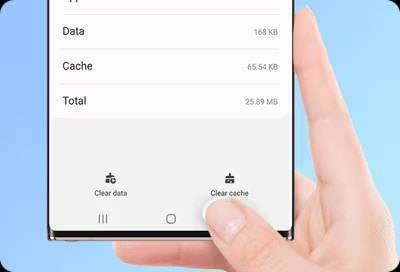
Open Settings > Apps > [affected app] > Storage > Clear cache.
-
Reopen the app and test the page that failed.
Choose Clear cache, not Clear data. Cache clearing removes temporary files. Clear data, or an equivalent storage-deletion control, can remove the app's locally stored information and settings, so assess that loss before choosing it.
Consider uninstalling and reinstalling only after confirming that the app's important content is backed up or synced to your account and that you accept any local data loss. Reopen and check it after reinstalling. If the issue remains confined to that app, contact its developer or support team.
Check whether the white screen clears in Safe mode
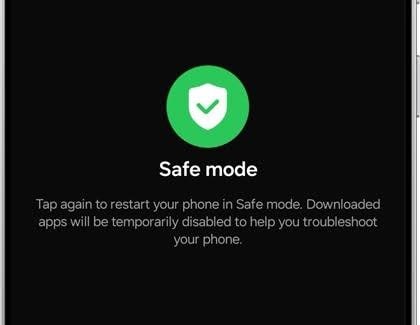
Safe mode temporarily disables most downloaded apps, which can help you investigate a third-party app. Choose one entry method that fits what you can see.
-
With an accessible Power menu: open it with Side and Volume Down, or use the Power icon in the quick panel. Touch and hold Power off, then tap Safe mode when it appears.
-
With the phone already off and a visible startup logo: turn it on. When the Samsung logo appears, hold Volume Down until startup finishes.
-
Look for Safe mode at the bottom left of the screen. If you cannot see that label, do not assume you entered the mode successfully.
-
If the white screen clears, review recently installed or updated third-party apps. Remove a likely app one at a time, restart normally, and retest before removing another. Protect any app content you need before uninstalling.
If the white screen persists in Safe mode, proceed to the repair decision. That result alone does not diagnose hardware damage. Some personalization settings may need restoring after leaving Safe mode.
White screen with Power saving on: Try turning it off
One Samsung Community user with a Galaxy S21+, Android 14, and One UI 6.0 reported a white screen when Power saving was on at 60 Hz. Turning Power saving off restored the display in that case, while repeated resets had not helped. If your symptom follows the same pattern, you can try the reversible setting change below; one report does not establish a general fix.
-
If your screen is usable and the symptom appears with Power saving on, search Power saving in Settings.
-
Temporarily turn it off and compare the same activity that triggered the problem.
-
If nothing changes, return to the main troubleshooting path. Leaving Power saving off may increase battery use.
White screen after an update: Check for a newer version
Record the installed version and when the white screen began. After the update finishes, and only if the interface is usable, check for a newer version. A later release may address software issues; a white screen appearing after an update does not establish its cause.
-
Back up important content if you can, and ensure stable power and a reliable network connection.
-
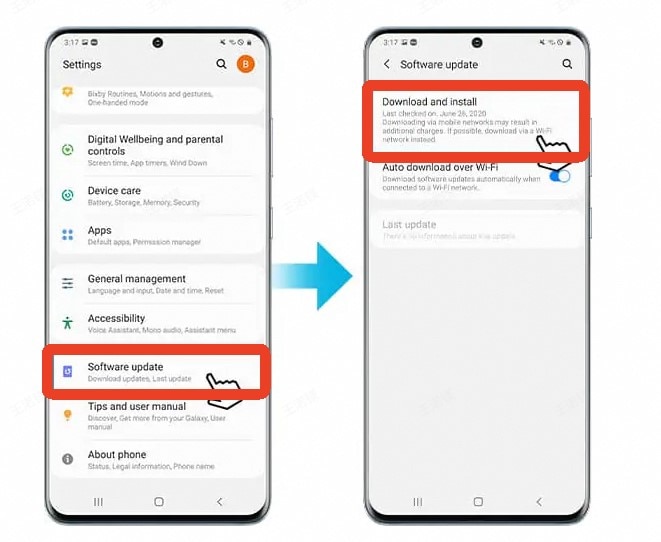
Open Settings > Software update or System updates. Depending on the carrier, select Download and install, Check for system updates, or Check for software updates. Install an update only if one is offered. Let the phone finish restarting, then check the display again.
-
Computer alternative: connect the phone to Smart Switch on a computer. Continue only if it reliably detects the device and displays Update. Select Update, complete the on-screen prompts, and check the display after the phone restarts. Keep it connected and leave it unused throughout the update.
If no update is available, the phone cannot be operated or detected, or the screen remains white, use the comparison below to decide your next step. Avoid downgrading or flashing a third-party ROM as an improvised fix.
Samsung white screen repair: Compare software and service options
If the applicable checks bring no improvement, choose between service and system repair. A white screen after a drop or liquid exposure belongs on the service path. Appearing after an update, ringing, or connecting over USB does not by itself establish a software cause.
| Option | When to consider it | What to settle first |
|---|---|---|
| Samsung support or authorized service | Persistent lines, half-white display, damage, unreadable startup screens, or checks that bring no improvement | Diagnosis, cost, and how your data will be handled |
| Guided software repair | A plausible system problem on an eligible Samsung model, with a Download Mode entry you can confirm | Exact device support, a Windows PC, payment, and acceptance of a full data erase |
Seek service for persistent white lines or a half-white screen
Persistent white lines, a half-white display, or symptoms after physical damage warrant professional diagnosis. Appearance alone cannot identify the failed part. Display hardware repair, whether the phone uses LCD or another panel technology, is different from reinstalling system software.
-
Record the model, the symptoms, whether the startup logo is visible, and the checks you have tried.
-
If you can unlock and operate the phone, complete a backup and verify that it finished. Check the backup result rather than relying on the USB connection.
-
Contact Samsung support or an authorized service center. Describe any drop or liquid exposure and ask about diagnosis, repair cost, and data arrangements before consenting to work.
Tell support if preserving unbacked-up data is your priority. Leave screen and connector work to a technician.
When software repair may help the white screen
Software repair may be an option when the problem appears to involve the system and the exact Samsung device is supported. Check that you can enter and confirm the required mode before starting. If you cannot back up and cannot accept losing the device's data, discuss that constraint with support before proceeding.
Use Dr.Fone when a Samsung white screen points to software
Finding firmware that matches a Galaxy phone's model, region, and carrier can make manual repair difficult. Dr.Fone - System Repair (Android) guides that selection and automatically downloads and verifies the firmware before repair. This reduces the firmware-search and manual-flashing decisions you have to make yourself.
Check Samsung model support and data loss before repair
Confirm your exact Samsung model and firmware variant in the current Windows program. If your device is missing, ask support about eligibility before proceeding.
Have the relevant Google and Samsung account credentials ready, because the device may request them after repair. Back up first if the phone is accessible and verify completion. Use the device's actual region and carrier details, even if you are currently in the US. OPEN in the Carrier field refers to a carrier-unlocked device; it does not mean the screen is unlocked.
Follow the Samsung system repair steps in Dr.Fone
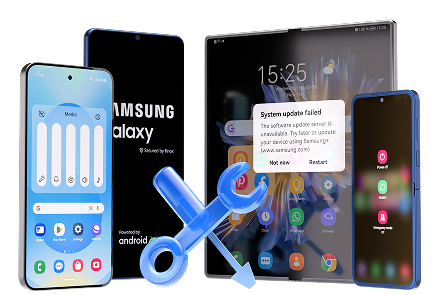
Connect the eligible phone to your Windows PC and open Dr.Fone. The Samsung system repair guide shows the screens used in this workflow.
 Fix Android instantly – no skills needed.
- Solve boot loop, black screen, won’t turn on, etc.
- High success rate for all system issues.
- User-friendly interface with easy-to-follow steps.
-
Open Toolbox > System Repair > Android, choose Android Repair, and select Repair Now. Choose Samsung, click Start, and continue with Start on the next page.
-
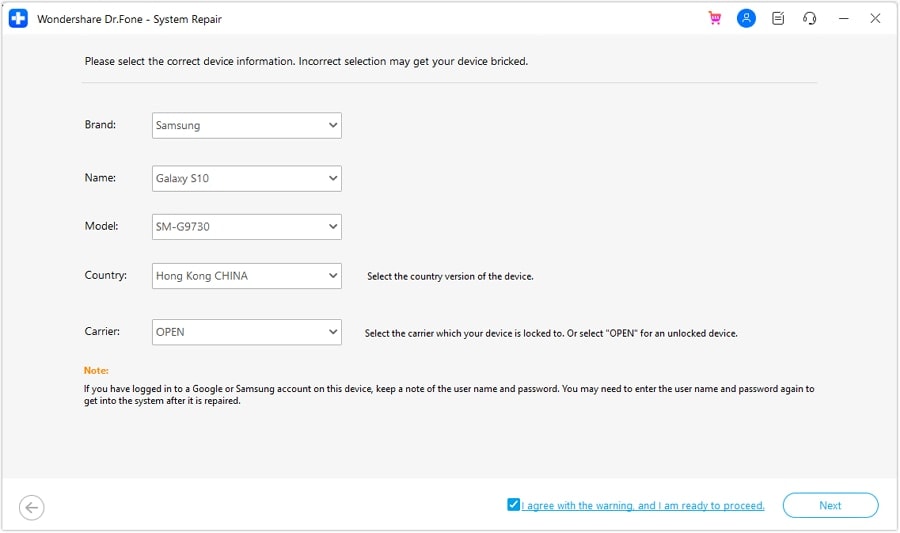
Enter the actual Name, Model, Country, and Carrier. Read the warning, select its confirmation checkbox, and click Next. Do not copy the Galaxy S10, SM-G9730, or Hong Kong values in the guide example.
-
Enter Download Mode using an entry you can verify for your device. The one-click Enter Download Mode option requires a connected, screen-unlocked phone. For a matching Galaxy model with a physical Home button, turn it off, hold Volume Down + Home + Power, and press Volume Up at the visible confirmation screen. If yours has a Bixby button or no Home button, confirm the exact procedure with Dr.Fone support before proceeding: the guide's other manual branches are unclear. If you cannot see the required confirmation, stop rather than pressing buttons blindly.
-
Once the program recognizes Download Mode, let it download and verify the firmware.
-
Review the repair screen and select Fix Now only when you are ready to accept the erase.
-
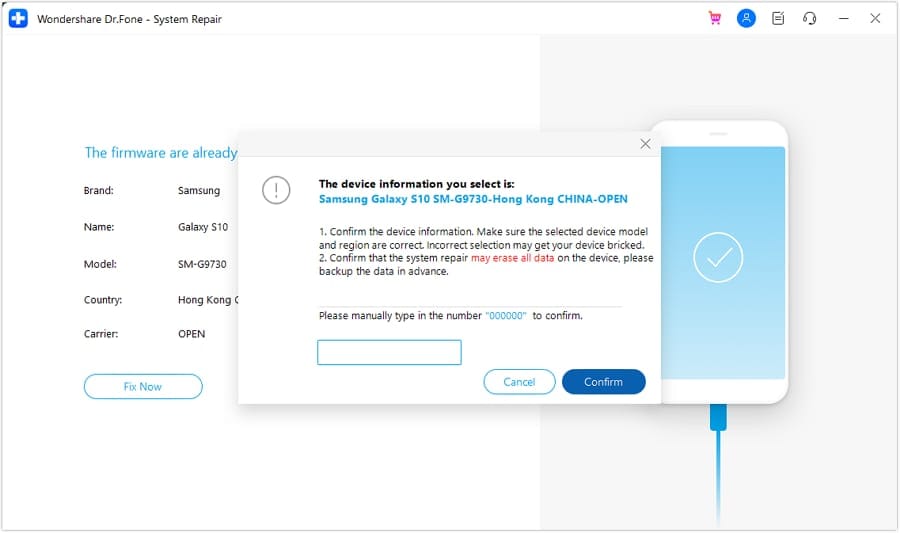
At the data-erasure confirmation, enter 000000 and click Confirm only if you accept losing all device data.
-
Keep the phone connected while repair runs. If it starts normally, select Done and check the display. If it does not start or stays white, use Dr.Fone support or Samsung service before attempting another data-erasing repair.




Conclusion
Use the checks that fit your symptoms, then seek service if the display stays unreadable or has persistent lines. For an eligible software issue, Dr.Fone - System Repair (Android) offers a guided Windows workflow that erases Samsung device data. If your Samsung white screen persists or you cannot confirm the next step, seek support before proceeding.
FAQs
-
1. Will a factory reset fix a damaged Samsung display?
No. A factory reset removes device data and resets software settings; it does not repair a physically damaged display. Have persistent white lines, a half-white panel, or symptoms after damage assessed by Samsung or an authorized technician before considering an erase.
-
2. Can I back up a Galaxy phone when I cannot unlock it?
You cannot count on completing a new backup if you cannot unlock or operate the phone. Samsung's standard Smart Switch computer backup requires tapping Allow on the phone, so connecting a USB cable alone is insufficient. Check whether an earlier backup or account sync already contains what you need. If it does not, discuss data preservation with support before agreeing to a reset or software repair.
 Add Wondershare Dr.Fone as a preferred source on Google