 Bypass iCloud Activation Lock and Android FRP without password.

 100% Security Verified | No Subscription Required | No Malware

 :
: 
 ChatGPT
 Perplexity
 Gemini
 Claude
 Grok
Grok
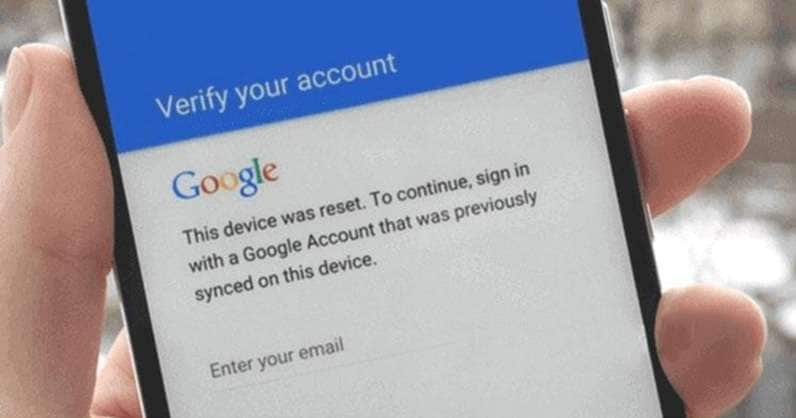
A factory reset on a Nokia G11 or G11 Plus makes it feel new and faster. Next, the configuration screen will ask for the Google account used before the reset. This is Factory Reset Protection, or FRP. Google uses it to verify ownership after certain resets.
The two phones may look similar, but their software history differs. Nokia G11 launched with Android 11, while G11 Plus launched with Android 12. Both use the Unisoc T606 processor.
That means one Nokia G11 FRP unlock method may not work on every build. This guide covers Google recovery, Dr.Fone - Screen Unlock (Android), older firmware-dependent methods, and professional support. Use these options only on a phone you own or have permission to manage.
In this article
- Part 1. G11 or G11 Plus? Check This Before Any FRP Recovery
- Part 2. Before Using a Tool, Try the Official Route
- Part 3. A Guided Nokia G11 FRP Unlock with Dr.Fone - Screen Unlock (Android)
- Part 4. A Technician Route for Newer Nokia G11/G11 Plus Firmware
- Part 6. Which Nokia G11 FRP Unlock Method Should You Choose?
Part 1. G11 or G11 Plus? Check This Before Any FRP Recovery
The first mistake many users make is choosing a method by chipset alone.
Yes, Nokia G11 and Nokia G11 Plus both use the Unisoc T606 platform. However, the phones did not launch with the same Android version. HMD lists the Nokia G11 with Android 11 and the G11 Plus with Android 12.
| Device | Chipset | Launch OS | Main FRP Consideration |
|---|---|---|---|
| Nokia G11 | Unisoc T606 | Android 11 | Older guides may target earlier firmware |
| Nokia G11 Plus | Unisoc T606 | Android 12 | Different setup and security environment |
When Android updates, FRP behavior may change, along with firmware and security updates. Before trying any recovery option, check these details:
- Nokia G11 or Nokia G11 Plus
- Exact regional or TA model
- Android version
- Security patch level
- Firmware build
- Current tool support
Part 2. Before Using a Tool, Try the Official Route
A third-party tool shouldn't be your first move if you still have access to the Google account previously used on the phone.
If You Know the Previous Google Account
Enter a Google account that was previously synced with the device.
FRP checks earlier ownership after a protected reset. A completely new Google account will not normally satisfy this check just because it was created after the reset. Google's Android support guidance also describes FRP as requiring credentials associated with the device before the reset.
If You Forgot the Password
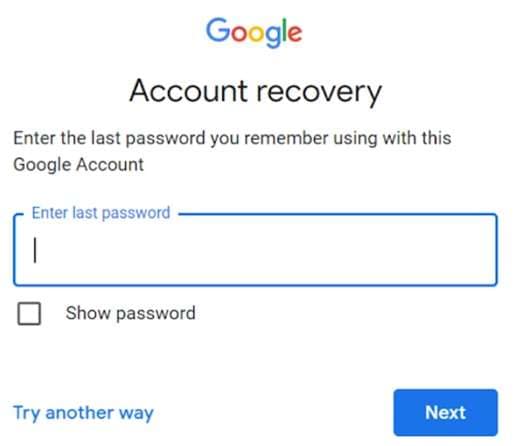
Use Google's official Account Recovery system.
Google may place a security hold on some recovery requests. The delay can last from a few hours to several days depending on the security risk detected.
Avoid changing passwords repeatedly while trying random FRP methods. Finish the account recovery process first.
If Account Recovery Still Fails
Contact HMD or an authorized support channel.
Keep these details ready:
- Proof of purchase
- IMEI
- Exact Nokia model
- Ownership details
- Any old Google account information you still remember
If ownership is clear but you can't recover the account, check whether a supported FRP utility covers your exact phone and firmware.
Part 3. A Guided Nokia G11 FRP Unlock with Dr.Fone - Screen Unlock (Android)
The Unisoc T606 chip of the Nokia G11 and G11 Plus might function in similar ways, but recovery depends on components beyond the hardware. The available unlock path can change based on Android version and firmware.
Dr.Fone - Screen Unlock (Android) therefore becomes useful in these kinds of situations. It places FRP bypass inside a guided desktop tool. Wondershare's current FRP guide includes Nokia among its supported Android brands. The same guide also includes a dedicated Nokia FRP workflow under Screen Unlock.
Dr.Fone has also expanded its FRP support across newer Android hardware. This matters because chipset type can affect drivers, connection methods, and unlock routes. Wondershare makes the same point in its recent FRP material: check tool support against the exact model, chipset, Android version, and security patch.
For a Nokia G11 FRP unlock, Dr.Fone is best treated as a guided software option when the exact phone build is supported.
 Unlock Android phone in seconds.
- Remove PIN, pattern, password, fingerprint.
- Bypass Google FRP lock easily.
- Works on all Android brands & models.
- No tech skills required – user-friendly.

What Makes Dr.Fone Useful for FRP Recovery?
Dr.Fone - Screen Unlock (Android) focuses on making the process easier to follow. Its current product and guide pages highlight these useful functions:
- Dedicated FRP removal: Screen Unlock includes a separate Google FRP removal option.
- Nokia support: The current Android FRP guide includes Nokia.
- Automatic driver setup: Dr.Fone can download the required driver after you select the device brand.
- On-screen guidance: The program shows connection and recovery instructions during the process.
- Wide Android coverage: The Screen Unlock page states support for many Android brands and thousands of phone and tablet models.
- Simple desktop workflow: The process runs through one interface instead of several separate tools.
How to Use Dr.Fone for Nokia G11/G11 Plus FRP Removal
-
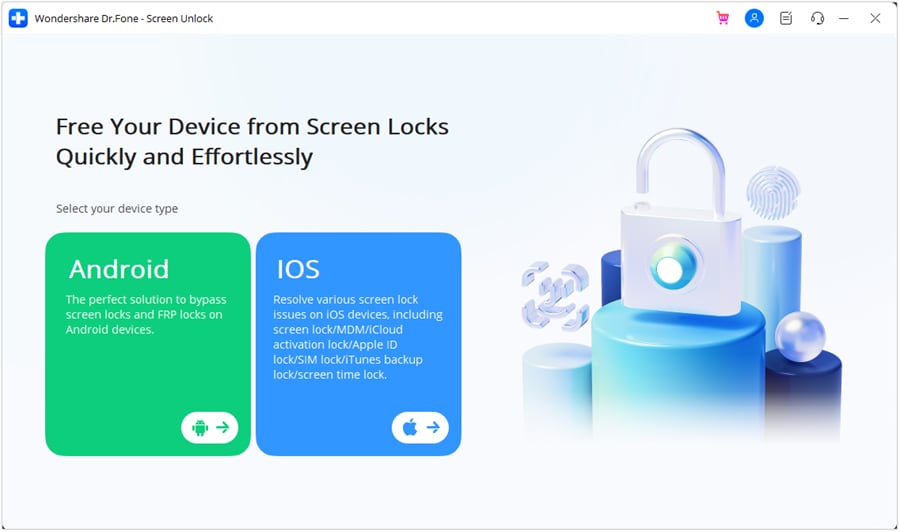
Step 1 Open the Screen Unlock Tool
Launch Wondershare Dr.Fone on your computer. Go to Toolbox and select Screen Unlock. When the device type screen appears, choose Android.
-
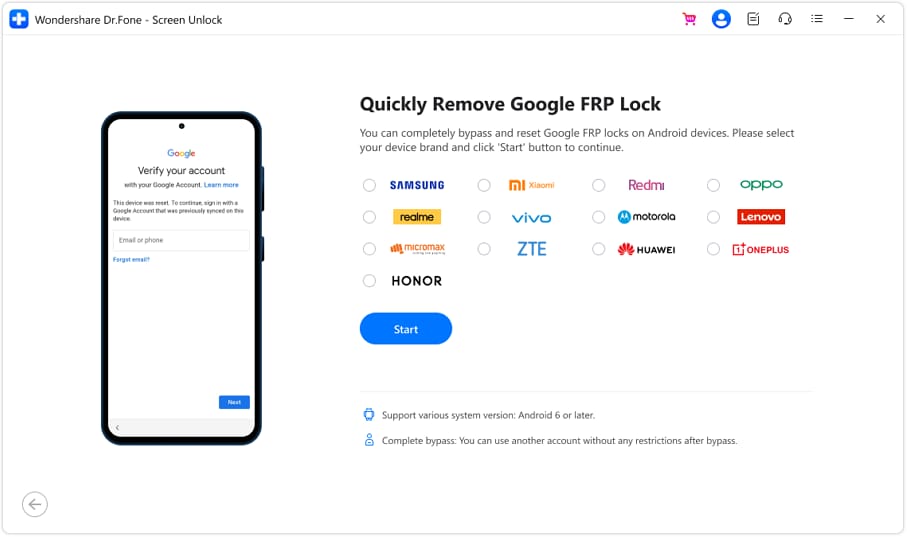
Step 2 Choose Remove Google FRP Lock
Select Remove Google FRP Lock from the available options. Choose Nokia if it is available for your device.
-
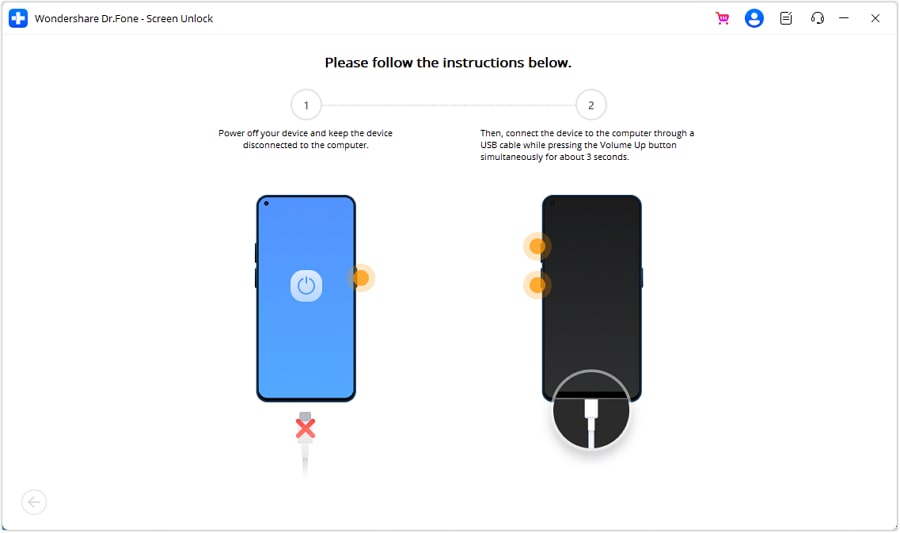
Step 3 Download the Driver and Connect the Phone
Dr.Fone will download the required driver if one is needed. Follow the on-screen connection instructions.
-
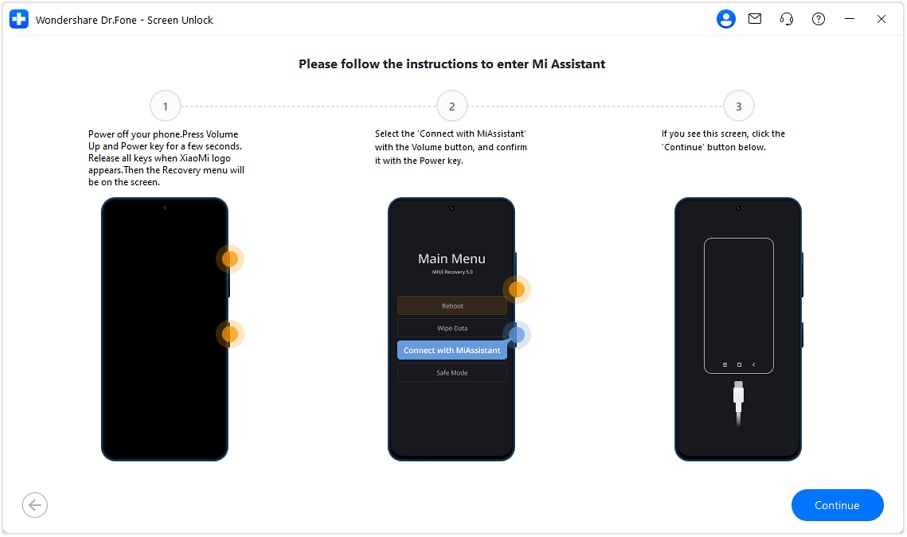
Step 4 Follow the On-Screen Nokia FRP Route
Once the phone is connected, follow each instruction in order. Keep the USB connection stable during the process.
-
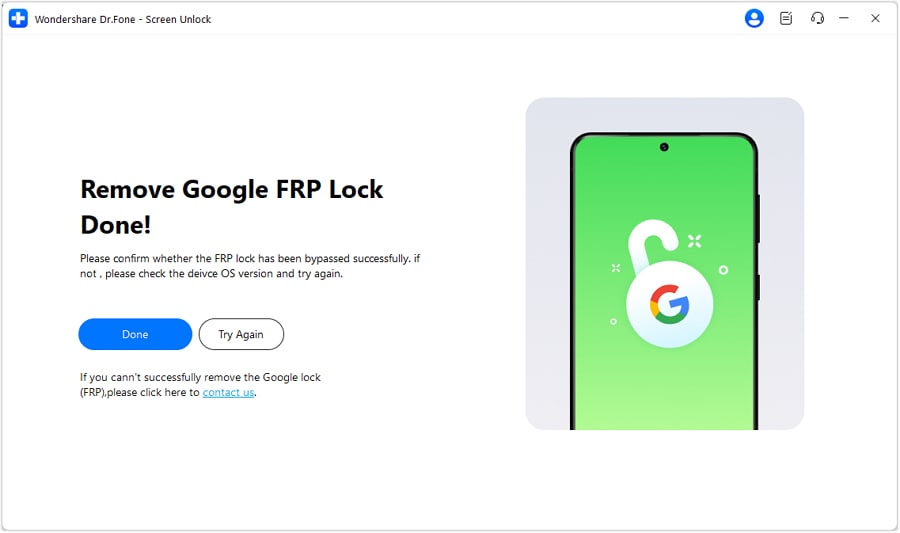
Step 5 Remove FRP and Finish Setup
When the FRP process is finished, select Done. Restart the Nokia phone and continue with the Android setup.




Part 4. A Technician Route for Newer Nokia G11/G11 Plus Firmware
To bypass the FRP lock on any Nokia G11 or G11 Plus mobile phone, you need certain software. It is also known as the Test Point (EDL) method. Due to SPD/Unisoc (Spreadtrum) chipsets, these models cannot be bypassed through software or button combinations, as they no longer work with modern versions of Android security.
Method: Hardware Test Point via UnlockTool
This is the most reliable technician method used to clear the FRP partition permanently.
Requirements:
- A Windows PC or laptop
- A paid professional software account like UnlockTool
- Proper Unisoc/SPD USB drivers installed on the PC
- A USB cable and a pair of fine tweezers
Step-by-Step Instructions:
-
Step 1 Identify the Hardware Test Points
Find the specific hardware test points, which are two small copper dots, that will force the device into EDL/MROM mode.
-
Step 2 Set Up the Software
To begin, open UnlockTool on your PC. Then go to Nokia or Unisoc (SPD) and select your exact model, which is TA-1401/TA-1421/TA-1429/TA-1413/TA-1408.
-
Step 3 Initiate the Clear Command
Activate the clear command by selecting the erase FRP option in the tool. The software will display a message stating "Waiting for device..."
-
Step 4 Connect via Test Point
Temporarily remove, then replace the battery’s flex cable on the motherboard. Touch the two test points together using your tweezers. While maintaining the bridge, plug the USB cable into the phone and PC.
-
Step 5 Complete the Bypass
As soon as the computer detects the phone in boot mode, release the tweezers. The software will automatically flash the necessary commands and display an FRP OK status message.
Once completed, reboot your phone. You can now breeze through the setup wizard without being prompted for the old Google account credentials.
https://www.youtube.com/watch?v=nThiHIxy4Eo
Part 6. Which Nokia G11 FRP Unlock Method Should You Choose?
By this point, there are three main routes for dealing with FRP on the Nokia G11 or G11 Plus. The right one depends on what access you still have, your phone's software, and how technical the recovery becomes.
This quick comparison makes the choice easier.
| FRP Route | Best When | What You Need | Main Limitation or Risk |
|---|---|---|---|
| Google Account / HMD Recovery | You know the previous Google account, can recover it, or can prove ownership | Previous Google account details, recovery access, or proof of purchase | Account recovery may include a security delay |
| Dr.Fone - Screen Unlock (Android) | You want a guided desktop option, and your exact Nokia build is supported | Windows PC, USB cable, latest Dr.Fone, supported device build | G11/G11 Plus support must be checked before starting |
| Technician-Level Hardware Service | Consumer software does not support the current build or the phone needs specialist handling | Professional tool, correct drivers, compatible service method, trained technician | Requires more skill and may involve opening the phone |
Conclusion
Using the right Nokia G11 FRP unlock tool is essential to getting a successful unlock. While G11 and G11 Plus use the Unisoc T606 chip, differences in the Android version, firmware, and security patches may lead them to recovery.
Start with Google Account Recovery or HMD support if you can verify ownership. Dr.Fone – Screen Unlock (Android) gives users a clear, guided way to handle FRP for supported builds. Be cautious when using older techniques and leave unauthorized firmware to a trained technician. Always verify your exact device build before starting.
 Add Wondershare Dr.Fone as a preferred source on Google



