Bypass iCloud Activation Lock and Android FRP without password.

 100% Security Verified | No Subscription Required | No Malware

 :
: 
 ChatGPT
 Perplexity
 Gemini
 Claude
 Grok
Grok
A factory reset can erase a Galaxy A55 5G and still leave one important barrier behind. If Google device protection was active, setup may stop at “Verify your account” and require the Google account previously synced to the phone. That is normal FRP behavior, not a failed reset. Google uses it to prevent an erased device from activating without valid ownership details.
For a reliable Samsung A55 FRP unlock, the exact software matters. Confirm the model, Android version, One UI build, and security patch before using a recovery, as security updates can change recovery compatibility. The Galaxy A55 uses Samsung’s Exynos 1480 and launched with Android 14 and One UI 6.1. With newer updates, the device now runs Android 16.
In this article
Part 1. Check Your Galaxy A55 Before FRP Recovery
A Samsung A55 FRP unlock is not based on the model name alone. The exact firmware matters.
1-1. Confirm the Device First
The Galaxy A55 5G belongs to Samsung’s SM-A556 family and uses the Exynos 1480 chipset. It launched in March 2024 with Android 14 and One UI 6.1.
Before trying any FRP recovery, check:
- Exact SM-A556 variant
- Android version
- One UI version
- Security patch
- Region or carrier firmware
A method built for another chipset or older A55 firmware may not apply.
1-2. Android 14 and Android 16 Are Not the Same Case
This is the detail many FRP guides miss.
Samsung’s official SM-A556B update history shows:
- Android 14 + One UI 6.1 at launch
- Android 16 + One UI 8.0 from October 2025
- Android 16 + One UI 8.5 in later 2026 builds
Samsung also continued releasing security updates afterward.
So, an Android 14 tutorial may fail on a fully updated A55.
One correction also matters: Android 16 should not be described as One UI 7 on the current SM-A556B firmware. Samsung’s own records pair it with One UI 8.0 and later 8.5.
1-3. Why “Verify Your Account” Appears
That screen is FRP doing its job.
After a protected phone is factory reset, Google can require the Google account that was previously added and synced to the device.
FRP is separate from a normal:
- PIN
- Pattern
- Password
- Fingerprint lock
A factory reset deletes all local data, but it does not delete the ownership check.
In short, before doing any Samsung A55 FRP unlock, confirm the model, Android version, One UI build and the security patch first.
Part 2. Recover the Original Account First
Before using any third-party option for a Samsung A55 FRP unlock, try the account already linked to the phone. This is the quickest route when you have the credentials.
If You Know the Google Account
Sign in with a Google Account that was previously added and synced to the Galaxy A55. A brand-new account will not normally satisfy FRP verification.
If You Forgot the Email or Password
To recover the username or reset the password, use Google's official Account Recovery page. If possible, Google recommends verifying the account on another device or computer.
Changed the password recently? Samsung notes that Google may apply a 24-hour security delay before the new password can unlock a protected device.
If Account Recovery Still Fails
Samsung advises that if you can't recover your Google account details, take the device and proof of purchase to an authorized Samsung Service Center.
First, contact the seller for the second-hand A55. The original owner should remove the linked account before transferring the phone.
Best rule: verify ownership and exhaust official account recovery before moving to any other FRP route.
Part 3. Use Dr.Fone - Screen Unlock for a Guided Galaxy A55 FRP Recovery
Once the Google account route is no longer practical, a guided desktop tool can make the next step easier to manage. Dr.Fone - Screen Unlock (Android) includes a dedicated Google FRP function for Samsung devices. Wondershare also lists support for recent Android versions, including Android 16.
For a Samsung A55 FRP unlock, this matters because the A55 has moved across several Android and One UI builds. Dr.Fone can check the connected Samsung device and guide the user through a suitable recovery path rather than relying on an old fixed tutorial.
 Unlock Android phone in seconds.
- Remove PIN, pattern, password, fingerprint.
- Bypass Google FRP lock easily.
- Works on all Android brands & models.
- No tech skills required – user-friendly.

Why Dr.Fone Fits the Galaxy A55
Dr.Fone - Screen Unlock offers several useful points for Samsung FRP recovery:
- Dedicated Remove Google FRP Lock option
- Samsung device support
- Support for Android versions up to Android 16
- Smart Recommendation for choosing a suitable FRP path
- Automatic device and driver handling on supported workflows
- Guided on-screen instructions throughout the process
Compatibility should still be checked for the exact A55 model and firmware before starting.
How to Use Dr.Fone for Galaxy A55 FRP Recovery
-
Step 1 Open Screen Unlock
Launch Wondershare Dr.Fone on the computer and connect the Galaxy A55. Open Toolbox, then choose Screen Unlock.

-
Step 2 Choose the FRP Function
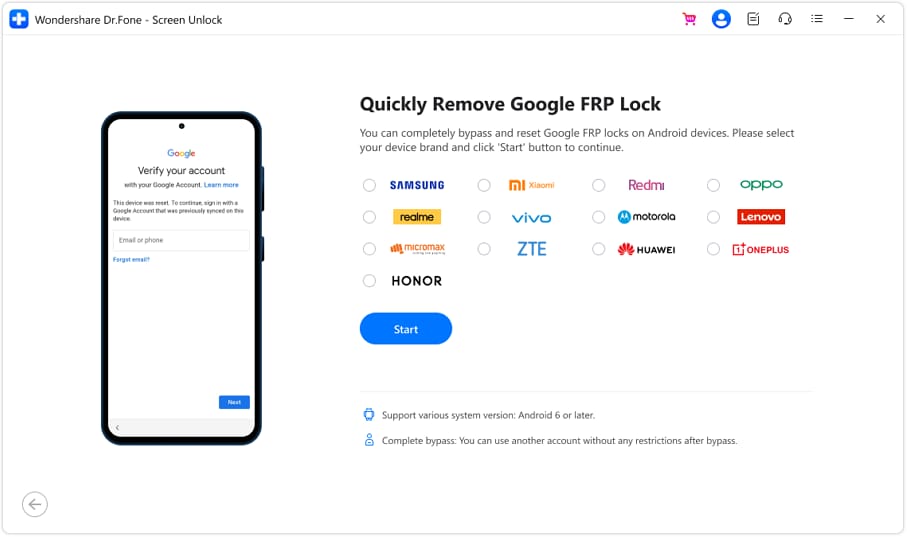
Select Android, followed by Remove Google FRP Lock. Choose Samsung and continue.
-
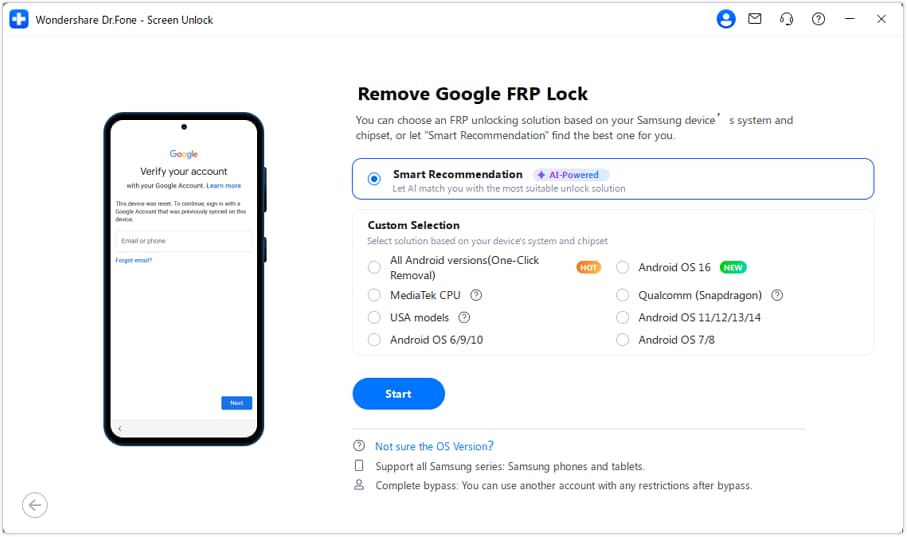
Step 3 Let Dr.Fone Match the Recovery Path
Use Smart Recommendation when available. Dr.Fone checks the connected device and Android environment, then suggests a suitable Samsung FRP workflow. This is more appropriate for the Exynos-based Galaxy A55 than manually choosing the separate Qualcomm option.
-
Step 4 Follow the On-Screen Setup
Keep the Galaxy A55 connected. Dr.Fone may identify the device, prepare the required driver, and display the instructions needed for the selected Android version. Follow those prompts without disconnecting the phone.
-
Step 5 Finish and Check the Phone
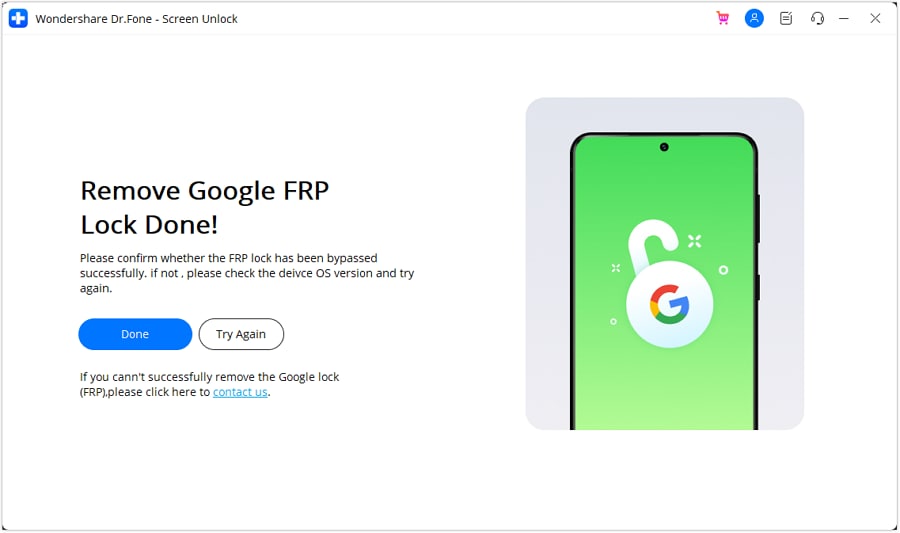
Wait for Dr.Fone to complete the guided process. When the software shows the completion screen, check the Galaxy A55 and select Done. If the process does not complete, use the retry option provided by the program.




Part 4. Technician-Based FRP Recovery for Galaxy A55 5G
Not every Galaxy A55 firmware works with the same FRP recovery path. Newer security patches, regional builds, or unsupported software can require a more advanced service route.
In these cases, technicians may use MTP-based servicing, Download Mode tools, or firmware-level workflow repair. Since these options are more technical in nature, make sure you check the exact SM-A556 model, Android version, One UI build, and security patch before proceeding.
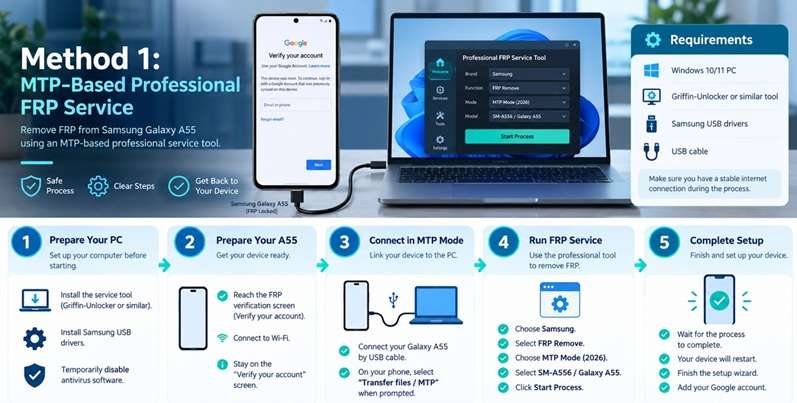
Method 1: MTP-Based Professional FRP Service
The MTP (Media Transfer Protocol) exploit is the most reliable method for the Galaxy A55 on the latest security patches.
Requirements
- Windows 10/11 PC
- Griffin-Unlocker or similar tool (~$8-12/month)
- Samsung USB drivers
- USB cable (original recommended)
Step-by-Step Process
-
Step 1 Prepare Your PC
Install Griffin-Unlocker (latest version with January 2026 updates). Install Samsung USB drivers. Disable antivirus temporarily.
-
Step 2 Prepare Your A55
Boot the device to the FRP verification screen. Connect to Wi-Fi when prompted. Stay at the "Verify your account" screen.
-
Step 3 Connect in MTP Mode
Connect the A55 to a PC via USB. Pull down the notification shade if accessible. Select "Transfer files / MTP" mode.
-
Step 4 Run FRP Bypass
Open Griffin-Unlocker. Select Samsung → FRP Remove → MTP Mode (2026). Choose SM-A556 (Galaxy A55). Click "Remove FRP".
-
Step 5 Complete Setup
Wait 2-5 minutes for the process to complete. The device restarts automatically. Complete setup without Google account verification. Add your own Google account.
Method 2: Download Mode FRP Bypass (TFM Tool)
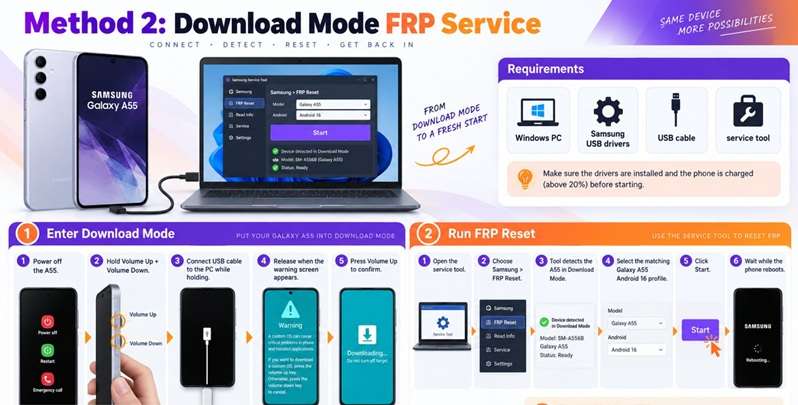
Enter Download Mode
-
Step 1 Power off the A55 completely
-
Step 2 Press and hold Volume Up + Volume Down
-
Step 3 Connect the USB cable to the PC while holding
-
Step 4 Release when the warning screen appears
-
Step 5 Press Volume Up to confirm
Flash FRP Reset
-
Step 1 Open TFM Multi-Tool
-
Step 2 Select Samsung → FRP Reset
-
Step 3 Tool detects A55 in Download Mode
-
Step 4 Select Android 16 / One UI 7 profile
-
Step 5 Click "Start" and wait 5-10 minutes
-
Step 6 Device reboots without FRP
Method 3: Combination File Method (Free)
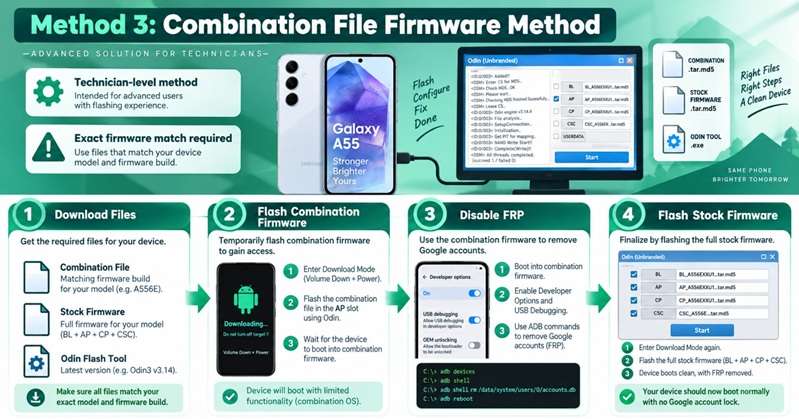
For technicians preferring free methods:
-
Step 1 Download Files
A55 combination file matching your firmware build. Stock firmware for your model. Odin flash tool.
-
Step 2 Flash Combination Firmware
Enter Download Mode. Flash the combination file via Odin (AP slot only). Wait for the device to boot.
-
Step 3 Disable FRP
Boot the device into the combination firmware (no FRP). Enable Developer Options → USB Debugging. Use ADB commands to remove Google accounts.
-
Step 4 Flash Stock Firmware
Enter Download Mode again. Flash full stock firmware (BL+AP+CP+CSC). The device boots clean without FRP.
Part 5. Pick the Right Galaxy A55 FRP Route at a Glance
Not every Samsung A55 FRP unlock route fits the same situation. The best choice depends on account access, firmware support, technical skill, and how much risk you are willing to take.
| FRP Route | Best For | What You Need | Firmware Sensitivity | Complexity / Risk |
|---|---|---|---|---|
| Google Account Recovery | Owners who still know or can recover the linked Google account | Previous synced Google account or recovery access | Low | Lowest — official route |
| Dr.Fone - Screen Unlock | Users who want a guided desktop process on a supported A55 build | PC, USB cable, supported Dr.Fone version | Medium to High | Low to Medium — guided, but compatibility must be checked |
| MTP-Based Professional Service | Supported A55 builds that need technician-style servicing | Windows PC, Samsung drivers, compatible service tool | High | High — tool and build dependent |
| Download Mode Service Tool | Newer or unsupported firmware handled by experienced users or technicians | PC, USB drivers, correct device profile | Very High | High — wrong profile can cause problems |
| Combination File / Firmware Method | Repair technicians working with exact matching firmware | Correct firmware files, Odin, technical knowledge | Very High | Highest — firmware mismatch can create boot or software issues |
| Samsung Authorized Service | Owners who cannot recover the account or do not want technical servicing | Device and proof of purchase | Low for the user | Low — handled by authorized support |
Quick Decision Rule
- Know the old Google account? Use it first.
- Account recovery failed, but Dr.Fone supports your exact build? Use the guided route.
- Is firmware newer or unsupported? Move to professional or authorized service.
- Does the method depend on flashing or firmware files? Treat it as technician-level work.
Conclusion
A Samsung A55 FRP unlock always works best when guided by device details. The Exynos 1480 processor powers the Galaxy A55; however, the Android version (based on One UI build and security patch) can alter which recovery path is optimal. Whenever possible, start with the original Google account.
If this route does not work and your firmware is supported, Dr.Fone - Screen Unlock (Android) offers a good guided option, since the recovery flow matches the connected device instead of using outdated shortcuts. For newer or unsupported builds, professional or authorized Samsung service is the safest fallback. Always confirm the first verification and firmware.
 Add Wondershare Dr.Fone as a preferred source on Google