Bypass iCloud Activation Lock and Android FRP without password.

 100% Security Verified | No Subscription Required | No Malware

 :
: 
 ChatGPT
 Perplexity
 Gemini
 Claude
 Grok
Grok
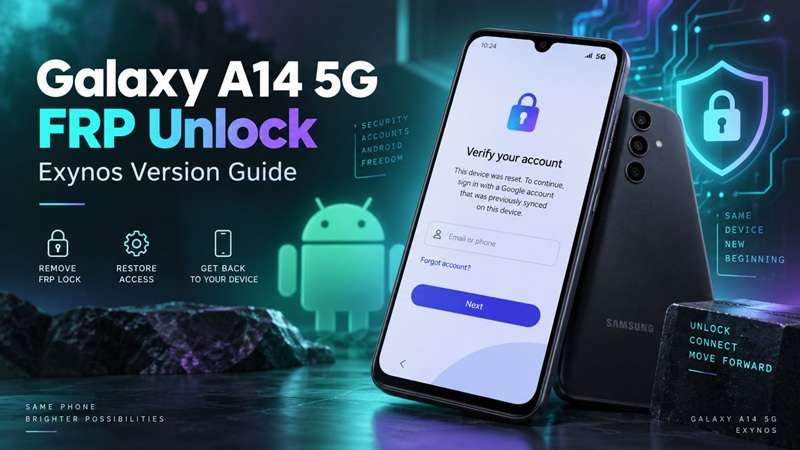
A factory reset on a Galaxy A14 5G can wipe data without removing the Google lock check. If Factory Reset Protection was on before the reset, setup will stop at “Verify your account” and ask for the Google account that was previously synced to the phone. That's the expected FRP behavior, not a failed reset.
The hardware version also matters. The chipsets utilized in the Galaxy A14 5G models may vary from the Exynos 1330, and depending on the model number, Android release, One UI build, bootloader, and security patch, recovery compatibility can be different. The smartphone was already preinstalled with Android 13 software; however, many have been updated to newer firmware.
This guide focuses on Samsung A14 5G FRP unlock options for the Exynos 1330 version and how to choose a suitable recovery path.
In this article
- Part 1. Why Does Galaxy A14 5G Stop at Google Verification?
- Part 2. Try the Official Route Before Any FRP Tool
- Part 3. Method 1 — Use Dr.Fone - Screen Unlock for Galaxy A14 5G FRP
- Part 4. What Other Galaxy A14 5G FRP Options Exist?
- Part 5. Which FRP Recovery Route Makes Sense for Your A14 5G?
- Part 6. Stop FRP Problems Before the Next Factory Reset
Part 1. Why Does Galaxy A14 5G Stop at Google Verification?
The "Verify your account" screen appears when Factory Reset Protection is active after certain resets. Google may then ask for a Google Account that was previously added and synced to the phone. This is an ownership check, not a failed reset.
1-1. FRP Is Different From a Screen Lock
A PIN, pattern, or fingerprint protects normal phone access. FRP works during setup after a protected device is reset.
Google and Samsung both note that a Recovery-mode or button-based reset can trigger account verification. Removing the Google Account before a planned reset helps avoid this issue.
1-2. Why the Exynos Version Matters
Galaxy A14 5G does not use one chipset worldwide.
- SM-A146B: commonly uses Exynos 1330
- SM-A146P: uses MediaTek Dimensity 700
That matters because some recovery tools and connection modes are chipset-specific. MediaTek BROM instructions, for example, do not apply to an Exynos device.
1-3. Check These Details First
Before choosing a Samsung A14 5G FRP unlock route, confirm:
- Exact model number
- Chipset
- Android and One UI version
- Security patch or firmware build
The name “Galaxy A14 5G” alone is not enough to confirm compatibility.
Part 2. Try the Official Route Before Any FRP Tool
Before trying any Samsung A14 5G FRP unlock tool, always attempt the official route first. If you happen to have access to the Google Account, then it is the safest and easiest option.
2.1 Sign In With the Original Google Account
At the "Verify your account" screen, enter a Google Account that was previously added and synced to the phone.
A new account will not normally work because FRP checks for an account linked to the device before the reset.
If you forgot your password, try Google’s official Account Recovery. Ensure that the phone is always connected to Wi-Fi or mobile data during setup and recovery.
2.2 Wait After a Recent Password Change
For your information, Google can block you from signing in to your Google account if you have reset your password recently.
Pause before making another attempt, then return to the verification screen to input the new password.
This security delay helps prevent someone from changing an account password and immediately activating a reset phone.
2.3 Used Phone? Contact the Previous Owner
For a second-hand Samsung Galaxy A14 5G, ask the guy to fix the account lock before trying another way.
The seller should remove their Google Account from the phone, and also disentangle any Samsung account still linked to the phone. If they cannot confirm ownership or help remove the account, returning the phone is the safer option.
2.4 Do Not Confuse FRP With a Forgotten Screen PIN
FRP and a normal screen lock are different problems.
A PIN, password, or pattern protects access before a reset. FRP appears during setup after certain factory resets and checks the previously linked Google Account.
If the problem is only a forgotten screen lock, use Samsung's current account-recovery or service options rather than treating it as an FRP issue.
2.5 Contact Samsung if Official Recovery Fails
If the phone is yours but Google Account recovery fails, contact an authorized Samsung service center.
Keep these details ready:
- Purchase receipt
- Model number
- IMEI or serial number
- Proof of ownership
The recovery tools on the FRP page are often official, with an evaluation or upgrade method. If it cannot restore access, look for a supported tool that matches the exact Galaxy A14 5G model, chipset, Android version, and security patch.
Part 3. Method 1 — Use Dr.Fone - Screen Unlock for Galaxy A14 5G FRP
When you can't recover the Google account, a guided desktop tool can reduce the guesswork. Dr.Fone - Screen Unlock (Android) includes a dedicated Google FRP bypass feature for Samsung phones. Its current Samsung guide also offers Smart Recommendation, which checks the connected device and suggests a suitable FRP path.
 Unlock Android phone in seconds.
- Remove PIN, pattern, password, fingerprint.
- Bypass Google FRP lock easily.
- Works on all Android brands & models.
- No tech skills required – user-friendly.

Why Dr.Fone Fits This FRP Case
Dr.Fone - Screen Unlock is built for Android lock and FRP recovery. Wondershare lists Samsung among its supported Android brands and offers guided FRP removal instead of manual trial-and-error steps.
Key features include:
- Dedicated Remove Google FRP Lock mode
- Samsung device support
- Smart Recommendation for choosing a suitable FRP path
- Guided on-screen instructions
- Automatic driver handling on supported workflows
- Retry option if the first process does not complete
Samsung's FRP guide usually covers later Android versions. However, the exact route can vary by device and firmware.
How to Remove FRP on Galaxy A14 5G With Dr.Fone
-
Step 1 Open Screen Unlock
Launch Wondershare Dr.Fone on your computer.
Connect the Galaxy A14 5G with a USB cable. Then open Toolbox and select Screen Unlock.
-
Step 2 Choose Google FRP Removal
Select Android from the available options.
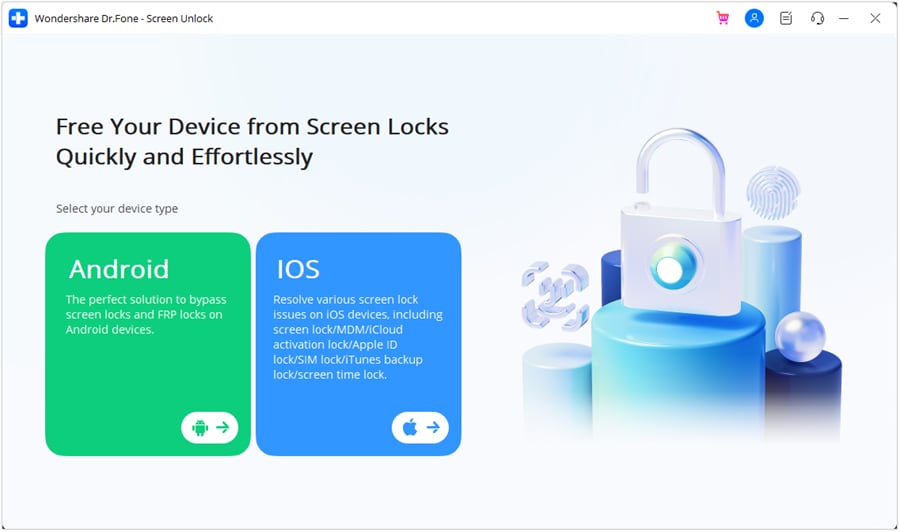
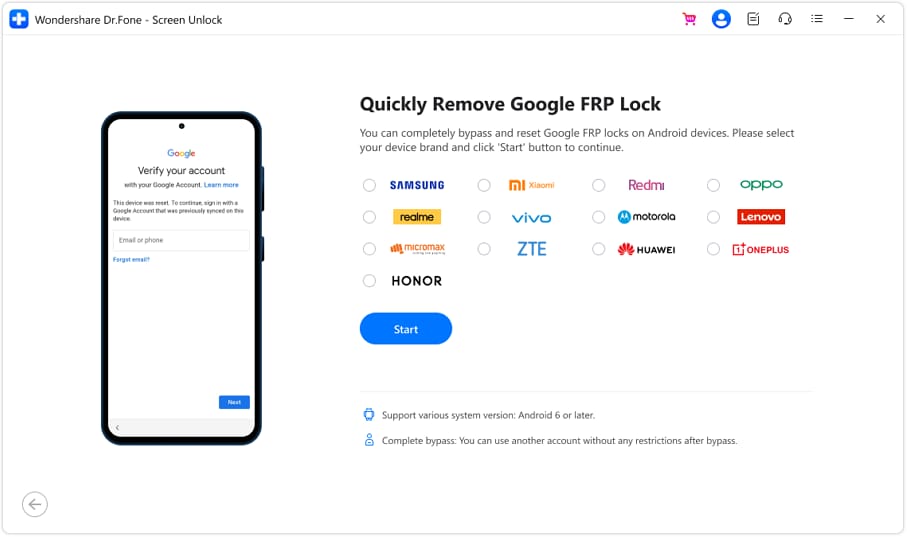
Next, click Remove Google FRP Lock. Choose Samsung and press Start.
-
Step 3 Choose Smart Recommendation
Select Smart Recommendation when it appears.
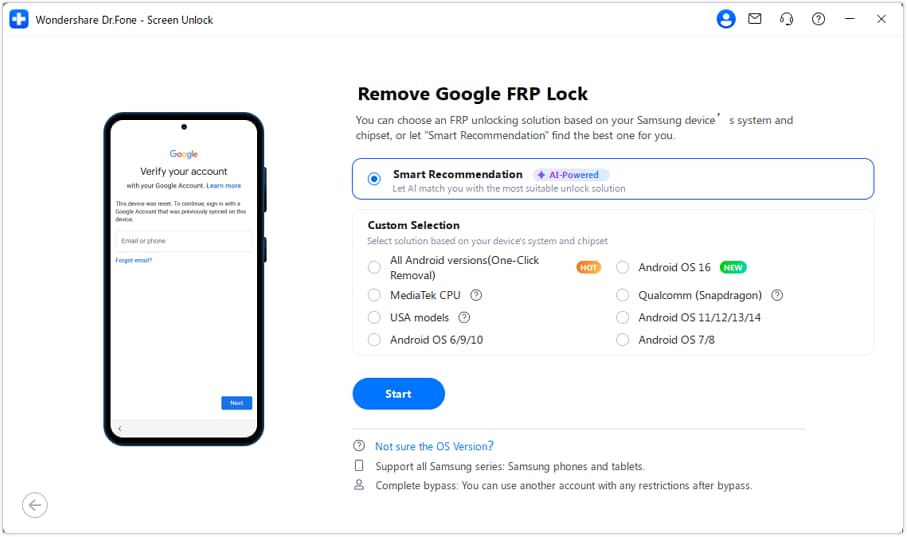
Dr.Fone checks the connected device, model environment, and Android version. It then suggests a suitable FRP recovery path. This is the better choice for the Exynos 1330 version than selecting an unrelated chipset option.
-
Step 4 Follow the Guided Setup
Continue with the instructions shown in Dr.Fone.
The software may install the needed driver or ask you to complete a connection step on the phone. Keep the Galaxy A14 5G connected while the process runs.
-
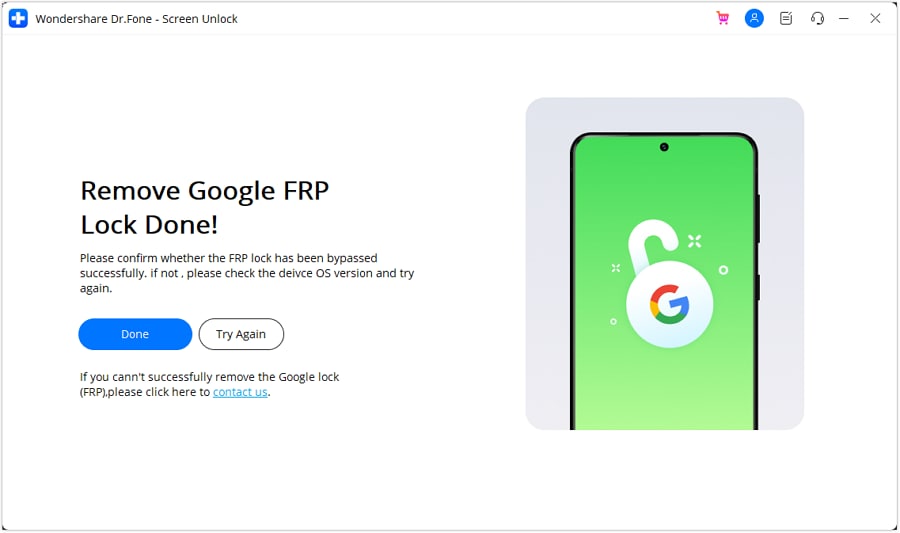
Step 5 Complete the FRP Process
Wait for Dr.Fone to finish the FRP removal workflow.
If the process succeeds, click Done and complete phone setup. If it does not work try again and follow the new instructions given by the tool.
Prior to beginning any troubleshooting or flashing steps, verify the exact Galaxy A14 5G model, Android version, and the security patch. Tool compatibility may change with firmware, so don’t assume all Exynos 1330 builds will follow a similar path.




Part 4. What Other Galaxy A14 5G FRP Options Exist?
Dr.Fone isn't the only option for Galaxy A14 5G FRP recovery. Some users also consider hardware-based tools or APK-based methods. These routes can be more technical and may depend heavily on the Android version, files, and device setup.
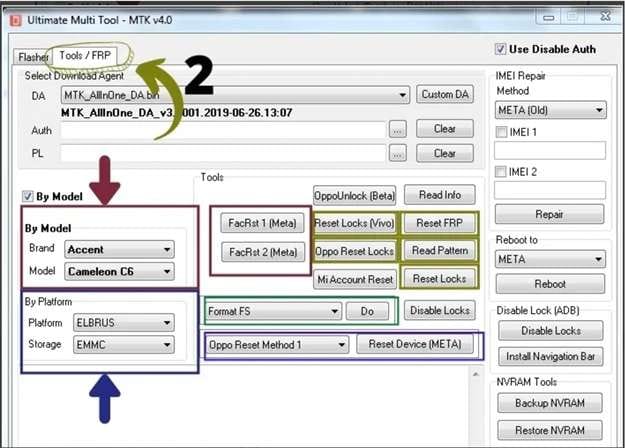
Option 1: UMT Pro Dongle for Galaxy A14 5G
The UMT Pro Dongle is a hardware-based Samsung A14 5G FRP unlock tool for users already comfortable with phone servicing software.
The tool normally requires its desktop software, a valid license or dongle, and device-specific files. Then connect the phone and follow the software's instructions.
Before using it, check:
- Galaxy A14 5G model compatibility
- Android version
- Required firmware or support files
- License activation
- Supported connection mode
This option may suit experienced users, but it is less beginner-friendly than a guided consumer tool.
Option 2: Easy Flashing FRP Bypass APK
Another method sometimes used without a standard desktop workflow is the Easy Flashing FRP Bypass 8.0 APK.
This method utilizes an APK file and a USB drive plugged in via an OTG adapter. Your phone must be able to access the file during the setup. You may also need to allow installation from outside your normal app store.
The main drawbacks are important:
- Compatibility can vary by Android version
- The required setup path may not appear on every firmware
- APK files from unknown sources can carry security risks
- Newer security patches may block older workflows
- A factory reset can erase local data again
Because of these limits, APK-based FRP methods are better treated as legacy or technical alternatives rather than the first choice for the Exynos 1330 Galaxy A14 5G.
Part 5. Which FRP Recovery Route Makes Sense for Your A14 5G?
Each Samsung A14 5G FRP unlock route has different requirements. Use this quick comparison before choosing one.
| FRP Route | What You Need | Skill Level | Best For | Main Limitation |
|---|---|---|---|---|
| Google Account Recovery | Previously synced Google account, internet access | Easy | Owners who still know or can recover the linked account | A new account will not normally satisfy FRP; a recent password change may also require a wait |
| Samsung Support | Proof of purchase, model/IMEI details | Easy | Legitimate owners who cannot recover the Google account | Service options can vary by region and proof of ownership is required |
| Dr.Fone - Screen Unlock (Android) | Computer, USB cable, supported Galaxy A14 5G configuration | Easy to moderate | Users who want a guided desktop FRP workflow | Compatibility can depend on model, Android version, and firmware |
| UMT Pro Dongle | Windows PC, UMT hardware/dongle, supported module/files | Advanced | Users familiar with phone servicing tools | More technical, hardware-dependent, and not every feature supports every device |
| Easy Flashing FRP Bypass APK | APK file, USB drive, OTG adapter, compatible setup path | Moderate | Users trying a non-standard PC workflow | Firmware-dependent and APK files from unknown sources can create security risks |
Part 6. Stop FRP Problems Before the Next Factory Reset
To save time later, run a few checks before a reset. First, know the Google Account currently used on the phone, including the username and password. Google recommends checking these details before a factory reset.
Next:
- Back up photos, documents, messages, and other important files.
- Remove accounts correctly before selling or transferring the device.
- Use the normal Settings reset process when appropriate.
- Ensure the new user gets a phone free of your contacts.
- Check that the transfer is complete before handing over the device.
Conclusion
A proper Samsung A14 5G FRP unlock starts with one simple step, which is to identify the exact device before choosing a recovery route. The Exynos 1330 version is expected to differ from the MediaTek versions in chipset, firmware, Android build, and security patch. Start with Google Account Recovery or Samsung support whenever possible.
If those options are no longer available, Dr.Fone - Screen Unlock (Android) offers a guided FRP workflow that can simplify the process on supported Samsung devices. UMT Pro and APK-based methods remain alternatives, but they demand more care. Always confirm model compatibility first and use recovery methods only on devices you own.
FAQ
-
1. Does every Galaxy A14 5G use the Exynos 1330?
No. Galaxy A14 5G hardware varies by region and model number. The SM-A146B family is commonly linked to the Exynos 1330, while the SM-A146P uses the MediaTek Dimensity 700. That is why you should check the exact model before using chipset-specific FRP software. -
2. Does Dr.Fone support Samsung Exynos FRP removal?
Certainly. Currently, Exynos is among the chipsets Dr.Fone – Screen Unlock for Samsung FRP workflows supports, according to Wondershare. The specific model, Android, and firmware may affect support. So, verify compatibility before using it. -
3. What should I do if a second-hand Galaxy A14 5G is FRP-locked?
Contact the seller or previous owner first. According to Google, a device with factory reset protection may ask you for the Google Account that was added to it. It is less risky to return the phone to the seller if they cannot prove ownership or unlink the phone from the Google account.
 Add Wondershare Dr.Fone as a preferred source on Google