Bypass iCloud Activation Lock and Android FRP without password.

 100% Security Verified | No Subscription Required | No Malware

 :
: 
 ChatGPT
 Perplexity
 Gemini
 Claude
 Grok
Grok
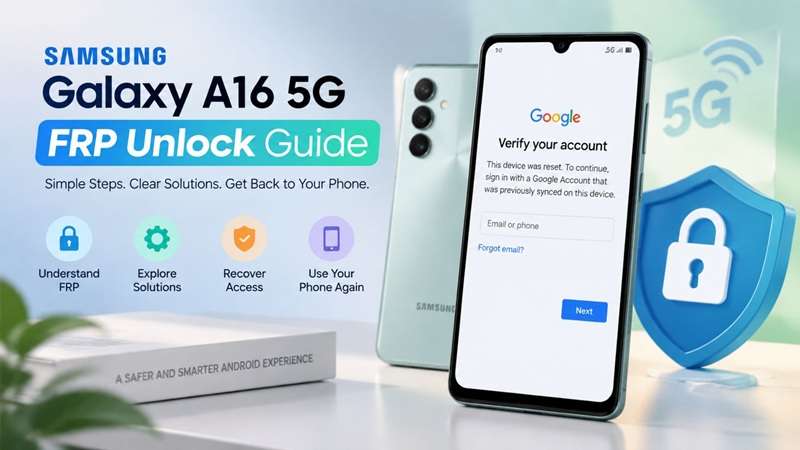
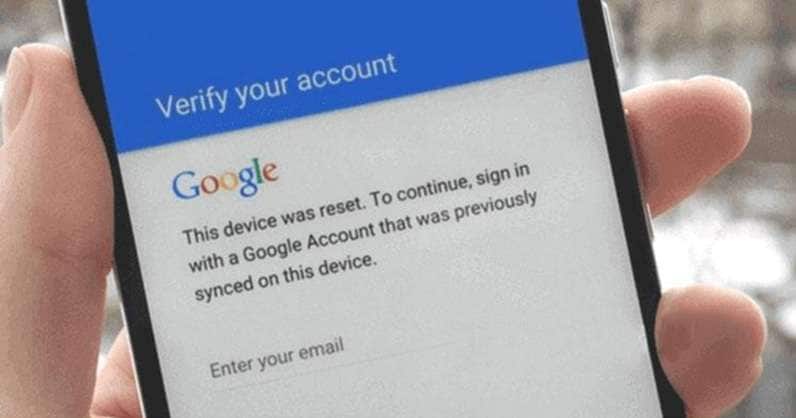
A factory reset of the Galaxy A16 5G might leave you at the Google verification screen instead of the setup. This happens when Factory Reset Protection, or FRP, is still attached to the account used on the phone before a reset. This Samsung feature prevents stolen or lost devices from being reset and used again without permission.
For a Samsung Galaxy A16 5G FRP unlock, the exact device setup matters. The previous Google account, reset method, Android build, security patch, and hardware variant can all affect the recovery path. This guide focuses on legitimate ways to regain access while keeping ownership verification and device compatibility at the center of the process.
In this article
- Part 1. Why Is Your Galaxy A16 5G Locked by FRP?
- Part 2. Locked Out? Try These Official FRP Recovery Options First
- Part 3. Samsung Galaxy A16 FRP Bypass Without a Computer
- Part 4. Unlock Samsung Galaxy A16 5G FRP with Dr.Fone - Screen Unlock (Android)
- Part 5. Which Samsung Galaxy A16 5G FRP Recovery Method Should You Use?
- Part 6. How to Avoid FRP Problems Before Resetting the A16 5G
Part 1. Why Is Your Galaxy A16 5G Locked by FRP?
Google Factory Reset Protection prevents unauthorized factory resets on Android. When a Google account is added along with a screen lock, Samsung phones’ remote access feature may be activated.
The Google Account and password that were previously synced on the Galaxy A16 5G are requested to set up the phone after a reset through Recovery mode or an untrusted method. This check will not usually pass for a new account.
That is why a Samsung Galaxy A16 5G FRP unlock isn't the same as resetting a forgotten PIN.
1.1 Why the A16 5G Variant Matters
The Galaxy A16 5G is sold with either an Exynos 1330 or MediaTek Dimensity 6300, depending on the market. It launched with Android 14 and One UI 6.1.
FRP-tool compatibility can depend on:
- Exact model number
- Chipset
- Android and One UI version
- Security patch
- Regional firmware
So, an Exynos 1330 model does not guarantee that every FRP method will work. The full software build still matters.
1.2 FRP Lock vs. Screen Lock
These are different security checks.
- Screen lock: Screen lock protects normal access using a Pin, pattern, password, fingerprint or face unlock.
- Google FRP: It appears after certain resets and checks ownership of the previous device.
- Samsung account verification: A separate Samsung authentication step that may appear during reset or account-related actions.
Identifying the lock first helps you choose the right recovery path.
Part 2. Locked Out? Try These Official FRP Recovery Options First
Before using any third-party FRP tool, try the official recovery routes. They are the safest option when the Galaxy A16 5G is yours.
2.1 Use a Google Account Previously Synced to the Phone
Begin with a Google account that you used on the Galaxy A16 5G before the reset.
A Samsung-protected reset may require the Google account and password on the phone to proceed. Usually, having a new or unrelated account will not satisfy FRP. If you have more than one Google account, check which Google account was registered on your phone.
2.2 Forgot the Account or Password? Recover It First
Visit the official Account Recovery page of Google if you forgot your Gmail address or password. Google can assist in recovering a username, changing a password, and completing identity checks with the given recovery details.
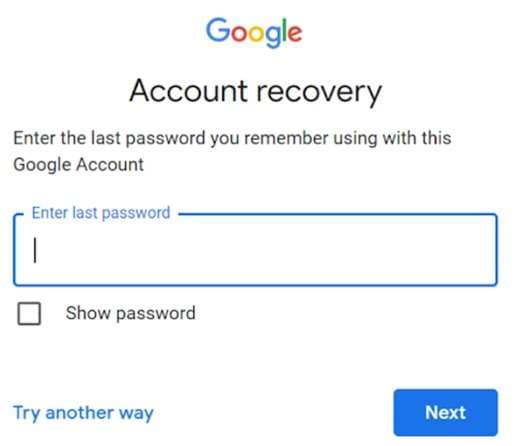
Assuming you have changed the password recently, then timing matters. According to Google, it is recommended to wait 24 hours before a factory reset after changing your password. Similarly, Samsung mentions a new password might also have a 24-hour cooldown before it can unlock your protected Galaxy device.
So, if the new password fails at once, avoid resetting it again.
2.3 Still Locked Out? Contact Samsung With Proof of Purchase
If account recovery fails, Samsung support is the next official route. Users who cannot remember their Google account information can take the device, with valid proof of purchase, to an authorized Samsung Service Center.
You should provide a receipt or another approved proof of ownership clearly linking you to the phone. In the absence of these official methods, check a supported Samsung Galaxy A16 5G FRP unlock solution for your specific model, Android version, and firmware.
Part 3. Samsung Galaxy A16 FRP Bypass Without a Computer
3.1 TalkBack Activation Method
Using accessibility capabilities to access settings and avoid Google verification, the TalkBack Activation Method is a dependable no-PC FRP bypass for the Samsung Galaxy A16 running Android 14/15.
-
Step 1: After the A16 has been reset, turn it on, connect to Wi-Fi during setup, and go to the Google verification screen. If necessary, tap return to the welcome screen.
-
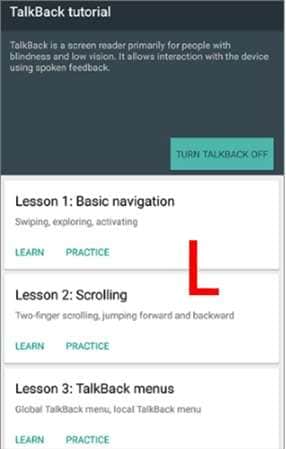
Step 2: Press two fingers on the screen at the same time until you hear TalkBack (voice feedback verifies TalkBack is on).
-
Step 3: Trace a "L" on the screen with one finger to access the TalkBack menu. Double-tap TalkBack Settings (you are able to navigate with the volume keys).
-
Step 4: Go to TalkBack Settings, then double-tap on “Help & Feedback”. Double-tap on a link to open YouTube or the Galaxy Store, then search for a reputable source for an FRP bypass APK and download and install it.
-
Step 5: Open the APK to reset Google services or network settings, return to the setup wizard, skip verification, and complete as a new device.
-
Step 6: After setup, go to Settings > Accounts to remove the old Google account; disable TalkBack via the accessibility menu and reboot.
3.2 Emergency Dialer Method
-
Step 1: Connect to Wi-Fi during initial setup, reach Google verification, then tap Back to Emergency Call and dial a code like #0# or 911370105#0*# to access the service menu or settings.
-
Step 2: From Settings or Notifications, turn on Accessibility/TalkBack, explore using volume gestures, search YouTube or the Galaxy Store, and download and install an FRP bypass APK (for example, from reliable sources).
-
Step 3: Run the APK to reset Google services or network settings, return to setup, skip verification, and complete as a new device reboot if prompted.
Part 4. Unlock Samsung Galaxy A16 5G FRP with Dr.Fone - Screen Unlock (Android)
If the official account recovery path is unavailable, Dr.Fone - Screen Unlock (Android) will offer a PC walkthrough method for supported Samsung devices. Wondershare lists Google FRP removal as a core screen unlock feature and currently supports Samsung devices through Android 16.
For a Samsung Galaxy A16 5G FRP unlock, this is useful because the A16 5G is sold with different chipsets. Wondershare’s newer FRP material also advertises broad chipset support, including Exynos. Still, support can vary by model, Android build, and security patch.
 Unlock Android phone in seconds.
- Remove PIN, pattern, password, fingerprint.
- Bypass Google FRP lock easily.
- Works on all Android brands & models.
- No tech skills required – user-friendly.

Why Dr.Fone Works Well for Samsung FRP Recovery
Dr.Fone - Screen Unlock keeps the process simple. Its current Samsung FRP guide includes Smart Recommendation (AI-Powered). The feature checks the connected device, model environment, and Android version, then suggests a suitable FRP recovery path.
Key features include:
- Google FRP removal for Samsung and other Android brands
- Support for Android 16 and earlier versions
- Smart Recommendation for Samsung devices
- Guided, device-specific instructions
- Support for major Android brands, including Samsung and Nokia
- PC-based workflow with no advanced technical skills required
Wondershare also notes that you should check exact compatibility in the tool, especially when firmware or chipset differences are involved.
How to Use Dr.Fone for Galaxy A16 5G FRP Recovery
Step 1. Open Screen Unlock
Install and launch Wondershare Dr.Fone on your computer. Connect the Galaxy A16 5G with a USB cable. Open Toolbox and select Screen Unlock.
Step 2. Select Google FRP Removal
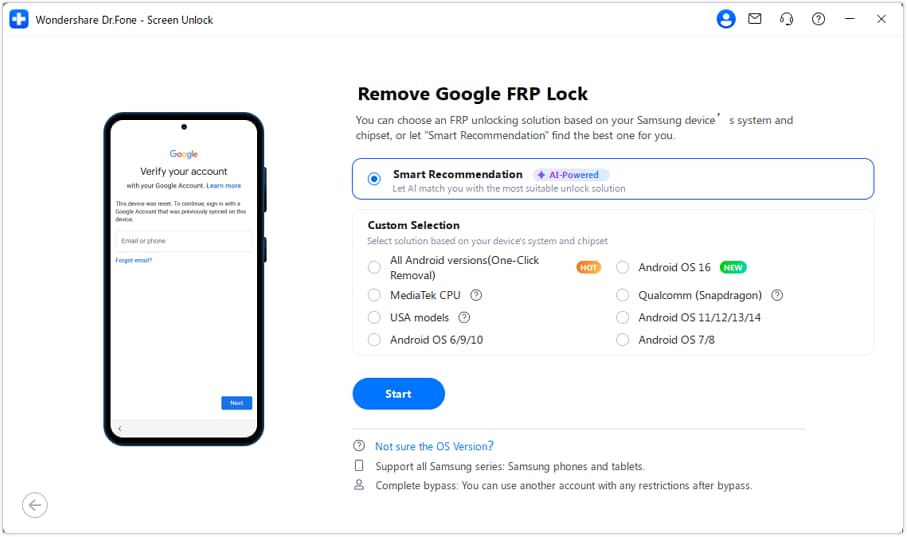
Choose Android, then select Remove Google FRP Lock. Pick Samsung as the device brand and continue.

Step 3. Use Smart Recommendation
Select Smart Recommendation (AI-Powered). Dr.Fone checks the connected Samsung device and Android environment, then matches it with a suitable FRP method.
Step 4. Follow the Guided Instructions
Follow the instructions shown in Dr.Fone. Keep the phone connected while the software completes the supported recovery process.
Step 5. Finish the Setup
When Dr.Fone confirms completion, restart the Galaxy A16 5G if prompted. Then continue through the normal Android setup screen.
Before starting, check the best results with features like A16 5G Model, chipset, Android version, One UI build, and security patch. Just because the Galaxy A16 5G might have an Exynos 1330 chipset, that doesn’t mean all the firmware builds will have the same FRP unlock path.




Part 5. Which Samsung Galaxy A16 5G FRP Recovery Method Should You Use?
The right Samsung Galaxy A16 5G FRP unlock method depends on your situation, account access, and device condition. Use the official recovery options first and other supported solutions according to your phone configuration.
| Situation | Recommended Recovery Route |
|---|---|
| You remember the Google account used on the phone | Sign in with the previously synced Google account |
| You forgot the Gmail address or password | Use Google Account Recovery first |
| You changed your Google password recently | Wait for the required security cooldown before trying again |
| You have proof that you own the device | Contact an authorized Samsung Service Center |
| Official account recovery is unavailable | Check a supported FRP recovery tool based on your model and firmware |
| You want a guided PC-based recovery option | Check Dr.Fone - Screen Unlock compatibility for your Galaxy A16 5G |
Part 6. How to Avoid FRP Problems Before Resetting the A16 5G
Preventing FRP issues is easier than recovering access later. Before resetting your Galaxy A16 5G:
- Save important documents: Documents, contacts and photos before doing a factory reset.
- Verify your Google credentials: Check the Google account and password connected to the phone.
- Ensure you remove your Google and Samsung accounts. You should sign out of these accounts, especially if you plan to sell or give away your device.
- Through settings, you can use the factory reset when you have access to the phone.
- Make sure the device is set up afresh before handing it over to someone else.
These simple steps reduce the chance of facing a Samsung Galaxy A16 5G FRP unlock issue later.
Conclusion
FRP protects the Galaxy A16 5G after a reset by adding an extra security layer to verify previous ownership. The safest options are a synced Google account, official recovery options, or Samsung support with proof of purchase. If those options aren't available, a supported recovery tool can provide more guidance.
Dr.Fone - Screen Unlock (Android) offers a structured FRP recovery workflow for compatible Samsung devices, with Smart Recommendation to match the device environment. Before starting any Samsung Galaxy A16 5G FRP unlock, always check your model, firmware, and Android version for the best results.
FAQ
-
1. What is FRP on Samsung Galaxy A16 5G?
Factory Reset Protection (FRP) is security in Android phones that protects after factory reset of the phone. If factory reset protection is turned on, for the Galaxy A16 5G you may need to provide the Google account previously synced to the device before you can proceed with setup. -
2. Does Dr.Fone support Samsung FRP removal?
Yes, it supports Google FRP removal for selected Samsung devices. Dr.Fone - Screen Unlock (Android): Whether or not your device is compatible with Google’s first app depends on its model/Android version/firmware/security patch. -
3. What should I do if I bought a second-hand Galaxy A16 5G with FRP enabled?
Request the previous owner to uninstall their Google account from the device. If the owner is unable to authenticate possession or delete the account, contact the seller or Samsung support with proof of purchase. Creating a new Google account won’t usually allow them to bypass.
 Add Wondershare Dr.Fone as a preferred source on Google