Bypass iCloud Activation Lock and Android FRP without password.

 100% Security Verified | No Subscription Required | No Malware

 :
: 
 ChatGPT
 Perplexity
 Gemini
 Claude
 Grok
Grok
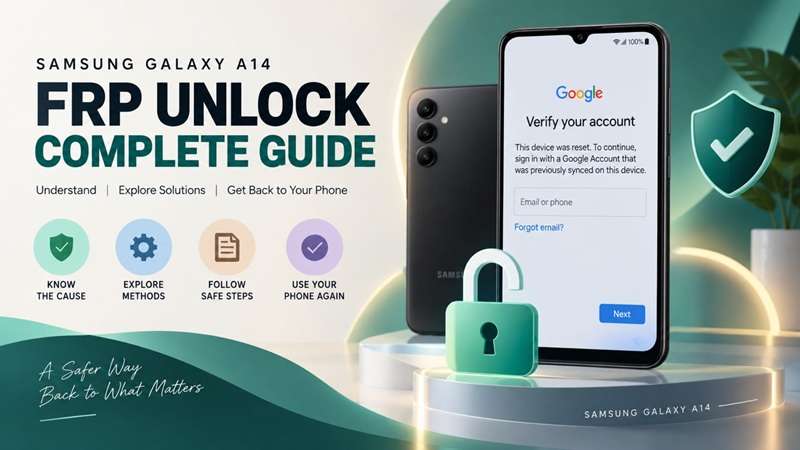
A factory reset can erase your Galaxy A14 and still leave Google verification in place. FRP refers to the Samsung anti-theft feature that checks whether the user setting it up can provide the previously linked Google ID.
Samsung A14 FRP unlock for the Galaxy A14 LTE/4G may depend on the software used. The Exynos 850 powers the SM-A145 series, which has been specified for Android 15. Android version, One UI build, security patch, and regional firmware can all affect recovery. This guide focuses on safe, ownership-based Samsung Galaxy A14 FRP unlock options that match the phone’s actual software state.
In this article
- Part 1. Why Does Your Galaxy A14 Stop at Google Verification?
- Part 2. Try the Official Recovery Route First
- Part 3. Method 1 — Unlock Galaxy A14 FRP With Dr.Fone - Screen Unlock
- Part 4. Other Samsung A14 FRP Unlock Options
- Part 5. Which Samsung Galaxy A14 FRP Unlock Route Fits Your Situation?
- Part 6. Avoid FRP Problems Before Your Next Factory Reset
Part 1. Why Does Your Galaxy A14 Stop at Google Verification?
FRP can appear after a reset because Android still checks whether the person setting up the phone is the legitimate owner.
1-1. What FRP Protects
The phone’s factory reset protection kicks in once the user sets up a Google account and also adds a screen lock. After a locked factory reset, the Galaxy A14 may ask for the previously linked Google account. Samsung uses this check to prevent unauthorized reuse of an erased phone.
FRP is different from a normal PIN, pattern, or biometric lock. Screen security protects daily access, while FRP protects the device after a reset.
Part 2. Try the Official Recovery Route First
Before using a Samsung A14 FRP unlock tool, try the official recovery options. They are the safest route when the phone and Google account belong to you.
2.1 Sign In With a Previously Synced Google Account
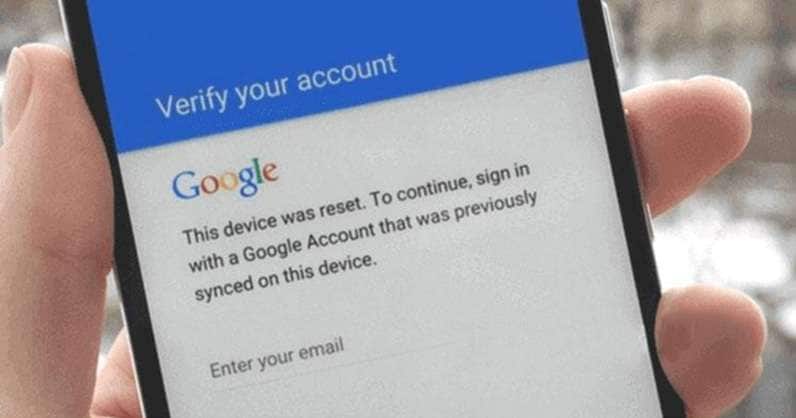
After a protected reset, Android can ask for a Google Account that was previously added and synced to the Galaxy A14. A newly created account will not normally satisfy FRP verification.
If you used several accounts on the phone, check which ones were linked to the device and try an eligible account.
2.2 Recover Forgotten Google Credentials
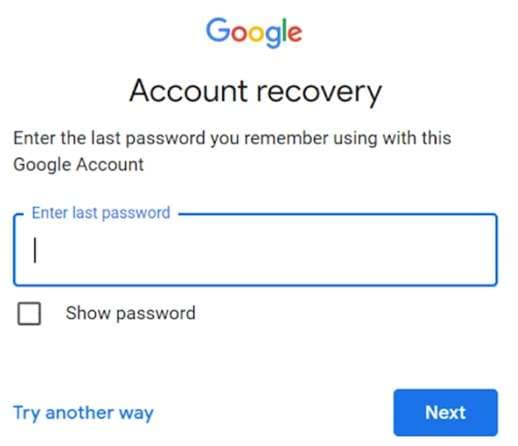
If you have forgotten your email address or password, then you must first try Google Account Recovery. You may retrieve your account name, reset your password, and complete available identity checks.
If you recently changed the password, wait at least 24 hours before doing a factory reset: Google. Samsung also states there’s a 24-hour waiting period or longer before a new password will work on a reset Galaxy device.
2.3 Contact Samsung With Proof of Ownership
If recovery is unsuccessful, Samsung recommends taking the Galaxy A14 and valid proof of purchase to any Samsung Service Center. For a successful service request, carry the machine along with the purchase bill or invoice and ownership details, as may be specified by the service center.
If these official routes are not available, you can then consider a compatible third-party Samsung Galaxy A14 FRP unlock option.
Part 3. Method 1 — Unlock Galaxy A14 FRP With Dr.Fone - Screen Unlock
Dr.Fone - Screen Unlock (Android) offers a guided way to handle Samsung A14 FRP bypass without performing system-level manual steps. Wondershare FRP has added support for more Samsung Exynos and Nokia Unisoc devices, making the tool more relevant for new chipset-based phones.
Its main strength is simplicity. The software uses a clear desktop workflow and guides users through the required steps for the connected device.
 Unlock Android phone in seconds.
- Remove PIN, pattern, password, fingerprint.
- Bypass Google FRP lock easily.
- Works on all Android brands & models.
- No tech skills required – user-friendly.

Key Features
- Dedicated Google FRP removal function
- Support for Samsung and other Android brands
- Can remove PINs, patterns, passwords, fingerprint locks, and face locks
- Guided interface with device-specific prompts
- Support for recent Android environments
How to Remove FRP With Dr.Fone
-
Step 1 Open the FRP Removal Module
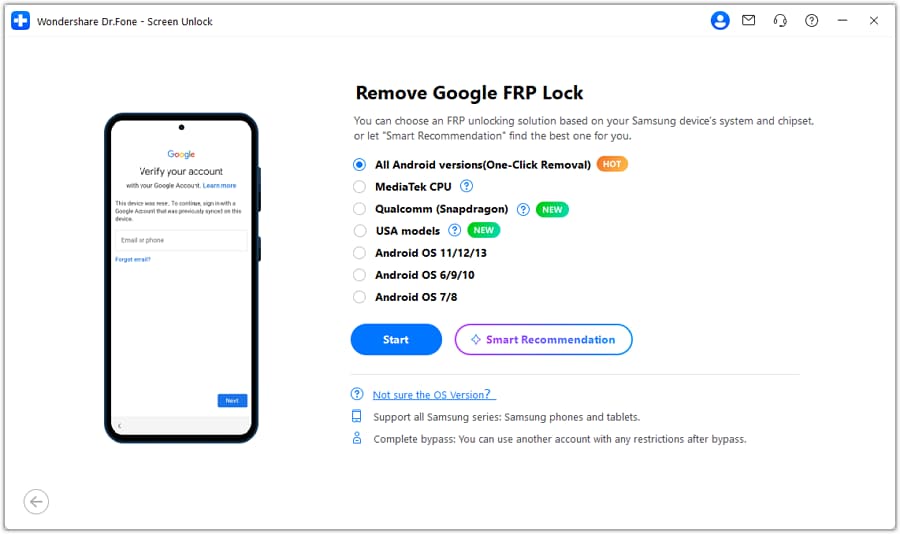
Launch Dr.Fone and open Toolbox. Select Screen Unlock, choose Android, then click Remove Google FRP Lock. Connect the Galaxy A14 to the computer with a USB cable.

-
Step 2 Select the Samsung Recovery Path
Choose Samsung as the phone brand and confirm the requested device details. Dr.Fone will then display the available FRP recovery route for that device and software version.
-
Step 3 Follow the On-Screen Instructions
Complete the prompts displayed on your computer and Galaxy A14. Dr. Fone will run the supported FRP removal process. Once done, restart the phone and finish Android setup.

Before you begin, ensure you know your exact model, Android version, security patch, and compatibility of Dr.Fone, as it may not support your firmware.




Part 4. Other Samsung A14 FRP Unlock Options
Not every FRP recovery route is designed for everyday users. Some tools work closer to the firmware or chipset level and are better suited to experienced technicians.
Method 2: Bypassing FRP via Samsung Odin (Firmware Flashing)
For advanced users comfortable with flashing partitions, Odin is a classic choice. This method requires downloading a specific "Combination Firmware" file that matches your A14's binary version. By flashing these system components, you can bypass the setup wizard and clear the Google Lock.
-
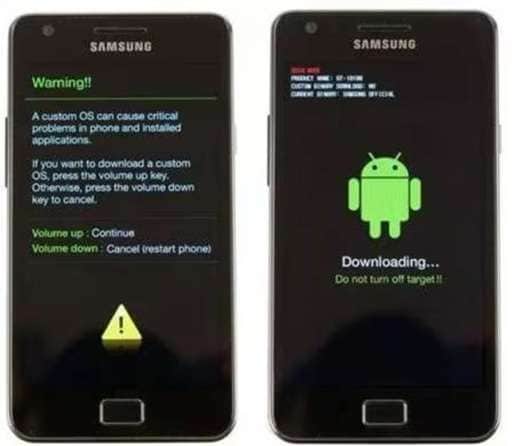
Step 1 Prepare Firmware and Enter Download Mode
Download the firmware that matches your location and binary version. To put your Samsung A14 in Download Mode, power off the handset first, then press Volume Up + Volume Down while connecting to a PC.
-
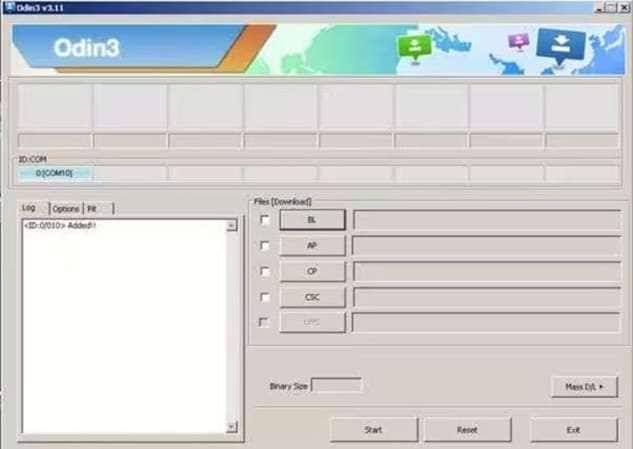
Step 2 Connect to Odin
Open Odin on your computer. Your device should appear under "ID:COM." If it doesn't, ensure you have the latest Samsung USB drivers installed.
-
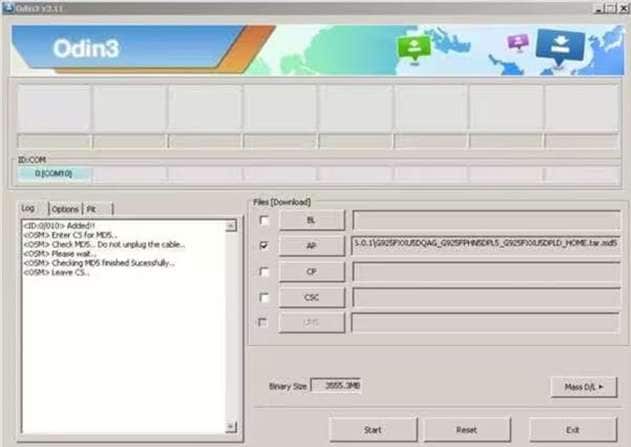
Step 3 Flash the AP File
Click the "AP" button and select your combination file. Ensure "Auto Reboot" is checked and click "Start." Once the process shows "Pass," your phone will reboot with unlocked settings.
Method 3: VG 4.1 Tool for Exploit-Based Removal
The VG Tool V4.1 is a specialized utility that targets the MediaTek chipset often found in the A14 variants. It utilizes the "BROM Mode" exploit to force the hardware into a state where security registers can be overwritten.
-
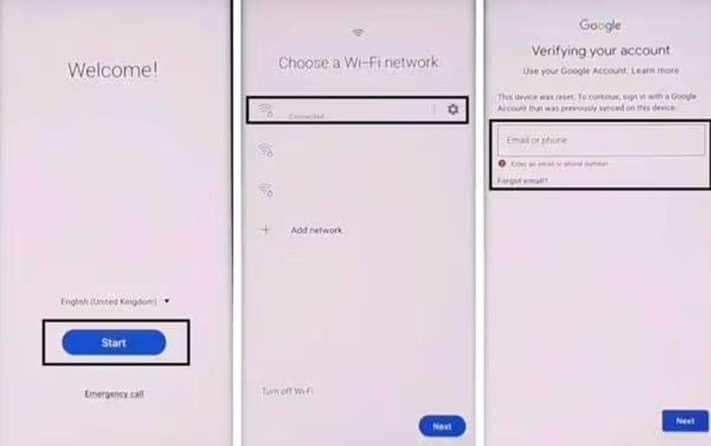
Step 1 Set up VG Tool
Install VG Tool V4.1. Open the "MediaTek" tab and select the "Universal" section. Connect your A14 to Wi-Fi, then turn it completely off.
-
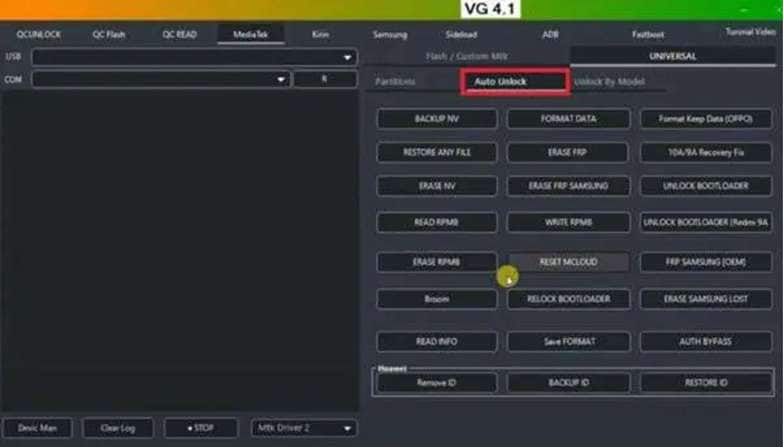
Step 2 Select Auto Unlock
Navigate to the "Auto Unlock" menu and click the "Broom" button. This prepares the software to intercept the device during its boot cycle.
-
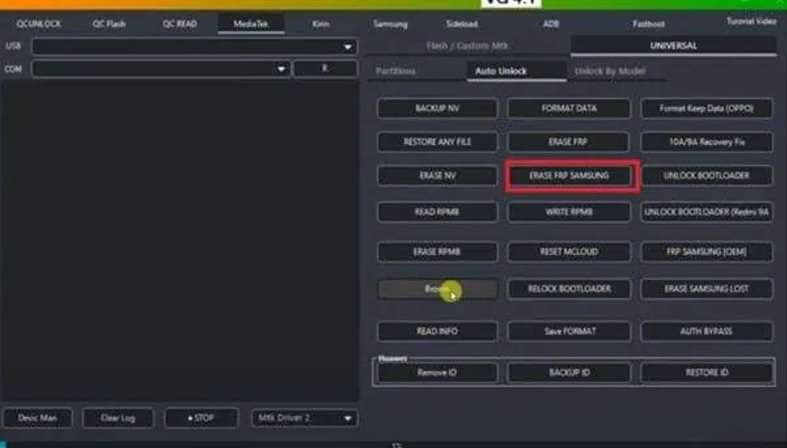
Step 3 Execute Erase FRP
Hold both Volume keys and plug in the USB cable. Once the tool recognizes the device in BROM mode, click "Erase FRP Samsung." Unplug and restart once the "Operation Success" message appears.
Part 5. Which Samsung Galaxy A14 FRP Unlock Route Fits Your Situation?
The right option depends on whether you still have the original account, how technical the method is, and whether it supports your exact Galaxy A14 build.
| Method | Best For | PC / Skill Needed | Compatibility |
|---|---|---|---|
| Google Account Sign-In | Owners who know a previously synced account | No PC, beginner-friendly | Works through Android’s built-in FRP verification |
| Google Account Recovery | Forgotten email or password | Any browser, beginner-friendly | Official Google recovery route |
| Samsung Service Center | Owners who cannot recover the account | No technical skill | Official Samsung support route |
| Dr.Fone - Screen Unlock | Users who want a guided desktop Samsung A14 FRP unlock | PC and USB cable, low technical skill | Depends on supported model, Android version, and firmware |
| Samsung Odin | Experienced users working with Samsung firmware | Windows PC, advanced skill | Highly dependent on model, region, binary, and firmware package |
| VG Tool V4.1 | Technicians working with supported MediaTek hardware | PC, advanced servicing knowledge | Relevant only to compatible MediaTek variants |
Part 6. Avoid FRP Problems Before Your Next Factory Reset
Prepare your Galaxy A14 for the reset process within a few minutes.
- Make copies of important data. A factory reset removes applications, system settings, and any stored data on the phone.
- Verify your Google and Samsung account details. Make sure you know the email addresses, passwords, and screen lock before starting.
- Remove linked accounts before selling or giving away the phone. Google says removing the Google Account turns off device protection, and Samsung also recommends removing linked accounts before transfer.
- Reset through Settings when possible. On Galaxy phones, go to Settings, followed by General management, then select ‘Reset’, then Factory data reset. Samsung warns that resetting in recovery mode may activate Google Device Protection.
- Check the setup screen before handover. Make sure the phone starts cleanly and no longer asks for your account credentials.
These steps reduce the chance of FRP blocking the next owner after a factory reset.
Conclusion
FRP on the Galaxy A14 secures possession after a reset, so the best approach is to have the Google account already linked to the phone or contact Samsung Support if you can’t recover the Credentials. Without those options, a supported desktop tool such as Dr.Fone – Screen Unlock (Android) can guide you through a Samsung A14 FRP unlock workflow for supported devices.
Manual and firmware-based options demand more care because results vary by model, chipset, Android version, and security patch. Before any reset, remove linked accounts properly and use Samsung’s Settings route whenever possible to avoid unnecessary verification problems.
 Add Wondershare Dr.Fone as a preferred source on Google