Bypass iCloud Activation Lock and Android FRP without password.

 100% Security Verified | No Subscription Required | No Malware

 :
: 
 ChatGPT
 Perplexity
 Gemini
 Claude
 Grok
Grok
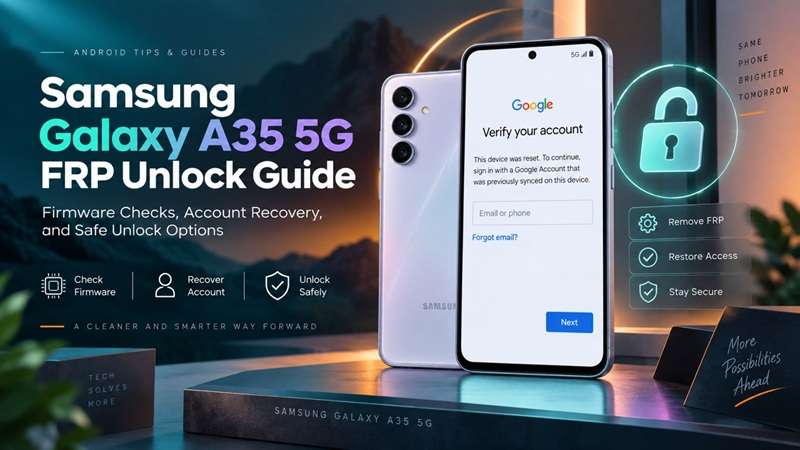
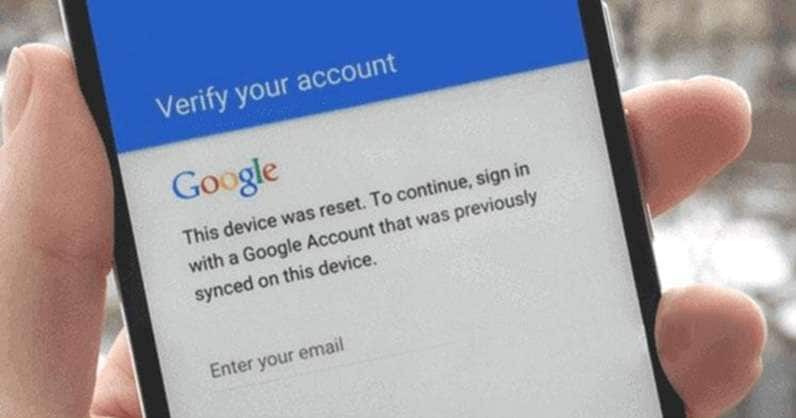
A factory reset can erase your Galaxy A35 5G and still leave one barrier behind: “Verify your account.” This is Google Factory Reset Protection, not a failed reset. It checks for a Google account that was previously linked to the phone before setup can continue.
The Samsung A35 FRP unlock problem is that the A35 does not exist on one software version. The Exynos 1380 and Android 14 powered the launch of the smartphone, which has SM-A356B firmware running Android 16 and security patches. Old shortcuts may fail even on the same model. This guide focuses on practical recovery paths that still make sense, while showing why you should check the model number, Android version, One UI build, and security patch first.
In this article
- Part 1. Check Your Galaxy A35 Before Choosing an FRP Route
- Part 2. Recover the Google Account Before Using an FRP Tool
- Part 3. Use Dr.Fone - Screen Unlock for a Guided Galaxy A35 FRP Removal
- Part 4. Choosing Another FRP Route for Your Galaxy A35
- Part 5. Alternative Desktop Tools for Samsung A35 FRP Unlock
Part 1. Check Your Galaxy A35 Before Choosing an FRP Route
Two Galaxy A35 phones can look identical yet need different FRP handling. The model variant, Android build, One UI version, and security patch can all affect compatibility.
1-1. Check the Phone, Not Just the Name
Before starting a Samsung A35 FRP unlock, confirm:
- Model number: SM-A356B, SM-A356E, SM-A356U/U1, or another regional variant
- Chipset: Exynos 1380
- Android version
- One UI version
- Security patch level
Samsung launched the Galaxy A35 5G with Android 14 and One UI 6.1. The phone uses Samsung’s Exynos 1380 platform.
The software picture has changed since launch. Samsung’s official firmware records show the SM-A356B running Android 16 on a September 7, 2026 build with the August 5, 2026 security patch. The SM-A356E got an Android 16 build that was released on September 10, 2026, with the same patch level.
We shouldn’t assume that an FRP guide written for an early Android 14 A35 will work for a current Android 16 device.
1-2. Why the Firmware Check Matters
Many older FRP techniques rely on setup-screen behavior, accessibility shortcuts, browser handoffs, APK installation, or other software-specific paths. Android, One UI, and security updates can change or close those paths.
The chipset marks the compatible tools, but there is more to do apart from that. The safest option is based on the specific SM-A356 model + Android version + One UI version + security patch level.
1-3. FRP in One Minute
Factory Reset Protection is different from a forgotten PIN or pattern. Google says device protection can require ownership verification after a protected phone is reset. The user may need a screen lock or a Google account that was previously added and synced to that device.
A newly created Google account will not normally meet that requirement because it was never linked to the A35 before the reset.
That makes firmware identification the first real step—not trying random bypass instructions.
Part 2. Recover the Google Account Before Using an FRP Tool
If the Galaxy A35 still accepts the Google account that was previously synced to it, use that route first. It is the most direct way through FRP.
2.1 If You Know the Account
To reconnect the phone to Google, the new SIM or inserted SIM has to be activated with connectivity to the Wi-Fi network.
When the credentials are accepted, installation can proceed without the FRP process of a third party.
2.2 If You Forgot the Email or Password
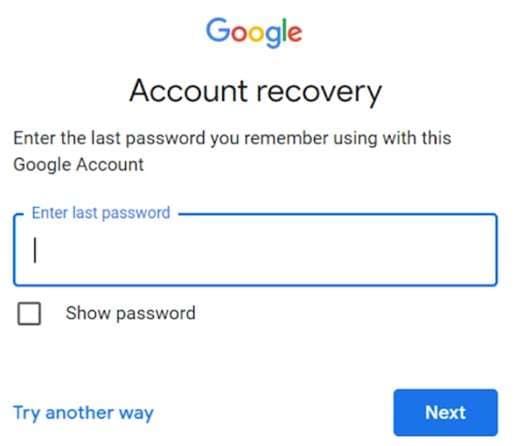
Use Google’s official account-recovery flow. Google can help recover a forgotten username or reset the password after identity checks.
If the password was just changed, Samsung says Google may apply a 24-hour cool-down before that new password can unlock a reset Galaxy device.
Google may also place some recovery requests under a security hold for a few hours or several days if the request appears unusual.
2.3 If the Account Cannot Be Recovered
Samsung advises owners who cannot recover their Google account information to use an authorized Samsung Service Center and provide proof of purchase.
For a Samsung A35 FRP unlock, move to a compatible third-party option only after account recovery is no longer practical and ownership is clear.
Part 3. Use Dr.Fone - Screen Unlock for a Guided Galaxy A35 FRP Removal
The Galaxy A35 5G model features the Exynos 1380; older firmware makes the FRP shortcut unreliable. Dr.Fone - Screen Unlock (Android) takes a more guided approach. Its FRP tool supports Samsung devices and includes Smart Recommendation to detect key device details and suggest a suitable recovery path. Wondershare also lists support for newer Samsung software, including Android 16.
For supported Samsung A35 FRP unlock, Dr.Fone is the best-fit guided option in this article. It also combines device detection, Samsung FRP removal, and step-by-step instructions in a single desktop tool.
 Unlock Android phone in seconds.
- Remove PIN, pattern, password, fingerprint.
- Bypass Google FRP lock easily.
- Works on all Android brands & models.
- No tech skills required – user-friendly.

Why Dr.Fone Fits the Galaxy A35
Dr.Fone - Screen Unlock offers:
- Samsung Google FRP removal
- Support for newer Android versions, including Android 16
- Smart Recommendation for matching the connected device with a suitable FRP path
- Support for Samsung devices using different chipset families
- Guided on-screen instructions that reduce manual trial and error
Wondershare’s A-Series guide identifies the Galaxy A35 5G with the Exynos 1380. It also notes that firmware and security updates can affect FRP compatibility, so the latest Dr.Fone release should be used.
How to Use Dr.Fone for Galaxy A35 FRP Removal
-
Step 1 Open Screen Unlock
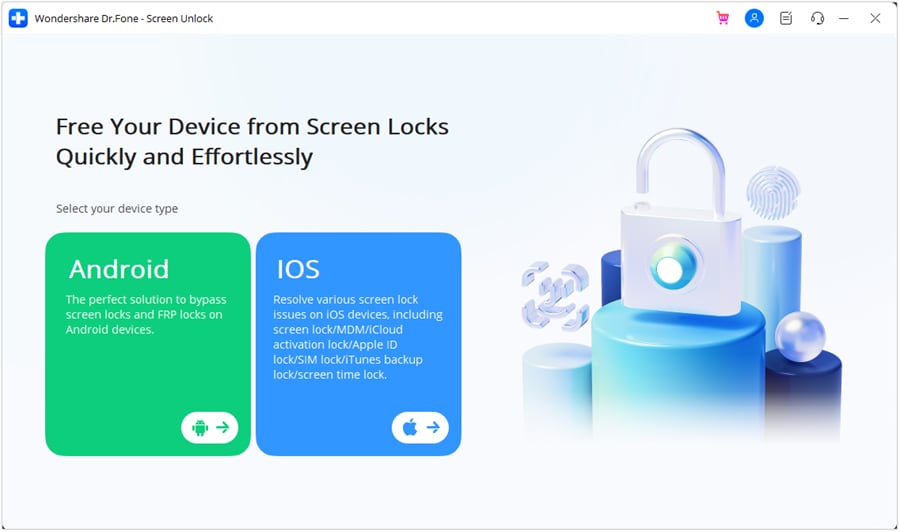
Launch Wondershare Dr.Fone on your computer and connect the Galaxy A35 with a USB cable. Open Toolbox, choose Screen Unlock, and select Android.
-
Step 2 Choose Samsung FRP Removal
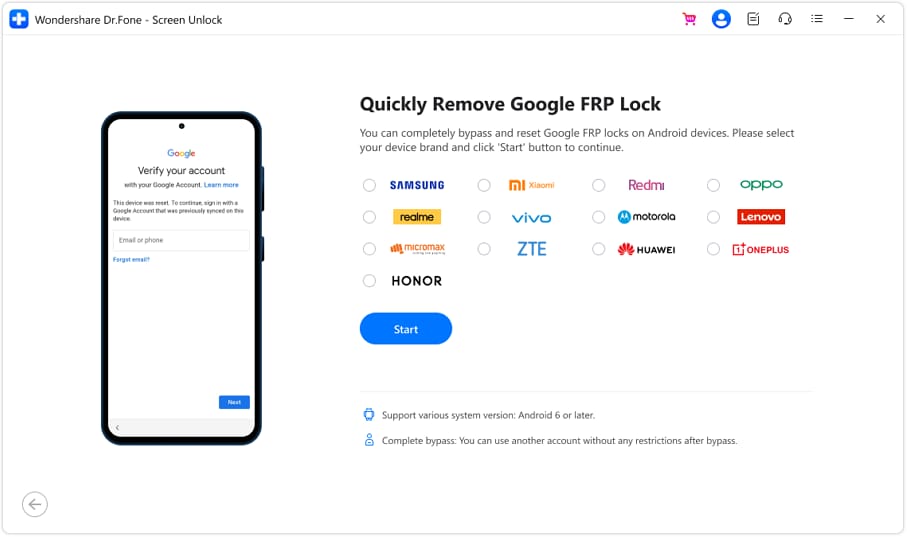
Select Remove Google FRP Lock, choose Samsung, and click Start. Dr.Fone can then use Smart Recommendation to identify a suitable path for the connected device.
-
Step 3 Select the Available Recovery Path
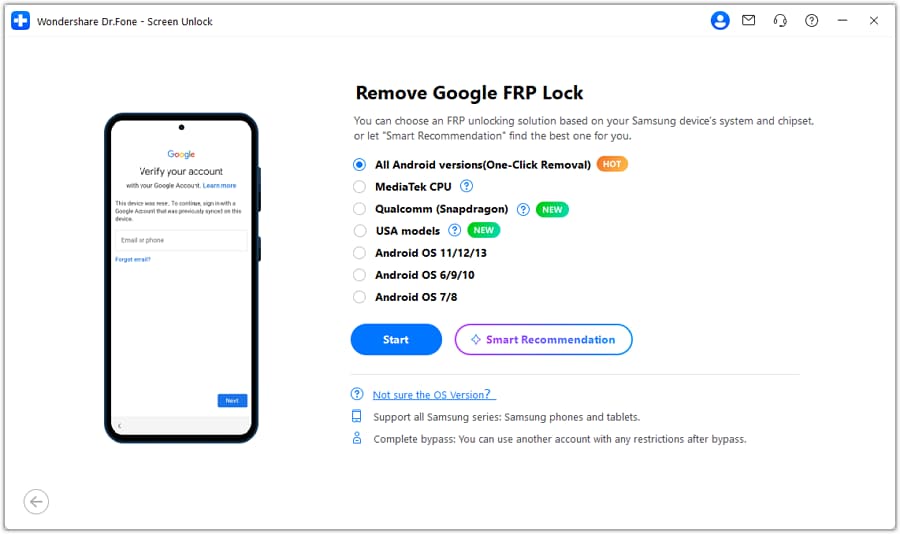
Follow the option shown for your A35. If the tool presents All Android Versions (One-Click Removal), select it and continue. Dr.Fone will display the next instructions for the connected Samsung device.
-
Step 4 Complete the Phone-Side Instructions
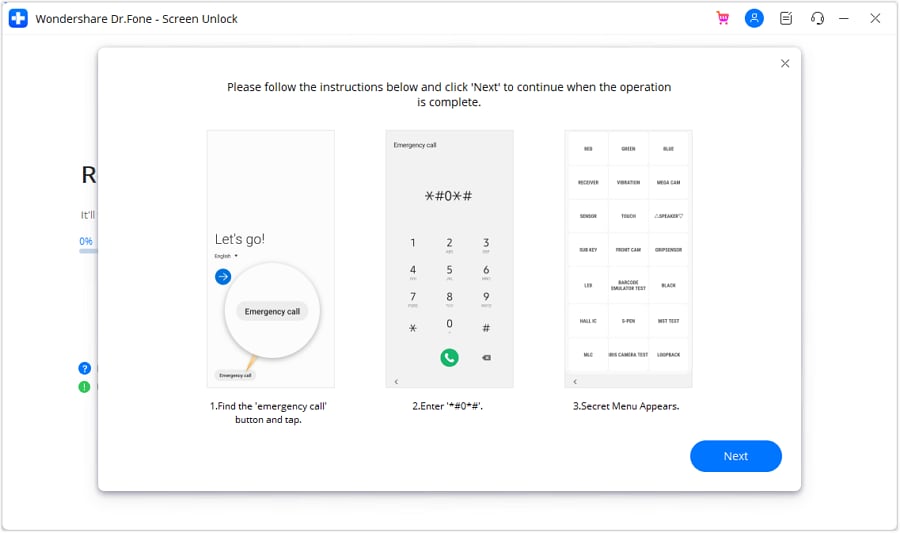
Please adhere to the instructions displayed by Dr.Fone on both screens. When told to, open Emergency Call, enter *#0*#, then continue on PC. When prompted, allow USB Debugging on your phone and authorize Dr.Fone to access your device.
-
Step 5 Finish the FRP Removal
Keep the Galaxy A35 connected while Dr.Fone is working. After receiving a success message, tap on Done, restart your phone and continue. Dr.Fone offers a Try Again option if the process does not complete.
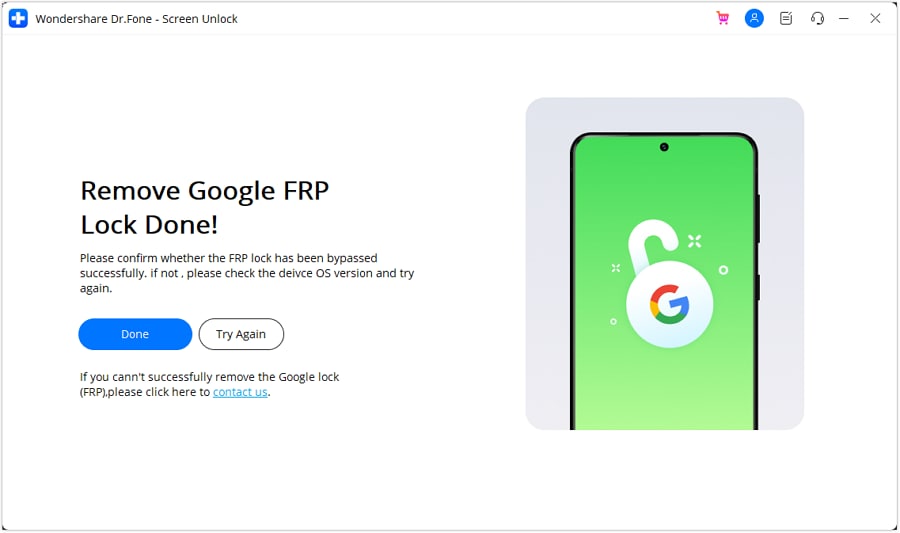
Use this process on a Galaxy A35 that you own or have the right to use. It’s also a good idea to check the exact SM-A356 variant, Android version, One UI build, and security patch. Support can change with newer firmware releases.




Part 4. Choosing Another FRP Route for Your Galaxy A35
One effective method for achieving this without using a PC is through the TalkBack feature. This process is very helpful for users who do not have a computer or for users who prefer a simpler process to remove FRP from their Galaxy A35.
Using TalkBack lets you navigate the device interface and access the settings for Samsung FRP bypass. This tool is popular among users. The Samsung A35 FRP unlock tool is a program that doesn't require installing any external tools to work.
Steps to Bypass Samsung Galaxy A35 FRP via TalkBack
To bypass FRP using TalkBack on Samsung Galaxy A35, just follow these steps:
-
Step 1 Switch on your Samsung Galaxy A35
Switch on your Samsung Galaxy A35 device. When required, connect with Wi-Fi.
-
Step 2 Turn on TalkBack
Tap the screen thrice until you hear ‘TalkBack on’. Use two fingers to swipe down and open the settings menu.
-
Step 3 Access Settings
In the TalkBack menu, select "Help & Feedback". Choose "Use Voice Commands" to activate voice commands.
-
Step 4 Open Google Assistant
Say "Open Google Assistant". This will launch the assistant interface.
-
Step 5 Search for Settings
Ask Google Assistant to "Open Settings". This will redirect you to the device settings menu.
-
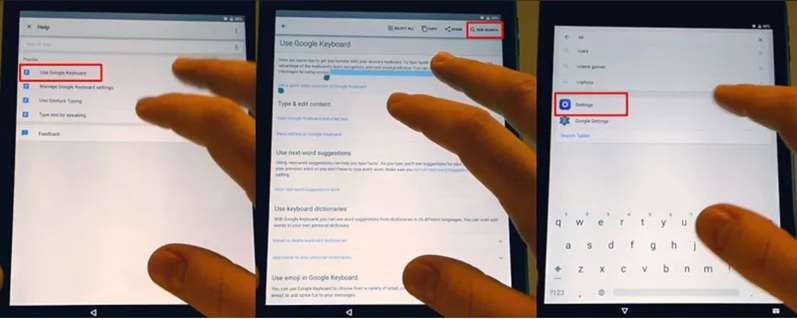
Step 6 Navigate to Accounts
In Settings, find and select "Accounts and Backup". Tap on "Manage Accounts" and then select "Add Account".
-
Step 7 Add Google Account
Choose "Google" and sign in with a new or existing Google account.
-
Step 8 Complete Setup
Once added, restart your device. You should now be able to bypass the FRP lock.
Limitations of the TalkBack Method
- Not widely compatible: It may fail on certain Samsung models, Android versions, or newer firmware builds.
- Can take more time: Manual navigation often takes longer than using a dedicated desktop tool.
- Depends on TalkBack access: The method will not work if the required accessibility options are blocked or unavailable.
- Easy to misstep: A wrong tap or menu choice can interrupt the process and force you to repeat several steps.
Part 5. Alternative Desktop Tools for Samsung A35 FRP Unlock
If you want to compare other desktop options, two commonly used tools are Chimera Tool and SamFw FRP Tool. Both are designed for Samsung servicing and can help with FRP-related tasks on supported devices.
1. Chimera Tool
Chimera Tool is a repair and unlocking mobile servicing platform. It has a neat desktop interface and can be used on a wide variety of devices, including Samsung Galaxy A35 and A35 5G.
Its broad device coverage makes it useful for both repair technicians and users who want a more structured FRP workflow.
2. SamFw FRP Tool
SamFw FRP Tool is another desktop option for Samsung devices. It is designed to make FRP-related operations simple and direct.
Its straightforward layout makes it a practical choice for users who prefer a less complex tool for supported Samsung models.
Conclusion
A reliable Samsung A35 FRP unlock starts with the phone’s exact software, not a generic bypass guide. The Galaxy A35 now spans Android 14 through Android 16, so model number, One UI build, and security patch can change what works. Start with Google account recovery when possible.
For supported devices, Dr.Fone - Screen Unlock (Android) stands out as the most practical guided option because it checks the device environment and leads you through the available FRP path. Older TalkBack routes and other desktop tools can still have value, but only when they match the firmware you actually have.
 Add Wondershare Dr.Fone as a preferred source on Google