Bypass iCloud Activation Lock and Android FRP without password.

 100% Security Verified | No Subscription Required | No Malware

 :
: 
 ChatGPT
 Perplexity
 Gemini
 Claude
 Grok
Grok
Although you can erase your Galaxy A13 with a factory reset, it doesn’t erase Google’s ownership check. If FRP was active prior to the reset, setup might prompt for the Google account previously synced to the phone. This safeguard makes it tough to reuse a stolen device without permission.
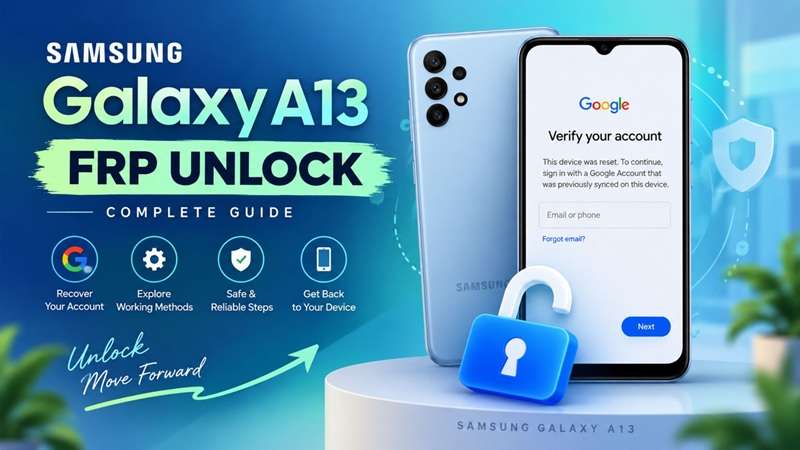
On the Galaxy A13 4G, recovery is not always identical across every device. The SM-A135 series uses Samsung’s Exynos 850, while Android version, One UI build, region, and security patch can affect what options are available. This guide focuses on practical, ownership-safe Samsung A13 FRP unlock options and the compatibility checks that matter before you start.
In this article
- Part 1. Why Does the Galaxy A13 Lock After a Factory Reset?
- Part 2. Official Ways to Recover Access to Galaxy A13
- Part 3. Use Dr.Fone - Screen Unlock (Android) for Galaxy A13 FRP Recovery
- Part 4. Samsung A13 FRP Unlock Methods You Can Try Without a PC
- Part 5. Which Galaxy A13 FRP Recovery Method Fits Your Situation?
- Part 6. Avoid FRP Trouble Before Resetting Your Galaxy A13
Part 1. Why Does the Galaxy A13 Lock After a Factory Reset?
FRP is an Android anti-theft technology. If you reset the phone this far, you need the account previously synced to set it up. Samsung also notes that some Android versions may allow the previous screen lock for verification.
A new Google Account normally will not work because FRP checks prior ownership. So, the verification screen is not an error. It is a security check.
1-1. Why the Galaxy A13 4G Model Matters
The A13 4G is a smartphone in Samsung’s SM-A135 series that runs on Exynos 850. Samsung introduced this smartphone with One UI Core 4. After that, updates can alter the Android version and security patch.
Before executing a Samsung A13 FRP unlock, confirm the model, Android version, One UI version, and security patch level.
Do not mix A13 4G and A13 5G methods. Their hardware and firmware environments are different.
1-2. FRP vs Other Samsung Locks
Knowing the screen PIN or Samsung Account password does not automatically remove FRP.
| Lock Type | Purpose |
|---|---|
| Screen lock | Protects normal phone access |
| Samsung account lock | Protects Samsung services |
| Google FRP | Verifies ownership after certain resets |
Part 2. Official Ways to Recover Access to Galaxy A13
2.1 Start With the Google Account Already Used on the Phone
Before trying anything else, use a Google Account that was previously added and synced to the Galaxy A13.
Google confirms that FRP checks for an account already linked to the device. A newly created Gmail account normally will not pass this check because it has no history on the phone.
If you used more than one Google Account, try the older accounts first. This is the safest and most direct Samsung A13 FRP unlock route.
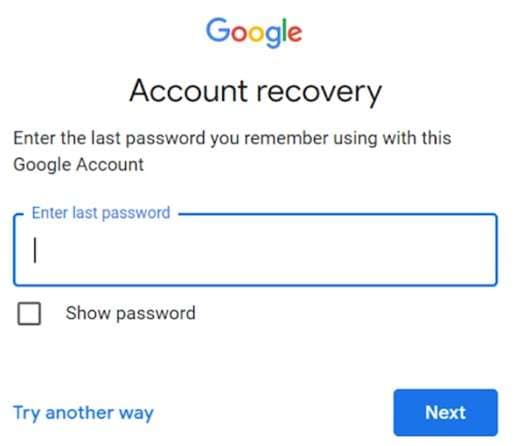
2.2 Forgot the Email or Password? Recover the Account First
If you don’t remember the account details, visit Google's official recovery page instead of creating a new account. To recover the account successfully, you might need to confirm a recovery phone number, a recovery email, or an account name.
If you entered your password recently, don't rush the setup. According to Google, during the password-change process, wait 24 hours before resetting the device. Samsung also warned users that a short security cooldown may apply.
2.3 Still Locked Out? Contact Samsung
If Google recovery fails, take the Galaxy A13 to a Samsung Service Center. Samsung might request documentation to validate that the smartphone is yours. This can include a purchase receipt, IMEI or serial number, and identification where required.
This is the best official fallback when the device is yours, but the original Google account can no longer be recovered.
Part 3. Use Dr.Fone - Screen Unlock (Android) for Galaxy A13 FRP Recovery
A guided desktop tool can help when official account recovery isn't possible. With Dr.Fone - Screen Unlock (Android), users can unlock Android phones in a few simple steps.
The FRP bypass function, which can be used on Samsung cell phones, comes with a guided flow, preventing users from going and looking for complicated manual methods. Dr.Fone also supports FRP for new chipset environments, including Samsung Exynos-based devices, including Galaxy A13 4G models that use the Exynos 850 chipset.
 Unlock Android phone in seconds.
- Remove PIN, pattern, password, fingerprint.
- Bypass Google FRP lock easily.
- Works on all Android brands & models.
- No tech skills required – user-friendly.

Key features include:
- Google FRP removal support for compatible Samsung devices
- Guided on-screen instructions
- Support for multiple Android brands
- Simple computer-based workflow
- Available for Windows and Mac systems
However, compatibility can vary by Galaxy A13 model, Android version, and security patch. Always check your device details before starting.
3.2 How to Use Dr.Fone for Samsung A13 FRP Unlock
To initiate FRP recovery, follow the steps on Dr.Fone - Screen Unlock (Android).
-
Step 1 Install Dr.Fone and Open Screen Unlock
Get Wondershare Dr.Fone on your PC and install it. Connect the Samsung Galaxy A13 via a USB Cable And Launch The Program.
From the main interface, open Screen Unlock from the available tools.

-
Step 2 Select Android FRP Removal and Choose Samsung
After opening Screen Unlock, select Android from the device options.
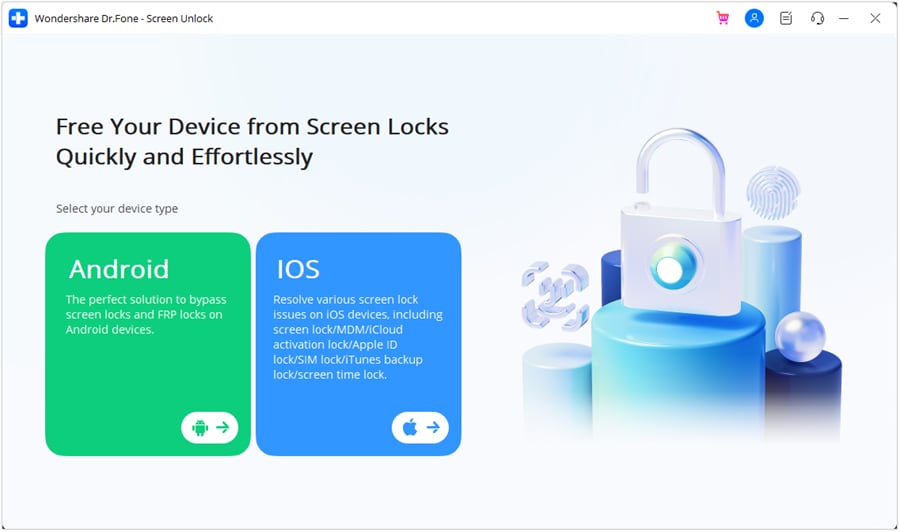
On the next screen, choose Remove Google FRP Lock. When the brand selection window appears, select Samsung, then click Start.
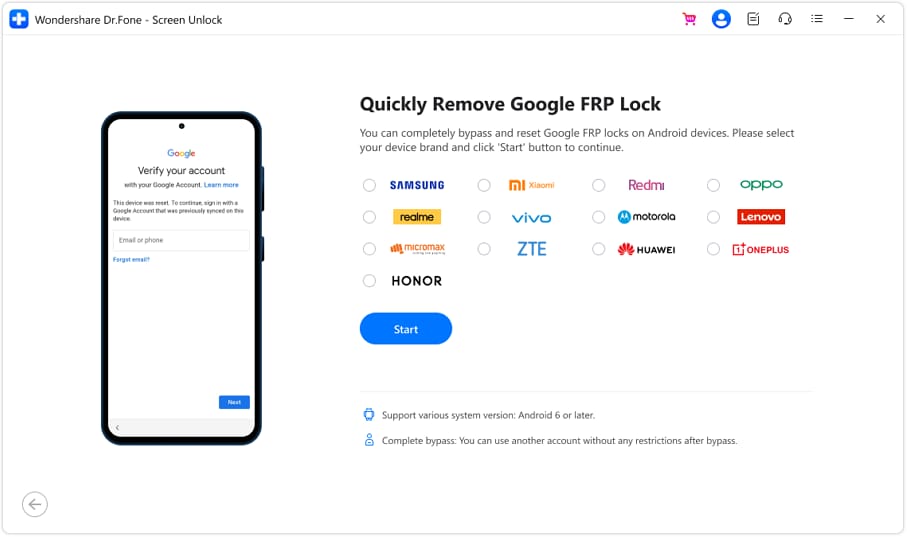
Before starting, make sure your important data is backed up whenever possible.
-
Step 3 Confirm the Galaxy A13 Software Version
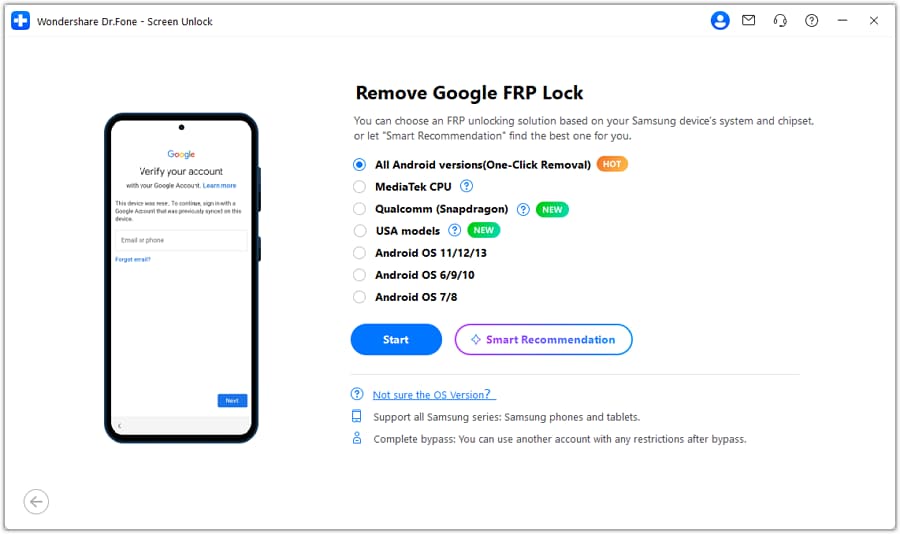
Dr.Fone will ask you to select the correct Android version option for your device.
For Galaxy A13 users, choose the matching option shown for your phone. If you are unsure about the installed OS version, select All Android Versions (One-Click Removal) and click Start to continue.
-
Step 4 Follow the Samsung Connection Instructions
Dr.Fone will display the subsequent instructions depending on your device.
Take the on-screen steps. When prompted, choose Emergency Call on your Samsung phone and enter the code provided by Dr.Fone. Then click Next in the program.
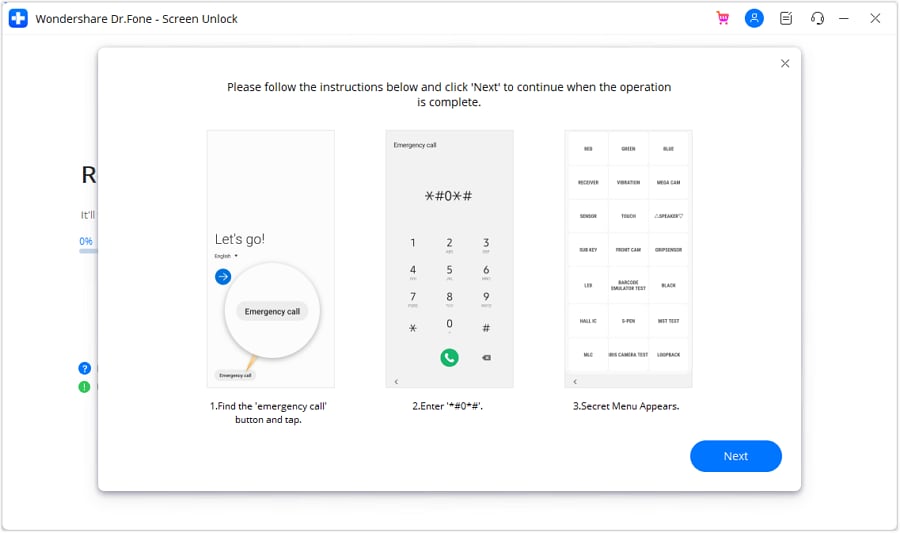
A permission message may appear on your phone. Tap Allow to enable USB debugging, then click Authorized on your computer to continue.
-
Step 5 Complete the FRP Removal Process
Once the connection is established, Dr.Fone will begin unlocking the FRP lock and show the process on your computer screen.
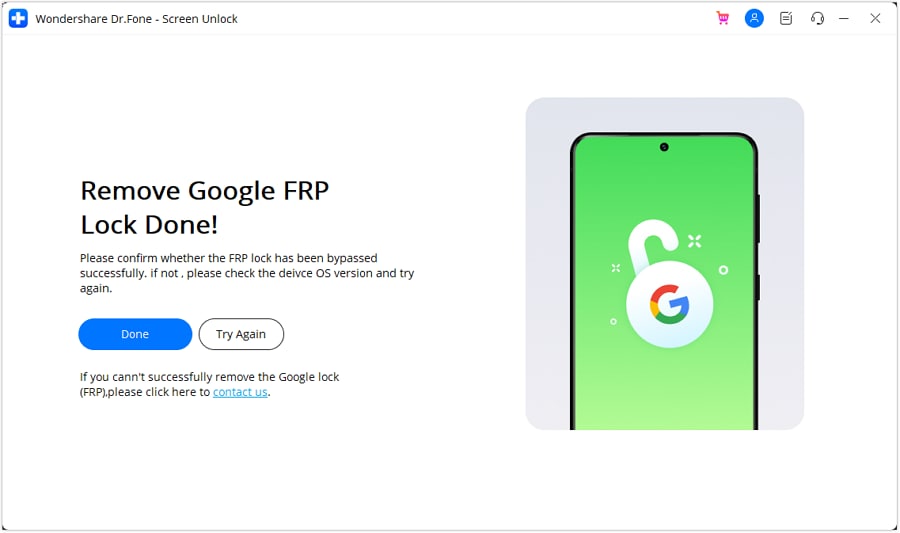
Once the process is finished, click on the Done button. If the process doesn't finish successfully, select Try Again and confirm your device information and connection are correct.




3.3 Check Compatibility Before Using Dr.Fone
Before starting a Samsung A13 FRP unlock, confirm:
- Exact model number (SM-A135 series)
- Exynos 850 chipset variant
- Android version
- One UI version
- Security patch level
The same Galaxy A13 model name can have different software environments, so checking compatibility first helps avoid unsuccessful attempts.
Part 4. Samsung A13 FRP Unlock Methods You Can Try Without a PC
Let’s learn alternative quick and reliable Samsung A13 FRP unlock methods. Many failed methods exist. Finally, we have tried and tested methods. By following these methods, you can successfully bypass the Samsung A13. Let’s explore and learn each of these methods.
Method 1. Samsung A13 FRP Bypass Without A PC
This is an effective method for performing a Samsung A13 FRP Bypass without a PC. Don’t think that you are locked out of your mobile forever. You can quickly gain access to your Samsung A13.
So, why waste time? Let’s start!
Steps to do Samsung A13 FRP Bypass Without a PC:
Please carefully follow the steps given:
-
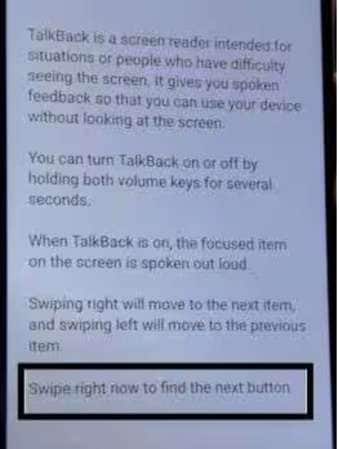
Step 1 On the Google Account details screen, press and hold "Volume Down + Volume Up" until a popup appears. Click "Use" to turn on Talkback, then hold the volume buttons again until you see "Talkback turned on".
-
Step 2 Follow the on-screen instructions, then select "Use voice commands." Say "Open Google Assistant," followed by "Open YouTube."
-
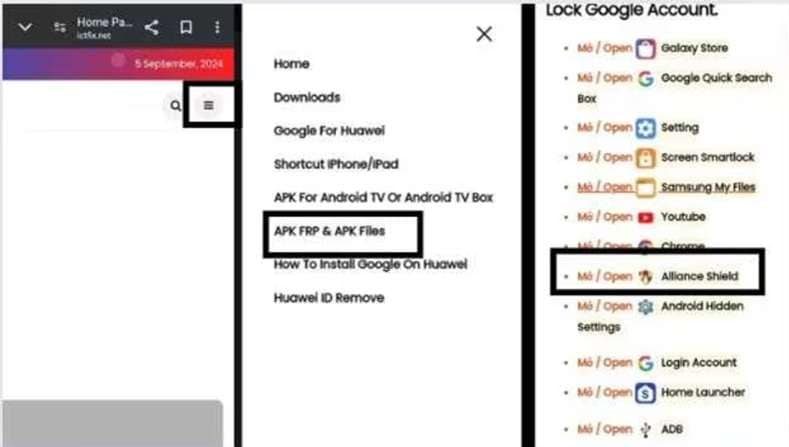
Step 3 In YouTube, go to Settings > About > Google Privacy Policy. Click "Accept & Continue," then type "ICTFIX.net" in the search bar.
-
Step 4 Follow the given steps carefully. Install the software, open it, and register for it.
-
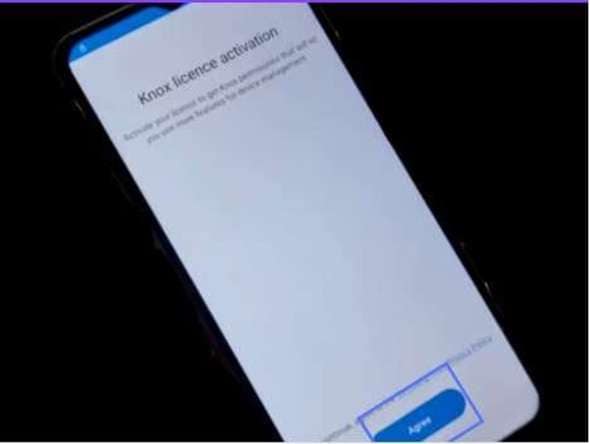
Step 5 After registering, enable "Device Admin" and click "Activate". Then, enable "Knox" and agree to the "Knox License Activation."
-
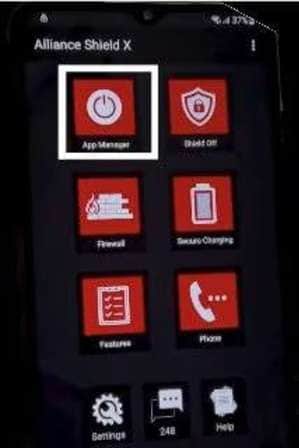
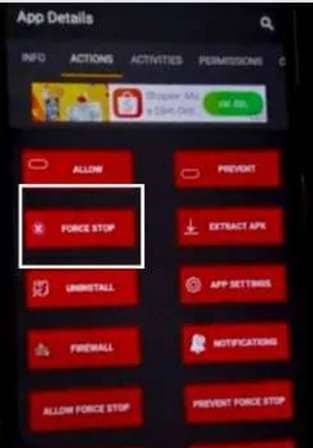
Step 6 Complete the setup by clicking "Next" and "Finish." Open "App Manager" and search for "Android Setup." Select it, click "Force Stop," and "Wipe App Data."
-
Step 7 Repeat Step 6 for "Samsung Setup Wizard" and "Google Play Services" by searching for them in "App Manager."
-
Step 8 Finally, search for "Samsung Setup Wizard" again, click "Activities," select the first link, and tap "Next" to access your device.
And boom! Congratulations, you have gained access to your Samsung A13. Please explore the next method if this solution does not work for you.
Method 2. Samsung A13 FRP Bypass Directly With Mobile
Are you stuck on your Samsung A13 screen asking for the Google account credentials? You can bypass the FRP lock on your Samsung A13. You don’t need a computer. You can do the process directly on your Samsung A13.
Steps to Do Samsung A13 FRP Bypass Directly With Mobile
Follow the following steps to bypass FRP directly on your Samsung A13. You will use Google Keyboard settings to access your mobile.
-
Step 1 The first step is to connect your Android device to the Wifi.
-
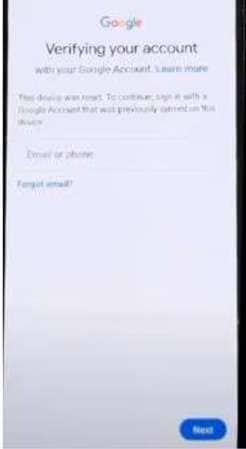
Step 2 When the Google account information screen appears, click the text field to open the keyboard.
-
Step 3 Press the "@" key on the keyboard and click the "Settings."
-
Step 4 Now, from Settings, click the "Google Keyboard Settings."
-
Step 5 Then select the "Help and Feedback" option. Click the "Search Google and Send Results from Keyboard" button on the next screen.
-
Step 6 Click on the "Web Screen" after selecting the word. Use Google App to open it.
-
Step 7 Search for the "System Settings icon." Then, System Settings Icon > Back up and Reset Menu. Then click on the "Factory Data Reset" option.
 Note: This process might take some time, so be patient.
 -
Step 8 You will return to the welcome screen. It will not ask for any previous Google account information. You can skip it or add a new account.
Don’t skip the following method if you want to do a successful Samsung A13 FRP bypass without any doubt.
Part 5. Which Galaxy A13 FRP Recovery Method Fits Your Situation?
Each Samsung A13 FRP unlock route has different requirements. The table below shows the main differences at a glance.
| Method | What You Need | PC Required? | Difficulty | Best Fit / Reliability |
|---|---|---|---|---|
| Previous Google Account | A Google Account already synced to the phone | No | Easy | Best first choice. Google officially supports this ownership check. |
| Google Account Recovery | Recovery email, phone number, or other account details | No | Easy | Best when you forgot the email or password. A security wait may apply after a password change. |
| Samsung Service Center | Proof of purchase and device details | No | Easy | Best official fallback when account recovery fails. |
| Dr.Fone - Screen Unlock (Android) | Supported Galaxy A13 setup, USB cable, computer | Yes | Easy to Moderate | Guided software option. Compatibility depends on model, Android version, and firmware. |
| Manual No-PC Methods | Compatible menus, apps, and software build | No | Moderate to High | Least consistent. Older keyboard or setup workarounds may be patched on newer Android/security builds. |
Part 6. Avoid FRP Trouble Before Resetting Your Galaxy A13
The easiest FRP problem is the one you prevent.
Before resetting or selling a Galaxy A13:
- Back up photos, messages, and other important files.
- Confirm that you know the Google Account username and password.
- Remove accounts correctly when preparing the phone for a new owner.
- Use the normal reset option in Settings when possible.
- Confirm that the phone reaches setup without requesting your private account before handing it over.
Google warns that a factory reset erases local data. Samsung also recommends backing up important information before resetting a protected device.
Taking five minutes before a reset can prevent a much longer recovery process later.
Conclusion
Samsung A13 FRP unlock begins on the right path for success. First, attempt to log in with the Google account already linked to the phone. If unsuccessful, you can use Google recovery or ask Samsung to help. The results can, however, vary by device model, by the version of Android you’re using, One UI build, and the security patch applied.
That is why compatibility checks matter before trying any solution. If you need a guided and simpler software route, Dr.Fone - Screen Unlock (Android) is a practical choice for supported devices. Finally, prevent future FRP trouble by backing up data and removing accounts properly before resetting or selling your phone.
FAQ About Samsung A13 FRP Unlock
-
1. Does Dr.Fone work with every Galaxy A13 firmware version?
No tool should be treated as universal for every Galaxy A13 build. Dr.Fone supports Samsung FRP recovery, but results can vary by model, Android version, One UI build, and security patch. Check compatibility before starting. -
2. Does FRP recovery restore data erased after a factory reset?
No. FRP recovery only helps regain access to the phone. It does not restore data erased during the reset. Only files backed up earlier may come back after setup. -
3. What should I do if I bought a second-hand Galaxy A13 with FRP enabled?
Contact the seller or previous owner first. Ask them to remove the linked Google account or complete verification. If ownership can be proven, Samsung support may help. If not, avoid the device.
 Add Wondershare Dr.Fone as a preferred source on Google