Bypass iCloud Activation Lock and Android FRP without password.

 100% Security Verified | No Subscription Required | No Malware

 :
: 
 ChatGPT
 Perplexity
 Gemini
 Claude
 Grok
Grok
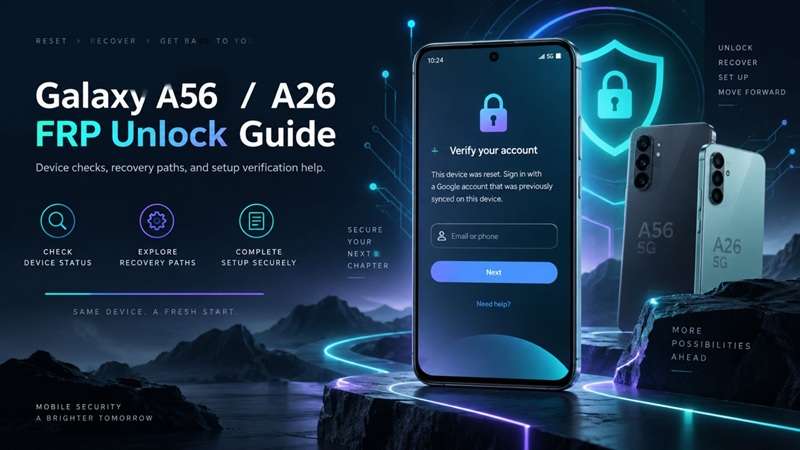
A factory reset does not always give a Galaxy A56 5G or A26 5G a clean start. Recent owners have reported reaching the setup screen only to be stopped by Google’s “Verify your account” check, even when the reset itself completed normally. On newer firmware, some FRP tools may also detect the phone yet offer no compatible procedure for that exact build.
A Samsung A56 FRP unlock / A26 FRP unlock cannot be treated as the same process for that reason. The A56 comes with Exynos 1580, while the A26 generally comes with Exynos 1380 – regional variants differ. The objective in practice is to map the recovery route after matching the exact model, chipset, Android version, One UI build, and security patch.
In this article
- Part 1. Same Google Lock, Different Hardware — Check Your A56 or A26 First
- Part 2. Start With Google’s Built-In Ownership Recovery
- Part 3. A Guided Route for A56/A26 — Dr.Fone - Screen Unlock (Android)
- Part 4. When Your Firmware Needs Technician-Level Support
- Part 5. Why Old TalkBack and APK Tricks Are a Weak Fit
Part 1. Same Google Lock, Different Hardware — Check Your A56 or A26 First
It’s a common error to assume that any recent Galaxy A-series device uses the same FRP process.
Samsung has confirmed that the Galaxy A56 5G launched with Exynos 1580, Android 15, and One UI 7.0. Samsung Galaxy A26 5G will launch with Android 15 and One UI 7. Samsung regional information mentions Exynos 1380 for major variants. Latin American models, however, will ship with Exynos 1280.
| Device | Main Chipset for This Guide | Launch Software | Why It Matters |
|---|---|---|---|
| Galaxy A56 5G | Exynos 1580 | Android 15 / One UI 7 | Newer Exynos platform; FRP support can depend on firmware |
| Galaxy A26 5G | Exynos 1380 | Android 15 / One UI 7 | Different platform; some regions may use Exynos 1280 |
Before trying a Samsung A56 FRP unlock, or A26 FRP unlock, check:
- Exact Galaxy model
- Model number, such as SM-A566 or SM-A266 series
- Region
- Chipset
- Android version
- One UI version
- Security patch level
You can often find the model number on the original box, purchase record, Samsung account information, or device labels.
The rule that saves time
Don’t assume that what works on the A56 will also work on the A26.
Although they're in the same Galaxy family, their hardware and firmware environments differ.
Part 2. Start With Google’s Built-In Ownership Recovery
Before trying a Samsung A56 FRP unlock / A26 FRP unlock tool, use the recovery options built into Google and Samsung.
Sign In With a Previously Synced Google Account
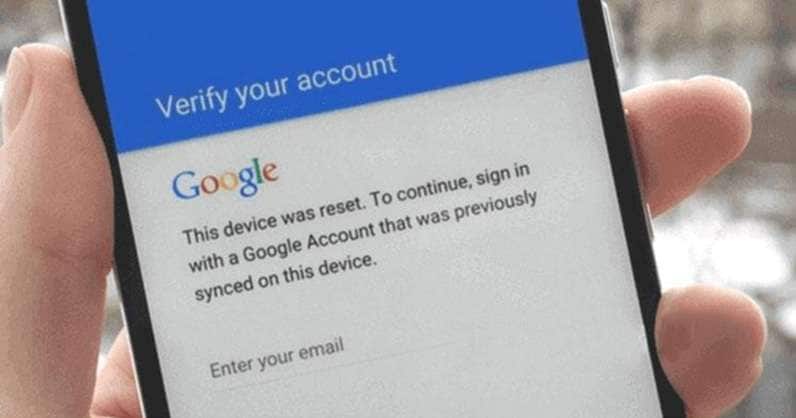
After a protected reset, Google may ask for a Google Account that was previously added and synced to the phone. A newly created account will not satisfy that check. On some newer Android devices, the previous screen-lock PIN, pattern, or password may also appear as an ownership option.
Enter the correct account credentials during setup. If you used several Google accounts on the phone, try one that was previously synced with it.
Recover the Account if You Forgot It
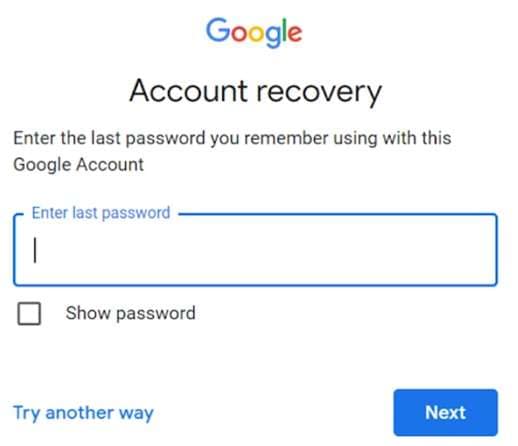
If you forgot the ID, password, or both, then use Google Account Recovery. Through recovery details, Google can recognize an account and subsequently allow you to change the password after verifying ownership.
If you've recently altered your password, Google suggests a 24-hour delay in a factory reset. Samsung also warns that once you change your password, the action will likely trigger a 24-hour security delay before it works for device verification.
Use Samsung Support When Recovery Fails
If you’re unable to recover your Google account, then Samsung recommends you take the device, along with proof of purchase, to a Samsung Authorized Service Center.
If you're interested in buying a pre-owned A56 or A26 that's still linked to the previous owner, reach out to the seller first. Once you confirm legitimate ownership but can't recover the account normally, you can consider a compatible FRP recovery tool.
Part 3. A Guided Route for A56/A26 — Dr.Fone - Screen Unlock (Android)
For a computer-based recovery path, Dr.Fone - Screen Unlock (Android) is the main third-party option covered in this guide.
Wondershare currently lists Samsung Google FRP removal as a Screen Unlock feature. Its current FRP documentation also provides an Android-version-aware workflow, including procedures for Samsung Android 16.
That makes Dr.Fone a strong fit for this article because newer Samsung phones cannot be treated like old Android models with one universal trick.
The Galaxy A56 brings the Exynos 1580 platform. The main A26 covered here uses Exynos 1380. Dr.Fone has expanded its FRP coverage across newer Samsung and Exynos environments, but you should still check compatibility against your exact device before you start.
Why Dr.Fone fits this job
Dr.Fone provides a guided desktop interface instead of making users search for hidden setup menus or old APK files.
Its main benefits for this type of recovery are:
- Samsung FRP removal is built into Screen Unlock.
- The workflow changes according to the Android environment.
- Current Wondershare documentation includes Samsung Android 16 support.
- Instructions appear on screen as the process moves forward.
- It reduces the need to rely on old browser or TalkBack loopholes.
Wondershare currently advertises broad Samsung FRP compatibility, but that should not be read as a guarantee for every A56 or A26 firmware build.
Important compatibility check
Before attempting a Samsung A56 FRP unlock, confirm:
Galaxy A56 5G
- SM-A566-series model
- Exynos 1580 platform
- Android version
- One UI build
- Security patch
Before starting an A26 FRP unlock, confirm:
Galaxy A26 5G
- SM-A266-series model
- Exynos 1380 or regional Exynos 1280 version
- Android version
- One UI build
- Security patch
This check matters because FRP support can change after Samsung or Google updates the setup process.
How to Use Dr.Fone for Galaxy A35 FRP Removal
-
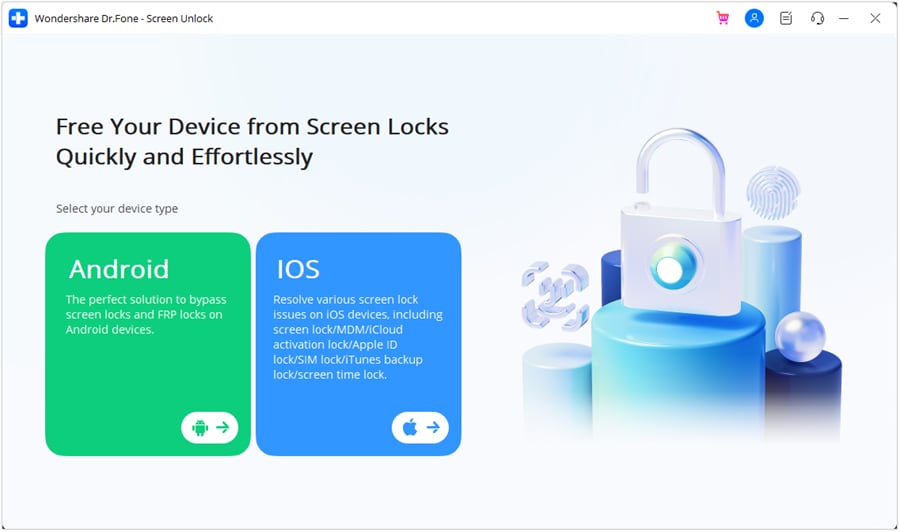
Step 1 Open Screen Unlock
Launch Wondershare Dr.Fone on your computer and connect the Galaxy A35 with a USB cable. Open Toolbox, choose Screen Unlock, and select Android.
-
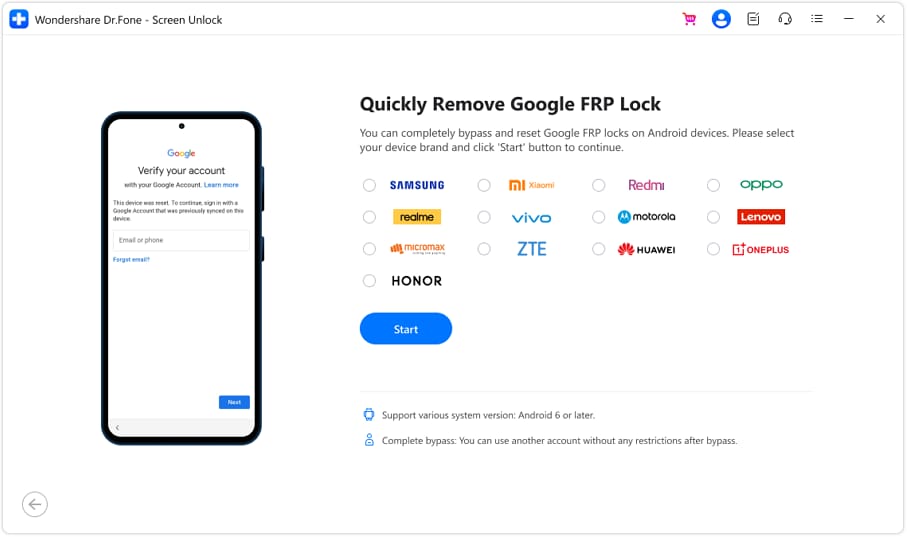
Step 2 Choose Samsung FRP Removal
Select Remove Google FRP Lock, choose Samsung, and click Start. Dr.Fone can then use Smart Recommendation to identify a suitable path for the connected device.
-
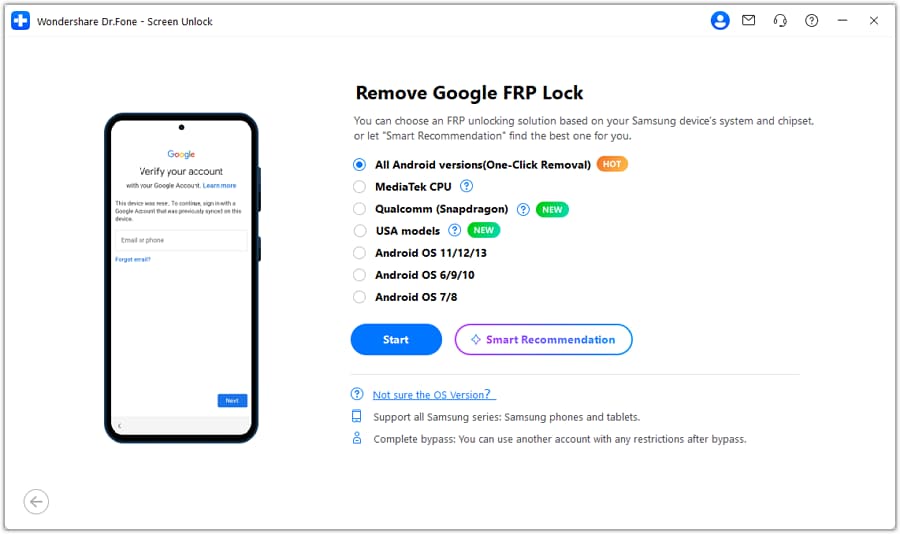
Step 3 Select the Available Recovery Path
Follow the option shown for your A35. If the tool presents All Android Versions (One-Click Removal), select it and continue. Dr.Fone will display the next instructions for the connected Samsung device.
-
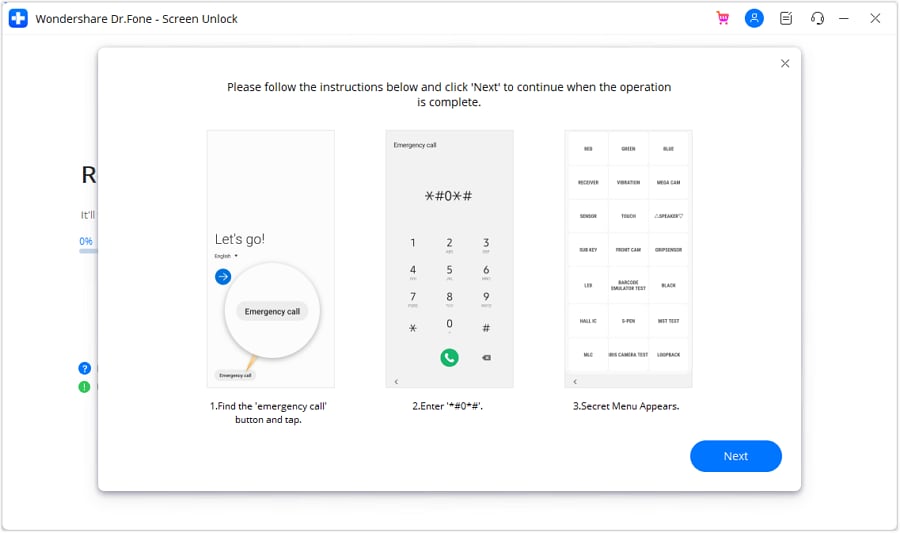
Step 4 Complete the Phone-Side Instructions
Please adhere to the instructions displayed by Dr.Fone on both screens. When told to, open Emergency Call, enter *#0*#, then continue on PC. When prompted, allow USB Debugging on your phone and authorize Dr.Fone to access your device.
-
Step 5 Finish the FRP Removal
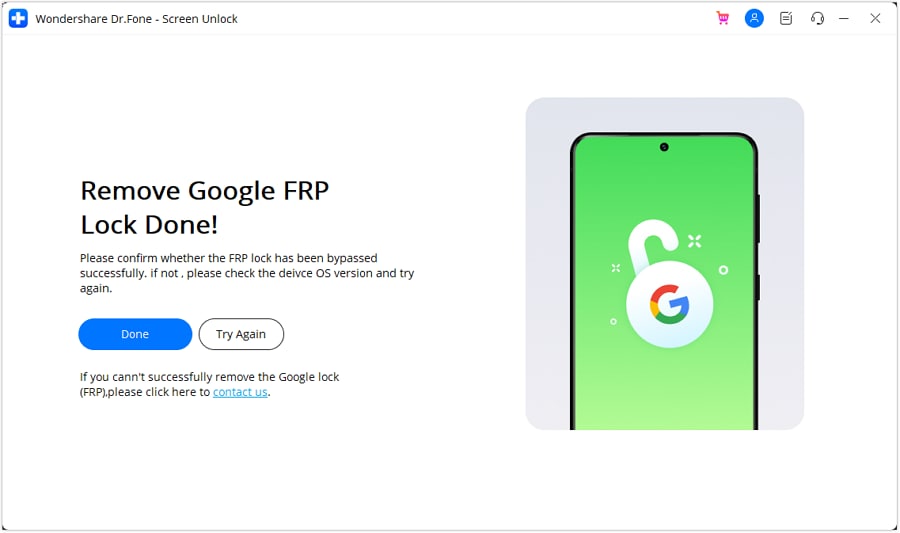
Let the Galaxy A35 connected while Dr.Fone is working. After receiving a success message, tap on Done, restart your phone and continue. Dr.Fone offers a Try Again option if the process does not complete.
Part 4. When Your Firmware Needs Technician-Level Support
If your exact A56 or A26 build isn't supported by consumer software, a remote FRP service may be a fallback for a device you legally own.
UnlockBoot currently advertises support for Galaxy A56 variants including SM-A566E, SM-A566BE, SM-A566B2, SM-A566B, and SM-A5660. Its A26 service lists SM-A266U, SM-A266U1, SM-S266V, SM-A266M, SM-A266B2, SM-A266BE, and SM-A266B.
A typical remote session requires:
- Windows PC
- USB cable
- Stable internet
- Device model or IMEI
- Live technician access
This route is most useful when a Samsung A56 FRP unlock / A26 FRP unlock cannot be completed with a supported consumer tool or when the technician must confirm the exact firmware first.
Provider claims such as “permanent,” “all models,” “warranty unaffected,” or fixed completion times are marketing claims, not independent guarantees. Check compatibility, refund terms, and privacy conditions before allowing remote access.
Part 5. Why Old TalkBack and APK Tricks Are a Weak Fit
Older FRP guides often depend on TalkBack, browser links, APK files, hidden Settings pages, or setup-screen loopholes.
The Galaxy A56 and A26 are a poor match for this. Samsung has released these smartphones with Android 15 and One UI 7.0.
Google considers FRP bypass vulnerabilities on Android 15 and later to be security issues, more importantly. This indicates that platform or security updates could potentially rectify vulnerabilities, rendering an older guide unsuitable on a more modern build.
No-PC tricks don’t work with all firmwares of Samsung A56 FRP unlock / Samsung A26 FRP unlock. If you don’t know the exact model, Android build, and security patch, don’t rely on them as a primary recovery.
Conclusion
A Samsung A56 FRP unlock / A26 FRP unlock is safest when you match the recovery path to the exact phone, not just the Galaxy name. The A56 uses Exynos 1580, while the A26 commonly uses Exynos 1380, with some regional differences.
Start with Google or Samsung account recovery whenever possible. If that route is unavailable, Dr.Fone - Screen Unlock (Android) offers a guided FRP workflow for supported Samsung configurations and newer Android versions. For unsupported firmware, a verified professional service may be the better fallback. Always check the model, chipset, Android version, One UI build, and security patch first.




 Add Wondershare Dr.Fone as a preferred source on Google