Bypass iCloud Activation Lock and Android FRP without password.

 100% Security Verified | No Subscription Required | No Malware

 :
: 
 ChatGPT
 Perplexity
 Gemini
 Claude
 Grok
Grok
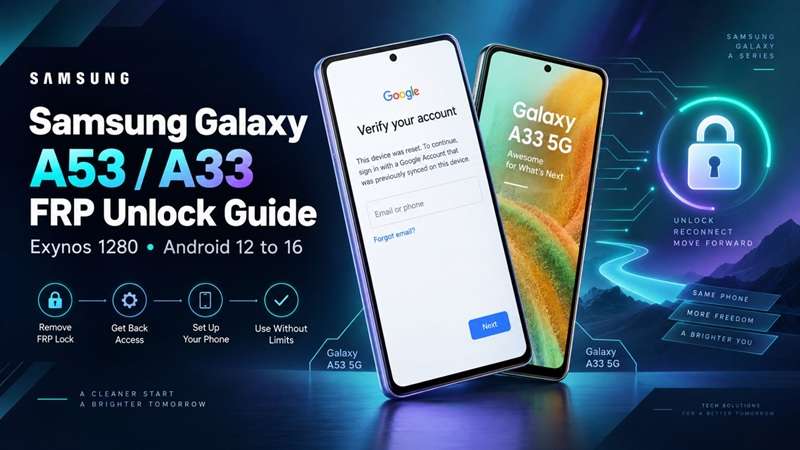
A Galaxy A53 can look completely reset and still be unusable. One IT team reported getting an A53 back from an employee who had erased the phone without removing the Google account first. Setup kept returning to the previous-account check. Other A53 owners have run into a second problem: newer security patches can make older FRP instructions stop working.
A Samsung A53 FRP unlock is a real hurdle, and the same can be said for the A33 5G as well. Both the devices launched with an Exynos 1280 SoC and software from the Android 12 era. However, the later Android and One UI updates changed the recovery landscape. The appropriate solution now depends on ownership, account access, exact model, Android version, and security patch.
In this article
- Part 1. Same Exynos Chip, Different Software — Check This First
- Part 2. Start With the Google Account, Not a Bypass Tool
- Part 3. Dr.Fone Is the Main Guided Route for A53/A33 Owners
- Part 4. Old No-PC Methods Are Now Legacy Options
- Part 5. When Current Firmware Is Unsupported, Consider Professional Help
- Part 6. Which FRP Route Fits Your A53 or A33?
- Part 7. Stop FRP Problems Before the Next Reset
Part 1. Same Exynos Chip, Different Software — Check This First
The Galaxy A53 5G and A33 5G share the same Exynos 1280 platform, but FRP compatibility can still differ by software build.
| Device | Chipset | Launch Software | Current Software Status |
|---|---|---|---|
| Galaxy A53 5G | Exynos 1280 | Android 12 / One UI 4.1 | Included in the One UI 8 / Android 16 rollout |
| Galaxy A33 5G | Exynos 1280 | Android 12 / One UI 4.1 | Included in the One UI 8 / Android 16 rollout |
Both phones have Exynos 1280, Android 12, One UI 4.1, and were launched by Samsung in 2022. Samsung subsequently included both devices in its One UI 8 rollout, and that rollout is now marked complete in Samsung’s regional schedules.
Check the Software Before Choosing an FRP Route
For a Samsung A53 FRP unlock or A33 recovery, verify:
- Exact model: A53 5G or A33 5G
- Model family: SM-A536 or SM-A336
- Android and One UI version
- Security patch level
- Region or carrier build
The chipset alone does not determine compatibility. Android treats bypasses of Factory Reset Protection as a security issue, so software updates can close weaknesses used by older FRP procedures.
That is why an Android 12-era method may fail on the same phone after later updates.
The practical rule: match the FRP route to the model, Android version, One UI build, and security patch—not just the Exynos 1280 chipset.
Part 2. Start With the Google Account, Not a Bypass Tool
Before using any FRP tool, try the normal ownership check first.
If You Know the Previous Google Account
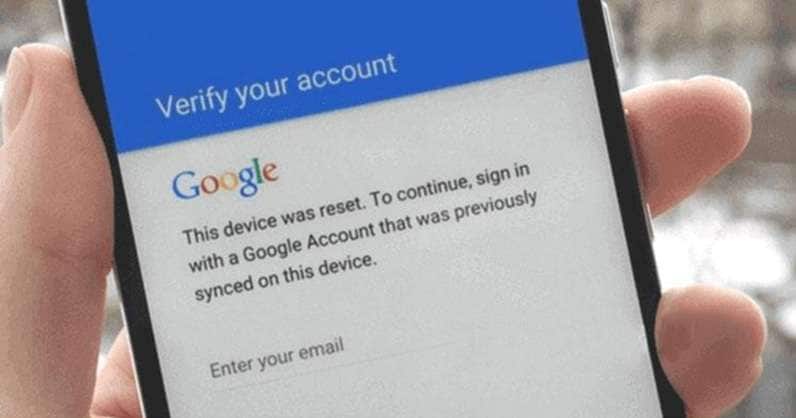
Log in to a Google Account that has been previously added and synced to the phone. As communicated by Google, you might have to enter a previously synced Google Account to set up and use your device again after a reset of the factory settings.
A newly created account will not replace that ownership check. For a second-hand A53 or A33, contact the previous owner first and have them resolve the linked account properly.
If You Forgot the Account or Password
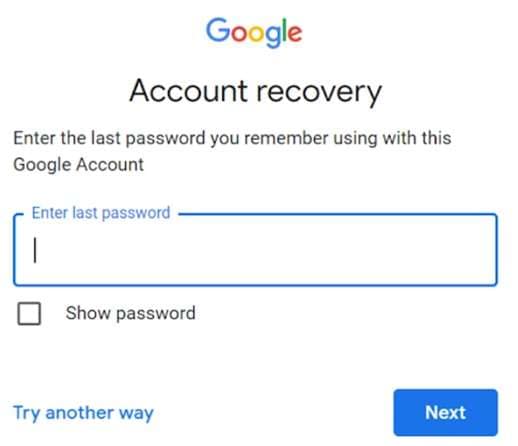
Use Google Account Recovery to restore access to the original account. Google can verify ownership through recovery details, trusted devices, or other security checks.
Slow down the reset or setup if you changed the password recently. According to Google, taking a reset is recommended after changing your Google password or messaging password. In a factory reset, Samsung says a similar cooldown may apply before the phone accepts the new password.
If Account Recovery Fails
Samsung suggests that owners who can't retrieve their Google account information should contact an authorized Samsung Service Center with proof of purchase.
Keep these details ready:
- Proof of purchase
- IMEI or serial number
- Exact model number
- Ownership details
For a Samsung A53 FRP unlock, official account recovery should always come before third-party recovery options.
Part 3. Dr.Fone Is the Main Guided Route for A53/A33 Owners
For users who want a guided PC method instead of following long setup-screen tricks, Dr.Fone - Screen Unlock (Android) is the best-fit FRP bypass tool featured in this guide.
Dr.Fone currently lists Google FRP removal as part of Screen Unlock. Its current product material also advertises support for Android 16, while its Samsung FRP guide states support across Samsung system versions, including Android 16. These are Wondershare's current compatibility claims, so you should still check the exact phone and build before purchase or use.
 Unlock Android phone in seconds.
- Remove PIN, pattern, password, fingerprint.
- Bypass Google FRP lock easily.
- Works on all Android brands & models.
- No tech skills required – user-friendly.

Why Dr.Fone Makes Sense for Galaxy A53/A33
There are three main reasons.
- First, both devices run Samsung's Exynos 1280 platform. That makes chipset-aware compatibility important.
- Second, Dr.Fone now provides guided FRP workflows rather than asking the user to search for separate APK files, old browser tricks, or dated setup-screen loopholes.
- Third, modern Galaxy A53 and A33 units may be running software that is far newer than the Android 12 firmware used in older FRP tutorials.
For that reason, Dr.Fone is a more sensible starting point for a current Samsung A53 FRP unlock than blindly copying an old TalkBack video.
How to Use Dr.Fone - Screen Unlock at a High Level
The current Wondershare Samsung FRP guide follows a simple workflow.
-
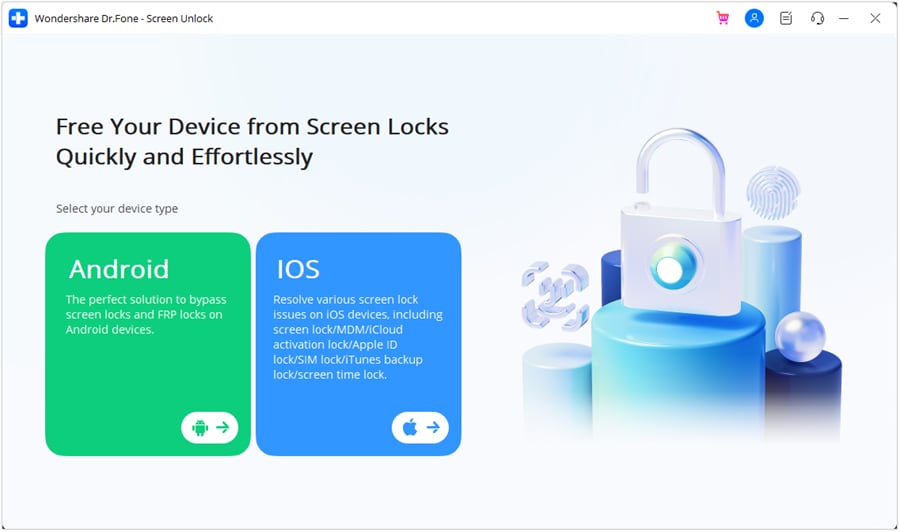
Step 1 Open Screen Unlock
Launch Wondershare Dr.Fone on your computer and connect the Galaxy A35 with a USB cable. Open Toolbox, choose Screen Unlock, and select Android.
-
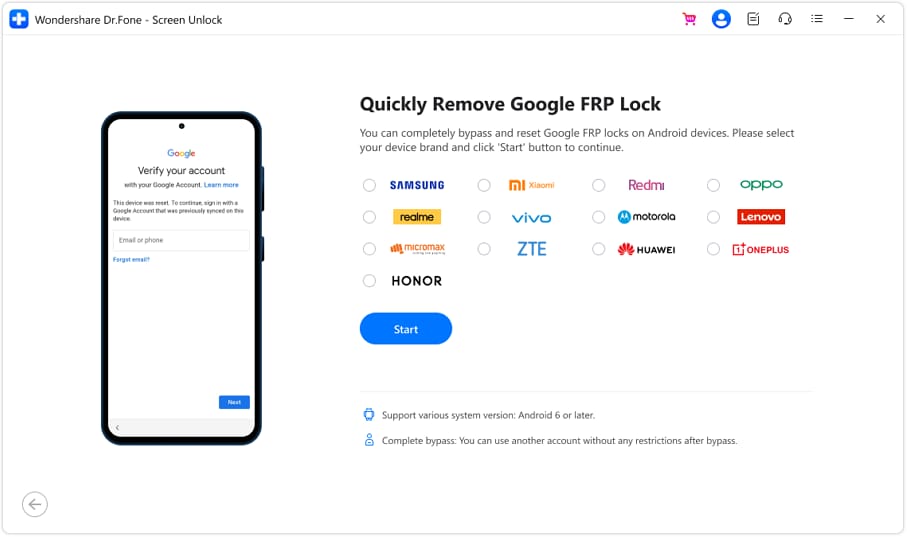
Step 2 Choose Samsung FRP Removal
Select Remove Google FRP Lock, choose Samsung, and click Start. Dr.Fone can then use Smart Recommendation to identify a suitable path for the connected device.
-
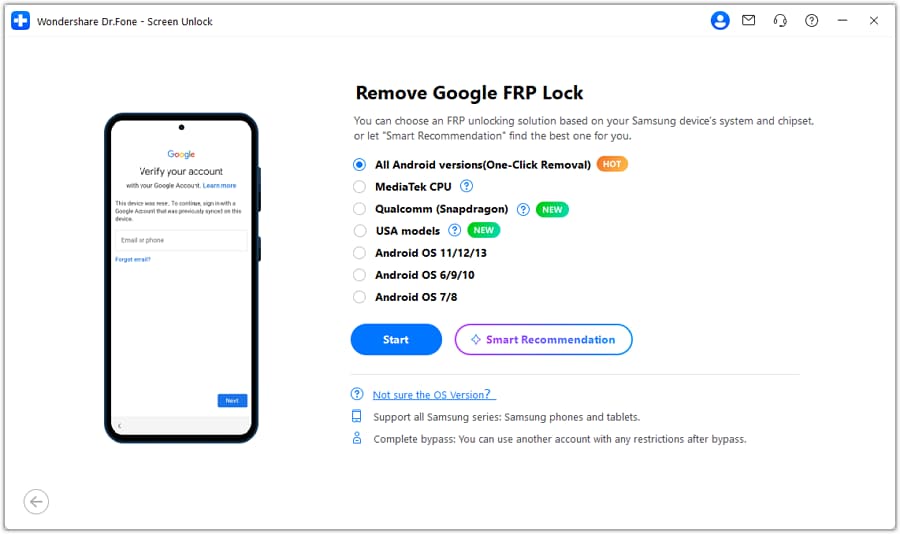
Step 3 Select the Available Recovery Path
Follow the option shown for your A56/A26. If the tool presents All Android Versions (One-Click Removal), select it and continue. Dr.Fone will display the next instructions for the connected Samsung device.
-
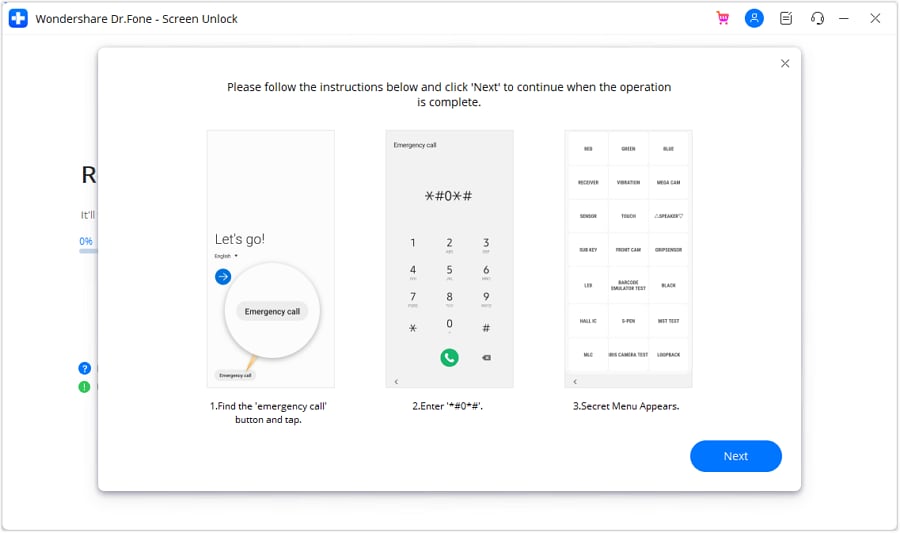
Step 4 Complete the Phone-Side Instructions
Please adhere to the instructions displayed by Dr.Fone on both screens. When told to, open Emergency Call, enter *#0*#, then continue on PC. When prompted, allow USB Debugging on your phone and authorize Dr.Fone to access your device.
-
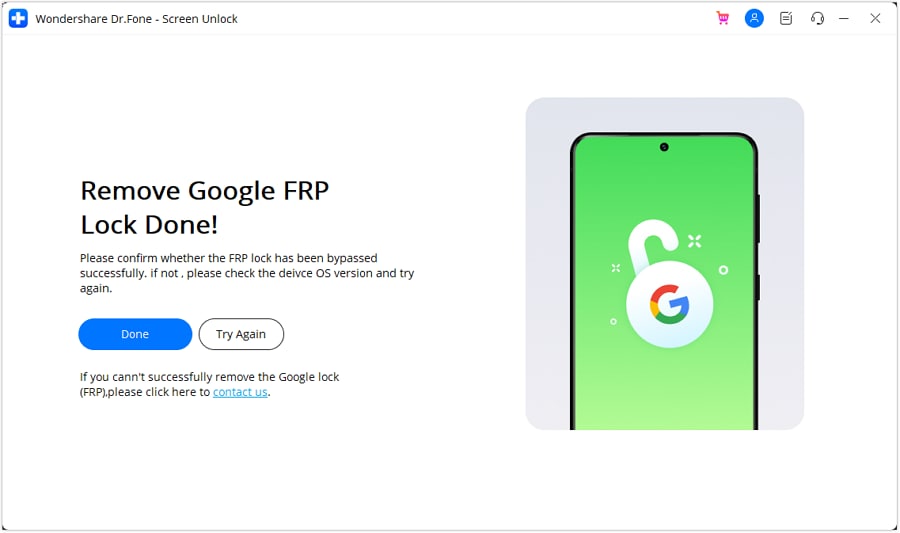
Step 5 Finish the FRP Removal
Keep the Galaxy A56/A26 connected while Dr.Fone is working. After receiving a success message, tap Done, restart your phone, and continue. Dr.Fone offers a Try Again option if the process does not complete.




Check Compatibility Before You Begin
Even when a product advertises broad Samsung support, check:
- Galaxy A53 5G or A33 5G.
- SM-A536 or SM-A336 variant.
- Exynos 1280 platform.
- Android version.
- One UI generation.
- Security patch.
- Current Dr.Fone compatibility information.
Do not assume that every firmware build behaves in exactly the same way. Also remember that FRP recovery does not restore files that were already erased by the factory reset.
Part 4. Old No-PC Methods Are Now Legacy Options
Search for Samsung A53 FRP unlock, and you will still find videos and articles based on TalkBack, voice assistants, browser access, or downloaded setup utilities.
Those guides are not automatically fake. Many were simply written for older firmware.
Galaxy A53 5G Legacy Tutorials
Older A53 procedures often used a chain involving features such as:
- TalkBack or accessibility controls.
- Voice assistant access.
- Browser access from setup.
- Separate setup utilities.
The problem is age.
As an example, ProGeeks states that its A53 technique has been tried in firmware from the Android 12 era and warns that later updates could seal the loopholes being exploited by the technique. Using a method that worked in 2022 or 2023 should not be called a reliable Android 16 solution.
Galaxy A33 5G Legacy Tutorials
The same rule applies to A33 guides.
Older pages often depend on accessibility shortcuts, browser paths, and package-based workarounds. ProGeeks itself notes that later Android and security releases can stop those steps from working.
Another risk is downloading unknown FRP packages or APK files from random websites, which can expose a PC or phone to unsafe software.
The best label for these procedures is:
Legacy non-PC methods that may work only on specific older firmware.
Don't present them as universal solutions for One UI 8 or Android 16.
Part 5. When Current Firmware Is Unsupported, Consider Professional Help
Sometimes the phone's current firmware is newer than the consumer tool or method you want to use.
In that case, professional assistance can make more sense than trying several outdated shortcuts.
UnlockBoot, for example, currently advertises remote FRP removal services for Samsung devices and has a dedicated Galaxy A53 page. Its general service page also warns that newer 2026 firmware may require different service handling depending on region. These are the provider's own commercial support claims, so users should confirm compatibility and terms before paying.
For an A33 5G, use a reputable Samsung technician or service provider that checks:
- The exact SM-A336 variant.
- Android version.
- Security patch.
- Samsung region.
- Exynos compatibility.
- Proof of ownership.
Professional help makes the most sense when the phone has very recent firmware and standard account recovery or supported consumer tools aren't available.
Avoid random services that ask for unnecessary account passwords or make unrealistic “works on every phone” promises.
Part 6. Which FRP Route Fits Your A53 or A33?
The right route depends less on the phone name and more on account access, firmware version, and current tool support. Use this quick comparison before proceeding.
| FRP Route | Best For | Current-Firmware Fit | What You Need | Main Limitation |
|---|---|---|---|---|
| Google Account Recovery | Owners who know or can recover a previously synced account | Best first choice on any supported Android version | Previous Google account, password, and recovery access | Does not help if the original account cannot be recovered |
| Dr.Fone - Screen Unlock (Android) | Users wanting a guided PC-based Samsung A53 FRP unlock or A33 recovery | Wondershare currently advertises support through Android 16 | Windows PC, USB cable, supported model/build | Exact firmware and security-patch compatibility should be checked first |
| Legacy No-PC Methods | Older A53/A33 units still running compatible firmware | Weak fit for current builds; older guides mainly target Android 12-era software | Usually no PC, but method-specific setup paths | Security updates can close the loopholes these methods rely on |
| Professional / Remote Service | Current firmware not handled by normal recovery or consumer software | Can support newer builds depending on provider and model | Usually device details; some services also require a Windows PC and USB cable | Paid service; compatibility, provider reputation, and ownership checks vary |
The main rule is simple:
A shared Exynos 1280 chipset does not mean both phones are in the same firmware state. Always match the recovery route to the exact device software.
Part 7. Stop FRP Problems Before the Next Reset
FRP is much easier to handle before a phone is erased.
If you plan to reset, sell, trade, or give away an A53 or A33:
- Confirm that you know the Google account password.
- Back up photos and other important files.
- Remove Google accounts before transferring ownership.
- Remove personal Samsung accounts when appropriate.
- Use the normal reset option in Settings when preparing your own device.
- Check that the new owner can complete setup before the handover is finished.
These simple checks can prevent a future FRP lock.
Conclusion
A Samsung A53 FRP unlock or A33 recovery should never be treated as a one-size-fits-all task. Both phones use Exynos 1280, but Android version, One UI build, model variant, and security patch can change what works. Start with the previously synced Google account or official recovery whenever possible.
For supported builds, Dr.Fone - Screen Unlock (Android) offers a practical guided route that is easier to follow than outdated TalkBack or browser tricks. Older methods are best kept for matching legacy firmware, while newer unsupported builds may need professional help. Check compatibility first, then choose the route that fits your exact device.
FAQs About Galaxy A53/A33 FRP
-
1. What should I do if a second-hand Galaxy A53 or A33 is still FRP-locked?
Contact the previous owner first. Google states that after a protected reset, setup may require a Google Account that was previously added and synced to the device. A new account will not satisfy that check. The safest route is for the seller to resolve the linked account or take the phone back if ownership cannot be verified. -
2. Does FRP recovery restore photos, apps, or files erased by the factory reset?
No. FRP controls device activation after a reset; it does not undo the reset itself. Google and Samsung both state that a factory reset erases data stored on the phone. Only information already backed up to a Google, Samsung, or other supported backup service may be restored afterward. -
3. Does Dr.Fone support Galaxy A53/A33 FRP on Android 16?
Wondershare currently advertises Samsung FRP removal through Android 16 in Dr.Fone - Screen Unlock and provides a dedicated Android 16 workflow in its FRP guide. However, check support against the exact A53/A33 model, firmware, and security patch before starting.
 Add Wondershare Dr.Fone as a preferred source on Google