Bypass iCloud Activation Lock and Android FRP without password.

 100% Security Verified | No Subscription Required | No Malware

 :
: 
 ChatGPT
 Perplexity
 Gemini
 Claude
 Grok
Grok
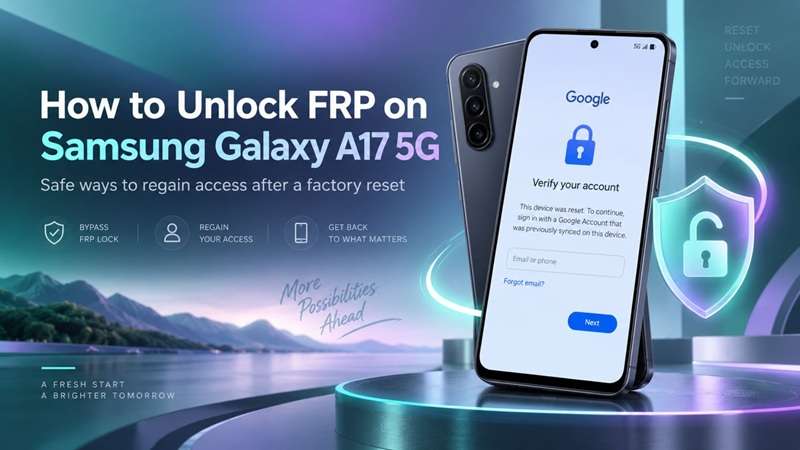
A factory reset can wipe the Galaxy A17 5G clean and still leave one thing behind: proof of ownership. If the phone was reset while Google protection was active, setup may stop at account verification and require a Google Account already synced to the device. That is FRP doing exactly what it was built to do, making a stolen or improperly reset phone harder to reuse.
The Galaxy A17 5G runs on Samsung’s Exynos 1330 platform, but recovery compatibility can depend on the software build and security patch. The Samsung A17 FRP unlock refers to a lock that owners must check first. It also explains how to unlock the device without confusing the FRP lock for a normal screen lock. Utilize recovery solely on a device you possess or have permission to control.
In this article
- Part 1. Why Is Your Galaxy A17 5G Asking for an Old Google Account?
- Part 2. Galaxy A17 5G FRP Recovery With Professional Service Tools
- Part 3. Official Ways to Regain Access to a Galaxy A17 5G
- Part 4. Unlock Galaxy A17 5G FRP with Dr.Fone - Screen Unlock (Android)
- Part 5. Which FRP Recovery Method Should You Choose?
- Part 6. How to Avoid FRP Problems Before Resetting the Phone
Part 1. Why Is Your Galaxy A17 5G Asking for an Old Google Account?
1.1 FRP Is an Ownership Check
FRP, or Factory Reset Protection, is Android’s anti-theft safeguard. It can appear after a protected phone is reset outside the normal Settings flow.
During setup, Google may ask for the previous screen lock or a Google Account that was already added and synced to the phone. A newly created account usually will not pass this check.
So, another factory reset is not the answer. The phone is already erased. FRP is now checking ownership.
1.2 Why the Galaxy A17 5G Version Matters
The Galaxy A17 5G launched with the Exynos 1330, Android 15, and One UI 7. Samsung also promises six OS upgrades and six years of security updates.
The Exynos chip does not change how FRP works. It matters mainly for third-party recovery compatibility.
Android version, One UI build, security patch, region, and model variant can also affect whether a Samsung A17 FRP unlock tool works.
1.3 FRP Is Not the Same as a Screen Lock
These locks are different:
- Screen lock: PIN, password, pattern, fingerprint, or face unlock.
- Google FRP: Ownership verification after certain resets.
- Samsung account sign-in: A separate Samsung service check.
Identify the exact prompt first. Each lock needs a different recovery route.
Part 2. Galaxy A17 5G FRP Recovery With Professional Service Tools
To unlock the Factory Reset Protection (FRP) or Samsung A17 FRP unlock, you will generally need a computer and professional service software. Because the device runs recent firmware updates (Android 15 or Android 16), traditional "Without PC" or TalkBack exploits have largely been patched by Samsung's latest security layers.
Depending on your specific variant (Exynos vs. MediaTek CPU), tech technicians utilize a few primary working methods:
Method 1: Using EFT Pro Tool (For Exynos Versions)
If your Galaxy A17 5G version has an Exynos processor, then using the EFT Pro method via Download Mode is super effective.
-
Step 1 Get your official Samsung USB drivers in your PC by downloading and installing it.
-
Step 2 Boot to Download Mode:
- You must completely off your phone.
- Simultaneously press and hold the Power and Volume Down buttons.
- When the blue warning screen appears, press and hold both volume buttons. Then plug the phone into your PC via a USB cable.
- To access Download Mode, press Volume Up.
-
Step 3 Execute the Bypass: Launch the EFT Pro software, select the Samsung section, select your model/chipset, and trigger the FRP Wipe operation.
-
Step 4 Complete Setup: Once the tool completes the process, the phone will reboot. Complete the on-screen setup wizard, head into Settings, and perform a final standard factory reset to clean the device partitions.
Method 2: Using TSM Tool Pro or Specialized MTK Software
For specific security patches or MediaTek variants where standard Preloader methods fail, technicians utilize TSM Tool Pro:
-
Step 1 Use the previously mentioned button sequence to reboot your phone into download mode.
-
Step 2 Choose the appropriate tool (for example, TSM Tool Pro), select the Samsung Galaxy A17 (SM-A176B) model configuration and launch direct kernel reset.
Part 3. Official Ways to Regain Access to a Galaxy A17 5G
2.1 Sign In With a Previously Synced Google Account
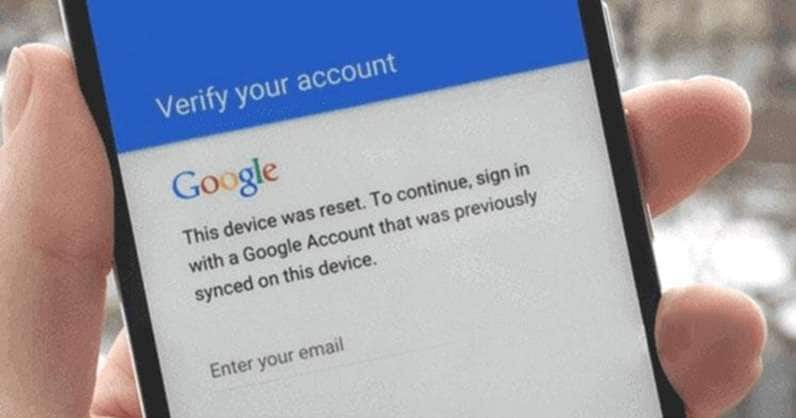
If you still know the Google Account used on the Galaxy A17 5G, this is the fastest official route.
-
Step 1 Connect the phone to Wi-Fi.
-
Step 2 Continue through the setup screen.
-
Step 3 When Google verification appears, enter a Google Account that was previously added and synced to the phone.
-
Step 4 Enter the correct password and complete setup.
Google confirms that you can use any previously added and synced account for ownership verification after a protected reset. A new account created after the reset normally will not work.
2.2 Recover the Google Account or Password
Recover the account first, if you forgot the email address or password.
-
Step 1 Access Google Account Recovery on a different device.
-
Step 2 Forgot the password? Answer the verification questions and reset it.
-
Step 3 Use the recovery phone number or recovery email to retrieve the account if you don’t remember the Gmail address.
-
Step 4 Try to use the recovered account inside the setup of the Galaxy A17 5G.
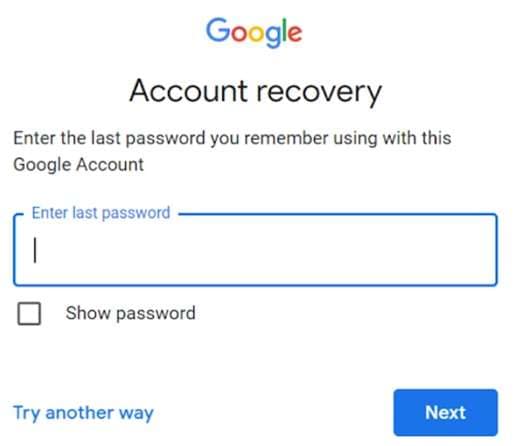
Google says recovery can help with forgotten usernames, passwords, and verification problems. Samsung also notes that a newly changed password may be subject to a short security delay before it works on a reset Galaxy device.
Source: Google Account Recovery guide
2.3 Contact Samsung With Proof of Ownership
If you cannot recover the Google Account, Samsung support is the official fallback for a verified owner.
-
Step 1 Get the bill or invoice of purchase.
-
Step 2 Take note of the IMEI Serial Number and Model.
-
Step 3 Contact Samsung Support or go to an Authorized Samsung Service Center.
-
Step 4 Enter the proof of payment and device details as requested.
-
Step 5 Follow the service center's verification process.
Samsung states that users who cannot remember their Google account information can take the device, with proof of purchase, to an authorized Samsung Service Center.
Part 4. Unlock Galaxy A17 5G FRP with Dr.Fone - Screen Unlock (Android)
When normal account recovery is not available, Dr.Fone - Screen Unlock (Android) provides a guided FRP recovery option. Dr.Fone supports APKs for Samsung and other popular Android brands. The software also supports FRP for some Samsung Exynos and Nokia Unisoc devices. This makes it pertinent to an Exynos-based phone like the Galaxy A17 5G. Nonetheless, the customer should please check the exact model in Dr.Fone before initiating it.
For a Samsung A17 FRP unlock, Dr.Fone keeps the process inside one desktop interface. You do not need to work with several separate utilities.
 Unlock Android phone in seconds.
- Remove PIN, pattern, password, fingerprint.
- Bypass Google FRP lock easily.
- Works on all Android brands & models.
- No tech skills required – user-friendly.

Why Use Dr.Fone - Screen Unlock (Android)?
Key features include:
- Supports Google FRP removal on Samsung and other Android brands.
- Supports Android 16.
- Covers more than 2,000 Android phone and tablet models across 32 brands.
- Provides guided on-screen instructions.
- Does not require advanced technical skills.
- Includes newer FRP support for Samsung Exynos and Nokia Unisoc devices.
How to Remove FRP with Dr.Fone - Screen Unlock (Android)
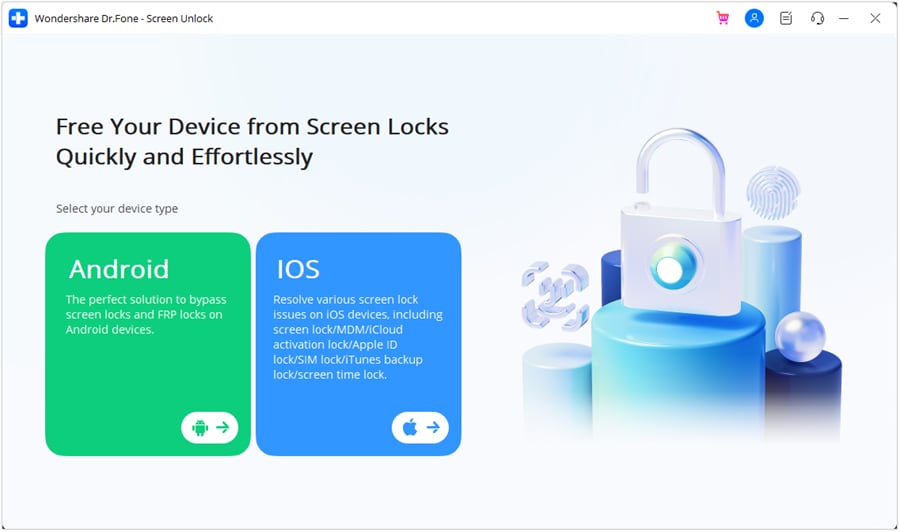
Step 1: Open Screen Unlock
Install and launch Dr.Fone on your computer. Open Toolbox and choose Screen Unlock. Select Android as the device type.
Step 2: Select Google FRP Removal
Choose Remove Google FRP Lock. Select Samsung from the available brands. Check that your device and supported configuration appear in the tool.

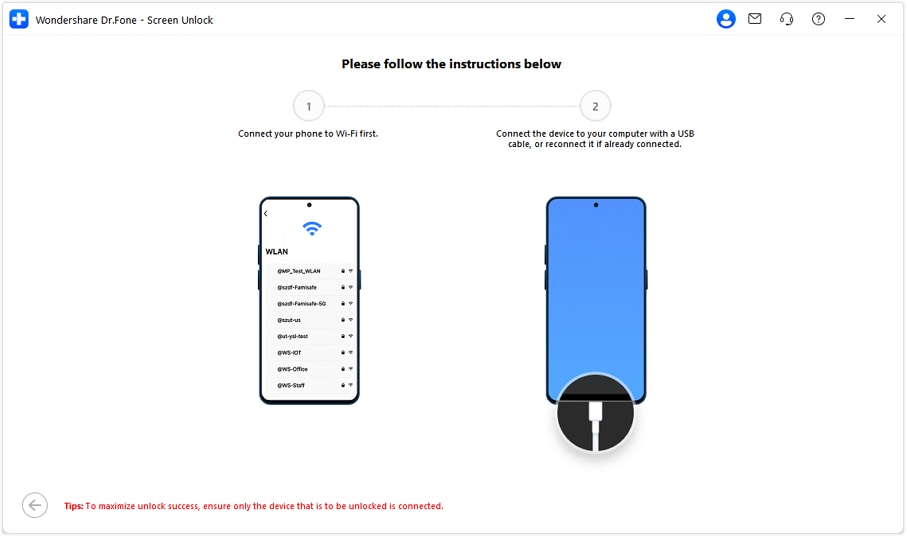
Step 3: Connect the Galaxy A17 5G
Connect the phone to the computer with a USB cable. Dr.Fone will prepare the required process and display the instructions for the selected device. Follow each on-screen prompt.
Step 4: Complete the FRP Removal
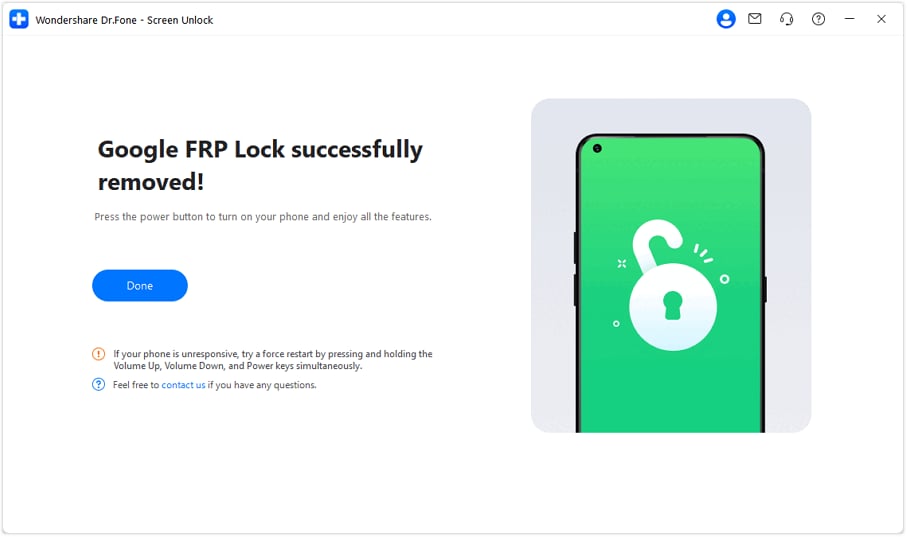
Start the FRP removal process and keep the phone connected. Once Dr.Fone completes the operation, select Done and continue setting up the phone.
Dr.Fone simplifies the process by combining device selection, connection instructions, and FRP recovery into one guided workflow. Before starting, use the latest Dr.Fone version and confirm that your exact Galaxy A17 5G configuration is supported.




Part 5. Which FRP Recovery Method Should You Choose?
The right option depends on what access you still have, your device variant, and whether you want an official or third-party route.
| Situation | Best-Fit Method |
|---|---|
| You know a Google Account previously synced to the phone | Sign in with that Google Account |
| You forgot the Gmail address or password | Use Google Account Recovery |
| You can prove ownership but cannot recover the account | Contact Samsung Support |
| You have a supported Exynos-based Galaxy A17 5G and use professional service tools | Check EFT Pro compatibility |
| Your exact build is supported by TSM Tool Pro | Use the matching supported TSM workflow |
| You want a guided desktop FRP recovery process | Check Dr.Fone - Screen Unlock (Android) compatibility |
| The phone is second-hand and still linked to another owner | Contact the seller first |
Part 6. How to Avoid FRP Problems Before Resetting the Phone
Before resetting your Galaxy A17 5G:
- Save your data on Google, Samsung Cloud, or any safe storage space.
- Confirm your Google email and password before proceeding to the reset.
- If you don't remember the password, test that Google login from another device.
- Sign out of your Google account before selling, trading, or giving away the phone.
- Whenever possible, use Settings to do the reset instead of Recovery Mode.
- Delay after altering your Google password. Google recommends waiting at least 24 hours before resetting an Android device.
- Always inspect the device before handing over to someone. Make sure it no longer asks for your old Google account.
These small checks can prevent an unexpected FRP screen during the next setup.
Conclusion
FRP on Galaxy A17 5G helps protect ownership; the correct recovery path depends on what access you still have. Start with the Google account that is already linked to the phone, and only then get to account recovery or Samsung support. Supported builds may benefit from professional tools, but varying compatibility depends on model, firmware and security patch.
For a more guided Samsung A17 FRP unlock workflow, Dr.Fone - Screen Unlock (Android) brings device detection, instructions, and FRP recovery into one desktop process. Before starting, confirm your exact Galaxy A17 5G configuration and use only an authorized device.
FAQ
-
1. Does FRP recovery restore data erased by a factory reset?
No. FRP recovery only restores access. It does not recover erased local data. Only previously backed-up data may be restored afterward. -
2. What should I do if a second-hand Galaxy A17 5G has FRP enabled?
First, contact the seller and ask them to remove or verify the linked Google Account. If you have valid ownership but still can't access the product, contact Samsung with proof of purchase. -
3. Does Dr.Fone support Samsung Exynos devices?
Yes. Dr.Fone offers FRP recovery for supported Samsung Exynos devices with its Android screen unlock. Your device version can affect Gmail compatibility.
 Add Wondershare Dr.Fone as a preferred source on Google